Team Space Tab in Zoho People
What is the Team Space tab?
The Team Space is crafted to enhance workplace collaboration, fostering closer connections among team members. Collaborate effectively and maintain connectivity with your team amidst various tasks. For managers overseeing reportees, the Team Space provides a quick glance at your team's geographical distribution, work availability, and other key details, facilitating quick access to team information even with a dispersed workforce. Moreover, the Team tab serves as a centralized hub for accessing team files, monitoring team learning activities, conducting surveys, managing projects, and more.
Features of the Team Space tab:
- A quick overview of your team's location diversity, availability counts, and total strength.
- See employees who are celebrating their work anniversary, birthdays, and new hires. You can quickly visit these employees profiles or send a wish from right here.
- See courses related to your team.
- The Department Wall is handy for sharing announcements across your department. Share ideas and ask questions, and your employees can also choose to comment or give it a "like.".
Groups
Create a custom employee group or crew by bringing together individuals with common interests or responsibilities. For instance, create groups like Event Organizers or Photography or Code Specialists to facilitate collaboration and knowledge-sharing within specialized areas. By switching to the Groups in Team Space, you can post announcements directly to the selected group and only members from those groups will be able to see the announcement.
You can create new groups here by clicking on Add New Group button from the group selection drop-down list.
Surveys
The Surveys tab displays surveys that are specific to each department. Employees can view and participate in surveys created for their department from this section. They can also find completed departmental surveys in this tab.
Reportees
The Reportees tab allows you to easily access and view both your direct and indirect reports. This includes employees who report directly to you as well as those who report to your direct reports, providing a comprehensive overview of your reporting hierarchy. Switch from Grid View, List View, or Kanban View to arrange by seniority, department, or designation. You can also use the filter icon to slim down the list to match the filter criteria. Remember you can click on any of the listed employees to view their profile directly, which can be useful for adding tasks, viewing their records, and more.
You can also see the employees who report to your reportees using the reportees icon or initiate a call directly from here (Cliq Integration is required)
Department
See employees associated with various departments and locations in the Department tab. This is particularly useful in taking a quick glance at your department's availability for the current day (office-in/absent/away). The sub-department and its employees can be viewed here too. Use the drop-downs available to switch to a different department or location.
Projects
The Projects tab lets you manage projects. You can quickly view the list of projects that is associated with your teammates, department, and divisions. New projects can be added, and you can view the project dashboard when clicking on a particular project.
Team List
The Team List tab offers customizable views of your team. You can create your custom views by clicking on Create View. Options to list by direct reportees and all reportees are also available (This includes employees who report directly to you as well as those who report to your direct reports).
By clicking on Edit, you can select the exact columns that are to be displayed. Use the ellipses icon to view more options, such as export and import. Furthermore, you can also use the Filter option to view a filtered list of employees or view the list in full screen using the Full Screen View button. If you are an administrator, you can click on a specific employee record to directly edit it.
Peers
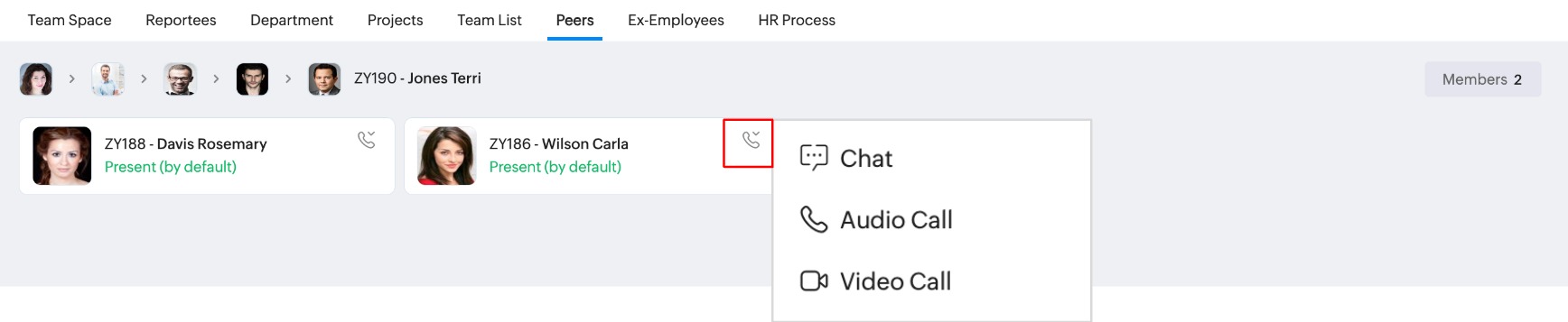
The Peers tab lists your coworkers within your team who hold the same role or position, as well as those at similar levels within the team’s hierarchy.
Ex-Employees
Your reportees who have left the organization are listed here. You can view their exit dates and the total number of years they worked with the company.
HR Process
Initiate HR processes such as department or designation change (the feature must be enabled and the corresponding flows must be configured). Click here to learn more about HR Process.