Facing Issues? No typing—just record and share

That’s exactly why we want to spotlight a tool that’s been quietly waiting in your Zoho Recruit support panel: the built-in Video Recording tool powered by Quartz. It’s a simple way to capture and share what you’re experiencing—making things easier for you and helping our support team resolve issues faster.
Show, don’t type—record your screen
The next time you click Write to us from your profile menu in Zoho Recruit, hop over to the Video Recording tab.
With just a few clicks, you can:
Record your screen with or without audio
Walk us through what happened
Submit it directly to our support team
Just like that, we get the full picture—literally—no back-and-forth needed. When you use Quartz to record your issue, it doesn’t just show us what happened—it also captures logs of every action in the background. That means our developers can pinpoint exactly where things went off track and fix it faster.
Once you’ve recorded your screen, you can edit it right there using Quartz.
Need to blur sensitive info? Highlight a step? Add a quick note or pointer? Go ahead. The built-in editor is intuitive and keeps everything clear and to the point.
Here’s how:
Click on your profile icon in Zoho Recruit.
Select Write to us to open the customer support panel.
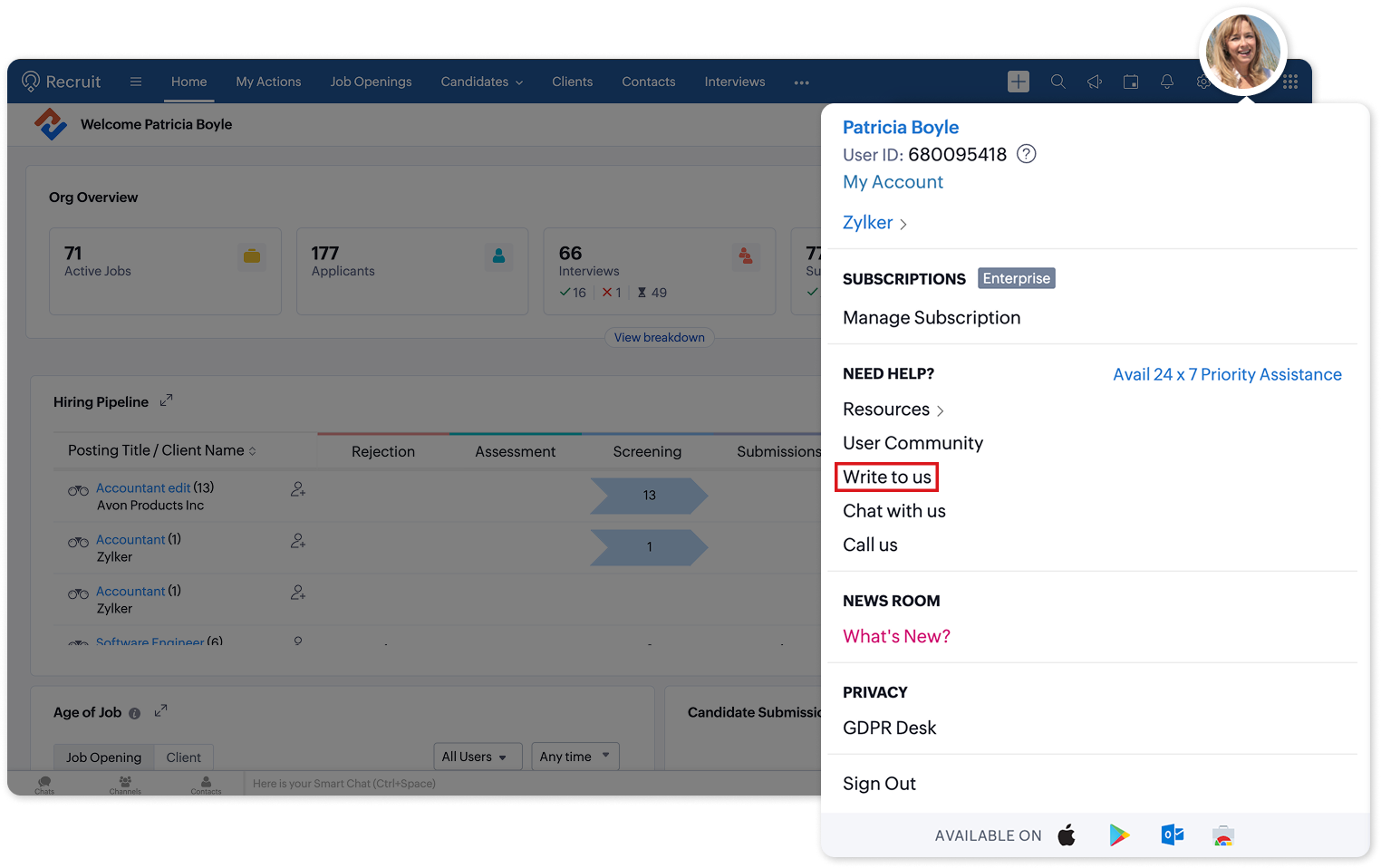
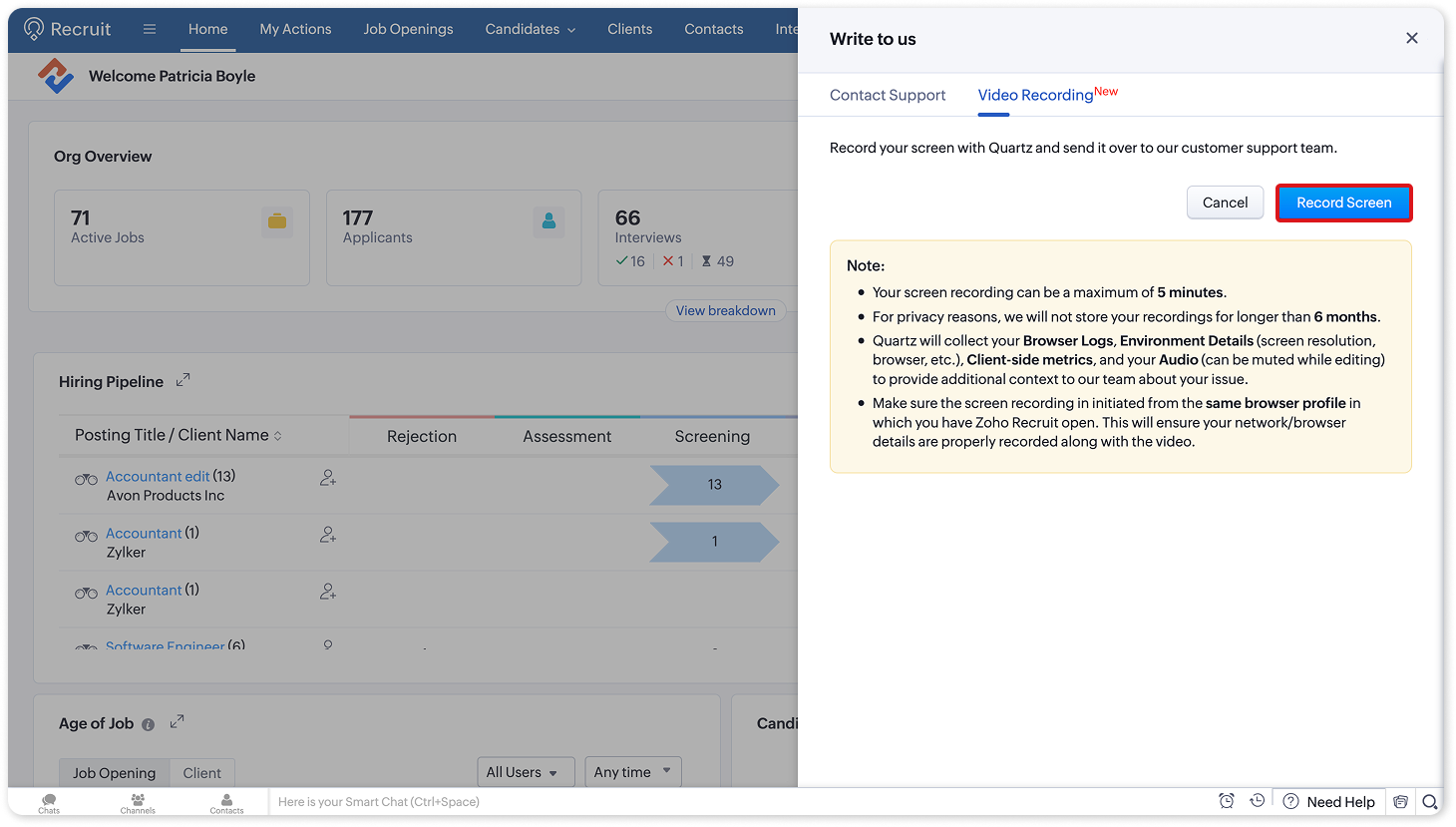
Go to the Video Recording tab and click on Record Screen.
Provide consent using the checkbox and click Start Recording.
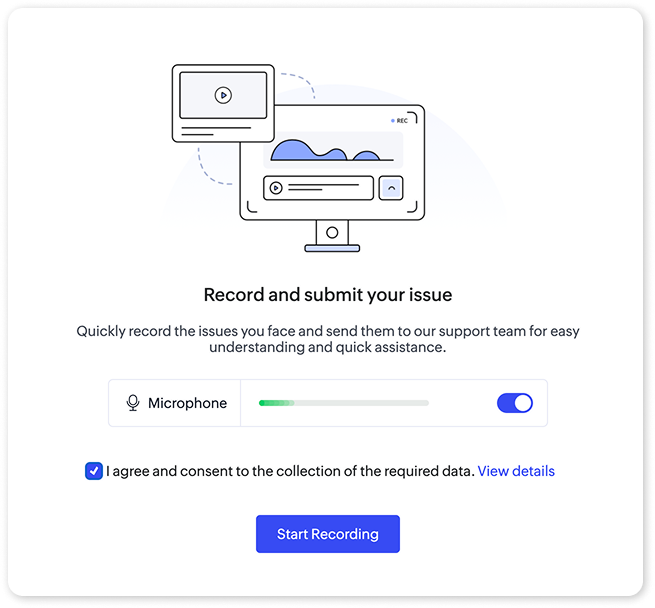
Start recording your screen with audio, if needed, and walk us through the issue.
Edit your recording using Quartz.

Undo, Redo, and Delete
Current Timestamp
Navigation Preview
Pause, Rewind, and Forward
Mute and Full screen
Add Voice-over
Trim Video
Element Duration (Mask, Highlight, Text & Arrow)
Submit it directly to the support team.
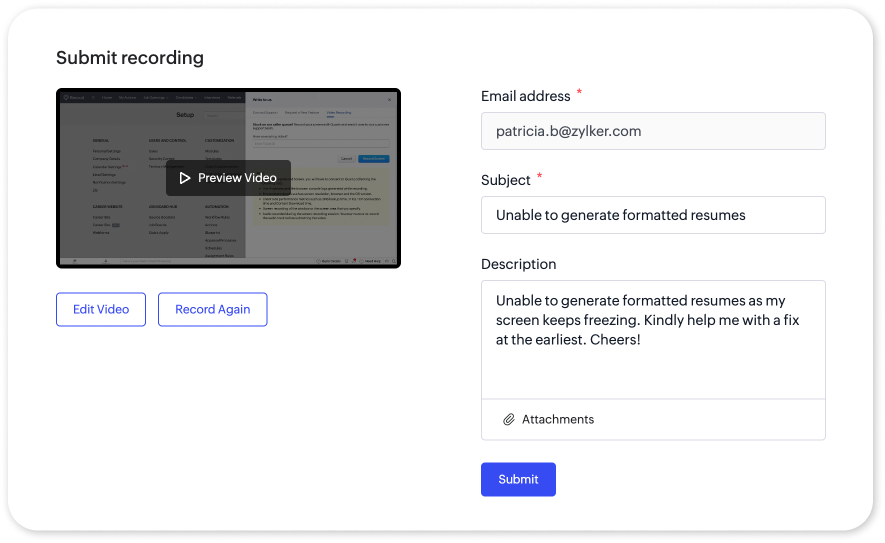
This recording not only saves time typing it out but also helps avoid unnecessary back-and-forth.
So the next time you're stuck thinking, "How do I even explain this?" — just record it. Show us. We’ll take it from there.
To learn more, check out our detailed help documentation on Quartz for Zoho Recruit.