Subforms to Capture Multi-Row Data in Job Sheets

Subforms transform your job sheets from simple checklists to powerful, data-rich forms. In field service work — whether maintenance, inspection, installation, or repair — a single job can involve multiple repeatable entries: readings, parts used, activities performed, issues encountered, and more. Subforms give you the flexibility to capture repeatable data in a structured tabular format — without cluttering or overloading the main form.
What Can You Capture with Subforms? Plenty.
- Log multiple measurements or readings (pressure, temperature, voltage, etc) during maintenance or inspection.
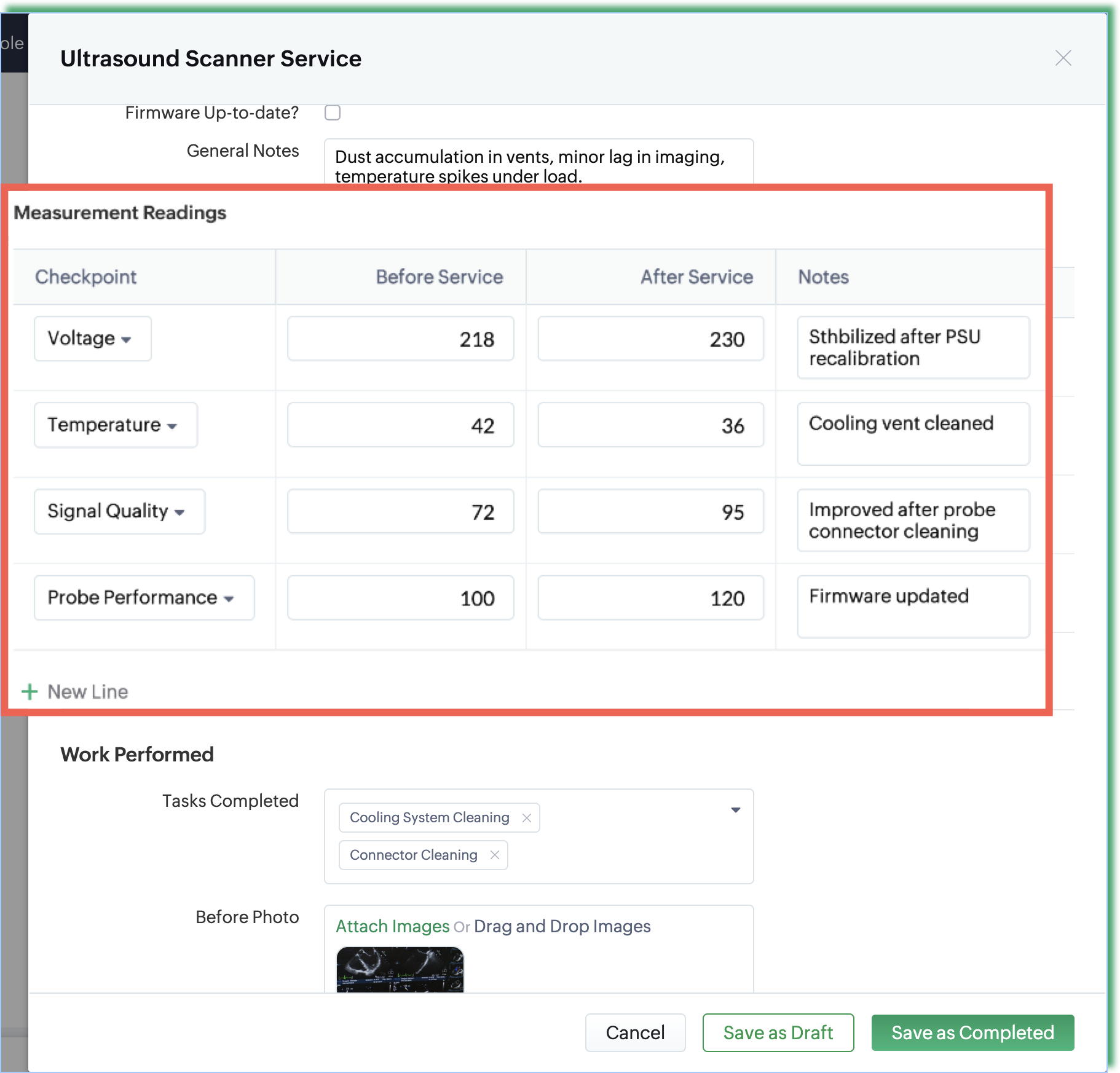
Example: A technician servicing an ultrasound scanner can record several checkpoints such as voltage, temperature, signal quality, and probe performance—both before and after service in the Measurement Readings subform. - Record repeated activities or checks (e.g. safety checklist, quality checkpoints) when there are many.
Example: During an HVAC preventive maintenance visit, a technician logs each repeated task—such as filter inspection, coil cleaning, refrigerant checks, and thermostat calibration—using a Maintenance Checklist subform. - Capture observations or issues found, along with actions taken — especially when multiple issues may occur in one job.
Example: During a routine equipment inspection, the technician uses the Observations & Issues subform to log multiple problems such as unusual noise, loose wiring, and signs of overheating. Each issue is recorded with details on severity and the action taken, creating a clear and structured record for follow-up or future visits. - Track all parts or consumables used on a job in an itemized manner.
Example: A technician is dispatched to fix a reported kitchen sink leak. During the repair, all replacement parts and consumables—such as the PVC P-trap, elbow joint, etc—are logged in the Parts & Consumables Used subform providing a clear audit trail of what was used and a reference for repeat service visits.
Creating Subforms Is Easy
Subforms in Zoho FSM can be created with simple drag-and-drop. Add the fields you need, rearrange them as you like, or remove anything unnecessary. You’re fully in control of how detailed—or how simple—you want your subforms to be.

Please refer to the help documentation for in-depth details. If you have any questions or feedback, feel free to leave a comment below or write to us at support@zohofsm.com.
Topic Participants
Latha Velu
Nederlandse Hulpbronnen

Recent Topics
Credit Management: #2 Configuring Right Payment Terms for Credit Control
Think about the last time you ordered something online and saw that little note at the checkout, "Pay on Delivery" or "Pay later". It's simple, but it actually sets the tone. As a business owner, you know exactly when payment is expected. Now, imagineDependent (Conditional) Fields in Zoho Bookings Forms
Hello Zoho Bookings Team, Greetings, We would like to request the ability to create dependent (conditional) fields in Zoho Bookings registration forms. Current Limitation: There is currently no way to make one field’s available options depend on the valueBug Report: Search fails to find existing notes after Evernote import
Hello, I recently migrated from Evernote (~2600 notes across 23 notebooks), but the search functionality is currently broken. The Issue: I can manually browse to a specific note and see it exists. However, when I type the exact or partial title of thatMarketing Tip #13: Win repeat customers with post-purchase emails
The relationship with your customer doesn’t end after the sale; that’s when it begins. A thoughtful post-purchase message shows customers you appreciate them, keeps your brand top of mind, and can even lead to another sale. You can thank them, ask forZoho Form
I have problem with Zoho Form. One of form i don't received the PDF version. Others okay except this one. W904533Create & Update Zoho Vault Passwords via Zoho Flow
Hi Zoho Flow / Zoho Vault Team, We’d like to request an enhancement to the Zoho Vault integration in Zoho Flow. Current Limitation: At the moment, Zoho Flow supports only the following selected Zoho Vault actions, such as: Fetch passwords, Share passwordsCustom Related List Inside Zoho Books
Hello, We can create the Related list inside the zoho books by the deluge code, I am sharing the reference code Please have a look may be it will help you. //..........Get Org Details organizationID = organization.get("organization_id"); Recordid = cm_g_a_data.get("module_record_id");Migrate different zoho subscription to zoho one
Dear We have different zoho subscription we need to migrate it to zoho one. Currently we are paying for zoho email, zoho expense, zoho payroll etc under different admin We need to move it too zoho one flexlible plan for all my employeesFeatures, Feedback and Votes
We’re launching the Feedback Forum for our customers. This is 'THE' place where you can add everything you’d like to see in Zoho Books. If you don't find the specific feature you need, simply add it so others can also vote for it. While we cannot promisePayment system for donations management
I manage an organization where we receive donations from payers. Hence, there is no need to first create invoices and then create payments received against the invoices. What are the recommended best practices to do this in ZohoBooks?There Might Be A Glitch in Determining If A String Represents A URL
I suspect there might be a glitch in determining if a string represents a URL or not. For example, I cannot embed the following URL. Perhaps the exclamation mark or parentheses are the culprit? https://en.wikipedia.org/wiki/How_the_Grinch_Stole_ChriCustomer Management: #4 Enhance Customer Journey
When Neha started DefineOps, a growing IT support and consulting firm, most of her work was straightforward. A client would sign up for a free version, decide whether the service works for them, and then either continue or discontinue. Billing was simple,Android app sync problem - multiple devices have same problem
Hello, I am having a problem with synchronization in the Android app. When I create a drawing, the data does not sync correctly—only a blank note is created without the drawing. I tested this on multiple devices, including phones and tablets, and theMarketing Tip #1: Optimize item titles for SEO
Your item title is the first thing both Google and shoppers notice. Instead of a generic “Leather Bag,” go for something detailed like “Handcrafted Leather Laptop Bag – Durable & Stylish.” This helps your items rank better in search results and instantlyTerritory Assignment Issues (Lead to Account + Contact)
1. Lead → Account & Contact Territory Assignment on Conversion A Lead is automatically assigned one or more territories using a workflow and Lead Assignment Rules. This works as expected, and we are able to assign multiple territories to a Lead automatically.Marketer's Space: Proven tips to improve open rates – Part II
Hello Marketers! Welcome back to another post in Marketer's Space! We're continuing from where we left off a fortnight ago. We ended the previous post discussing the subject line, and we'll continue from there. Let's dive right in. Pre-header Pre-headerSQL Table slowed to a crawl
Hi all - I seem to have noticed an update. Now whenever I am typing in the script field for the SQL tables there is a huge delay and it is all very slow. This has never been the case for me in over 5 years of using Analytics - I really hope it's fixedDeluge Events/search API works in user environment but not in sandbox – why?
I am creating an Extension for Zoho CRM using Zoho Sigma Platform I’m using the following Deluge code to search Events in Zoho CRM based on Start_DateTime: criteria = "(Start_DateTime:greater_than:2025-12-20T00:00:00+00:00)"; url = "crm/v8/Events/search?criteria="What are Zoho Meeting capabilities included in Zoho Workplace Standard?
I am evaluating using Zoho Meeting for my organization, but it is not clear what Zoho Meeting capabilities are already included in Zoho Workplace Standard. - Are meeting recordings included in Workplace Standard? - Can we invite external meeting participantsHow can I get the participant list of a reoccurring meeting afterwards?
I'm trying to use the Meeting Participant Report from the API docs but when I call it on a reoccurring meeting it returns that there are no participants because it thinks I'm talking about the meeting in the future. Is there a way to use webhooks or someFunction #50: Send Mass emails to your customers
Hello everyone, and welcome back to our series! We have reached a milestone of 50 Functions, which means that we have automated 50 different tasks in Zoho Books. Every Friday, we have shared a nifty function aimed at either automating a task or streamliningFull Hebrew Language Support for Client-Side Zoho Assist Interface
Dear Zoho Assist Team, We would like to request an enhancement to Zoho Assist's client-side interface to support full Hebrew language customization, including all popups, notifications, and session-related messages. Current Limitation The Join page allowsAdd Hebrew & RTL Support to Feedback Widget
Hello Zoho Desk Team, How are you? We are using Zoho Desk and would like to utilize the Feedback Widget. While Zoho Desk itself supports Hebrew and RTL, the Feedback Widget unfortunately does not. We kindly request that Hebrew and full RTL support beMerge Tickets Directly from Contact Page in Zoho Desk
Dear Zoho Desk Support Team, We are writing to request a new feature that would allow users to easily merge tickets directly from the contact page in Zoho Desk. Currently, the only option to merge tickets is from the Tickets list view page, which canDifferent languages for users
Hello, Do you plan to enable individual users to select their languages for interface? Currently language can be changed for everyone - it looks like a settings for a whole portal, which is not good when you are working internationally. Best regards,Kaizen #222 - Client Script Support for Notes Related List
Hello everyone! Welcome to another week of Kaizen. The final Kaizen post of the year 2025 is here! With the new Client Script support for the Notes Related List, you can validate, enrich, and manage notes across modules. In this post, we’ll explore how2025年 Zoho コミュニティ 活動の振り返り 🎉
ユーザーの皆さん、こんにちは!コミュニティチームの中野です。 2025年も多くの学びと出会いがあったZoho コミュニティ。 本記事では今年の活動を振り返りながら、フォーラムの投稿・参加者の皆さん・イベントのハイライトをご紹介していきます。 目次 フォーラム:注目の投稿 フォーラム:多くの貢献をしてくださった方々 ユーザー交流会振り返り ワークアウト振り返り その他のトピックス 1. フォーラム:注目の投稿 本フォーラムでは様々な議論と知識の共有が行われました。 ユーザーの皆さんが日々の業務で直面する課題を投稿し、経験豊富なユーザーさん達が実践的な解決策を提供してくださいました。Customer Management: #3 Giving Customers Control & Privilege
Rio, the founder of RenoTech Solutions, a fast-growing digital service company, found itself juggling a dozen different services for its clients. They handled one-time setup fees, recurring monthly invoices, and custom milestone-based billing for projects.Can I use a Standalone CRM Function as the Callback URL For Async Export Data API?
I am creating an export job using this API https://www.zoho.com/analytics/api/v2/bulk-api/export-data-async/create-export/view-id.html There is a "callbackUrl" key in the CONFIG object. I tried copying the URL for a standalone function in CRM which canAdd RTL (Right-to-Left) Text Direction Support Across All Zoho Learn Editing Interfaces
Hi Zoho Learn Team, Hope you're doing well. We would like to request an important enhancement to Zoho Learn regarding support for right-to-left (RTL) languages such as Hebrew and Arabic. 🔹 Current Issue While the Knowledge Base Article editor providesAdd Hebrew Support for Meeting Transcripts Provided by ZIA in Zoho Cliq
Hi Zoho Cliq Team, Hope you're doing well. We would like to request the addition of Hebrew language support for the Meeting Transcript and Summary feature in Zoho Cliq. Currently the transcript and summary feature is available for recorded meetings andRemote Control Functionality During Screen Sharing in Zoho Cliq
Hello Zoho Cliq Team, We would like to request the addition of remote control functionality during screen sharing sessions in Zoho Cliq. Currently, while screen sharing in Cliq is very useful, it lacks the ability for another participant to take controlCentralized Organization Information Management in Zoho One
Dear Zoho One Support, I'm writing to propose a feature that would significantly improve the user experience and streamline data management within Zoho One. Current Challenge: Currently, managing organization information across various Zoho One apps requiresEnhance Zoho One Conditional Assignment to Fully Reassign App Settings When Changing Departments
Hi Zoho Team, We’d like to submit a feature request regarding the current behavior of Zoho One’s conditional assignment logic when moving a user between departments. 🔧 Current Limitation As it stands, Zoho One’s conditional assignment does not removeAbility to Filter Alias Mailboxes in Zoho Recruit
Dear Zoho Recruit Team, I hope you are doing well. We would like to request a feature enhancement regarding the handling of alias mailboxes in Zoho Recruit. Currently, when we connect an alias mailbox (e.g., jobs@domain.com) from our Zoho One accountAutomatic Department and Employee Sync Between Zoho One and Zoho People
Dear Zoho Support, I'm writing to propose a valuable feature request that would streamline data management and improve user experience within the Zoho ecosystem: automatic synchronization between departments and employees in Zoho One and Zoho People.Prefered Bin Missing in android APP
Andoroid app dosent show preferred bin in the picklist. The workaround support reccomend is to use the computre to create the picklist. it shuld be information to be shown aas basic for the pciker.Open Sans Font in Zoho Books is not Open Sans.
Font choice in customising PDF Templates is very limited, we cannot upload custom fonts, and to make things worse, the font names are not accurate. I selected Open Sans, and thought the system was bugging, but no, Open Sans is not Open Sans. The realFunction #1: Convert an accepted Estimate to Sales Order automatically in Zoho Books
As you’re aware, Zoho Books provides a default option to have the estimates automatically converted to invoices once your customer accepts them. Many of you wanted a similar option for sales orders, so here’s a workflow that converts accepted estimatesReusable Jira Connection for Multiple Zoho Projects Imports
Hello Zoho Projects Team, We would like to raise a concern and submit a feature request regarding the Jira → Zoho Projects migration process, specifically around how Jira connections are handled. Current Behavior: When setting up a Jira connection forNext Page