Action Required: Update Microsoft SQL Server Security Settings Before February 2026

This guidance has been superseded - please do not follow the steps below.
The cipher suite configuration approach described in this post is no longer supported. We have replaced it with an updated migration path.
What to do instead: Follow the current guidance in our new post - Action Required: Migrate Your SQL Server Connection.
You must complete one of the migration paths in the new post (Database upgrade or Zoho Databridge migration).
The original content is retained below for reference only.
We recently deployed security updates in Zoho Analytics that inadvertently caused connection failures for a few customers using Microsoft (MS) SQL Server hosted on older Windows versions (Windows Server 2012, 2012 R2, and 2014).
To restore connectivity, we have temporarily reverted these updates. However, these security changes are mandatory for long-term protection and compliance, and they will be permanently enforced by the end of February 2026.
If you are using MS SQL Server on the affected Windows versions, action is required to ensure uninterrupted connectivity once the security standards are re-applied.
Who Is Affected
This applies only to customers who:
- Use MS SQL Server as a data source in Zoho Analytics, and
- Host MS SQL Server on:
- Windows Server 2012
- Windows Server 2012 R2
- Windows Server 2014
If you are not using these operating systems, no action is required.
 Note: This update applies only to SQL Server Cloud DB imports.
It does not affect local database imports configured using Zoho Databridge.
Issue Description
When modern security standards are enforced, applications connecting to MS SQL Server hosted on older Operating Systems (Windows Server 2012 / 2012 R2 / 2014) will fail with the following error:

Root Cause
- Upcoming Security Standard:
Modern security protocols require Forward Secrecy. Legacy TLS_RSA cipher suites are being deprecated industry-wide. - OS Limitation:
Older Windows Servers rely on these deprecated ciphers by default. They do not offer modern Elliptic Curve (ECDHE) ciphers unless explicitly configured. - The Impact:
Without the configuration below, your database will reject secure connections once we re-enable the security update.
Required Configuration: Enabling Modern Cipher Suites
To maintain connectivity, you must configure your Windows Server to support modern cipher suites.
To prepare your server, you must add the following modern cipher suites to the TOP of your Windows Server's configuration.
Implementation Methods
You can use one of the following methods.
Option A: GUI Method (Recommended)
Step 1: Download the Tool
Download IIS Crypto (GUI) from Nartac Software.
Note: This is a portable utility and does not require installation.Step 2: Launch the Tool
- Copy IISCrypto.exe to the database server.
- Right-click the executable and select Run as Administrator.
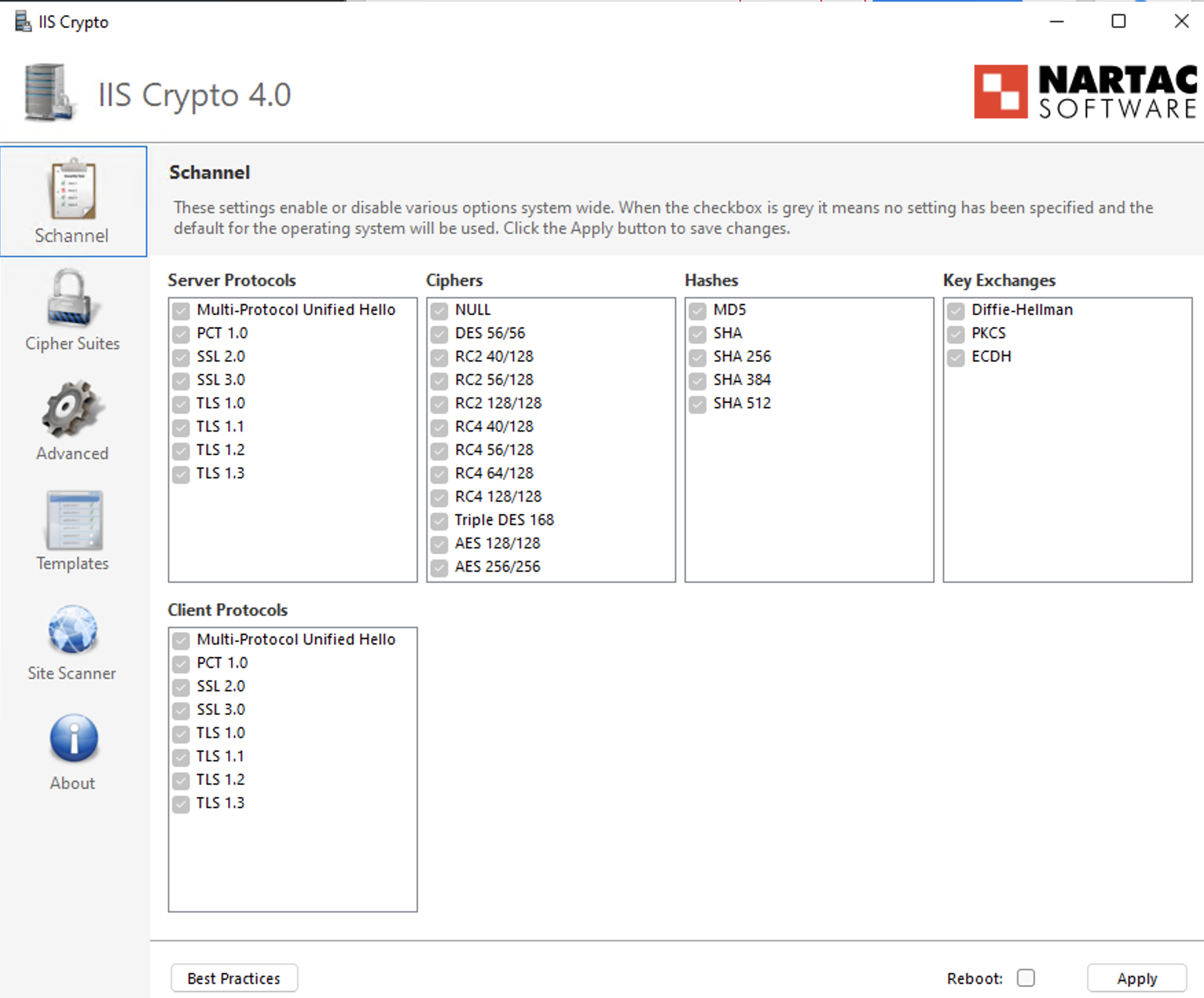
Step 3: Configure TLS Protocols
- Open the Schannel tab.
- Ensure TLS 1.2 is enabled (checked).
- Verify that deprecated protocols (SSL, TLS 1.0, TLS 1.1) remain disabled in accordance with security policy.
Step 4: Prioritize Cipher Suites
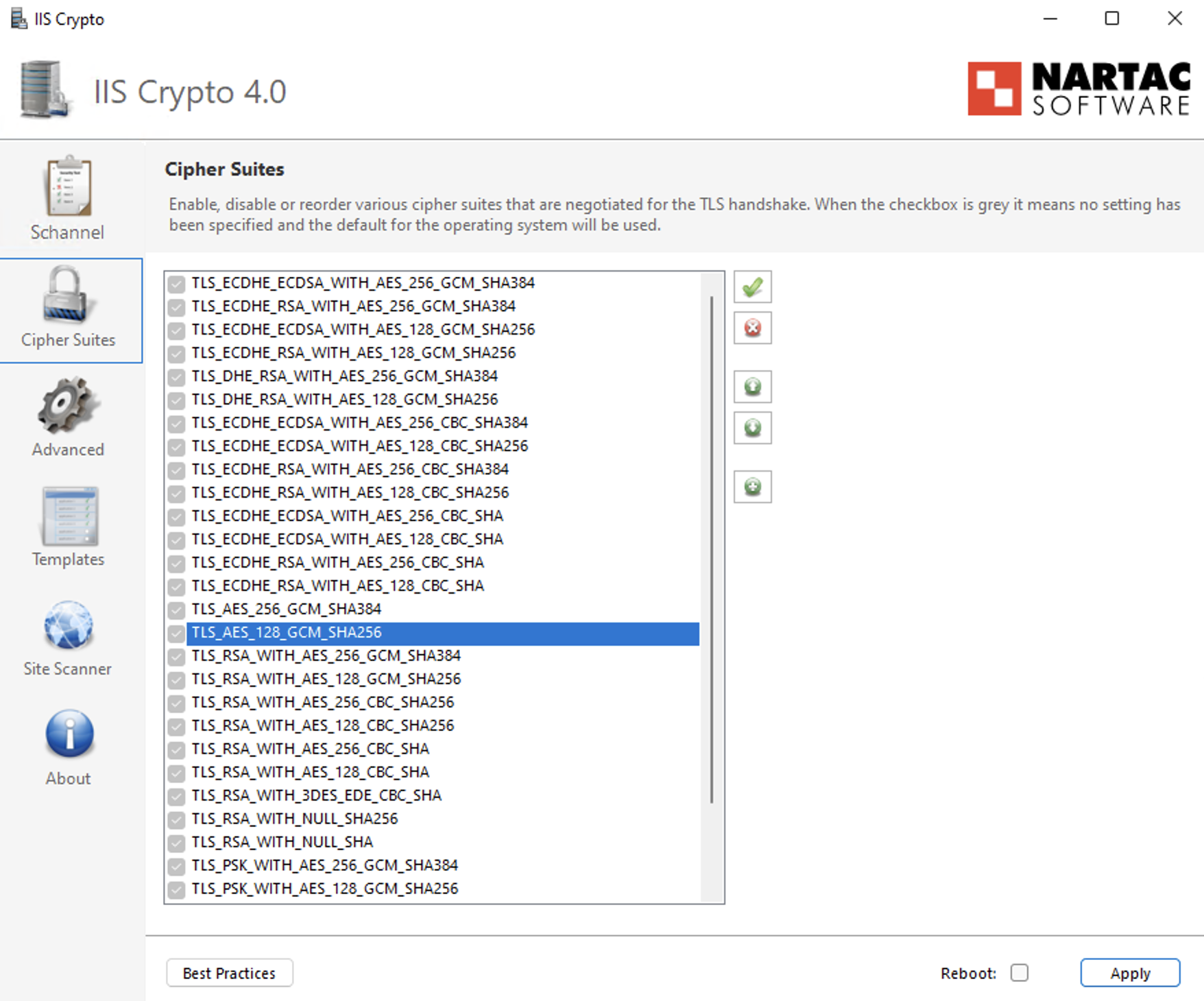
- Navigate to the Cipher Suites list in the left-hand panel.
- Identify the following ECDHE cipher suites:
- TLS_ECDHE_RSA_WITH_AES_256_GCM_SHA384
- TLS_ECDHE_RSA_WITH_AES_128_GCM_SHA256
- TLS_ECDHE_RSA_WITH_AES_256_CBC_SHA384_P384
- TLS_ECDHE_RSA_WITH_AES_128_CBC_SHA256_P256
- TLS_ECDHE_RSA_WITH_AES_256_CBC_SHA_P384
- TLS_ECDHE_RSA_WITH_AES_128_CBC_SHA_P256
- Use the Up Arrow control to move these ECDHE cipher suites to the top of the list to ensure they are prioritized during TLS negotiation.
- Ensure that older TLS_RSA_* cipher suites remain enabled only for backward compatibility and are positioned below the ECDHE cipher suites with the lowest priority.
Step 5: Apply Configuration
- Click Apply to save the changes.
Step 6: Reboot
- Restart the Windows Server to ensure the changes take effect.
Option B: Group Policy Method (Native Windows)
Step 1: Open Group Policy Editor
- Press Win + R, type gpedit.msc, and press Enter.
Step 2: Navigate to SSL Configuration Settings
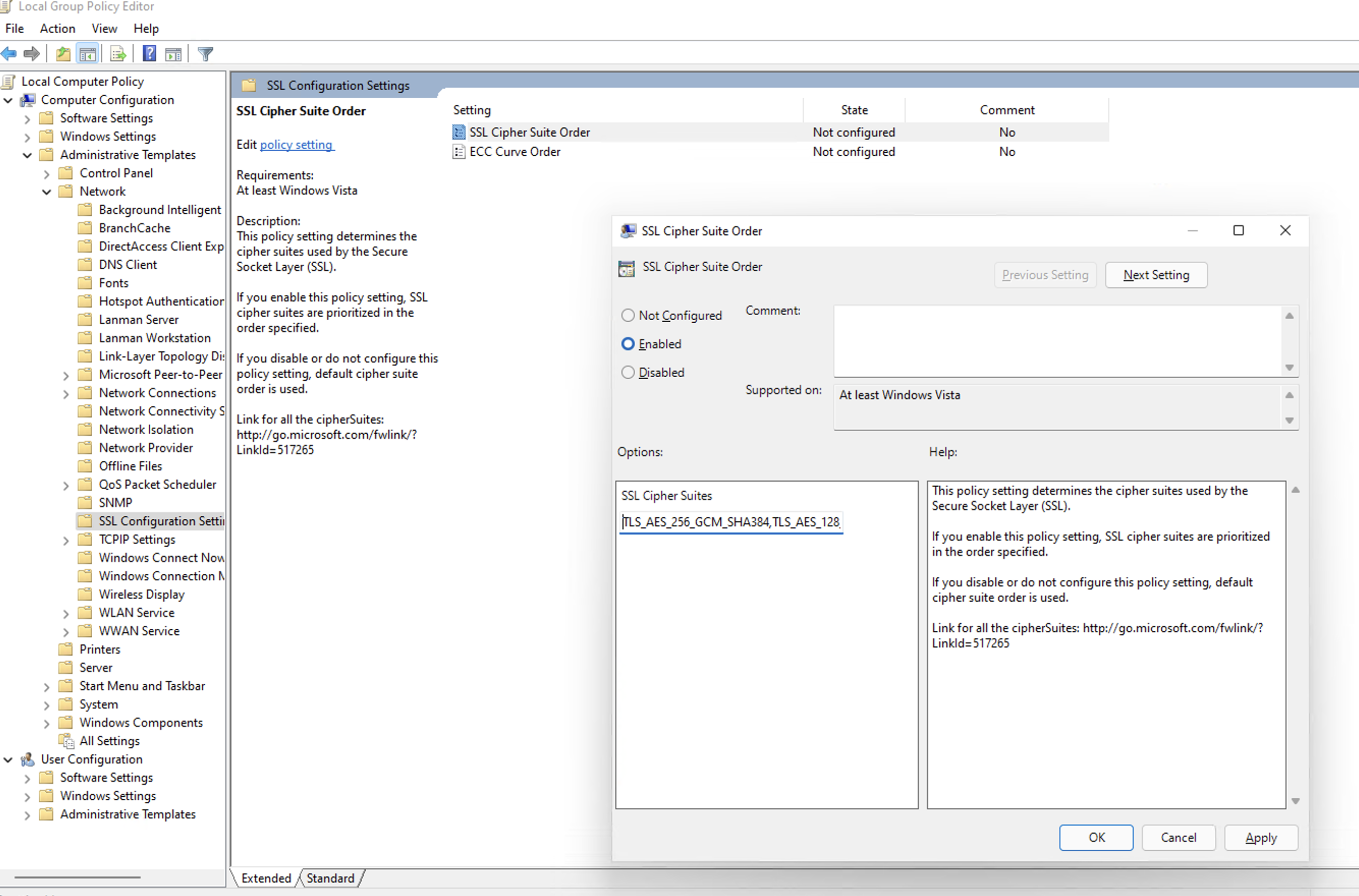
Go to: Computer Configuration→ Administrative Templates→ Network→ SSL Configuration Settings
Step 3: Edit Cipher Suite Order
- Double-click SSL Cipher Suite Order.
- Select Enabled.
Step 4: Prepend Secure Cipher Suites (Critical Step)
- Locate the SSL Cipher Suites text box.
- Do not delete the existing cipher list, as this may impact legacy application compatibility.
- Place the cursor at the very beginning (far left) of the text box.
- Paste the following cipher list before the existing entries:TLS_ECDHE_RSA_WITH_AES_256_GCM_SHA384,TLS_ECDHE_RSA_WITH_AES_128_GCM_SHA256,TLS_ECDHE_RSA_WITH_AES_256_CBC_SHA384_P384,TLS_ECDHE_RSA_WITH_AES_128_CBC_SHA256_P256,TLS_ECDHE_RSA_WITH_AES_256_CBC_SHA_P384,TLS_ECDHE_RSA_WITH_AES_128_CBC_SHA_P256,
- Ensure there is a comma separating the newly added cipher block from the existing cipher list.
Step 5: Apply Configuration
Click OK to save the policy changes.
Step 6: Reboot
Restart the Windows Server for the Group Policy changes to take effect.
Verification: How to Install & Run Nmap
To confirm the server is ready for the future update, use the network scanning tool Nmap.
Step 1: Install Nmap
For Windows Users:
- Download the Latest Stable Installer (.exe) from the Official Nmap Download Page.
- Run the installer.
- Critical Step: During installation, check the box for Install Npcap. This driver is required for the scan to work.
- Finish the installation.
For Linux Users:
- Ubuntu/Debian: Run "sudo apt-get install nmap -y"
- RHEL/CentOS: Run "sudo yum install nmap -y"
Step 2: Run the Scan
Open your Command Prompt (Windows) or Terminal (Linux) and run:
nmap --script ssl-enum-ciphers -p 1433 <YOUR_DB_IP_ADDRESS>(Replace 1433 with your specific SQL port if different).
Step 3: Interpret Results
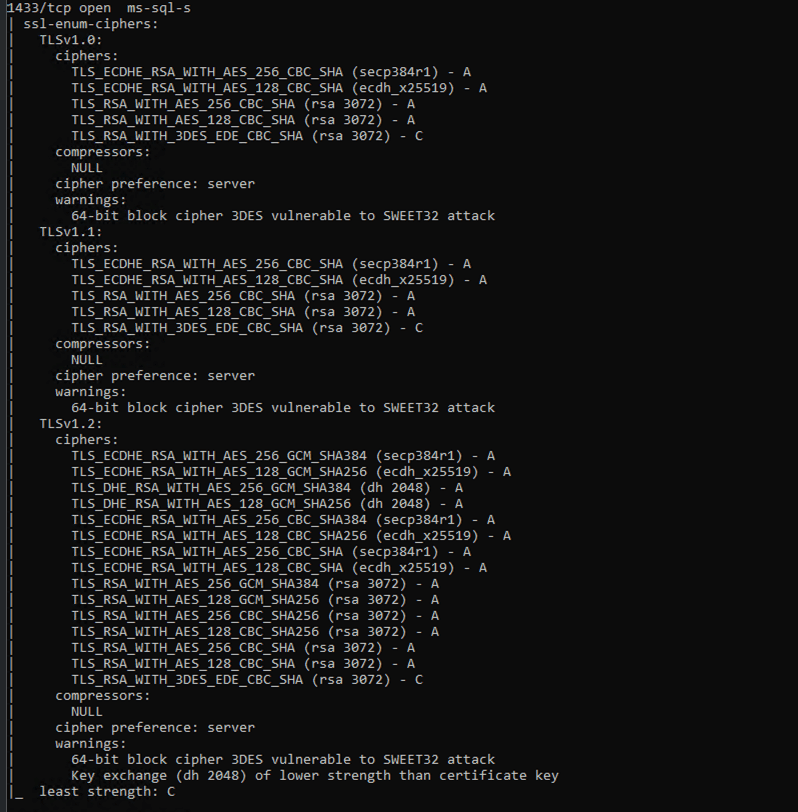
- Look for the TLSv1.2 section in the output. Ensure TLS_ECDHE_... cipher suites appear at the top of the cipher list with Grade A.
- TLS_RSA_... cipher suites must not be removed, but should be kept only as fallback and configured with the lowest priority to avoid regression after re-applying the update.
Example of Successful Output:
What Happens If You Skip This Configuration?
If modern ciphers are not enabled before the security update is permanently enforced:
- Scheduled syncs will fail.
- You won't be able to add or manage existing connections/sources/tables.
Enforcement Timeline
These security standards will be permanently enforced by the end of February 2026.
Servers that do not meet the required cipher configuration will experience connection failures once enforcement begins.
Need Assistance?
If you need help with the configuration, contact us at support@zohoanalytics.com.
To help us resolve your issue faster, include the following details in your email:
- Windows Server version
- SQL Server version
- SQL port number
- Nmap scan output (if available)
- Screenshot of your cipher configuration (if applicable)
Providing this information upfront will help us diagnose and assist you more efficiently.