Bidirectional sync between Zoho Bookings and Zoho CRM - Part 1
Hey, community members!
The default integration between Zoho CRM and Zoho Bookings is unidirectional, which means that any appointments booked, rescheduled, or deleted in Zoho Bookings will be reflected in Zoho CRM. However, any modifications made to events in Zoho CRM that originated from Zoho Bookings will not be reflected back in Zoho Bookings. Hence, as we're announcing in this community post, we've made the sync bidirectional.
This community post will cover the process of configuring appointment bookings from Zoho CRM in Zoho Bookings, as well as managing appointment statuses such as Canceled, No Show and Completed. We have addressed the rescheduling action in a separate post. To view it, please click on the following link: Reschedule Action
This community post will be beneficial for active Zoho CRM users who handle all their meetings within Zoho CRM. Additionally, you can use this community post as a reference to explore various automation possibilities tailored to your business requirements. For instance, with this post's guidance, when you update a booking's status field to "Completed" in Zoho CRM, it will automatically sync with Zoho Bookings and trigger an automated "Mark as completed" email to customers. This enhancement will improve your Zoho Bookings and Zoho CRM synchronization experience, making appointment management easier.
Prerequisites of bidirectional sync:
- Zoho Bookings Premium subscription
- Zoho CRM paid subscription
- Enable Zoho CRM integration within Zoho Bookings
The purpose of enabling the Zoho CRM integration within Zoho Bookings is to transfer booking details from Zoho Bookings to Zoho CRM. In this configuration, the mandatory field is the Booking ID, which is passed from Zoho Bookings to Zoho CRM through the integration. Whenever an appointment is booked, customer details will be sent to the designated CRM module, and a corresponding record will be created in the Meetings module within Zoho CRM, which will help in automating the workflow.
Here's the complete demo video that covers all the configurations discussed in the community post below:
Timestamps for your reference:
0:35 - Purpose of this community post
Here's the complete demo video that covers all the configurations discussed in the community post below:
Timestamps for your reference:
0:35 - Purpose of this community post
1:26 - Zoho CRM plugin installation
4:43 - Custom field creation
7:20 - Function creation
9:22 - Connection creation
10:24 - Configuring arguments
11:06 - Workflow creation
13:33 - Argument mapping
14:41 - Output verification
17:41 - Conclusion
How we're approaching this bidirectional sync
1. Booking an appointment from Zoho CRM
Install the Zoho Bookings for Zoho CRM plugin within your Zoho CRM application. This plugin enables the creation of a "New Appointment" button within the Zoho CRM Leads and Contacts module, which enables you to select the desired booking page you wish to open. You can choose from various workspace, service, or staff booking pages. After configuration, you can initiate the process of scheduling bookings directly from within your Zoho CRM account.
- Guide on Zoho Bookings and Zoho CRM plugin installation: Booking page selection for Zoho CRM plugin
2. Booking status: Completed or No Show
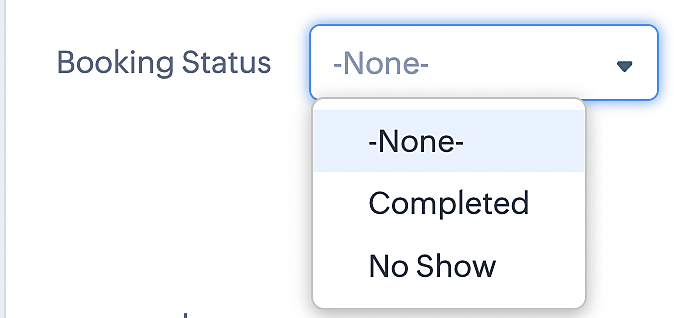
To update a booking's status (Completed or No Show), we've added a new picklist properties field named "Booking Status" in the Meetings module and configured it with two options: "completed" and "no show". Depending on the booking status chosen, the corresponding booking in Zoho Bookings will be updated.
- Details on how to add a custom field to the Meetings module : Customizing modules
- Here's a video that demonstrates how to add a field to a module in Zoho CRM: Adding fields
Reference:
3. Booking status: Canceled
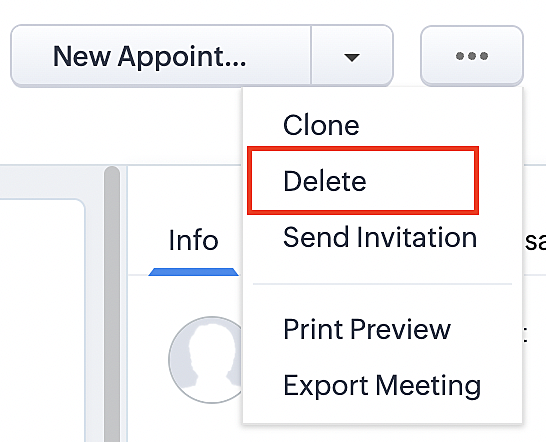
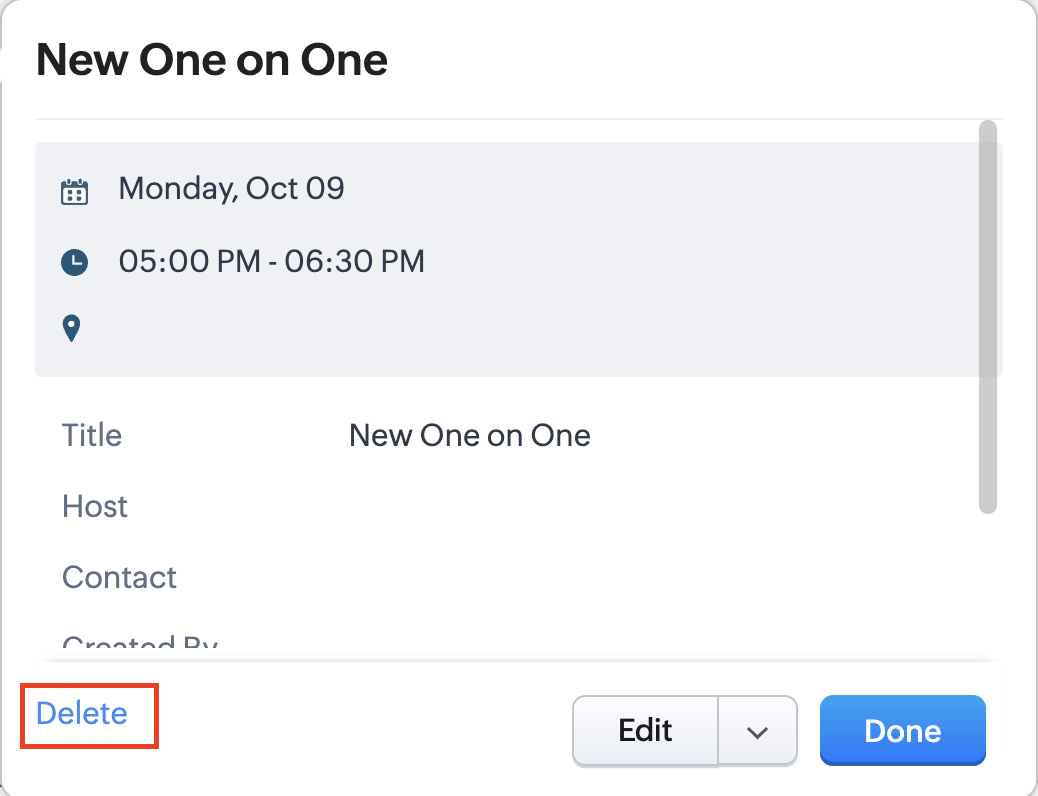
Whenever a meeting is deleted from the Meetings module, the corresponding booking in the Zoho Bookings app will also be canceled automatically. The meeting can be deleted either from the Meetings module or directly from the calendar.
To enable bidirectional sync between Zoho CRM and Zoho Bookings
Complete these steps in Zoho CRM.
Step 1: Creating connections
You first need to establish a connection between Zoho CRM and Zoho Bookings. Zoho Bookings is listed as one of the default connections in Zoho CRM, making it simple to set up. Select the Zoho Bookings connection, define the connection name and scope, and you'll be all set. This connection will enable you to link both applications and facilitate the seamless transfer of data.
Read here for more details on how to create connection in Zoho CRM: Connections
Step 2: Creating functions
In this context, we'll be creating three functions: one for marking appointments as completed, another for canceling appointments, a third for marking appointments as no shows, and a fourth for rescheduling appointments. For each function, we must also configure arguments, which pass values or data into a function when making a call. Here, we'll pass the booking ID to the function as an argument to update the necessary booking status.
i. To create a function for marking appointments as completed:
1. Go to Setup > Developer Space > Functions.
2. In the Functions page, click + Create New Function.

3. Configure the function name, display name, and description.
4. Set the category as automation.
This opens the Deluge script page.
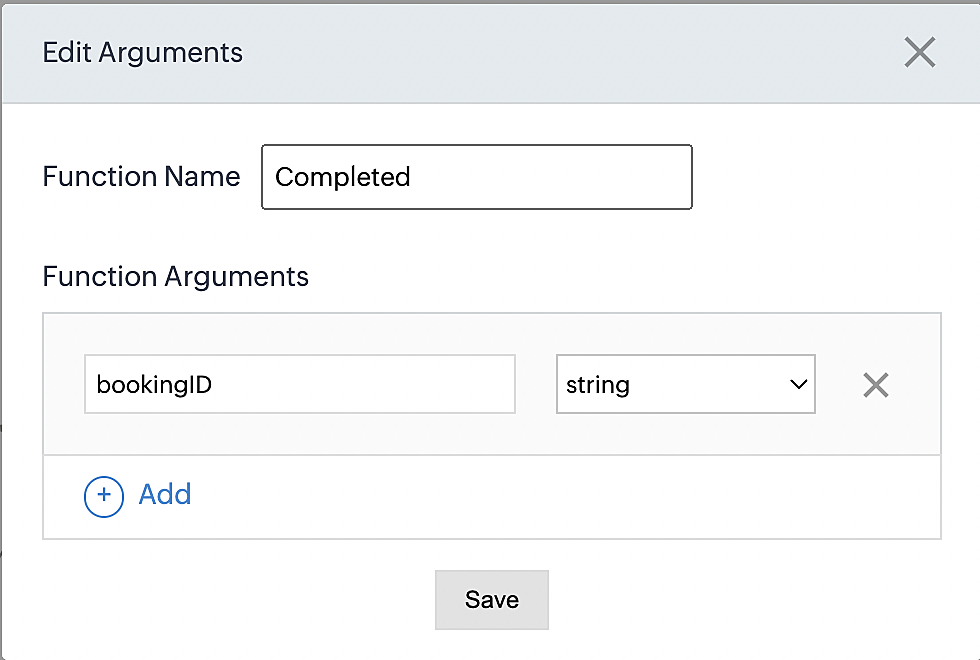
5. Next, configure the function's arguments:
A. Click on Edit Arguments on the Deluge script page.

B. Set the Parameter Name as bookingID. (Please note that the "bookingID" value is case sensitive and must match
the term used in the code).
C. Set the type as string.
Reference:
Please configure the below code in the Deluge script page.
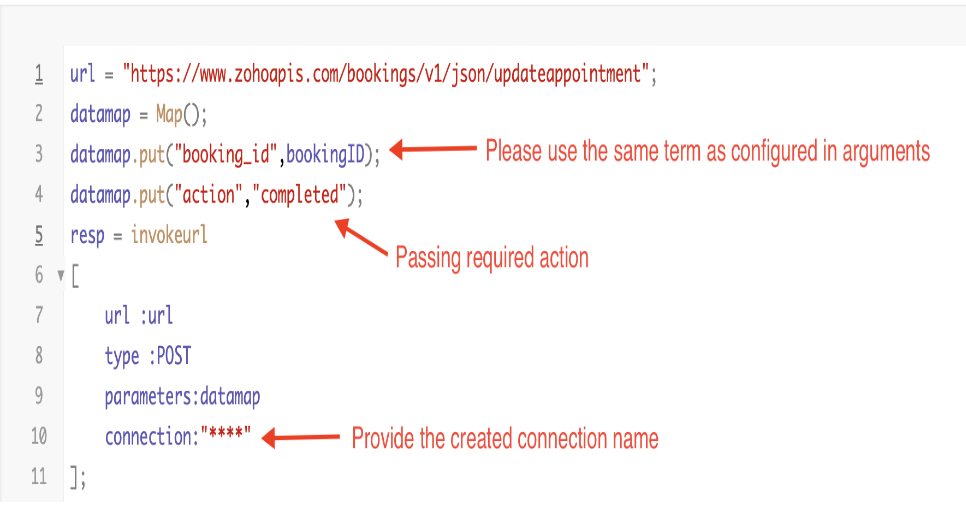
By completing these steps, we've configured a function that will mark appointments as completed.
ii. To create a function for marking appointments as no shows
1. Go to Setup > Developer Space > Functions.
2. In the Functions page, click + Create New Function.

3. Configure the function name, display name, and description.
4. Set the category as automation.
This opens the Deluge script page.
5. Next, configure the function's arguments:
A. Click on Edit Arguments on the Deluge script page.

B. Set the Parameter Name as bookingID. (Please note that the "bookingID" value is case sensitive and must match
the term used in the code).
C. Set the type as string.
Reference:
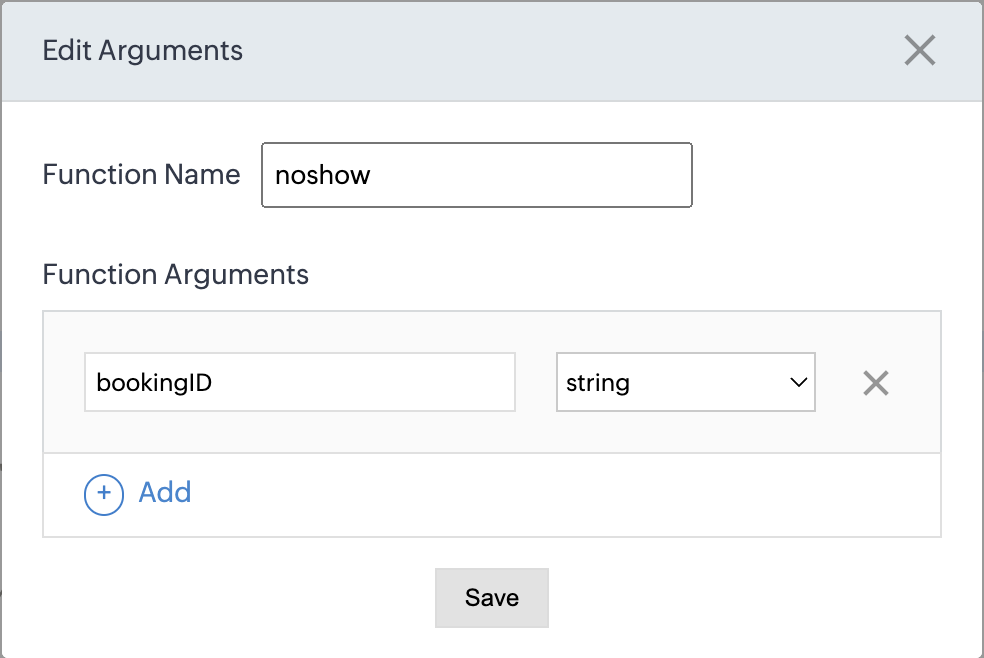
Please configure the below code on the Deluge script page.
Code link: No show
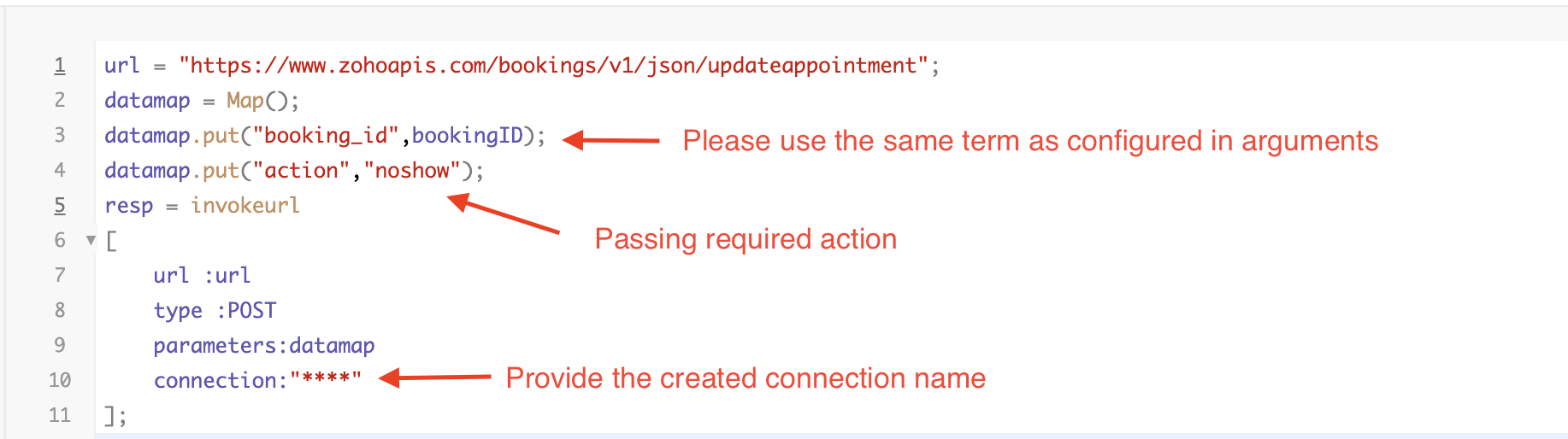
By completing these steps, we've configured a function that marks appointments as no shows.
iii. To create a function for marking appointments as canceled
1. Go to Setup > Developer Space > Functions.
2. In the Functions page, click + Create New Function.

3. Configure the function name, display name, and description.
4. Set the category as automation.
This opens the Deluge script page.
5. Next, configure the function's arguments:
A. Click on Edit Arguments on the Deluge script page.

B. Set the Parameter Name as bookingID. (Please note that the "bookingID" value is case sensitive and must match
the term used in the code).
C. Set the type as string.
Reference
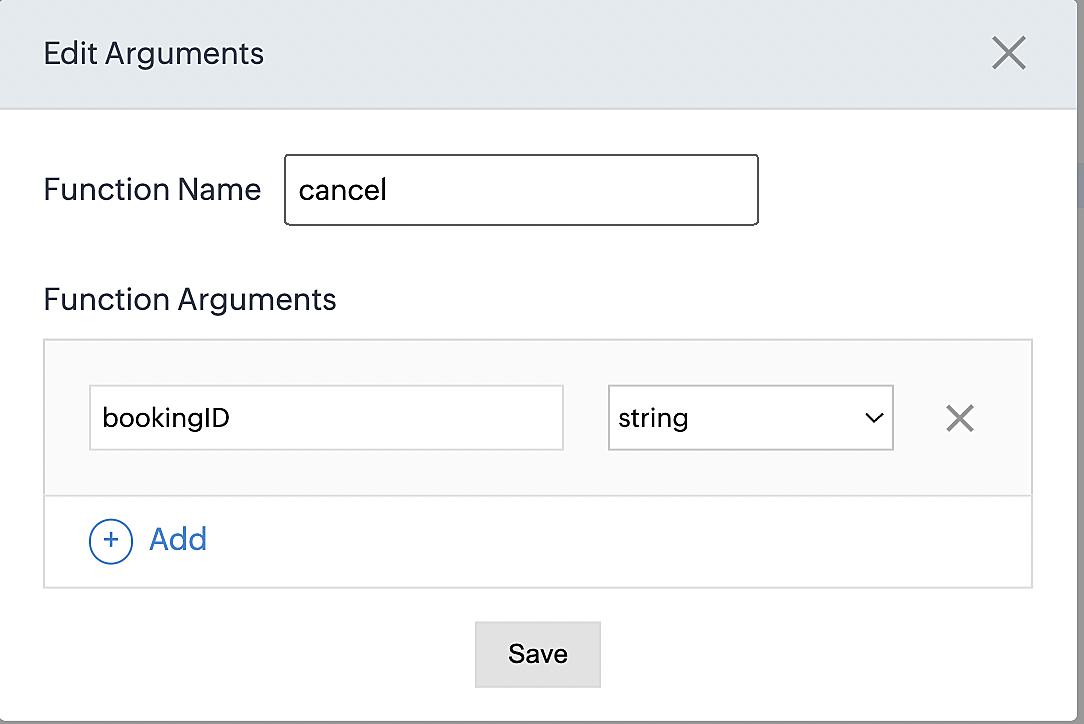
Please configure the below code on the Deluge script page.
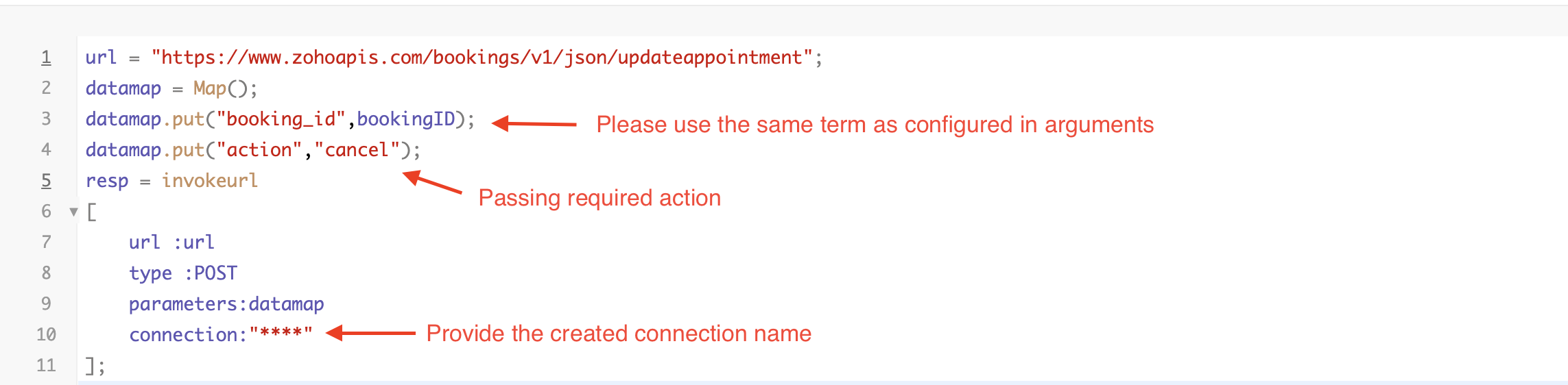
By completing these steps, we've configured a function that marks appointments as canceled.
Code explanation
Below is an explanation of the code that covers all the configurations present in the three functions mentioned above (cancel, mark as completed, and mark as no show).
Line 1: Based on the Zoho Bookings account's data center, we're setting up the API endpoint URL configuration.
Lines 2 - 4: To update appointments, we utilize the Zoho Bookings API. Within the update appointment API, there are two mandatory fields that need to be included: BookingID and action (completed/cancel/noshow).
Lines 5 - 10: We use the invokeURL task for API calls. To learn more about the invokeURL task, please refer to the following document: InvokeURL task for API calls
Now, let's proceed and learn about the process of creating a workflow and linking the established functions to it. This will enable us to automate the entire appointment status updating process.
Step 3: Creating a workflow
Workflow rules are sets of actions (email notifications, tasks and field updates) that are executed when specified conditions are met. Here, we'll generate workflow rules for each action to activate the respective function, thereby automating the appointment status updating process.
i. Creating a workflow for "canceling" appointments in Zoho Bookings when a meeting is deleted in Zoho CRM
Part 1: Creating the rule
1. Go to Setup > Automation > Workflow Rules.
2. In the Workflow Rules page, click Create Rule.

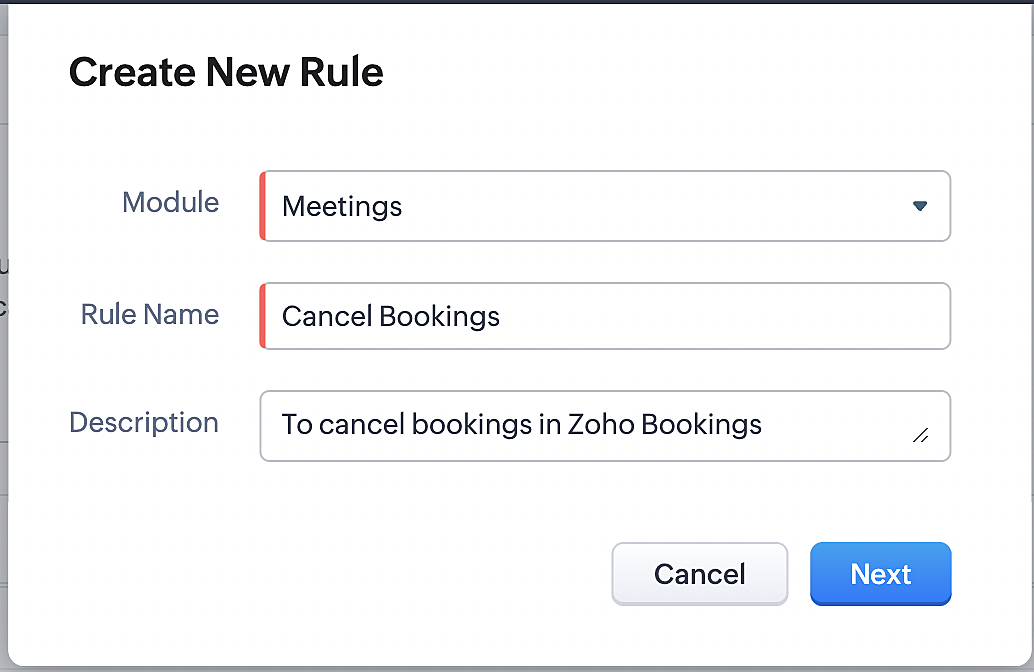
3. Select "Meetings" under Module and configure rule name and description as required.
More details: Create Rule
Reference:
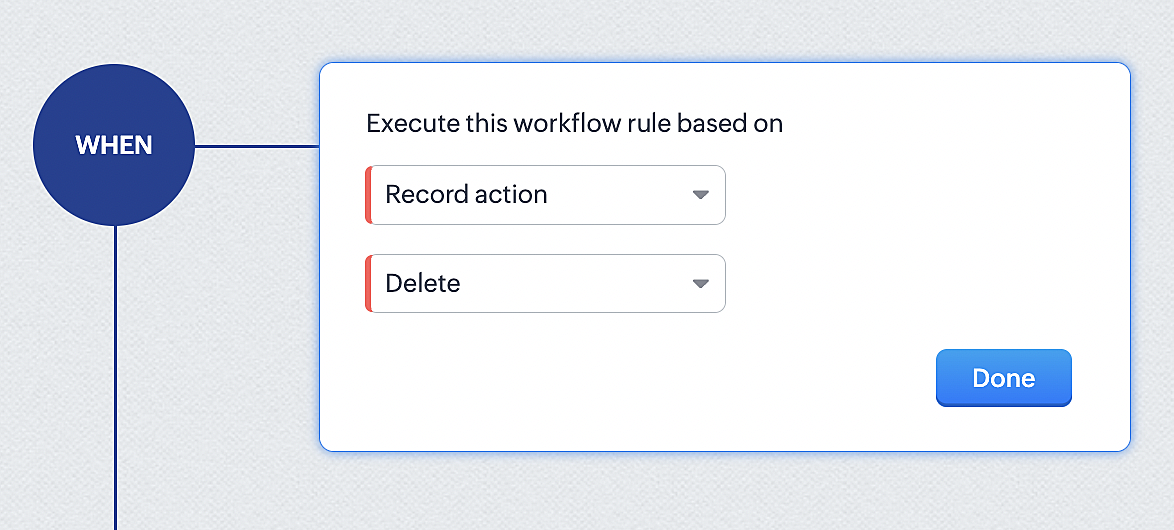
1. Select Record Action > Delete > Done to execute the rule when meetings are deleted.
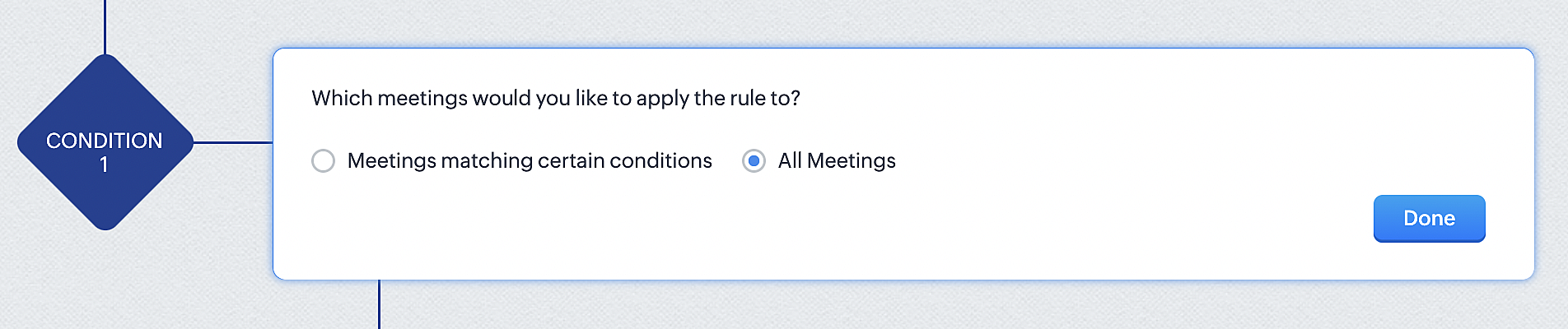
2. Configure condition > All Meetings.
3. Instant Actions > Function.
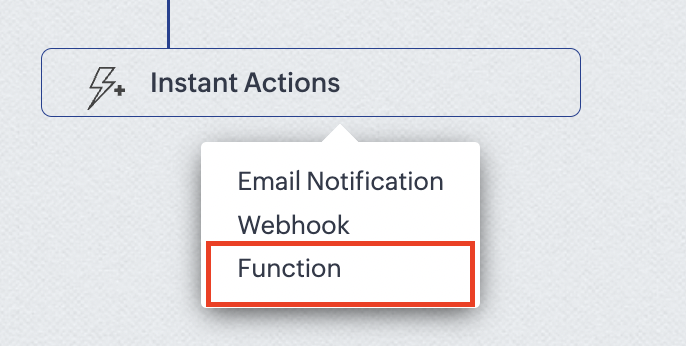
4. Click the New Function button.

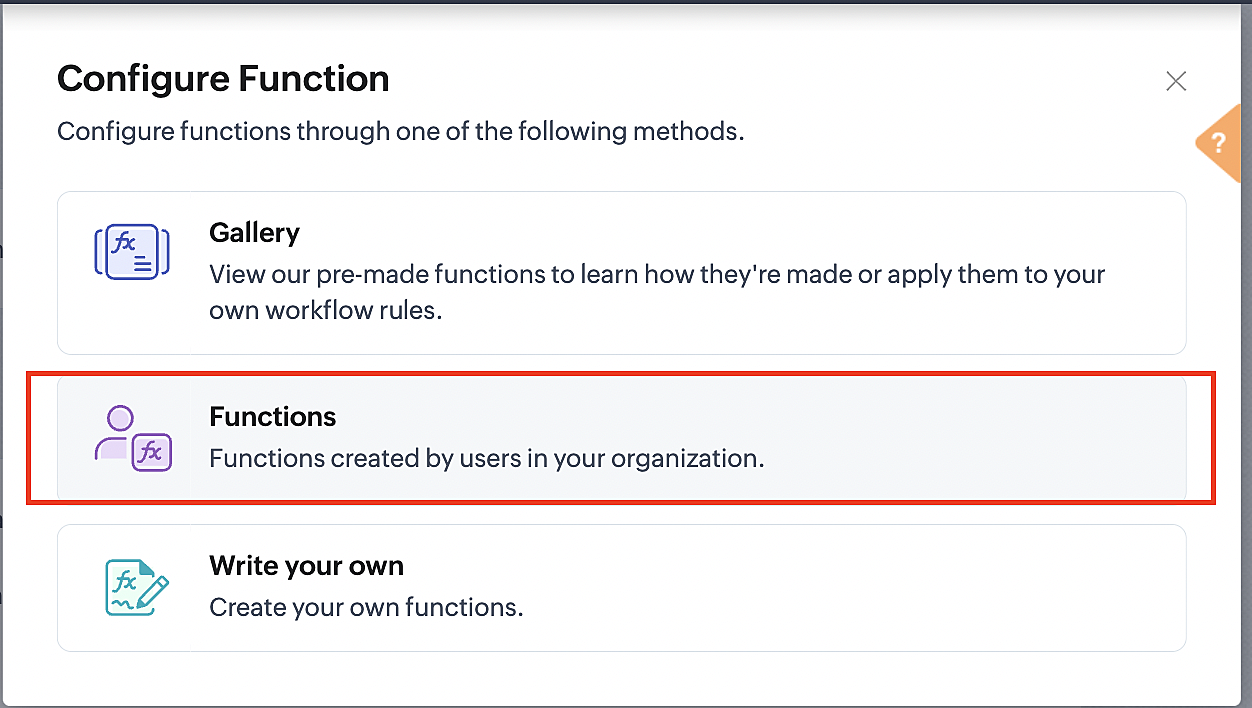
5. In the Configure custom function page, select the "cancel" function you created from among the functions users in your organization have created.
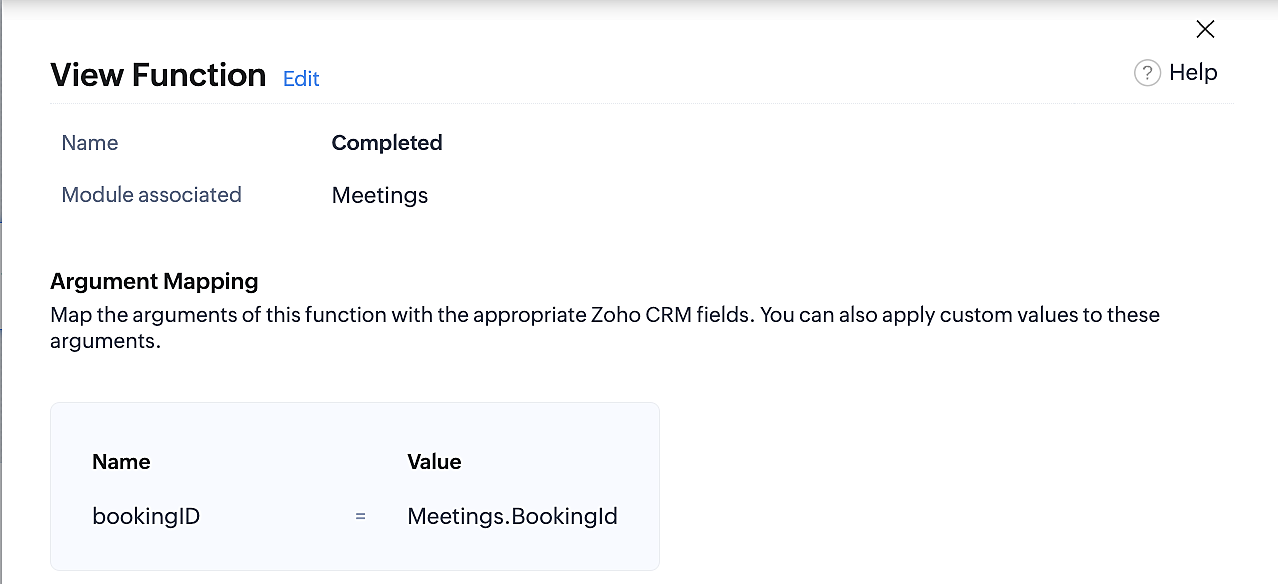
Part 3: Argument mapping
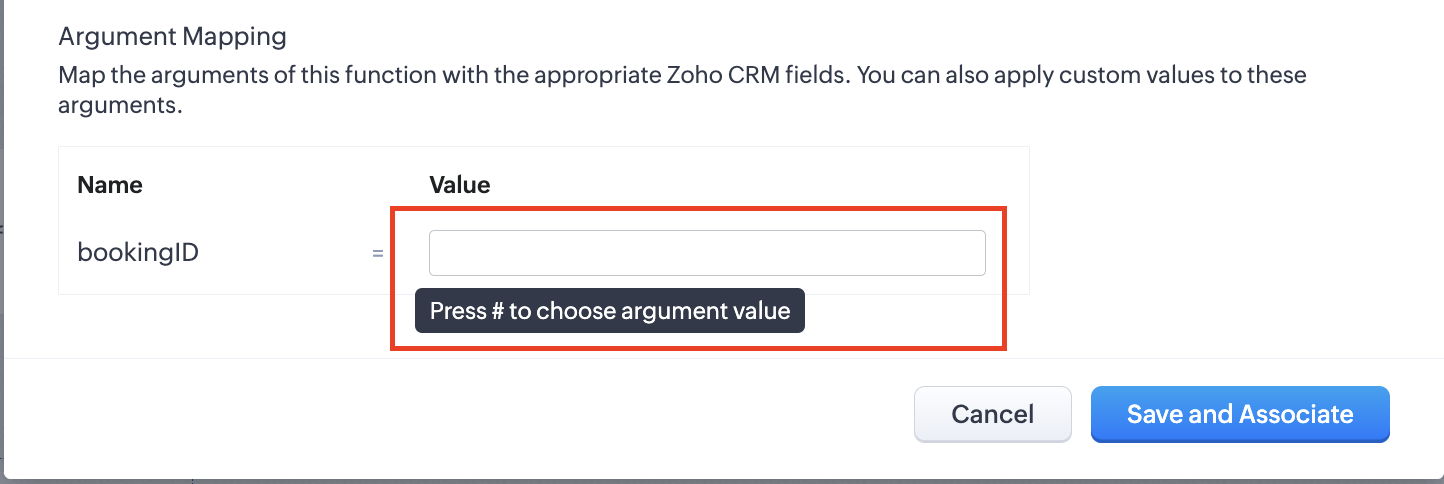
1. Press # to choose an argument value.
2. Select Meetings under Module and BookingId in the field.
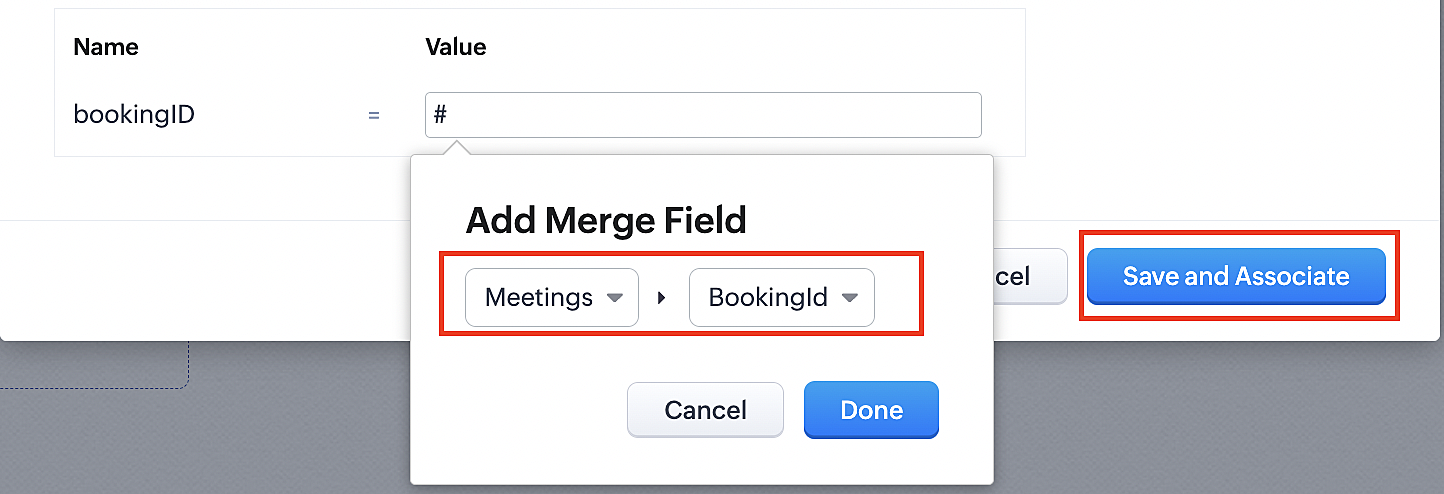
3. Click the Save and Associate button.
Reference:
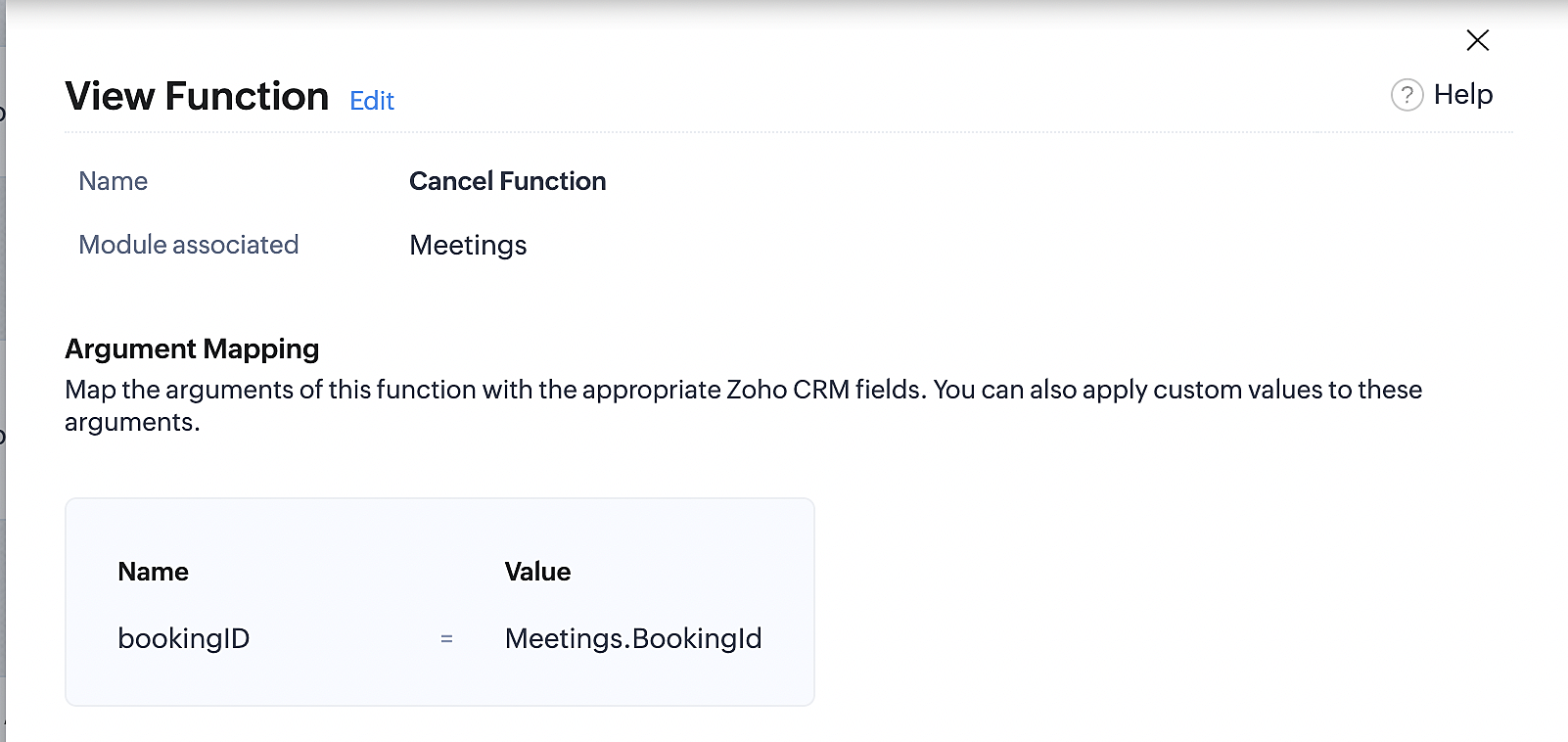
Below is the final flow of the cancel booking workflow:
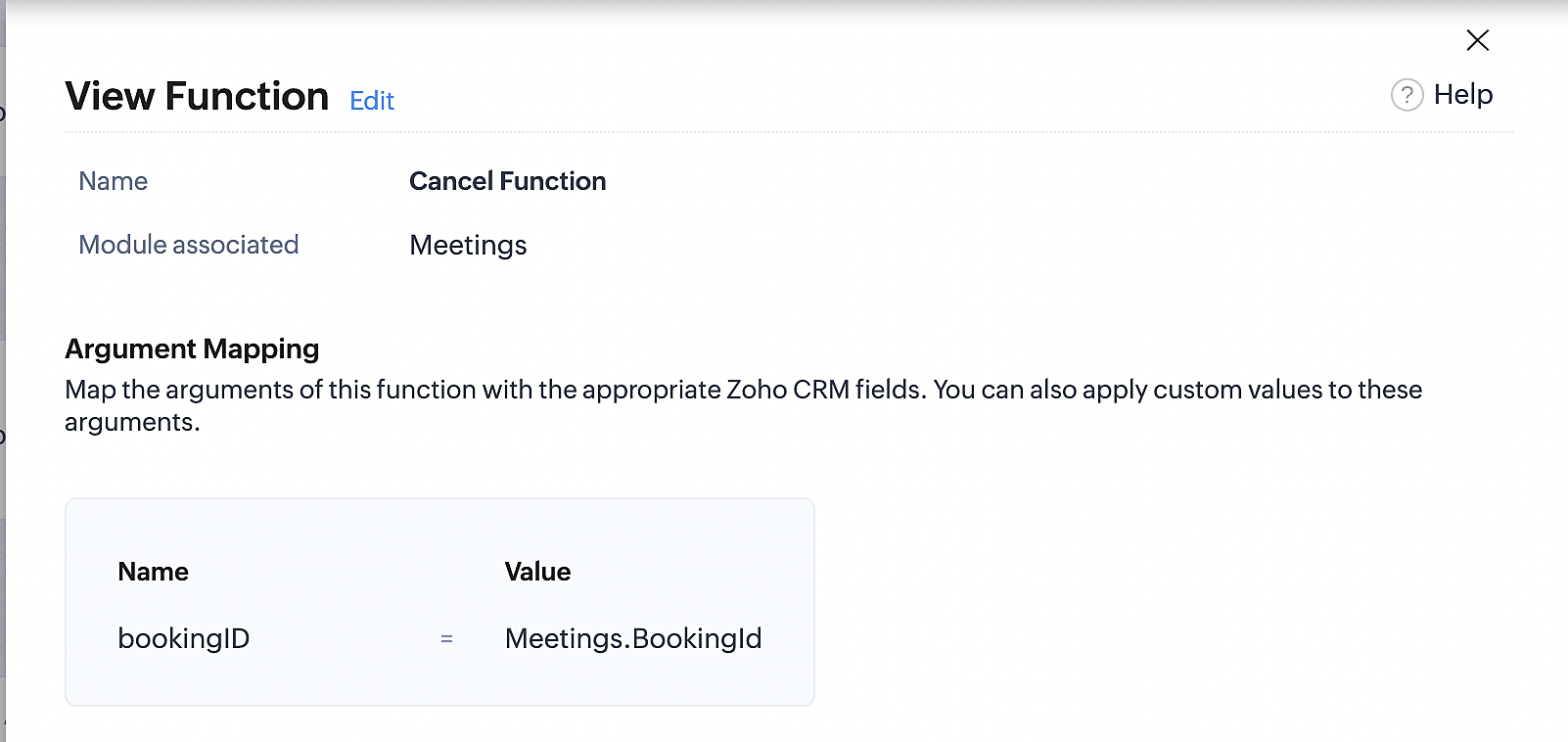
At the end of Part 3, we will have created a workflow that will be executed automatically when meetings are deleted in Zoho CRM. Simultaneously, the bookings associated with the meeting will also be canceled in Zoho Booking.
ii. Creating workflow for updating an appointment's status as "no show" in Zoho Bookings when the meeting's booking status is marked as no show in Zoho CRM
Part 4: Creating the rule
1. Go to Setup > Automation > Workflow Rules.
2. In the Workflow Rules page, click Create Rule.

3. Select Meetings under Module and configure the rule name and description as required.
Reference:
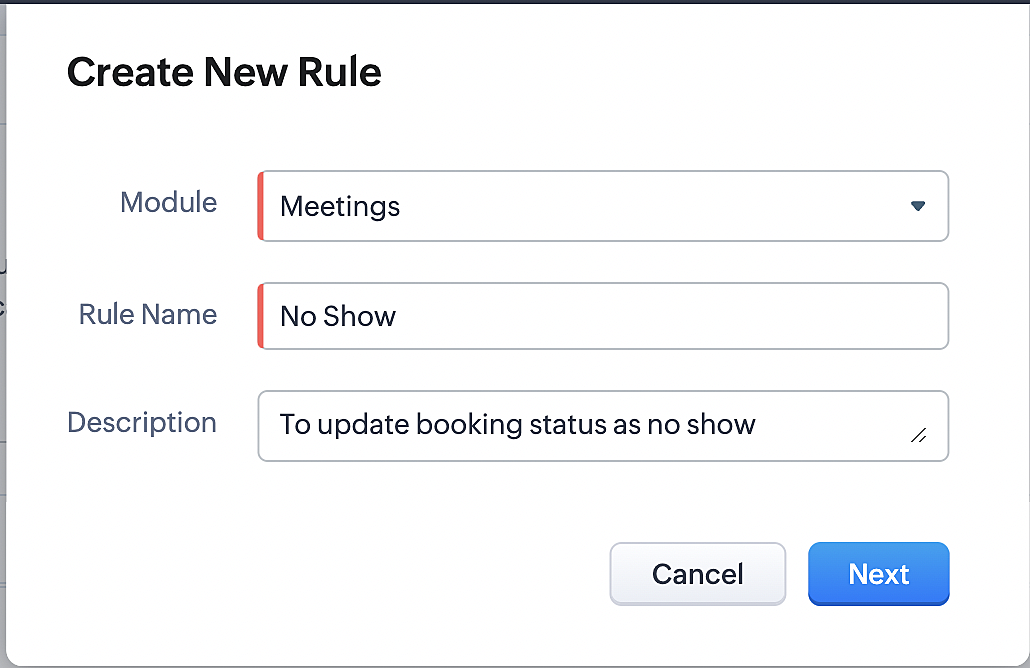
Part 5: Specifying the rule trigger
If you encounter difficulties while navigating through the steps mentioned below, please refer to Part 2 above, where we have provided step-by-step screenshots for clarification.
1. Record Action > Edit.

2. Enable the Specific field(s) gets modified and configure it per the screenshot below.
a. This is to ensure that the workflow is executed only when the booking status under the meeting module is
updated to "No Show".
updated to "No Show".
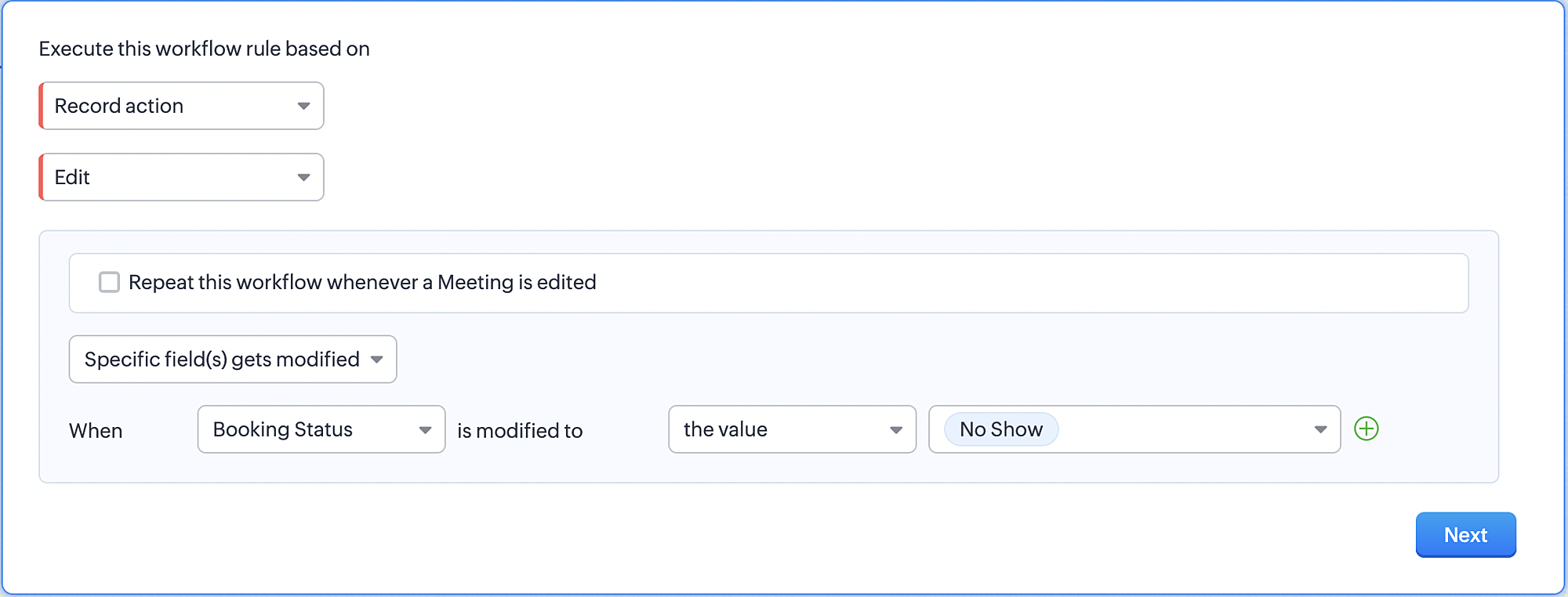
3. Configure condition > All Meetings.
4. Instant Actions > Function > New Function.
5. In the Configure custom function page, select the "no show" function you created from among the functions
users in your organization have created.
users in your organization have created.
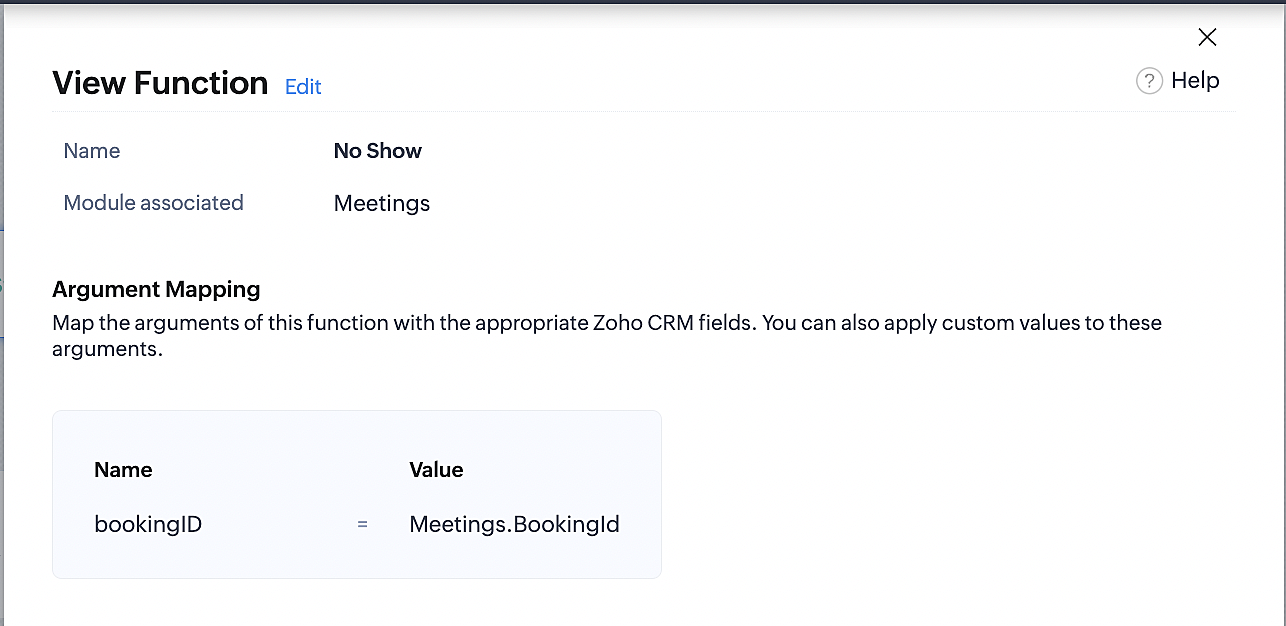
Part 6: Argument mapping:
If you encounter difficulties while navigating through the steps mentioned below, please refer to Part 3 above, where we have provided step-by-step screenshots for clarification.
1. Press # to choose an argument value.
2. Select Meetings under Module and configure the field as "BookingId".
3. Click Save and Associate button.
Reference:
Below is the final flow of the "No Show" booking status workflow:
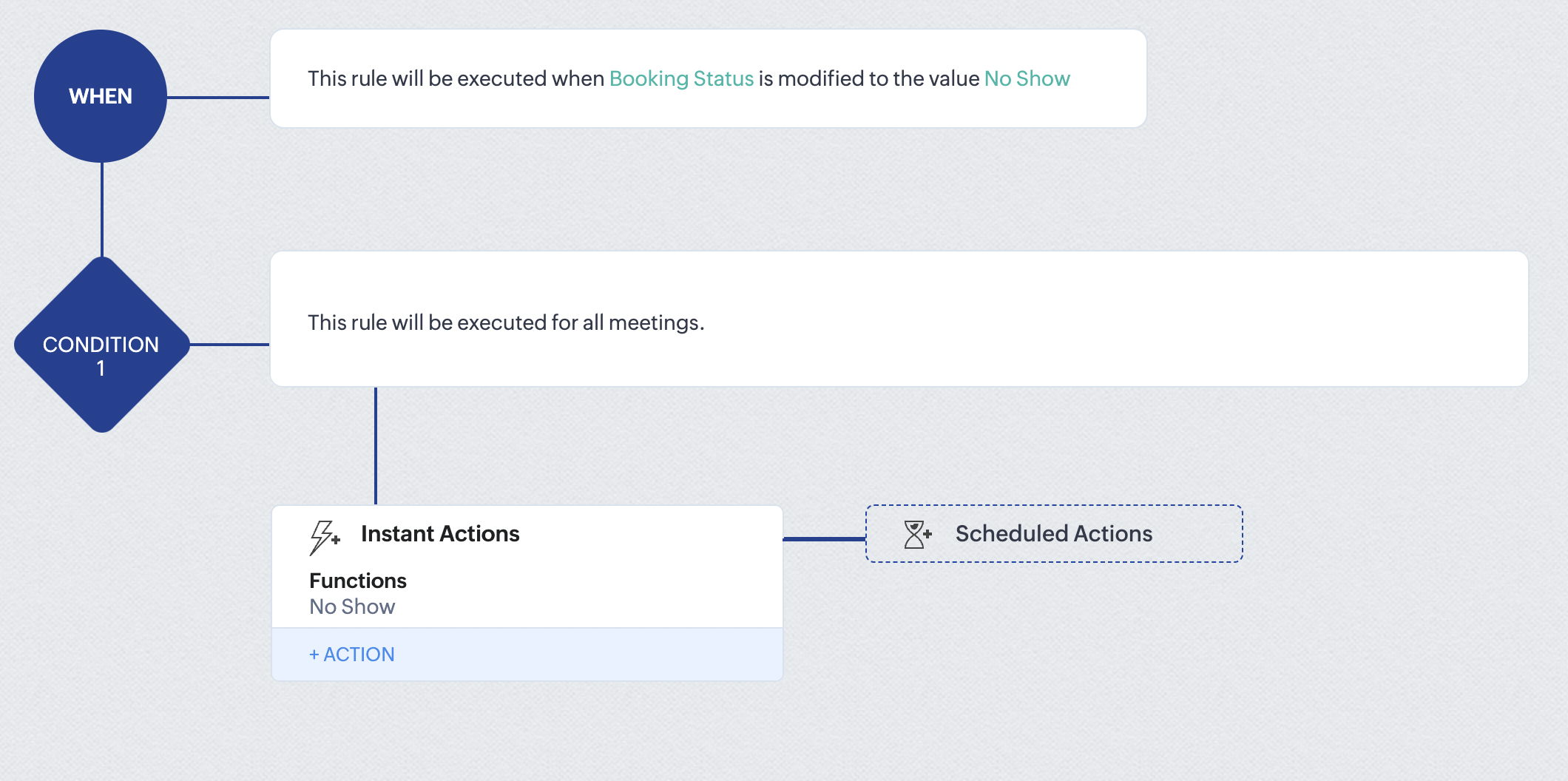
At the end of part 6, we will have created a workflow that automatically executes when the booking status field within the Zoho CRM Meetings module is updated to "No Show." This action will result in the associated bookings for that meeting also being marked as "No Show" in Zoho Bookings.
iii. Creating workflow for updating appointment status as "Completed" in Zoho Bookings when the booking status field of the meeting is marked as completed in Zoho CRM.
Part 7: Creating the rule
1. Go to Setup > Automation > Workflow Rules.
2. In the Workflow Rules page, click Create Rule.

3. Select Meetings under Module and configure rule name and description as required.
Reference:
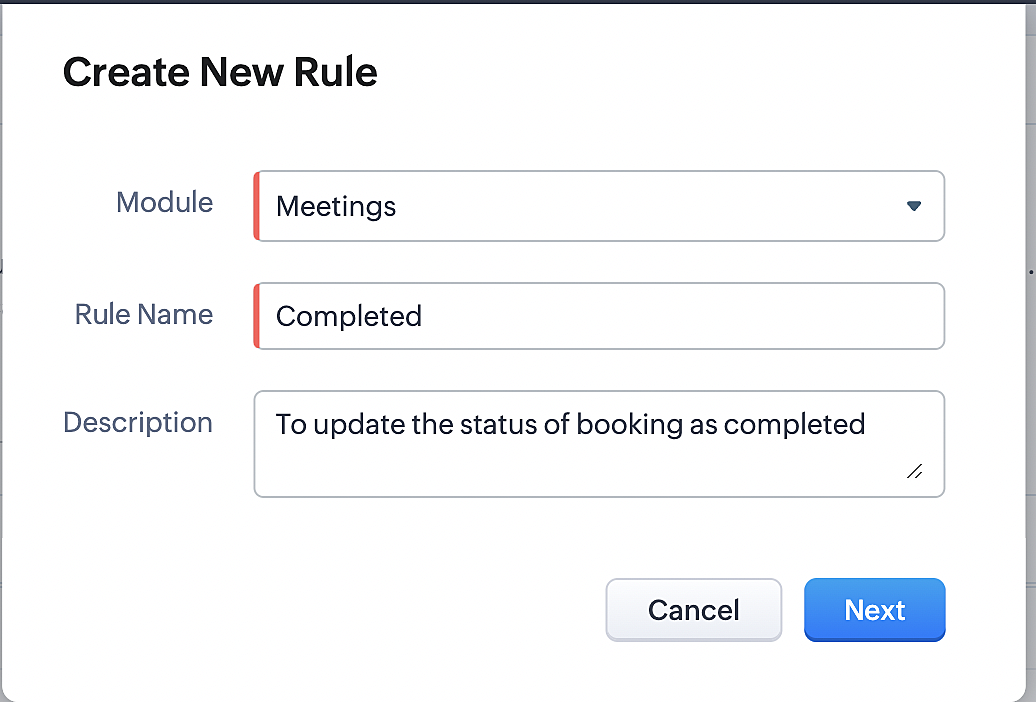
Part 8: Specifying the rule trigger
If you encounter difficulties while navigating through the steps mentioned below, please refer to Part 2 above, where we have provided step-by-step screenshots for clarification.
1. Record Action > Edit.

2. Enable the Specific field(s) gets modified setting and configure it per the screenshot below.
a. This serves to ensure that the workflow is executed only when the booking status under the Meetings module is
updated to "Completed".
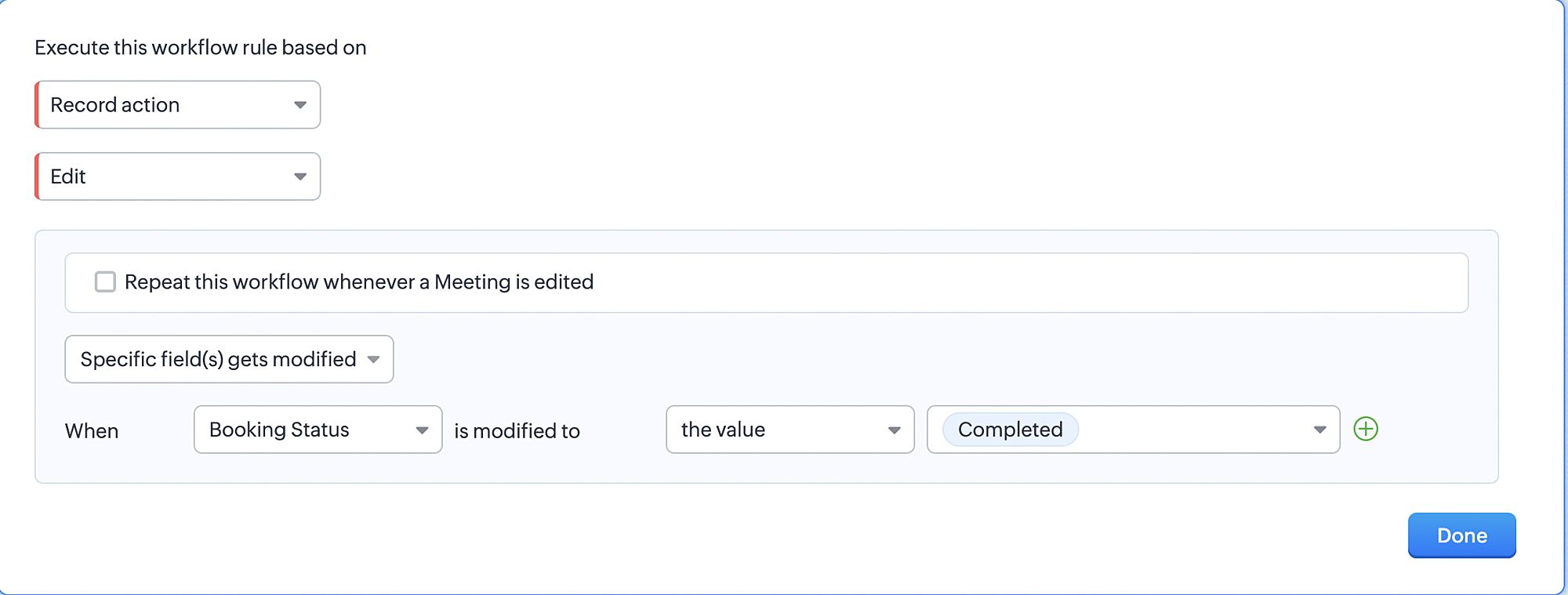
3. Configure condition > All Meetings.
4. Instant Actions > Function > New Function.
5. In the Configure custom function page, select the "completed" function you created from among the functions users
in your organization have created.
Part 9: Argument mapping:
If you encounter difficulties while navigating through the steps mentioned below, please refer to Part 3 above, where we have provided step-by-step screenshots for clarification.
1. Press # to choose an argument value.
2. Select Meetings under Module and configure the field as "BookingId".
3. Click Save and Associate button.
Reference:
Below is the final flow of the "Completed" booking status workflow:
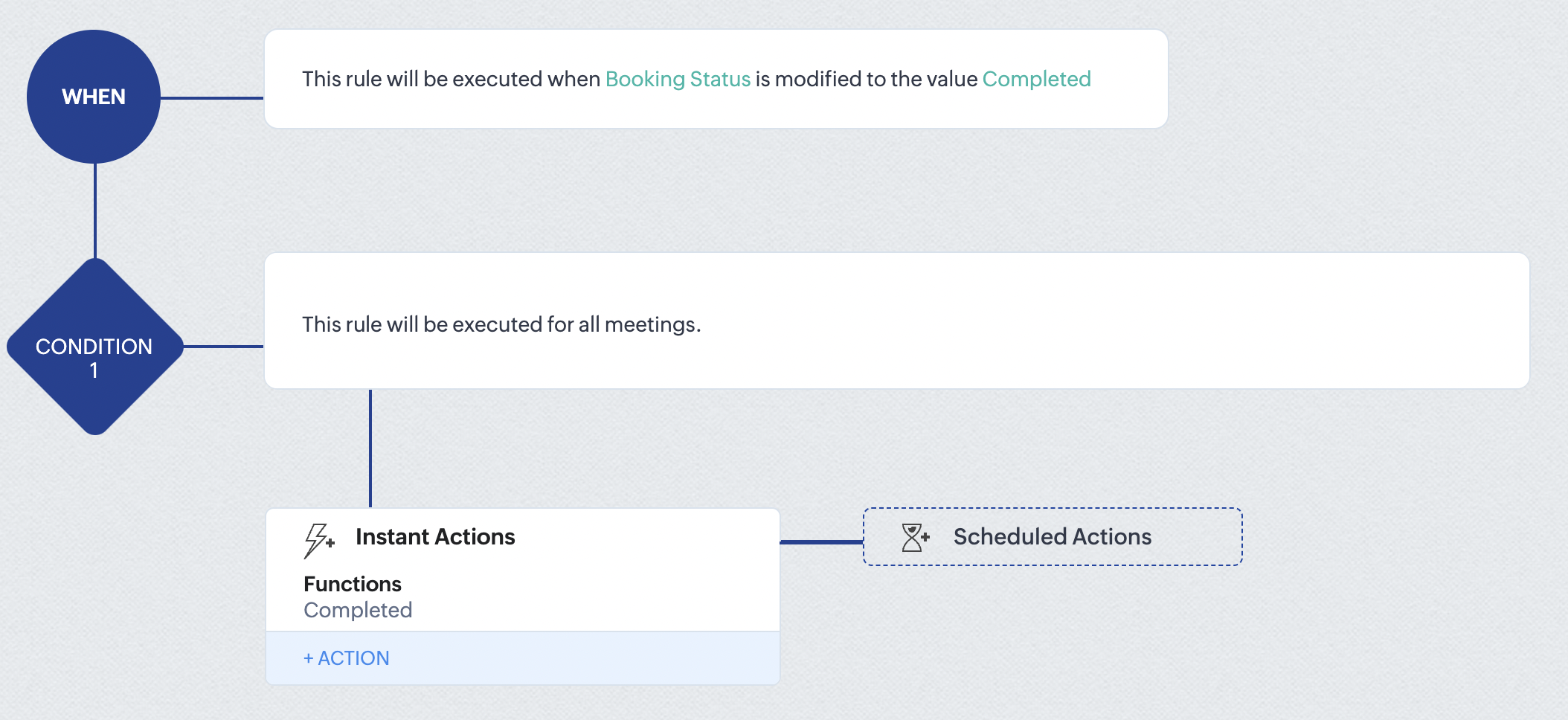
At the end of part 9, we will have created a workflow that is automatically executed when the booking status field within the Zoho CRM Meetings module is updated to "Completed." As a result, the associated bookings for that meeting will also be marked as "Completed" in Zoho Bookings.
Conclusion
We've reached the end of this community post. With the integration mentioned above in place, you'll be able to book, cancel, and update the status of appointments in Zoho Bookings directly from your Zoho CRM application. This will help you effectively manage your appointments in one place. As mentioned above, we've covered the rescheduling action in a separate post, which you can access by clicking on the following link: Reschedule Action
Furthermore, we've outlined a method for automating appointment statuses in detail. You can use this document as a reference to explore the various possibilities that suit your needs.
If you have any questions or need assistance with your configuration, please email us at hello@zohobookings.com or support@zohobookings.com.
Topic Participants
Kaushik S
bruce
Ishwarya SG
PrismaNote Support
Sticky Posts
Enhancement to ICR’s field prompting: Preferred data extraction using advanced field prompting
Dear Customers, We hope you’re well A quick background Intelligent Character Recognition (ICR) comes as part of Zia’s optical recognition capability called Zia Vision. When we introduced it last April, the data extraction was training-based and was applicableGood news! Calendar in Zoho CRM gets a face lift
Dear Customers, We are delighted to unveil the revamped calendar UI in Zoho CRM. With a complete visual overhaul aligned with CRM for Everyone, the calendar now offers a more intuitive and flexible scheduling experience. What’s new? Distinguish activitiesAccessibility in Zoho CRM: Not just a feature—a way to empower
For instructions on setting up these controls, please check this help document: Configuring accessibility controls. Hello everyone, Today (December 3, 2024), on the International Day of Persons with Disabilities, we begin our journey towards a CRM thatScaling the customer journey: What's new in CommandCenter
Dear Customers, The last time we connected about CommandCenter, it was about the tool's new controls and revamped UI. Personally, the overhaul of the UI from the last update, still excites me. Today, we're here with news about its scalability and addedZoho CRM's sales trend and sales follow-up trend dashboards are now customizable
Dear Customers, We're here with good news! Sales trend and sales follow-up trend are two system-defined dashboards that help you understand trends and anomalies in your sales outreach and conversion efforts. They use Zia's intelligence to identify patterns
Recent Topics
Timed addition to segments
Hi there - hoping you can help me figure out a graceful way of doing this: • I want to add contacts to a Segment in Campaigns based on a Stage pick-list field value X in CRM - that bit's fine. The problem is that I only want to add them to the SegmentZoho Developer AI Agent = Claude AI + MCP Server + Zoho Ecosystem
Hello Zoho Community 👋 I’m excited to share a recent integration we’ve worked on at Officehub Tech: ✅Claude + MCP Server + Zoho Creator Zoho Developer AI Agent – an AI-powered Zoho automation platform This solution connects Zoho applications with anCliq iOS can't see shared screen
Hello, I had this morning a video call with a colleague. She is using Cliq Desktop MacOS and wanted to share her screen with me. I'm on iPad. I noticed, while she shared her screen, I could only see her video, but not the shared screen... Does Cliq iOS is able to display shared screen, or is it somewhere else to be found ? RegardsGoogle Fonts Integration in Pagesense Popup Editor
Hello Zoho Pagesense Team, We hope you're doing well. We’d like to submit a feature request to enhance Zoho Pagesense’s popup editor with Google Fonts support. Current Limitation: Currently, Pagesense offers a limited set of default fonts. Google FontsCRM
How do I build an email funnel of 10 emails with decision tree ie; if yes use this email if no use this email. Also I cannot figure out how to add more groups or see my whole groups. I've set up different groups like attorneys is one group of companies/peopleWebDAV support
I need WebDAV support so that I can upload/download (and modify) documents from my local file system. Is anything planned in his direction?Replying from same domain as a catch-all?
I have 2 domains setup on Zoho, both with associated email addresses. They look something like this: john@example.com (primary address) john@test.com (this domain also has a catch-all setup) I use the catch-all for test.com as a public-facing email addressIs there a way to show contact emails in the Account?
I know I can see the emails I have sent and received on a Contact detail view, but I want to be able to see all the emails that have been sent and received between all an Accounts Contacts on the Account Detail view. That way when I see the Account detailInternal Fillable Contract with Zoho Writer (Before Sending to Client)
Hi everyone, I’m trying to automate the following process in Zoho CRM and would appreciate some guidance. Process: When a Deal moves to a specific stage, CRM triggers an automation. CRM sends a contract template to an internal team member so they canImport Quote from CRM into document in Writer?
Hi, I created a quote for a proposal in the Zoho CRM and was wondering if there is a way to embed the quote into a document in Zoho Writer so I can make our sales proposals look a little nicer. Is that possible?Zoho Sheet for Desktop
Does Zoho plans to develop a Desktop version of Sheet that installs on the computer like was done with Writer?Can I convert MSG to HTML on Mac?
Yes, you can convert MSG files to HTML on a Mac using software Aryson MSG file Converter. This tool allows you to convert Outlook MSG emails into multiple formats, including HTML, PDF, EML, PST, and more. It preserves all email content, attachments, metadata,Duplicate Leads Notification Help!
Hello! I have several web forms that have a duplicate lead notification that are being sent to the creator of the web form. I understand how to change the form entry notification, but I am specifically looking to change the recipient of the "Duplicate Lead" notification. Any help you can offer is greatly appreciated! TIA, ~ JennAdding Calendar Display to Home Page
I would like to display my calendar in a module on the Zoho CRM Home Page. I can't figure out a way to do this. Is it possible to display the CRM Calendar on the Home Page?Schedule a Call by Date and Time when a specific lead status is selected
Hi Wanting to create a workflow where a call can be scheduled by date & time when a specific lead status is selected. Can only currently set the date by Due Date - Trigger Date - Plus 'x' day(s) ThanksIncoming email replies not automatically associating with Deals/Opportunities - Is this possible in Zoho CRM?
Hello Zoho Community, I'm running a travel agency (B2B and B2C) and we've been struggling with what seems like a basic functionality that we cannot get to work properly. Our use case: We send emails to suppliers (hotels, transportation companies) andDuplicate Leads Concerns with Round Robin and Lead Approval Process
It is great to have the Duplicate Lead Approval Process, there are a few issues with the process that I would greatly appreciate taken consideration in enhancing. It appears that A Lead comes in Lead owner assigned by the Round Robin Check for Duplicate,Private email threads
When sending a Private email or receiving a response once the email thread has been marked as 'Private'- is there a way to trigger the system to "restart the clock"? I am finding that when someone responds to a 'Private' thread that it is opening theSLA Notification
Team members have been receiving this notification and feel as though it is as random. Explanation on this notification is appreciated! Also, is there a way to disable this notification?Map: Output None
Hi, Checking if you help me inspect this block The code below triggers during Successful form Submission from another Form. // rec_a = formA[ID!=0]; rec_b = formB[ID!=0]; ListA = List(); //subformA for each recA in rec_a.ItemSubform { for each recB inUse arbitrary images in deluge
I am sending emails from my deluge code and I would like to be able to include a few images in the email template. While I know that I could put the on a website somewhere and link to them in the HTML, that is not what I want due to email client securityHow to add "All Open AND Overdue" back to the Home Page Task Component?
Hi everyone, I’m looking for a way to restore the Tasks component dropdown list on the Zoho CRM Home Page. Since the recent update to the Task area in my Home Page Classic View, the dropdown options (e.g., My Next 7 Days + Overdue) are too restrictiveSync Attachments in Comments from Zoho Desk to Zoho Projects
Hello Zoho Desk Team, We hope you're doing well. We are actively using the Zoho Desk–Zoho Projects integration, especially for reporting and managing bugs/issues between support and development teams. Current Limitation: After creating a bugs/issues viaAdd a way to connect Log360 Cloud logs with Zoho analytics
Hi, Several month ago Log360 Cloud was added to zoho one - and this is great. But as far as I see there is no prebuilt way to connect Zoho analytics to the logs we have in Log360 Cloud. Please add a prebuilt connection like we have for so many other zohoAuto sync Photo storage
Hello I am new to Zoho Workdrive and was wondering if the is a way of automatically syncing photos on my Android phone to my workdrive as want to move away from Google? ThanksFuncionalidades y configuration ZohoDesk
Creo que no estoy sacando el provecho adecuado a la application quisiera solicitar una capacitación al respectoHow to call Functions and perform Write Operations using Page Scripts?
Hi everyone, How to call a function from a Zoho Creator application within a Page Script, also how to perform write operations (adding or updating records) using page scripts?Connecting Airwallex in Zoho Books
I have a question. I’m trying to connect our Airwallex account to Zoho Books, but the integration does not seem to work. Could you please guide me on how to properly connect Airwallex? I need to see the expenses also, since it only shows the profits nowQuestions Regarding Helpdesk & SalesIQ Customization and Email Setup
Hello, I hope you’re doing well. I have a few questions regarding Helpdesk and SalesIQ: Can the emails sent to customers via helpdesk tickets be fully customized — including signature, subject line, and other elements? Also, is it possible to send theseButton Duplication when emails forwarded or replied
When I create a new email template in campaigns and send it out it looks fine to all the users, however if that email is then on forwarded or replied to then all buttons within the email duplicate. See below The one on the left is the original one.Workdrive backup and default storage selection
Hi community, I have been informed by Zoho that workdrive will be the default storage mechanism for crm and projects. These 2 Apps seem to have different design on how they interact with workdrive for storage. 1. Crm: seems to have files saves at theAsk the Experts 27: Onboarding and managing support reps
Hello everyone, We are back with our Ask the Experts (ATE) series for 2026. This year, we bring experts to help you address customer support challenges using Zoho Desk. For our first ATE, we are getting into the human side of customer support. "EveryIntroducing Rollup summary in Zoho CRM
------------------------------------------Moderated on 5th July'23---------------------------------------------- Rollup summary is now available for all organizations in all the DCs. Hello All, We hope you're well! We're here with an exciting update thatEnhancements for Currencies in Zoho CRM: Automatic exchange rate updates, options to update record exchange rates, and more
The multi-currency feature helps you track currencies region-wise. This can apply to Sales, CTC, or any other currency-related data. You can record amounts in a customer’s local currency, while the CRM automatically converts them to your home currencyMarketer's Space: Why your open rates suddenly drop to zero?
Hey everyone—welcome back to another post in Marketer's Space! If you regularly track the performance of your campaigns, open rates are probably one of the first numbers you check after sending an email. So it can be quite alarming when a campaign suddenlyBulk upload images and specifications to products
Hi, Many users have asked this over the years and I am also asking the same. Is there any way in which we can bulk upload product (variant) images and product specifications. The current way to upload/select image for every variant is too cumbersome.I'd like to Import Contacts for an SMS Campaign, but they don't have email addresses.
I've got a contact list of about 4000 contacts. Some only have mobile phone and not email. Can I still import the contacts?How to sync overtime from zoho people to zoho payroll
Hi everyone, I’m currently setting up Zoho People with Zoho Payroll. While configuring the sync, I noticed I can only fetch Employee Profiles, LOP (Loss of Pay), and enable the Employee Portal. I can’t seem to find a way to automatically pull OvertimeBulk Associate Tasks/Task Lists to Milestones (Similar to Issues)
Hello Zoho Projects Team, We hope you are doing well. We would like to request an enhancement regarding Milestone management for Tasks in Zoho Projects. Current Behavior: In the Issues module, it is possible to select multiple issues and easily associateIs Zoho Sites still actively being developed?
Hello, Is Zoho Sites still actively being developed as part of the Zoho ecosystem? I noticed that the What's New page (https://www.zoho.com/sites/whats-new.html) does not show any updates since Q1 2025. We were considering migrating our website from SquarespaceNext Page