Introducing Withdrawal Reasons for Offers | Zoho Recruit

We’re excited to introduce a new enhancement to the Offer module that brings more clarity and accountability to every withdrawn offer. The Withdrawal Reason update ensures that each withdrawal — manual or automatic — is backed by a clear explanation, improving reporting and decision-making across your hiring process.
Why we built this
Offer withdrawals often happen quickly, and without a proper record, teams end up guessing the reason later. This lack of visibility leads to confusion, inconsistent reporting, and poor downstream data.
This enhancement is designed to simplify that by helping you:
- Capture the exact reason behind every withdrawn offer
- Maintain consistent and transparent offer records
- Strengthen audits, compliance, and process reviews
- Improve communication between recruiters and hiring managers
What’s New
Withdrawal Reason field
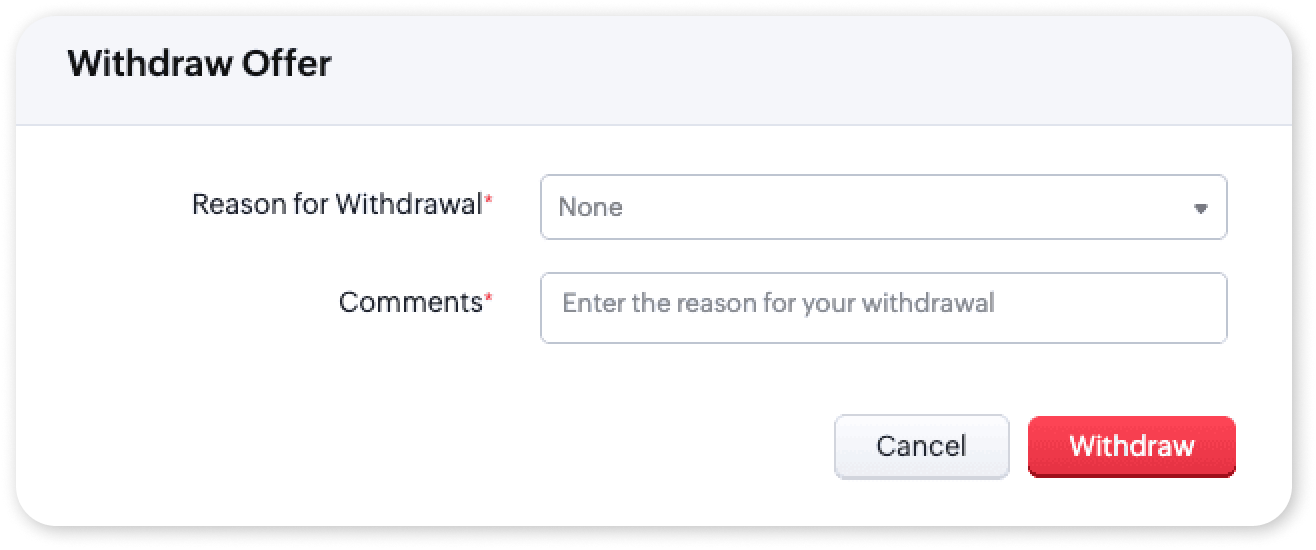
A dedicated picklist field now appears whenever you withdraw an offer. Selecting a reason is mandatory, ensuring every withdrawal is documented with context.
Where it appears:
- Offer detail page
- Offer quick view
-
Candidate → Offers
-
Application → Offers
-
Job Opening → Offers
-
Blueprint transitions
-
System-triggered auto-withdrawals
Availability
1. New Accounts
The field is pre-added to the Offer layout.

2. Existing Accounts
- The field is available under Setup → Layout Customization.
- Admins can drag & drop it into the Offer module layout.

How to Configure
- Go to Setup → Layout Customization → Offers.
- Drag and drop the Withdrawal Reason field into the Offer layout (if not already added) as shown in the above gif.
- Open the field settings to add, rename, or reorder the picklist values as needed.
- Save the layout, the field is now active and ready to use.
How to Use
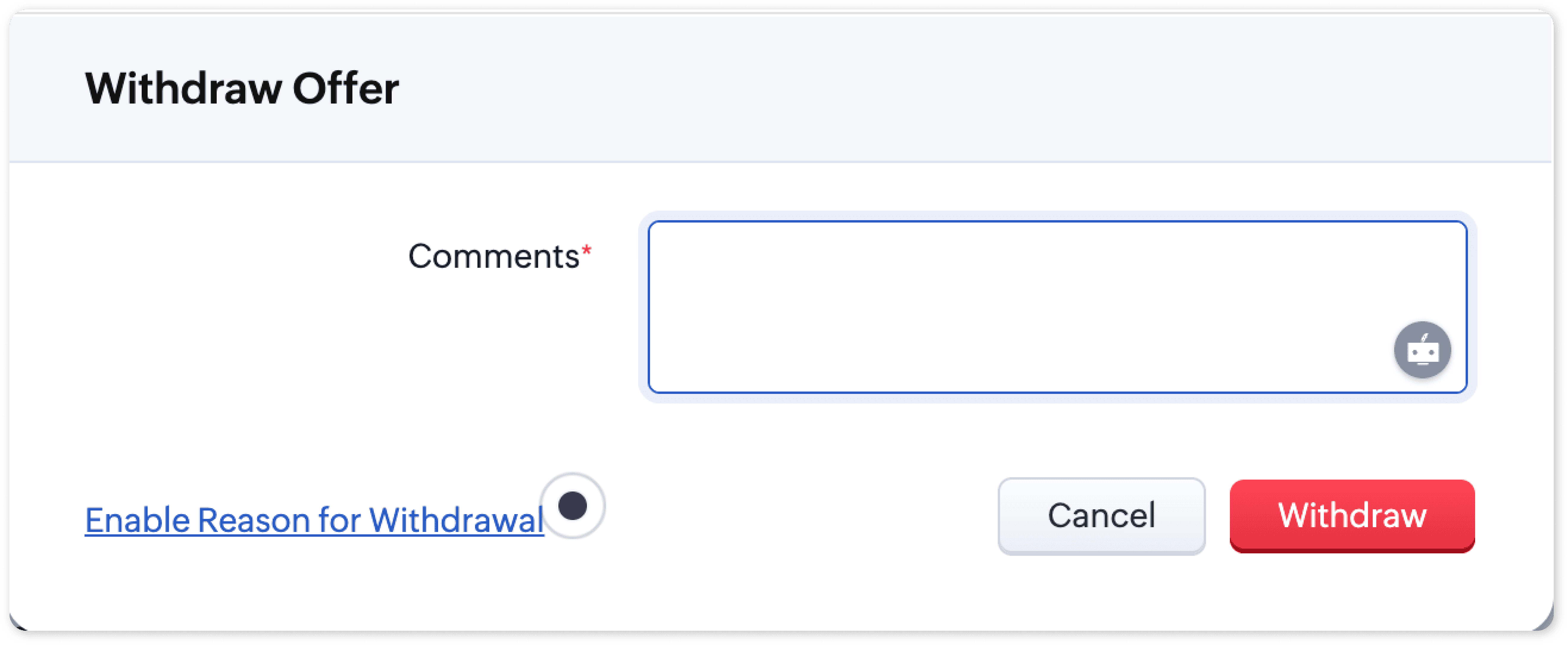
Once the field is added to the Offer module layout, selecting a Reason for Withdrawal becomes mandatory when withdrawing an offer.
- Navigate to the Offers module.
- Open the specific offer record.
- Click Withdraw from the detail page or quick view.
- The Withdrawal Reason field appears in the withdrawal pop-up.
- Choose the appropriate reason from the picklist (mandatory).
- Confirm the withdrawal, the selected reason is stored in the offer record.
Tell Us What You Think
We’d love to know how the new Withdrawal Reason fits into your offer management process.
👉 Check out our updated Offers help guide to know more.
👉 Check out our updated Offers help guide to know more.
Have questions or feedback? Drop a comment below.
Reach us anytime at support@zohorecruit.com.
Reach us anytime at support@zohorecruit.com.
Regards,
Team Zoho Recruit
Team Zoho Recruit