Function #31: Auto-populate warranty expiry date of items in invoices

Hello everyone, and welcome back to our series!
Warranties play a vital role in influencing a customer's decision to buy a product. They represent a guarantee from the manufacturer or seller that the product will meet specific standards of quality and performance for a specified timeframe. During this timeframe, customers have the right to file claims for any defects or damages that may occur on the products. In most cases, the warranty period begins with the purchase date. Today, we have written a custom function that will automatically calculate the Warranty expiry date for items in invoices.
Here's how it works:
When you add items to an invoice, just choose the appropriate warranty period for each item using a dropdown-type custom field. After you save the invoice, the function is executed, automatically filling in the warranty expiry date in another custom field. This calculation is based on the invoice date and the chosen warranty period.

Pre-requisites:
1. Create a Connection named "zbooks" to successfully execute the function. You can watch the GIF attached below to learn how to create the connection.
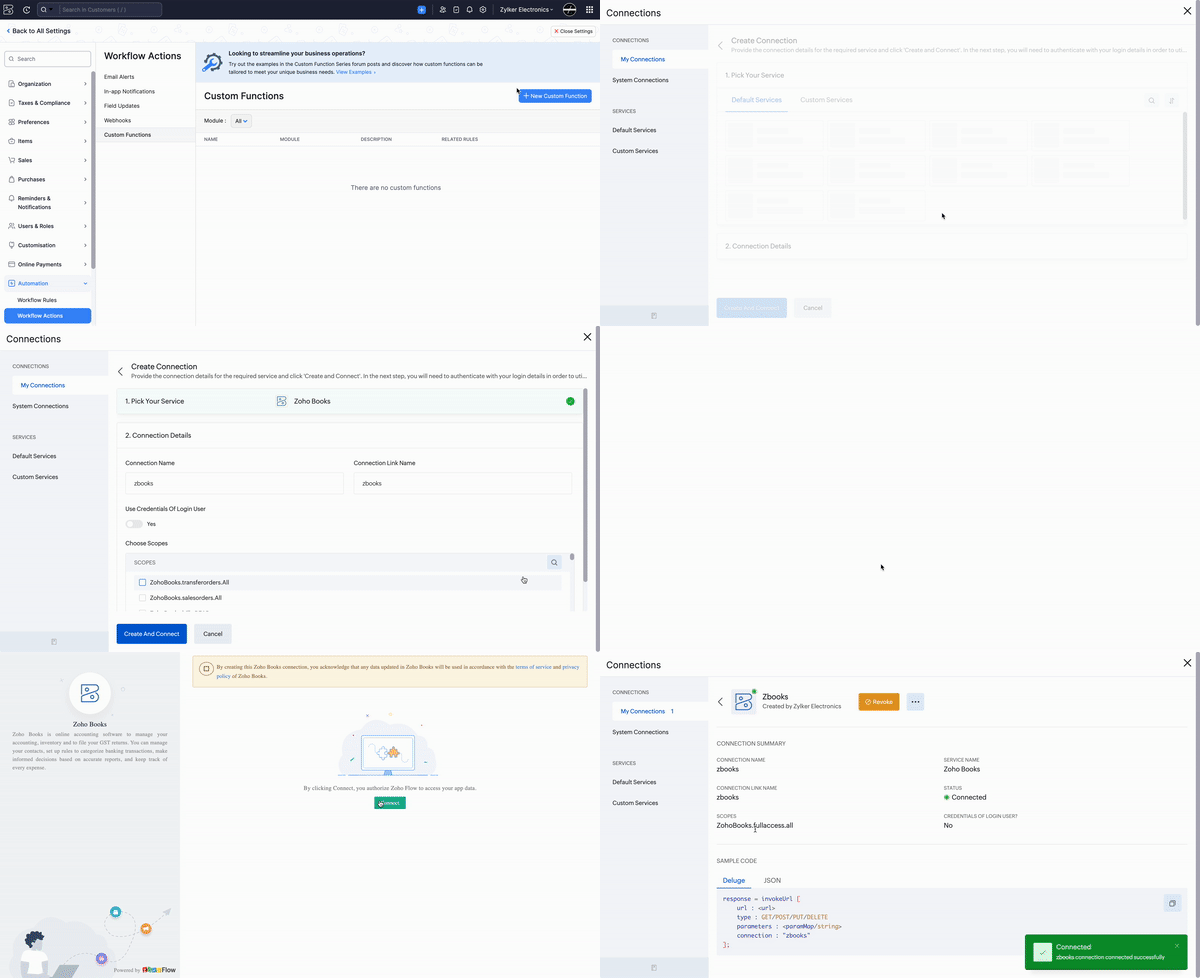
2. Create a dropdown-type custom field named "Warranty period [In Months]" for the items. Add the different warranty periods (such as 3 months, 6 months, 9 months, 12 months, etc) as the drop-down options of this custom field. Ensure the same unit of measurement for all the listed warranty periods.

2. Create a dropdown-type custom field named "Warranty period [In Months]" for the items. Add the different warranty periods (such as 3 months, 6 months, 9 months, 12 months, etc) as the drop-down options of this custom field. Ensure the same unit of measurement for all the listed warranty periods.
3. Create another date-type custom field called "Warranty Expiry date" for the items. Based on the invoice date and the warranty period chosen, the function will populate the expiry date in this field.
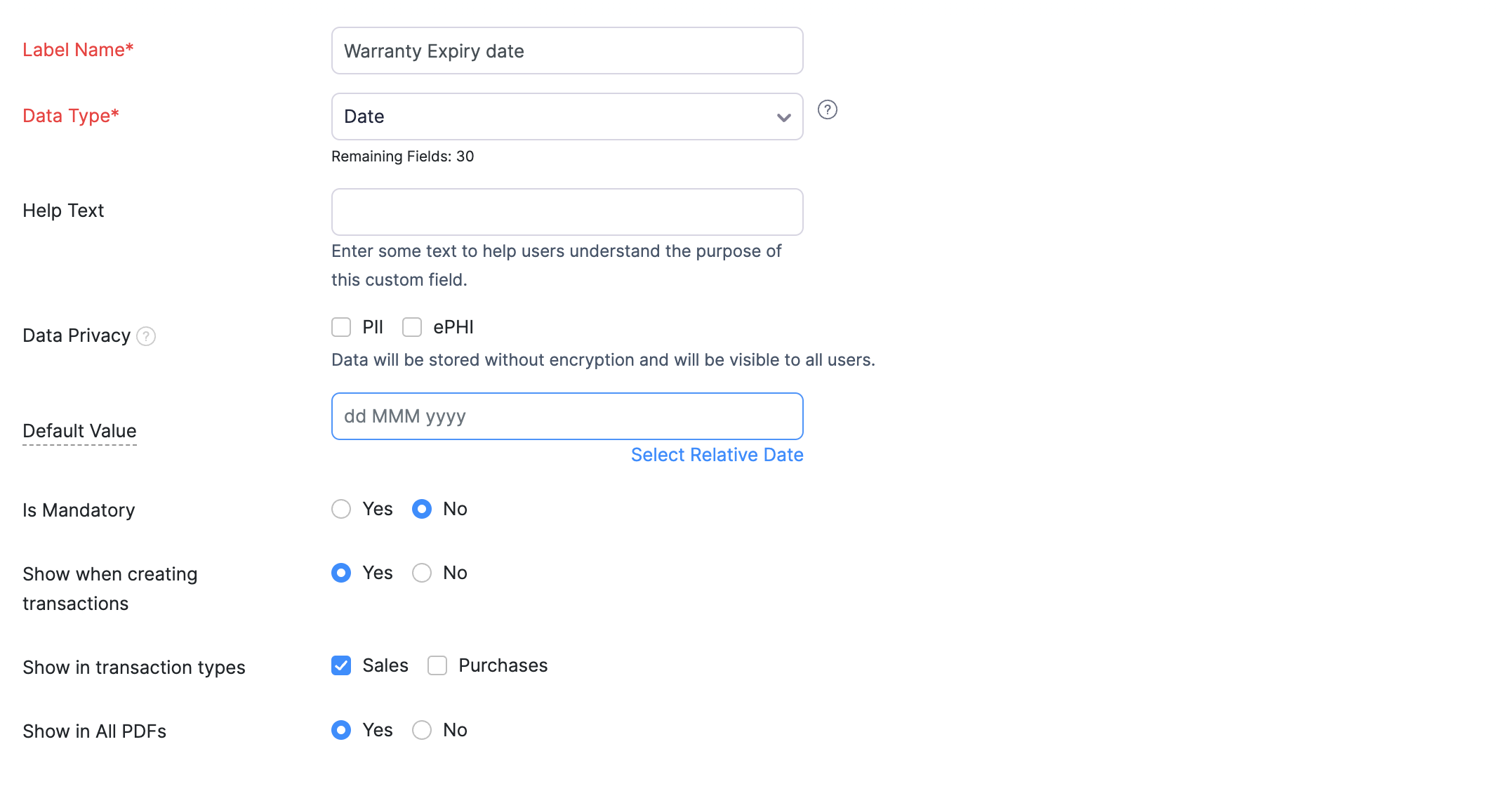
Custom Function:
Navigate to Settings -> Automation -> Custom Functions -> +New Custom Function > Add the function code from this GitHub link and be sure to replace cf_warranty_period_months and cf_warrant_expiry_date in the script with the actual API names of the custom fields you have created.
Workflow Rule:
Go to Settings -> Automation -> Workflow Rules -> +New Workflow Rule and set up the workflow rule as shown below:-


In the final step of this workflow rule, associate the custom function you created and then hit Save.
If you're a business owner looking for a method to show the warranty expiry date on invoices, give this function a try and share your feedback in the comments. If you require additional customizations, feel free to reach out to us at support[at]zohobooks[dot]com with your specifications. We are happy to help!
Regards,
Shireen Farhana
Zoho Books
Topic Participants
Shireen Farhana
Aaron
Sara C
Nick D
David Darlison
Recent Topics
Can I convert multiple OLM files to Thunderbird at once?
Yes, you can convert multiple OLM files to Thunderbird at once using the Aryson OLM file Converter. The tool supports bulk OLM file conversion, allowing users to select multiple OLM files in a single process. It preserves the original folder structure,Translation from Chinese (Simplified) to Chinese (Traditional) is not working. It randomly translated. Google Translate accurately but zoho translate is not working at all
Hi friends, The newly added language for translation. https://www.zoho.com/deluge/help/ai-tasks/translate.html "zh" - Chinese "zh-CN" - Chinese (Simplified) "zh-TW" - Chinese (Traditional) my original text: 郑这钻 (and it is zh-CN) translated traditionalThe Social Playbook - January edition: Getting started with content creation
Social media isn’t just about posting some random content. It’s about why certain content works, how brands stand out, and what makes people pause mid-scroll. The Social Playbook is a monthly community series where we break all of that down. Through realI'm getting this error when I try to link an email to a deal inside the Zohomail Zoho CRM extension.
When I click "Yes, associate," the system displays an "Oops!! Something went wrong" error message. I have attached a screenshot of the issue for reference.Support for Custom Fonts in Zoho Recruit Career Site and Candidate Portal
Dear Zoho Recruit Team, I hope you're doing well. We would like to request the ability to use custom fonts in the Zoho Recruit Career Site and Candidate Portal. Currently only the default fonts (Roboto, Lato, and Montserrat) are available. While theseAdding bank details to the contact through API
How to add bank-related information to the contact while creating it using API? The account number needs to be encrypted before sending it through API but not sure how to encrypt and get those values. Please guide me in this.Ticket Resolution - Add rich formatting, screenshots and attachments
The resolution field only allows plain text at the moment. Many of our resolutions involve posting screenshots as evidence, it would be great for us to be able to have rich text formatting, be able to paste screenshots and add attachments in the solutionTicket resolution field - can you add links, video, and images?
Seems like the ticket resolution fields is just a text field. Any plans to add the ability to add links, images...the same functionality in the problem description box? I would like to send the customer a link to a KB article, a link to our Wiki, embed an image, or use HTML to pass on a short how to video from YouTube. Is their plans to add this functionality? You should also be able to complete formate the response from the ticket and then save and add to KB. ThanksCRM x WorkDrive: We're rolling out the WorkDrive-powered file storage experience for existing users
Release plan: Gradual rollout to customers without file storage add-ons, in this order: 1. Standalone CRM 2. CRM Plus and Zoho One DCs: All | Editions: All Available now for: - Standalone CRM accounts in Free and Standard editions without file storageFont breakage in Zoho Mail Desktop Lite application for Mac
Dear Zoho Mail and Workplace Community, With the latest update of macOS Sequoia and macOS Tahoe, there has been font breakages in the email preview of Zoho Mail Desktop Lite application for Mac. This breakage is due to the corruption of the System fontsFeature request - image resizing on sales orders
I need to be able to show the items on the sales orders, currently the item image shows really small and no way to resize it, need the ability to make the image larger to showcase the product on the pdfsMail Merge is not working properly as far as the AUTOMATE section is concerned
Hi there, I created a Mail Merge template for the Deal module. I would like Deal owners to mail merge their Deal records, download the Mail Merge document as a Word doc and make a few changes before sending it to the customer. Thing is, neither the "MergeWhat's new in Zoho Sheet: Simplify data entry and collaboration
Hello, Zoho Sheet community! Last year, our team was focused on research and development so we could deliver updates that enhance your spreadsheet experience. This year, we’re excited to deliver those enhancements—but we'll be rolling them out incrementallyNueva edición de "Ask The Expert" en Español Zoho Community
¡Hola Comunidad! ¿Te gustaría obtener respuestas en directo sobre Zoho CRM, Zoho Desk u otra solución dentro de nuestro paquete de CX (Experiencia del Cliente? Uno de nuestros expertos estará disponible para responder a todas tus preguntas durante nuestraAutomation Series: Auto-Notify External Users on Issue Closure
Hello Folks! In Zoho Projects, you can notify external issue reporters via email when an issue is marked as Closed. This helps the users avoid manual follow-ups and keeps the reporter updated. In this post, we’ll walk through a simple setup using a WebIssue with open-rate reporting in Zoho Campaigns
Hello, Since yesterday I’ve been experiencing an issue with the open-rate reports in Zoho Campaigns. The campaigns I send appear in the reports as if none of the emails have been opened, even though I know they have. To verify this, I replicated the campaignTurn chat conversations into real action with Integration Blocks in Guided Conversations
When a Guided Conversation fails, it's usually not because the logic is wrong. They fail because the conversation stops moving. A customer starts a chat with a clear goal: report an issue, check a status, or confirm something. At first, the flow doesBasic Mass Update deluge schedule not working
I'm trying to create a schedule that will 'reset' a single field to 0 every morning - so that another schedule can repopulate with the day's calculation. I thought this would be fairly simple but I can't work out why this is failing : 1) I'm based inSpecial characters (like â, â, æ) breaking when input in a field (encoding issue)
Hey everyone, We are currently dealing with a probably encoding issue when we populate a field (mostly but not exclusively, 'Last Name' for Leads and Contracts). If the user manually inputs special characters (like ä, â, á etc.) from Scandinavian languages,click to call feature
I've Zoho CRM and in that i want click to call feature.We Asked, Zoho Delivered: The New Early Access Program is Here
For years, the Zoho Creator community has requested a more transparent and participatory approach to beta testing and feature previews. Today, I'm thrilled to highlight that Zoho has delivered exactly what we asked for with the launch of the Early AccessFrom Zoho CRM to Paper : Design & Print Data Directly using Canvas Print View
Hello Everyone, We are excited to announce a new addition to your Canvas in Zoho CRM - Print View. Canvas print view helps you transform your custom CRM layouts into print-ready documents, so you can bring your digital data to the physical world withCan the Product Image on the Quote Template be enlarged
Hello, I am editing the Quote Template and added ${Products.Product Image} to the line item and the image comes up but it is very tiny. Is there anyway that you can resize this to be larger? Any help would be great! ThanksAnalytics <-> Invoice Connection DELETED by Zoho
Hi All, I am reaching out today because of a big issue we have at the moment with Zoho Analytics and Zoho Invoice. Our organization relies on Zoho Analytics for most of our reporting (operationnal teams). A few days ago we observed a sync issue with theCreating Parent Child relationship in Accounts
We have customers with multiple locations, I setup the HQ as an account, then I setup the different sites marking the HQ as the parent to that location. If I then do a Deal for one of the locations, is there a way to show by looking at the parent accountLearner transcript Challenges.
Currently i am working on a Learner Transcript app for my employer using Zoho Creator. The app is expected to accept assessment inputs from tutors, go through an approval process and upon call up, displays all assessments associated with a learner inClient and Vendor Portal
Some clients like keeping tabs on the developments and hence would like to be notified of the progress. Continuous updates can be tedious and time-consuming. Zoho Sprints has now introduced a Client and Vendor Portal where you can add client users and#7 Tip of the week: Delegating approvals in Zoho People
With Zoho People, absences need not keep employees waiting with their approval requests. When you are not available at work, you can delegate approvals that come your way to your fellow workmate and let them take care of your approvals temporarily. Learn more!Admin Tip: Manage sub-domain emails using sub-domain stripping
As an admin, you may need separate domains for different departments such as sales, support, and marketing. While this approach offers flexibility, creating and managing multiple domains can quickly become overwhelming, especially since each domain requiresBring Zoho Shifts Capabilities into Zoho People Shift Module
Hello Zoho People Product Team, After a deep review of the Zoho People Shift module and a direct comparison with Zoho Shifts, we would like to raise a feature request and serious concern regarding the current state of shift management in Zoho People.Quick Copy Column Name
Please add the ability to quickly copy the name of a column in a Table or Query View. When you right-click the column there should be an option to copy the name, or if you left-click the column and use the Ctrl+C keyboard shortcut it should copy theAbility to Edit YouTube Video Title, Description & Thumbnail After Publishing
Hi Zoho Social Team, How are you? We would like to request an enhancement to Zoho Social that enables users to edit YouTube video details after the video has already been published. Your team confirmed that while Zoho Social currently allows editing theHow do I remove a data source from Zoho Analytics?
I am unable to find a delte option on a datasource that i put in the system as an error. On teh web it refers to a setup icon but I do not see that on my interface?Add Employee Availability Functionality to Zoho People Shift Module
Hello Zoho People Product Team, Greetings and hope you are doing well. We would like to submit a feature request to enhance the Zoho People Shift module by adding employee availability management, similar to the functionality available in Zoho Shifts.Bigin, more powerful than ever on iOS 26, iPadOS 26, macOS Tahoe, and watchOS 26.
Hot on the heels of Apple’s latest OS updates, we’ve rolled out several enhancements and features designed to help you get the most from your Apple devices. Enjoy a refined user experience with smoother navigation and a more content-focused Liquid GlassReally want the field "Company" in the activities module!
Hi team! Something we are really missing is able to see the field Company when working in the activities module. We have a lot of tasks and need to see what company it's related to. It's really annoying to not be able to see it.🙈 Thx!Delay in rendering Zoho Recruit - Careers in the ZappyWorks
I click on the Careers link (https://zappyworks.zohorecruit.com/jobs/Careers) on the ZappyWorks website expecting to see the job openings. The site redirects me to Zoho Recruit, but after the redirect, the page just stays blank for several seconds. I'mIs Desk Down?
Across department - always an error. [Status Mode] - error [Table View and the rest] - workingHow do I change the wording of the tile of SignForm?
When my user opens a SignForm url, the title that is presented is always "SignForm signer Information" and a form is displayed asking for the username and email address. This can be confusing to the end user. How can I change the title at least (Or atHow to link tickets to a Vendor/Vendor Contact (not Customer) for Accounting Department?
Hi all, We’re configuring our Accounting department to handle tickets from both customers and vendors (our independent contractors). Right now, ticket association seems to be built around linking a ticket to a Customer / Customer Contact, but for vendor-originatedNext Page