Kaizen 215 - Workflow APIs - Part 3

Welcome back to another week of Kaizen!
Over the last couple of weeks, we’ve joined Zylker Cloud Services as they review and improve their workflows. In Part 1, we discovered and audited their sprawling workflow landscape. In Part 2, we learned how to use the Configuration API to understand valid triggers and actions, preventing errors before they happen.
Now, it is time to take action. Zylker has identified the "VP Alert - High Value Deal" workflow as a prime candidate for an update. It is old, has never run, and its logic might be too narrow. We will also explore how to create a new workflow from scratch to handle a new business requirement.
STEP 5: Update an Existing Workflow
From our audit in Step 2, we know that the existing ‘VP Alert - High Value Deal’ workflow (id: 4876876000016390024) hadn’t triggered even once. The original $50,000 threshold missed many valuable deals. Most winning opportunities actually land above $30,000. It has never executed, suggesting the criteria are too strict.
Let us use the Update Workflow Rule API to fix it. We'll change the criteria to trigger for deals greater than or equal to $30,000 and add an additional email notification.
What you can and cannot update
When working with the Update Workflow Rule API, not every field in a workflow is open for modification. Think of it like editing an existing automation blueprint. Some foundations are fixed, while others are flexible.
You can update:
Name and Description
Trigger : You can update triggers, but only within the same trigger type. For example, you can change a Record Action trigger from create to edit, but not from a Record Action trigger to a Score-based trigger. For more details on this, please refer to our detailed help documentation here.
Conditions and Criteria : add, remove, or refine them.
Actions : add new ones, remove existing ones, or update their configuration.
Status : activate or deactivate a workflow rule.
What cannot be updated
There are a few key restrictions to remember:
You cannot change the module associated with the workflow.
You cannot switch trigger categories (e.g., from Record Action to Email Trigger).
You cannot retain unsupported actions when changing to a trigger that doesn’t support them. For instance, if you change a trigger from Edit to Delete, but keep an Assign Owner action, the update will fail, because “Assign Owner” isn’t valid for Delete triggers.
Updating an existing workflow is not about replacing everything. it is about editing precisely what needs to change.
Here is how to do it:
Fetch the workflow details using the Get Workflow Rule API. This gives the full structure, including condition IDs, action IDs, and trigger details.
Identify what needs to change.
In this case, to fix the “VP Alert - High Value Deal” workflow, we can update the Workflow rule to:
lower the threshold to $300,000
change the comparator to greater_than.
To make the workflow more useful, Zylker has also decided to add a few new actions.
But before doing that, the developers needed to confirm which actions are supported for this workflow’s trigger type. That is where last week’s Configuration API comes in handy. Since we already know this is a Record Action trigger (create_or_edit), we can refer to the configuration response we explored in Part 2 to see which actions are valid.
{ "api_name": "create_or_edit", "deprecated": false, "name": "CreateorEdit", "scheduled_actions_supported": true, "actions": [ "field_updates", "assign_owner", "add_tags", "remove_tags", "email_notifications", "tasks", "create_record", "create_connected_record", "add_meeting", "webhooks", "functions", "circuits", "flow" ] }, |
The response clearly shows that email notifications, field updates, and tags are all supported for this trigger type. With that confidence, in addition to updating the condition, we can also add a 'Priority' tag to those records that trigger the Workflow. This makes the workflow more visible and actionable across the sales hierarchy.
Sample Request:
PUT {{api-domain}}/crm/v8/settings/automation/workflow_rules/4876876000016390024
{ "workflow_rules": [ { "description": "Notify sales leadership and track strategic opportunities", "name": "VP Alert - High Value Deal.", "conditions": [ { "sequence_number": 1, "criteria_details": { "criteria": { "group_operator": "AND", "group": [ { "comparator": "greater_than", // change in comparator operator "field": { "api_name": "Amount" }, "value": "300000" // Lowered threshold }, { "comparator": "equal", "field": { "api_name": "Stage" }, "value": "Negotiation/Review" } ] } }, "instant_actions": { "actions": [ { "type": "add_tags", "module": "Deals", "details": { "tags": [ { "name": "Priority" } ], "overwrite": true } } ] }, "id": "4876876000016390025" // id of the condition to be updated } ] } ] } |
After this update, the workflow now triggers for any deal worth more than $300,000 in the Negotiation/Review stage. Apart from sending the email notifications and adding the follow up task, it also tags these deals as Priority.
Edit vs Add:
To edit an existing condition or action, include its existing id in your update payload. Zoho CRM will recognize it as an update to that object.
To add a new condition or action, simply omit the id. CRM treats any object without an ID as a new addition.
STEP 6: Create a new Workflow Rule
With the “VP Alert - High Value Deal” workflow now fixed and performing as expected, Zylker’s sales team quickly began to see results.
But their sales team noticed that deals often stall after proposals are sent, with no systematic follow-up. Zylker has hence refined the requirements for a new Workflow.
They want to automatically trigger follow-up actions when a high-value deal (above ₹30,000) is marked “Closed Lost” due to pricing reasons. This workflow must ensure that every lost opportunity is reviewed, tagged, and re-engaged after a cooling-off period. To achieve this, they want to create a workflow to be triggered whenever a deal’s Stage is updated to Closed Lost. It must perform the following actions:
Add tags Lost due to Pricing and Re-engagement Pending.
Send an email alert to the Sales team, with the details of the failed Deal, so they can look into the reasons.
After 30 business days, automatically create another “Lost Deal - Feedback” task to remind the owner to re-contact the customer for feedback, and for future opportunities.
Before proceeding, Zylker makes an API call to the Workflow Configuration endpoint. This ensures that their chosen trigger type and actions are supported. From the response snippet below, it is clear that a field_update trigger supports scheduled actions and the required action types.
{ "api_name": "field_update", "deprecated": false, "name": "FieldUpdate", "scheduled_actions_supported": true, "actions": [ "field_updates", "assign_owner", "add_tags", "remove_tags", "email_notifications", "tasks", "create_record", "create_connected_record", "add_meeting", "webhooks", "functions", "circuits", "flow" ] } |
With these details validated, we can now move on to adding a new workflow for Zylker using the Create Workflow Rule API request.
Understanding the input JSON structure
Every workflow definition follows the same hierarchy - defining when the rule runs, what conditions it checks, and which actions it performs.
The top-level input object contains a workflow_rules array. You must include just one workflow rule object per request. Each workflow rule defines its name, trigger type, and one or more condition blocks, each with its own criteria and actions.
Here is a breakdown of what is inside a single workflow rule:
{ "workflow_rules": [ { "name": "VP Alert - High Value Deal.", //name of the workflow rule "description": "Notify leadership when high-value deals are lost due to pricing.", "module": { "api_name": "Deals" }, //module to which the workflow applies "execute_when": { ... }, //trigger configuration (e.g., on record edit, field update, etc.) "conditions": [ { "sequence_number": 1, // order of execution. this is the first condition "criteria_details": { ... }, // condition logic (criteria group) "instant_actions": { "actions": [ ... ] }, //instant actions executed instantly cheduled_actions": [ // schedules actions executed after a delay { "execute_after": { ... }, // delay period for the scheduled action "actions": [ ... ] } ] }, { "sequence_number": 2, // second condition "criteria_details": { ... }, "instant_actions": { "actions": [ ... ] } } ] } ] } |
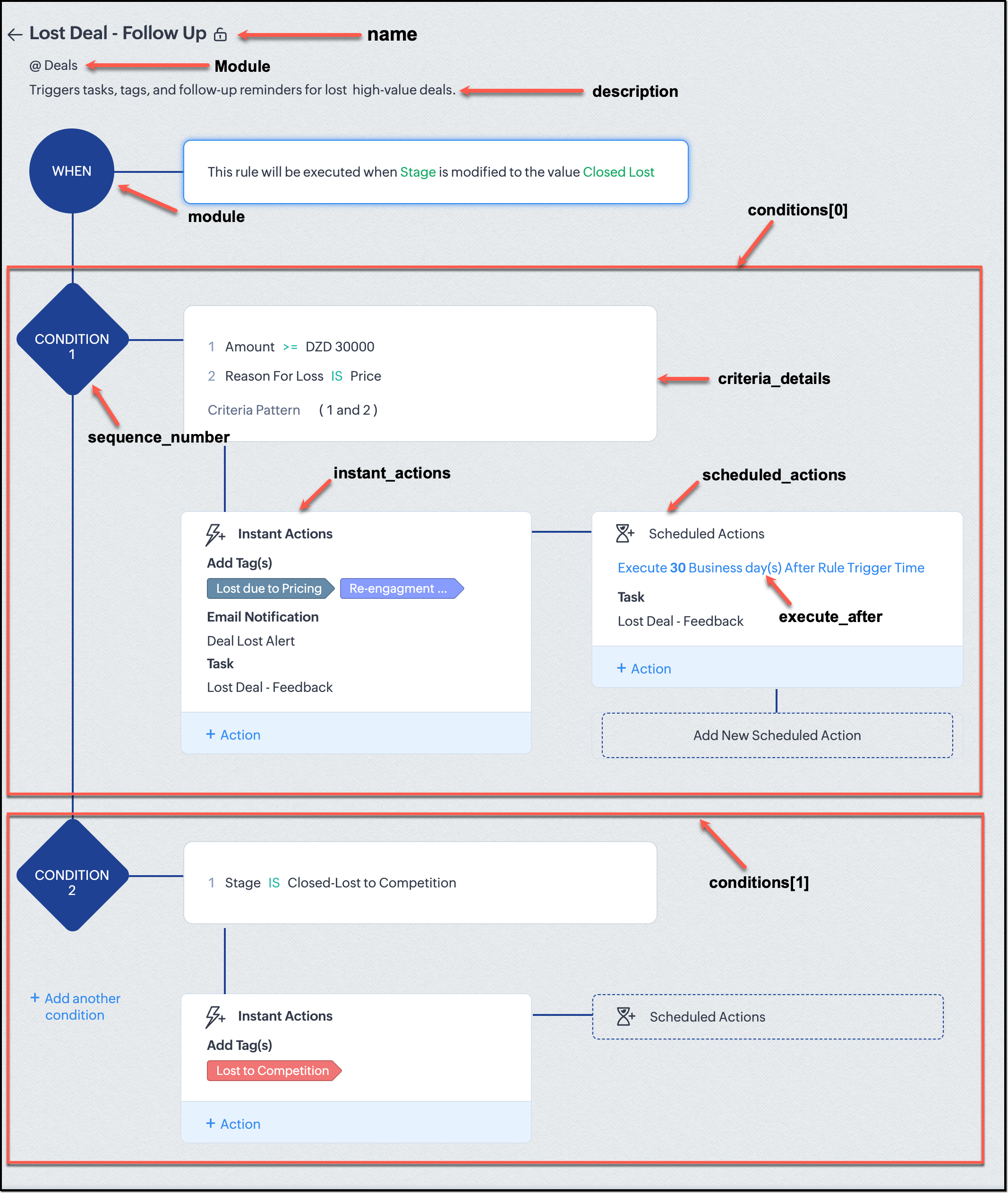
Associative vs. Non-Associative Actions
Every workflow rule performs one or more actions like sending an email, creating a task, or updating a field, etc. These actions fall into two broad categories: associative and non-associative.
Type | Description | Example Actions |
Non- Associative Actions | These are defined inside the workflow rule itself. They do not need to exist beforehand. You can configure their details directly within the workflow payload. | Create record, schedule a call, add a meeting, convert records, social actions, create record on email received, assign owner, |
Associative Actions | These are reusable actions created separately in CRM and referenced by their IDs. They can be used across multiple workflows and other automation tools. | Field updates, Email notifications, tasks, Webhooks, Add/Remove tags |
When you create or update a workflow via API, the associative actions require you to pass their existing action IDs. These IDs can be fetched using the corresponding Actions APIs : Field Updates, Email Notifications, Webhooks, and Tasks. In the coming weeks of Kaizen, we will take a closer look at each of these Actions APIs. We will see how to create, manage, and delete them within your workflow automation strategy.
Sample Request:
POST {{api-domain}}/crm/v8/settings/automation/workflow_rules
{ "workflow_rules": [ { "execute_when": { "details": { "trigger_module": { "api_name": "Deals", "id": "4876876000000002181" }, "criteria": { "comparator": "equal", "field": { "api_name": "Stage", "id": "4876876000000002565" }, "type": "value", "value": "Closed Lost" }, "repeat": false, "match_all": false }, "type": "field_update" }, "module": { "api_name": "Deals", "id": "4876876000000002181" }, "description": "Triggers tasks, tags, and follow-up reminders for high-value deals lost due to pricing", "name": "Lost Deal due to Pricing - Follow Up", "conditions": [ { "sequence_number": 1, "instant_actions": { "actions": [ { "name": "Lost Deal - Feedback", "id": "4876876000016794047", "type": "tasks" }, { "details": { "module": { "api_name": "Deals", "id": "4876876000000002181" }, "over_write": false, "tags": [ { "name": "Lost due to Pricing", "id": "4876876000016794071", "color_code": "#658BA8" }, { "name": "Re-engagement pending", "id": "4876876000016794075", "color_code": "#879BFC" } ] }, "type": "add_tags" }, { "name": "Deal Lost Alert", "id": "4876876000016794062", "type": "email_notifications" } ] }, "scheduled_actions": [ { "execute_after": { "period": "business_days", "unit": 30 }, "actions": [ { "name": "Lost Deal - Feedback", "id": "4876876000016794047", "type": "tasks" } ] } ], "criteria_details": { "criteria": { "group_operator": "AND", "group": [ { "comparator": "greater_equal", "field": { "api_name": "Amount", "id": "4876876000000002557" }, "type": "value", "value": "30000" }, { "comparator": "equal", "field": { "api_name": "Reason_For_Loss__s", "id": "4876876000002440001" }, "type": "value", "value": "Price" } ] } } } ] } ] } |
The execute_when defines when the workflow should fire.
type = field_update means this rule runs when a field’s value changes.
criteria : Stage = Closed Lost so the rule triggers whenever the Stage field is updated to Closed Lost.
repeat = false ensures it will not trigger multiple times for the same record.
In simple terms: “Whenever a deal is marked as Closed Lost, run this workflow.” The criteria_details section refines the trigger. The workflow only runs when the Amount ≥ ₹30,000 AND Reason for Loss = Price.
The instant_actions section inside the conditions array has the actions to be executed immediately when the criteria are met.
Add Tags : labels the record for easy filtering and reporting.
Send Email Alert : notifies the sales team instantly about the lost deal.
The scheduled_actions defines what happens after some time has passed. In this case, after 30 business days. Here, the workflow automatically creates a “Lost Deal - Feedback” task, reminding the deal owner to follow up with the customer to get feedback, and for future opportunities.
- The Amount is greater than or equal to ₹30,000, and
The Reason for Loss is “Price.”
By combining these elements, this workflow achieves a full closed-loop follow-up system.
Conclusion:
Zylker’s updated and new workflows make their automation smarter and more responsive. They are now able to spot key deals and ensure lost opportunities are revisited.
We hope you are now well on your way to mastering Workflow APIs. Share your thoughts in the comments or write to us at support@zohocrm.com.

Additional Reading:
- Workflow APIs - Part 1 - Auditing Workflows
- Workflow APIs - Part 2 - Find out what actions and triggers are supported for each module
Topic Participants
Anu Abraham
Sticky Posts
Kaizen #198: Using Client Script for Custom Validation in Blueprint
Nearing 200th Kaizen Post – 1 More to the Big Two-Oh-Oh! Do you have any questions, suggestions, or topics you would like us to cover in future posts? Your insights and suggestions help us shape future content and make this series better for everyone.Kaizen #226: Using ZRC in Client Script
Hello everyone! Welcome to another week of Kaizen. In today's post, lets see what is ZRC (Zoho Request Client) and how we can use ZRC methods in Client Script to get inputs from a Salesperson and update the Lead status with a single button click. In thisKaizen #222 - Client Script Support for Notes Related List
Hello everyone! Welcome to another week of Kaizen. The final Kaizen post of the year 2025 is here! With the new Client Script support for the Notes Related List, you can validate, enrich, and manage notes across modules. In this post, we’ll explore howKaizen #217 - Actions APIs : Tasks
Welcome to another week of Kaizen! In last week's post we discussed Email Notifications APIs which act as the link between your Workflow automations and you. We have discussed how Zylker Cloud Services uses Email Notifications API in their custom dashboard.Kaizen #216 - Actions APIs : Email Notifications
Welcome to another week of Kaizen! For the last three weeks, we have been discussing Zylker's workflows. We successfully updated a dormant workflow, built a new one from the ground up and more. But our work is not finished—these automated processes are
Recent Topics
Sync Zoho Marketing Automation with Zoho Forms
I can't find a section where the integration between Zoho Marketing Automation and Zoho form is explained. And how form subscription works with opt-in and consents.What is the difference between Zoho Campaigns and marketing hub?
Zoho Campaigns is a permission-based email marketing tool for sending marketing emails and mass emails. Marketing Automation is a multichannel marketing automation tool that caters to organizations looking for tools to engage their users across multipleWebhook not firing.
I created a webhook using the Web UI, it looks very nice and the testing worked without an issue, but when i save/ update a ticket, the webhook is not firing. Here are the details of the web-hook i get from using the API "modifiedTime": "2019-10-22T09:23:37.380Z",Duplicate customers being created in Desk
Hi I've trying to work out why I've getting duplicated customers being created in my desk. I have an external booking system that generates an email when I get a customer booking a job. A booking email gets sent to Desk where I manage the booking andCreating a custom CSV file using deluge script/
I have an application I have developed and the client wants us to place an export file in csv onto an ftp server daily. Now I don't see au options in creator to change the separator to anything else. The client wants the separator to be the pipe symbol "|" I think i would be able to create schedule with some code to create the appropriate data in a string using deluge script but I haven't seen any functionality that would allow me to deposit that data as a file anywhere or attach it to an emailCan we add custom fields to portal community profiles?
How do we add custom fields to our profile pages in our portal community? If we have the ability to add custom fields, will we be able to access those fields via API? We want to use our Desk community in our help portal as our primary community and wouldE-Invoicing in Belgium with Zoho Billing
Starting January 1, 2026, Belgium is introducing mandatory electronic invoices (e-invoicing) for all B2B transactions between VAT-registered businesses. Invoices and credits notes must be exchanged in a prescribed digital format. How E-Invoicing worksdelayed: host mx2.zoho.com (136.143.183.44): Network error: Unexpectedly disconnected (STARTTLS)
Hi Team, I'm not receiving any email. Seems to be an issue. Sender sent me the error message they received: "delayed: host mx2.zoho.com (136.143.183.44): Network error: Unexpectedly disconnected (STARTTLS)" Please advise.Additional Address - Company Name
It would be very helpful to have a "Company Name" field in the Additional Address shipping section. In a situation where you drop-ship orders to a different address or different company entirely, it may be necessary to list the company name of the receiver. I understand that the Attention field can be used for that purpose, but that's not really the intended purpose of that field.Incorrect Email Notifications for Product Reviews
Dear Zoho Commerce Support Team, I am writing to report a technical issue that occurs frequently on our platform. Problem Description: We regularly receive email notifications informing us of new product reviews awaiting approval. However, when we accessHow to Rank Tables by Row Count in Descending Order
I am trying to understand the consume of lines that grow up so fast in the last week. Is there any way to create a pivot table or query to get TABLE NAME LINES in descending order?Can we do Image swatches for color variants?
We want to do something like the attached screenshot on our new zoho store. We need image swatches instead of normal text selection. We want to user to select an image as color option. Is this doable? I don't see any option on zoho backend. Please hannualy customer report
we need a report per customer that looks like this invoic number cleaning laundry repair management 01 january xxx euro xx euro xx euro xxx euro 02 february xxx euro xxx euro x euro xxxx euro and so on the years 12 months is that possible to make andExport your notes from Notebook!
Dear users, The long awaited feature is now live. Yes, you can now export your notes from Notebook app in bulk. But the feature has just started with web app alone for now. You can try the export feature as mentioned below: Go to our web app, https://notebook.zoho.com Go to 'Settings' > 'Export' Now, select the format: You can select either ZNote or HTML Once done, you can use the same to import or can have this a local backup of your notes. Note: Export for other platforms are in development andour customers have difficult to understand the Statements
our costumers have big problems to understand Zohos Statements. we need a text box after the payment number to explain what the payments are for. Is it possible to develop a version of the Statement with that kind of box and if so whu can do itCanva Integration
Hello! As many marketing departments are streamlining their teams, many have begun utilizing Canva for all design mockups and approvals prior to its integration into Marketing automation software. While Zoho Social has this integration already accomplished,Prepopulating Fields
Hello, I have a form (Assets) with 2 lookup fields: Client (from Clients) Site (from Client Sites) I modified the code (highlighted in red below), so the Site dropdown shows the list of sites related to the Client. must have Client_Site ( type = picklistREPORT THAT SHOWS SOH FOR ITEMS THAT HAVE ZERO SALES
When we started Zoho we imported a lot of inventory lines directly off our suppliers price list and have never ordered / sold. I want to clean up our data base and remove all these lines. What reeport will show me what lines have zero sales as well asAutomation series : Close all tasks once the project is completed
When a project is marked as Completed, it might still have open tasks such as recurring tasks that were not marked as complete, tasks that are no longer relevant, or tasks that no longer need attention after closure. To ensure the project reflects itsConverting Sales Order to Purchase Order
Hi All, Firstly, this code works to convert a sales order(SO) to a purchase order (PO) via a button, however I am running into an issue when I convert the SO where the values from the line items are not pulled across from the SO to the PO. The ones inHorrible Connectivity!
I have used Meetings several times, but most of the time the connection is horrible. The video freezes, the audio freezes, and we end up cancelling the meeting. I am on a high speed internet connection, and Zoom works fine, so I know it's not a problemIs it really true that I can't set the default 'deposit to' account in 2025?
I've been using Books for 7 years and the default account has never been a problem. I usually manually reconcile invoices and have never had a thought about which account. It has always been my account. However, I recently noticed that for the past 4Zoho DataPrep switching Date Format
When using a pipeline that is importing Zoho Analytics data into Zoho DataPrep, the month and day of date fields are switched for some columns. For example, a Zoho Analytics record of "Nov. 8, 2025" will appear in Zoho DataPrep as "2025/08/11" in "yyyy/MM/dd"Using Another Field Value for Workflow Field Update
I'm trying to setup a Workflow with a "Field Update" action on the Lead module, but I would like the new value to actually be taken from a DIFFERENT Field's on the Lead record (vs just defining some static value..) Is this possible? Could I simply useTax information
Hello, I need help/guidance on how to add my organization's Tax/VAT information. Thank you PavlyBuild smarter Guided Conversations with Fork Blocks
When your customers arrive on your support channel, they're not there to explore. They are usually confused and stuck while trying to fix something important. We understand how stressful that moment can feel and we want your bot to make things easier,Custom item field won't allow decimal.
Hello, I have a custom item field that needs to be able to have a value with a decimal place such as 6.7 or 6.18. I have tried custom formatting the input format but can not get the correct syntax to allow this. Is this possible in Zoho?Free webinar: Zoho Sign unwrapped – 2025 in review
Hey there! 2025 is coming to an end, and this year has been all about AI. Join our exclusive year-end webinar, where we'll walk you through the features that went live in 2025, provide answers to your questions, and give you a sneak peek on what to expectHubSpot CRM to Zoho Creator Integration
I'm trying to create an integration between HubSpot CRM and Zoho Creator with HubSpot being the push source (if a contact is created or updated in HubSpot, it pushes the information to Zoho Creator). I have two questions: 1- Is it best to use Zoho FlowGain control over record sharing with portal users through our new enhancement: criteria-based data exposure
Dear Customers, We hope you're well! Portals is a self-service avenue through which your clients can access and manage their direct and related data in Zoho CRM. This empowers them to be more independent and enables them to experience a sense of transparencyBest-practice setup in Zoho One for managing combined candidate pools and exporting anonymised CVs
We are new users of the Zoho One bundle and operate a consulting and engineering company. Our workforce model includes a mix of permanent employees, active job applicants, and freelance/independent consultants. All three groups need to be searchable,Meet Canvas' Grid component: Your easiest way to build responsive record templates
Visual design can be exciting—until you're knee-deep in the details. Whether it's aligning text boxes to prevent overlaps, fixing negative space, or simply making sure the right data stands out, just ironing out inconsistencies takes a lot of moving parts.hard-bounced email list
Hi, Below pops up when I try to send an Email to some of my customer. Please guide me how to take it out from hard-bounced list? I am not sure how they were marked in hard-bounced listRegister the 'Contact Role' addition and change as a Potential edition so it can trigger Workflows
We are trying to use "Contact Roles" in Potentials. Contact Roles are special and different than the other Related lists, so, it may have a special behavior. Something to keep in mind is that you will never have 100 Contact Roles as you can have 100 Tasks, Calls, or any other Related list. In our case we will have 2 in average and up to 4 or 5 maximum. The problem is that we need to bring information from 3 key Contact Roles to the Potential and adding a Contact to the Contacts Roles area never triggerCan I change the format of the buttons in the email templates?
Hi all! We have been working hard trying to brand our email templates, and have some way to go yet. One of the things we can't seem to edit is the green ${Cases.CUSTOMER_PORTAL_BUTTON} button and the font of the View Ticket text. Is there any way of doingBest practice to structure reporting to include events covering multiple months / quarters.
Hi, I'm new to Zoho, have some experience of more "enterprise" tools, looking for some input from the community. I'm looking to create a report that includes events that cover a long period, each event has a start / end date and I'm struggling undertandingMarketing Tip #11: Turn features into benefits that sell
We all love talking about our products, but here’s a secret: customers don’t just buy features, they buy benefits. Instead of just saying "Made from 100% organic cotton," try "Soft, breathable comfort that lasts all day." Benefits tell shoppers how yourSynchronise item image between Zoho Commerce and Zoho Books/Inventory/CRM
Here is a blindingly simple idea to tie several Zoho products together. Zoho - please include a method to synchronise the item image (or images) from one Zoho application to another. For example, if you upload an item image in Zoho Inventory, a user shouldHow do I migrate from zoho mail to Office 365?
The manual migration of Zoho Mail to Microsoft 365 typically requires using IMAP to move emails and configuring Microsoft Outlook to sync Zoho Mail. This approach can be error-prone, especially if there are multiple accounts or large email archives. Moreover,New Update: Convert External Users in Bulk in Zoho Directory
Greetings to all Zoho Directory users out there! We’re excited to introduce a new update that makes user management in Zoho Directory even more efficient; you can now convert external users in bulk! Earlier, admins could convert only one external userNext Page