Customer Segmentation using RFM Analysis
How well do you know your customers? Whether you operate in a B2B or B2C space, chances are that 80% of your business comes from just 20% of your customers (Pareto's Principle). According to a study by Forbes, acquiring new customers costs five times more than retaining the existing ones. Identifying high-value customers is crucial to increase revenue and building brand loyalty.
Customer Segmentation is a critical strategy for businesses to understand and engage with customers effectively. Understanding the behavioral patterns of customers can help personalize the purchases they make and cater to their needs better.
Questions like who are the customers who contribute more to sales, who are the customers about to churn, will help digital marketers understand the behavioral patterns of their customers.
While there are many criteria based on which the customer base can be segmented, this solution focuses on segmenting customers based on the RFM analysis.
What is RFM Analysis?
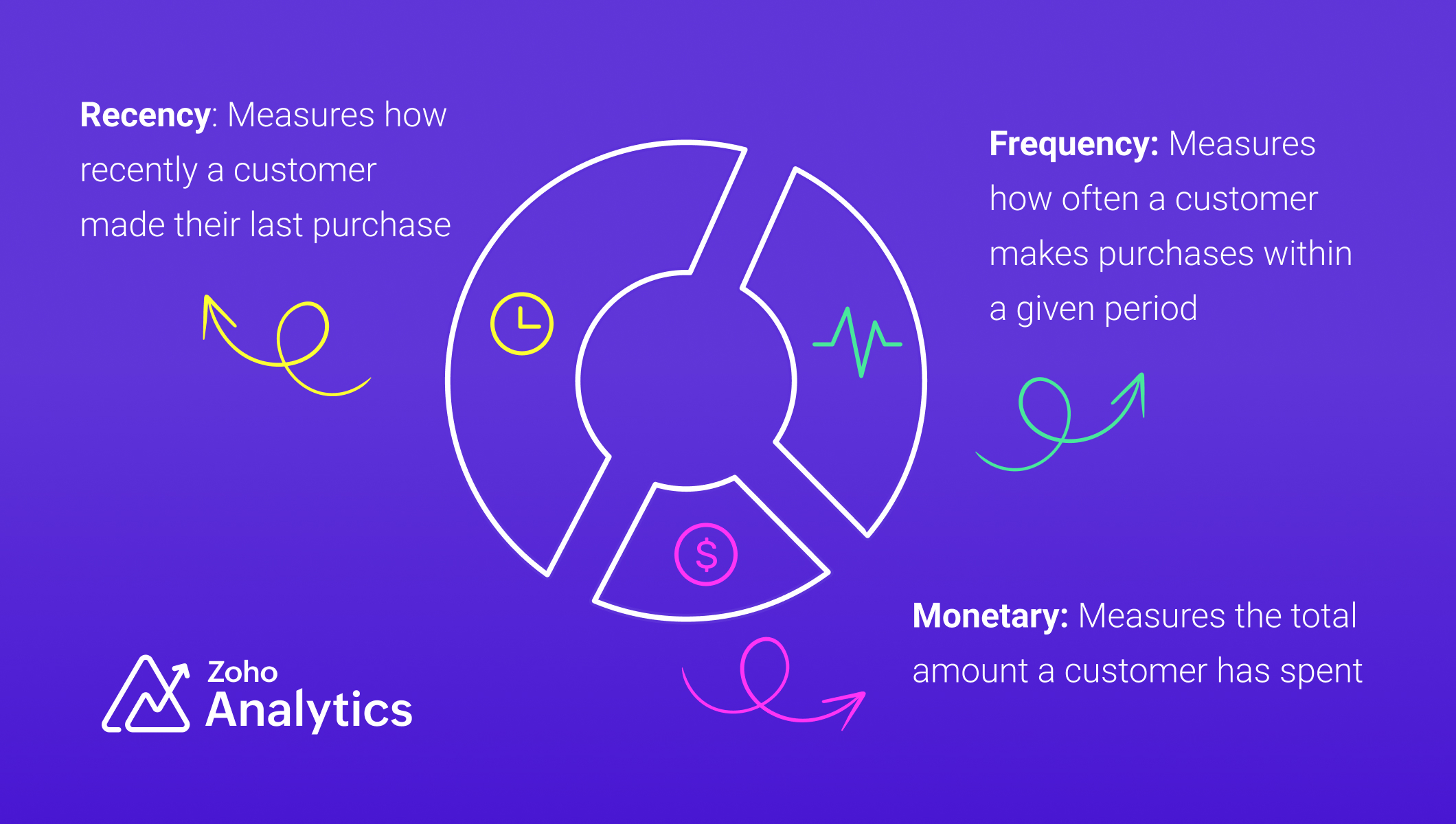
RFM analysis (Recency, Frequency and Monetary) is a method used to identify and segment existing customers based on their purchasing behavior. The key metrics of RFM analysis include
Recency
Recency refers to how recently a customer has made their purchase and this is the most important metric of the other metrics. This metric is a strong indicator of customer loyalty and interest.
Frequency
Frequency refers to how often a customer makes purchases or interacts with a business within a specific period. It measures the level of engagement and loyalty of a customer.
Monetary
Monetary value refers to the total amount of money a customer has spent with a business during a specific period.
Industry-Specific Applications of RFM Analysis
- SaaS and subscription services: RFM analysis can be adapted for SaaS and subscription services to segment users based on engagement, renewals, and revenue contribution.
- Financial Sector: RFM analysis can improve credit scoring and risk assessment by evaluating customer transaction patterns, helping financial institutions make more informed loan approval decisions.
Data Requirements
For RFM analysis, you'll need a transactional dataset with the following equivalent columns (details)
- A product (Product ID)
- A related transaction (Transaction ID)
- Number of products purchased in a transaction (Product Quantity)
- The product purchase price (Product Price)
- Transaction date (Date)
- Customer who made the purchase (Customer ID, Customer Name)
We have used a sample table of e-commerce data for illustration.
Steps for Implementing RFM analysis
1. Gather and Prepare Transaction Data :
Gather all transaction data, ensuring it includes customer identifiers, transaction dates, and monetary amounts, and address missing or inconsistent values, ensuring data integrity before analysis.
2. Compute RFM Metrics:
To segment customers based on their behavior, we compute three key metrics: Recency (R), Frequency (F), and Monetary Value (M). Below are SQL queries for each, along with detailed explanations.
Recency (R)
Recency measures how recently a customer made a purchase. It is calculated as the number of days since their last transaction. Customers with recent purchases are more engaged, while those who haven’t bought in a long time may be at risk of churn.
The time frame for RFM analysis should be tailored to your business model and industry. Choosing the right period for RFM analysis is essential, as it directly influences the accuracy of customer segmentation and the quality of insights derived.
Frequency (F)
Frequency tracks how often a customer makes purchases within a specific period. A higher frequency indicates a loyal customer who regularly shops, while a lower frequency suggests occasional or one-time buyers.
Monetary Value (M)
The total amount spent by the customer in the same period
RFM Query Table
|
SELECT
"Customer ID",
"Customer Name",
DAYS_BETWEEN(MAX("Transaction Date"), CURRENT_DATE()) AS "Recency",
COUNT ("Order ID") AS "Frequency",
SUM("Transaction Amount") AS "Monetary Value"
FROM "Customer Data"
GROUP BY "Customer ID",
"Customer Name"
ORDER BY "Recency" ASC,
"Frequency" DESC,
"Monetary Value" DESC
|
3. Segment Customers using Cluster Analysis
Manual scoring can skew the results and may not be practical for handling large volumes of data. In contrast, using machine learning algorithms like cluster analysis ensures unbiased, efficient, and data-driven segmentation. Unlike traditional scoring methods such as the quantile or percentile-based approach, cluster analysis recognizes inherent relationships and patterns in the data. With cluster analysis, business can obtain accurate segmentation and devise targeted strategies to improve sales and customer retention.
Follow the below steps to apply cluster analysis,
- Click the Create New icon and choose New chart from the drop-down menu.
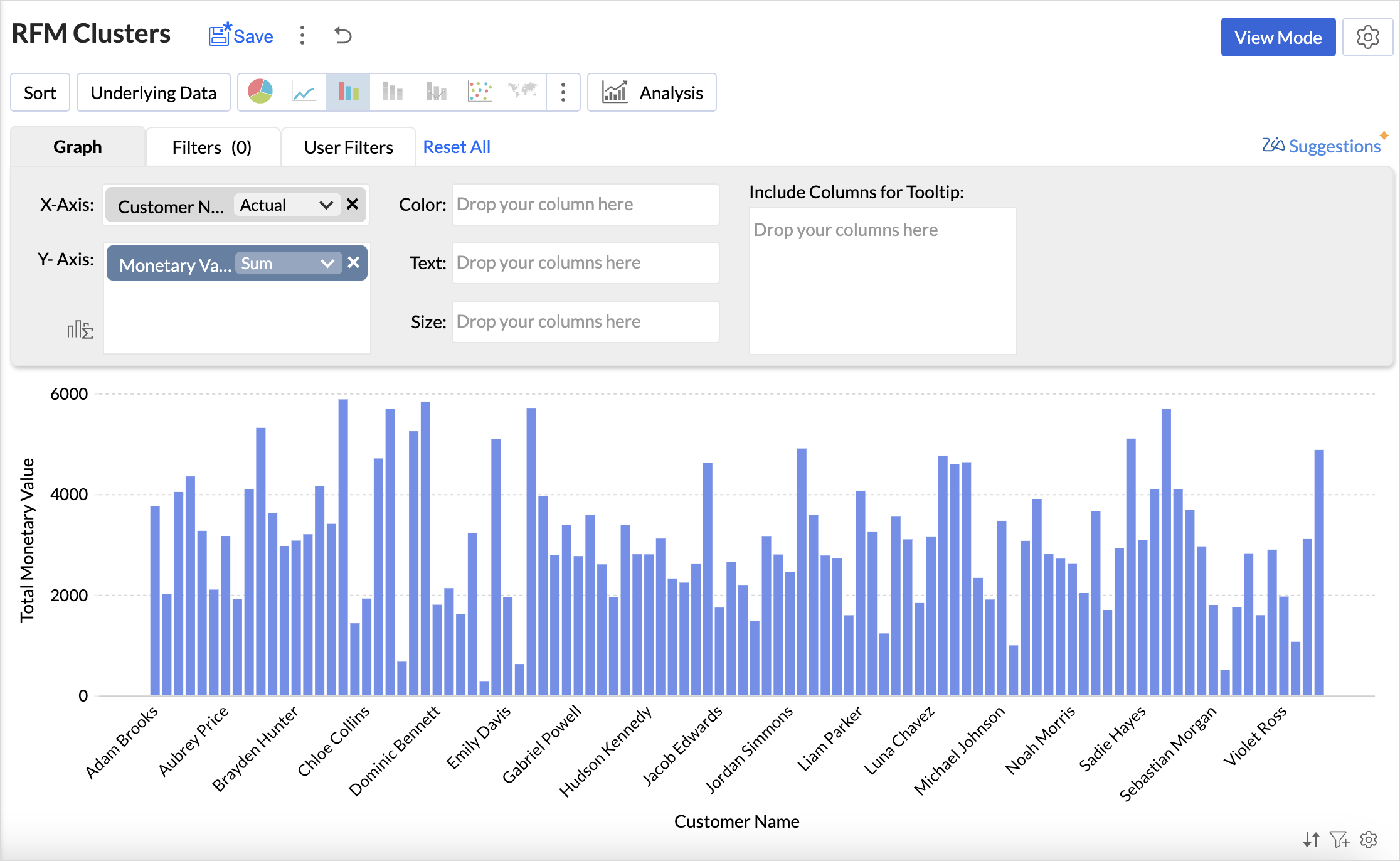
- Add the columns to the chart shelf as shown below,
- X-axis: Customer Name
- Y-axis: Monetary Value with Sum function.
- Click Generate Graph and change the chart type to bar chart.
- Click the Analysis icon and select Cluster Analysis > Add Clusters.
- The Model is chosen automatically based on the columns dropped in the shelves.
- By default, the columns dropped in the shelves (Monetary Value) are selected as factors. Click the drop-down icon to include Recency and Frequency columns as factors.
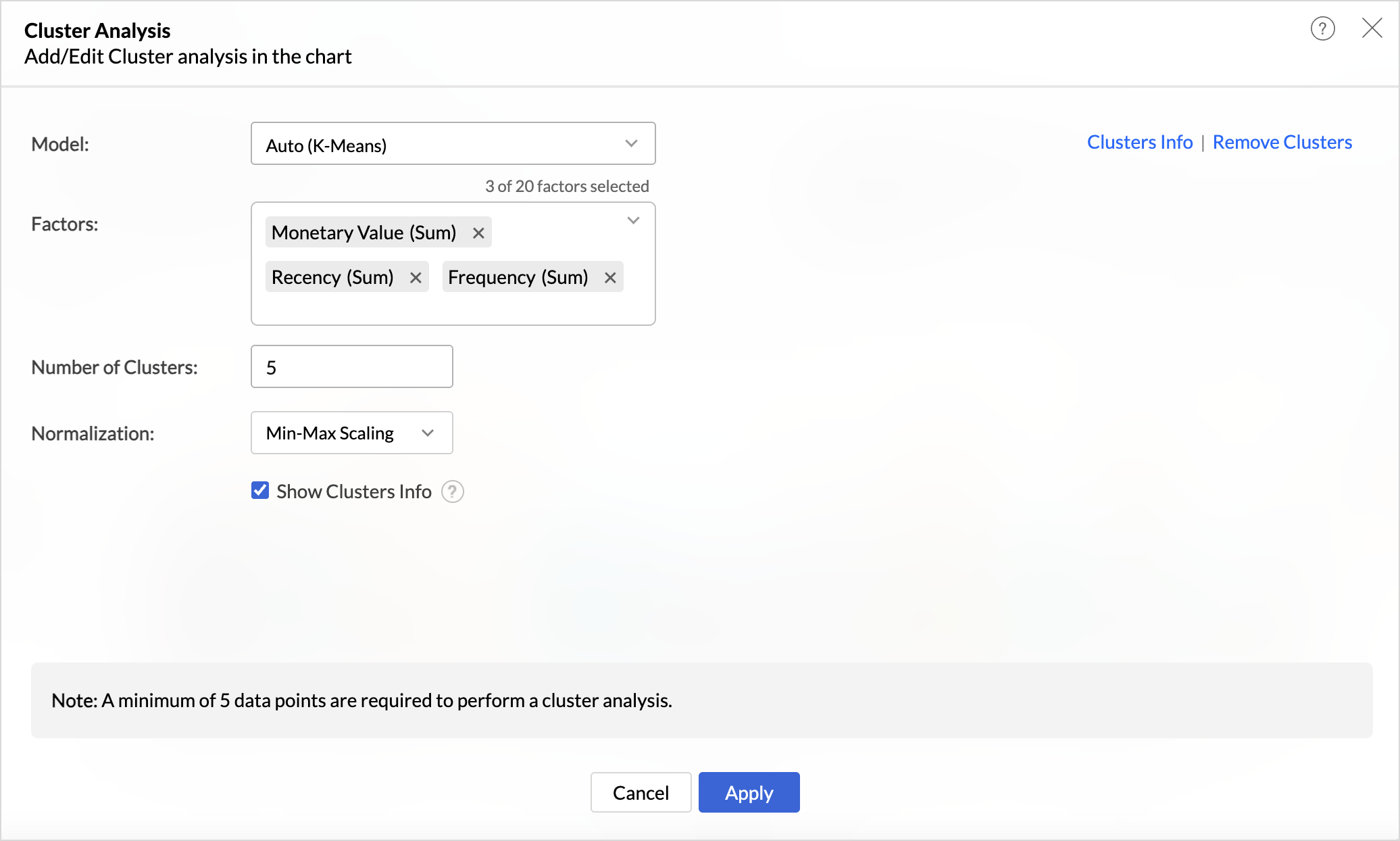
- The number of clusters is determined automatically but can be adjusted based on business needs and specific customer segmentation goals to ensure optimal categorization.
- Choose the Normalization method to prevent values of high ranges from dominating the results. For instance, Recency (measured in days) and Monetary Value (measured in currency) have different scales, and normalization ensures a balanced contribution from each metric.
- Click Apply.
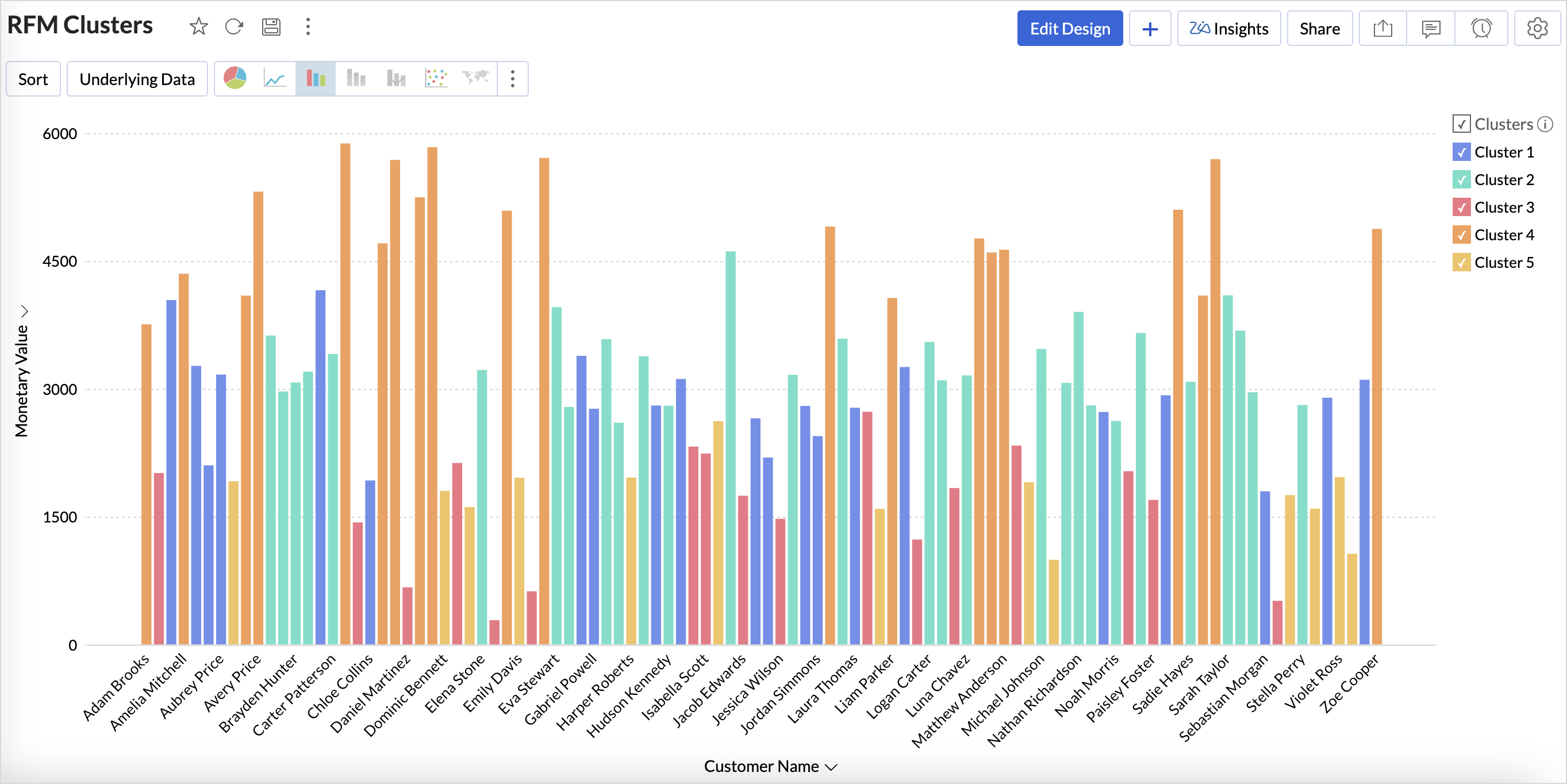
4. Export Clusters Data
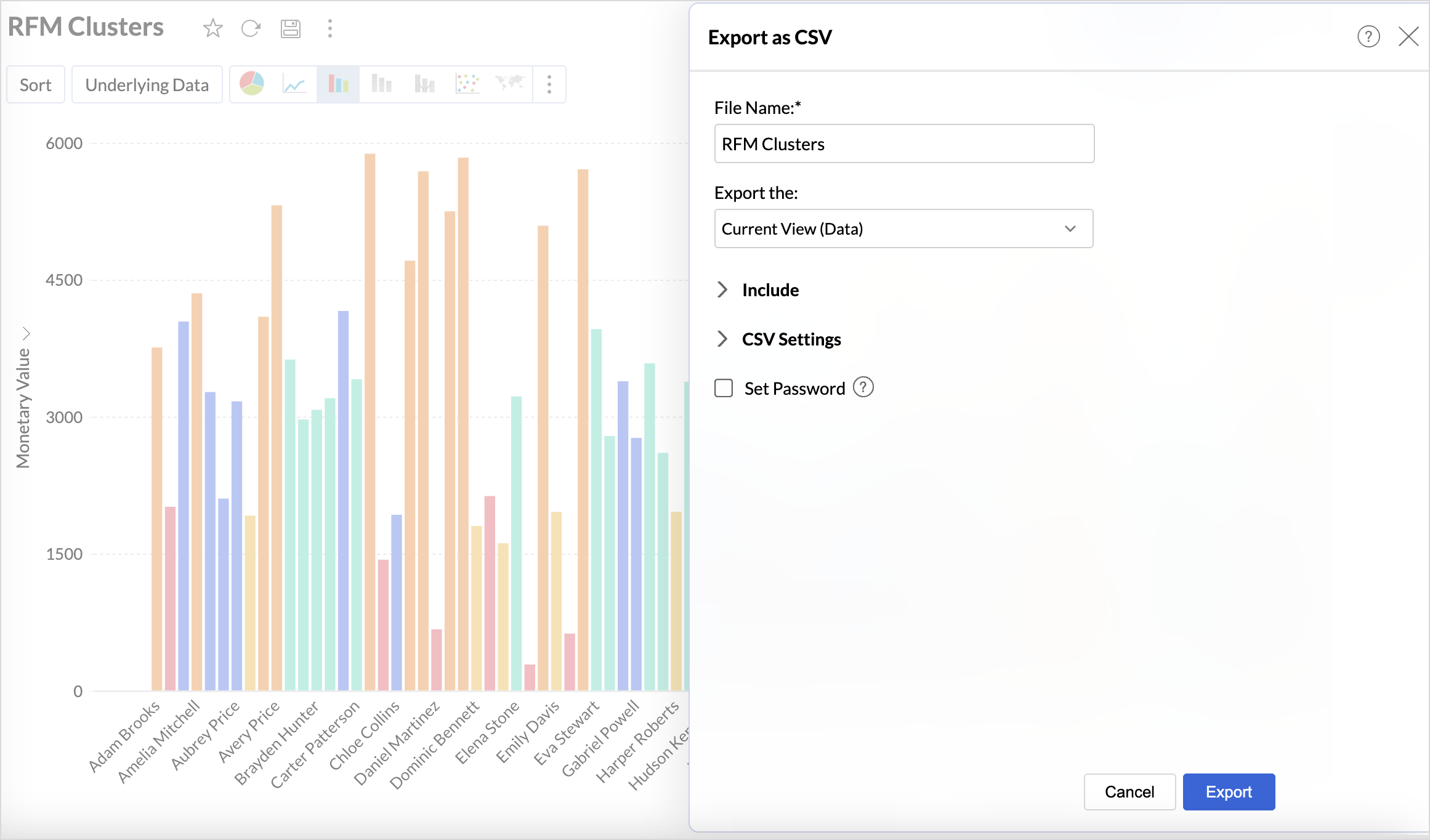
Once the customer profiles have been segmented using cluster analysis, Export the Current view in the preferred table format to build more data visualizations to understand the clusters.
Build an RFM Analysis Dashboard
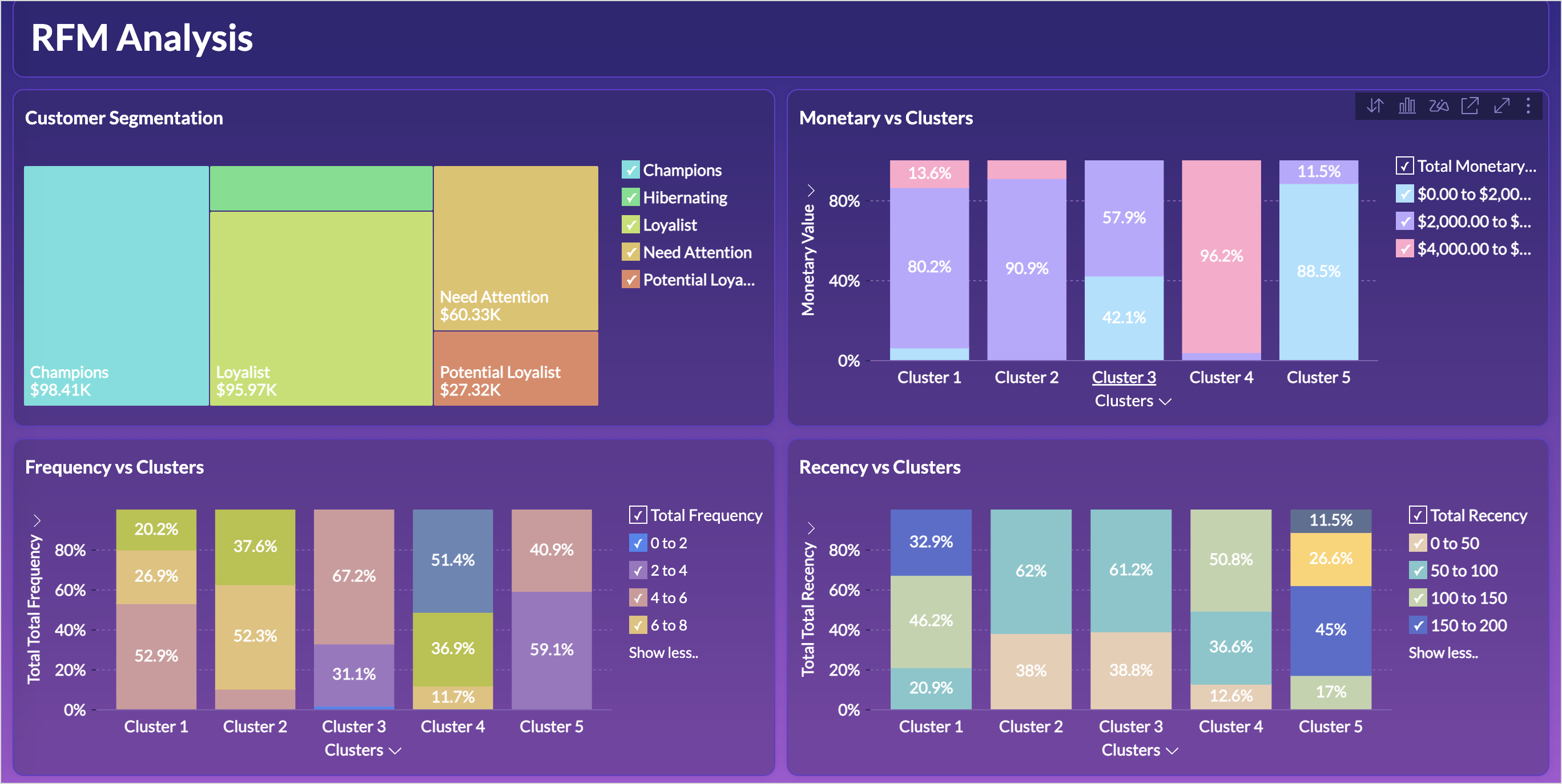
The RFM analysis dashboard provides a comprehensive view of customer behavior. Let's look at the steps involved in building this dashboard.
1. Import the Clusters Data
Import the downloaded clusters table back into Zoho Analytics using the files option as given below.
- Click the New icon on the side navigation panel and choose New Table/ Import Data.
- Select files and choose the Clusters Table to import and click Next.
- A data preview will be displayed; verify the data types of columns and click Create.
2. Create Reports to Understand the Characteristics of the Clusters
While the data is clustered, understanding the characteristics of each cluster is what enables businesses to take strategic actions. This includes identifying which customers need targeted marketing, personalized engagement, or retention efforts. Recognizing patterns within clusters provides insights into customer behavior, which is essential for optimizing marketing campaigns, improving retention strategies, and enhancing customer experience.
The below reports help understand the distribution of customers across different monetary value, recency and frequency segments within each cluster.
Clusters vs Monetary Value
- Access the cluster table (imported data) and click the new icon > chart view.
- Drag and drop the columns as given below:
- X-axis - Clusters
- Y-axis - Monetary Value with the Count function.
- Color - Monetary Value with the Actual Range function.
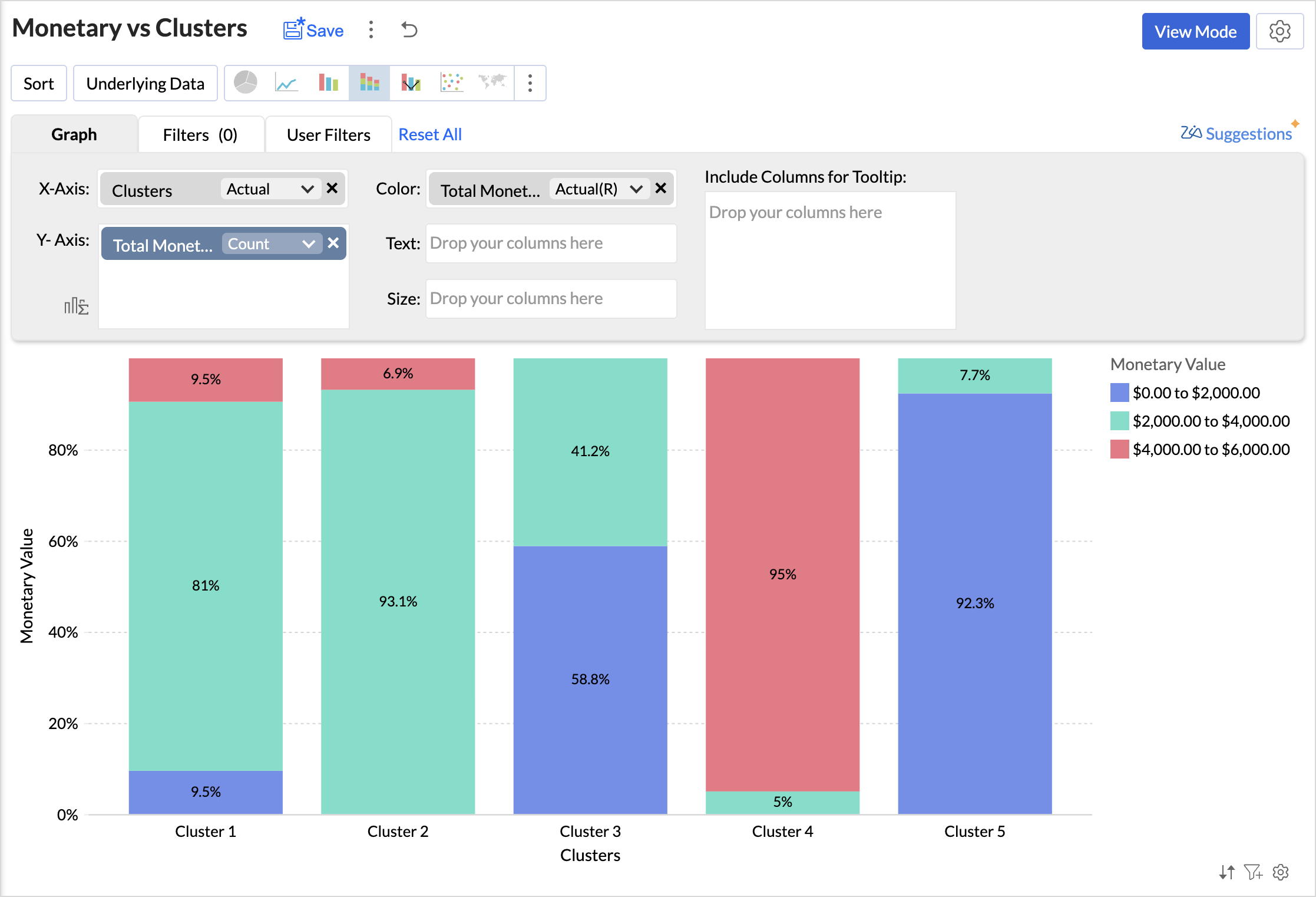
Analyzing the chart, we can infer that,
- Cluster 1 consists of a diverse group of customers spanning all spending levels.
- Cluster 2 includes moderate to high spenders who contribute significantly to revenue.
- Cluster 3 comprises low to mid-range spenders, often occasional buyers.
- Cluster 4 represents high-value customers with premium spending habits.
- Cluster 5 consists primarily of low spenders with minimal purchasing activity.
You can similarly create reports to know about the distribution of customers for the Recency and Frequency metrics.
The below table lists the characteristics of clusters
|
Cluster
|
Cluster Classification
|
Recency
|
Frequency
|
Monetary
|
Recommended actions
|
|
Cluster 1
|
Needs Attention
|
100 to 150 days
|
Low to Moderate
|
Diverse spending
|
Re-engagement campaigns, discounts, or reminders to encourage repeat purchases.
|
|
Cluster 2
|
Loyalist
|
0-50 (Highly Active)
|
High
|
Consistent moderate-to-high spenders
|
Loyalty programs, exclusive deals, early access to new products to maintain engagement.
|
|
Cluster 3
|
Potential Loyalist
|
0-50 (Active)
|
Low to Moderate | Budget-conscious, occasional buyers | Cross-selling, personalized recommendations, and value-based promotions. |
|
Cluster 4
|
Champions
|
100-150 (Inactive)
|
Moderate to High (Frequent buyers)
|
High spenders
|
VIP experiences, personalized services, and premium offers to retain and enhance their spending.
|
|
Cluster 5
|
Hibernating
|
Mostly inactive or infrequent
|
Low
|
Minimal spending
|
Win-back campaigns, incentives, special discounts, and targeted ads to regain interest.
|
Based on the above table, you can give specific labels to the clusters using the bucket columns option.
RFM Dashboard
Limitations & Considerations of RFM Analysis
While RFM analysis is a powerful customer segmentation tool, businesses should be aware of certain limitations and factors that can influence results:
- Data Freshness and Relevance: RFM analysis relies on transactional data, making the freshness and relevance of this data crucial for accurate customer segmentation. Setting up automated data imports ensures real-time updates, reducing the risk of working with stale data.
- Seasonal Variations: Customer purchasing behavior often fluctuates due to seasonal trends, holidays, and industry-specific cycles, which can impact RFM scores and lead to misleading segmentation if not accounted for properly. Instead of analyzing only recent months, compare customer behavior for the same period in previous years to detect true engagement patterns.
Topic Participants
Nisha Angel J
Hammer Group
Juan
Sticky Posts
What's New in Zoho Analytics - November 2025
We're thrilled to announce a significant update focused on expanding your data connectivity, enhancing visualization capabilities, and delivering a more powerful, intuitive, and performant analytics experience. Here’s a look at what’s new. Explore What'sWhat's New in Zoho Analytics - October 2025
Hello Users! We're are back with a fresh set of updates and enhancements to make data analysis faster and more insightful. Take a quick look at what’s new and see how these updates can power up your reports and dashboards. Explore What's New! ExtremeWhat’s New in Zoho Analytics – September 2025
Hello Users!! In this month’s update, we’re raising the bar across multiple touchpoints, from how you bring in data, plan and track projects to how you design and brand your dashboards. We’ve added the all-new Gantt chart for project visualization, expandedAnnouncing Agentic AI - Ask Zia!
We are delighted to roll out the new agentic AI capabilities in Ask Zia, where every stage of the BI workflow is assisted by AI. With a human-in-the-loop approach, Ask Zia ensures that you’re in command of the decision, while AI handles the complexity.Invitation-Based User Access in Zoho Analytics
Hello everyone, We’re rolling out an important update on how users are added to your Zoho Analytics Organization and Workspaces. Previously, when admins added users, they were automatically added to the organization. Moving forward, to improve security
Recent Topics
Sales order & purchase order item links for item details
This is fantastic for checking lots of things, I use it a lot. It would be great to see it extended to invoices & bills On another note, may as well throw in my favourite whinge ..... Wish you guys would get the PO receive differences sorted urgently,Bank charges are applied. Please select a bank account.
Hello, I'm trying to add bank charges to a customer payment, but I get the error message "Bank charges are applied. Please select a bank account." I found this old thread, where it says that I need to "select a Bank account for the 'Deposit To' dropdownHow to add receipts
How to add receiptsSupport for auto-upgrade in TrueSync (for Windows)
WorkDrive TrueSync app now supports auto-upgrading to the latest version for Windows OS. You must manually download and install the TrueSync app version 3.4.0 to avail this feature. Download the latest TrueSync app for Windows (version 3.4.0) SupportedWorkDrive API Documentation
WorkDrive provides users and developers an extensive set of APIs to help integrate functionalities of Zoho WorkDrive with other Zoho applications and third-party tools. We have published the official WorkDrive API Documentation page for all external users.March 15, 2023: Zoho Docs is discontinued
As of today (March 15, 2023) Zoho Docs is discontinued for all users. We would like to thank our customers for trusting us for so many years! Going forward, we're confident you'll enjoy using Zoho WorkDrive for all your advanced file management and collaborationIntroducing WorkDrive 4.0: Enhanced productivity. Advanced data administration. (Phase 1)
Hello All, We're excited to share the release of WorkDrive 4.0, which includes important new features and enhancements focused primarily on productivity, secure collaboration, data administration, integrations, and user experience. Read the official announcementExternal download link limit
Can You please help us to understand this For Zoho WorkDrive external users, the download limit is a maximum of 5 GB total download size and a maximum of 50 first-level files and folders What is the meaning of first level? We are using these files inDynamically catching new file creations
I have a team folder with many subfolders, and in those folders we add new documents all the time. I'd like to have a workflow or script to notify me (and then take other actions) when a file is added anywhere in that structure that ends in "summary.txt".Rotate an Image in Workdrive Image Editor
I don't know if I'm just missing something, but my team needs a way to rotate images in Workdrive and save them at that new orientation. For example one of our ground crew members will take photos of job sites vertically (9:16) on his phone and uploadWorkflow workdrive rollout
Hi! When will workflow be rolled out to all users? Thanks.Creating and managing a Team Folder using WorkDrive TrueSync
Hello everyone, Are you tired of constantly switching between your Desktop TrueSync app and the WorkDrive web app to create and manage Team Folders? We’ve made things easier for you. You can now create and manage Team Folders directly within the TrueSyncEdit images seamlessly with WorkDrive's built-in Image Editor
Are you tired of switching between multiple tools just to make simple edits to your images? We understand the hassle, which is why Zoho WorkDrive now comes with a built-in image editing tool, powered by Zoho Annotator. This tool allows you to edit imagesSupercharge your email workflow with WorkDrive's add-in for Microsoft Outlook
Consider this: You’re handling a critical project, and your inbox is packed with important attachments, email threads, and client communications. The back-and-forth routine of downloading files to your computer, uploading them to WorkDrive, and manuallySecure and promote your content with Custom Watermarking
Imagine this: You’re a professional photographer who regularly shares your work online with potential clients and collaborators. Recently, you notice that some of your images have been reposted without any credit or permission. This not only impacts yourJoin us in Singapore for the Zoho WorkDrive User Group meetup!
Hello, everyone! Exciting news! We'll be hosting an upcoming Zoho WorkDrive user group meetup in the beautiful city of Singapore this November. At this Zoho User Group meetup, we'll guide you through ways to use WorkDrive as a platform and build customWorkDrive TrueSync now supports ARM64-based Windows devices!
We’re excited to announce that the Zoho WorkDrive TrueSync app now fully supports Windows devices with ARM64 architecture! Whether you're working on an ARM-based device or an x64 processor, you can now enjoy the same seamless file synchronization experienceOption to Disable Download for Documents Shared via Permalink
Dear Zoho Writer Team, Currently, when sharing a Writer document using the regular permalink (Collaborators with external users), there is no option to restrict the ability to download the document. While the external share link allows such restrictions,How to Download a File from Zoho WorkDrive Using a Public Link
How to Download a File from Zoho WorkDrive Using a Public Link If you're working with Zoho WorkDrive and want to download a file using a public link, here's a simple method to do so using API or a basic script. This approach helps developers or teamsdomain not verified error
Hi when i try to upload a video from zoho creator widget to zoho work drive iam getting domain not verified error.I don't know what to do .In zoho api console this is my home page url https://creatorapp.zoho.com/ and this is my redirect url:www.google.com.IamLive Webinar: Getting Started with Zoho WorkDrive - A Complete Overview
Hello everyone, We’re excited to invite you to our upcoming live webinar! Discover how to set up your team, bring in your data, and make the most of WorkDrive’s collaboration, organization, AI, and security capabilities. This session is perfect for anyoneCalendly One-way sync- Beta Access
Hello Community, Many of our Zoho Calendar users have expressed their interests in Zoho Calendar and Calendly integration. We've been tightly working on with Calendly team to provide a two-way sync between Calendly and Zoho Calendar. However, there haveThe year that was at Zoho Calendar 2023- Part 2
In continuation with our previous post on all the exciting updates and improvements that have shaped Zoho Calendar over the past 12 months, Lets delve into more: Bring your calendars together- Introducing Zoho Calendar and Outlook calendar synchronisationTip of the week #18: Change the event organizer in Zoho Calendar.
We cannot always be available to conduct an event when we organise one. In these circumstances, you can use Zoho Calendar to change the event organizer at any moment before the event begins. This way, you can avoid cancelling the event while still takingTip of the week #20: Create and manage multiple personal calendars.
Zoho Calendar provides users with the facility to create and manage as many calendars as required. All these calendars can be managed and edited as per user requirements. You can alter the calendar view, make changes to the calendar theme, share the calendarTip of the week #24: Subscribe to the calendars of a Zoho Calendar user.
Calendars that are created by Zoho Calendar users can also be added to your Zoho calendar. All public calendars listed by the users will be available when you enter the email address. You can choose the calendar you need to subscribe to. Once the emailTip of the week #26: Import/ Export calendars in Zoho Calendar.
Any calendar on the web or calendars that you create in any other calendar application can be imported in to Zoho Calendar. This will help you to add the events from the calendars that you import to your Zoho Calendar. You also have the option to exportRemoving calendar for zoho email group
How do I make it so that an email group created in Zoho Mail does NOT have a calendar? I have a couple groups for our phone systems voicemails - one for each department. Voicemail recordings are sent to this groups email address so they have access toTip of the week #27: Edit personal calendars in Zoho Calendar.
In Zoho Calendar, the personal calendars you create can be edited to make changes you need to make. Edit a Personal Calendar The following changes can be made to the personal calendar by editing it: Calendar title Calendar color Reminders and DescriptionTip of the week #28: Show/ hide, enable/ disable and empty/ delete your calendars in Zoho Calendar.
The popularity of online calendars has soared in recent years. It's used both for personal and professional reasons. Calendars have evolved into an effective productivity tool in our lives, from creating events for birthdays and anniversaries to schedulingTip of the week #30: Share calendars publicly in Zoho Calendar.
In Zoho Calendar, calendars that are created under My Calendars can be shared publicly. Making your calendar public allows others to view it. When you need to share your calendar with a larger group, public sharing can help. You can restrict others fromTip of the week #31: Share your personal calendars within organization.
Keep your Organization members aware of what's happening. In Zoho Calendar, you can share your personal calendar with all the members in your organization using the Share with org option.When you enable org sharing for a particular personal calendar,Tip of the Week #33: Appointment scheduler in Zoho Calendar.
In Zoho Calendar, you can use the Schedule Appointment option to share your appointment request form with the public, allowing people to fill out the form to request an appointment with you. This form can be embedded on your website or blog. VisitorsTip of the Week #34: Embed Calendars using Zoho Calendar
You can make your calendars public and visible to the general public by embedding them in your websites/blogs using Zoho Calendar. You can use the embed code to add your own calendars to your website's/ blog's HTML code, and the calendar will appear onTip of the week #35: Migrate to Zoho Calendar from Google Calendar.
If you are looking to move your Google Calendar events to Zoho Calendar, never worry about missing out the events from your Google Calendar. You can migrate the events from Google Calendar using the export option and import it to Zoho Calendar and manageTip of the week #36: Migrate to Zoho Calendar from Outlook Calendar.
If you've been using Outlook calendar and looking to migrate to Zoho Calendar, you can seamlessly export your calendars from Outlook and import them into Zoho Calendar without losing any events, participants, and the reminders set for each event. To migrateShared calendar issues and duplications
Apparently there was a calendar update? Now when I schedule an event for a team member that has shared his calendar with me, the event makes me the organizer and adds the event to my calendar as well. Previous to this "update" I would scheduled an eventSubscribed Calendar
Hi i have subscribed to a calendar for Holidays in Canada it shows all the holidays perfectly but every one of them has the word Canada before the rest of the name is there a way to remove that word Canada? It takes up a lot of space in the square onThe year that was at Zoho Calendar 2023- Part 1
Hello, amazing community members! Happy new year from all of us here at Zoho Calendar. As we begin the new year, we'd like to thank each and everyone of our community members for your unwavering support and love that you have shown for Zoho Calendar.Zoho Calendar 2024: A Year in Review
Hello, community members! Happy new year from all of us here at Zoho Calendar. As we turn the page to a new year, we extend our heartfelt gratitude to every member of our Zoho Calendar community for your continued support and enthusiasm. Your feedbackNext Page