Map Dependency Fields in Zoho CRM using APIs

Map dependency fields with a use case
- Parent Field - Issue Type: The value chosen here determines which options appear in the dependent field.
- Child Field - Sub-Issue: The available options change dynamically based on the selected value in the parent field.
Issue Type | Sub-Issue |
Login Issue | Forgot Password, Account Locked, 2FA Not Working |
Payment Issue | Credit Card Declined, Refund Not Received, Double Charge |
Feature Request | New Integration, UI Enhancement, Report Customization |
Without map dependency
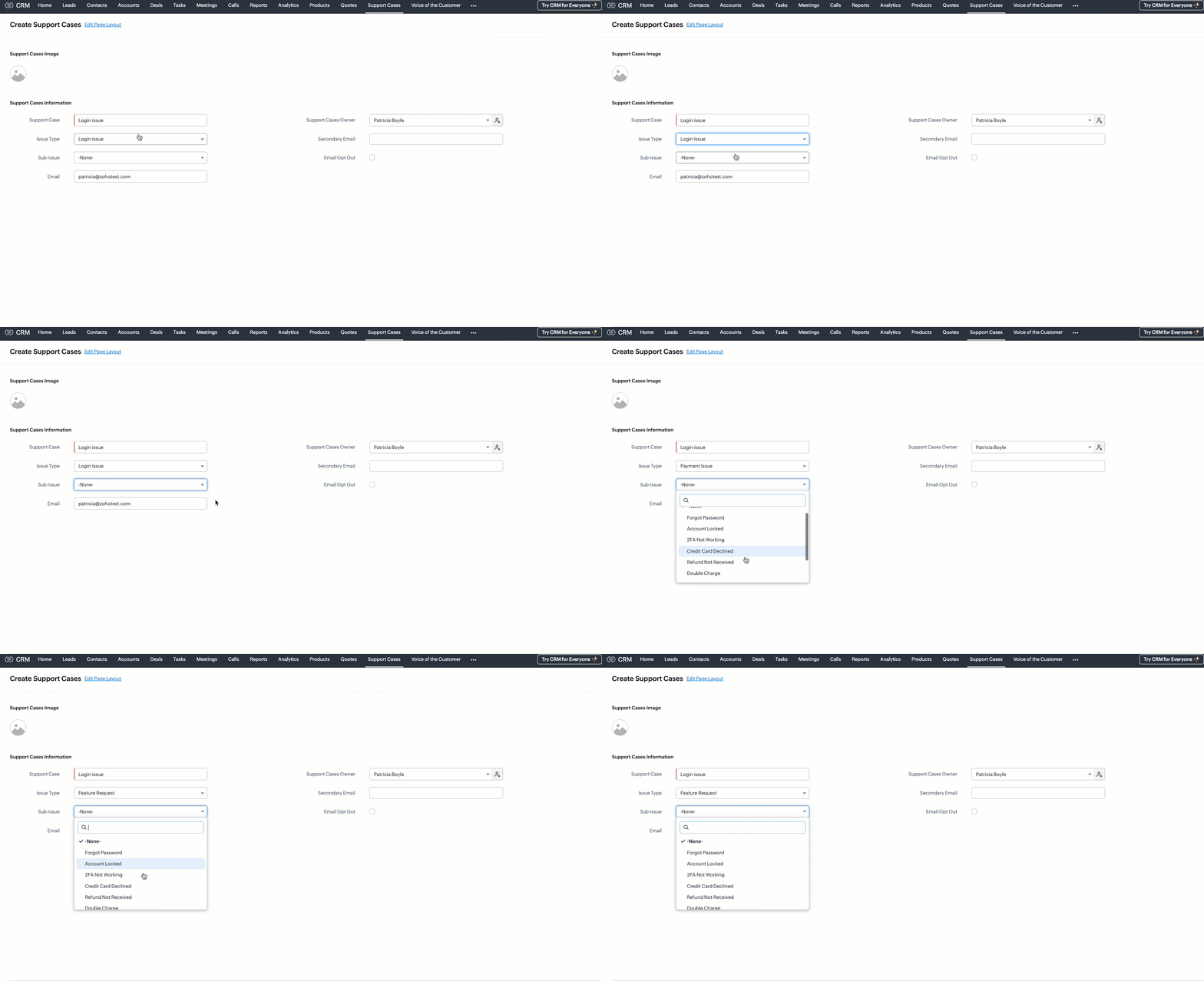 Without configuring a map dependency, the Sub-Issue picklist would always display all available options - regardless of the selected Issue Type. For example, users might see options like Forgot Password, Double Charge, and Report Customization all at once. This can easily confuse users and lead to incorrect selections, such as choosing Double Charge under Login Issue.
With map dependency
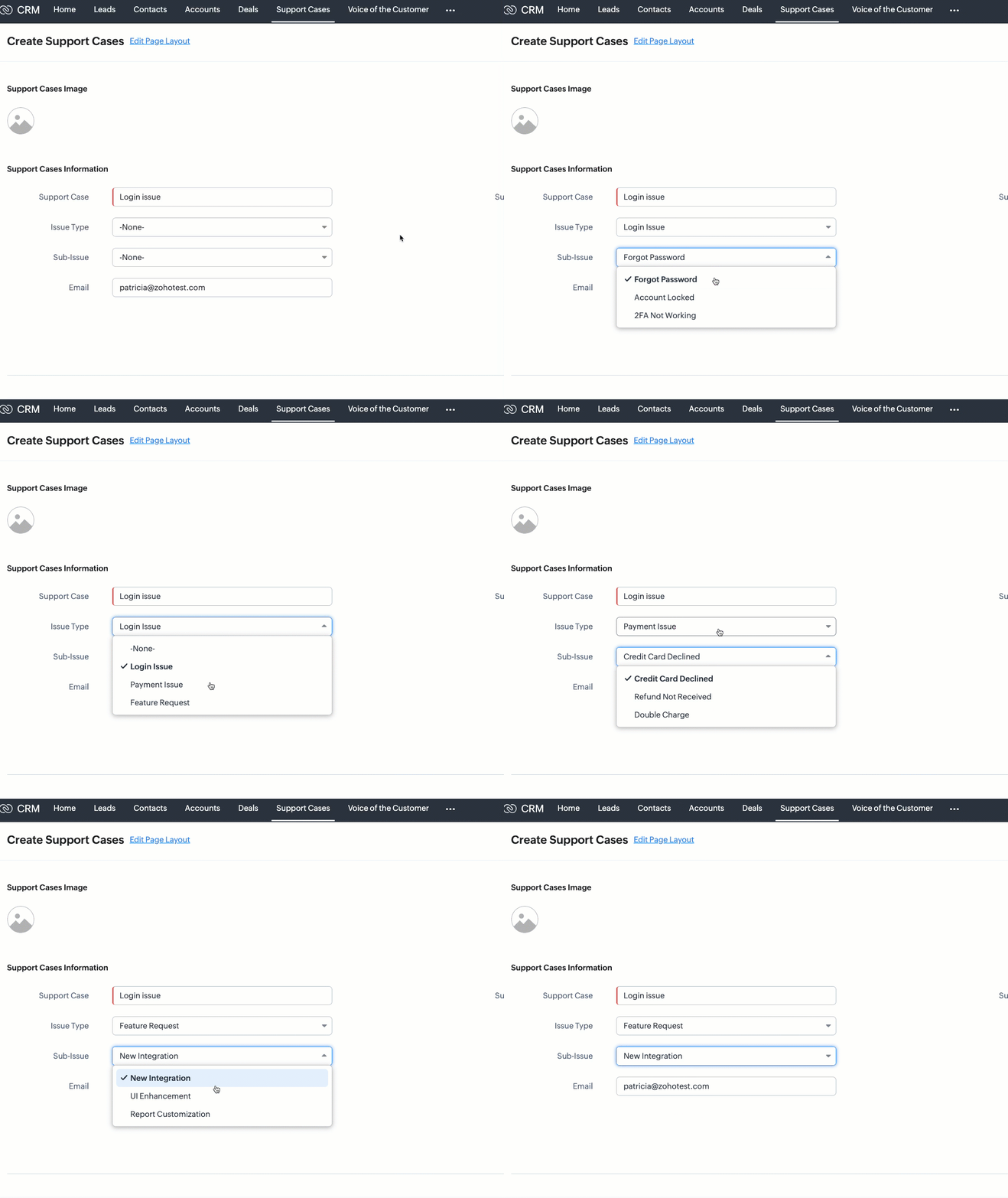 With mapping dependencies, you can guide users to make correct selections by showing only the relevant options in the child field based on the option selected in the parent field.
Mapping picklist options in UI
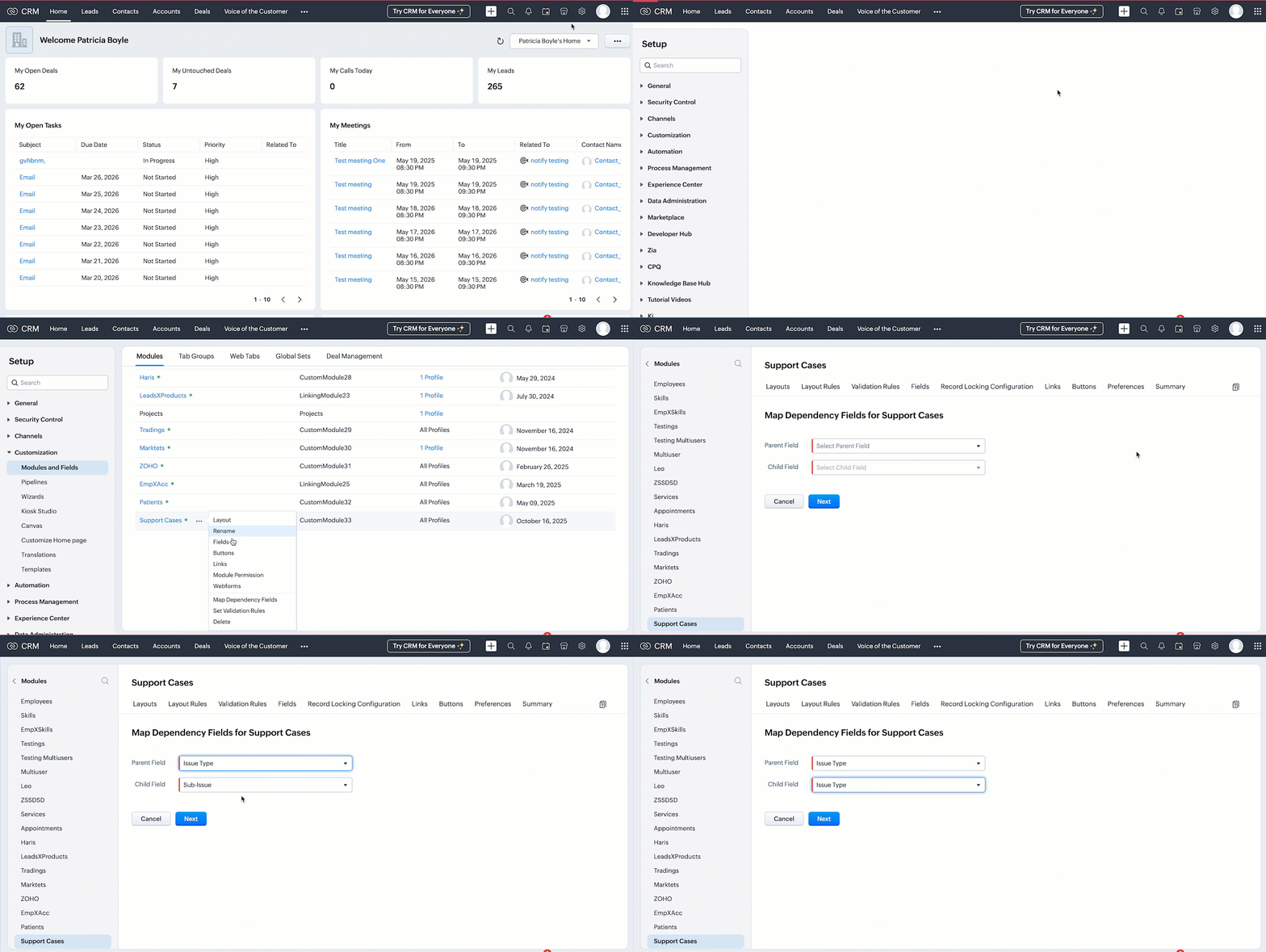
- Go to Setup → Customization → Modules and Fields.
- Select the desired module. In this case, Support Cases.
- Click the ⋯ (more) icon next to the module name.
- Select Map Dependency Fields.
- On the Map Dependency Fields page, click the New button to create a new dependency.
- Choose the Parent Field and Child Field you want to map.
- Click Next button.
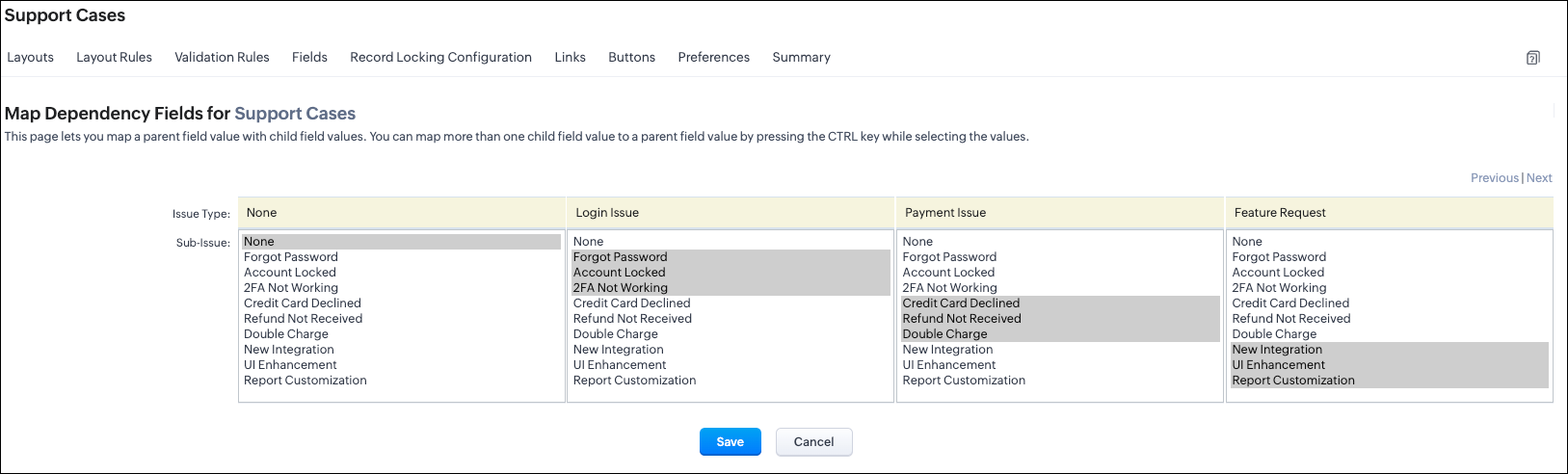 UI options mapping view
Mapping picklist options via API
- Modules Metadata API - To know the API name of the module.
- Endpoint: GET - /settings/modules
- Here, the API name of the Support Cases module is Support_Cases.
- Layouts Metadata API - Since dependencies are layout-specific, this API helps you identify the layout ID and all the available picklist fields for mapping. It also provides detailed metadata such as the layout ID, field IDs, and the corresponding picklist value IDs.
- Endpoint: GET /settings/layouts?module=Support_Cases
Create Dependency using the POST Map Dependency
{ "map_dependency": [ //Array that contains one or more dependency mappings { "parent": { // Mandatory - Represents the parent picklist "api_name": "Issue_Type", //Mandatory - API name of the parent field "id": "5725767000007985243" // Mandatory - Unique ID of the parent picklist }, "pick_list_values": [ //Mandatory - List of parent picklist values and their corresponding child mappings { "display_value": "-None-", "maps": [ { "display_value": "-None-", "actual_value": "-None-", "id": "5725767000007985204" } ], "actual_value": "-None-", "id": "5725767000007985249" }, { "display_value": "Login Issue", "maps": [ { "display_value": "Forgot Password", //Label shown in the UI for the parent value "actual_value": "Forgot Password", //Actual stored value of the parent picklist option "id": "5725767000007985185" //Mandatory - Unique ID of the parent picklist option }, { "display_value": "Account Locked", "actual_value": "Account Locked", "id": "5725767000007985187" }
], "actual_value": "Login Issue", //Actual value of the parent field's option "id": "5725767000007985242" //Mandatory - Unique ID of the parent field's option }, { "display_value": "Payment Issue", "maps": [ { "display_value": "Credit Card Declined", "actual_value": "Credit Card Declined", "id": "5725767000007985191" }, { "display_value": "Refund Not Received", "actual_value": "Refund Not Received", "id": "5725767000007985193" }, { "display_value": "Double Charge", "actual_value": "Double Charge", "id": "5725767000007985195" } ], "actual_value": "Payment Issue", "id": "5725767000007985244" }, { "display_value": "Feature Request", "maps": [ { "display_value": "New Integration", "actual_value": "New Integration", "id": "5725767000007985197" }, { "display_value": "UI Enhancement", "actual_value": "UI Enhancement", "id": "5725767000007985199" }, { "display_value": "Report Customization", "actual_value": "Report Customization", "id": "5725767000007985201" } ], "actual_value": "Feature Request", "id": "5725767000007985246" } ], "child": { //Mandatory - Represents the child field "api_name": "Sub_Issue", //Mandatory - API name of the child field "id": "5725767000007985186" //Mandatory - Child picklist field ID } } ] } |
{ "map_dependency": [ { "code": "SUCCESS", "details": { "id": "5725767000008174001" }, "message": "map dependency created", "status": "success" } ] } |
Retrieve the configured field mappings using the GET Mapped Dependency Fields API
{ "map_dependency": [ { "parent": { "api_name": "Issue_Type", "id": "5725767000007985243" }, "internal": false, "active": true, "id": "5725767000008180001", "source": 1, "category": 0, "pick_list_values": [ { "display_value": "-None-", "maps": [ { "display_value": "-None-", "actual_value": "-None-", "id": "5725767000007985204" } ], "actual_value": "-None-", "id": "5725767000007985249" }, { "display_value": "Login Issue", "maps": [ { "display_value": "Forgot Password", "actual_value": "Forgot Password", "id": "5725767000007985185" }, { "display_value": "Account Locked", "actual_value": "Account Locked", "id": "5725767000007985187" }, { "display_value": "2FA Not Working", "actual_value": "2FA Not Working", "id": "5725767000007985189" } ], "actual_value": "Login Issue", "id": "5725767000007985242" }, . . . ], "child": { "api_name": "Sub_Issue", "id": "5725767000007985186" } } ] } |
Update the existing mapped options using the PUT Mapped Dependency Fields API
{ "map_dependency": [ { "parent": { "api_name": "Issue_Type", "id": "5725767000007985243" }, "pick_list_values": [ { "display_value": "-None-", "maps": [ { "display_value": "Login Issue", "maps": [ { "display_value": "Forgot Password", "actual_value": "Forgot Password", "id": "5725767000007985185" }, { "display_value": "Account Locked", "actual_value": "Account Locked", "id": "5725767000007985187" }, { // mapped a new option to the existing mapping "display_value": "2FA Not Working", "actual_value": "2FA Not Working", "id": "5725767000007985189" } ], "actual_value": "Login Issue", "id": "5725767000007985242" } ], "child": { "api_name": "Sub_Issue", "id": "5725767000007985186" } } ] } |
Delete existing dependency using the DELETE Mapped Dependency Fields API
{ "map_dependency": [ { "code": "SUCCESS", "details": { "id": "5725767000008174001" }, "message": "map dependency deleted", "status": "success" } ] } |
Assigning picklist values using the Insert Records API
{ "data" : [ { "Name" : "Support Case 1", "Support_Case" : "Login Issue", "Issue_Type" : "Login Issue", "Sub_Issue":"Forgot Password" } ] } |
FAQs
- Map picklists within the main form, or
- Map picklists within the same subform.

Topic Participants
Subramanian K
Sticky Posts
Kaizen #198: Using Client Script for Custom Validation in Blueprint
Nearing 200th Kaizen Post – 1 More to the Big Two-Oh-Oh! Do you have any questions, suggestions, or topics you would like us to cover in future posts? Your insights and suggestions help us shape future content and make this series better for everyone.Kaizen #226: Using ZRC in Client Script
Hello everyone! Welcome to another week of Kaizen. In today's post, lets see what is ZRC (Zoho Request Client) and how we can use ZRC methods in Client Script to get inputs from a Salesperson and update the Lead status with a single button click. In thisKaizen #222 - Client Script Support for Notes Related List
Hello everyone! Welcome to another week of Kaizen. The final Kaizen post of the year 2025 is here! With the new Client Script support for the Notes Related List, you can validate, enrich, and manage notes across modules. In this post, we’ll explore howKaizen #217 - Actions APIs : Tasks
Welcome to another week of Kaizen! In last week's post we discussed Email Notifications APIs which act as the link between your Workflow automations and you. We have discussed how Zylker Cloud Services uses Email Notifications API in their custom dashboard.Kaizen #216 - Actions APIs : Email Notifications
Welcome to another week of Kaizen! For the last three weeks, we have been discussing Zylker's workflows. We successfully updated a dormant workflow, built a new one from the ground up and more. But our work is not finished—these automated processes are
Recent Topics
Kaizen #220: Actions API - Webhooks APIs - Part 2
Hello all!! Welcome back to the follow-up Kaizen post of Kaizen #219: Actions API - Webhooks APIs - Part 1. In the previous week, we covered how to configure a basic Webhook and how to include Headers, Body, and URL Parameters using both the POST WebhookStandard Payment Term is not pulled from account to quotation
Hey Team There seems to be something off. I do have "Net 30" as my default payment term in Zoho Books for my customers. If, from the customer overview or quote section, I create a new Quotation, the payment terms field stays blank and doesn't get theManage your invoices from Bigin's mobile app (iOS)
Hello everyone! We're happy to announce that users can now integrate Zoho Books with the latest version of Bigin's iOS app. Zoho Books can be integrated with Bigin only via the web application. Users can view the Zoho Books tab in the detail pages ofSystematic SPF alignment issues with Zoho subdomains
Analysis Period: August 19 - September 1, 2025 PROBLEM SUMMARY Multiple Zoho services are causing systematic SPF authentication failures in DMARC reports from major email providers (Google, Microsoft, Zoho). While emails are successfully delivered dueAccessibility controls and multilingual captcha authorization for Help Center users
Hello everyone, As part of our ongoing effort to improve user experience, we are excited about the accessibility controls and predefined accessibility personas added in the Help Center, similar to what is already available in Zoho Desk. Help Center usersZoho Sign + Zoho CRM : la solution pour simplifier vos accords de vente
La conclusion d’un contrat de vente nécessite de nombreuses étapes : préparation de documents, validations successives et collecte des signatures. Les équipes commerciales passent souvent par plusieurs cycles de collaboration et de révision, tout en assurantItem/service subtotal
Just discovered & really pleased that we can drag to re-order the line items in Sales orders & Invoices, a very nice feature which doesn't seem to be documented? It would be nice to be able to insert a subtotal as a line item to complete this great featureSend email template "permission denied to access the api"
Hello, Per the title, I'm trying to send a Zoho CRM Email template based on the advice given here: https://help.zoho.com/portal/en/community/topic/specify-an-email-template-when-sending-emails-in-custom-functions (I'd prefer to send right from Delugehow to Solve Conflict Invoices in Zoho POS
Hello Team, I am facing a repeated issue in Zoho POS while saving a sale that contains service-based items. My products are intentionally created as Service (Non-Inventory) items because I do not want to track stock for them. However, every time I tryCopy, Paste, Highlighted text
when i copy paste text it gets highlighted. Fix this. WTF is with this black highlight ? Fix copy pasting. Some people pay for using this mail service.Pricing Strategies: #6 Common Mistakes while Configuring Pricing
"Why does this month's billing feel messy again?" That was the exact line Priya muttered while staring at the spreadsheet full of edited pricing, one-off discounts and mismatched subscription details. Her business was growing, but the pricing machinePublish to LinkedIn via API
Hi, Is it possible to publish a job opening to LinkedIn (paid job slots) if creating a job opening via api / deluge function? Or is the user required to manually publish via the job boards process? Many Thanks AdrianFSM - Associating and selecting Contacts based on Service Addresses
Hi FSM team, I've come across an FSM limitation I wanted to share for improvement. I'm currently configuring FSM for a client who provides heating system install and maintenance services. The are often sub contracted by building management companies toDo Unpublished Products in Shopify Sync to Zoho POS?
Will an unpublished product in Shopify sync to Zoho POS? I would like to know how Zoho POS handles products that are in draft/unpublished status in Shopify.Problem in Zoho POS frontend ERP.
We are facing some difficulties in our billing and inventory processes and require your support to resolve them at the earliest. Customer Advance Payments We receive advance payments from customers for upcoming sales. Please guide us on how to recordCategorize Items with Item Headers
Hello customers, Did you ever want to classify items based on specific categories to help your customers understand your invoice better? With the new Item Header feature, you can easily categorize items in your invoices and estimates and give them a common title. Item Headers are available in the Invoices, the Recurring Invoices and the Estimates module. It can be carried forward from estimates to invoices at the time of converting the estimates. To add an item header: Go to the Estimates, InvoicesDiscount on the transaction level in POS
"Is it possible to apply a discount on the total bill before tax in Zoho POS?" I want to apply a discount on the total transaction amount in Zoho POS, but the discount should be calculated before the taxes are applied. Is there an option to do this inSend Automated WhatsApp Messages and Leverage the Improved WhatsApp Templates
Greetings, I hope all of you are doing well. We're excited to announce a major upgrade to Bigin's WhatsApp integration that brings more flexibility, interactivity, and automation to your customer messaging. WhatsApp message automation You can now useJobs at multiple locations
Hi A lot of times we have same job open at multiple locations. So I would like an option where we can create a job and choose multiple locations. Currently we have to create individual jobs for each location. If we can create one job and mention multipleTag Adding Option in Kanban Card Customization Bigin CRM Mobile App
I would like to request an option to add and display tags on Kanban cards in the Bigin CRM mobile app. This feature would make it easier to categorize deals and quickly identify priorities while working on the go.Empowered Custom Views: Cross-Module Criteria Now Supported in Zoho CRM
Hello everyone, We’re excited to introduce cross-module criteria support in custom views! Custom views provide personalized perspectives on your data and that you can save for future use. You can share these views with all users or specific individualsAssociating a Candidate to a Job Listing
Hello, I am trying to use Zoho Forms embedded on my website for candidates to apply for a job opening. I want the form then to tie directly with zoho recruit and have the candidate be automatically inputed into Recruit as well as associated with the specificWhatsApp Voice Message Sending Option in Bigin CRM
I would like to request a feature that allows users to send WhatsApp voice messages directly from Bigin CRM. This would help improve communication efficiency and make it easier for teams to respond quickly to customer inquiries.CRM: hosting a single html file in Zoho and displaying it as a widget
I have seen that CRM offers the option of uploading a web project to Zoho itself and displaying it as a widget in CRM. The instructions then talk about setting a development environment with Node and developing an application to upload to Zoho. But IHow to change position button transtition of Blueprint?
Hi Everyone, Look at my screenshoot, it is possible move the reject button to the right? I couldn't find that setting in the blueprint. Thank you.Multi file upload
Hi, I just wonder if one could upload multiple files in one shot, say between one and three files, without adding multiple File Upload fields? Thanks, AlalbanySorting Descending in a lookup
I have a case number lookup on multiple forms. I need the most recent added to appear at the top of the lookup or as the list of cases grom it's too much to scroll. Is there a way to have a look up sort descending?Auto-upload Creator Files to WorkDrive
Hi everyone, I’m working on a workflow that uploads files from Zoho Creator to specific subfolders in Zoho WorkDrive, as illustrated in the attached diagram. My Creator application form has two multi-file upload fields, and I want—on successful form submission—toAsap Widget 2.0
Where's the documentation for the new ASAP widget? https://www.zoho.com/desk/developers/asap/#introduction this one is outdated How can we dynamically navigate between different views? How can we prefill ticket forms using ASAP 2.0?Can the Trigger be changed?
I'm afraid I already know the answer, but here goes... After activating a workflow (under Campaigns > Automations), Then later choosing to Edit the workflow, Can the Workflow's Trigger be changed? Currently the entire Trigger section + options are goneMarketer's Space: Proven tips to improve open rates – Part I
Hello Marketers! Welcome back to another post in Marketer's Space! In this week's post, we'll discuss the ever-important concept of open rates. This will be a multi-part series, as we have a range of topics to cover. Open rates—which measure the percentageCan't send nor receive emails on my external email accounts since this morning
Greetings, I have two external accounts integrated into Zoho mail through POP3 + SMTP. These accounts have always worked normally since the day I've set them up. Starting 10:30 AM this morning (Western European Time) both suddenly stopped sending andCreating Custom PDF Template from Form
I am trying to create a custom PDF from form submissions. I have the standard subscription and it indicates that PDF forms are included. I cannot find anywhere to create PDF forms. I try to follow the instructions from here: https://help.zoho.com/portal/en/kb/forms/form-settings/pdf-settings/pdf-editor/articles/creating-your-own-pdf-template#Creating_your_template_from_the_scratchImportant Update: Facebook Metrics Deprecation & Impact on Zoho Analytics
Dear Zoho Analytics users, Facebook has deprecated a set of metrics from the Facebook Pages Insights API, effective November 15, 2025. As a result, these changes will affect any reports and dashboards in Zoho Analytics that rely on Facebook Pages data.Introducing Zoho MCP for Bigin
Hello Biginners! We're excited to introduce Zoho MCP for Bigin, a completely new way of interacting with Bigin data using AI. With Zoho MCP, you can securely connect your Bigin account with popular AI agents like Claude, Cursor, Windsurf, and VS Code,MCP > Creator connection failing with Claude
I'm trying to get claude to access any of my Zoho Creator apps and it keeps failing. I have enabled all tools for creator and ensured in claude settings that everything is authorised. Here is what claude says : Unfortunately, the error messages I'm receivingIs it possible to sync data every 5–10 minutes in Zoho Analytics (CRM or Excel imports)?
Hello Team, I want to know if Zoho Analytics supports near real-time syncing of data from different sources. My requirements: I am importing data from Zoho CRM → Zoho Analytics I also have some datasets maintained in Excel/CSV I want both data sourcesFeature Request: Dynamic Dimension Control for zc_LoadIn Popups
As detailed in this community discussion, Zoho Creator's zc_LoadIn parameter is a vital tool for opening components (forms, reports, or pages) in modal dialogs via HTML snippets, Notes, or Rich Text Fields. While powerful, this feature suffers from aSubforms in stateless forms
I think the title says it all. We need to be able to add subforms to stateless forms. Currently the only workaround is to create a Form and delete each record upon submission of the form. I need to build an interface to update our inventory. BasicallyText wrap column headers in reports?
Is it possible to auto wrap column headers so that a longer multi-word header displays as two lines when the column is narrower than the width of the header title?Next Page