Tip #60- Exploring Technician Console: Screen Resolution- 'Insider Insights'
Hello Zoho Assist Community!
Have you ever started a remote session and felt the screen quality wasn’t sharp enough for detailed work?
A new user recently explored Zoho Assist after installing the trial version and running a few initial tests. While the connection was smooth and easy to set up, one concern came up during the session—the screen resolution appeared slightly low. For everyday troubleshooting this may be fine, but for professionals who depend on visual precision, display quality becomes extremely important.
Consider a small graphic design business owner who often travels but still needs access to their primary work computer. Design work requires accurate color, clarity, and sharp visuals. Even minor differences in display quality can impact the final output of graphics, layouts, and visual elements. To maintain productivity while working remotely, the user needed a way to view the remote system at full resolution, just like sitting in front of the actual machine.
Let’s take a closer look at View → Screen Resolution
During a remote support session, Zoho Assist provides flexible display controls through the View option in the toolbar. This allows users to adjust how the remote screen is displayed based on their work requirements.
If you need better clarity, start your remote session, click the blue arrow on the left-side panel, select View, and choose Screen Resolution to adjust the display quality.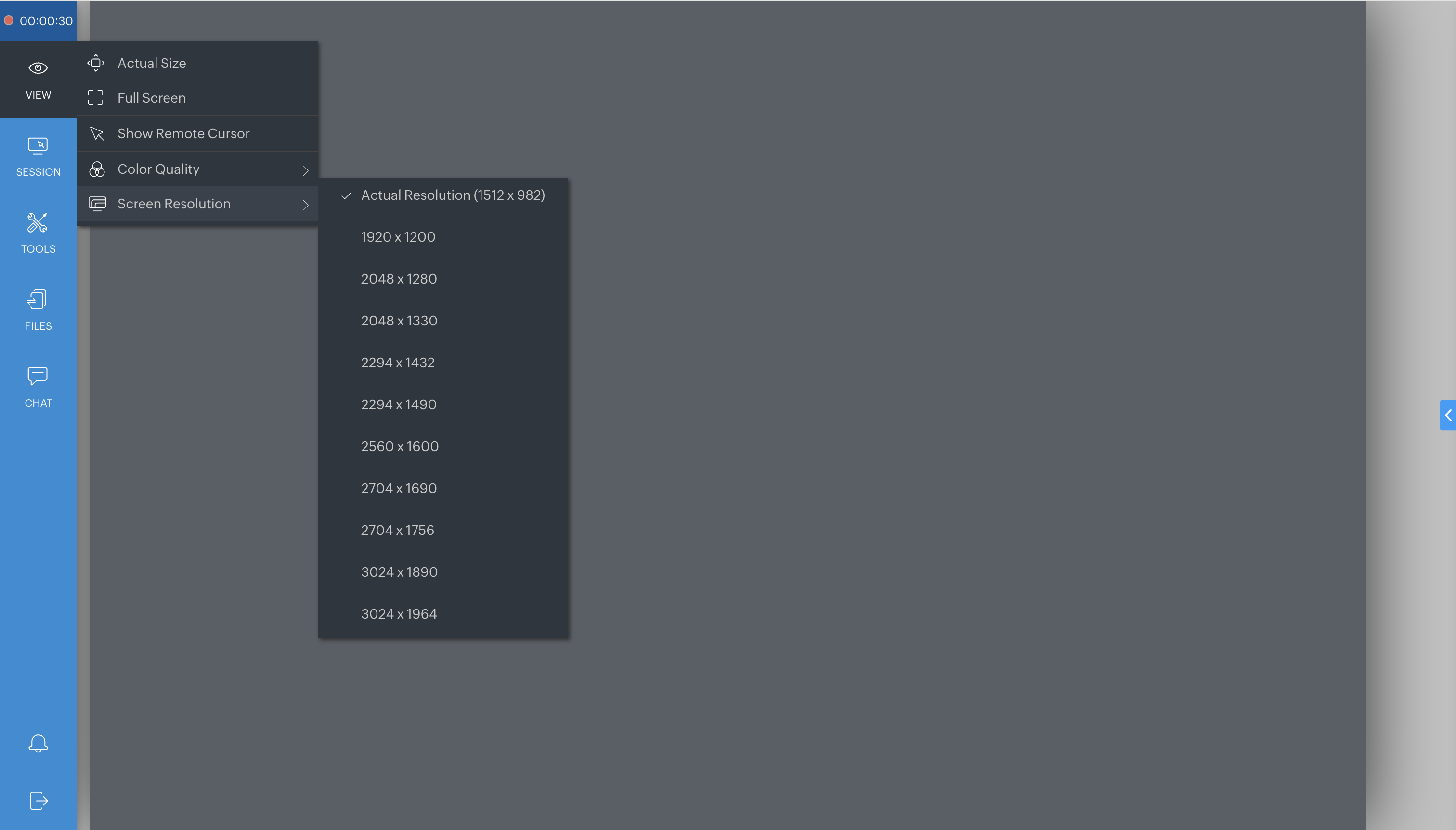
You can keep the display at Actual Resolution to experience the remote screen in its true clarity, or switch to any of the available resolution options to better match your performance needs and viewing preference.
Last week, we looked at Color Quality, a feature that lets technicians adjust visual performance based on network conditions. By default, it automatically optimizes for smoother sessions, but for tasks like design work or photo editing, color quality can be increased to ensure greater visual accuracy during troubleshooting.
Using both Screen Resolution and Color Quality allows you to view the remote computer in its true image quality—delivering sharper visuals and making it easier to handle precision-focused tasks such as graphic design, photo editing, and detailed visual reviews.
Why this matters
For users who rely on high-resolution visuals, optimizing screen quality can significantly improve remote work experience and productivity. Zoho Assist makes it easy to adapt the display based on your needs, whether you prioritize performance or visual precision.
Try it out! If you need help setting up or have any questions, feel free to reach out to us at support@zohoassist.com — we’re here to help.
Topic Participants
Amali Steffi Raj J
Recent Topics
Zoho OAuth Connector Deprecation and Its Impact on Zoho Desk
Hello everyone, Zoho believes in continuously refining its integrations to uphold the highest standards of security, reliability, and compliance. As part of this ongoing improvement, the Zoho OAuth default connector will be deprecated for all Zoho servicesFlexible Partial-Use Coupons (Stored Value Credits)
Subject: Feature Request: Ability for users to apply partial coupon balances per transaction Problem Statement Currently, our coupons are "one-and-done." If a user has a $50 coupon but only spends $30, they either lose the remaining $20 or are forcedUnable to Assign Multiple Categories to a Single Product in Zoho Commerce
Hello Zoho Commerce Support Team, I am facing an issue while assigning categories to products in Zoho Commerce. I want to assign multiple categories to a single product, but in the Item edit page, the Category field allows selecting only one categoryHow do I add todays date to merge field
I don't see any selection of todays date when creating a letter. Surely the date option of printing is standard? JohnAdd RTL and Hebrew Support for Candidate Portal (and Other Zoho Recruit Portals)
Dear Zoho Recruit Team, I hope you're doing well. We would like to request the ability to set the Candidate Portal to be Right-to-Left (RTL) and in Hebrew, similar to the existing functionality for the Career Site. Currently, when we set the Career SiteTracking Emails sent through Outlook
All of our sales team have their Outlook 365 accounts setup with IMAP integration. We're trying to track their email activity that occurs outside the CRM. I can see the email exchanges between the sales people and the clients in the contact module. ButWhats that
Price?The same Contact associated to multiple Companies - Deals
Hi, I would like to know if there is an option to associate the same contact with multiple companies (two or more) deals, using the same contact details for all. This is because we have contacts who are linked to different companies or branches of thePortals-Adjust Column Sizes
I am trying to adjust the column widths in Portals tabs. Columns that don't need to be wide are wide and longer ones are very short. I thought adding more to the digits box in Edit would widen them, but it doesn't. Anyone know how to adjust these?Add link/button to open approved record from approval list and detail views?
Hi, How do I allow users to click on an approval record and open that submission? For example, userA submits a quotation then userB approves/rejects. They both can see the quotation on "completed task" list & detail views, but there's no way for themrecord submitted from creator and invoice is creating in books , but the workflow of books is not tiggering on create of record in books
record submitted from creator and invoice is creating in books , but the workflow of books is not tiggering on create of record in books headermap = Map(); headermap.put("X-ZOHO-Execute-CustomFunction","true"); response_inv = invokeurl [ url :"https://www.zohoapis.com/books/v3/invoices/fromsalesorder?salesorder_id="Prevent editing of a record after getting approved/rejectedr
Hi, I'd like to block any user from editing a record after it was approved or rejected, how can I do that?Formula Field/Campo de Fórmula
Hello everyone, I have a purchase requisition form in which each department submits a request, and the request is automatically routed to the person responsible for that department. In this form, I have several fields with the following link names: Quantidade1,Free Webinar: Zoho Sign for Zoho Projects: Automate tasks and approvals with e-signatures
Hi there! Handling multiple projects at once? Zoho Projects is your solution for automated and streamlined project management, and with the Zoho Sign extension, you can sign, send, and manage digital paperwork directly from your project workspace. JoinFormatting Problem | Export to Zoho Sheet View
When I export data to Zoho Sheet View, ID columns are automatically formatted as scientific notation. Reformatting them to text changes the actual ID values. For example, 6557000335603071 becomes 6557000335603070. I have attached screenshots showing thisIntroducing Workqueue: your all-in-one view to manage daily work
Hello all, We’re excited to introduce a major productivity boost to your CRM experience: Workqueue, a dynamic, all-in-one workspace that brings every important sales activity, approval, and follow-up right to your fingertips. What is Workqueue? SalesFeature Request - The Ability to Link A Customer with a Vendor
Hi Finance Suite Team, Many businesses buy and sell products from the same companies or individuals. For example, a car sales business may buy a car from a member of the public, and that member of the public may also buy a new car from us. This makesLong table name (sync from Zoho Creator)
Dears, How can I remove the suffix in parentheses? These tables are synced from Zoho Creator and are treated as system tables, so their names cannot be changed. This issue makes the aggregation formulas look awful.[Free Webinar] Learning Table Series - Streamlining incident management process with Zoho Creator
Hello everyone, We’re excited to invite you to another edition of the Learning Table Series webinar. As you may already know, we've moved to a purpose-based approach in the Learning Table Series this year. Each session now focuses on how a Zoho CreatorUnattended - Silent
How can I hide the tray icon / pop up window during unattended remote access for silent unattended remote access?Importing into Multiselect Picklist
Hi, We just completed a trade show and one of the bits of information we collect is tool style. The application supplied by the show set this up as individual questions. For example, if the customer used Thick Turret and Trumpf style but not Thin Turret,Text snippet
There is a nice feature in Zoho Desk called Text Snippet. It allows you to insert a bit of text anywhere in a reply that you are typing. That would be nice to have that option in Zoho CRM as well when we compose an email. Moderation Update: We agree thatMarketing Tip #18: Make your online store mobile-friendly to improve traffic
Most online shoppers browse on their phones first. If your store is hard to read, slow to load, or tricky to navigate on mobile, they’ll bounce fast. A mobile-friendly store doesn’t just look nice; it improves engagement, reduces drop-offs, and helps[Need help] Form closed. Please contact your form administrator for further assistance.
https://forms.zohopublic.com/cceinfoifly1/form/CCE2025CCEFocusGroupRegistrationForm2025Fall/formperma/s_8XcLETTbFxZ_TAS4r_W6W5UBl8o5oxEnIX35IBKg4 I checked we didn't exceed the usage limit and form availability is enabled, Please help us enable this formZoho People. Updating TabularData
I am trying to update tabular data in the record. I always have the same response. I have checked many times. Section ID is correct. May be something wrong with request structure itself. Can someone help me. Body content type: form urlencoded query paramsAutomatically CC an address using Zoho CRM Email Templates
Hi all - have searched but can't see a definitive answer. We have built multiple email templates in CRM. Every time we send this we want it to CC a particular address (the same address for every email sent) so that it populates the reply back into ourUnable to Send Different Email Templates for Different Documents in Zoho Sign
Hello Zoho Community, I am facing a limitation with Zoho Sign regarding email notifications sent to customers when a document is sent for signing. Currently, whenever I send any template/document for signing, the email notification that goes to the customerReminder needs 0 minute choice
I most use 0 minute reminders. Every other calender service has this choice. If I create an event in my Android calendar with 0 minute reminder it will change to 5 minute. Please ad 0 as a reminder choice, this should be a 5 minute fix. Thanks.Customer ticket creation via Microsoft Teams
Hi all, I'm looking to see if someone could point me in the right direction. I'd love to make it so my customers/ end users can make tickets, see responses and respond within microsoft teams. As Admin and an Agent i've installed the zoho assist app withinIs there a way to update all the start and end dates of tasks of a project after a calendar change?
Hi! Here's my situation. I've built a complete project planning. All its tasks have start dates and due dates. After completing the planning, I've realized that the project calendar was not the right one. So I changed the project calendar. I now haveHow to update task start date when project start date changes?
Hi there, When the start date of a project changes, it's important to update the start dates of the tasks associated with that project to reflect the new timeline. Is there a way to shift the start date of all project tasks when the start date of a projectIssue with Picklist Dropdown Not Opening on Mobile
Hello I am experiencing an issue with picklist values on mobile. While the arrow is visible, the dropdown to scroll through the available values often does not open. This issue occurs sporadically, it has worked occasionally, but it is very rare and quiteusing the client script based on the look up filed i wnat to fetch the record details like service number , service rate
based on selected service look up field iwant to fetch the service serial number in the serice form how i achive using client script also how i get the current date in the date field in the on load of the formZoho Books/Square integration, using 2 Square 'locations' with new Books 'locations'?
Hello! I saw some old threads about this but wasn't sure if there were any updates. Is there a way to integrate the Square locations feature with the Books locations feature? As in, transactions from separate Books locations go to separate Square locationsZoho Commerce - How To Change Blog Published Date and Author
Hi Commerce Team, I'm discussing a project with a client who wants to move from Woo Commerce / Wordpress to Zoho Commerce. They have around 620 blog posts which will need to be migrated. I am now aware of the blog import feature and I have run some tests.Does zoho inventory need Enterprise or Premium subsrciption to make Widgets.
We have Zoho One Enterprise and yet we can't create widgets on inventory.ZMA shows as already connected to Zoho CRM, but integration not working
When I try to connect ZMA with Zoho CRM, it shows as already connected, but the integration doesn’t seem to be working. I’ve attached the screen recording for reference.Automatic Email Alerts for Errors in Zoho Creator Logs
Hello, We would like to request a feature enhancement in Zoho Creator regarding error notifications. Currently, Zoho Creator allows users to view logs and errors for each application by navigating to Zoho Creator > Operations > Logs. However, there isRecurring Automated Reminders
Hi, The reminders feature in Zoho Books is a really helpful feature to automate reminders for invoices. However, currently we can set reminders based on number of days before/after the invoice date. It would be really helpful if a recurring reminder featureWorkflow Rule - Field Updates: Ability to use Placeholders
It will be great if you can use placeholder tags to update fields. For example if we want to update a custom field with the client name we can use ${CONTACT.CONTACT_FIRSTNAME}${CONTACT.CONTACT_LASTNAME}, etcNext Page