Tip #58- Accessibility Controls in Zoho Assist: Learning- 'Insider Insights'
Learning should be clear and interruption-free for everyone. Timely feedback plays an important role in helping users understand actions as they happen, without breaking their focus.
In this post, we’ll explore the final section of Accessibility: Learning. We’ll walk through how these features work and how you can control their timing for a smoother learning and usage experience. In the Learning section includes two key options: Toast Notifications and Timing Controls.
Toast Notifications
Zoho Assist’s Toast Notifications provide quick, non-intrusive updates that keep users informed without disrupting their workflow. These small, timely messages pop up on the screen when an action is taken, providing instant feedback-such as confirmations or updates-without requiring any user interaction.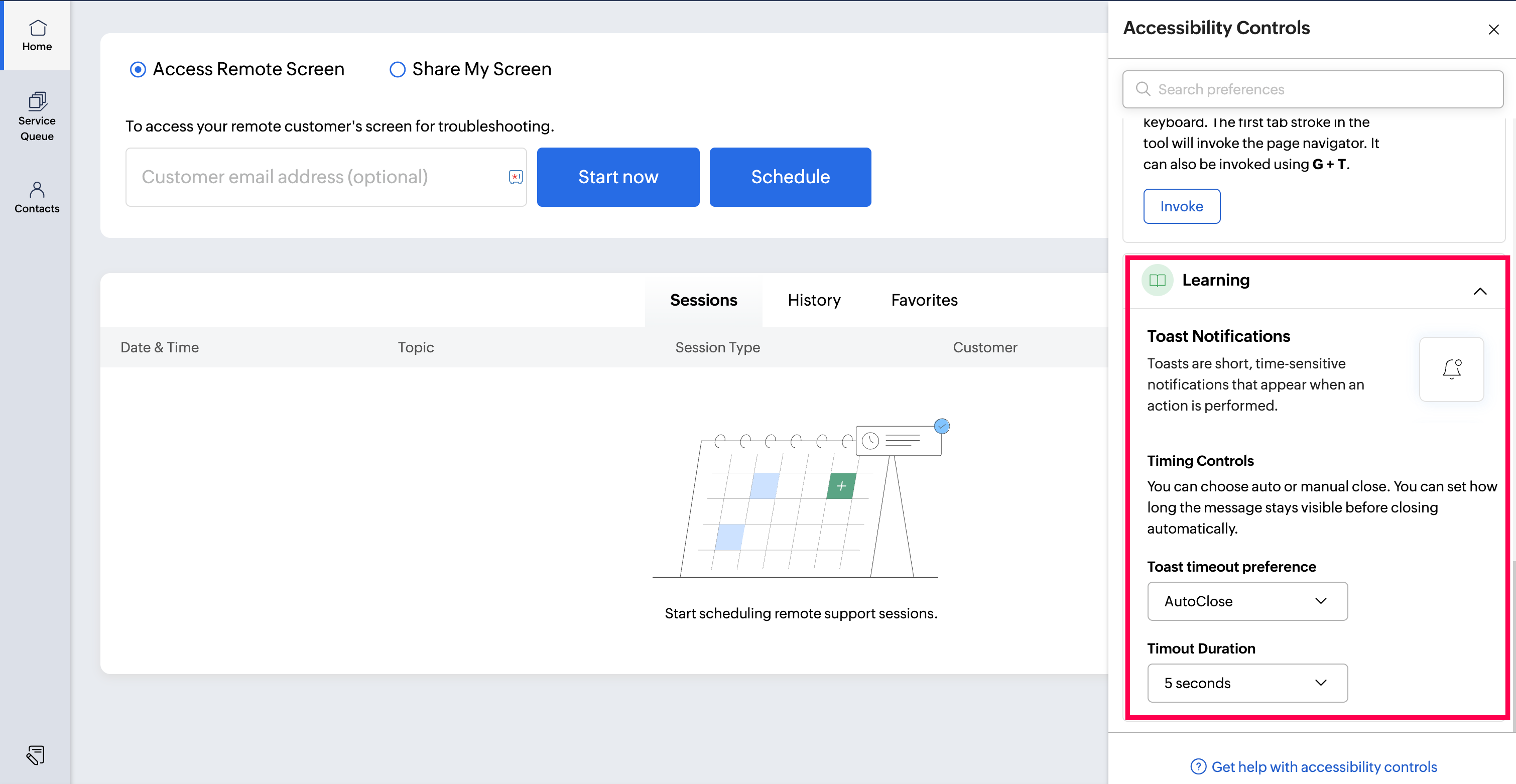
Zoho Assist allows you to control how toast notifications behave based on your preferences. You can decide whether notifications close automatically or remain on screen until you dismiss them.
The available options include:
Auto Close – The notification automatically closes after some time.
Manual Close – The notification stays visible until you dismiss it.
Toast Timeout Preference
When Auto Close is enabled, you can define how long the toast notification remains visible before it closes automatically. The timeout duration can be set anywhere from 1 to 20 seconds.
Together, these controls ensure notifications are noticeable yet unobtrusive, helping users stay informed while maintaining focus on their tasks. If you have any questions or need assistance configuring toast notifications, feel free to contact us at support@zohoassist.com, we’re happy to help.
Topic Participants
Amali Steffi Raj J
Recent Topics
What is a realistic turnaround time for account review for ZeptoMail?
On signing up it said 2-3 business days. I am on business-day 6 and have had zero contact of any kind. No follow-up questions, no approval or decline. Attempts to "leave a message" or use the "Contact Us" form have just vanished without a trace. It stillZoho Books: tax is not automatically pulled from product-data anymore - why?
Hi, until a short time ago, you could set a default taxrate for each product/item. This taxrate automatically appeared each time the item was chosen in an invoice or quote. Why does this not work anymore? The field is still there at the product record,Issue creating a YTD report with last years numbers
I am looking to create a widget to compare the YTD leads we have in 2023 to the YTD leads we had in 2022. I'm having issues with the aggregate formula creation to gain access to the 2022 Leads YTD data point. Feeling like this is a common view of dataBrand Studio Projects in Analytics
Hi All, Currently pulling my hair out over trying to link together some social media posts for a reporting dashboard in Analytics, so I thought I'd see if anyone on here had a solution. Our Marketing Team created a LinkedIn campaign in Zoho Brand Studio,Manage Testing Process in Zoho Sprints
Agile framework supports a robust quality assurance system that incorporates continuous testing throughout the development lifecycle of the product. The agile testing team focuses on planning the testing around the development, identifying defects earlyAnnouncing the Zohotshots of the ZDC Hackathon 2025
Hey everyone, The wait is finally over! After weeks of building, experimenting, and pushing creative boundaries, we’re excited to announce the winners of the second edition of the ZDC Hackathon. This edition brought together an incredible community ofZOHO CRM Button Integration
Hi Team, I’m currently working with Zoho CRM along with a custom application where I fetch deal details from the CRM and use them based on my requirements for each deal. Now, I want to enhance this setup. I plan to create a button on the Deal Detail pageMajor journey crash and not loading. Zoho Marketing Automation
Hi all. Last night (19MAR, 2026) Marketing Automation for a specific journey completely crashed, and since the crash the specific journey has failed to load at all (blank journey canvas, no journey appears, no menu accessible) but other separate journey'sCandidate Assessments, no workflows.
I have an issue where I would like to trigger a workflow based on a candidate assessment being completed. Sometimes a returning candidate will complete a second assessment, on completion the status of the candidate will be updated to "Unqualified" ifMail Merge in Zoho Desk
Hello Team, Do we have an option of mail merge within Zoho Desk like we have in Zoho CRM? We have a requirement to generate some pdf file in the form of mail merge doc from the ticket.Workdrive backup and default storage selection
Hi community, I have been informed by Zoho that workdrive will be the default storage mechanism for crm and projects. These 2 Apps seem to have different design on how they interact with workdrive for storage. 1. Crm: seems to have files saves at theZoho vault filling in a form it's not supposed to fill in
Hey there, I have a problem with ZOHO Vault autofill. In a software package, we have these options: For some reason zoho vault always replaces what's in the top option and fills a 2fa password in there, and then saves that value.. Meaning whatever wasZoho Booking Integration with Desk
Just wanting to share something in case it helps someone else who may run into a similar use case as we did. Issue: Currently, the Zoho Booking integration with desk will drop a comment into the ticket when a customer books a time, however it won't changeLet us view and export the full price books data from CRM
I quote out of CRM, some of my clients have specialised pricing for specific products - therefore we use Price Books to manage these special prices. I can only see the breakdown of the products listed in the price book and the specialised pricing forSyncing calendar with Google Calendar doesn't work when events are sent to auto repeat
Hi... The ZOHO CRM -- GOOGLE CALENDAR sync is broken. If I create a single event on either side, sync works, but if I create an event with auto repeat on either side it doesn't work. Furthermore, events created before the sync don't show up in the calendar.Organization wide Account and Contacts Visibility/Sharing Capabilities?
Has anyone figured out a way to make visibility or sharing of Accounts and Contacts to be available across the entire organization without having to have every individual user edit their Sharing permissions? For our sales folks they need to be able toNotification of Interaction Assignment
If a user is assigned an interaction, they should be notified via email. These are almost useless because if I assign an interaction for someone to respond to, they dont know that I assigned it to them without me telling them or them logging in and discoveringCountries List Global Set- Complete with Phone Country Code and Continent.
Dear Zoho Team I saw your recent addition to the Global Sets regarding the Countries list and states. While working on it, why didn't you also add things like Continent and Phone Country Code? Also, some ISO codes from some Countries/regions are misCustom Display Field for Lookup Dropdowns in Zoho CRM
Could Zoho CRM support changing the display field in lookup dropdowns, like Zoho Creator does? This would make it much easier to select the right record by showing a more useful field instead of only the default one. It would improve speed, clarity, andMessage as bot
I would like to be able to send a Cliq message truly as a bot. the current implementation of this function, while it sends the message as a bot it sends that message inside a chat from the user how authenticated the flow cliq connection instead of directlyBooks <-> CRM synchronisation with custom Fields
Hello, We are synchronising Books Customers with CRM Accounts. In CRM Accounts I set up last year a "segments" multiselect field shown below In Books, I set up a custom multi-select field with the same value as in the CRM And set up the synchronisation inside Books. Want to synchronise the Books Segments with the CRM Segments, but the later doesn't exist, and another non-existing is there ?! First, I don't understand where the field Segmentation is coming from. Second, I set CRM Segmentation to syncTrouble with using Apostrophe in Name of Customers and Vendors
We have had an ongoing issue with how the system recognizes an apostrophe in the name of customers and vendors. The search will not return any results for a name that includes the mark; ie one of our vendors names is "L'Heritage" and when entering theRecording overpayment?
So a customer just overpaid me and how do I record this? I can't enter an amount that is higher than the invoice amount. Eg. Invoice is $195 and he sent $200. He's a reccuring customer so is there a way to record so that he has a $5 advance for future invoice?Introducing the New Zoho Assist Quick Support Plugin
We are thrilled to announce the new Zoho Assist Quick Support Plugin, the upgraded and enhanced version of the Zoho Assist Customer Plugin. This new plugin allows organizations and IT administrators to deploy it directly onto their customers’ devices,Automate your signing workflows with Zoho Sign + n8n
Hello! We're excited to announce that Zoho Sign is now available as a community node on n8n, a popular open-source workflow automation platform used by tens of thousands of teams worldwide. n8n lets you connect apps, APIs, and services through a visualAsk the Experts 27: Onboarding and managing support reps
Hello everyone, We are back with our Ask the Experts (ATE) series for 2026. This year, we bring experts to help you address customer support challenges using Zoho Desk. For our first ATE, we are getting into the human side of customer support. "EveryRetainer invoice in Zoho Finance modlue
Hello, Is there a way of creating retainer invoices in the Zoho Finance module? If not can I request this is considered for future updates please.Spotlight #27: Embed visual collaboration Spaces in your presentations using the Vani add-on
Hello everyone! This month’s spotlight feature is the Vani add-on for Zoho Show. Every time you pause your presentation to open another tab or pull up supporting material, you lose a bit of momentum. At Zoho Show, we design features that keep everythingCRM
Is anyone else experiencing this issue? Our company is not moving out of using Gmail's web app. It just has more features and is a better email program than Zoho Mail. Gmail has an extension (Zoho CRM for Gmail) that we're using but we've found some seriousGood news! Calendar in Zoho CRM gets a face lift
Dear Customers, We are delighted to unveil the revamped calendar UI in Zoho CRM. With a complete visual overhaul aligned with CRM for Everyone, the calendar now offers a more intuitive and flexible scheduling experience. What’s new? Distinguish activitiesGlobal Search / Command Palette in Live App
Zoho Creator applications can contain many forms, reports, pages, and dashboards. While navigation inside the app is smooth, users still need to move through multiple menus or screens to find specific records or open particular modules. Currently, inNew 2026 Application Themes
Love the new themes - shame you can't get a little more granular with the colours, ie 3 different colours so one for the dropdown menu background. Also, I did have our logo above the application name but it appears you can't change logo placement positionSmarter appointment allocation with round-robin distribution
Greetings from the Zoho Bookings team! We’re excited to introduce the Appointment Distribution feature, a new way to decide how appointments are assigned among users. By default, appointments are distributed evenly across all event types, but this enhancementA2P 10DLC Opt-in Rejection Issue with Zoho Creator Public Form
Hi everyone, I’m working on an A2P 10DLC SMS campaign and running into repeated rejections due to opt-in issues. I’m using Zoho Creator for the registration flow. The form is public (no login required). Users enter their phone number and there is an uncheckedAnalytics & Reporting Improvements + Export Bug
Hello, I would like to raise several important product suggestions and issues regarding Zoho Expense: 1. Filter in Admin View → Analytics → Expense Details → Receipt Is it possible to add a filter that allows us to prioritize or sort reports that haveMake Quick Edits to Images Before Attaching
Hello everyone, We have enhanced how attachments are handled in tickets to help agents preview and share files more efficiently in Zoho Desk. Agents can preview image attachments before adding them to tickets and edit them using attachment annotator.3/18 オンライン勉強会のお知らせ Zoho ワークアウト (無料)
ユーザーの皆さま、こんにちは。コミュニティチームの中野です。 3月開催のZoho ワークアウトの開催が決定しましたのでご案内します。 今回はZoomにて、オンライン開催します。 ▶︎参加登録はこちら(無料) https://us02web.zoom.us/meeting/register/BoNTN7zYR8OvOPGShqBY0A ━━━━━━━━━━━━━━━━━━━━━━━━ Zoho ワークアウトとは? Zoho ユーザー同士で交流しながら、サービスに関する疑問や不明点の解消を目指すイベントです。Extend color coding to custom picklist fields
Objectively, Projects has the best UI of any Zoho app — clean, intuitive, and never feels bloated. Big props to whoever owns the design. Feature request: color coding for custom picklist field values in field customization. You've already done it in twoNew in Office Integrator: In-sheet text translation
Hi users, We're pleased to introduce translation capability in the spreadsheet editor in Zoho Office Integrator. This allows you to translate the text in your spreadsheet's cells into 70+ languages from within your web app. Office Integrator's spreadsheetStreamline email communication with Out of Office configuration
Managing user communication effectively is the key to ensuring timely responses and consistent messaging. However, when users are unavailable, the absence of an Out of Office response can lead to delays and missed expectations. Managing these settingsNext Page