Automation#23: Automate Guided Conversations in Zoho Desk with Business Hours

Hello Everyone,
This week's edition introduces a custom function designed to automate Guided Conversations in Zoho Desk, based on your business hours. With this feature, you can align the bot's behavior with your business schedule, ensuring a smooth and professional customer experience.
This week's edition introduces a custom function designed to automate Guided Conversations in Zoho Desk, based on your business hours. With this feature, you can align the bot's behavior with your business schedule, ensuring a smooth and professional customer experience.
Self-service platforms are now a cornerstone of effective customer service, improving productivity for both customers and support agents. With the evolving nature of customer support, self-
service has become indispensable. It saves time and provides quick access to solutions, empowering customers to address their concerns efficiently.
Zoho Desk's Guided Conversations serves as a robust self-service tool, offering Tier-1 solutions to customers through an intuitive interface. For more complex or escalated queries, the bot seamlessly connects customers to a live agent, ensuring both self-service and human assistance for effective issue resolution.
However, businesses often have non-working hours, such as weekends or holidays, when agents are unavailable. In such cases, configuring your Guided Conversations based on your business hours is essential. During non-working hours, the bot can:
- Notify customers that your business is currently closed, along with your operating hours.
- Provide an option for customers to submit a ticket, ensuring their query is addressed promptly during working hours.Configure your Guided Conversations today and streamline your customer support process!
How to incorporate this custom function within your GC flow?
1. Go to Setup (S) >> Self-Service >> Guided Conversation.
2. Choose the Department and click on Create Flow.
(If you would like to add this to your existing flow, click on the ellipsis icon under Published Flows and click on the Edit button.)
3. Select the channels, give a Name and Description, and click Next.
4. Click on the + icon, add the Webhook block, under Perform Actions.
5. Enter the Block name as Business Hours, Choose Get under Method.
 Note: In the Business Hours URL, replace .com with .in/.eu/.ca/.sa based on your DC
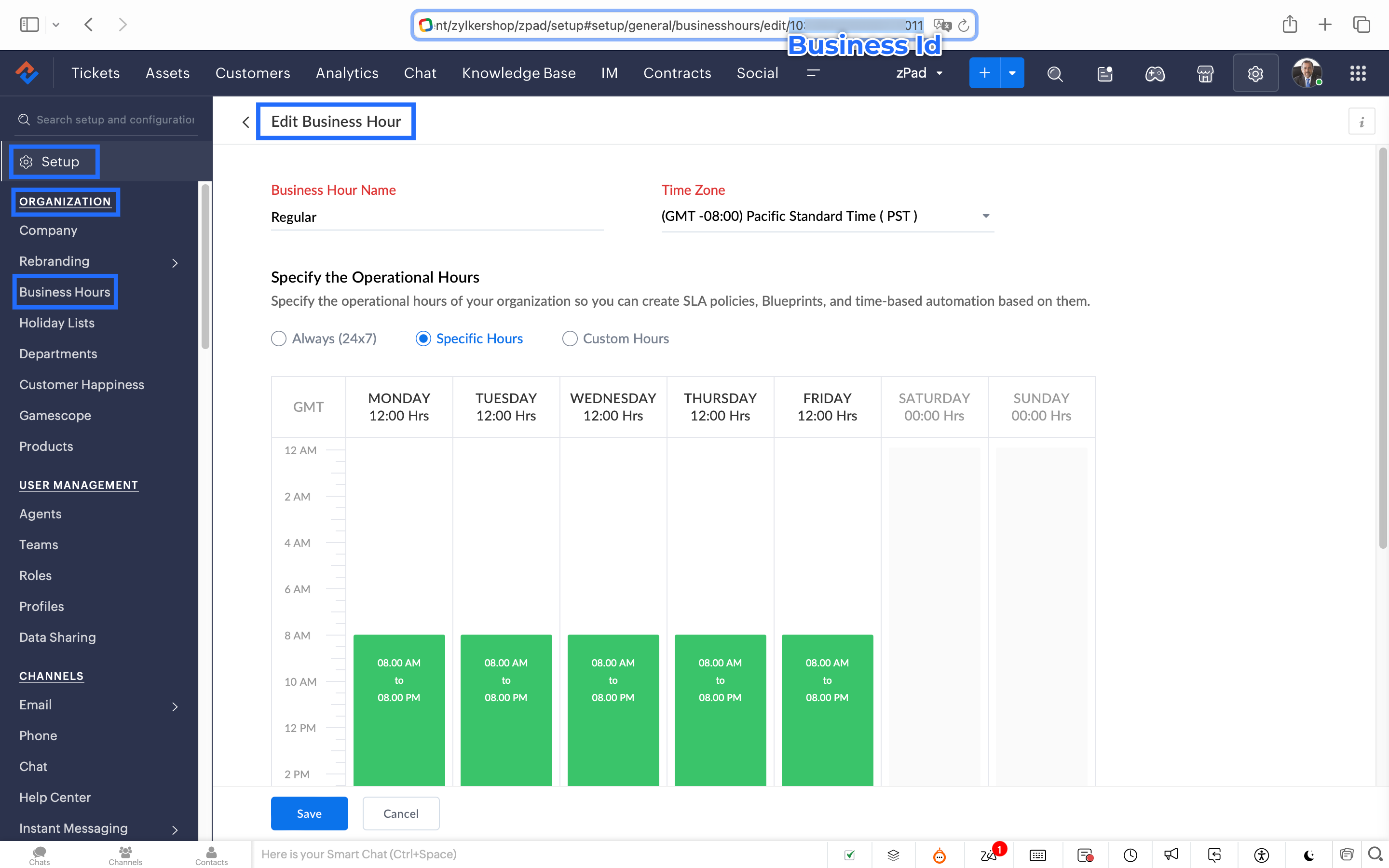
How to fetch the Business Hour Id?
6.1 To fetch the Business Id, Go to Setup (S) >> Organization >> Business Hours.6.2 Click on the Business Hours configured within your Zoho Desk Account. Go to the URL of the specific Business Hours, and you can fetch the business Id from the URL.
7. After entering the URL, do not make changes to the Query Params and Headers.
8. Under Connections, click on Add.
To Create a connection
8.1 Click Create Connection.
8.2 Select Zoho Desk under Default Services.
8.3 Give a connection name (let's say configureBusiness Hours).
8.4 Disable the toggle for User Credentials of Login User.
8.5 Under Scope, choose the below scope values:
Desk.settings.READ
8.6 Click Create and Connect.
8.7 Click Connect and click Accept.
Connection is created successfully.

9. After creating the connection, click on Refresh and then click on the drop down arrow and select the connection (configureBusiness Hours) created.
10. Click on the gear icon in the Formatter option and paste the below code in the Deluge window:
- dayMAp = {"SUNDAY","MONDAY","TUESDAY","WEDNESDAY","THURSDAY","FRIDAY","SATURDAY"};
- businessTimes = response.get("businessTimes");
- timez = response.get("timeZone").get("id");
- response = Collection();
- createdTime = zoho.currenttime.toString("yyyy-MM-dd HH:mm:ss",timez).toDateTime();
- createdDay = createdTime.getDay();
- //get this from above created time
- createdHour = createdTime.getHour();
- //get this from above created time
- createdMinute = createdTime.getMinutes();
- //get this from above created time
- createdWeekDay = createdTime.getDayOfWeek();
- //get this from above created time
- createdWeekDay = dayMAp.get(createdWeekDay - 1);
- for each businessTime in businessTimes
- {
if(businessTime.get("day") == createdWeekDay)
{
businessTimeStartHour = businessTime.get("startTime").getPrefix(":").toLong();
businessTimeEndHour = businessTime.get("endTime").getPrefix(":").toLong();
businessTimeStartMinute = businessTime.get("startTime").getSuffix(":").toLong();
businessTimeEndMinute = businessTime.get("endTime").getSuffix(":").toLong();
if((createdHour > businessTimeStartHour || createdHour == businessTimeStartHour && createdMinute >= businessTimeStartMinute) && (createdHour < businessTimeEndHour || createdHour == businessTimeEndHour && createdMinute <= businessTimeEndMinute))
{
response.insert({"status":"true"});
}
else
{
response.insert({"status":"false"});
}
}- }
- return response.get(0).get("status");
11. Click Save after pasting the code.
12. Click on the gear icon in the Response icon.
12.1 Click on the gear icon on the Status Code.12.2 Give Status Code as 200, Flow Variables as status, Response Value as /.12.3 Let the Type be single element and the Data Type be String. Click Save. Click Save for the Response List with the updated status.
13. Disable the toggle for the Multi Path.
14. Choose a Request timeout if required. This sets a response waiting time from the server.
15. Set the Error message if required to display in case waiting time exceeds the response time.
16. Click Save.
This is the configuration for setting the business hours through a custom function.
17. After the Webhook, click on the + icon and add the Fork block under the Perform Actions.

18. Give the Block Name as Check, Enter Path list : name it as Check.
Under Criteria 1, click on the drop-down arrow, and enter choose Status under Block variables, from the drop-down menu. Choose operation: contains and give the value : True.
19. Do not add an else path.
20. Click Save.
In the Fork block, under Check, you can add the Transfer to agent block from the Zoho Desk Blocks. Under Else, you can add a text icon/ info card stating you are out of business hours.
Note: This custom function does not include the Holiday Lists configured within Zoho Desk.
You can seamlessly integrate this Guided Conversation flow into your self-service platform to ensure you never miss a customer, even during non-working hours. Keep your customer support running smoothly!
See you next week!
Regards,
Lydia | Zoho Desk
Topic Participants
Lydia | Zoho Desk
Dikka
Shivani | Zoho Desk
Sticky Posts
Register for Zoho Desk Beta Community
With the start of the year, we have decided to take a small step in making the life of our customers a little easier. We now have easy access to all our upcoming features and a faster way to request for beta access. We open betas for some of our featuresShare your Zoho Desk story with us!
Tell us how you use Zoho Desk for your business and inspire others with your story. Be it a simple workflow rule that helps you navigate complex processes or a macro that saves your team a lot of time; share it here and help the community learn and grow with shared knowledge.Tip #1: Learn to pick the right channels
Mail, live chat, telephony, social media, web forms—there are so many support channels out there. Trying to pick the right channels to offer your customers can get pretty confusing. Emails are most useful when the customer wants to put things on record. However, escalated or complicated issues should not be resolved over email because it's slow and impersonal. When you need immediate responses, live chat is more suitable. It's also quick and convenient, so it's the go-to channel for small issues.Welcome to Zoho Desk Community - Say hello here!
Hello everyone! Though we have been here for a while, it’s time to formally establish the Zoho Desk Community; we’re really happy to have you all here! This can be the place where you take a moment to introduce yourself to the rest of the community. We’d love to hear all about you, what you do, what company or industry you work for, how you use Zoho Desk and anything else that you will like to share! Here’s a little about me. I am Chinmayee. I have been associated with Zoho since 2014. I joined hereWebinar 1: Blueprint for Customer Service
With the launch of a host of new features in Zoho Desk, we thought it’ll be great to have a few webinars to help our customers make the most of them. We’re starting off with our most talked about feature, Blueprint in Zoho Desk. You can register for the Blueprint webinar here: The webinar will be delivered by our in-house product experts. This is a good opportunity to ask questions to our experts and understand how Blueprint can help you automate your service processes. We look forward to seeing
Recent Topics
Tip of the Week #33: Appointment scheduler in Zoho Calendar.
In Zoho Calendar, you can use the Schedule Appointment option to share your appointment request form with the public, allowing people to fill out the form to request an appointment with you. This form can be embedded on your website or blog. VisitorsTip of the Week #34: Embed Calendars using Zoho Calendar
You can make your calendars public and visible to the general public by embedding them in your websites/blogs using Zoho Calendar. You can use the embed code to add your own calendars to your website's/ blog's HTML code, and the calendar will appear onTip of the week #35: Migrate to Zoho Calendar from Google Calendar.
If you are looking to move your Google Calendar events to Zoho Calendar, never worry about missing out the events from your Google Calendar. You can migrate the events from Google Calendar using the export option and import it to Zoho Calendar and manageTip of the week #36: Migrate to Zoho Calendar from Outlook Calendar.
If you've been using Outlook calendar and looking to migrate to Zoho Calendar, you can seamlessly export your calendars from Outlook and import them into Zoho Calendar without losing any events, participants, and the reminders set for each event. To migrateShared calendar issues and duplications
Apparently there was a calendar update? Now when I schedule an event for a team member that has shared his calendar with me, the event makes me the organizer and adds the event to my calendar as well. Previous to this "update" I would scheduled an eventSubscribed Calendar
Hi i have subscribed to a calendar for Holidays in Canada it shows all the holidays perfectly but every one of them has the word Canada before the rest of the name is there a way to remove that word Canada? It takes up a lot of space in the square onThe year that was at Zoho Calendar 2023- Part 1
Hello, amazing community members! Happy new year from all of us here at Zoho Calendar. As we begin the new year, we'd like to thank each and everyone of our community members for your unwavering support and love that you have shown for Zoho Calendar.Zoho Calendar 2024: A Year in Review
Hello, community members! Happy new year from all of us here at Zoho Calendar. As we turn the page to a new year, we extend our heartfelt gratitude to every member of our Zoho Calendar community for your continued support and enthusiasm. Your feedbackZeptomail API error 500 internal server error
Hi Everyone, getting this eror continuously! Can anyone please guide around the same! Zeptomail API error 500 internal server error Best RegardsWaiting multiple days to buy credits, causing my website to suffer
So I own a fairly large website that gets a lot of registered users. I use transmail send activation emails, and also forgot password emails. I sent an email to zoho's presales team when I was only at 4K/10K emails sent, hoping to buy more credits beforeFollow up
Hello, I sent a message 2 days ago but I don't receive any response and I cannot find my ticket here. this is the ticket: Your ticket has been created with the ticket ID 68925465 and subject "Fwd: Fishing-alert" looking forward to seeing your response.What's new in TransMail!
Note: TransMail is now ZeptoMail. Click here to know more. Hello again, everyone! We've recently crossed the 6 months mark of TransMail's launch. In this time post our launch, we have been constantly working on updating our platform and adding new featuresJune 2021 in TransMail!
Note: TransMail is now ZeptoMail. Click here to know more. Hello again, everyone! Hope you and your loved ones are doing well. If you're doing less than fine, we truly hope that things only get better for you. We've had a few updates in the past monthTransMail has a new name—ZeptoMail!
Tried navigating to TransMail's community forum but see a different name now? That's because TransMail has a new name. TransMail is now ZeptoMail! As we’ve grown from an internal service used mainly by other Zoho products to an up-and-coming competitorJuly 2021 in ZeptoMail!
Note: TransMail is now ZeptoMail. Click here to know more. Hello again, everyone! Hope you and your loved ones are doing well. We've had a few updates in the past month in ZeptoMail—some new features and some important announcements. Take look at whatSend Email From the ZeptoMail BY API
What is Zeptomail:- Transactional email service with reliable and fast delivery How we can Create a Connection for Zeptomail in Zoho CRM Go to the Setup Click on Connection Enter Connection Details:- Generate Consumer Key & Consumer Secret Using ZohoCustomer email on Opencart 3
When I place an order, 2 emails are sent: 1) administrator 2) to the user The administrator receives a beautiful letter, but the user receives a damaged letter (see screenshot). What could be the problem?[Announcement] Insert image from URL changes in Zoho Writer
Hi Zoho Writer users! We'd like to let you know that we've changed the behavior of the Insert image from URL option in Zoho Writer for security reasons. Earlier behavior Once you inserted an image URL in a Writer document, the image would be fetched fromWriter sing up problom
Zoho writer sing up prolom faceUnable to copy into a new document
Whe I create a new Writer doc and attemp to copy and past I get this message. The only way to copy into a document is I duplicate an existing document, erase the text and save it under a different name and then paste the information. Not ideal. Can you[Webinar] Live demos and user Q&A with Zoho Writer product experts
Join us on June 12, 2025 for live demos based on your use cases and real-world scenarios raised via form. This is also an opportunity to get your questions answered directly by product experts from the Zoho Writer team. Webinar agenda Live demos basedZoho Writer's built-in citation and bibliography generator
Hey researchers and writers! Do you manually format citations and bibliographies, spending hours jumping between apps and tabs? If so, then check out Zoho Writer's built-in "Citations and Bibliography" feature. Imagine you're writing a thesis on the futureSingle and group checkboxes in Zoho Writer's fillable forms
Hey Writer Fam, Are you making the most out of single and group checkboxes in fillable forms in Zoho Writer? Here is a handy tip to optimize your use of checkboxes, both single and group, and enhance your data collection process. Single checkboxes: SingleCollaborate efficiently with Zoho Writer's track changes feature
Hi Zoho Writer Community, Zoho Writer's track changes feature is a simple, built-in solution that helps you and your team work together efficiently. Instead of juggling multiple versions of a document or building up a long email chain of comments, eachZoho Writer's WordPress extensions
Hey Zoho Writer users! Say goodbye to all your WordPress content publishing woes with Zoho Writer's WordPress extensions. Publish content with all your formatting and images, republish content when you update a document, and more—from a single windowTime-saving table hacks
Hey Zoho Writer Community, Do you find yourself using a lot of tables in your documents? We're here to share some of our time-saving hacks that will help you work more efficiently, organize your data, and make your documents look neat and professional.Automating document approval and signing with Zoho Writer and Zoho Sign
Hey Zoho Writer Community! Here's another automation tip to make your processes more efficient! Question: Can I send a document for client approval first, then automatically send it for signing with Zoho Sign if they approve? Since it's the same personCustomization hacks in Zoho Writer - Part 2
Hey community, We're back with some more tricks to personalize your documents, save time, and get in the zone when you work in Writer. Check out part 1 of this post if you haven't already. Let's dive right in! Document ruler units Imagine you're creatingSimplify your tax calculations with Zoho Writer
Hello Zoho Writer Community! Tax season can be stressful, but with Zoho Writer, managing your income tax calculations becomes straightforward and efficient. Here’s an example of how you can use the tables and formulae of Zoho Writer to calculate incomeEnhance document navigation with headings and TOC
Hey Zoho Writer Community! We're back with some useful features in Zoho Writer that can simplify your document creation and navigation process. Let's dive right in! Check out our video on how to make the most of Zoho Writer's heading and table of contentsUse and download in PDF format of Zoho wirter Merge template using deluge
Hello Zoho Developers. Here is some information about Zoho Writer. Writer is not just another online word processor, it's a powerful tool for editing, collaboration, and publishing. Even with its wide range of features, Writer's pared-down user interfaceCustomization hacks in Zoho Writer - Part 3
Hello everyone, Welcome back to Part 3 of our customization tips in Zoho Writer! In this third installment, we'll be diving into some essential customization settings that can enhance your document creation experience. Sender email address in mail mergeDaytime saving timezones messing up writer pdf
Hi, I need help for something I can't figure out. I created a Form to collect data and it is set up with my current Daylight Saving Time (GMT-3). This form is used to generate a contract (pdf Writer) with dates from an event that is being held in 4 monthsIssue with locked content in Writer
Hi, I have seen the documentation which outlines how to lock specific content within a Writer document so that it can't be modified by collaborators, but I have come across an issue. When the editor locks a paragraph for example, then a collaborator can'tDeprecation of certain URL patterns for published Zoho Writer documents
Hi Zoho Writer users! We'd like to let you know that we have deprecated certain URL patterns for published and embedded documents in Zoho Writer due to security reasons. If the published or embedded documents are in any of these URL patterns, then theirUsing Mail Merge Template to Print Documents with One Subform Record's Fields per Document
Hello, We have a Mail Merge template created in Zoho Writer which is not able to perform the functionality which is currently required to automate the documentation task portion of our process. The CRM module we are primarily using is based on a "Loans"Problem with Writer and Workdrive
Hi team, I’m the super admin for our Zoho One org. WorkDrive is active, and Zoho Docs is deprecated for our org. However, Zoho Writer cannot connect to WorkDrive at all — we’ve cleared cache, tried incognito, and restarted several times. I was able toSet to Review for all
We are testing the use of Writer as part of an internal review process for statement of work documents and have found that when the document is changed from Compose to Review by one person, that is not reflected for all others who view the document. IsI’ve noticed that Zoho Sheet currently doesn’t have a feature similar to the QUERY formula in Google Sheets or Power Query in Microsoft Excel.
These tools are extremely helpful for: Filtering and extracting data using simple SQL-like queries Combining or transforming data from multiple sheets or tables Creating dynamic reports without using complex formulas Having a Query-like function in Zohostock
bom/bse : stock details or price =STOCK(C14;"price") not showing issue is #N/A! kindly resolve this problemNext Page