Boost your CRM communication with while composing emails
Hello Everyone,
We’re excited to introduce a series of impactful enhancements to the email composer settings in Zoho CRM. These updates enable you to personalize and optimize your customer interactions with greater efficiency.
So what's new?
Add custom font types: Get more creative with custom font types to match your brand’s style and make your emails stand out.
Add custom font sizes: Control the look and feel of your messages with an expanded range of font sizes.
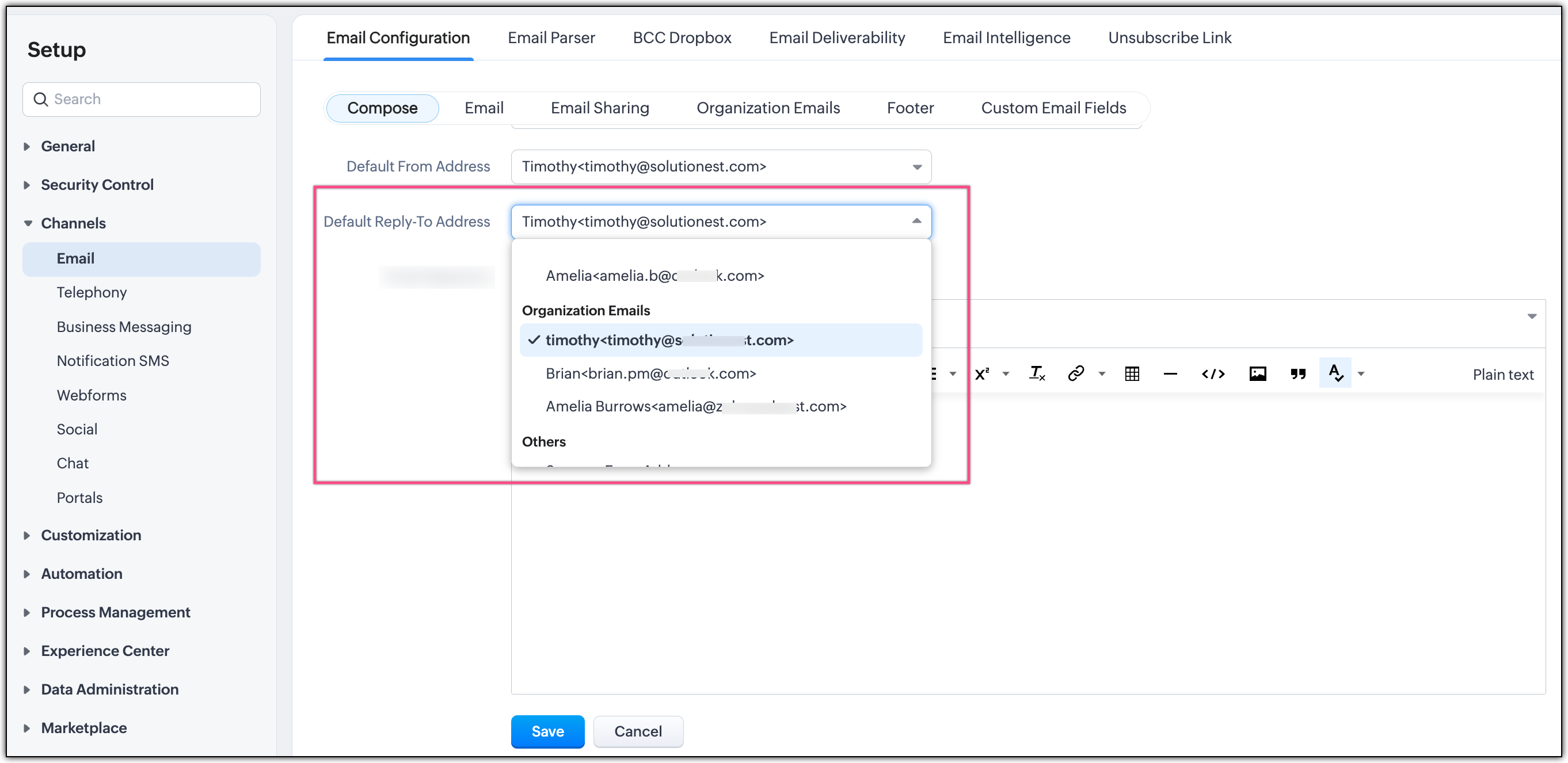
Default reply-to address: Simplify your email replies with the ability to set a default reply-to address and ensure responses always go to the right inbox without any manual setup.
Let's dive into the details below!Send emails with custom font types
You can either select a default font type from the provided list or add a custom font for your emails. You can add to five custom font types to match your business's unique requirements.
However, any custom fonts added to your CRM system are device-specific. If the font is not available on a user's device, an error will be displayed when they choose that font type while composing an email. This usually occurs when a user adds a custom font type by accessing Zoho CRM on one device and then tries to select the added custom font when accessing Zoho CRM on another device.
Send emails with custom font sizes
You can select a default font size from the provided font size list or add custom font sizes for all emails sent from Zoho CRM using the Send Email option. You can define up to five custom font sizes to choose from to set a unique look for your emails.
 Limitation: You can set any value between 9 and 99—with up to two decimal places—as your custom font size.
Setup a default reply-to address
You can specify a default reply-to address to ensure that you can track replies if your reply-to mail box is connected with Zoho CRM. This is useful when your email is sent out from an organization email address that isn't integrated with Zoho CRM, or from a "no-reply" email address. You can set one of the configured from-addresses or available organizational email addresses as the default reply-to address.
Read our help article to learn how to configure these enhancements for your emails.
We've aimed this enhancement at providing greater flexibility and efficiency in customer communications. If you have any questions or need help setting up these new enhancements, feel free to reach out to us in the comment section below. We're always here to assist you!
Thanks and have a great day!