Function #48: Manage fixed installment payments using Zoho Books

Hello everyone, and welcome back to our series!
Businesses offer installment payment options to their customers, particularly for expensive purchases, to ease the financial burden on them. By breaking down the total cost into smaller, more manageable payments, businesses can attract a wider audience who may not be able to afford large upfront payments. This approach not only increases the likelihood of making more sales, but also helps to spread revenue over time, improve cash flow, enhance customer satisfaction and loyalty, and provide a competitive advantage in the market.
We receive numerous requests from our users regarding the handling of these installment scenarios. We heard you loud and clear. Today, we are excited to share a solution that utilizes custom functions to manage installment payments in Zoho Books.
Let's take the example of Mr. John Hector, who wants to buy a 75-inch TV from Zylker Electronics, priced at a hefty $2,300. He is finding it difficult to pay the entire amount upfront. Therefore, Zylker Electronics offers him the option to pay in installments. They mutually decide that John will spread the payment over 5 months, committing to monthly installments of $460 until he settles the entire purchase amount. Let's delve into how this process can be efficiently managed within Zoho Books using custom functions.
Firstly, Zylker Electronics should create a sale invoice of $2,300 in their Zoho Books organization. While creating it, they should input the start date of the installment and the number of installments in two custom fields. For instance, if the sale was made on 01.04.2024 and Mr. John agreed to pay in 5 installments starting on 10.05.2024, the start date should be entered as 10.05.2024, and the number of installments as 5.
Two custom functions will come into play: one to generate the retainer invoices to collect the installment payments and another to apply the retainer payments to the sale invoice.
Based on the number of installments entered the function will determine the amount to be charged as monthly installments.
Installment amount = Total Amount Payable / No of installments = $2300 / 5 = $460.
On the specified start date, the first function will create and send the retainer invoice for the first installment. Once the payment for this installment is recorded, the second function will apply it to the sale invoice, reducing the balance accordingly. The process repeats each month, generating and sending retainer invoices for subsequent installments until all 5 are completed. Each retainer invoice will be for $460 and due on the 10th of every month for 5 consecutive months. As each retainer invoice is paid, the second function will automatically apply it to the sale invoice, thereby recognizing the income.
Prerequisites:
1. Create a Connection named "zbooks" to successfully execute the scheduler. You can watch the GIF attached below to know how to create the connection.

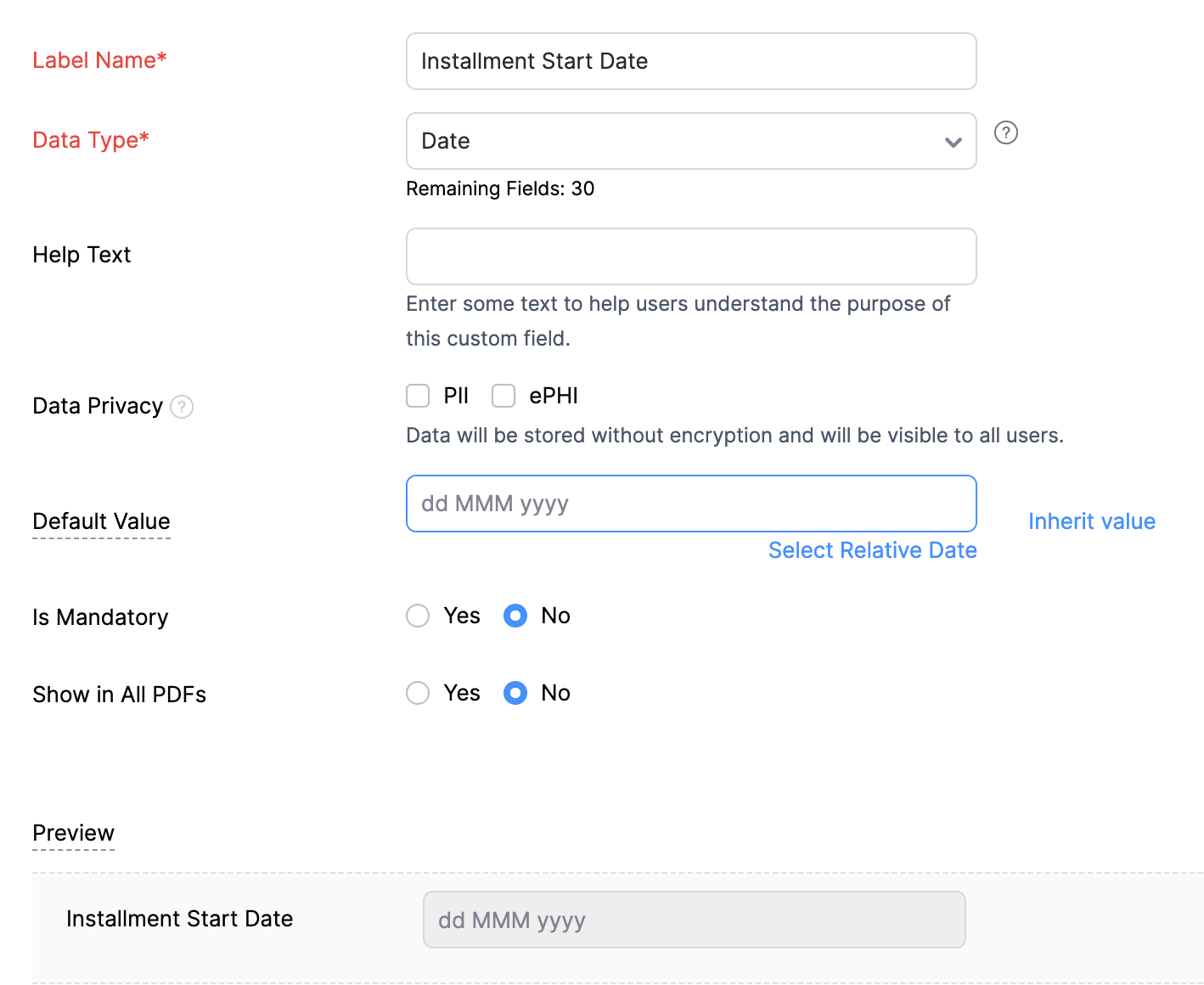
2. Create a Date-type custom field called "Installment Start Date" for the Invoices. This field will be used to input the starting date for installment payments.
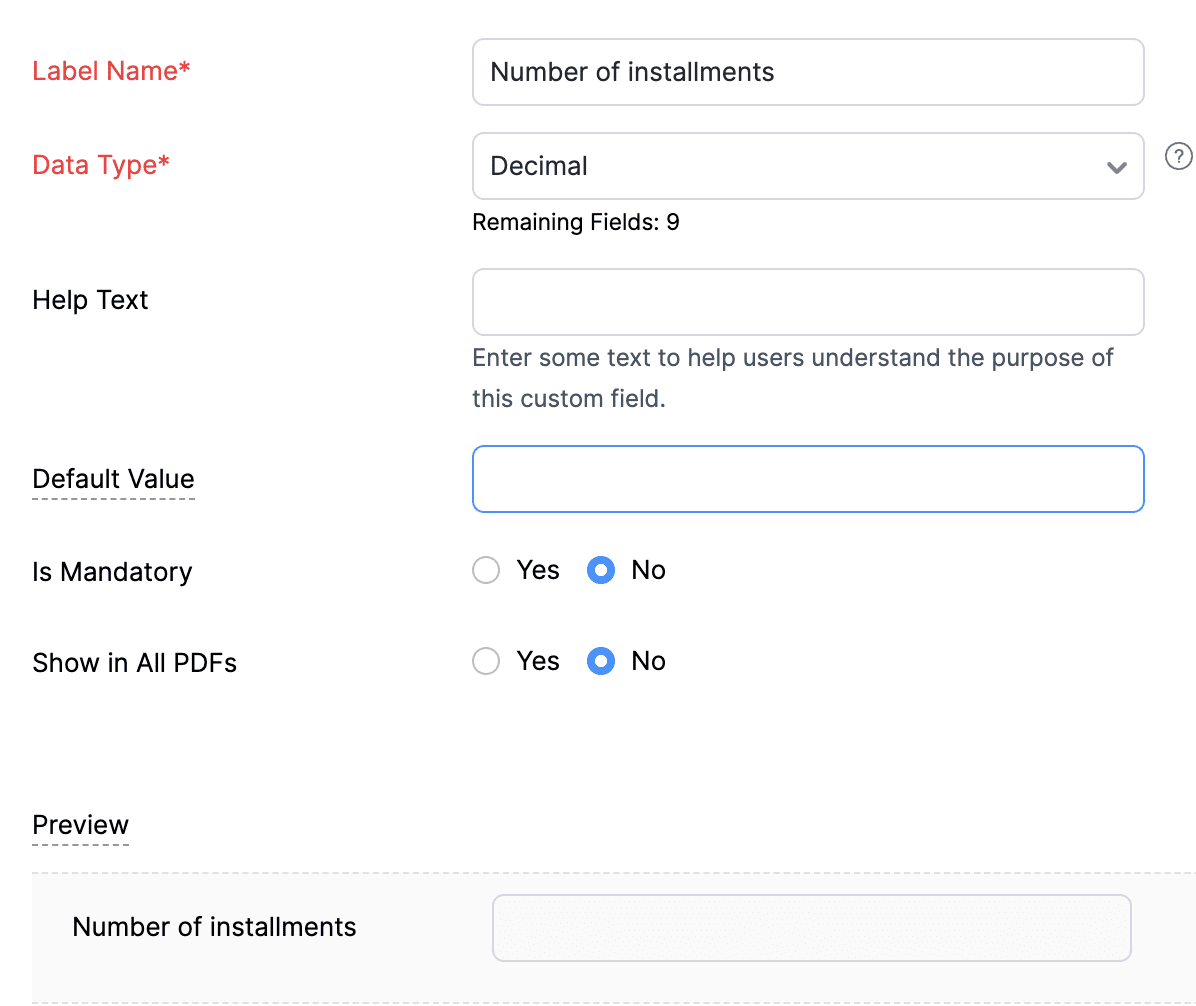
3. Create a Decimal-type custom field called "Number of installments" for the Invoices. Here, you'll specify the agreed-upon number of installments. Using this information and the total invoice amount, the function will determine the monthly installment amount.
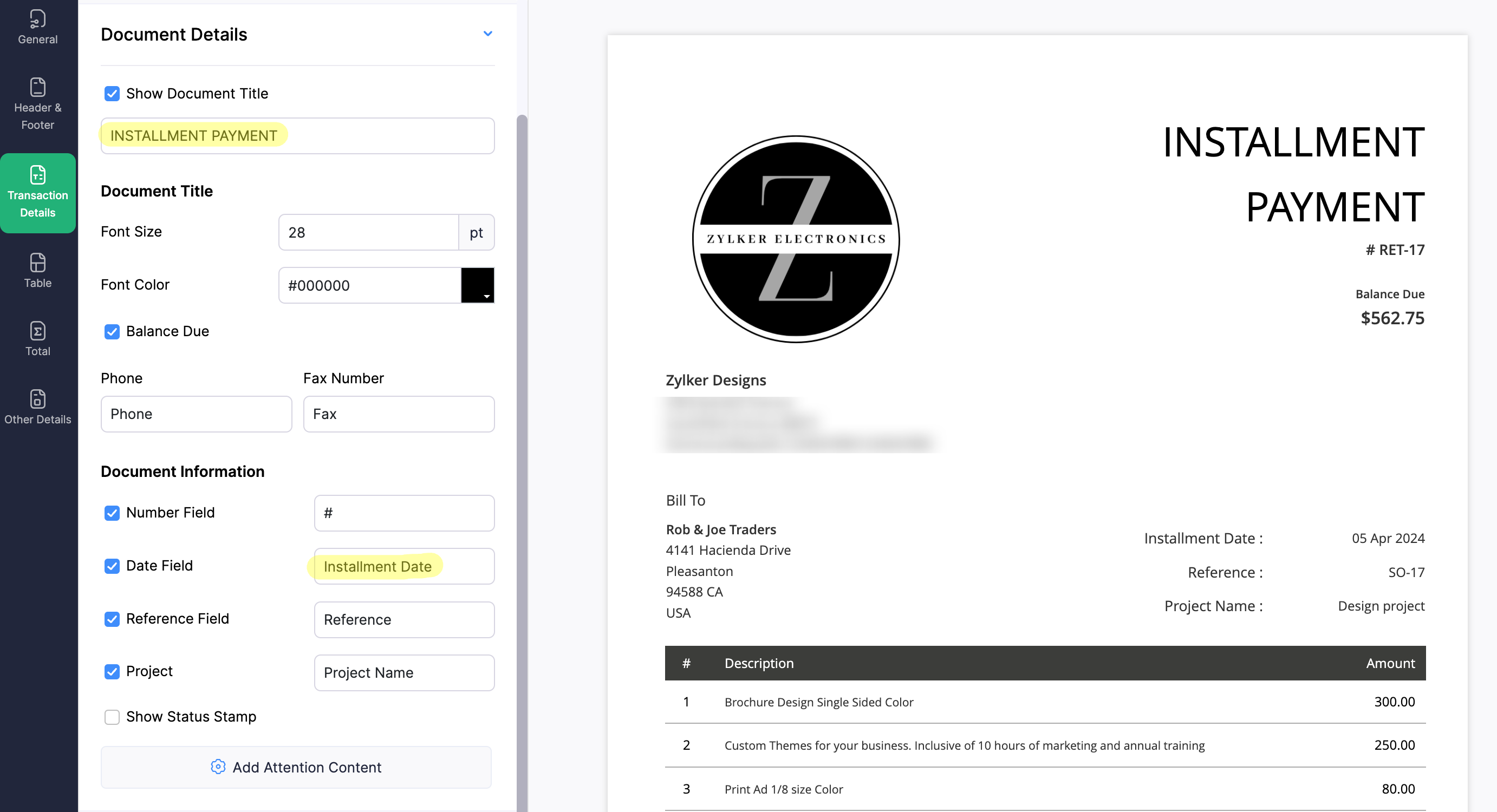
4. Create a new Retainer Invoice template with the document title "Installment Payment". Then, copy the template ID (You can get the ID from the URL of the webpage) and substitute it into line 26 of the first function. This ensures that all the retainers sent for collecting installment amounts are correctly labeled.
(1) Custom Function to create Retainer Invoices:
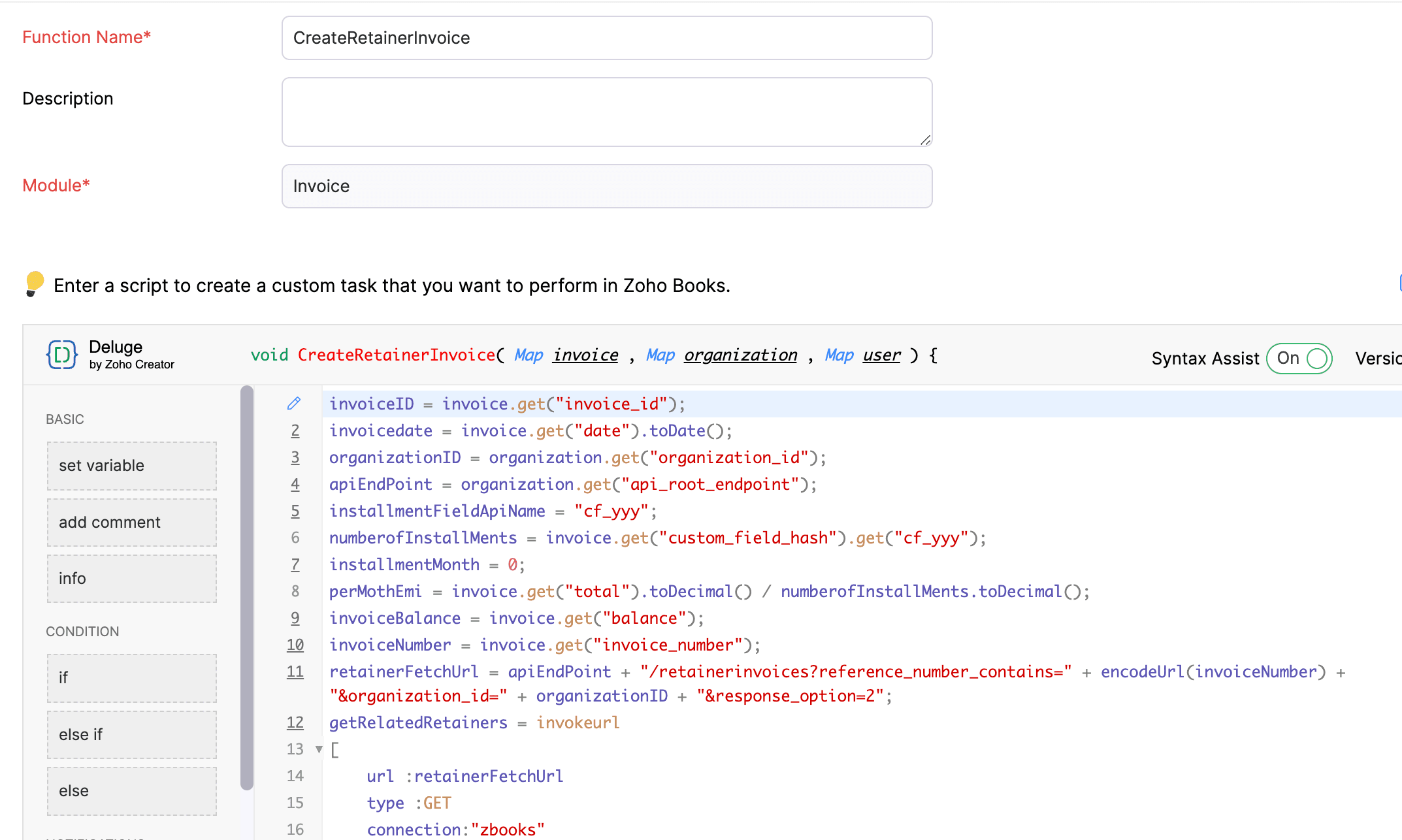
Navigate to Settings -> Automation -> Workflow Actions -> Custom Functions -> +New Custom Function -> Module -> Select Invoice -> Add the function code from this GitHub Link -> Save.
(2) Workflow Rule to create Retainer Invoices:
Go to Settings -> Automation -> Workflow Rules -> +New Workflow Rule and set up the workflow rule as shown below:-


In the final step of this workflow rule, associate the custom function you created and then hit Save.
(3) Custom Function to apply installment payments to the sale invoice:
Navigate to Settings -> Automation -> Workflow Actions -> Custom Functions -> +New Custom Function- > Module -> Select Retainer Invoice -> Add the function code from this GitHub Link -> Save.

(4) Workflow Rule to apply installment payments:
Go to Settings -> Automation -> Workflow Rules -> +New Workflow Rule and set up the workflow rule as shown below:-
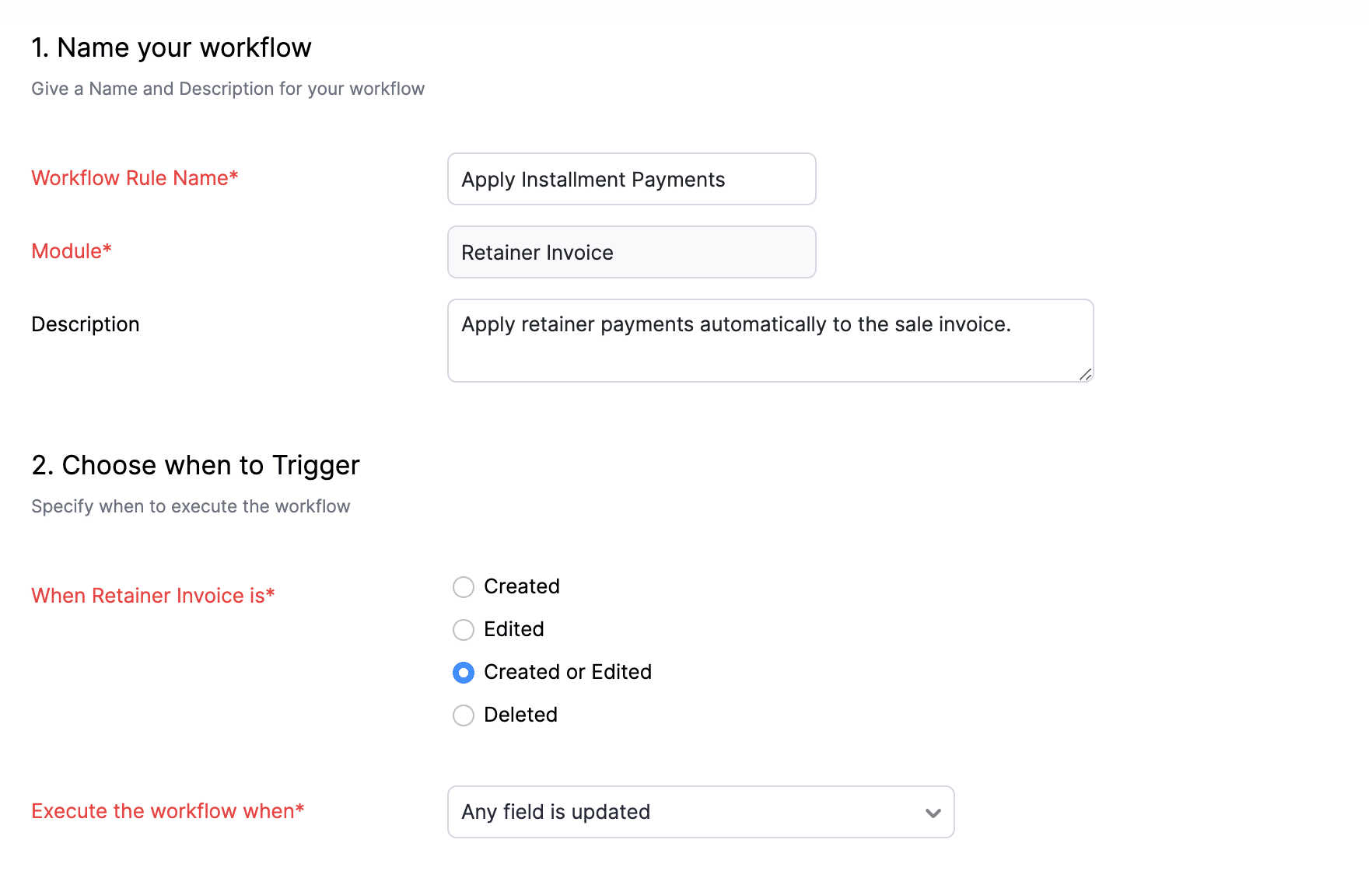
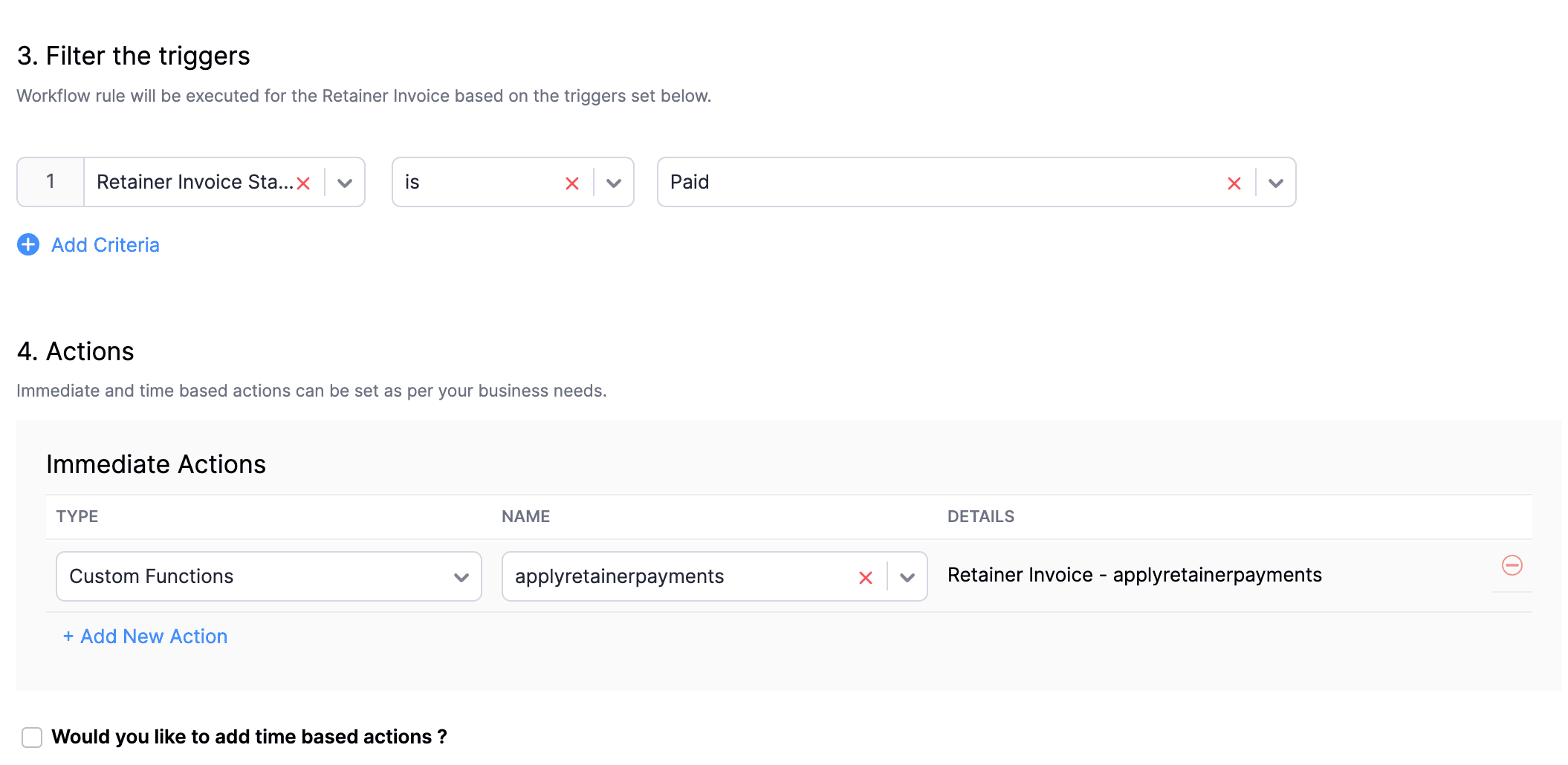
In the final step of this workflow rule, associate the custom function you created and then hit Save.
We really hope that today's functions help you streamline the process of handling installments in Zoho Books. If you need any assistance in customizing the functions to better suit your needs, please do not hesitate to contact us at support[at]zohobooks[dot]com. We are always happy to help you.
Also, for those looking to collect varying percentages of the invoice total as installments, stay tuned!
Regards,
Shireen Farhana
Zoho Books
Topic Participants
Shireen Farhana
Dmitry Solovyev
Dylan Cleppe
Julio Cazaroto
Maj
Sticky Posts
Introducing Invoice Consolidation for Offline Subscriptions
Hello Folks, Glad to announce the feature of Invoice Consolidation for Offline Subscriptions. If you are having multiple subscriptions for your customers, now, you can send a single consolidated invoice for all the Offline Subscriptions that are getting renewed on the same date. Advantage? Customers will be receiving single invoice instead of multiple invoices upon renewal. Also reduces your efforts in follow-up with your customers for payment collections. For Example: If Customer has SubscriptionNew feature: Create back-dated subscriptions
Hello from the Zoho Subscriptions team. :) We’re happy to announce that today marks the launch of a much-awaited feature: creating back-dated subscriptions! From here on out, whenever you create a new subscription with an activation date that is earlier than the present date, you’ll no longer get an error. Instead, you'll be creating a back-dated subscription. This means that the subscription started at that earlier point in time. The next billing date will be calculated automatically based onAnnouncement Regarding Notification Emails
Hello Everyone! This announcement is regarding the admin notification emails which you've been receiving from the email address "support@zohosubscriptions.com". From the 1st of October, 06:00 GMT, the emails with the following subjects will be sent from "no-reply@zohosubscriptions.com". Unable to send invoice for the profile - {profile_name} Unable to process auto payments. If you have set up any filters or workflow in your email account, please add "no-reply@zohosubscriptions.com” and “support@zohosubscriptions.com”Zoho Subscriptions plugin for WordPress
Zoho Subscriptions plugin for WordPress allows you to easily embed your plan specific checkout page in an iframe with just a few mouse clicks and without a single line of code. How can WordPress Zoho Subscriptions Plugin boost your productivity? It's now easier to embed Zoho Subscriptions checkout page in your WordPress site. Forget the old method of logging in to Zoho Subscriptions, copying a URL and scripting to make adjustments. All this can be done automatically through this plugin. A great timeIndian GST organisation Migration Guide
With respect to the new GST regime releasing on July 1, 2017in India, Zoho Subscriptions Indian edition is also gearing up to make your business GST Ready. This article focuses on how to get your existing organisation in Zoho Subscriptions to migrate to the new GST regime. Note: Any organisation created on or after July 1, 2017 will already be GST ready. You wouldn't have to migrate your organisation. Migrating your existing organisation to support GST To migrate your existing organisation to
Recent Topics
Supercharge your email workflow with WorkDrive's add-in for Microsoft Outlook
Consider this: You’re handling a critical project, and your inbox is packed with important attachments, email threads, and client communications. The back-and-forth routine of downloading files to your computer, uploading them to WorkDrive, and manuallySecure and promote your content with Custom Watermarking
Imagine this: You’re a professional photographer who regularly shares your work online with potential clients and collaborators. Recently, you notice that some of your images have been reposted without any credit or permission. This not only impacts yourJoin us in Singapore for the Zoho WorkDrive User Group meetup!
Hello, everyone! Exciting news! We'll be hosting an upcoming Zoho WorkDrive user group meetup in the beautiful city of Singapore this November. At this Zoho User Group meetup, we'll guide you through ways to use WorkDrive as a platform and build customWorkDrive TrueSync now supports ARM64-based Windows devices!
We’re excited to announce that the Zoho WorkDrive TrueSync app now fully supports Windows devices with ARM64 architecture! Whether you're working on an ARM-based device or an x64 processor, you can now enjoy the same seamless file synchronization experienceOption to Disable Download for Documents Shared via Permalink
Dear Zoho Writer Team, Currently, when sharing a Writer document using the regular permalink (Collaborators with external users), there is no option to restrict the ability to download the document. While the external share link allows such restrictions,How to Download a File from Zoho WorkDrive Using a Public Link
How to Download a File from Zoho WorkDrive Using a Public Link If you're working with Zoho WorkDrive and want to download a file using a public link, here's a simple method to do so using API or a basic script. This approach helps developers or teamsdomain not verified error
Hi when i try to upload a video from zoho creator widget to zoho work drive iam getting domain not verified error.I don't know what to do .In zoho api console this is my home page url https://creatorapp.zoho.com/ and this is my redirect url:www.google.com.IamLive Webinar: Getting Started with Zoho WorkDrive - A Complete Overview
Hello everyone, We’re excited to invite you to our upcoming live webinar! Discover how to set up your team, bring in your data, and make the most of WorkDrive’s collaboration, organization, AI, and security capabilities. This session is perfect for anyoneCalendly One-way sync- Beta Access
Hello Community, Many of our Zoho Calendar users have expressed their interests in Zoho Calendar and Calendly integration. We've been tightly working on with Calendly team to provide a two-way sync between Calendly and Zoho Calendar. However, there haveThe year that was at Zoho Calendar 2023- Part 2
In continuation with our previous post on all the exciting updates and improvements that have shaped Zoho Calendar over the past 12 months, Lets delve into more: Bring your calendars together- Introducing Zoho Calendar and Outlook calendar synchronisationTip of the week #18: Change the event organizer in Zoho Calendar.
We cannot always be available to conduct an event when we organise one. In these circumstances, you can use Zoho Calendar to change the event organizer at any moment before the event begins. This way, you can avoid cancelling the event while still takingTip of the week #20: Create and manage multiple personal calendars.
Zoho Calendar provides users with the facility to create and manage as many calendars as required. All these calendars can be managed and edited as per user requirements. You can alter the calendar view, make changes to the calendar theme, share the calendarTip of the week #24: Subscribe to the calendars of a Zoho Calendar user.
Calendars that are created by Zoho Calendar users can also be added to your Zoho calendar. All public calendars listed by the users will be available when you enter the email address. You can choose the calendar you need to subscribe to. Once the emailRemoving calendar for zoho email group
How do I make it so that an email group created in Zoho Mail does NOT have a calendar? I have a couple groups for our phone systems voicemails - one for each department. Voicemail recordings are sent to this groups email address so they have access toTip of the week #27: Edit personal calendars in Zoho Calendar.
In Zoho Calendar, the personal calendars you create can be edited to make changes you need to make. Edit a Personal Calendar The following changes can be made to the personal calendar by editing it: Calendar title Calendar color Reminders and DescriptionTip of the week #28: Show/ hide, enable/ disable and empty/ delete your calendars in Zoho Calendar.
The popularity of online calendars has soared in recent years. It's used both for personal and professional reasons. Calendars have evolved into an effective productivity tool in our lives, from creating events for birthdays and anniversaries to schedulingTip of the week #30: Share calendars publicly in Zoho Calendar.
In Zoho Calendar, calendars that are created under My Calendars can be shared publicly. Making your calendar public allows others to view it. When you need to share your calendar with a larger group, public sharing can help. You can restrict others fromTip of the week #31: Share your personal calendars within organization.
Keep your Organization members aware of what's happening. In Zoho Calendar, you can share your personal calendar with all the members in your organization using the Share with org option.When you enable org sharing for a particular personal calendar,Tip of the Week #33: Appointment scheduler in Zoho Calendar.
In Zoho Calendar, you can use the Schedule Appointment option to share your appointment request form with the public, allowing people to fill out the form to request an appointment with you. This form can be embedded on your website or blog. VisitorsTip of the Week #34: Embed Calendars using Zoho Calendar
You can make your calendars public and visible to the general public by embedding them in your websites/blogs using Zoho Calendar. You can use the embed code to add your own calendars to your website's/ blog's HTML code, and the calendar will appear onTip of the week #35: Migrate to Zoho Calendar from Google Calendar.
If you are looking to move your Google Calendar events to Zoho Calendar, never worry about missing out the events from your Google Calendar. You can migrate the events from Google Calendar using the export option and import it to Zoho Calendar and manageTip of the week #36: Migrate to Zoho Calendar from Outlook Calendar.
If you've been using Outlook calendar and looking to migrate to Zoho Calendar, you can seamlessly export your calendars from Outlook and import them into Zoho Calendar without losing any events, participants, and the reminders set for each event. To migrateShared calendar issues and duplications
Apparently there was a calendar update? Now when I schedule an event for a team member that has shared his calendar with me, the event makes me the organizer and adds the event to my calendar as well. Previous to this "update" I would scheduled an eventSubscribed Calendar
Hi i have subscribed to a calendar for Holidays in Canada it shows all the holidays perfectly but every one of them has the word Canada before the rest of the name is there a way to remove that word Canada? It takes up a lot of space in the square onThe year that was at Zoho Calendar 2023- Part 1
Hello, amazing community members! Happy new year from all of us here at Zoho Calendar. As we begin the new year, we'd like to thank each and everyone of our community members for your unwavering support and love that you have shown for Zoho Calendar.Zoho Calendar 2024: A Year in Review
Hello, community members! Happy new year from all of us here at Zoho Calendar. As we turn the page to a new year, we extend our heartfelt gratitude to every member of our Zoho Calendar community for your continued support and enthusiasm. Your feedbackZeptomail API error 500 internal server error
Hi Everyone, getting this eror continuously! Can anyone please guide around the same! Zeptomail API error 500 internal server error Best RegardsWaiting multiple days to buy credits, causing my website to suffer
So I own a fairly large website that gets a lot of registered users. I use transmail send activation emails, and also forgot password emails. I sent an email to zoho's presales team when I was only at 4K/10K emails sent, hoping to buy more credits beforeFollow up
Hello, I sent a message 2 days ago but I don't receive any response and I cannot find my ticket here. this is the ticket: Your ticket has been created with the ticket ID 68925465 and subject "Fwd: Fishing-alert" looking forward to seeing your response.What's new in TransMail!
Note: TransMail is now ZeptoMail. Click here to know more. Hello again, everyone! We've recently crossed the 6 months mark of TransMail's launch. In this time post our launch, we have been constantly working on updating our platform and adding new featuresJune 2021 in TransMail!
Note: TransMail is now ZeptoMail. Click here to know more. Hello again, everyone! Hope you and your loved ones are doing well. If you're doing less than fine, we truly hope that things only get better for you. We've had a few updates in the past monthTransMail has a new name—ZeptoMail!
Tried navigating to TransMail's community forum but see a different name now? That's because TransMail has a new name. TransMail is now ZeptoMail! As we’ve grown from an internal service used mainly by other Zoho products to an up-and-coming competitorJuly 2021 in ZeptoMail!
Note: TransMail is now ZeptoMail. Click here to know more. Hello again, everyone! Hope you and your loved ones are doing well. We've had a few updates in the past month in ZeptoMail—some new features and some important announcements. Take look at whatSend Email From the ZeptoMail BY API
What is Zeptomail:- Transactional email service with reliable and fast delivery How we can Create a Connection for Zeptomail in Zoho CRM Go to the Setup Click on Connection Enter Connection Details:- Generate Consumer Key & Consumer Secret Using ZohoCustomer email on Opencart 3
When I place an order, 2 emails are sent: 1) administrator 2) to the user The administrator receives a beautiful letter, but the user receives a damaged letter (see screenshot). What could be the problem?[Announcement] Insert image from URL changes in Zoho Writer
Hi Zoho Writer users! We'd like to let you know that we've changed the behavior of the Insert image from URL option in Zoho Writer for security reasons. Earlier behavior Once you inserted an image URL in a Writer document, the image would be fetched fromWriter sing up problom
Zoho writer sing up prolom faceUnable to copy into a new document
Whe I create a new Writer doc and attemp to copy and past I get this message. The only way to copy into a document is I duplicate an existing document, erase the text and save it under a different name and then paste the information. Not ideal. Can you[Webinar] Live demos and user Q&A with Zoho Writer product experts
Join us on June 12, 2025 for live demos based on your use cases and real-world scenarios raised via form. This is also an opportunity to get your questions answered directly by product experts from the Zoho Writer team. Webinar agenda Live demos basedZoho Writer's built-in citation and bibliography generator
Hey researchers and writers! Do you manually format citations and bibliographies, spending hours jumping between apps and tabs? If so, then check out Zoho Writer's built-in "Citations and Bibliography" feature. Imagine you're writing a thesis on the futureNext Page