Automating Deal Handoff with Zia Assistant API, Workflow, Deluge, and Widget in Zoho CRM

Automating Deal Handoff with Zia Assistant API, Workflow, Deluge, and Widget in Zoho CRM


Hello all! 
Welcome back to a fresh Kaizen week. 

In this post, we will explore how to automate the deal handoff process in Zoho CRM using Zia Assistant API + Workflow + Deluge + Widgets.

Here’s how the final output looks when a deal is reassigned
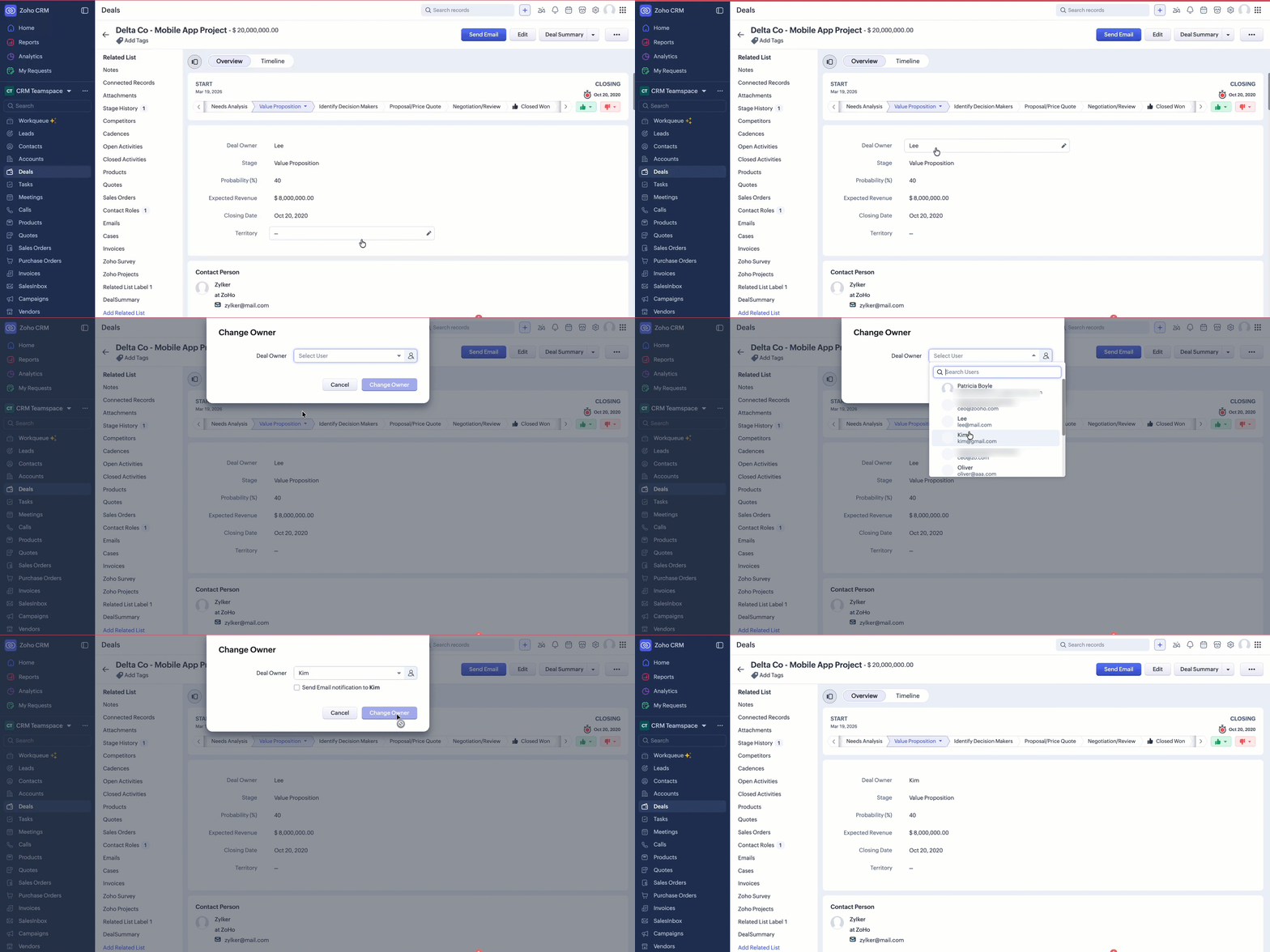
1. Deal owner reassignment
When a deal owner is updated, the workflow is triggered automatically in the background.


2. Instant deal summary for new owner

The newly assigned owner can instantly view a complete AI-generated summary using the Deal Summary button.
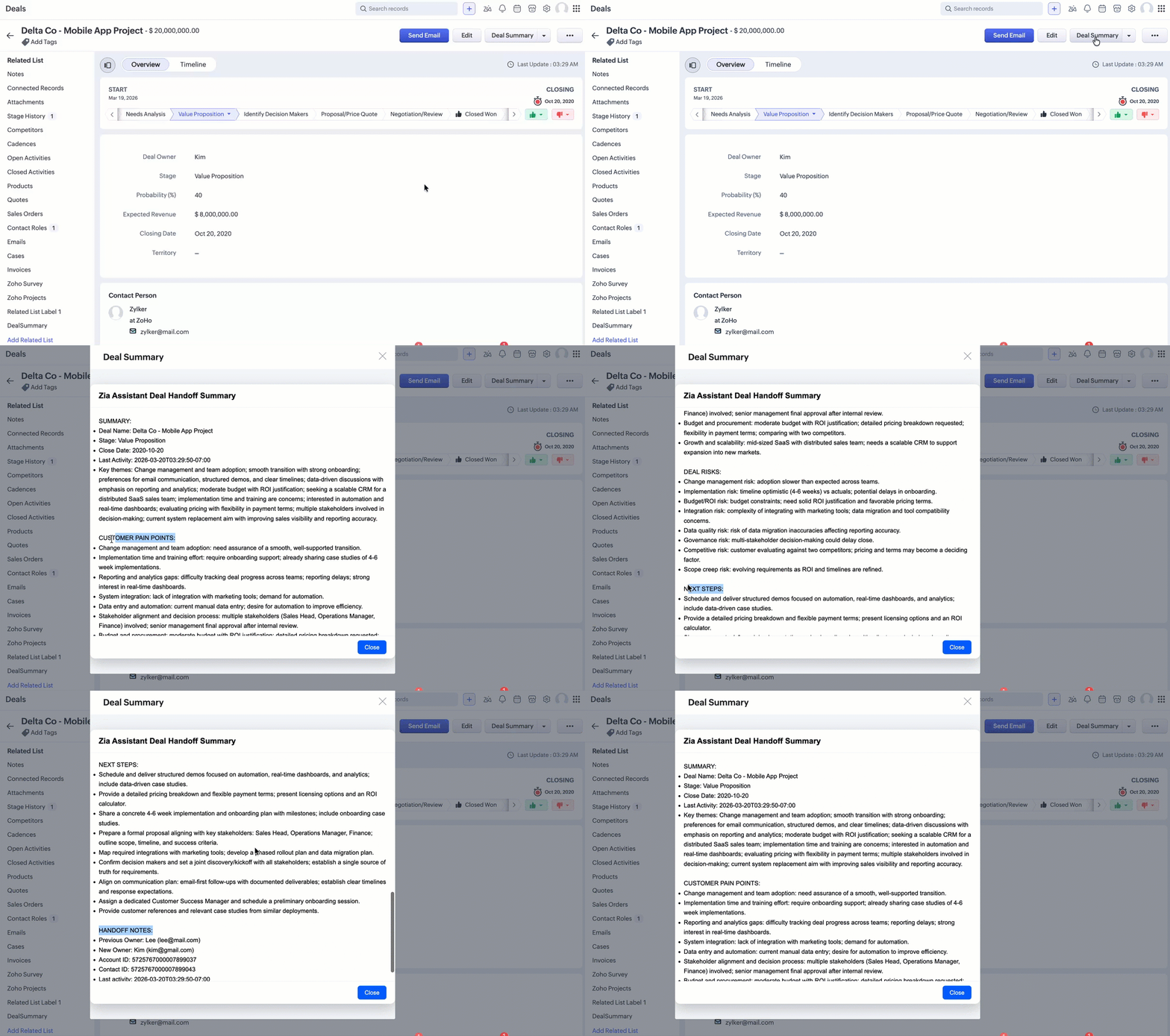

Now that we have seen the outcome, let’s understand the problem and how we built this solution step by step.

Table of Contents

  1. Introduction
  2. The Problem with Deal Handoffs
  3. What if we could automate this entire process?
  4. Use case
  5. How the automation works?
  6. How Zia Assistant API generates insights?
  7. Prerequisites for using the Zia Assistant API
  8. Implementation steps
    1. Step 1: Create a custom field
    2. Step 2: Create a Deluge Function
    3. Step 3: Create a Workflow Rule
    4. Step 4: Create and configure the Widget
  9. Conclusion 


Introduction

In sales, you talk to customers every day - through calls, emails, follow-ups, and meetings. Every conversation has important information. What does the customer need? What problems are they facing? What did we already discuss? What should happen next?
Now think about this. A deal gets reassigned from one sales rep to another.

The problem with deal handoffs

When a deal is reassigned, the new owner often has no clear understanding of what has already been discussed with the customer, what commitments were made, or the current status of the deal.

To get up to speed, they usually need to navigate through multiple sections in the CRM, read through notes, go over email conversations, and piece together the deal history. This process takes time and requires significant effort.

Because of this, there is a high chance of missing important details, misunderstanding customer expectations, or delaying the next action. Ultimately, this impacts both the customer experience and the overall progress of the deal.

What if we could automate this entire process?

Instead of making the sales rep read everything manually, what if the system understood the deal by itself?

Imagine this flow:

  1. As soon as the deal owner changes:
  2. The system collects all related information
  3. AI analyzes the complete context
  4. A clear and structured summary is generated.
  5. The new owner sees everything instantly.
That is exactly what we explored using Zia Assistant API (introduced in Zoho CRM Version 8 APIs) with Workflow + Deluge + Widget inside Zoho CRM.

Use case

When a deal is reassigned, the new owner should immediately understand the complete deal context without any manual effort. This reduces the chances of missing important information and helps them take action faster.
To achieve this, we use a combination of:
  1. Workflow - to detect when a deal owner changes
  2. Deluge Function - to collect all necessary CRM data
  3. Zia Assistant API - to analyze the data and generate insights
  4. Widget - to display the summary to the user
In many cases, the Zia Assistant API is used for question-and-answer scenarios or to extract insights from given text, manually. So, we automated the entire process within Zoho CRM from detecting the owner change to generating and displaying a structured deal summary instantly.

How the automation works?

  1. A workflow rule continuously monitors changes in the Deal Owner field.
  2. When the owner is updated:
    1. The workflow triggers a Deluge function.
    2. An email notification is sent to the newly assigned owner, informing them about the deal and where to view its complete summary (via the widget).
  3. The function 
    1. Collects all related data such as:
      1. Deal notes
      2. Account notes
      3. Contact notes
      4. Emails 
      5. Deal updates
    2. Combines all this information into a single context.
    3. This data is sent to Zia Assistant API as context.
  4. Zia processes the data and generates structured insights such as:
    1. Summary
    2. Customer pain points
    3. Risks
    4. Next steps
  5. The generated response is then saved in a custom field called AI Handoff Summary in the Deals module.
  6. Finally, a Widget displays this summary to the new owner in a clear and readable format. So, everything happens automatically in the background.
This way, the entire deal handoff process happens automatically in the background, without any manual effort.

How Zia Assistant API generates insights?

The Zia Assistant API works based on two main inputs:

  1. Context (chat_history): This contains all the data we collected from the Deal and its associated Account and Contact's notes, emails, history, and Deal details.
  2. Prompt: The prompt tells Zia what we want from that data.
            For example:
    1. Give summary
    2. Identify pain points
    3. Highlight risks
    4. Suggest next steps
Using the context and the prompt together, Zia analyzes the information and generates a structured and meaningful output.


Prerequisites for using the Zia Assistant API

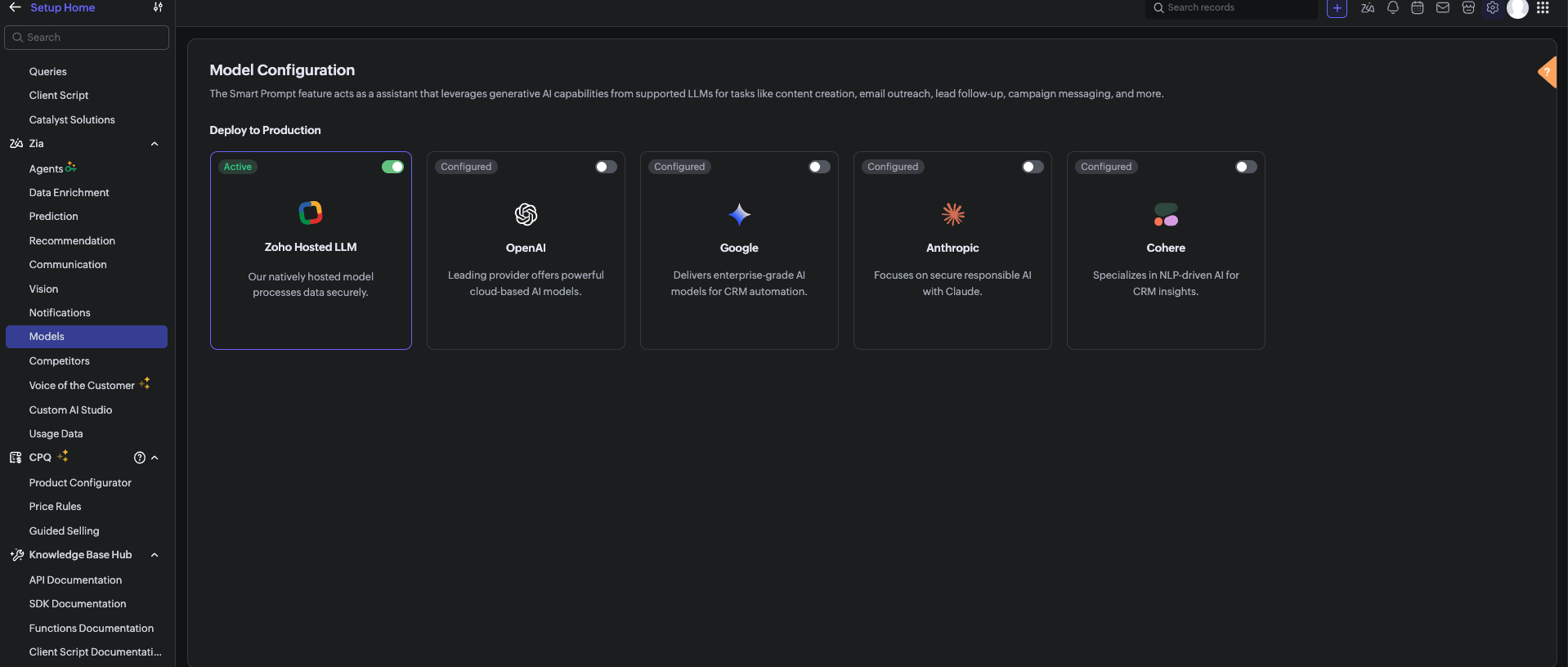
Before using the Zia Assistant API inside the Deluge function, make sure that AI is enabled in Zoho CRM.

Follow these steps:
  1. Go to Setup.
  2. Navigate to Zia > Smart Prompt.
  3. Enable any one of the available LLM vendors.
  4. Note that except for Zia LLM, other vendors require a valid API key.                                                  

Implementation steps

1. Create a custom field

           Create a custom field

      First, create a custom field in the Deals module to store the AI-generated summary.
    1. Field Type: Multi-line (Rich Text)
    2. Field Name: AI Handoff Summary
      This field will store the response generated by the Zia Assistant API, which includes the complete deal summary, insights, and handoff details.

2. Create a deluge function

Before setting up the workflow, we first create a Deluge function that contains the entire automation logic.

      Steps to create the function
    1. Go to SetupDeveloper Hub Functions
    2. Click Create Function
    3. Choose:
      1. Category: Standalone
      2. Name: Deal Handoff Summary
      3. Function Name: DealHandoffSummary

Deluge code


void automation.DealHandoffSummary1(Int dealId, Map oldValue) {
    info "Deal ID: " + dealId;
    dealIdLong = dealId.toLong();
    // STEP 1: Deal Details
    dealData = zoho.crm.getRecordById("Deals", dealIdLong);
    if (dealData == null) {
        info "Deal not found";
        return;
    }
    dealName = ifnull(dealData.get("Deal_Name"), "");
    dealStage = ifnull(dealData.get("Stage"), "");

    // NEW OWNER (Current Owner)
    newOwnerName = "";
    newOwnerEmail = "";
    newOwnerId = "";
    if (dealData.get("Owner") != null) {
        newOwner = dealData.get("Owner");
        newOwnerId = ifnull(newOwner.get("id"), "");
        newOwnerName = ifnull(newOwner.get("name"), "");
        newOwnerEmail = ifnull(newOwner.get("email"), "");
        info "New Owner ID: " + newOwnerId;
        info "New Owner Name: " + newOwnerName;
        info "New Owner Email: " + newOwnerEmail;
    }

    // OLD OWNER (Previous Owner from Timeline)
    oldOwnerName = "";
    oldOwnerEmail = "";
    oldOwnerId = "";

    oldOwnerIdFromParam = oldValue.get("Owner");

    userResp = invokeurl[
        url: "https://www.zohoapis.com/crm/v8/users/" + oldOwnerIdFromParam type: GET connection: "zohocrm"
    ];
    info "User API response: " + userResp;
    if (userResp.get("users") != null && userResp.get("users").size() > 0) {
        userData = userResp.get("users").get(0);
        oldOwnerEmail = ifnull(userData.get("email"), "");
        // Also get name if not already captured
        if (oldOwnerName == "") {
            oldOwnerName = ifnull(userData.get("first_name"), "");
        }
        info "Old Owner Email: " + oldOwnerEmail;
        info "Old Owner Name: " + oldOwnerName;
    }


    // OTHER FIELDS
    accountIdStr = "";
    if (dealData.get("Account_Name") != null) {
        accountIdStr = dealData.get("Account_Name").get("id");
    }
    contactIdStr = "";
    if (dealData.get("Contact_Name") != null) {
        contactIdStr = dealData.get("Contact_Name").get("id");
    }
    closeDate = ifnull(dealData.get("Closing_Date"), "Not defined");
    lastActivity = ifnull(dealData.get("Modified_Time"), "");

    // CONTEXT BUILDING
    contextText = "Deal Name: " + dealName + "\n";
    contextText = contextText + "Stage: " + dealStage + "\n";
    contextText = contextText + "Close Date: " + closeDate + "\n";
    contextText = contextText + "Last Activity: " + lastActivity + "\n\n";
    // Deal Notes
    dealNotes = zoho.crm.getRelatedRecords("Notes", "Deals", dealIdLong);
    if (dealNotes != null) {
        for each note in dealNotes {
            contextText = contextText + "\nDeal Note: " + ifnull(note.get("Note_Content"), "");
        }
    }
    // Account Notes
    if (accountIdStr != "") {
        accNotes = zoho.crm.getRelatedRecords("Notes", "Accounts", accountIdStr.toLong());
        if (accNotes != null) {
            for each n in accNotes {
                contextText = contextText + "\nAccount Note: " + ifnull(n.get("Note_Content"), "");
            }
        }
    }
    // Contact Notes
    if (contactIdStr != "") {
        conNotes = zoho.crm.getRelatedRecords("Notes", "Contacts", contactIdStr.toLong());
        if (conNotes != null) {
            for each n in conNotes {
                contextText = contextText + "\nContact Note: " + ifnull(n.get("Note_Content"), "");
            }
        }
    }
    // Deal Emails
    dealEmailsResp = invokeurl[
        url: "https://www.zohoapis.com/crm/v8/Deals/" + dealId + "/Emails"
        type: GET connection: "zohocrm"
    ];
    info dealEmailsResp;
    if (dealEmailsResp.get("Emails") != null) {
        emailCount = 0;

        for each emailSummary in dealEmailsResp.get("Emails") {
            // Optional: limit emails to avoid too many API calls. Limits should be defined based on the business use case.
            if (emailCount >= 5) {
                break;
            }
            emailCount = emailCount + 1;

            emailId = emailSummary.get("message_id");
            subject = ifnull(emailSummary.get("subject"), "");

            emailContent = "";

            // Fetch full email content using Email ID
            emailDetailResp = invokeurl[
                url: "https://www.zohoapis.com/crm/v8/Deals/" + dealId + "/Emails/" + emailId type: GET connection: "zohocrm"
            ];
            info emailDetailResp;
            if (emailDetailResp.get("Emails") != null && emailDetailResp.get("Emails").size() > 0) {
                emailData = emailDetailResp.get("Emails").get(0);
                emailContent = ifnull(emailData.get("content"), "");

                // Optional: truncate long content. Limits should be defined based on the business use case.
                if (emailContent.length() > 1000) {
                    emailContent = emailContent.subString(0, 1000);
                }
            }

            contextText = contextText + "\nDeal Email: " + subject + " - " + emailContent;
        }
    }

    // CONTACT EMAILS (Related to Deal Contact)
    if (contactIdStr != "") {
        contactEmailsResp = invokeurl[
            url: "https://www.zohoapis.com/crm/v8/Contacts/" + contactIdStr + "/Emails"
            type: GET connection: "zohocrm"
        ];
        info "List=" + contactEmailsResp;
        if (contactEmailsResp.get("Emails") != null) {
            contactEmailCount = 0;

            for each emailSummary in contactEmailsResp.get("Emails") {
                // Optional: limit to avoid too many API calls. Limits should be defined based on the business use case.
                if (contactEmailCount >= 5) {
                    break;
                }
                contactEmailCount = contactEmailCount + 1;

                emailId = emailSummary.get("message_id");
                subject = ifnull(emailSummary.get("subject"), "");

                emailContent = "";

                // Fetch full email content
                emailDetailResp = invokeurl[
                    url: "https://www.zohoapis.com/crm/v8/Contacts/" + contactIdStr + "/Emails/" + emailId type: GET connection: "zohocrm"
                ];
                info "Detail=" + emailDetailResp;
                if (emailDetailResp.get("Emails") != null && emailDetailResp.get("Emails").size() > 0) {
                    emailData = emailDetailResp.get("Emails").get(0);
                    emailContent = ifnull(emailData.get("content"), "");

                    // Optional: truncate long content. Limits should be defined based on the business use case.
                    if (emailContent.length() > 1000) {
                        emailContent = emailContent.subString(0, 1000);
                    }
                }

                contextText = contextText + "\nContact Email: " + subject + " - " + emailContent;
            }
        }
    }
    info "contextText : " + contextText;
    // PREPARE ZIA PAYLOAD
    chatEntry = Map();
    chatEntry.put("role", "user");
    chatEntry.put("content", contextText);
    chatHistory = List();
    chatHistory.add(chatEntry);
    promptSettings = Map();
    promptSettings.put("length", "Detailed Explanation");
    promptSettings.put("style", "Professional");
    assistantMap = Map();
    assistantMap.put("chat_history", chatHistory);
    assistantMap.put("prompt_settings", promptSettings);
    // FINAL PROMPT with owner details
    assistantMap.put("prompt", "Provide structured output.\n\n" + "SUMMARY:\n\n" + "CUSTOMER PAIN POINTS:\n  - \n\n" + "DEAL RISKS:\n  - \n\n" + "NEXT STEPS:\n  - \n\n" + "HANDOFF NOTES:\n" + "  - Previous Owner: " + oldOwnerName + " (" + oldOwnerEmail + ")\n" + "  - New Owner: " + newOwnerName + " (" + newOwnerEmail + ")\n" + "  - Account ID: " + accountIdStr + "\n" + "  - Contact ID: " + contactIdStr + "\n" + "  - Last activity: " + lastActivity + "\n" + "  - Close plan: Target close date " + closeDate + "\n\n" + "Ensure clarity and readability.");
    payload = Map();
    payload.put("assistant", assistantMap);

    // CALL ZIA ASSISTANT API
    response = invokeurl[
        type: POST parameters: payload.toString() headers: {
            "Content-Type": "application/json"
        }
        connection: "zohocrm"
    ];
    info "Zia API Response: " + response;

    // EXTRACT RESPONSE
    aiText = "";
    if (response != null && response.get("assistant") != null) {
        details = response.get("assistant").get("details");
        if (details != null && details.get("data") != null) {
            aiText = details.get("data");
            info "AI Response extracted: " + aiText;
        } else {
            info "No data in details";
        }
    } else {
        info "No assistant in response";
    }

    // SAVE TO CRM FIELD
    if (aiText != "") {
        updateMap = Map();
        updateMap.put("AI_Handoff_Summary", aiText);
        zoho.crm.updateRecord("Deals", dealIdLong, updateMap);
        info "Summary saved to deal";
    } else {
        info "No AI text to save";
    }
}


      d.Once done, Save the function.

3.Create a Workflow Rule

      Now, we connect everything using a Workflow.

      To automate the deal handoff process, the Deluge function should run whenever the Deal Owner changes.

      This is achieved using a Workflow Rule in Zoho CRM.


      Steps to create Workflow Rule

         3.1 Go to SetupAutomationWorkflow Rules

         3.2 Click Create Rule

         3.3 Module: Deals

         3.4 Rule Name: Deal Summary                              
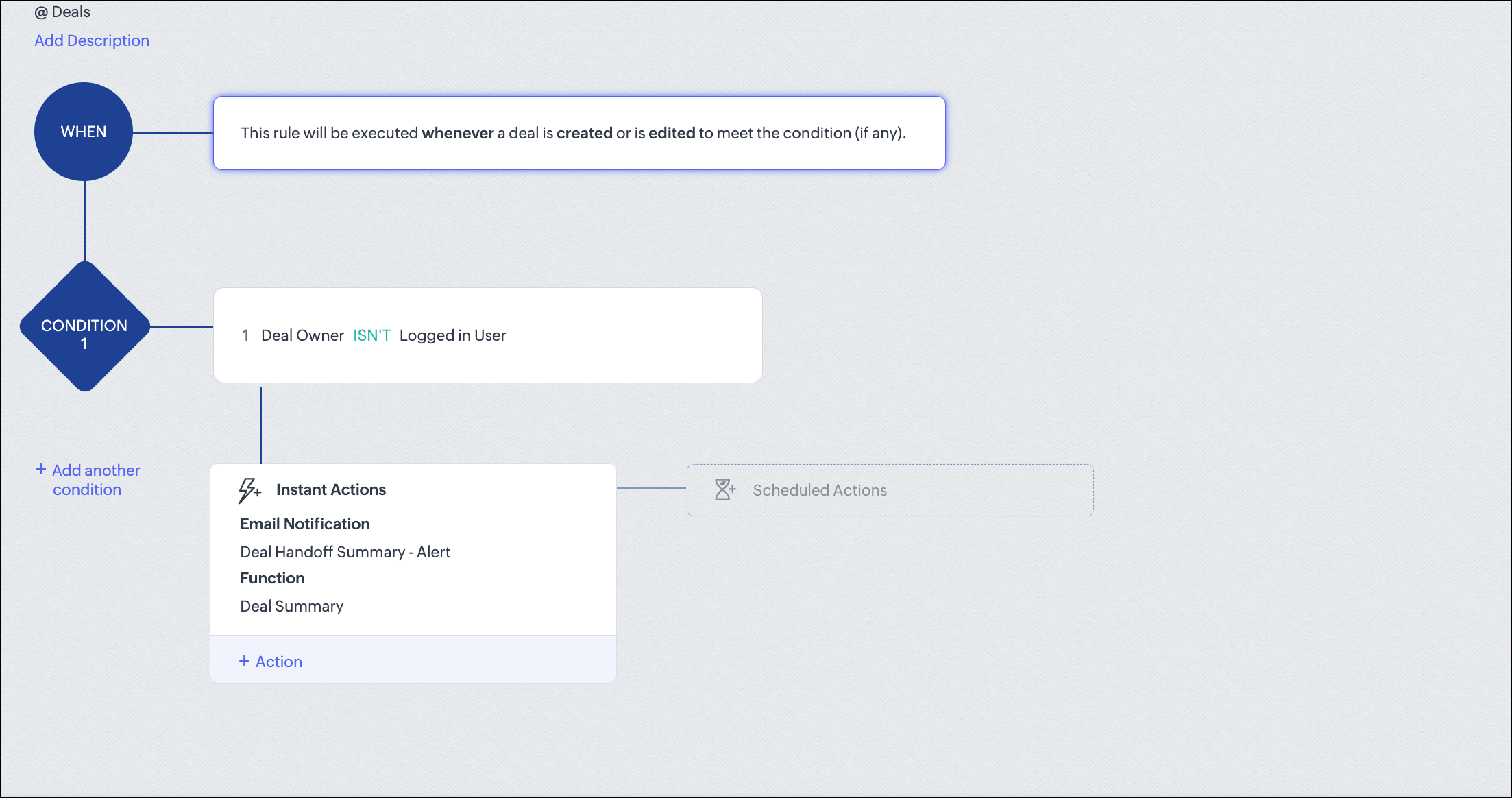


            3.5 Configure Trigger: When a record is Created or Edited.
    1. Set Condition: Ensures it runs only during handoff
      1. Field: Deal Owner
      2. Condition: is modified. In our case, if the Deal Owner is not Logged in User, then the workflow should trigger.


           3.6 Add "Instant Actions"

  1. Attach Deluge function:
    1. Click + Action → Function
    2. Select your function: Deal Handoff Summary
  2. Send email to new deal owner: Click + Action → Email Notification
            Why do we send an email to the new owner?

            When a deal is reassigned, the new sales representative may not immediately notice the change.

            By sending an email notification:

    1. The new owner is instantly informed that a deal has been assigned.
    2. They know where to check the details through the widget (the widget implementation is explained in the next section). In our case, the complete deal information is available in the Deal Summary button widget on the Detail View page in the Deals module.
    3. It helps reduce delays in taking action on the deal.

            3.7 Click Save.


4. Create and configure the Widget


Q. Why Widget?

After generating and storing the AI summary in CRM, the next step is to display it clearly to the user. For this, we use a Widget inside a button in the Deal’s Detail View page.

Even though the summary is stored in the AI Handoff Summary field in the Deals module, it is not easily readable in raw format, the newly assigned owner may not know where to find it, and it does not provide a good user experience.

A Widget solves this by presenting the summary in a clean and structured popup.

Q. How to create and host a Widget?

Refer to Creating a Widget in Zoho CRM and the JS SDK for more details on CLI installation, creating, packaging, and hosting a widget.       

Widget index.html


<!DOCTYPE html>
<html>
<head>
    <style>
        body {
            margin: 0;
            font-family: Arial, sans-serif;
            background: #f5f7fb;
        }
        /* Container fills entire iframe */
        .container {
            width: 100%;
            height: 100vh;
            display: flex;
            justify-content: center;
            align-items: center;
        }
        /* Modal */
        .modal {
            width: 100%;
            max-width: 800px;
            height: 90vh;
            background: #fff;
            border-radius: 12px;
            box-shadow: 0 10px 30px rgba(0, 0, 0, 0.2);
            display: flex;
            flex-direction: column;
        }
        /* Header */
        .header {
            padding: 16px 20px;
            font-size: 18px;
            font-weight: bold;
            border-bottom: 1px solid #eee;
        }
        /* Content */
        .content {
            padding: 20px;
            overflow-y: auto;
            flex: 1;
            font-size: 14px;
            line-height: 1.6;
        }
        /* Section headings */
        .section-title {
            font-weight: bold;
            margin-top: 15px;
            margin-bottom: 5px;
        }
        /* Bullet points */
        ul {
            padding-left: 20px;
            margin-top: 5px;
        }
        /* Footer */
        .footer {
            padding: 10px 20px;
            border-top: 1px solid #eee;
            text-align: right;
        }
        button {
            padding: 8px 16px;
            background: #0066ff;
            color: white;
            border: none;
            border-radius: 6px;
            cursor: pointer;
        }
    </style>
</head>
<body>
    <div class="container" id="app"></div>
    <script>
        ZOHO.embeddedApp.on("PageLoad", function(data) {

    let dealId = data.EntityId;

    ZOHO.CRM.API.getRecord({
        Entity: "Deals",
        RecordID: dealId
    }).then(function(response) {
        if(response && response.data && response.data.length > 0)
        {
            let record = response.data[0];
            let summary = record["AI_Handoff_Summary"]; //This is the Custom field we have created in the Deals module which stores the complete details about the Deal.

            if(summary && summary !== "")
            {
                renderUI(summary);
            }
        }
    });
});
function formatText(text)
{
    // Convert sections into formatted HTML
    let formatted = text
        .replace(/Summary:/g, '<div class="section-title">Summary</div>')
        .replace(/Customer Pain Points:/g, '<div class="section-title">Customer Pain Points</div>')
        .replace(/Deal Risks:/g, '<div class="section-title">Deal Risks</div>')
        .replace(/Next Steps:/g, '<div class="section-title">Next Steps</div>')
        .replace(/Handoff Notes:/g, '<div class="section-title">Handoff Notes</div>')
        .replace(/\n- /g, '<li>')
        .replace(/\n/g, '<br>');

    return formatted;
}
function renderUI(summary)
{
    let app = document.getElementById("app");
    app.innerHTML = `
        <div class="modal">
            <div class="header">
                Zia Assistant Deal Handoff Summary
            </div>
            <div class="content">
                ${formatText(summary)}
            </div>
            <div class="footer">
                <button onclick="closeWidget()">Close</button>
            </div>
        </div>
    `;
}
function closeWidget()
{
    document.getElementById("app").innerHTML = "";
}
ZOHO.embeddedApp.init();
    </script>
</body>
</html>


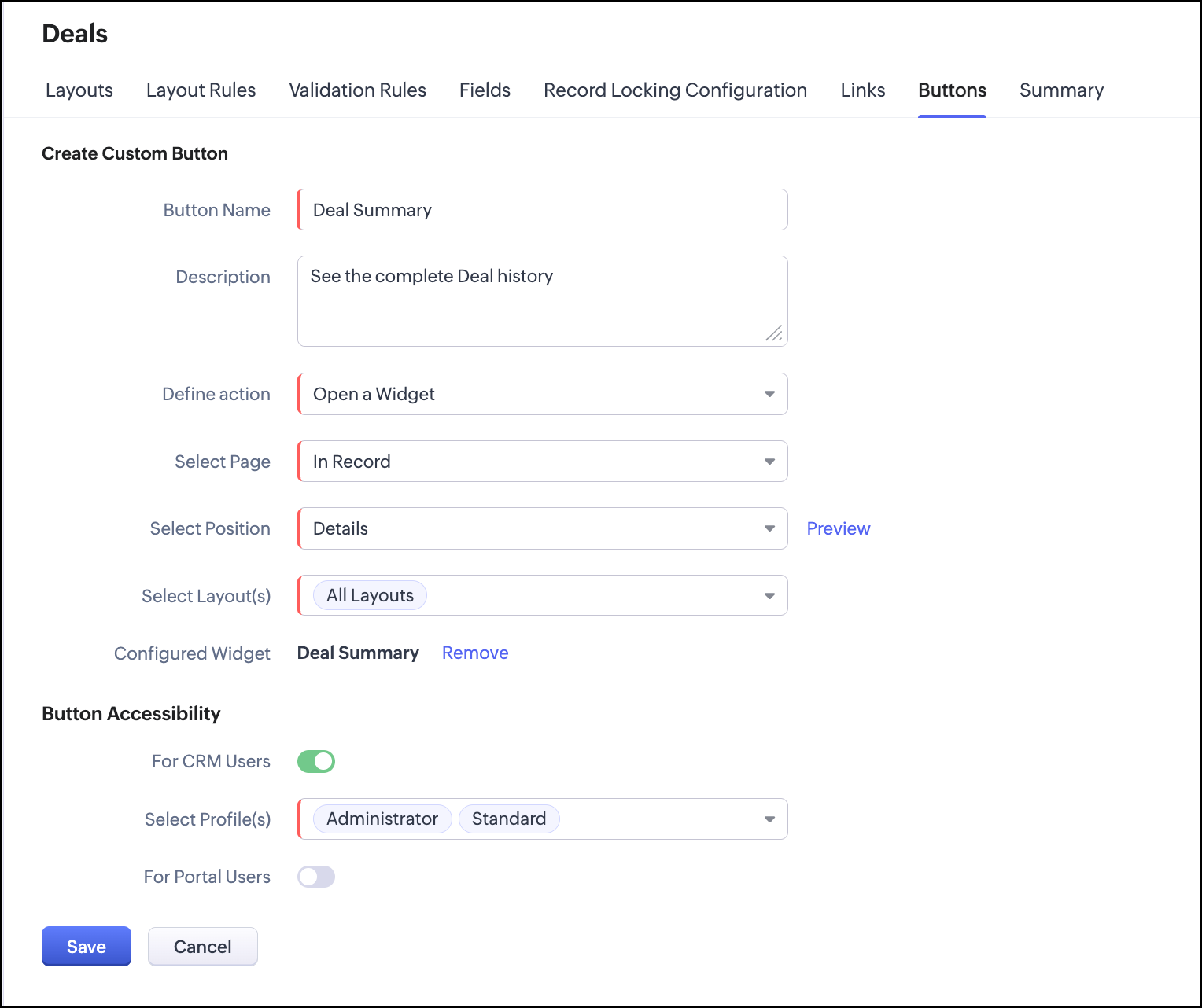
Q.How to configure the Widget as a Button in Detail View?


      1. Go to Setup → Customization → Modules and Fields
      2. Select the Deals module
      3. Click on the Buttons tab
      4. Click Create New Button

Configure button details
      5. Enter Button Name as Deal Summary
      6. Add a description (optional)

Define action
      7. In Define Action, select Open a Widget
      8. Choose the widget you created. In our case, it is Deal Summary


Set display location
      9. In Select Page, choose In Record
      10. In Select Position, choose Details

Select layout
      11. In Select Layout(s), choose the required layouts (or All Layouts)

Set Accessibility
      12.Enable the button for required user profiles

Save
      13. Click Save


Q. How the new owner views the summary?

Once everything is set up, here's how it works for the new owner:
  1. A deal is reassigned to them.
  2. They receive an email notification about the new deal.
  3. They open the Deal record in CRM.
  4. They see a new button called Deal Summary on the detail view.
  5. They click the button.
  6. A widget pops up showing the complete AI-generated summary.
Everything they need to know about the deal is right there in one place. No searching through notes. No scrolling through emails. Just a clean, readable summary.

The button is always available. They can click it anytime to refresh their understanding of the deal.

Conclusion 

With this approach, we automated the entire deal handoff process in Zoho CRM.
Instead of manually going through notes, emails, and history, the new deal owner gets a clear, structured summary instantly.

This not only saves time but also improves decision-making and ensures a smoother customer experience.


We trust that this post meets your needs and is helpful. Let us know your thoughts in the comment section or reach out to us at support@zohocrm.com

Stay tuned for more insights in our upcoming Kaizen posts!

Happy coding!!!


    • Sticky Posts

    • Kaizen #198: Using Client Script for Custom Validation in Blueprint

      Nearing 200th Kaizen Post – 1 More to the Big Two-Oh-Oh! Do you have any questions, suggestions, or topics you would like us to cover in future posts? Your insights and suggestions help us shape future content and make this series better for everyone.
    • Kaizen #226: Using ZRC in Client Script

      Hello everyone! Welcome to another week of Kaizen. In today's post, lets see what is ZRC (Zoho Request Client) and how we can use ZRC methods in Client Script to get inputs from a Salesperson and update the Lead status with a single button click. In this
    • Kaizen #222 - Client Script Support for Notes Related List

      Hello everyone! Welcome to another week of Kaizen. The final Kaizen post of the year 2025 is here! With the new Client Script support for the Notes Related List, you can validate, enrich, and manage notes across modules. In this post, we’ll explore how
    • Kaizen #217 - Actions APIs : Tasks

      Welcome to another week of Kaizen! In last week's post we discussed Email Notifications APIs which act as the link between your Workflow automations and you. We have discussed how Zylker Cloud Services uses Email Notifications API in their custom dashboard.
    • Kaizen #216 - Actions APIs : Email Notifications

      Welcome to another week of Kaizen! For the last three weeks, we have been discussing Zylker's workflows. We successfully updated a dormant workflow, built a new one from the ground up and more. But our work is not finished—these automated processes are
    • Recent Topics

    • All new Address Field in Zoho CRM: maintain structured and accurate address inputs

      Availability Update: 29 September 2025: It's currently available for all new sign-ups and for existing Zoho CRM orgs which are in the Professional edition exclusively for IN DC users. 2 March 2026: Available to users in all DCs except US and EU DC. 24
    • Notebook on Mac: Fuzzy fonts in list view

      Hi, I am running Notebook on Mac OS 26. Generally it works fine, and the font display in the notes themselves is crisp. However, in the notes list (left of the open note) the font of the note titles as well as first lines is noticeable fuzzy. Attached
    • Adding a Mark Up

      Can you use the discount column to be a mar up column on estimates and invoices?
    • URGENT. Recovering email without eArchive

      Hello, I have deleted some email from my trash but do not have eArchive. Is it possible to recovery without this? many thanks!
    • Subscription Statuses - Dunning

      How are other companies handling the scenario when customers don't pay and dunning takes over? Our issue is that in my situations, we want our customers to be able to catch up their late payments and continue their subscription after the dunning process
    • Logo Doesnt appear on email

      Hi, 1. PROBLEM: mails sent to customer from zoho invoice ( Estimates and incoices etc.) Logo doesnt appaer on email. 2. SUGGESTION: there must be an option to select from google fonts if we want specific font to the pdf templates. thanks
    • Transaction Rule Matching

      Q1. Is there a method to have the Transaction Rules applied across multiple Bank Accounts? Q2. To match "contains" text in Transaction Rules, is a wildcard or regular expression required? Is it case sensitive? Would searching for "issue" in the following
    • How to see Statement Details Shown in Unclassified Transactions in All Transactions?

      All, The list of Unclassified Transactions show the Statement Details and Descriptions. What is the method to see that column in the All Transactions list? -Thanks!
    • Non-Avalara Tax Automation wtih Zoho Books

      We are paying a ridiculous amount for Avalara. Our team wants to make a change, but they're the only software fully integrated with Zoho. We also don't have the bandwidth to do this manually, so we do need some sort of automated software solution. We
    • Migrating to the new outgoing webhook model in Zoho Connect

      Dear User, Outgoing webhooks configured across the Zoho Connect Integrations page, Zoho Flow, and Zapier will stop working after May 31, 2026. This is due to an upcoming upgrade to our outgoing webhook flow. This update is mandatory only for networks
    • Create formula calculations in Assemblies for scaling quantities

      Something we have been encountering with our composite items is dealing with scaling of quantity of one or more items within the composite assembly relative to the number of complete units being sold. I.e. running the equation 2(n-1) on one of the assembly
    • Lastest update

      The latest update to notepad has completely trashed all my notes. If I go to view it it just opens up a screen with a box with dotted lines around it for me to add something I can import saved nodes but you can't view them at all. Anybody else having
    • Is it possible to make tags "required"

      We would like to be able to make the tag field a requirement for agents before they can close a ticket. This would help with monthly reporting, where a lot of tickets end up with no tag, causing manual work to go back and add the correct tag for each
    • Tip #67- Exploring technician console: Disable Input Devices- 'Insider Insights'

      Hello Zoho Assist Community! Picture this: you are in the middle of a critical remote session, carefully configuring a system or running an important update, and the customer accidentally clicks somewhere or types something that undoes your progress.
    • What matters more in Zoho implementations: tools or system architecture?

      I recently worked on a full-stack migration for a catering equipment business using Zoho One with Shopify, and it raised a few interesting observations. The setup included migrating a large product catalog (around 9,700+ SKUs), integrating multiple supplier
    • Facturation électronique 2026 - obligation dès le 1er septembre 2026

      Bonjour, Je me permets de réagir à divers posts publiés ici et là concernant le projet de E-Invoicing, dans le cadre de la facturation électronique prévue très prochainement. Dans le cadre du passage à la facturation électronique pour les entreprises,
    • [Webinar] Solving business challenges: One tool for documents, forms, PDFs, e-signatures, and more

      Hi Zoho Writer users, Most businesses rely on multiple tools, such as a word processor, form builder, e-signature provider, and PDF editor, for their document workflows. Managing multiple subscriptions, switching between tools, and moving data across
    • Deposit on invoice

      I'm trying to figure out how to customize an Estimate to include a Deposit/Retainer Invoice line within the Estimate. I tried creating my own custom field called "Deposit" where I manually inputted the deposit amount, which was nice. However, my employer
    • Zoho NOTEBOOK: What are file size restrictions?

      I understand that Zoho NOTEBOOK is a free product, and what it offers is great. But I'm wondering what the file size restrictions are. When I record an audio note in Zoho Notebook, what is the maximum length of recording time/audio file size? When I wish to upload MP4 video, what is the maximum video size I can upload per Zoho Notebook restriction? Moreover, does Zoho Notebook use its own storage structure, or can I upgrade my storage for Zoho Notebook to add larger file attachments, videos and audio
    • Concern Regarding Stock Validation in Inventory Management

      Hi Zoho Team, We would like to highlight a concern regarding stock validation in the inventory system. As per standard inventory management practices, if the stock level is zero, the system should not allow users to create a shipment, packing slip, or
    • Automation Series #2: SLA vs Supervisor Rule in Zoho Desk

      SLA vs Supervisor Rule: Keeping tickets on track in Zoho Desk This post is part of the "Desk Automation Series," Chapter 1. Through this series, we will help you choose the right automation type in Zoho Desk by comparing commonly confused automations
    • Zoho Recruit - Email Relay

      Good day, Has anyone succeeded in setting up an email relay for Office 365? If I add the details from https://support.microsoft.com/en-us/office/pop-imap-and-smtp-settings-8361e398-8af4-4e97-b147-6c6c4ac95353, I get the connection error. Regards, Eka
    • Better use of contacts

      Zoho inventory has the ability to add multiple contacts to customers. However Zoho inventory doesn't currently provide a way to link a contact to objects like sales orders. This means that while you can tell what company has placed a sales order you can't
    • Notebook AI limits

      Hi folks, Working with the AI transcription tools in Notebook, on the Mac App, which I find quite handy, but the one thing I am struggling with is the inability to either edit or copy the results of the transcript: I can't click in any of the boxes, and
    • Disappointment with Zoho Payments

      Dear Gowdhaman, I am writing to inform you that I am removing Zoho Payments from my website. I cannot continue to disappoint my customers due to the lack of UPI support, as has been the case with my experience so far. Please note that the 0.5% transaction
    • Zoho Commerce B2B

      Hello, I have signed up for a Zoho Commerce B2B product demo but it's not clear to me how the B2B experience would look for my customers, in a couple of ways. 1) Some of my customers are on terms and some pay upfront with credit card. How do I hide/show
    • Exporting All Custom Functions in ZohoCRM

      Hello, All I've been looking for a way to keep about 30 functions that I have written in Zoho CRM updated in my own repository to use elsewhere in other instances. A github integration would be great, but a way to export all custom functions or any way
    • Rename system-defined labels in Zoho CRM

      Renaming system-defined labels is now available across all DCs. Hello everyone, Zoho CRM includes predefined system fields across modules to support essential CRM operations. Until now, the labels of these fields were fixed and could not be edited from
    • Introducing parent-child ticketing in Zoho Desk [Early access]

      Hello Zoho Desk users! We have introduced the parent-child ticketing system to help customer service teams ensure efficient resolution of issues involving multiple, related tickets. You can now combine repetitive and interconnected tickets into parent-child
    • Separate Items & Services

      Hi, please separate items and services into different categories. Thank you
    • Log a call: Call Duration for Inbound is mandatory but inbound is optional

      Hi Team Can you advise on why the call duration for the inbound call type is a mandatory field? We have a use case where we are manually logging a call but do not use the call duration field. The field does not have the option to make it non mandatory
    • CRM x WorkDrive: File storage for new CRM signups is now powered by WorkDrive

      Availability Editions: All DCs: All Release plan: Released for new signups in all DCs. It will be enabled for existing users in a phased manner in the upcoming months. Help documentation: Documents in Zoho CRM Manage folders in Documents tab Manage files
    • Zoho Sign 2025–2026: What's new and what's next

      Hello! Every year at Zoho Sign, we work hard to make document signing and agreement execution easy for all users. This year we sat down with our head of product, Mr. Subramanian Thayumanasamy, to discuss what we delivered in 2025 and our goals for 2026.
    • New Account, Setting up Domain Question

      Hello, I recently set up a new account with a custom domain. But after paying and setting up my account, it says OpenSRS actually owns the domain, and I have to sign up with them to host my site. But OpenSRS wants to charge me $95, which is ridiculous.
    • 【開催報告】東京 Zoho ユーザー交流会 NEXUS vol.1 ~ データドリブン経営・少人数組織のCRM活用・AIエージェントの最前線 ~

      ユーザーの皆さん、こんにちは。 コミュニティグループの中野です。 2026年3月27日(金)、東京・新橋にて「東京 Zoho ユーザー交流会 NEXUS vol.1」が開催されました。 今回は「マーケティング領域のZoho 活用法 × AI」をテーマに、ユーザーさん2名による事例セッション、Zoho 社員によるAIセッションなどを実施しました。 ご参加くださったユーザーの皆さま、ありがとうございました! この投稿では、当日のセッションの様子や使用した資料を紹介しています。残念ながら当日お越しいただけなかった方も、ぜひチェックしてみてください。
    • Monthly Webinar : Getting Started with Zoho LandingPage

      Our monthly Getting Started with Zoho LandingPage webinar is back! If you're building your first page and want a little guidance, this is where to start. Learn how landing pages fit into your strategy, generate leads, and improve conversions. Here’s what
    • ZOHO CRM Quote Export / Quote Report

      How can I either Export my quote list, or create a Report that shows all quotes AND includes the NOTES field in a column. I attempted to Run a Report which includes ALL FIELDS, however it does not include the Notes Field (but oddly does include the fields
    • Mass emails - Allow preview of which emails will receive the email based on the criteria

      Feature request. Please allow us to view and confirm the exact recipients of the mass emails based on the criteria we've chosen before sending. It can be quite sensitive if you send the mass email to some wrong accounts accidently, so it would be great
    • Limitation in Dynamic Constant Sum Based on Previous Question Selections in Zoho Survey

      Zoho Survey supports the Constant Sum question type, allowing respondents to distribute a fixed total (such as 100) across a set of options. However, it does not support dynamically populating these options based on selections made in a previous question.
    • SAP Business One(B1) integration is now live in Zoho Flow

      We’re excited to share that SAP Business One (B1) is now available in Zoho Flow! This means you can now build workflows that connect SAP B1 with other apps and automate routine processes without relying on custom code. Note: SAP Business One integration
    • Next Page