Project Automation in Zoho Projects
We are thrilled to introduce Project Automation in Zoho Projects! Manage your projects by automating Criteria and Actions that fit your business needs.
With Workflow Rules, you can automatically update project field, send email notifications, and associate Custom Functions to perform complex actions and trigger Webhooks. You can add multiple rules for Project and choose from various triggers, such as create, update, and comment.
You can associate Workflow Rules with a specific Project Layout or with All Layouts. You can also set the order in which the rules will be executed. Additionally, you can use Email Alerts for sending out notifications to concerned users.
Note: Workflow Rules for Projects is available on the latest user-based Enterprise plan.
For instance, as a project manager, you would want to update the status of a project to “Completed” automatically when the Completed On Field is updated. To do so, you can set up a trigger that will activate whenever the Completed On Date is updated.
Additionally, you would also want to send an email notification to the project owner when the project status is updated and archive the project automatically.
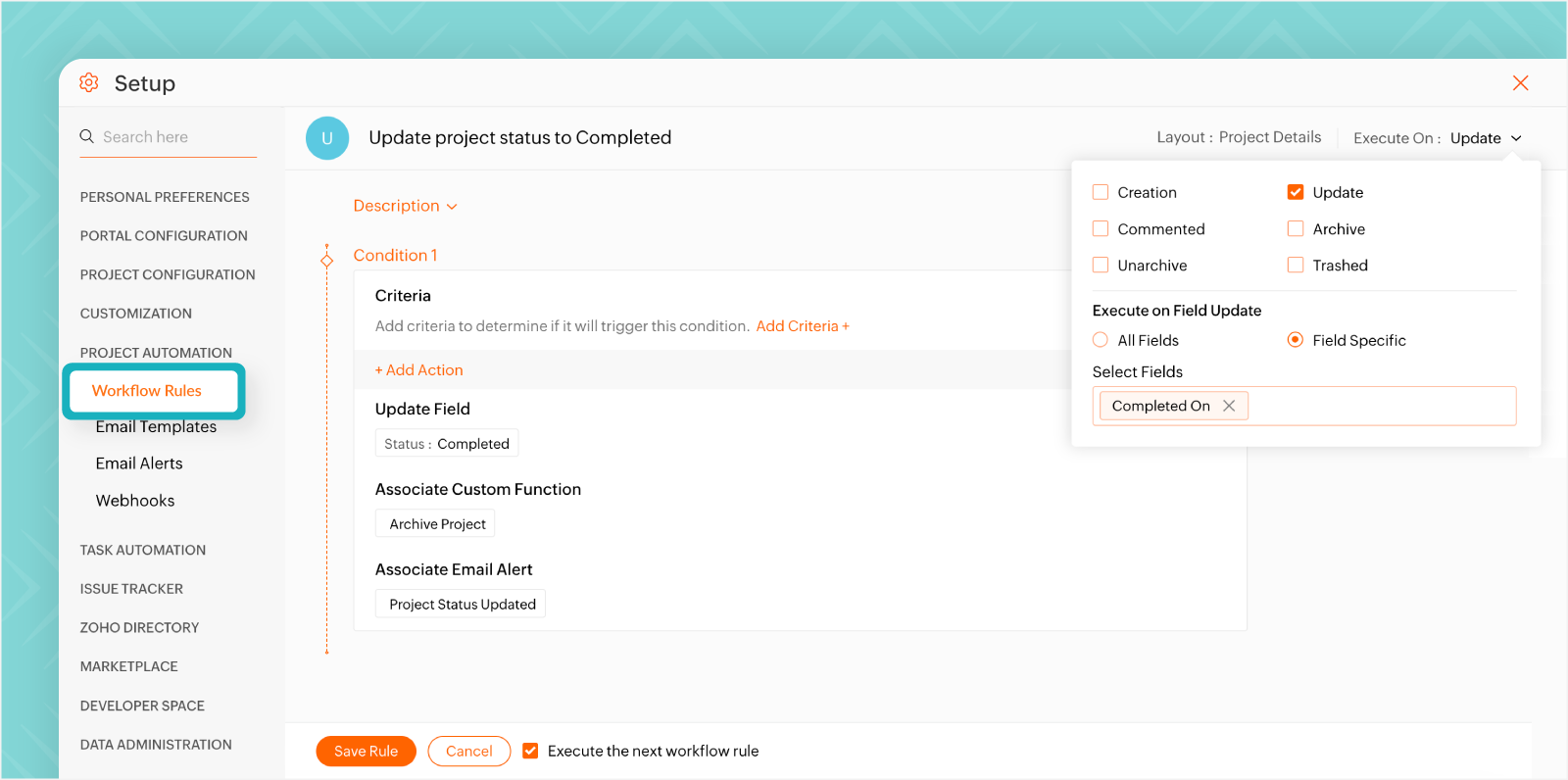
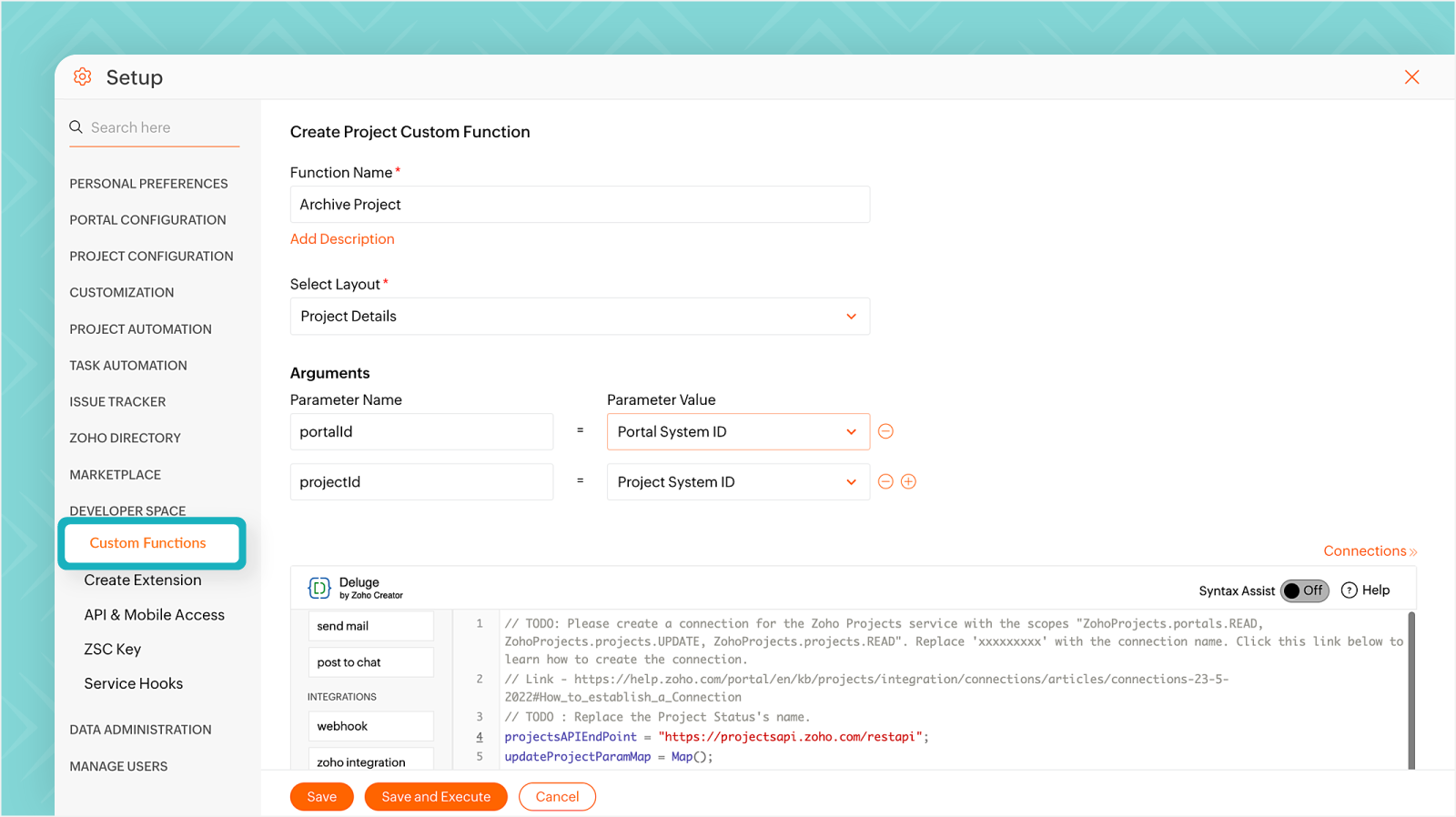
To automatically archive a completed project, you can create a Custom Function by connecting Zoho Projects as a Service using Connections, naming the Connection Link as "archive project", and using a Deluge script with Arguments. Associate the function with the workflow to execute automatically when the status is updated to "Completed".
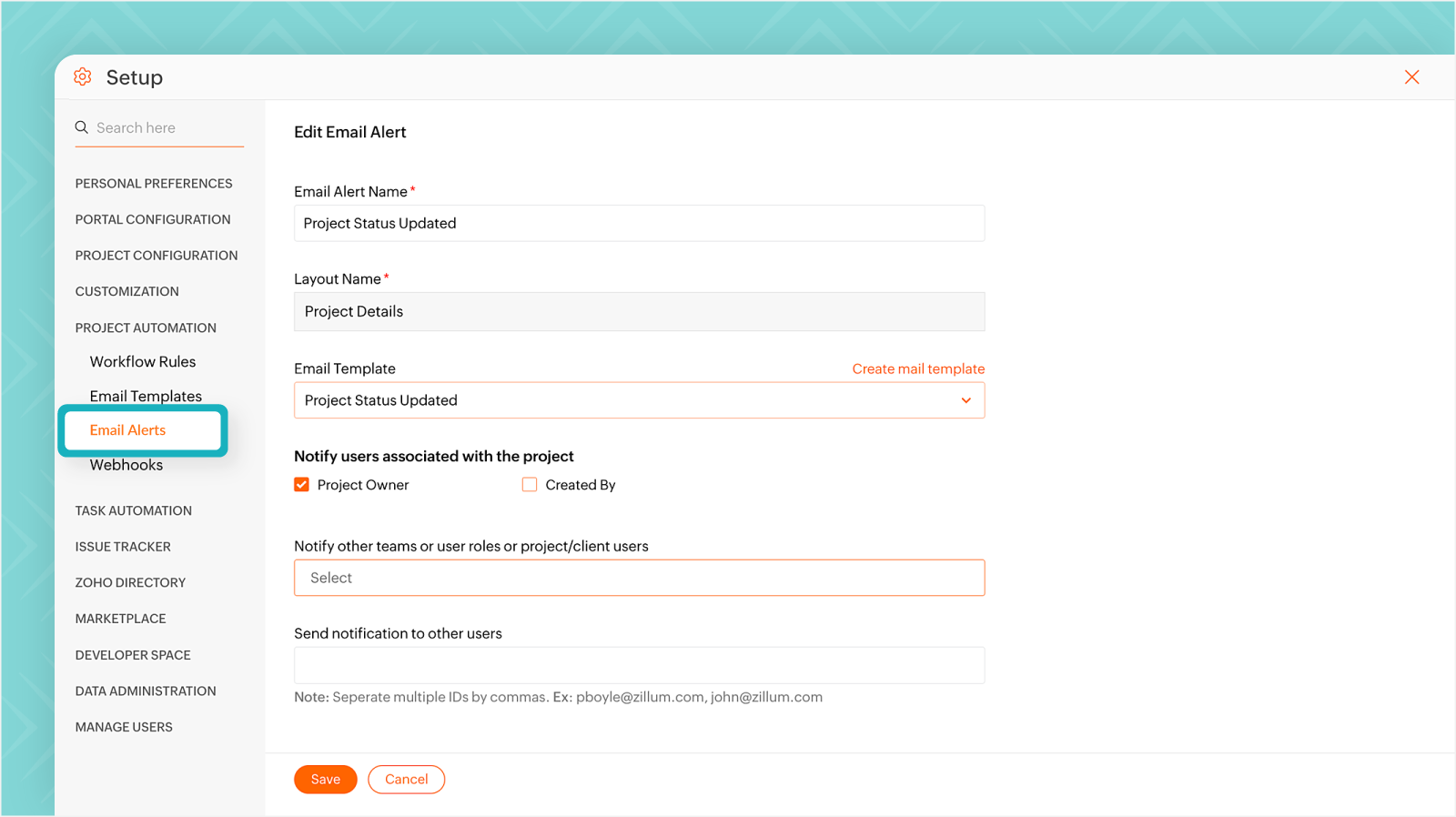
To keep the project owner informed about project status updates, you can create a custom Email Template with placeholders that automatically insert project information and save it.
You can set up an Email Alert by choosing the email template and selecting the project owner or the relevant stakeholders as the user to notify.
Sample Code:
projectsAPIEndPoint = "https://projectsapi.zoho.com/restapi";
updateProjectParamMap = Map();
updateProjectParamMap.put("status","archived");
projectDetail = invokeurl
[
url :projectsAPIEndPoint + "/portal/" + portalId + "/projects/" + projectId + "/"
type :POST
parameters:updateProjectParamMap
connection:"archiveproject"
];
info projectDetail;
info "-------------------------------------";
return "success";
Click here
to learn more about creating and managing Workflow Rules for Project Automation.
We hope you found this post to be helpful. If you have any questions, please leave them in the comments section below or email us at
support@zohoprojects.com.
Topic Participants
Navya Nune
Sticky Posts
Time Log Reminder
Tracking the time spent on tasks and issues is one of the most important functions of a timesheet. However, users may forget to update the time logs because they have their own goals to achieve. But, time logs must be updated at regular intervals to keepIntroducing the Zoho Projects Learning Space
Every product has its learning curve, and sometimes having a guided path makes the learning experience smoother. With that goal, we introduce a dedicated learning space for Zoho Projects, a platform where you can explore lessons, learn at your own pace,Update on V2 API End-of-Life Timeline
Dear Users, Earlier this year, we shared the launch of the V3 APIs and requested users to migrate from the older V2 APIs by December 2025. We have received valuable feedback from our users and partners regarding their migration timelines. We are happyAutomation Series: Auto-update Phase Status
Hello Folks! You can auto-update your phase's status based on status of underlying tasks using custom functions. In this series, we will showcase how to create and run custom functions, using Deluge, with ease. Follow the steps below and automate yourAutomate Timesheet Approvals with Multi-level Approval Rules
Introducing Approval Rules for Timesheets in Zoho Projects. With this automation, teams can manage how timesheets are reviewed and approved by setting up rules with criteria and assigning approvers to handle submissions. Timesheet, when associated to
Recent Topics
Adding Comments Using Workflows - How to Change User Attributed
We have worklflows in Desk where a comment is added to a ticket based on certain criteria. It seems that the comment added is always attributed to the user who last edited the workflow. This does not make sense for us because: - It's misleading to otherAdd Attachment Support to Zoho Flow Mailhook / Email Trigger Module
Dear Zoho Support Team, We hope you are well. We would like to kindly request a feature enhancement for the Mailhook module in Zoho Flow. Currently, the email trigger in Zoho Flow provides access to the message body, subject, from address, and to address,Conect chat of salesiq with zoho cliq
Is there any way to answer from zoho cliq the chat of salesiq initiated by customers?Les dernières avancées en saisie de données et collaboration
Après une année dédiée à la recherche et au développement, notre équipe est prête à dévoiler des améliorations majeures pour Zoho Sheet. Ces nouveautés seront lancées par étapes afin d’en assurer une prise en main optimale. Nous commençons avec des fonctionnalitésDeluge Learning Series – Client functions in Deluge | January 2026
We’re excited to kick-start the first session of the 2026 Deluge Learning Series (DLS) with Client functions in Deluge. For those who are new to DLS, here’s a quick overview of what the series is all about: The Deluge Learning Series takes place on theRich Text For Notes in Zoho CRM
Hello everyone, As you know, notes are essential for recording information and ensuring smooth communication across your records. With our latest update, you can now use Rich Text formatting to organize and structure your notes more efficiently. By usingImplement Meeting Polls in Zoho Bookings
Dear Zoho Bookings Support Team, We'd like to propose a feature enhancement related to appointment scheduling within Zoho Bookings. Current Functionality: Zoho Bookings excels at streamlining individual appointment scheduling. Users can set availabilityZoho Bookings and Survey Integration through Flow
I am trying to set up flows where once an appointment is marked as completed in Zoho Bookings, the applicable survey form would be sent to the customer. Problem is, I cannot customise flows wherein if Consultation A is completed, Survey Form A would beService Account Admin for API Calls and System Actions
Hello, I would like to request the addition of a Service Account Admin option in Zoho product. This feature would allow API calls and system actions to be performed on behalf of the system, rather than an active user. Current Issue: At present, API callsHow to apply customized Zoho Crm Home Page to all users?
I have tried to study manuals and play with Zoho CRM but haven't found a way how to apply customized Zoho CRM Home Page as a (default) home page for other CRM users.. How that can be done, if possible? - kipi Moderation Update: Currently, each user hasPlease can the open tasks be shown in each customer account at the top.
Hi there This has happened before, where the open tasks are no longer visible at the top of the page for each customer in the CRM. They have gone missing previously and were reinstated when I asked so I think it's just after an update that this featureHow to Customize Task Creation to Send a Custom Alert Using JavaScript in Zoho CRM?
Hello Zoho CRM Community, I’m looking to customize Zoho CRM to send a custom alert whenever a task is created. I understand that Zoho CRM supports client scripts using JavaScript, and I would like to leverage this feature to implement the alert functionality.Send Whatsapp with API including custom placeholders
Is is possible to initiate a session on whatsapp IM channel with a template that includes params (placeholders) that are passed on the API call? This is very usefull to send a Utility message for a transactional notification including an order numberConfigurable Zoho Cliq Notifications for Zoho People Alerts
Hello Zoho People Product Team, Greetings and hope you are doing well. We would like to request an enhancement to Zoho People notifications, enabling a native delivery via Zoho Cliq with admin-level control, similar to the notification settings availableAdd Israel & Jewish Holidays to Zoho People Holidays Gallery
Greetings, We hope you are doing well. We are writing to request an enhancement to the Holidays Gallery in Zoho People. Currently, there are several holidays available, but none for Israel and none for Jewish holidays (which are not necessarily the sameKeep Zoho People Feature Requests in the Zoho People Forum
Hello Zoho People Product Team, Greetings. We would like to submit a feature request regarding the handling of feature requests themselves, specifically for Zoho People. Issue: Feature Requests Being Moved to Zoho One Zoho People feature requests areZO25: The refreshed, more unified, and intelligent OS for business
Hello all, Greetings from Zoho One! 2025 has been a remarkable year, packed with new features that will take your Zoho One experience to the next level! From sleek, customizable dashboards to an all-new action panel for instant task management, we’veIntroducing Multi-Asset Support in Work Orders, Estimates, and Service Appointments
We’re excited to announce a highly requested enhancement in Zoho FSM — you can now associate multiple assets with Work Orders, Estimates, and Service Appointments. This update brings more clarity, flexibility, and control to your field service operations,[Product Update] Locations module migration in Zoho Books integration with Zoho Analytics
Dear Customers, As Zoho Books are starting to support an advance version of the Branches/Warehouses module called the Locations module, users who choose to migrate to the Locations module in Zoho Books will also be migrated in Zoho Analytics-Zoho BooksIntroducing Schedules for smarter availability management
Greetings from the Zoho Bookings team! We’re excited to introduce Schedules, a powerful enhancement to manage availability across your workspace. Schedules are reusable working-hour templates that help you define and maintain consistent availability acrossWhy Zoho Contracts Prefers Structured Approvals Over Ad-hoc Approvals
Approvals are one of the most important stages in a contract’s lifecycle. They determine whether a contract moves forward, gets revised, or needs further discussion. The approval process also defines accountability within the organization. Zoho ContractsWhatsapp Connection Status still "Pending" after migration
Hello, I migrated my WhatsApp API to Zoho from another provider a day ago. So far the connection status is still “Pending”. There is a problem? How long does it usually take?Kaizen #226: Using ZRC in Client Script
Hello everyone! Welcome to another week of Kaizen. In today's post, lets see what is ZRC (Zoho Request Client) and how we can use ZRC methods in Client Script to get inputs from a Salesperson and update the Lead status with a single button click. In thisHow to Filter timewise question to check uploaded one month or two months before in these community question ?
i want to find the question that is asked some month or before any particular year, so how can i filter it ?Proposal for Creating a Unique "Address" Entity in Zoho FSM
The "Address" entity is one of the most critical components for a service-oriented company. While homeowners may change and servicing companies may vary, the address itself remains constant. This constancy is essential for subsequent services, as it providesWorkflow Down/Bug
We have a workflow that sends an email to one of our internal departments 10 minutes after a record is created in a custom module. The workflow actually works correctly. However, we have now noticed that on January 8, between 3:55 p.m. and 4:33 p.m.,Service Locations: Designed for Shared Sites and Changing Customers
Managing service addresses sounds simple—until it isn’t. Large facilities, shared sites, and frequently changing customers can quickly turn address management into an operational bottleneck. This is where Service Locations deliver clarity and control.Can I re-send the Customer Satisfaction Survey after a ticket closure?
Hello, Some customers does not answer the survey right after closure, is it possible to re-send after a few days or weeks? Best Regards!Account blocked
Yesterday I got my Zeptomail account blocked due to too many hard bounces. My account is used exclusively for sending transactional emails (eg. your order has been shipped, a form has been filled, etc) and the sudden blocking impacted hundreds of websitesFilter contacts based on selected category in Zoho Desk ticket
Hello community, I’m setting up the Tickets module in Zoho Desk and I need help implementing the following: When a category is selected in a ticket, I want the Contact field to be filtered so that it only displays contacts that are related to that category.Mapping a new Ticket in Zoho Desk to an Account or Deal in Zoho CRM manually
Is there any way for me to map an existing ticket in Zoho desk to an account or Deal within Zoho CRM? Sometimes people use different email to put in a ticket than the one that we have in the CRM, but it's still the same person. We would like to be ableAssign Income to Project Without Invoice
Hello, Fairly new user here so apologies if there is a really obvious solution here that I am just missing... I have hundreds of small deposits into a bank account that I want to assign to a project but do not want to have to create an invoice every timeTracking Non-Inventory Items
We have several business locations and currently use zoho inventory to track retail items (sales and purchase orders). We were hoping to use zoho inventory to track our non-inventory items as well (toilet paper, paper towels, etc). I understand that weProfile Page View Customization
I need to change the fields, sections from the profile view of an emplyoyee.Zoho Desk Android app update: Filter, Sort and Saved filters Enhancements
Hello everyone! We are excited to introduce the below features on the Android version Zoho Desk mobile app: 1. Filter & Sort support has been introduced for the Contacts and Accounts modules. 2. Sort options is now available in Custom Modules as well.Accessing shared mailboxes through Trident (Windows)
Hi, I have a created a couple of shared mailboxes. The mailboxes are showing up on the browser based Zoho workplace, but I cannot seem to figure out how to access my shared inboxes through Trident (Windows). Am I missing something or is this feature notFeature Request: Ability to set Default Custom Filters and apply them via URL/Deluge
I've discovered a significant gap in how Zoho Creator handles Custom Filters for reports, and I'm hoping the Zoho team can address this in a future update. This limitation has been raised before and continues to be requested, but remains unresolved. TheClosing the Loop: Why Lookup Asymmetry is Harming Data Integrity in Creator
TL;DR: Lookup fields allow users to add new related records inline via the "+" icon, but there's no equivalent ability to edit an existing related record without navigating away and losing form context. Adding a native "Edit" icon—with automatic Userfiltering lookup field options based on information in another module.
In our CRM system. We have the standard Accounts and Deals modules. We would like to introduce the ability to classify Accounts by Sector. Our desired functionality is to have a global list of all sectors that an Account can select, with the ability toService op locatie organiseren met Zoho FSM: waar lopen organisaties tegenaan?
Bij organisaties met service teams op locatie merken we vaak dat de complexiteit niet zozeer in de planning zelf zit, maar in wat er rond die planning gebeurt. Denk aan opvolging na interventies, consistente servicerapporten, en het bijhouden van installatiesNext Page