Bidirectional sync between Zoho Bookings and Zoho CRM - Part 1
Hey, community members!
The default integration between Zoho CRM and Zoho Bookings is unidirectional, which means that any appointments booked, rescheduled, or deleted in Zoho Bookings will be reflected in Zoho CRM. However, any modifications made to events in Zoho CRM that originated from Zoho Bookings will not be reflected back in Zoho Bookings. Hence, as we're announcing in this community post, we've made the sync bidirectional.
This community post will cover the process of configuring appointment bookings from Zoho CRM in Zoho Bookings, as well as managing appointment statuses such as Canceled, No Show and Completed. We have addressed the rescheduling action in a separate post. To view it, please click on the following link: Reschedule Action
This community post will be beneficial for active Zoho CRM users who handle all their meetings within Zoho CRM. Additionally, you can use this community post as a reference to explore various automation possibilities tailored to your business requirements. For instance, with this post's guidance, when you update a booking's status field to "Completed" in Zoho CRM, it will automatically sync with Zoho Bookings and trigger an automated "Mark as completed" email to customers. This enhancement will improve your Zoho Bookings and Zoho CRM synchronization experience, making appointment management easier.
Prerequisites of bidirectional sync:
- Zoho Bookings Premium subscription
- Zoho CRM paid subscription
- Enable Zoho CRM integration within Zoho Bookings
The purpose of enabling the Zoho CRM integration within Zoho Bookings is to transfer booking details from Zoho Bookings to Zoho CRM. In this configuration, the mandatory field is the Booking ID, which is passed from Zoho Bookings to Zoho CRM through the integration. Whenever an appointment is booked, customer details will be sent to the designated CRM module, and a corresponding record will be created in the Meetings module within Zoho CRM, which will help in automating the workflow.
Here's the complete demo video that covers all the configurations discussed in the community post below:
Timestamps for your reference:
0:35 - Purpose of this community post
Here's the complete demo video that covers all the configurations discussed in the community post below:
Timestamps for your reference:
0:35 - Purpose of this community post
1:26 - Zoho CRM plugin installation
4:43 - Custom field creation
7:20 - Function creation
9:22 - Connection creation
10:24 - Configuring arguments
11:06 - Workflow creation
13:33 - Argument mapping
14:41 - Output verification
17:41 - Conclusion
How we're approaching this bidirectional sync
1. Booking an appointment from Zoho CRM
Install the Zoho Bookings for Zoho CRM plugin within your Zoho CRM application. This plugin enables the creation of a "New Appointment" button within the Zoho CRM Leads and Contacts module, which enables you to select the desired booking page you wish to open. You can choose from various workspace, service, or staff booking pages. After configuration, you can initiate the process of scheduling bookings directly from within your Zoho CRM account.
- Guide on Zoho Bookings and Zoho CRM plugin installation: Booking page selection for Zoho CRM plugin
2. Booking status: Completed or No Show
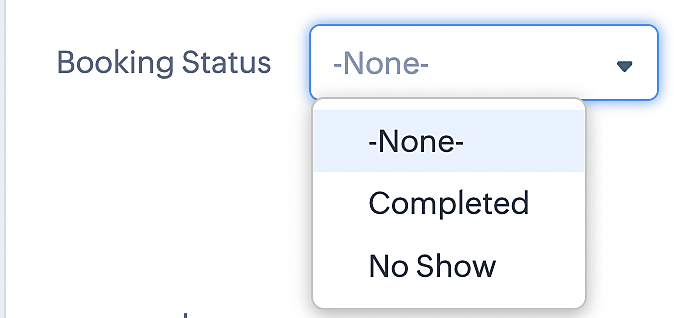
To update a booking's status (Completed or No Show), we've added a new picklist properties field named "Booking Status" in the Meetings module and configured it with two options: "completed" and "no show". Depending on the booking status chosen, the corresponding booking in Zoho Bookings will be updated.
- Details on how to add a custom field to the Meetings module : Customizing modules
- Here's a video that demonstrates how to add a field to a module in Zoho CRM: Adding fields
Reference:
3. Booking status: Canceled
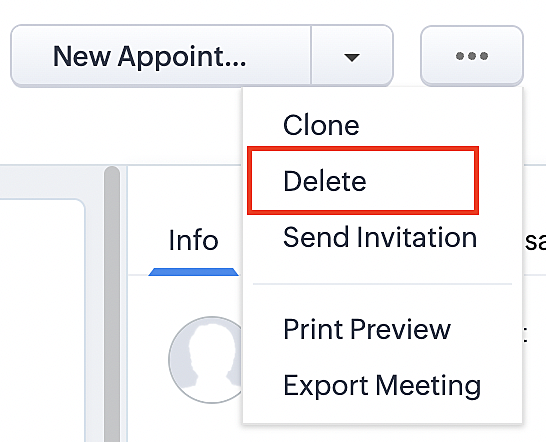
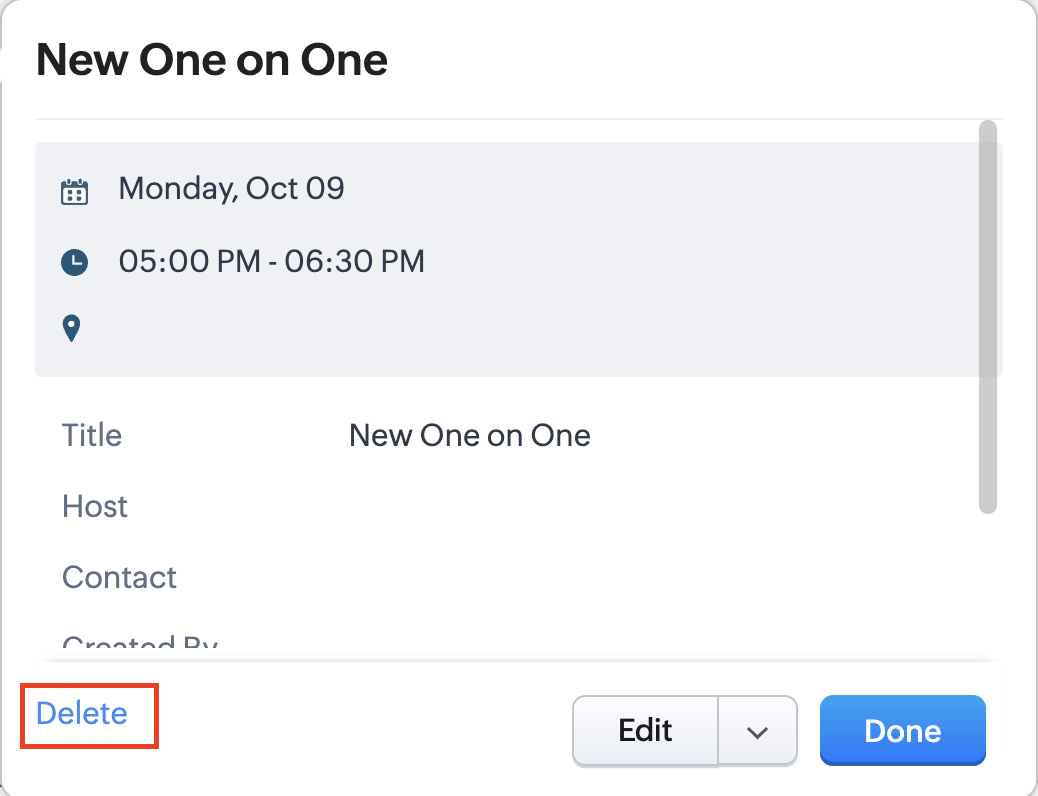
Whenever a meeting is deleted from the Meetings module, the corresponding booking in the Zoho Bookings app will also be canceled automatically. The meeting can be deleted either from the Meetings module or directly from the calendar.
To enable bidirectional sync between Zoho CRM and Zoho Bookings
Complete these steps in Zoho CRM.
Step 1: Creating connections
You first need to establish a connection between Zoho CRM and Zoho Bookings. Zoho Bookings is listed as one of the default connections in Zoho CRM, making it simple to set up. Select the Zoho Bookings connection, define the connection name and scope, and you'll be all set. This connection will enable you to link both applications and facilitate the seamless transfer of data.
Read here for more details on how to create connection in Zoho CRM: Connections
Step 2: Creating functions
In this context, we'll be creating three functions: one for marking appointments as completed, another for canceling appointments, a third for marking appointments as no shows, and a fourth for rescheduling appointments. For each function, we must also configure arguments, which pass values or data into a function when making a call. Here, we'll pass the booking ID to the function as an argument to update the necessary booking status.
i. To create a function for marking appointments as completed:
1. Go to Setup > Developer Space > Functions.
2. In the Functions page, click + Create New Function.

3. Configure the function name, display name, and description.
4. Set the category as automation.
This opens the Deluge script page.
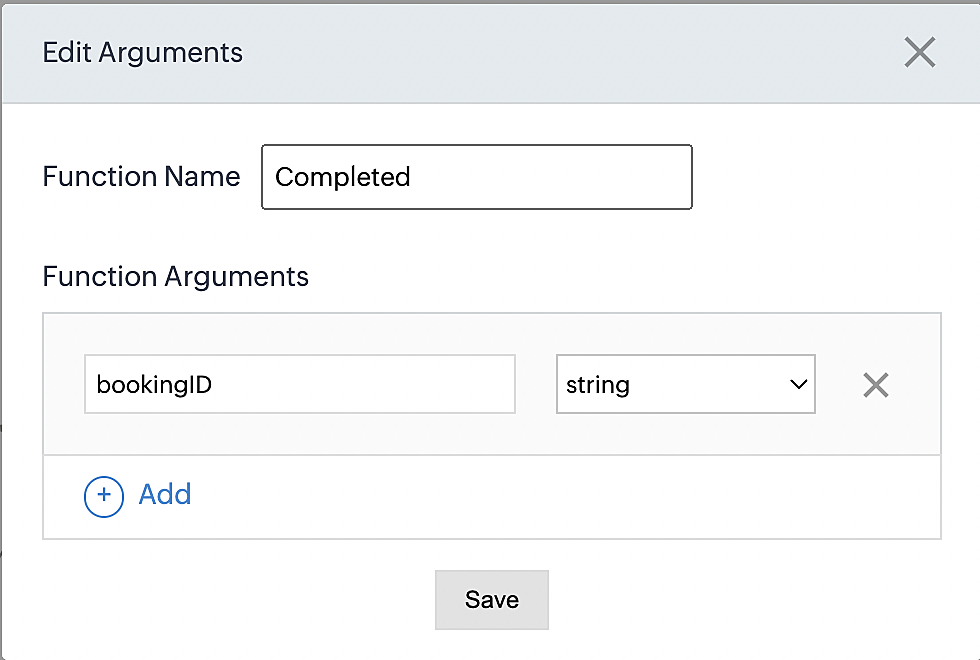
5. Next, configure the function's arguments:
A. Click on Edit Arguments on the Deluge script page.

B. Set the Parameter Name as bookingID. (Please note that the "bookingID" value is case sensitive and must match
the term used in the code).
C. Set the type as string.
Reference:
Please configure the below code in the Deluge script page.
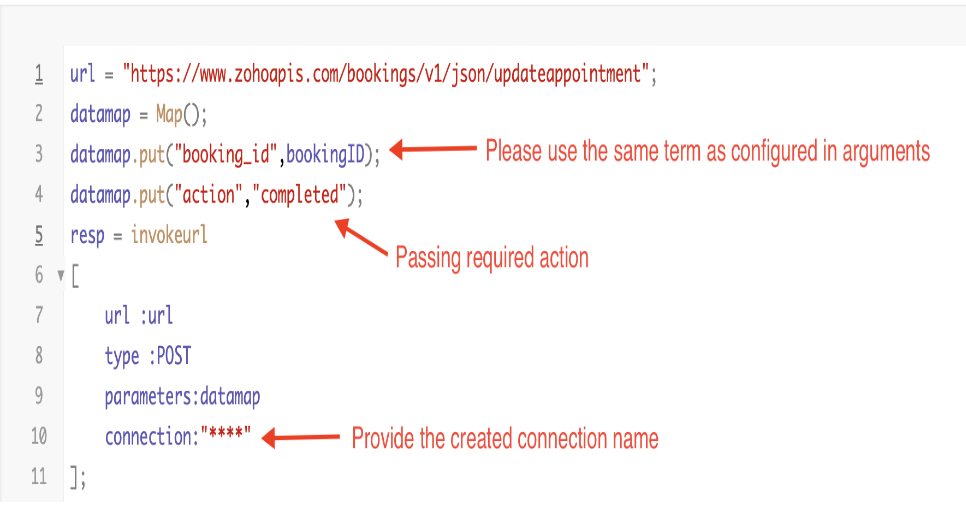
By completing these steps, we've configured a function that will mark appointments as completed.
ii. To create a function for marking appointments as no shows
1. Go to Setup > Developer Space > Functions.
2. In the Functions page, click + Create New Function.

3. Configure the function name, display name, and description.
4. Set the category as automation.
This opens the Deluge script page.
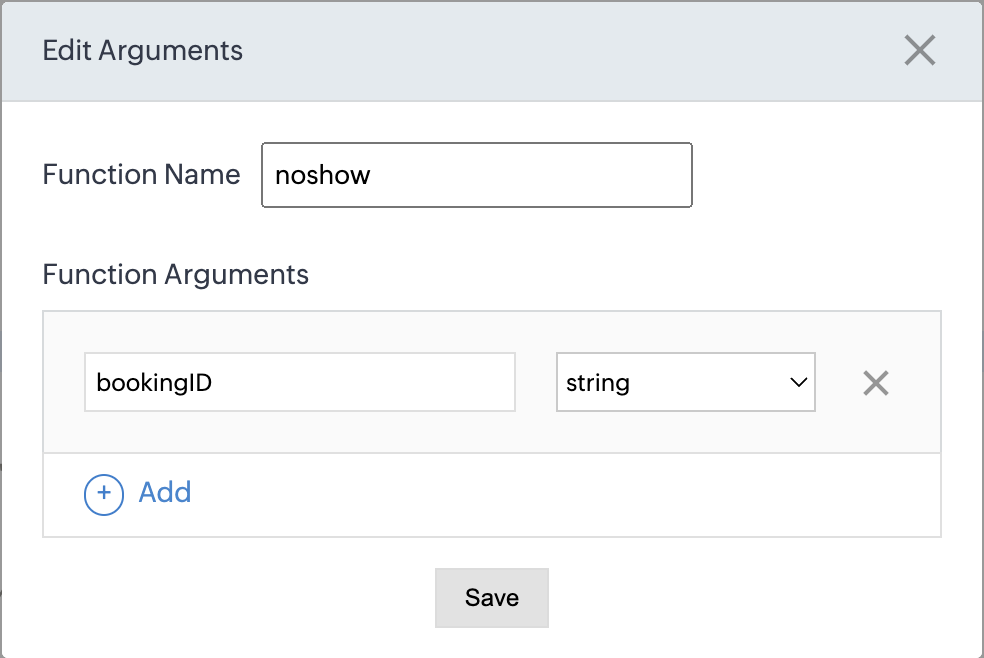
5. Next, configure the function's arguments:
A. Click on Edit Arguments on the Deluge script page.

B. Set the Parameter Name as bookingID. (Please note that the "bookingID" value is case sensitive and must match
the term used in the code).
C. Set the type as string.
Reference:
Please configure the below code on the Deluge script page.
Code link: No show
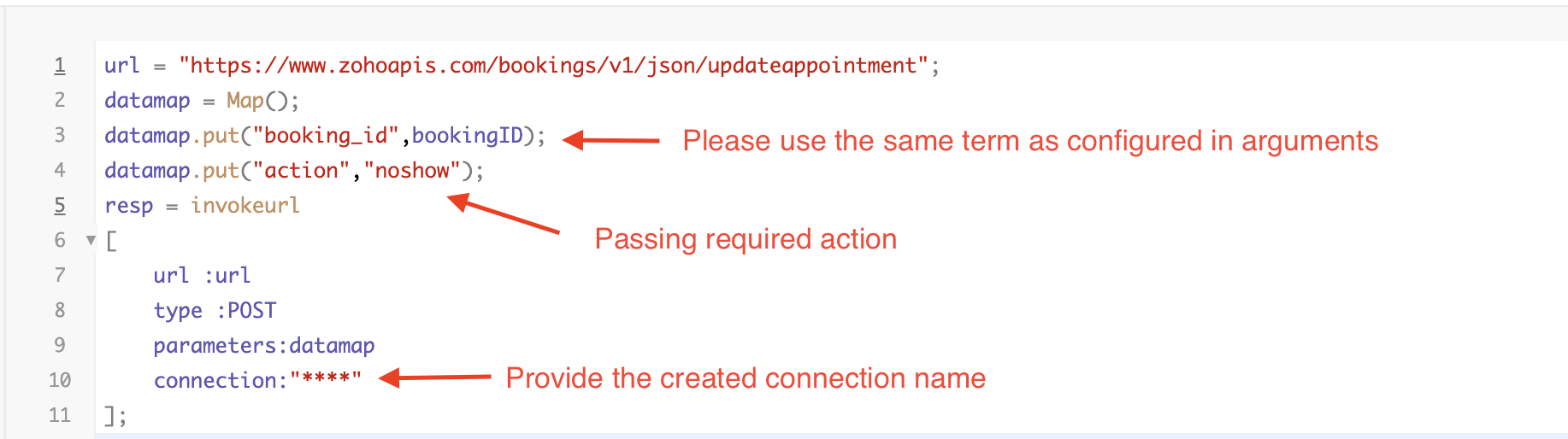
By completing these steps, we've configured a function that marks appointments as no shows.
iii. To create a function for marking appointments as canceled
1. Go to Setup > Developer Space > Functions.
2. In the Functions page, click + Create New Function.

3. Configure the function name, display name, and description.
4. Set the category as automation.
This opens the Deluge script page.
5. Next, configure the function's arguments:
A. Click on Edit Arguments on the Deluge script page.

B. Set the Parameter Name as bookingID. (Please note that the "bookingID" value is case sensitive and must match
the term used in the code).
C. Set the type as string.
Reference
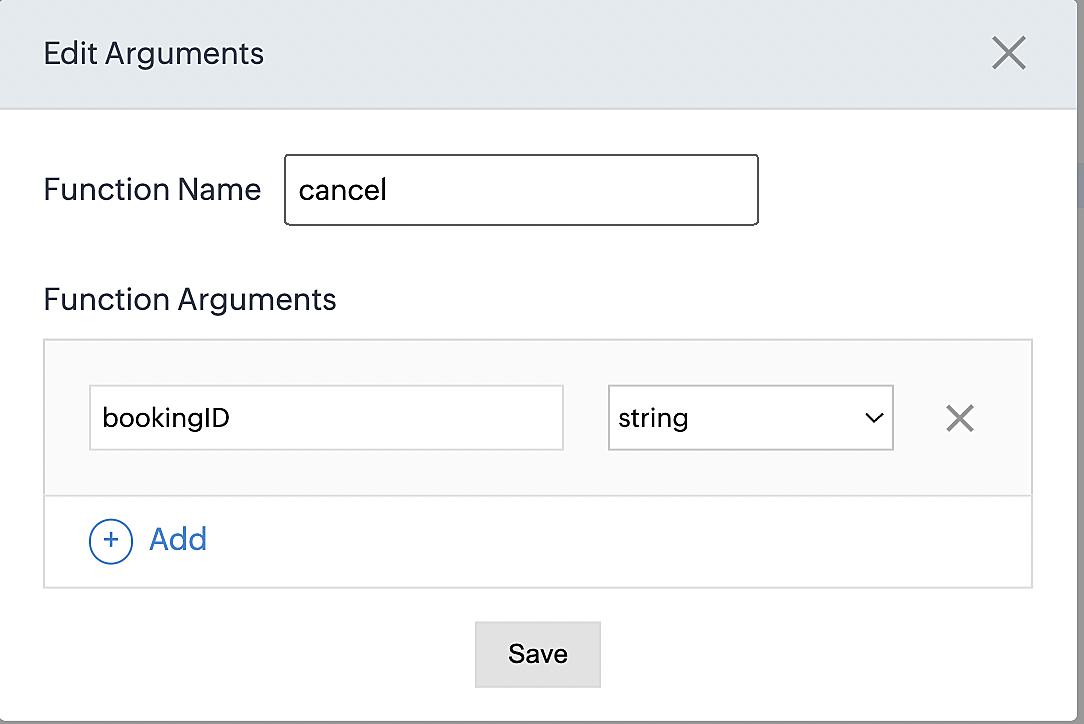
Please configure the below code on the Deluge script page.
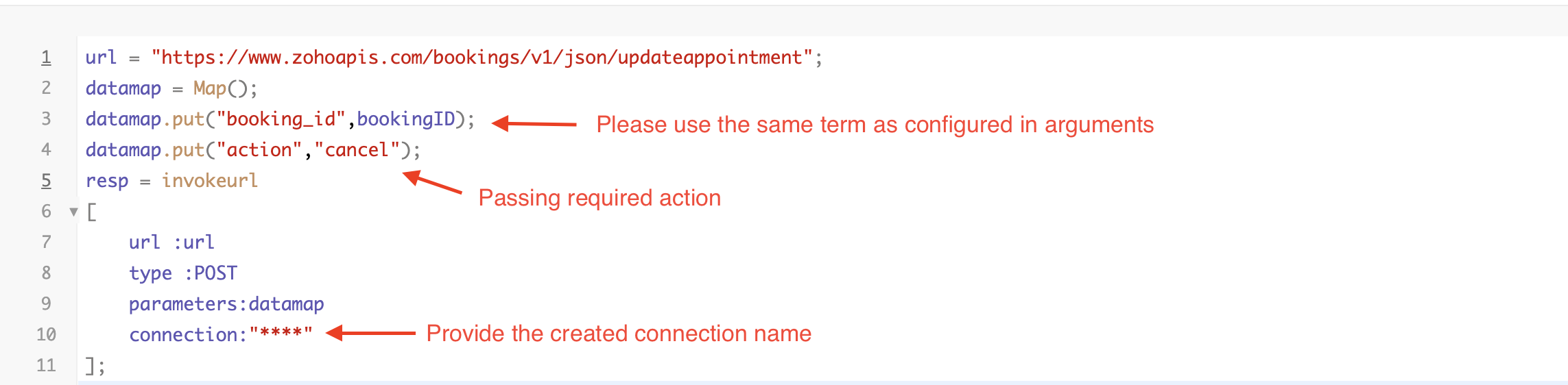
By completing these steps, we've configured a function that marks appointments as canceled.
Code explanation
Below is an explanation of the code that covers all the configurations present in the three functions mentioned above (cancel, mark as completed, and mark as no show).
Line 1: Based on the Zoho Bookings account's data center, we're setting up the API endpoint URL configuration.
Lines 2 - 4: To update appointments, we utilize the Zoho Bookings API. Within the update appointment API, there are two mandatory fields that need to be included: BookingID and action (completed/cancel/noshow).
Lines 5 - 10: We use the invokeURL task for API calls. To learn more about the invokeURL task, please refer to the following document: InvokeURL task for API calls
Now, let's proceed and learn about the process of creating a workflow and linking the established functions to it. This will enable us to automate the entire appointment status updating process.
Step 3: Creating a workflow
Workflow rules are sets of actions (email notifications, tasks and field updates) that are executed when specified conditions are met. Here, we'll generate workflow rules for each action to activate the respective function, thereby automating the appointment status updating process.
i. Creating a workflow for "canceling" appointments in Zoho Bookings when a meeting is deleted in Zoho CRM
Part 1: Creating the rule
1. Go to Setup > Automation > Workflow Rules.
2. In the Workflow Rules page, click Create Rule.

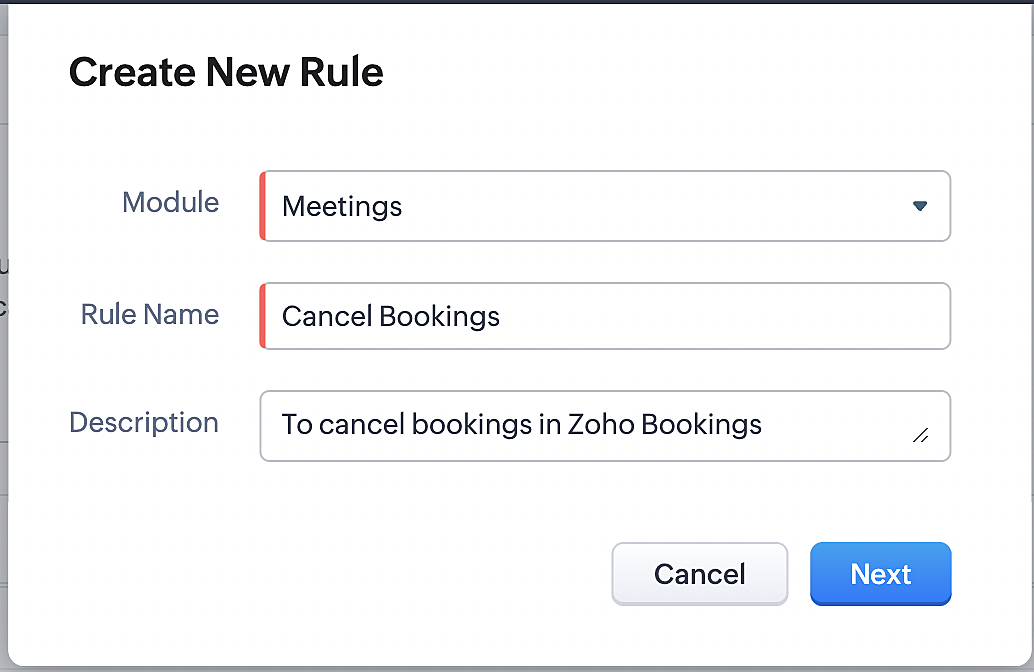
3. Select "Meetings" under Module and configure rule name and description as required.
More details: Create Rule
Reference:
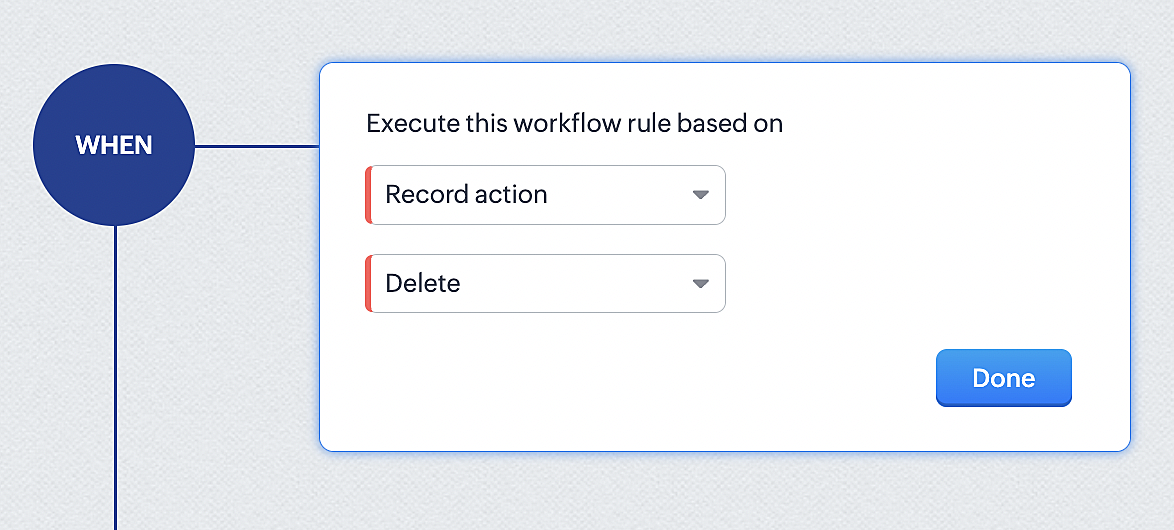
1. Select Record Action > Delete > Done to execute the rule when meetings are deleted.
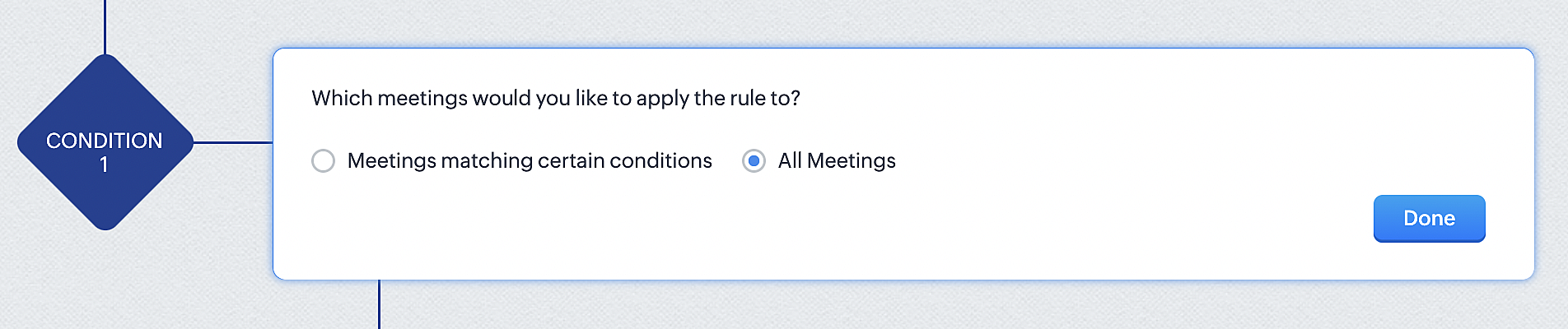
2. Configure condition > All Meetings.
3. Instant Actions > Function.
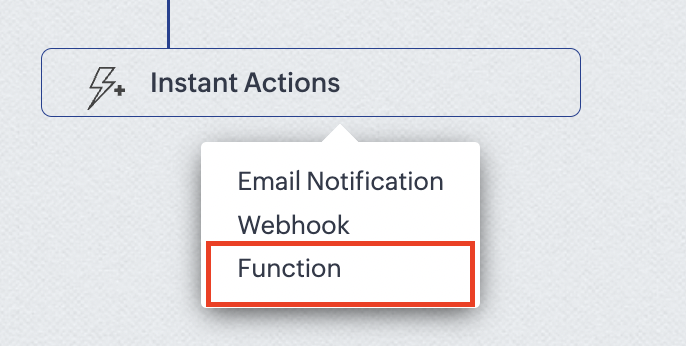
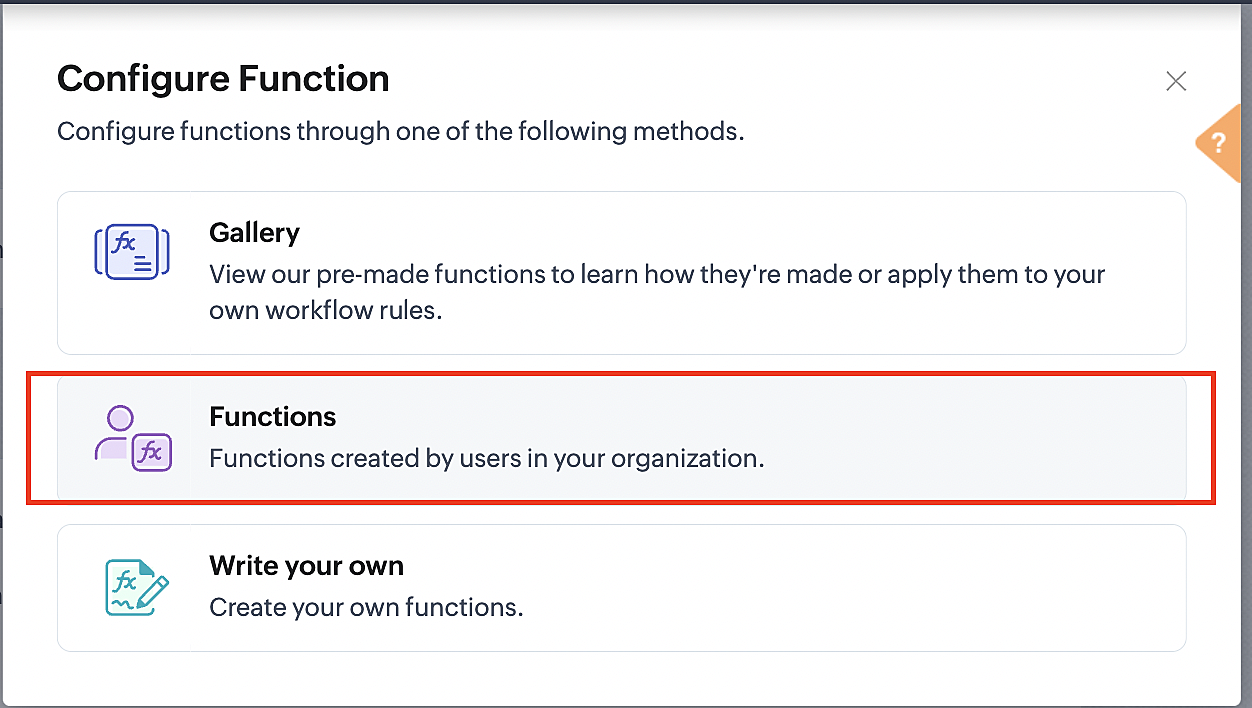
4. Click the New Function button.

5. In the Configure custom function page, select the "cancel" function you created from among the functions users in your organization have created.
Part 3: Argument mapping
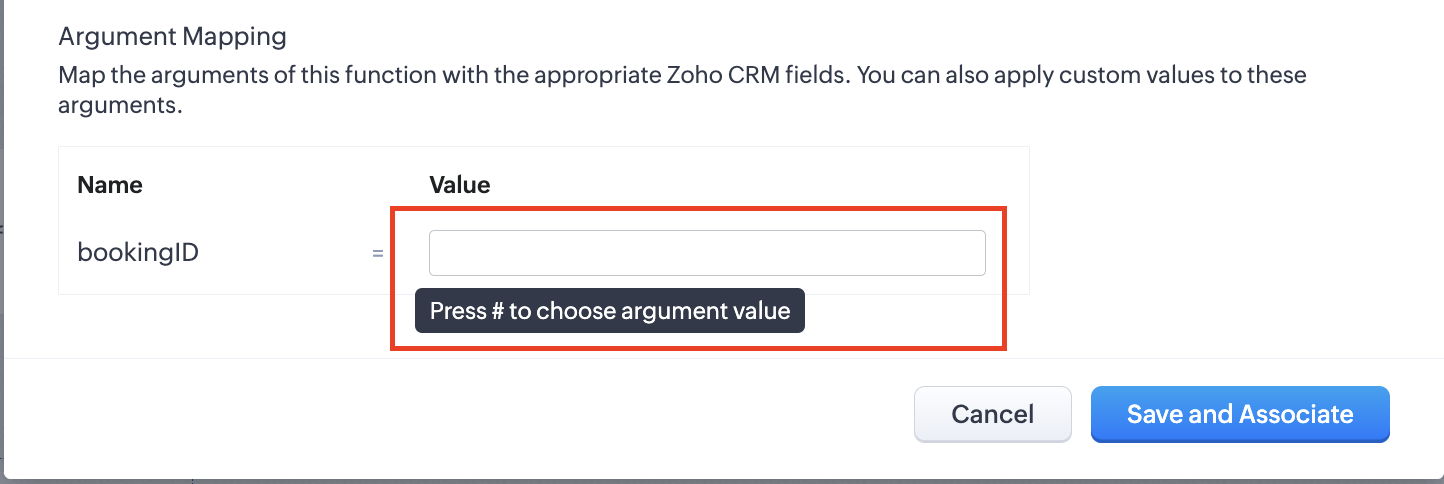
1. Press # to choose an argument value.
2. Select Meetings under Module and BookingId in the field.
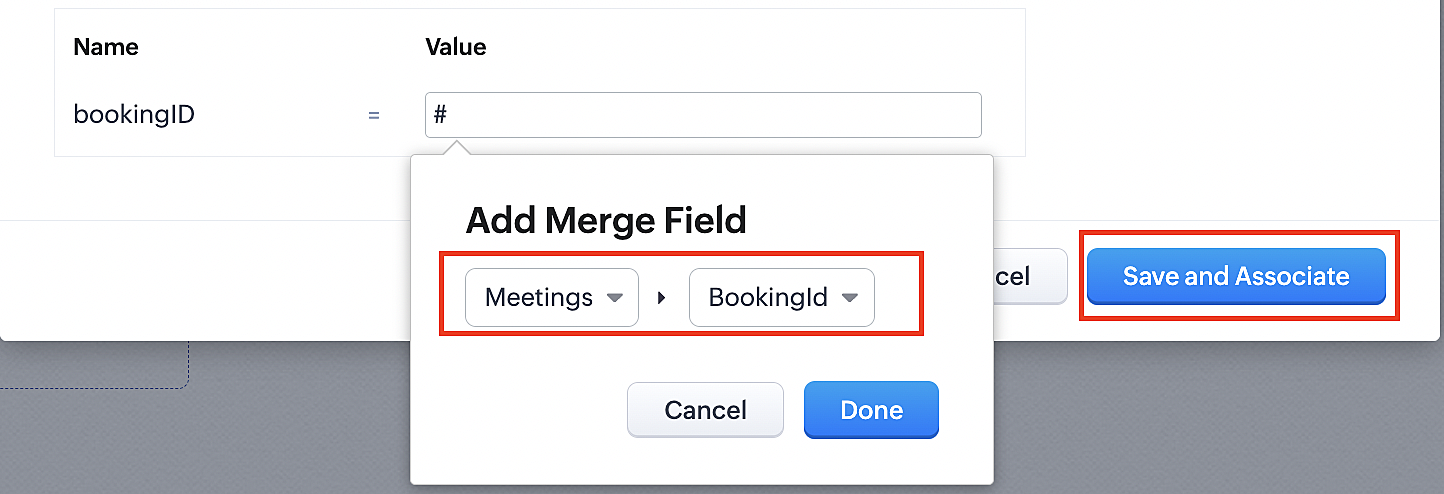
3. Click the Save and Associate button.
Reference:
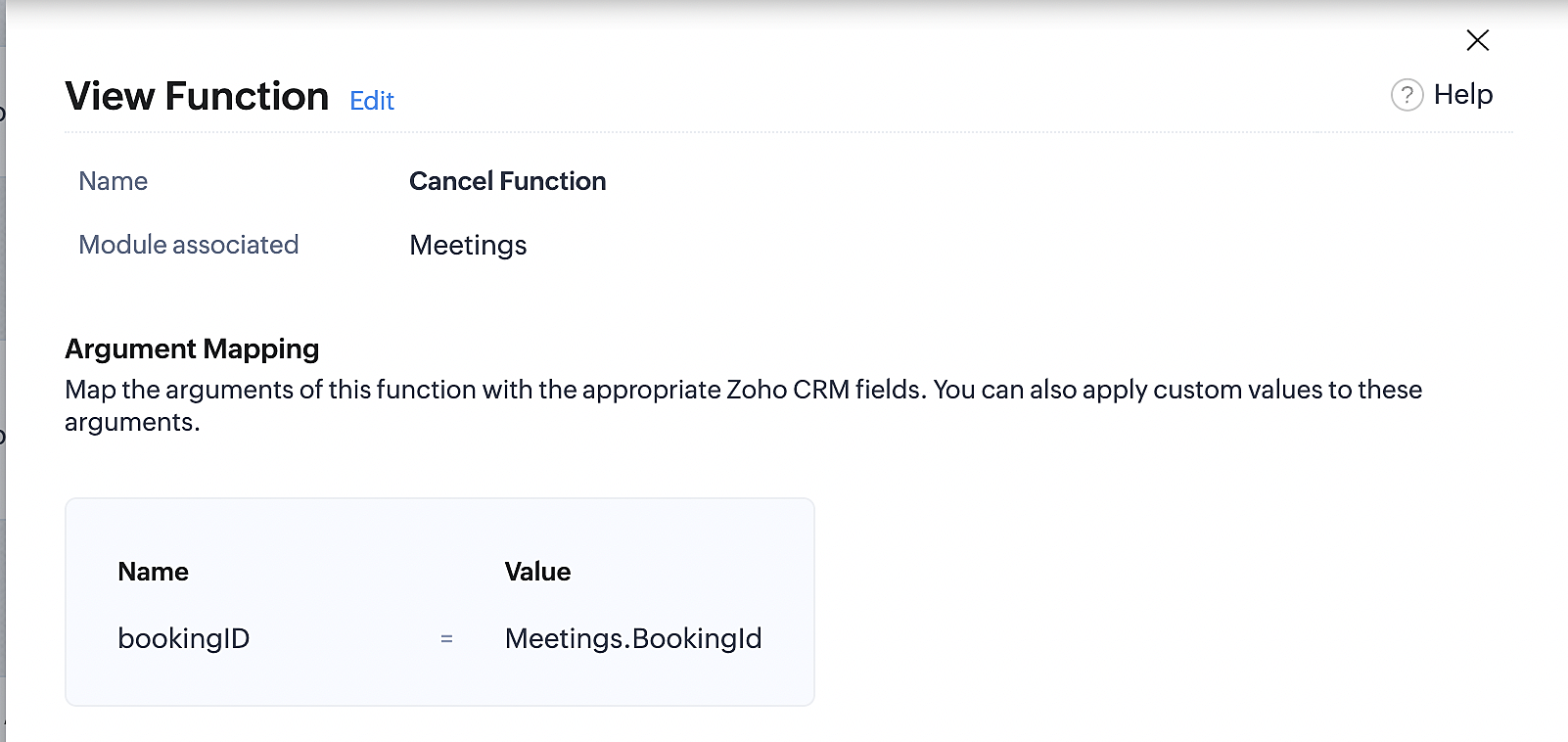
Below is the final flow of the cancel booking workflow:
At the end of Part 3, we will have created a workflow that will be executed automatically when meetings are deleted in Zoho CRM. Simultaneously, the bookings associated with the meeting will also be canceled in Zoho Booking.
ii. Creating workflow for updating an appointment's status as "no show" in Zoho Bookings when the meeting's booking status is marked as no show in Zoho CRM
Part 4: Creating the rule
1. Go to Setup > Automation > Workflow Rules.
2. In the Workflow Rules page, click Create Rule.

3. Select Meetings under Module and configure the rule name and description as required.
Reference:
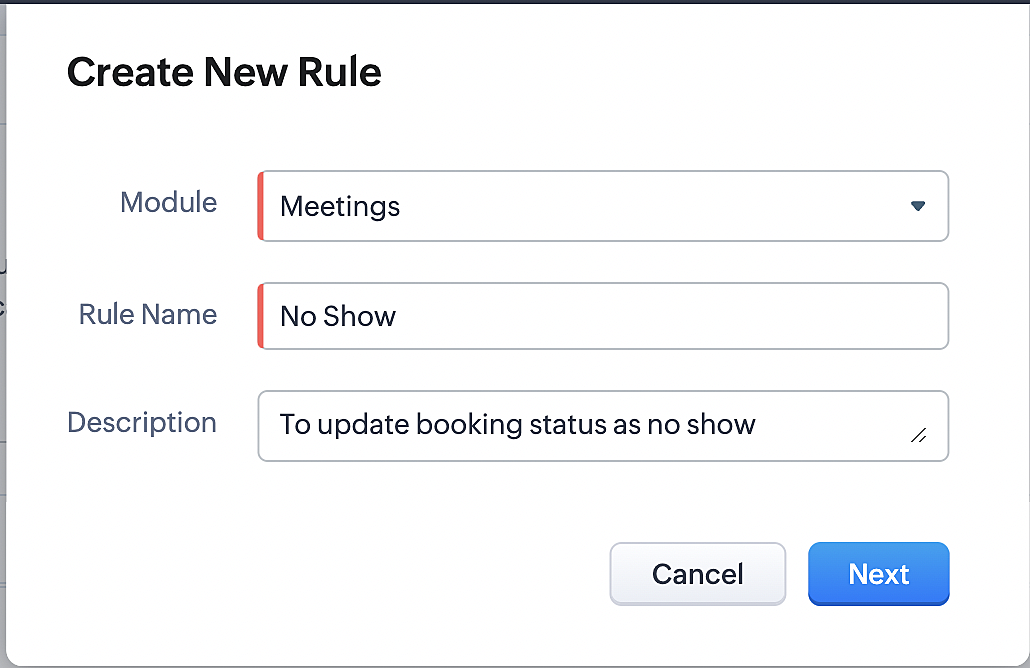
Part 5: Specifying the rule trigger
If you encounter difficulties while navigating through the steps mentioned below, please refer to Part 2 above, where we have provided step-by-step screenshots for clarification.
1. Record Action > Edit.

2. Enable the Specific field(s) gets modified and configure it per the screenshot below.
a. This is to ensure that the workflow is executed only when the booking status under the meeting module is
updated to "No Show".
updated to "No Show".
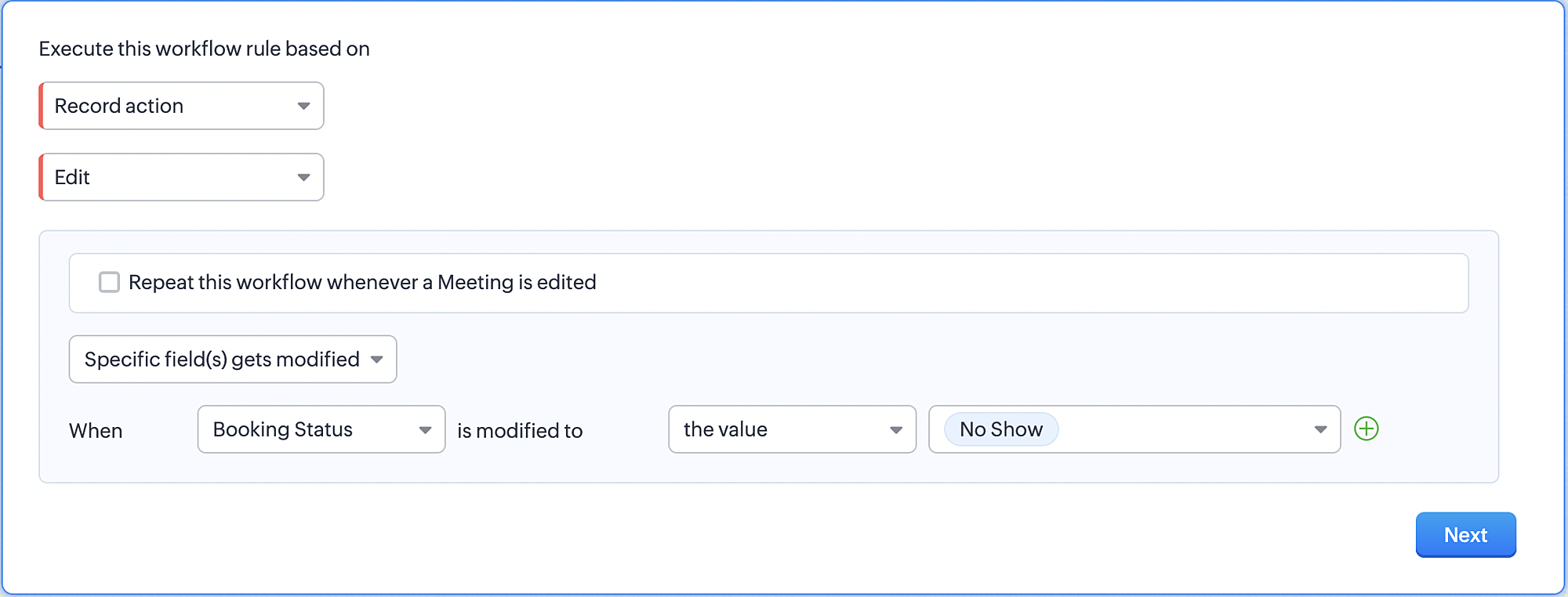
3. Configure condition > All Meetings.
4. Instant Actions > Function > New Function.
5. In the Configure custom function page, select the "no show" function you created from among the functions
users in your organization have created.
users in your organization have created.
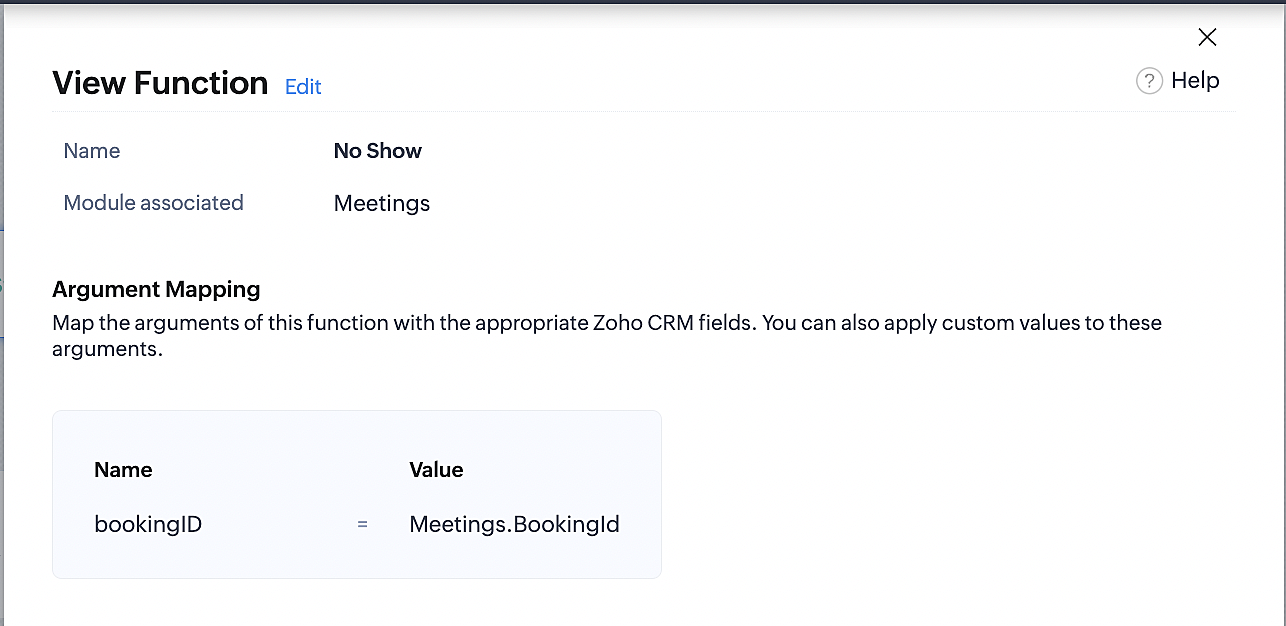
Part 6: Argument mapping:
If you encounter difficulties while navigating through the steps mentioned below, please refer to Part 3 above, where we have provided step-by-step screenshots for clarification.
1. Press # to choose an argument value.
2. Select Meetings under Module and configure the field as "BookingId".
3. Click Save and Associate button.
Reference:
Below is the final flow of the "No Show" booking status workflow:
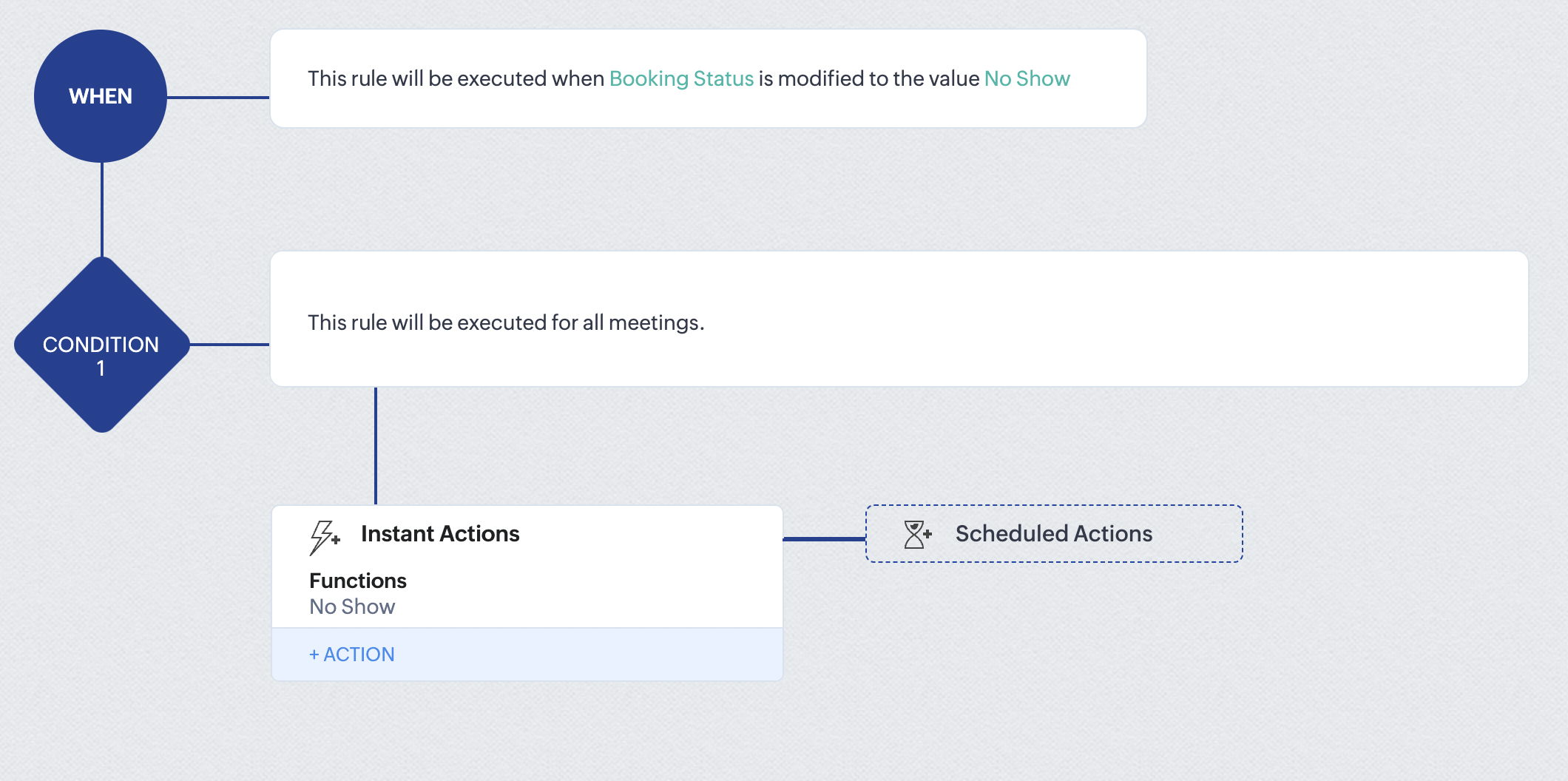
At the end of part 6, we will have created a workflow that automatically executes when the booking status field within the Zoho CRM Meetings module is updated to "No Show." This action will result in the associated bookings for that meeting also being marked as "No Show" in Zoho Bookings.
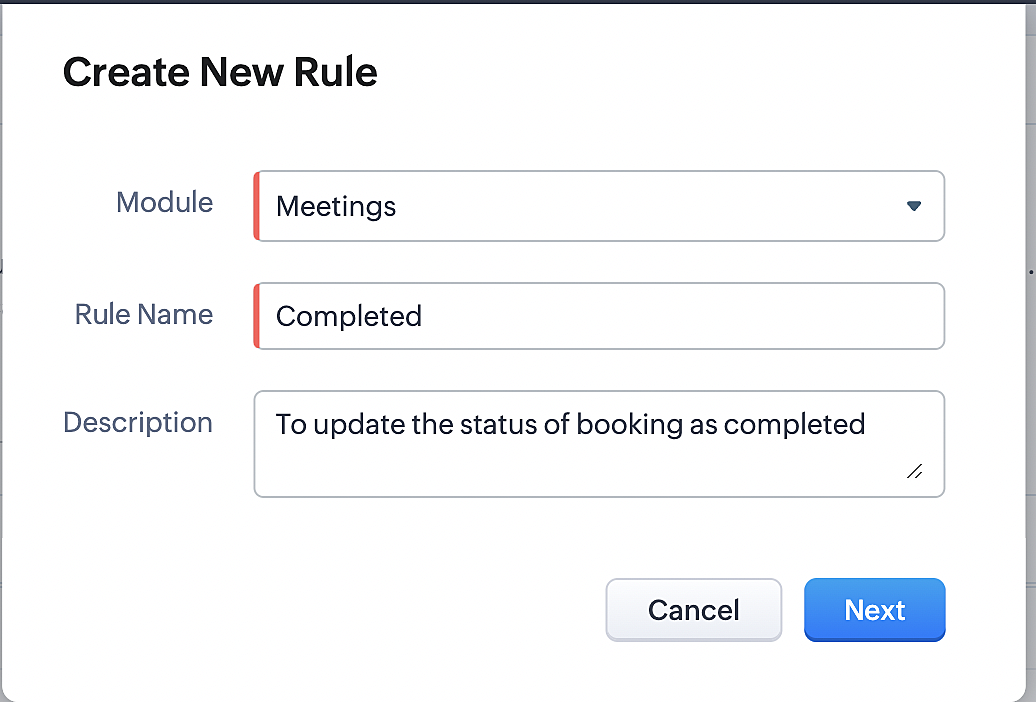
iii. Creating workflow for updating appointment status as "Completed" in Zoho Bookings when the booking status field of the meeting is marked as completed in Zoho CRM.
Part 7: Creating the rule
1. Go to Setup > Automation > Workflow Rules.
2. In the Workflow Rules page, click Create Rule.

3. Select Meetings under Module and configure rule name and description as required.
Reference:
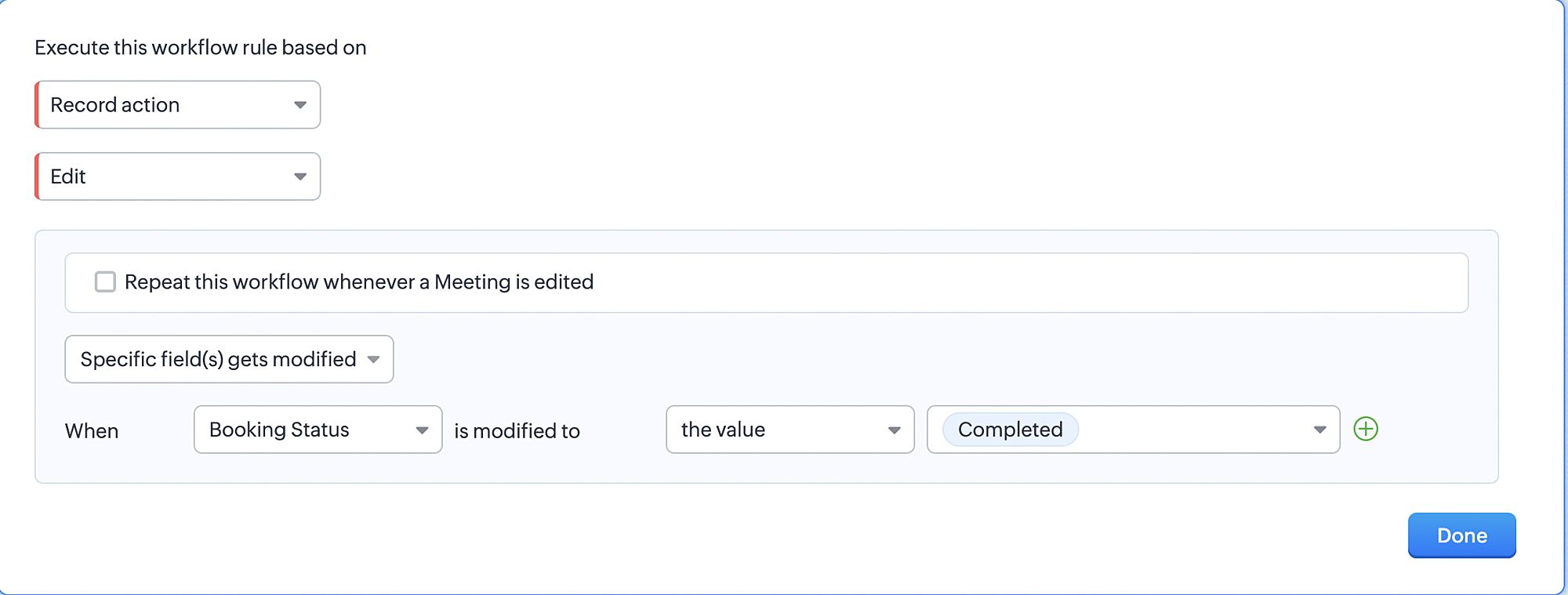
Part 8: Specifying the rule trigger
If you encounter difficulties while navigating through the steps mentioned below, please refer to Part 2 above, where we have provided step-by-step screenshots for clarification.
1. Record Action > Edit.

2. Enable the Specific field(s) gets modified setting and configure it per the screenshot below.
a. This serves to ensure that the workflow is executed only when the booking status under the Meetings module is
updated to "Completed".
3. Configure condition > All Meetings.
4. Instant Actions > Function > New Function.
5. In the Configure custom function page, select the "completed" function you created from among the functions users
in your organization have created.
Part 9: Argument mapping:
If you encounter difficulties while navigating through the steps mentioned below, please refer to Part 3 above, where we have provided step-by-step screenshots for clarification.
1. Press # to choose an argument value.
2. Select Meetings under Module and configure the field as "BookingId".
3. Click Save and Associate button.
Reference:
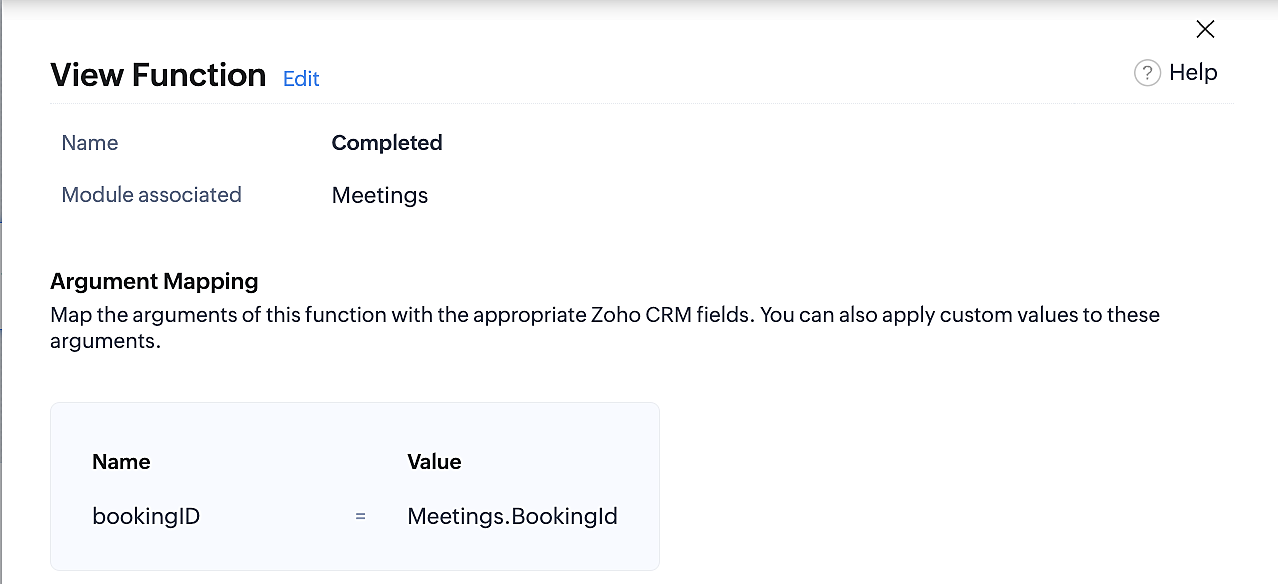
Below is the final flow of the "Completed" booking status workflow:
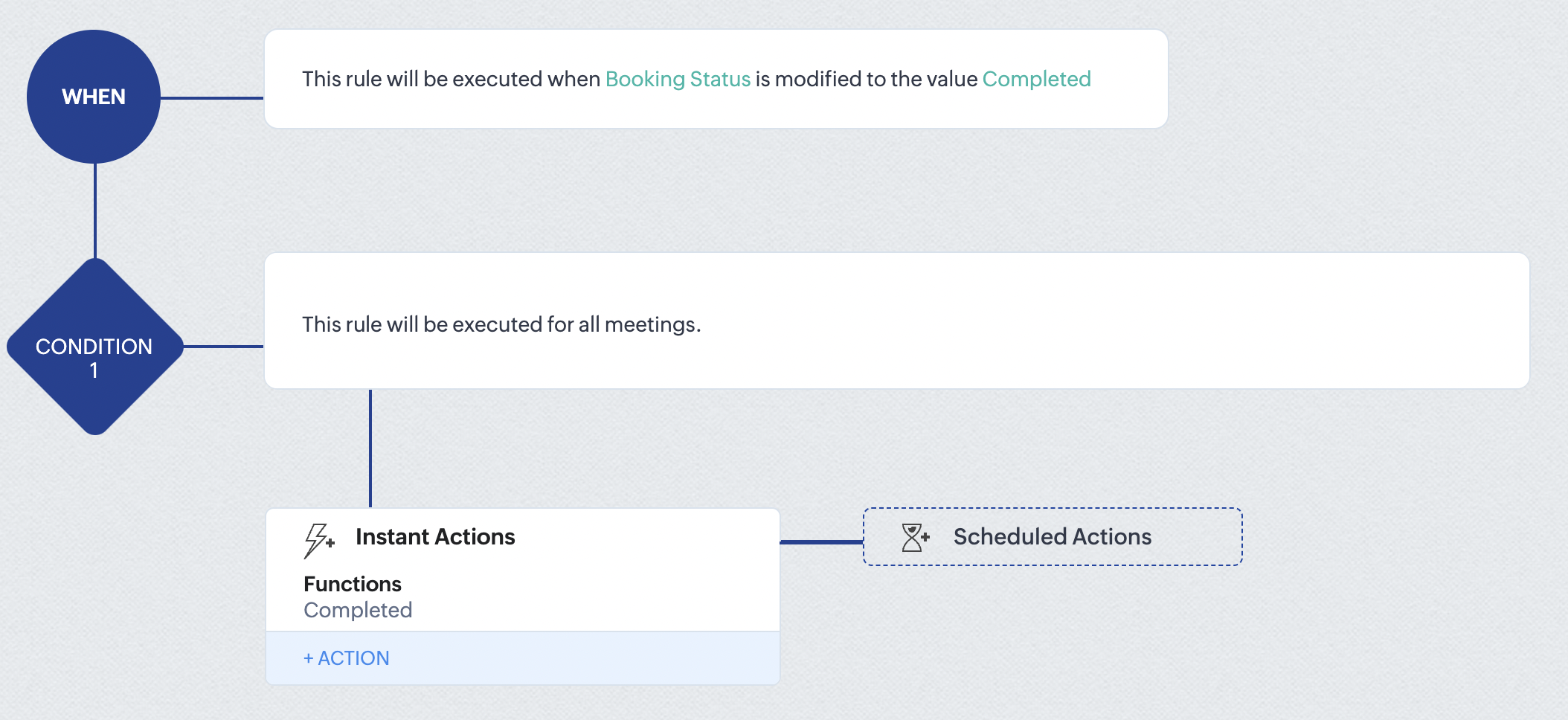
At the end of part 9, we will have created a workflow that is automatically executed when the booking status field within the Zoho CRM Meetings module is updated to "Completed." As a result, the associated bookings for that meeting will also be marked as "Completed" in Zoho Bookings.
Conclusion
We've reached the end of this community post. With the integration mentioned above in place, you'll be able to book, cancel, and update the status of appointments in Zoho Bookings directly from your Zoho CRM application. This will help you effectively manage your appointments in one place. As mentioned above, we've covered the rescheduling action in a separate post, which you can access by clicking on the following link: Reschedule Action
Furthermore, we've outlined a method for automating appointment statuses in detail. You can use this document as a reference to explore the various possibilities that suit your needs.
If you have any questions or need assistance with your configuration, please email us at hello@zohobookings.com or support@zohobookings.com.
Topic Participants
Kaushik S
bruce
Ishwarya SG
PrismaNote Support
Sticky Posts
Enhancement to ICR’s field prompting: Preferred data extraction using advanced field prompting
Dear Customers, We hope you’re well A quick background Intelligent Character Recognition (ICR) comes as part of Zia’s optical recognition capability called Zia Vision. When we introduced it last April, the data extraction was training-based and was applicableGood news! Calendar in Zoho CRM gets a face lift
Dear Customers, We are delighted to unveil the revamped calendar UI in Zoho CRM. With a complete visual overhaul aligned with CRM for Everyone, the calendar now offers a more intuitive and flexible scheduling experience. What’s new? Distinguish activitiesAccessibility in Zoho CRM: Not just a feature—a way to empower
For instructions on setting up these controls, please check this help document: Configuring accessibility controls. Hello everyone, Today (December 3, 2024), on the International Day of Persons with Disabilities, we begin our journey towards a CRM thatScaling the customer journey: What's new in CommandCenter
Dear Customers, The last time we connected about CommandCenter, it was about the tool's new controls and revamped UI. Personally, the overhaul of the UI from the last update, still excites me. Today, we're here with news about its scalability and addedZoho CRM's sales trend and sales follow-up trend dashboards are now customizable
Dear Customers, We're here with good news! Sales trend and sales follow-up trend are two system-defined dashboards that help you understand trends and anomalies in your sales outreach and conversion efforts. They use Zia's intelligence to identify patterns
Recent Topics
Limitation in chart of accounts
There is a limitation of 4000 accounts in chart of accounts Zoho needs to remove this limitHow do I change the account bank charges are charged to?
I want bank charges charged to my Credit Card Fees account. Is there a way to do this?Real signature in Zoho Expense PDF report ?
Hello ! Is there a way to put a real signature on the signature line when a PDF report is generated in Zoho Expense? Through Zoho Sign or another way? Can't seem to make it work.Copy paste settings
Hello all i have 2 organizations running in ZOHO books in one organization i have customised Tax rates, codes and customized templates instead of manually doing again in org 2 can i have some shortcut to copy paste or export and import??Custom TDS on Vendor Credits via API
Hi, We are using Zoho Books APIs for posting Bills and vendor credits. We are unable to post custom TDS amount posting vendor credits. Can you please share the API spec and Payload that need to be sent for Custom TDS for Vendor Credits."Unlink" Advance from Bill without Deleting the Payment Record
I am writing to highlight a significant workflow issue in Zoho Books (India Edition) regarding Vendor Advances and Bills. The Scenario: I recorded an Advance Payment to a vendor. I matched/reconciled this payment in the Banking module. I received a BillAdvance Payment Record Removed When Deleting Applied Credit from Bill
Hello, So while working with vendor advance payments, I noticed that removing the applied credit from a bill also removes the corresponding entry from the Payments Made section. What I did : Recorded an advance payment to a vendor through Payments Made.What is the best way to convert MSG file to Word format?
The best way to convert MSG files to Word format is by using a reliable and professional tool Aryson MSG file Converter. Manual methods are often time-consuming and may not preserve email formatting, attachments, or metadata accurately. In contrast, ArysonAddress Typeahead Extension for Zoho Books
I installed the Address Typeahead extension for zoho books but when I went to configure it, it said that that version was deprecated. Is there a newer version somewhere?Zoho Projects : Task should auto-update to 'In Progress' if timer started
Namaskaram. Right now, if a Task's timer is started, the Task stays in 'Not Started' status. One has to manually update it to 'In Progress'. From a #uxdesign standpoint, it is an unnecessarily two step process to start working on a task. It would be better that, if I start the timer on a task, it should automatically change to 'In Progress' status. Crafted with ❤️ Zoho Gurus | Zoho One Practice Team @ CubeYogi Zoho Authorised Partner | 7+ Yrs | 200+ Projects | 100+ CustomersInvoice template with sales tax totals
Hi everyone, I am trying to edit my invoice template so that only the total sales tax collected for my tax group shows up. Right now, under by sub total, each individual tax shows up and that takes up a lot of unnessary space, so I just want the oneZoho Delayed Posting & Loss of Article Thumbnails on BlueSky
Hello! I am wondering if anyone else has had the either of the following issues when posting to socials via Zoho and if there is a fix? 1. Post says it is scheduled or it is live when sent off via Zoho but it doesn't show up on socials till some timeConnection Not Secure (Certificate Mismatch) Error
Hi, Just a fyi, when you go to https://bigin.zohocloud.ca/bigin/Home you get a "Your Connection Is Not private" error. (Certificate mismatch to domain.) I get to that page after I have signed up and signed in as a customer and select the Access BiginRecording the Investment
Hello, - One Investor Invested to our company, So how do we record investment which we received in our bank in the Zoho books ? - How do we record if we provide shares to the investor in the Zoho books? ThanksExport Invoices to XML file
Namaste! ZOHO suite of Apps is awesome and we as Partner, would like to use and implement the app´s from the Financial suite like ZOHO Invoice, but, in Portugal, we can only use certified Invoice Software and for this reason, we need to develop/customize on top of ZOHO Invoice to create an XML file with specific information and after this, go to the government and certified the software. As soon as we have for example, ZOHO CRM integrated with ZOHO Invoice up and running, our business opportunitiesClient and Vendor portal at the same time
We have companies that serve both as clients and vendors and they are linked. However, we have a problem giving them access to the vendor/client portal. If they accept the invitation from the client portal, when we try to invite them to the vendor portalIntegrate Multiple ZohoBooks organization with zoho projects
We have successfully connected our Zoho Books with Zoho Projects for synronizing timesheet data. Our Business specialty is, that the staff of the Main company (A) is working on several projects, but the Clients are sometimes contracted and paying to aWays to calculate the difference form two years or months
Hi to everyone I have this request: I need to show the difference or variation from two periods (years or months) whether using a Pivot View or a graph, in this is case is better in a Pivot view. In the pivot view I will have the amount or results fromCareer site URL - Suggestion to modify URL of non-english job posting
Hi, I would like to suggest making a few modification to career sites that are not in english. Currently, the URL are a mix of different languages and are very long. It makes for very unprofessional looking URLs... Here is an example of one of our URLCliq iOS can't see shared screen
Hello, I had this morning a video call with a colleague. She is using Cliq Desktop MacOS and wanted to share her screen with me. I'm on iPad. I noticed, while she shared her screen, I could only see her video, but not the shared screen... Does Cliq iOS is able to display shared screen, or is it somewhere else to be found ? RegardsIntroducing Contract Settings & Backdated Contracts in Zoho Contracts
We are rolling out updates that give you more control over how contracts are created and managed in Zoho Contracts. From defining default workflows with Contract Settings to aligning agreements with real timelines using Backdated Contracts, these enhancementsCelebrating our customers on International Client's Day
Hi everyone, Every customer is part of our Zoho Desk family, and we wouldn’t want to miss celebrating you on this special day. This International Client's Day, we’d like to take a moment to appreciate every customer who has helped us grow and build meaningfulZoho Books | Product updates | February 2026
Hello users, We’ve rolled out new features and enhancements in Zoho Books. From Advanced Reporting Tags to the ability to mark projects as completed, explore the latest updates designed to improve your bookkeeping experience. Introducing Advanced ReportingFaster Ticket Response with use of Snippets in comments
Hello everyone, Responding to tickets often involves repeating the same messages, whether it is sharing updates with customers or leaving notes for internal collaboration. To make this easier and more consistent, we are allowing agents to use snippetsImproving Zoho Creator's email deliverability
Hi all, We're pleased to announce updates to email handling in Zoho Creator to improve the deliverability of the emails sent from the Creator platform. These updates have been designed keeping in mind the fact that emails from domains with strong senderWhat's New in Zoho Billing | February 2026
February brings a powerful set of updates to Zoho Billing, from smarter subscription management and flexible payment options to better reporting and more control over your hosted pages. Here's everything that's new this February. Create SubscriptionsReassign Partially Saved Entries
Hi, I would like to be able to go to Partially Saved Entries and like the option to delete them I would like the option to multi-select and be able to reassign them to another user to complete (Such as when a user has left the company). Thanks DanCan we rely on order of returned ids when inserting multiple records?
Hello! API https://www.zoho.com/crm/developer/docs/api/v8/insert-records.html does not mention that the response array will match the input array*, keeping this important information implicit and someone might have doubts to rely on it. (*the responseDisplaying only unread tickets in ticket view
Hello, I was wondering if someone might be able to help me with this one. We use filters to display our ticket list, typically using a saved filter which displays the tickets which are overdue or due today. What I'd really like is another filter thatWhat is a realistic turnaround time for account review for ZeptoMail?
On signing up it said 2-3 business days. I am on business-day 6 and have had zero contact of any kind. No follow-up questions, no approval or decline. Attempts to "leave a message" or use the "Contact Us" form have just vanished without a trace. It stillZoho Books: tax is not automatically pulled from product-data anymore - why?
Hi, until a short time ago, you could set a default taxrate for each product/item. This taxrate automatically appeared each time the item was chosen in an invoice or quote. Why does this not work anymore? The field is still there at the product record,Issue creating a YTD report with last years numbers
I am looking to create a widget to compare the YTD leads we have in 2023 to the YTD leads we had in 2022. I'm having issues with the aggregate formula creation to gain access to the 2022 Leads YTD data point. Feeling like this is a common view of dataBrand Studio Projects in Analytics
Hi All, Currently pulling my hair out over trying to link together some social media posts for a reporting dashboard in Analytics, so I thought I'd see if anyone on here had a solution. Our Marketing Team created a LinkedIn campaign in Zoho Brand Studio,Manage Testing Process in Zoho Sprints
Agile framework supports a robust quality assurance system that incorporates continuous testing throughout the development lifecycle of the product. The agile testing team focuses on planning the testing around the development, identifying defects earlyAnnouncing the Zohotshots of the ZDC Hackathon 2025
Hey everyone, The wait is finally over! After weeks of building, experimenting, and pushing creative boundaries, we’re excited to announce the winners of the second edition of the ZDC Hackathon. This edition brought together an incredible community ofZOHO CRM Button Integration
Hi Team, I’m currently working with Zoho CRM along with a custom application where I fetch deal details from the CRM and use them based on my requirements for each deal. Now, I want to enhance this setup. I plan to create a button on the Deal Detail pageMajor journey crash and not loading. Zoho Marketing Automation
Hi all. Last night (19MAR, 2026) Marketing Automation for a specific journey completely crashed, and since the crash the specific journey has failed to load at all (blank journey canvas, no journey appears, no menu accessible) but other separate journey'sCandidate Assessments, no workflows.
I have an issue where I would like to trigger a workflow based on a candidate assessment being completed. Sometimes a returning candidate will complete a second assessment, on completion the status of the candidate will be updated to "Unqualified" ifMail Merge in Zoho Desk
Hello Team, Do we have an option of mail merge within Zoho Desk like we have in Zoho CRM? We have a requirement to generate some pdf file in the form of mail merge doc from the ticket.Workdrive backup and default storage selection
Hi community, I have been informed by Zoho that workdrive will be the default storage mechanism for crm and projects. These 2 Apps seem to have different design on how they interact with workdrive for storage. 1. Crm: seems to have files saves at theNext Page