Boost collaboration in your sales process with Team Selling and Deal revenue's Split—empowering your Zoho CRM for smarter teamwork!
 This feature has been released for a majority of users in all DCs. It will be released in a phased manner for the remaining users.
Hello everyone,
As you may all know, closing a deal is rarely a one-person effort. It often involves multiple teams - from pre-sales and marketing to legal and customer success - all working together to close a deal. However, traditional CRM structures only recognized the deal owner, which limited visibility and collaboration for all the other key contributors. Besides, there was no structured way to fairly attribute revenue among all the contributing members as well.
It is to address these challenges that we are excited to introduce Team Selling and Deal Split in the Deals Module. These features make teamwork easier by giving everyone involved access to important deal details while also making sure that their contributions get the credit they deserve.
Let's first look into Team Selling.
Team Selling allows organizations to bring together multiple contributors on a deal, providing them with appropriate access and visibility. Instead of relying solely on the deal owner, teams can now work together efficiently, adding notes, tracking progress, and also sharing important updates within the CRM.
Let's look at how it works for Zylker Inc, a leading SaaS company that specializes in cloud-based software solutions.
So generally, when closing high-value deals, multiple teams are involved, from sales and pre-sales to legal and customer success.
Let’s say the company is working on a huge deal with a large enterprise client. Traditionally, only the sales representative (who is the deal owner) would have access to all deal-related information. However, in reality, closing such a deal would require contributions from multiple teams.
So here’s how Team Selling would help Zylker Inc. streamline collaboration.
Pre-Sales Engineer - They provide technical expertise and demonstrate the workings of the product to the client. They help the client customize their CRM system to ensure it meets their needs and solves their problems.
Sales Engineer -They offer insights on integrations with the client’s existing systems and address any concerns that the client may have with regards to technical feasibility.
Marketing Specialist - They share use cases, case studies, and ROI data with the client in order to support the value proposition during discussions.
Legal and Compliance Advisor - They review and negotiate contract terms to meet the client’s compliance requirements.
Customer Success Manager - They ensure the client is confident about onboarding and also of long-term support post-sale.
To start with, the Account Executive sets up the deal in their CRM system. They then configure their preferred team in their personal settings. They assign roles and access levels based on each member's involvement, ensuring that each of them can view and contribute to the process of closing the deal as required.
The Pre-Sales Engineer gathers the client's requirements and shares insights with the team. The Sales Engineer demonstrates technical integrations, while the Marketing Specialist provides the client with material to reinforce the pitch. The Legal Advisor works closely with the client’s legal team in order to address compliance concerns. And as the deal approaches closure, the Customer Success Manager outlines a tailored onboarding plan to instill client confidence.
It is important to note that all team members log their notes, updates, and tasks in the CRM’s deal record. The Account Executive monitors the deal's progress, assigns follow-ups, and ensures everyone is aligned on the next steps.
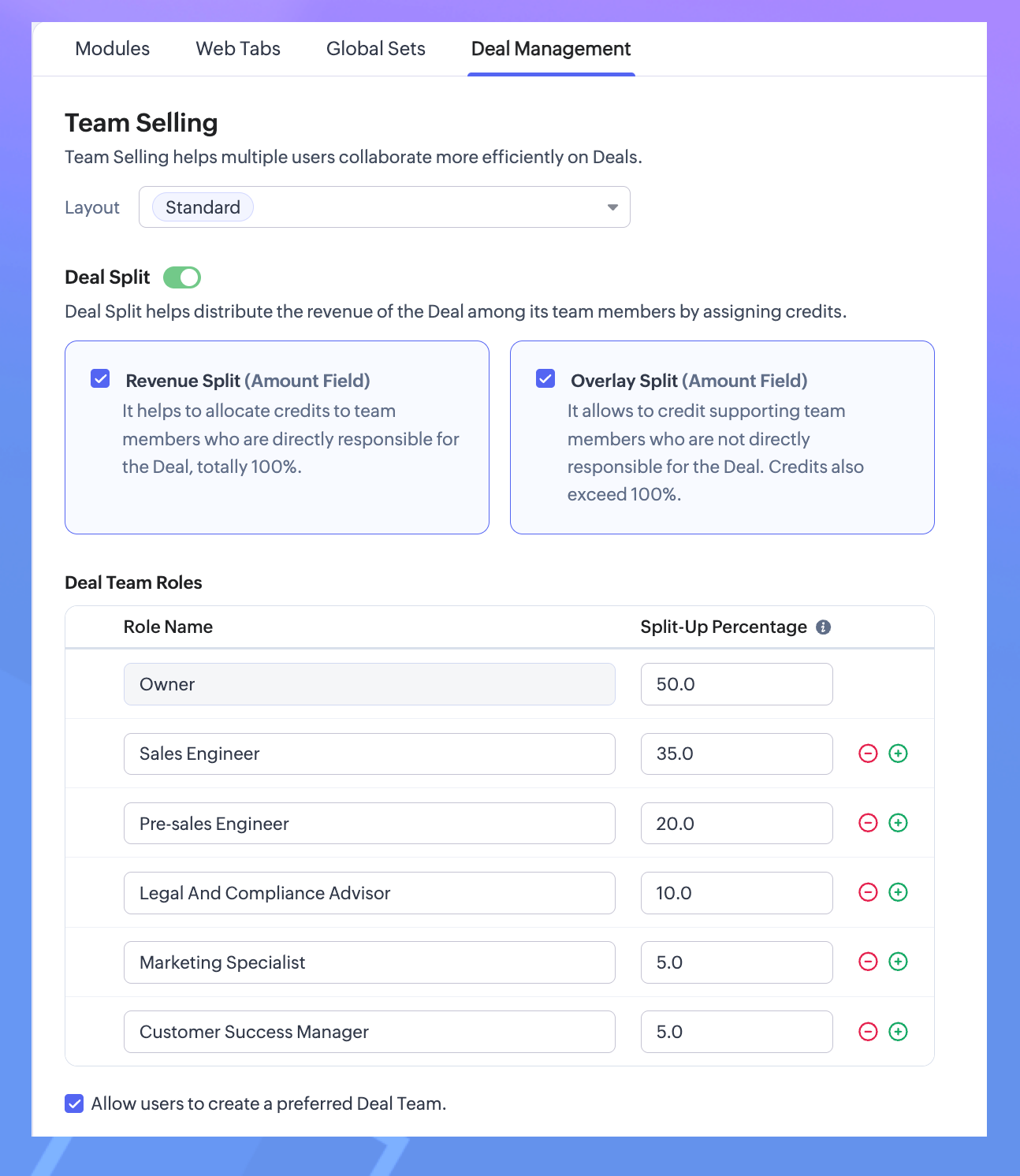
- Navigate to Settings
—Go to: Settings > Customization > Modules and Fields > Deal Management. - Configure Team Selling
—Select the layout.
—Add team roles such as pre-sales, consultants, or marketers.
—You can enable the preferred Deal Team option (if required).
—Save configuration.
3. Configure Preferred Deal Team.
—Go to: Settings > General > Personal Settings.
—Scroll down to Preferred Deal Team.
—Add Members.
Note. You can edit your preferred deal team - including adding or removing a member -or revoke the team altogether.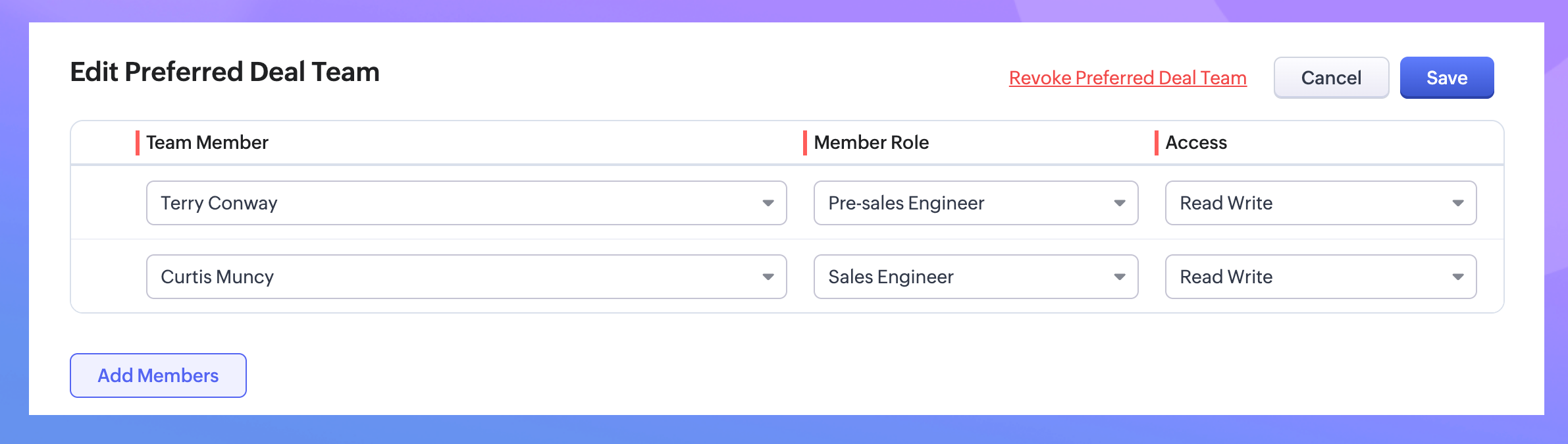
4. Add Team Members to a Deal.
—Go to the Deals Module.
—Open a deal record and locate the "Deal Team" related list under the stage history.
—Click Add Members, select users, assign roles (as configured earlier), and set access permissions.
—Another option would be to add the Preferred Deal Team (that you had previously created).
—Save your changes.
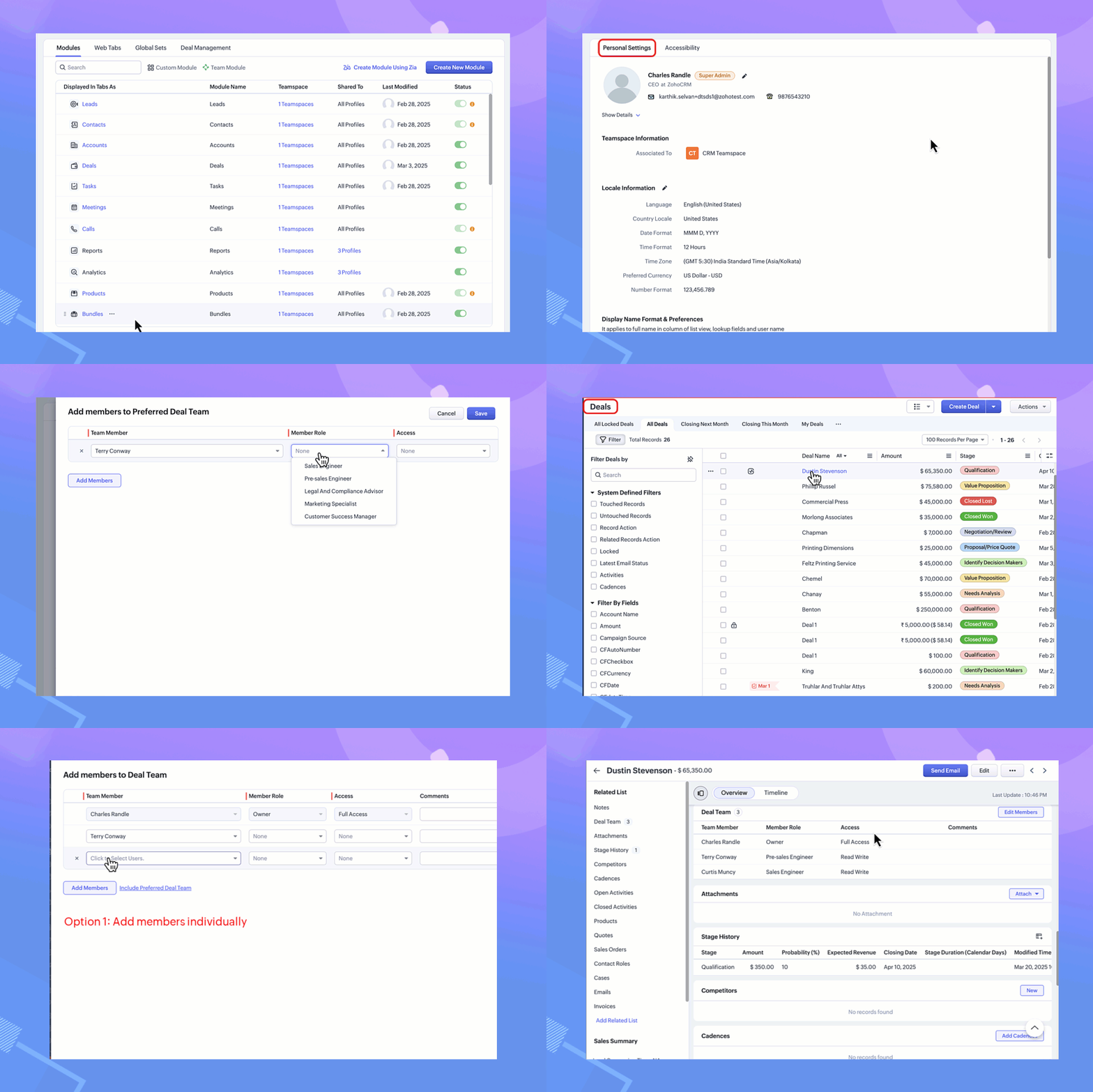
With these steps, team members can access the deal record based on their assigned roles and permissions.
Next, let us look at the second enhancement - Deal Split.
What is Deal Split?
Here again, the contributions of various team members involved in closing a deal are taken into consideration. Deals Split allows you to allocate the revenue that a company gets from a deal proportionally among team members based on their roles and efforts.
It is important to note here that there are two types of deals splits:
Revenue split: Members who contribute directly to the closure of the deal are included under revenue split. They will have their credits allocated directly based on the deal amount.
For example, the pre-sales engineer would get 10% for converting the cold call to a lead as they are directly contributing to the deal amount.
Note. As the maximum percentage revenue split is 100, the splits of all contributors can add to 100. Overlay split: Members who have an indirect influence on the deal are included under the overlay split.
Note. Here, their credits can be allocated as a percentage or the split amount itself. Since they do not contribute to the deal amount directly, their credits do not depend on the deal amount. Hence, the split up can amount up to 1000 per cent.
For example, a consultant who provides research or critical information on the customer. Another example of someone who comes under this category could be a legal team member who helps in drawing up the contract.
Note. As they probably work on fixed charges per hour, the overlay split can be entered as a percentage or an amount.- Navigate to Settings
Go to: Settings > Customization > Modules and Fields > Deal Management. - Toggle on the Deal Split
Select the type of split you would prefer for your organization.Revenue Split - It must add to a total of 100 per cent.Overlay Split - It can add up to 1000 per cent. - Customize your Deal Team roles with their split percentage.
- Save your changes.
- Go to the Deals Module.
- Open a deal record and locate the "Deal Team" related list.
- Click Add Members (to Revenue Split or Overlay Split) and select users, assign roles (as configured earlier), and set access permissions.
- Save your changes.
Note.The existing Deal Team related list records of the above selected layouts will now have the Deal Split records available.
If either one of the splits is enabled, the existing Deal Team members will be added to the enabled split automatically.
In case both the splits are enabled, the existing Deal Team members will be included to the Revenue Split. The user can proceed to edit and reassign the members to their required split.

Why use Team Selling and Deal Split?
- Improved Collaboration: Ensures seamless teamwork by involving all contributors in a deal.
- Transparency: Gives team members appropriate access to deal records for better coordination.
- Fair Recognition: Distributes revenue based on individual contributions, enhancing accountability.
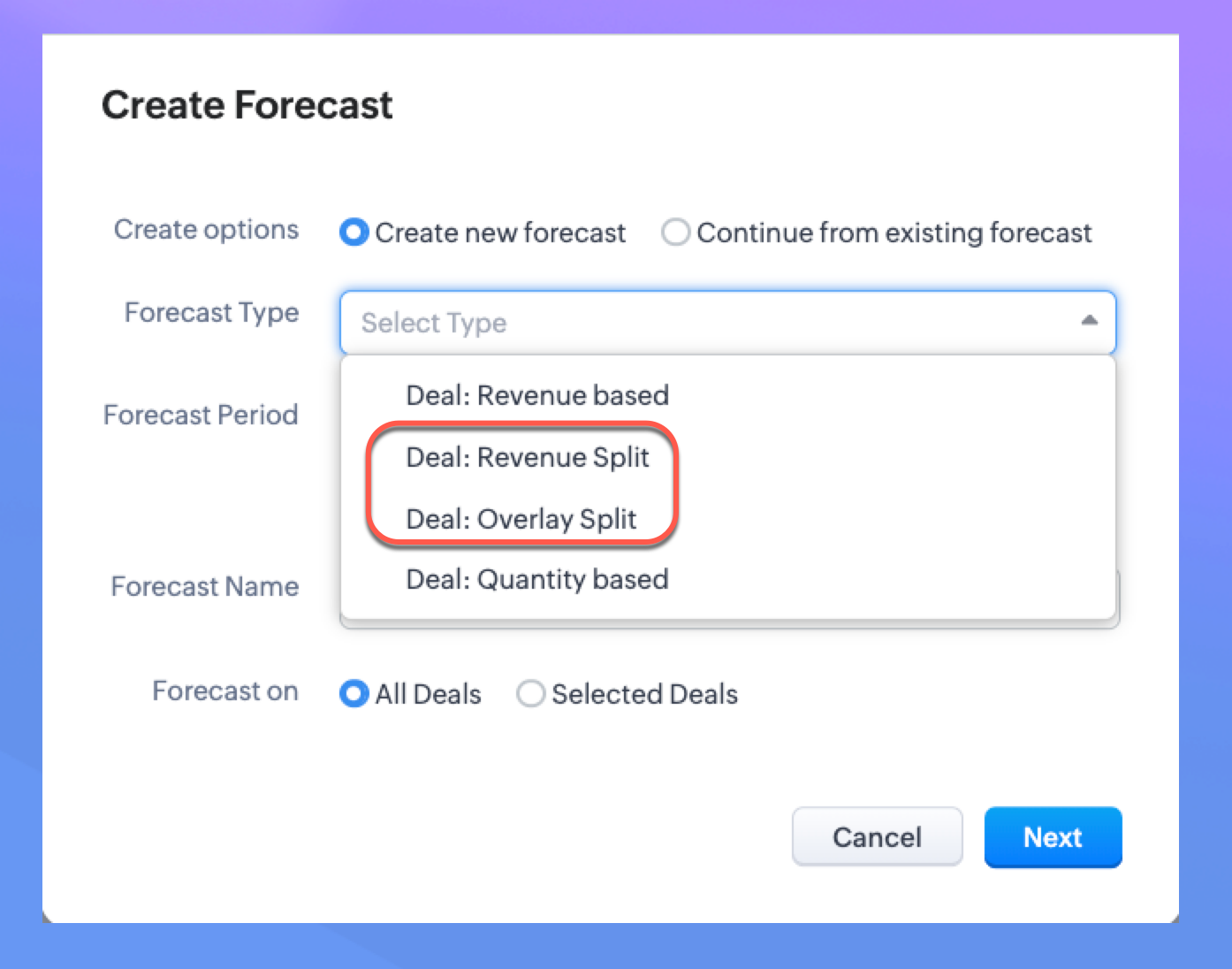
You can now create forecasts based on the splits configured
The introduction of Revenue Split and Overlay Split in Forecast Configuration can help organizations allocate credit fairly among team members who contribute to closing deals.
When a deal’s value is distributed among deal team members using the Revenue Split or Overlay Split, these allocations are automatically reflected in the forecast reports when a split-based forecast is created. By factoring in deal split, organizations get a clearer picture of individual and team contributions and thus can set more realistic targets, track sales team performance, and also distribute incentives effectively.
Since we have already defined the deal split, we can enable it in the configuration of Forecasts.

Note. Only the user with Module Customization can configure the Team Selling settings. Once configured, the users with Manage Deal Team profile permission can manage Deal Team related list and Preferred Deal Team (under Personal Settings).
Please check our help doc for more information on Team Selling and Deal Split.
Availability: Enterprise, Ultimate, CRMPlus, and Zoho One Enterprise editions.
Topic Participants
Anna Sakhi John
Subhash Kumar
Anna Sakhi
Sticky Posts
Presenting ABM for Zoho CRM: Expand and retain your customers with precision
Picture this scenario: You're a growing SaaS company ready to launch a powerful business suite, and are looking to gain traction and momentum. But as a business with a tight budget, you know acquiring new customers is slow, expensive, and often deliversGood news! Calendar in Zoho CRM gets a face lift
Dear Customers, We are delighted to unveil the revamped calendar UI in Zoho CRM. With a complete visual overhaul aligned with CRM for Everyone, the calendar now offers a more intuitive and flexible scheduling experience. What’s new? Distinguish activitiesCreate and populate a record in an instant: Introducing zero-shot field prompting to Zia's ICR
A couple of months ago, we upgraded our in-house AI image detection and validation tool, Zia Vision, with intelligent character recognition (ICR). By training Zia with sample images, you could create and enrich CRM records with data extracted from standardIn-person ZUG Meetups for Real Estate Professionals - US Q1 2026
The Real Estate Zoho User Group is going on a multi-city, in-person meetup tour across the US, and we’d love to see you there! These meetups are a great opportunity to: Connect with fellow real estate professionals using Zoho Share challenges and discoverNimble enhancements to WhatsApp for Business integration in Zoho CRM: Enjoy context and clarity in business messaging
Dear Customers, We hope you're well! WhatsApp for business is a renowned business messaging platform that takes your business closer to your customers; it gives your business the power of personalized outreach. Using the WhatsApp for Business integration
Recent Topics
[Zoho Writer Webinar] Learn how to simplify your day-to-day HR operations
Hi Zoho Writer users, We're excited to announce the Zoho Writer webinar for June 2024: Learn how Zoho Writer can simplify your day-to-day HR operations. This webinar will focus on how to automate your entire hiring process and generate various types ofBranding of native system emails
Make system emails adjustable in terms of branding. We want our system to be completely white label, because it is not a CRM anymore, it's way more than that. We are following the strategy of "CRM for everyone" to use the CRM in all departments, not onlySupport “Never End” Option for Recurring Meetings in Zoho Meeting
Hello Zoho Meeting Team, Hope you are doing well. We would like to request support for creating recurring meetings with no end date in Zoho Meeting. Currently, when scheduling a recurring meeting, Zoho Meeting requires us to select a specific end date.[Important announcement] Removal of Zoho Writer's DocuFiller Add-on
Hi users, Effective 21st Feb. 2025, we will be removing the DocuFiller add-on for Zoho Writer's Fillable Templates. From that point on, the add-on's functionalities, such as sharing or publishing fillable forms for data collection and receiving submissionsSend Automated WhatsApp Messages and Leverage the Improved WhatsApp Templates
Greetings, I hope all of you are doing well. We're excited to announce a major upgrade to Bigin's WhatsApp integration that brings more flexibility, interactivity, and automation to your customer messaging. WhatsApp message automation You can now useWeekly Tips: Manage External Images in Zoho Mail
When you receive emails every day, whether from clients, newsletters, or services, many of them contain external images that automatically load when you open the message. While this can make emails look more engaging, it can also impact your privacy andImplementing a Self-Invoicing/Vendor Portal in Zoho Creator
Hello Zoho Community / Creator Experts, We would like to build a Self-Invoicing Portal (Vendor Portal) in Zoho Creator for our external contractors. Our goal is to allow approved contractors to log in, submit their invoice details (hours worked, projectFunction #32: Schedule low stock notifications on a timely basis to specific users of the organization
Hello everyone and welcome back to our series! For a business that heavily relies on inventory, monitoring the stock levels and getting timely notifications of low stock items will ensure a smooth sail. Zoho Books allows you to always keep a check onIs it really true that I can't set the default 'deposit to' account in 2025?
I've been using Books for 7 years and the default account has never been a problem. I usually manually reconcile invoices and have never had a thought about which account. It has always been my account. However, I recently noticed that for the past 4SINCH HUB MESSAGEMEDIA with ZOHO DESK
1) what I need from MessageMedia, 2) what I want to confirm on the Zoho Desk Dev Forum. MessageMedia – needs and requirements Goal: Send SMS from a Zoho Desk widget for EU users. Auth: HTTP Basic (API Key + Secret). Keys must not live in the browser.Function #46: Auto-Calculate Sales Margin on a Quote
Welcome back everyone! Last week's function was about displaying the discount amount in words. This week, it's going to be about automatically calculating the sales margin for a particular quote, sales order or an invoice. Business scenario Where there is sales, there's also evaluation and competition between sales reps. A healthy rivalry helps to better motivate your employees to do smart work and close deals faster and more efficiently. But how does a sales rep get evaluated? 90% of the time, it'sInvalid URL error when embedded sending url into iframe for my website when using in another region
Hi team, My site is currently working on integrating your signature feature as part of the system functionality, it's working great but recently there's been a problem like this: After successfully creating the document, i will embed a sending url intoNew features released: Data from Picture for Web, Pattern Fill, and Translation in Zoho Sheet!
Hello Sheet users, In 2024, the Zoho Sheet team focused on research and development to bring new features that add to functionalities like productivity, data management, collaboration, and more. This year, we're all set to roll them out incrementallyKaizen #59 - Creating alerts and custom messages using Client Script
Hello everyone! We are happy to resume our Zoho CRM Developer Community series - The Kaizen series! Welcome back to the new start of Kaizen! This post is about Client Script and its simple use cases involving ZDK Client functions. What is Client Script?Universal search
Hi, it would be useful if the search bar was universal-so if you entered a term, it would bring up results from contacts, candidates, clients etc all at the same time (but broken down under the relevant headings)Attachment reminder?
My team and I often need to attach files to our messages, e.g. an explanatory screenshot or a shipping label. More often that I want to admit I mention the attachment but forget to actually attach it. Some email clients have a check-for-missing-attachmentsZIA in Zoho Cliq
Is It possible to use the ZIA feature from Zoho Analytics in the Zoho Cliq?Automating CRM backup storage?
Hi there, We've recently set up automatic backups for our Zoho CRM account. We were hoping that the backup functionality would not require any manual work on our end, but it seems that we are always required to download the backups ourselves, store them,Multiple upload field CRM
I desperately need the functionality to add more than one upload field to web to contacts form. How can I do this?Critical Need for Global Search in Zoho FSM
Hello Zoho FSM Team, We are currently in the process of deciding whether to fully transition to Zoho FSM for managing our field service operations. At present, our team actively uses Zoho Desk (with over 50 users) and Service Fusion, which we are consideringCollections Management: # 1 Payment Collection is All About Convenience
"Sir, can you come tomorrow? My manager wasn't available for the cheque sign-off", the customer said, avoiding eye contact. Ravi forced a polite smile, but inside, he felt a sense of defeat. He had already visited the customer's office twice in the lastCan the Product Image on the Quote Template be enlarged
Hello, I am editing the Quote Template and added ${Products.Product Image} to the line item and the image comes up but it is very tiny. Is there anyway that you can resize this to be larger? Any help would be great! ThanksAudio/video quality issues with Zoho Meeting – Any roadmap for improvement?
Hi Zoho Team, We’ve been using Zoho Meeting for both internal and external meetings, and unfortunately, the experience has been consistently poor. The video and audio quality are so unreliable that it often renders meetings ineffective—especially withCash based businesses cannot use the new fixed asset module
Hello all, If your bookkeeping is reporting in cash, you cannot use the new fixed acid module, as it does all the depreciation bookings accrual and not cash. This is definitive and you can't turn them into a cash booking. They will never appear in yourZoho Learn & Zoho Connect
Hi, Is there a way to sync the knowledge base we have in Zoho Learn with the manuals section is Zoho Connect? Thanks,Apply Payment Received Amount Zoho Books Invoice
Hello team here is the sample code How can apply the payment received record over a unpaid zoho books invoice. //......................... paymentID = customer_payment.get("payment_id"); organizationID = organization.get("organization_id"); paymentmaplist[Live Webinar] New in Zoho WorkDrive: AI enhancements, Data Loss Prevention, Version Controls, and more
Hello everyone, We're excited to bring you another round of powerful updates in Zoho WorkDrive! Join us on May 15 for an exclusive live webinar where we’ll unveil the latest features designed to enhance your team’s productivity, collaboration, and dataLive webinar: Streamlining legal operations: Leveraging Zoho WorkDrive for law firm success
Hello everyone, Managing legal documents across departments and jurisdictions can be complex, but it doesn’t have to be. Join us on March 6 for an exclusive webinar where we’ll show you how Zoho WorkDrive empowers legal teams to stay compliant, organized,Live Webinar: Optimizing back-office operations in the manufacturing industry to maximize profitability
Hello everyone, We’re excited to invite you to our upcoming live webinar on February 6! Discover how Zoho WorkDrive can help manufacturing businesses optimize back-office operations, improve efficiency, and boost profitability. Our product experts willLive webinar: 2024 recap of Zoho WorkDrive
Hello everyone, We’re excited to invite you to our year-end live webinar! This session will take you through the transformative features and updates we’ve introduced in Zoho WorkDrive this year, helping you streamline document management like never before.Live webinar: Explore WorkDrive's seamless integrations with key Zoho apps
Hello everyone, We’re excited to invite you to our upcoming live webinar, where we'll delve into the seamless integration of WorkDrive with other key Zoho applications! This is a fantastic opportunity to enhance your productivity and streamline your workflowsLive webinar: Getting the most out of WorkDrive in Zoho Workplace
Hello everyone, We’re excited to invite you to our upcoming live webinar, where we’ll explore how to maximize your use of WorkDrive as part of the Zoho Workplace bundle. This is a fantastic opportunity to elevate your productivity and streamline yourLive webinar: Mastering data migration, organization, and team collaboration
Hello everyone, We’re excited to invite you to our upcoming live webinar! Discover how to seamlessly migrate your data, optimize file organization, and boost team collaboration using Zoho WorkDrive’s powerful features. This is a fantastic opportunityJoin our live webinar: Explore the WorkDrive TrueSync application!
Hello everyone, We are thrilled to invite you to a live webinar focused on mastering the WorkDrive TrueSync application. Discover how to seamlessly sync your content between the cloud and your computer, ensuring smooth and efficient file management. OurZoho Creator customer portal limitation | Zoho One
I'm asking you all for any feedback as to the logic or reasoning behind drastically limiting portal users when Zoho already meters based on number of records. I'm a single-seat, Zoho One Enterprise license holder. If my portal users are going to add records, wouldn't that increase revenue for Zoho as that is how Creator is monetized? Why limit my customer portal to only THREE external users when more users would equate to more records being entered into the database?!? (See help ticket reply below.)Script Editor not an option
I am trying to apply a script to a sheet and Script Editor is not an option. I don't want to go outside Sheets to do this (like Creator) if it can be done inside Sheets.Envio de mails
Hola! No puedo enviar mails pero si recibirlos. No se como solucionarlo! Mi dominio es chidobebes.com.arERROR CODE :554 - Your access to this mail system has been rejected due to poor reputation of a domain used in message transfer
In my email configuration: The domain's MX Records are pointed to Zoho The domain's SPF Records have been pointed out successfully DKIM is enabled. DMARC Record is pointed for the domain. The domain name is digioorja.in. Still facing the issue of Error:This Operation has been restricted. Please contact support-as@zohocorp.com for further details
l tried to verify my domain (casalimpaeperfumada.com.br) and its shows this error: This Operation has been restricted. Please contact support-as@zohocorp.com for further details.SLOW EMAILS
Is there an issue with the Zoho server? For two days now I've been having issues with very long buffering. Please advise. Thank you.Next Page