Boost collaboration in your sales process with Team Selling and Deal revenue's Split—empowering your Zoho CRM for smarter teamwork!
 This feature has been released for a majority of users in all DCs. It will be released in a phased manner for the remaining users.
Hello everyone,
As you may all know, closing a deal is rarely a one-person effort. It often involves multiple teams - from pre-sales and marketing to legal and customer success - all working together to close a deal. However, traditional CRM structures only recognized the deal owner, which limited visibility and collaboration for all the other key contributors. Besides, there was no structured way to fairly attribute revenue among all the contributing members as well.
It is to address these challenges that we are excited to introduce Team Selling and Deal Split in the Deals Module. These features make teamwork easier by giving everyone involved access to important deal details while also making sure that their contributions get the credit they deserve.
Let's first look into Team Selling.
Team Selling allows organizations to bring together multiple contributors on a deal, providing them with appropriate access and visibility. Instead of relying solely on the deal owner, teams can now work together efficiently, adding notes, tracking progress, and also sharing important updates within the CRM.
Let's look at how it works for Zylker Inc, a leading SaaS company that specializes in cloud-based software solutions.
So generally, when closing high-value deals, multiple teams are involved, from sales and pre-sales to legal and customer success.
Let’s say the company is working on a huge deal with a large enterprise client. Traditionally, only the sales representative (who is the deal owner) would have access to all deal-related information. However, in reality, closing such a deal would require contributions from multiple teams.
So here’s how Team Selling would help Zylker Inc. streamline collaboration.
Pre-Sales Engineer - They provide technical expertise and demonstrate the workings of the product to the client. They help the client customize their CRM system to ensure it meets their needs and solves their problems.
Sales Engineer -They offer insights on integrations with the client’s existing systems and address any concerns that the client may have with regards to technical feasibility.
Marketing Specialist - They share use cases, case studies, and ROI data with the client in order to support the value proposition during discussions.
Legal and Compliance Advisor - They review and negotiate contract terms to meet the client’s compliance requirements.
Customer Success Manager - They ensure the client is confident about onboarding and also of long-term support post-sale.
To start with, the Account Executive sets up the deal in their CRM system. They then configure their preferred team in their personal settings. They assign roles and access levels based on each member's involvement, ensuring that each of them can view and contribute to the process of closing the deal as required.
The Pre-Sales Engineer gathers the client's requirements and shares insights with the team. The Sales Engineer demonstrates technical integrations, while the Marketing Specialist provides the client with material to reinforce the pitch. The Legal Advisor works closely with the client’s legal team in order to address compliance concerns. And as the deal approaches closure, the Customer Success Manager outlines a tailored onboarding plan to instill client confidence.
It is important to note that all team members log their notes, updates, and tasks in the CRM’s deal record. The Account Executive monitors the deal's progress, assigns follow-ups, and ensures everyone is aligned on the next steps.
- Navigate to Settings
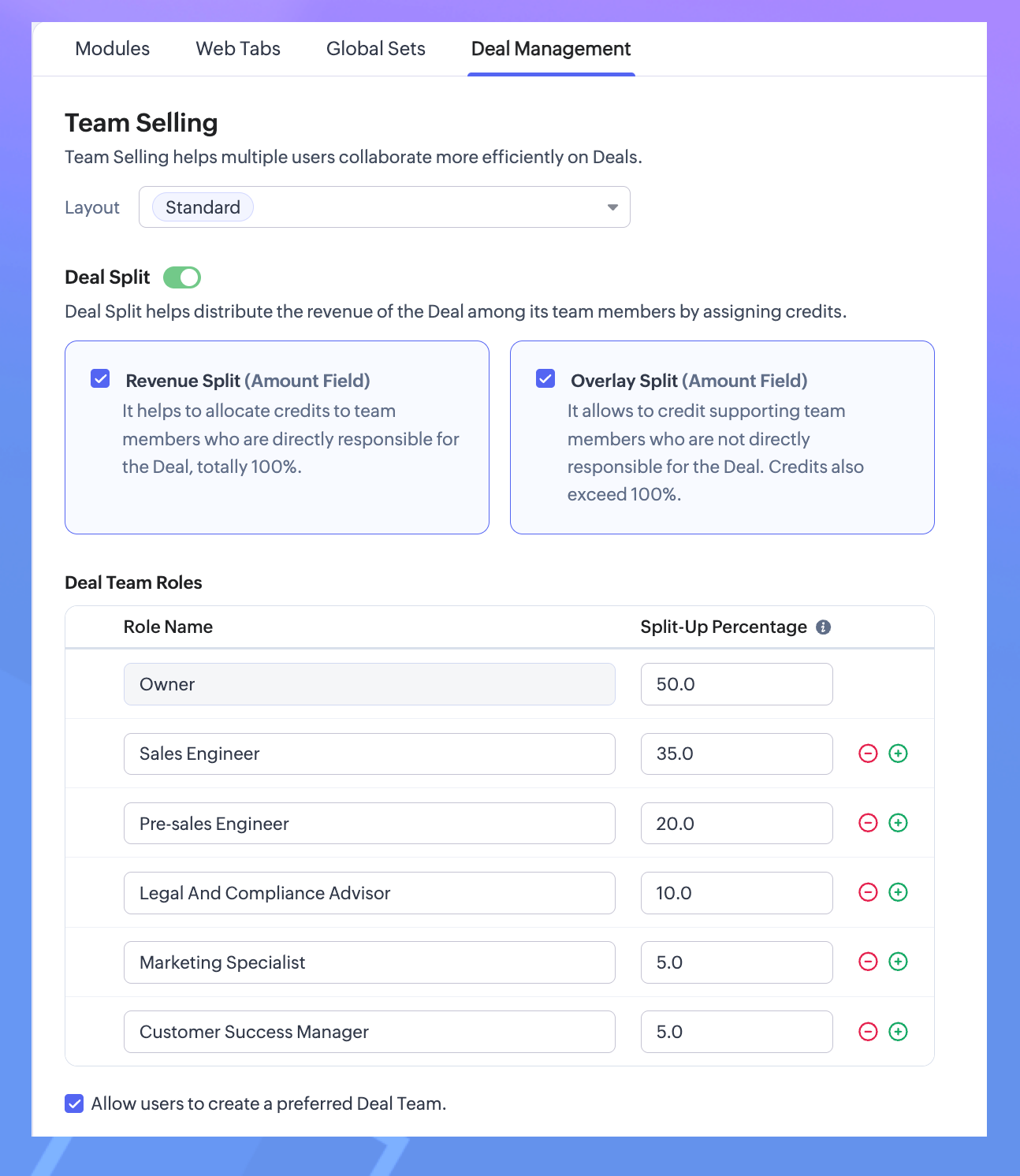
—Go to: Settings > Customization > Modules and Fields > Deal Management. - Configure Team Selling
—Select the layout.
—Add team roles such as pre-sales, consultants, or marketers.
—You can enable the preferred Deal Team option (if required).
—Save configuration.
3. Configure Preferred Deal Team.
—Go to: Settings > General > Personal Settings.
—Scroll down to Preferred Deal Team.
—Add Members.
Note. You can edit your preferred deal team - including adding or removing a member -or revoke the team altogether.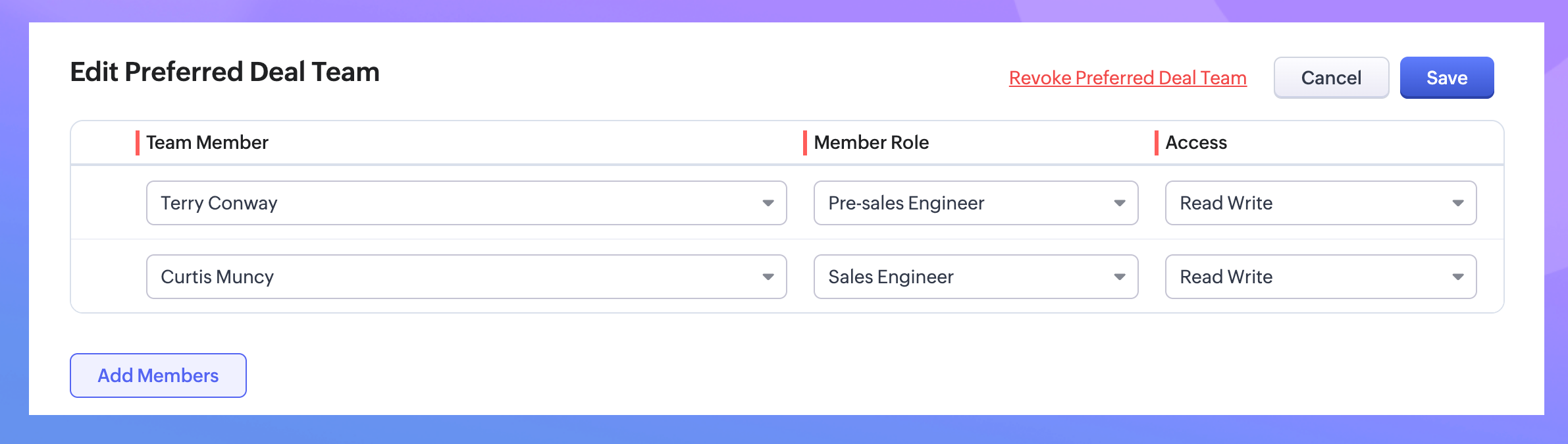
4. Add Team Members to a Deal.
—Go to the Deals Module.
—Open a deal record and locate the "Deal Team" related list under the stage history.
—Click Add Members, select users, assign roles (as configured earlier), and set access permissions.
—Another option would be to add the Preferred Deal Team (that you had previously created).
—Save your changes.
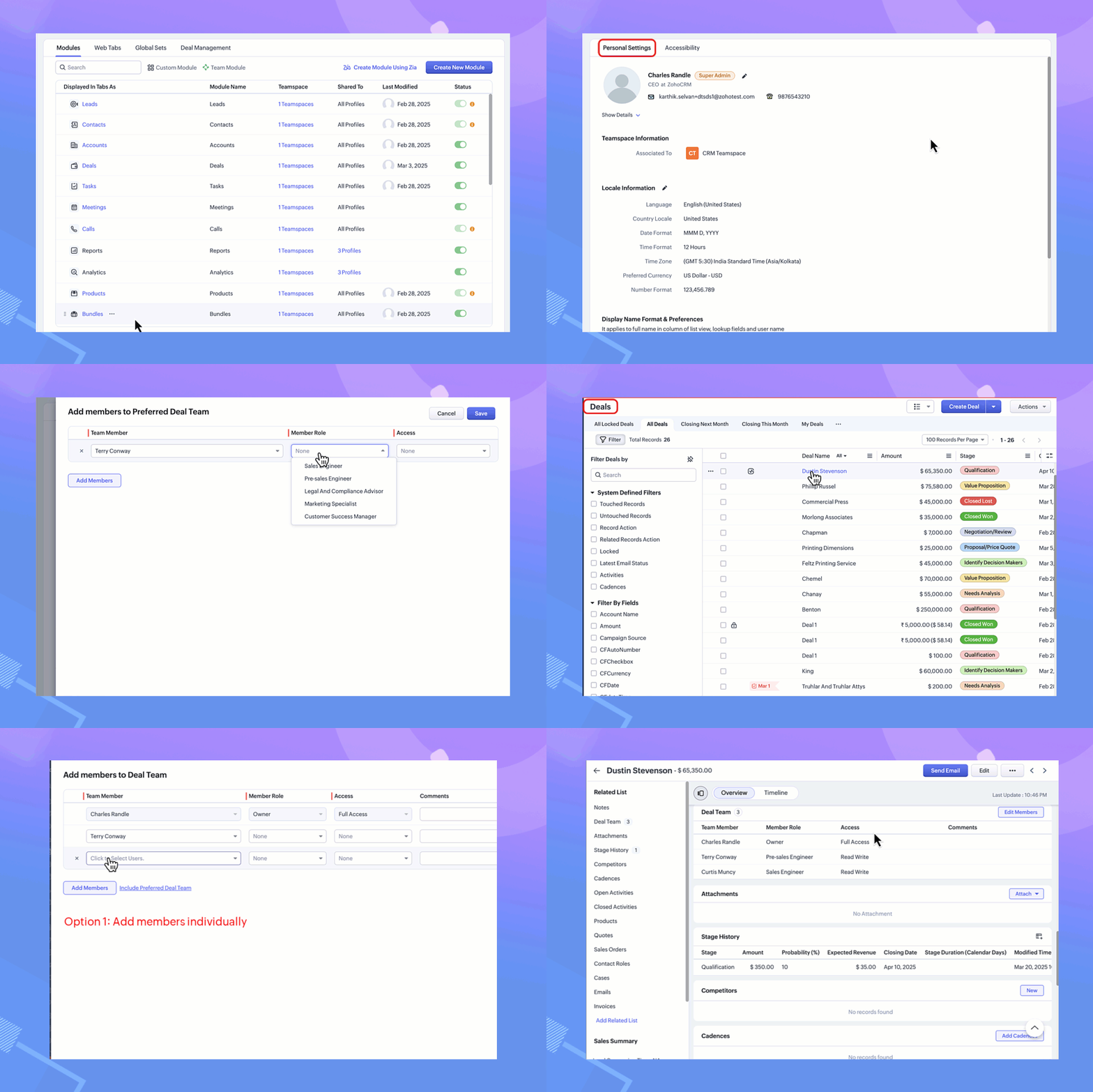
With these steps, team members can access the deal record based on their assigned roles and permissions.
Next, let us look at the second enhancement - Deal Split.
What is Deal Split?
Here again, the contributions of various team members involved in closing a deal are taken into consideration. Deals Split allows you to allocate the revenue that a company gets from a deal proportionally among team members based on their roles and efforts.
It is important to note here that there are two types of deals splits:
Revenue split: Members who contribute directly to the closure of the deal are included under revenue split. They will have their credits allocated directly based on the deal amount.
For example, the pre-sales engineer would get 10% for converting the cold call to a lead as they are directly contributing to the deal amount.
Note. As the maximum percentage revenue split is 100, the splits of all contributors can add to 100. Overlay split: Members who have an indirect influence on the deal are included under the overlay split.
Note. Here, their credits can be allocated as a percentage or the split amount itself. Since they do not contribute to the deal amount directly, their credits do not depend on the deal amount. Hence, the split up can amount up to 1000 per cent.
For example, a consultant who provides research or critical information on the customer. Another example of someone who comes under this category could be a legal team member who helps in drawing up the contract.
Note. As they probably work on fixed charges per hour, the overlay split can be entered as a percentage or an amount.- Navigate to Settings
Go to: Settings > Customization > Modules and Fields > Deal Management. - Toggle on the Deal Split
Select the type of split you would prefer for your organization.Revenue Split - It must add to a total of 100 per cent.Overlay Split - It can add up to 1000 per cent. - Customize your Deal Team roles with their split percentage.
- Save your changes.
- Go to the Deals Module.
- Open a deal record and locate the "Deal Team" related list.
- Click Add Members (to Revenue Split or Overlay Split) and select users, assign roles (as configured earlier), and set access permissions.
- Save your changes.
Note.The existing Deal Team related list records of the above selected layouts will now have the Deal Split records available.
If either one of the splits is enabled, the existing Deal Team members will be added to the enabled split automatically.
In case both the splits are enabled, the existing Deal Team members will be included to the Revenue Split. The user can proceed to edit and reassign the members to their required split.

Why use Team Selling and Deal Split?
- Improved Collaboration: Ensures seamless teamwork by involving all contributors in a deal.
- Transparency: Gives team members appropriate access to deal records for better coordination.
- Fair Recognition: Distributes revenue based on individual contributions, enhancing accountability.
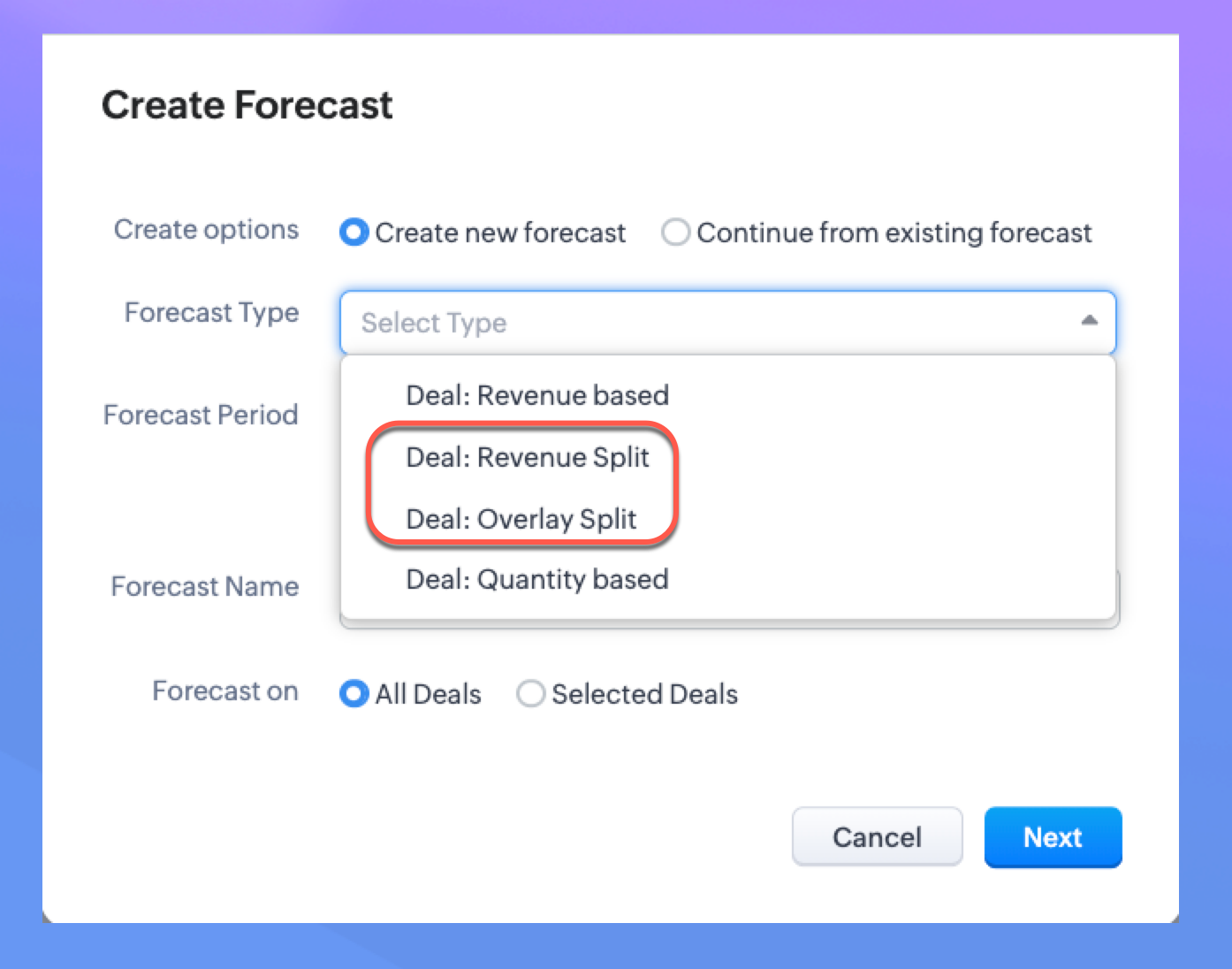
You can now create forecasts based on the splits configured
The introduction of Revenue Split and Overlay Split in Forecast Configuration can help organizations allocate credit fairly among team members who contribute to closing deals.
When a deal’s value is distributed among deal team members using the Revenue Split or Overlay Split, these allocations are automatically reflected in the forecast reports when a split-based forecast is created. By factoring in deal split, organizations get a clearer picture of individual and team contributions and thus can set more realistic targets, track sales team performance, and also distribute incentives effectively.
Since we have already defined the deal split, we can enable it in the configuration of Forecasts.

Note. Only the user with Module Customization can configure the Team Selling settings. Once configured, the users with Manage Deal Team profile permission can manage Deal Team related list and Preferred Deal Team (under Personal Settings).
Please check our help doc for more information on Team Selling and Deal Split.
Availability: Enterprise, Ultimate, CRMPlus, and Zoho One Enterprise editions.
Topic Participants
Anna Sakhi John
Subhash Kumar
Anna Sakhi
Sticky Posts
Presenting ABM for Zoho CRM: Expand and retain your customers with precision
Picture this scenario: You're a growing SaaS company ready to launch a powerful business suite, and are looking to gain traction and momentum. But as a business with a tight budget, you know acquiring new customers is slow, expensive, and often deliversGood news! Calendar in Zoho CRM gets a face lift
Dear Customers, We are delighted to unveil the revamped calendar UI in Zoho CRM. With a complete visual overhaul aligned with CRM for Everyone, the calendar now offers a more intuitive and flexible scheduling experience. What’s new? Distinguish activitiesCreate and populate a record in an instant: Introducing zero-shot field prompting to Zia's ICR
A couple of months ago, we upgraded our in-house AI image detection and validation tool, Zia Vision, with intelligent character recognition (ICR). By training Zia with sample images, you could create and enrich CRM records with data extracted from standardIn-person ZUG Meetups for Real Estate Professionals - US Q1 2026
The Real Estate Zoho User Group is going on a multi-city, in-person meetup tour across the US, and we’d love to see you there! These meetups are a great opportunity to: Connect with fellow real estate professionals using Zoho Share challenges and discoverNimble enhancements to WhatsApp for Business integration in Zoho CRM: Enjoy context and clarity in business messaging
Dear Customers, We hope you're well! WhatsApp for business is a renowned business messaging platform that takes your business closer to your customers; it gives your business the power of personalized outreach. Using the WhatsApp for Business integration
Recent Topics
ERROR CODE :554 - Your access to this mail system has been rejected due to poor reputation of a domain used in message transfer
In my email configuration: The domain's MX Records are pointed to Zoho The domain's SPF Records have been pointed out successfully DKIM is enabled. DMARC Record is pointed for the domain. The domain name is digioorja.in. Still facing the issue of Error:This Operation has been restricted. Please contact support-as@zohocorp.com for further details
l tried to verify my domain (casalimpaeperfumada.com.br) and its shows this error: This Operation has been restricted. Please contact support-as@zohocorp.com for further details.SLOW EMAILS
Is there an issue with the Zoho server? For two days now I've been having issues with very long buffering. Please advise. Thank you.POP3 authentication error - SOLVED
Just in case others are as forgetful as me ... As Zoho has changed the POP server for personal and free organisational users, I needed to change the POP server on my email client. This failed persistently but eventually I remembered that I had chosenAdd Zoho One Groups/Departments to Shared Mailbox Access
Hi, I hope you're doing well. Currently, in Zoho Mail, I can manually add specific users or the entire organization to a shared mailbox. However, there is no option to add Zoho One groups or departments. Feature Request: We would like the ability to assignAllow Filters with Only Special Characters in Zoho Mail
Hi Zoho Mail Team, I hope you're doing well. We have noticed that currently, Zoho Mail does not allow creating filter criteria using only special characters, such as = or #. However, there are scenarios where such a filter is necessary. For example: FilteringHow to save email as PDF?
I saw 2 previous threads about this. One is from 14 years ago. The other was closed as "answered" a year ago but the feature was never implemented: https://help.zoho.com/portal/en/community/topic/how-to-download-save-emails-as-pdf Is the "save as PDF"Flexible plans
Hi, I have a Workplace Standard subscription. On Zoho's website, it mentions that with the annual plan it's possible to have multiple plans under the same organization—for example, Workplace Standard and Mail Lite. However, I can’t find a way to do thisWeekly Tips : Teamwork made easy with Multiple Assignees
Let's say you are working on a big project where different parts of a single task need attention from several people at the same time—like reviewing a proposal that requires input from sales, legal, and finance teams. Instead of sending separate remindersCannot give public access to Html Snippet in Zoho Creator Page
Hi, I created a form in Zoho Creator and published it. The permalink works but I want to override the css of the form. (style based URL parameters is not good enough) So I created a page and added an Html snippet. I can now override the css, which isWeekly Tips : Customize your Compose for a smoother workflow
You are someone who sends a lot of emails, but half the sections in the composer just get in your way — like fields you never use or sections that clutter the space. You find yourself always hunting for the same few formatting tools, and the layout justAccounting on the Go Series-43:Enhancing Your Reporting Efficiency with Dashboard Filter State Retention
Hello everyone! Welcome back to our series on Zoho Books mobile app features. Today, we will talk about a feature that yet again helps you focus on work that really matters-Dashboard Filter State Retention. Imagine you're working on your Zoho Books dashboard,Zoho books/payroll tax payment
I accidentally made a second payment to my taxes for $300 which is reflected in my bank account and therefore on Zoho books but I can not match it to any transactions because its not reflected in payroll as a tax payment. Is there a way to add an extraI can't renew the Finance Plus subscription
I tried to renew the Finance Plus subscription but it keeps reloading the same page over and over when ever I click on "Renew Subscription" buttonEstimate vs Quote
they are different. Quote is for 1 piece price + other charges. Estimate is for total quantity to be ordered. The gross total amount of the Estimate is the amount payable. Replacing Estimate as Quote is not understandable because they are different. InAccounting on the Go Series-47: Effortless GSTIN Management- Auto Populate TaxPayer Details in Zoho Books Mobile App
Hello everyone, Welcome back! Today, we're focusing on a feature specifically designed for our Indian users in the Zoho Books-Indian edition, particularly those who deal with GST compliance regularly. We understand the importance of accurate and efficientAccounting on the Go Series-48: Enhance Accuracy with Custom Work Week Start Days in Zoho Books iOS app
Hello everyone, Welcome back! We’re here with another feature spotlight that might seem small but can have a big impact on your daily routine: setting the first day of the work week in the Zoho Books iOS app. Imagine this: You’re a business owner whoTime to Get Paid Report in ZBooks
Hello, One of our customers who has 25 different companies around the world gets 60 days to make payments. Unfortunately, the subject report does not report an average time to get paid (in days) or the ability to look at a custom period of time. CurrentlyHow to prepare a balance sheet for a company that has no operations yet?
.Project Billing Method from Zoho People
Normaly our customers use Zoho Projects to manage projects and timesheet that are being charge to the customer. Using the integration from Zoho Project we can have projects base on different billing method. For example most of our customer use HourlyZoho Books-Accounting on the Go Series!
Dear users, Continuing in the spirit of our 'Function Fridays' series, where we've been sharing custom function scripts to automate your back office operations, we're thrilled to introduce our latest initiative – the 'Zoho Books-Accounting on the Go Series'.Zoho Books | Product updates | July 2025
Hello users, We’ve rolled out new features and enhancements in Zoho Books. From plan-based trials to the option to mark PDF templates as inactive, explore the updates designed to enhance your bookkeeping experience. Introducing Plan Based Trials in ZohoZoho Books | Product updates | August 2025
Hello users, We’ve rolled out new features and enhancements in Zoho Books. From the right sidebar where you can manage all your widgets, to integrating Zoho Payments feeds in Zoho Books, explore the updates designed to enhance your bookkeeping experience.Update or Upsert Records Using Unique Custom Fields
Hello customers, We've enhanced the process of updating records via API. You can now: Update records using unique custom fields Upsert records using unique custom fields Note: Both the features are available in the Zoho Books and Zoho Inventory apps.[Webinar] Understanding the New Invoice Management Systems
Join industry expert CA Pritam Mahure as he discusses the importance of the new Invoice Management System (IMS) and its impact on taxpayers. Topics Covered: - Concept of IMS and pre-requisites - Applicability and Restrictions on Invoices/Records for IMSAccounting on the Go Series-51: Effortless Transactions: Create and Manage Directly from Uploaded Documents
Hello everyone, We’re back with another useful feature that makes working with Zoho Books even easier! This time, we’re simplifying the process of creating transactions directly from uploaded documents. Imagine you’re out meeting clients, and you receive[WEBINAR] Effortless migration to the VAT-ready South Africa edition of Zoho Books
Hello there, If you are one of our early users from South Africa using the older edition of Zoho Books, this webinar is for you! We have now launched a new South Africa edition with VAT support, to which you can migrate your existing data. Join this session,Accounting on the Go Series-52: Capture Receipts on the Go, Right from Your Lock Screen.
Hello everyone, We’re excited to introduce a feature that will make your life so much easier—especially for those constantly on the move! With iOS 18, Zoho Books now allows you to capture receipts directly from your lock screen using Locked Camera Capture.AT - Austrian Accountant familiar with ZOHO
Hello, as I have just migrated to ZOHO and unfortunately have to change my accountant next year, I am looking for an accountant (for Austria) who already has experience with Zoho or who already manages clients using Zoho books. Is there anyone here fromZoho Workflow issue
Dear Zoho Users, I have Zoho Books premium subscription, I have created a email alerts workflow for Invoices and following are the configurations for the same: 1. Workflow for Invoice module 2. Choose when to tigger - created or edited 3. Filter the triggersAccounting on the Go Series-53: Swift Transactions at Your Fingertips-Zoho Books in Your Control Center
Hello again, We’ve all had those moments where you need to get something done quickly, but the process of unlocking your phone, finding the app, and navigating through menus slows you down. Now, with Zoho Books integrated into the iOS 18 Control Center,Update on PDF Download Issues Caused by Antivirus Software
Hello users, Antivirus software is designed to protect your computer from malicious software and threats. However, they may mistakenly identify legitimate files and software as threats at times. This is known as a false positive. We have received reportsAccounting on the Go Series-54: Effortlessly Find Your Zoho Books Customers in Your Phone’s Contact List
Hello Zoho Books users! How are you all ? We’re happy to share a handy new feature in Zoho Books mobile app. Now, you can access your Zoho Books customers right from your phone's contact list, making it easier to stay connected on the go. How this canIntegration of Phase 2 -e-invoicing- KSA
Zoho Team, I want to get a training of integration of phase 2 invoicing KSA in zoho step by step.I can not save new invoice
Hello Now I am trying to save a new invoice but I can not save it because showing unpaid invoice warning which are not overdue. Please let me know how to skip unpaid invoice warning letter and save new invoice. Thank youADD CONDITIONS FOR FIELD IN ZOHO BOOKS TEMPLATE CUSTOMAZATION
HELLO I WANT TO ADD CONDITIONS FOR FIELD IN ZOHO BOOKS TEMPLATE CUSTOMAZATION FOR SALES ORDER . I HAVE SET %StatusStamp% IF APPROVAL I WANT THAT TEXT TO BE DISPLAYED WITH GREEN COLOR OTHERWISE OF OTHERR STATUS RED COLOR AS SHOWN IN CODE BELOW . BUT ITAccounting on the Go Series-55: Seamlessly Add New Vendors While Creating Transactions from Scanned Documents
Hi there! We’ve made handling documents and vendors in Zoho Books even simpler. Now, when you upload a document and scan it, if the app detects a vendor that isn’t already in your organization, you don’t have to leave the page to add them manually. WithAccounting on the Go Series-57: Effortlessly Add and Manage Bank Accounts from the Zoho Books Mobile App
Hi all, Great news for our users in the US and Canada! Managing your finances just got a whole lot easier. Zoho Books has always made it seamless to integrate bank accounts and fetch feeds automatically. Now, we’re taking it up a notch—directly from theAccounting on the Go Series:58-Effortless Compliance: Download XML for Invoices & Credit Notes on Mobile
Hi there! In Mexico, XML files are crucial for electronic invoicing and fulfilling SAT (Tax Administration Service) requirements. These files ensure your transactions are accurately recorded and tax-compliant. Now, you don’t need to rely on the web appAuto Generated Invoice number YEAR
Auto Generated Invoice number shows transaction year as 25 even though it's 24 still.Next Page