Boost collaboration in your sales process with Team Selling and Deal revenue's Split—empowering your Zoho CRM for smarter teamwork!
 This feature has been released for a majority of users in all DCs. It will be released in a phased manner for the remaining users.
Hello everyone,
As you may all know, closing a deal is rarely a one-person effort. It often involves multiple teams - from pre-sales and marketing to legal and customer success - all working together to close a deal. However, traditional CRM structures only recognized the deal owner, which limited visibility and collaboration for all the other key contributors. Besides, there was no structured way to fairly attribute revenue among all the contributing members as well.
It is to address these challenges that we are excited to introduce Team Selling and Deal Split in the Deals Module. These features make teamwork easier by giving everyone involved access to important deal details while also making sure that their contributions get the credit they deserve.
Let's first look into Team Selling.
Team Selling allows organizations to bring together multiple contributors on a deal, providing them with appropriate access and visibility. Instead of relying solely on the deal owner, teams can now work together efficiently, adding notes, tracking progress, and also sharing important updates within the CRM.
Let's look at how it works for Zylker Inc, a leading SaaS company that specializes in cloud-based software solutions.
So generally, when closing high-value deals, multiple teams are involved, from sales and pre-sales to legal and customer success.
Let’s say the company is working on a huge deal with a large enterprise client. Traditionally, only the sales representative (who is the deal owner) would have access to all deal-related information. However, in reality, closing such a deal would require contributions from multiple teams.
So here’s how Team Selling would help Zylker Inc. streamline collaboration.
Pre-Sales Engineer - They provide technical expertise and demonstrate the workings of the product to the client. They help the client customize their CRM system to ensure it meets their needs and solves their problems.
Sales Engineer -They offer insights on integrations with the client’s existing systems and address any concerns that the client may have with regards to technical feasibility.
Marketing Specialist - They share use cases, case studies, and ROI data with the client in order to support the value proposition during discussions.
Legal and Compliance Advisor - They review and negotiate contract terms to meet the client’s compliance requirements.
Customer Success Manager - They ensure the client is confident about onboarding and also of long-term support post-sale.
To start with, the Account Executive sets up the deal in their CRM system. They then configure their preferred team in their personal settings. They assign roles and access levels based on each member's involvement, ensuring that each of them can view and contribute to the process of closing the deal as required.
The Pre-Sales Engineer gathers the client's requirements and shares insights with the team. The Sales Engineer demonstrates technical integrations, while the Marketing Specialist provides the client with material to reinforce the pitch. The Legal Advisor works closely with the client’s legal team in order to address compliance concerns. And as the deal approaches closure, the Customer Success Manager outlines a tailored onboarding plan to instill client confidence.
It is important to note that all team members log their notes, updates, and tasks in the CRM’s deal record. The Account Executive monitors the deal's progress, assigns follow-ups, and ensures everyone is aligned on the next steps.
- Navigate to Settings
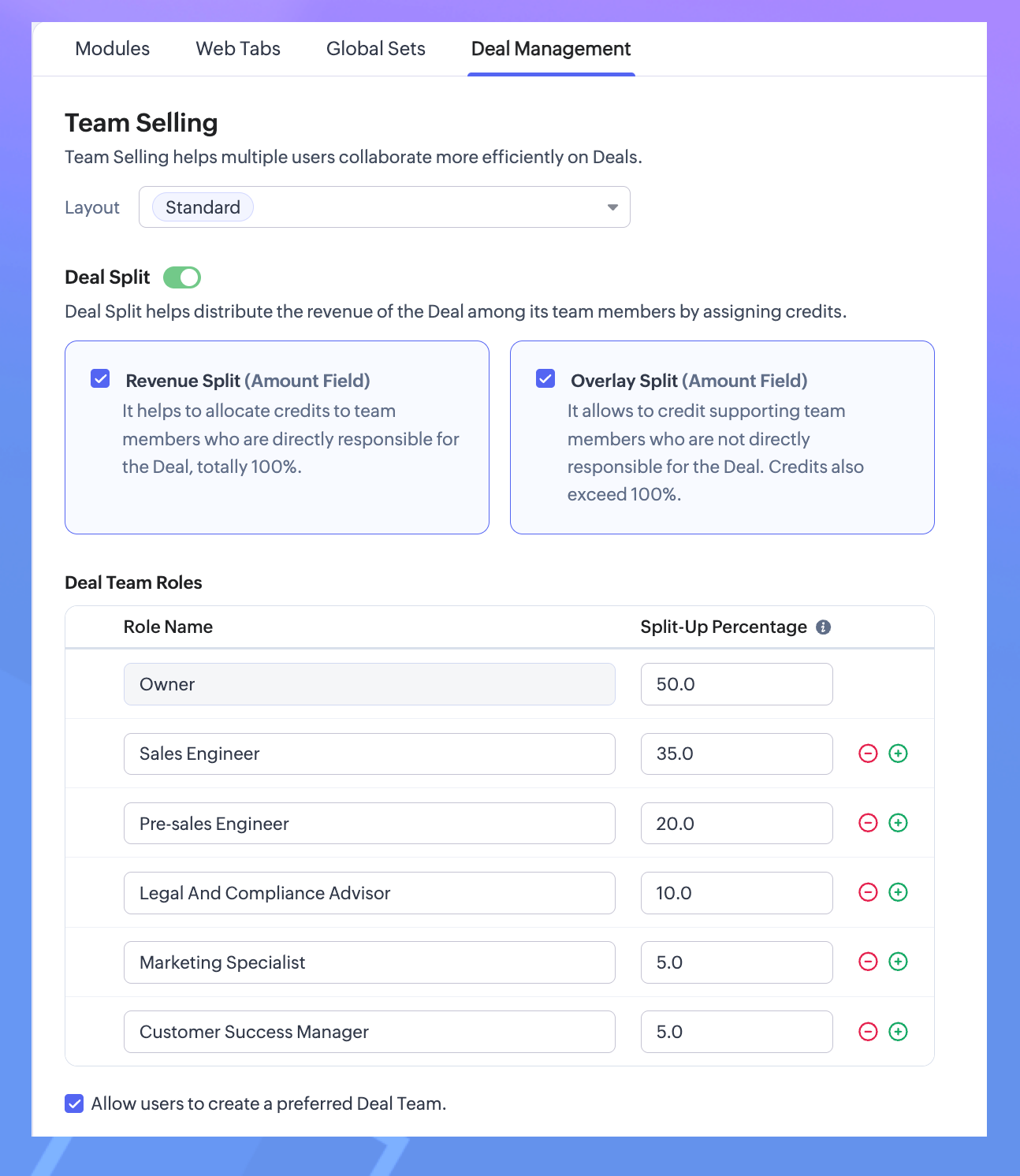
—Go to: Settings > Customization > Modules and Fields > Deal Management. - Configure Team Selling
—Select the layout.
—Add team roles such as pre-sales, consultants, or marketers.
—You can enable the preferred Deal Team option (if required).
—Save configuration.
3. Configure Preferred Deal Team.
—Go to: Settings > General > Personal Settings.
—Scroll down to Preferred Deal Team.
—Add Members.
Note. You can edit your preferred deal team - including adding or removing a member -or revoke the team altogether.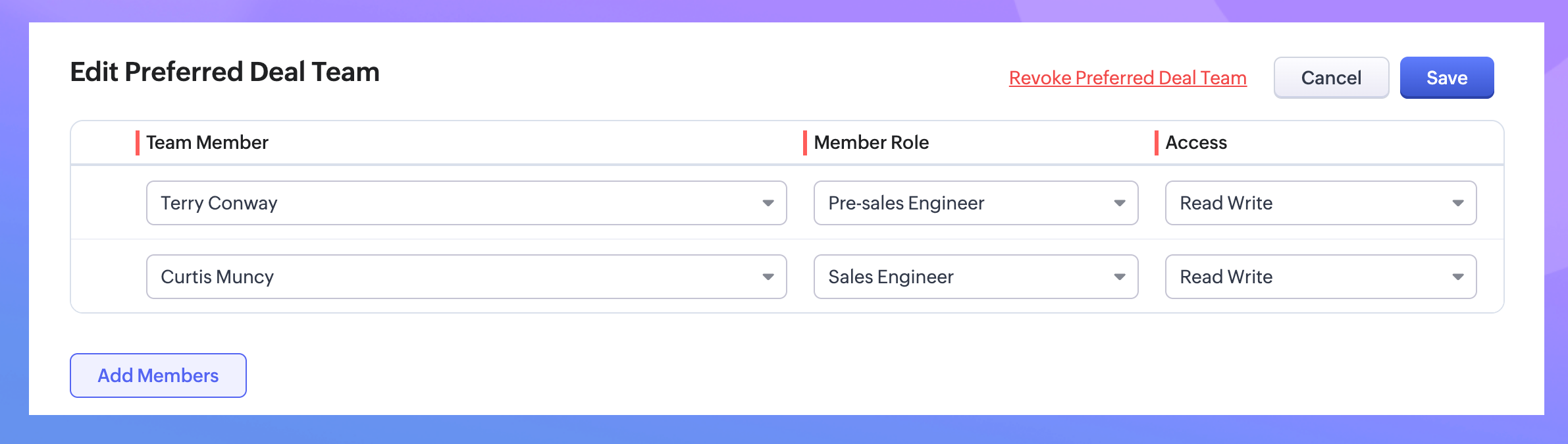
4. Add Team Members to a Deal.
—Go to the Deals Module.
—Open a deal record and locate the "Deal Team" related list under the stage history.
—Click Add Members, select users, assign roles (as configured earlier), and set access permissions.
—Another option would be to add the Preferred Deal Team (that you had previously created).
—Save your changes.
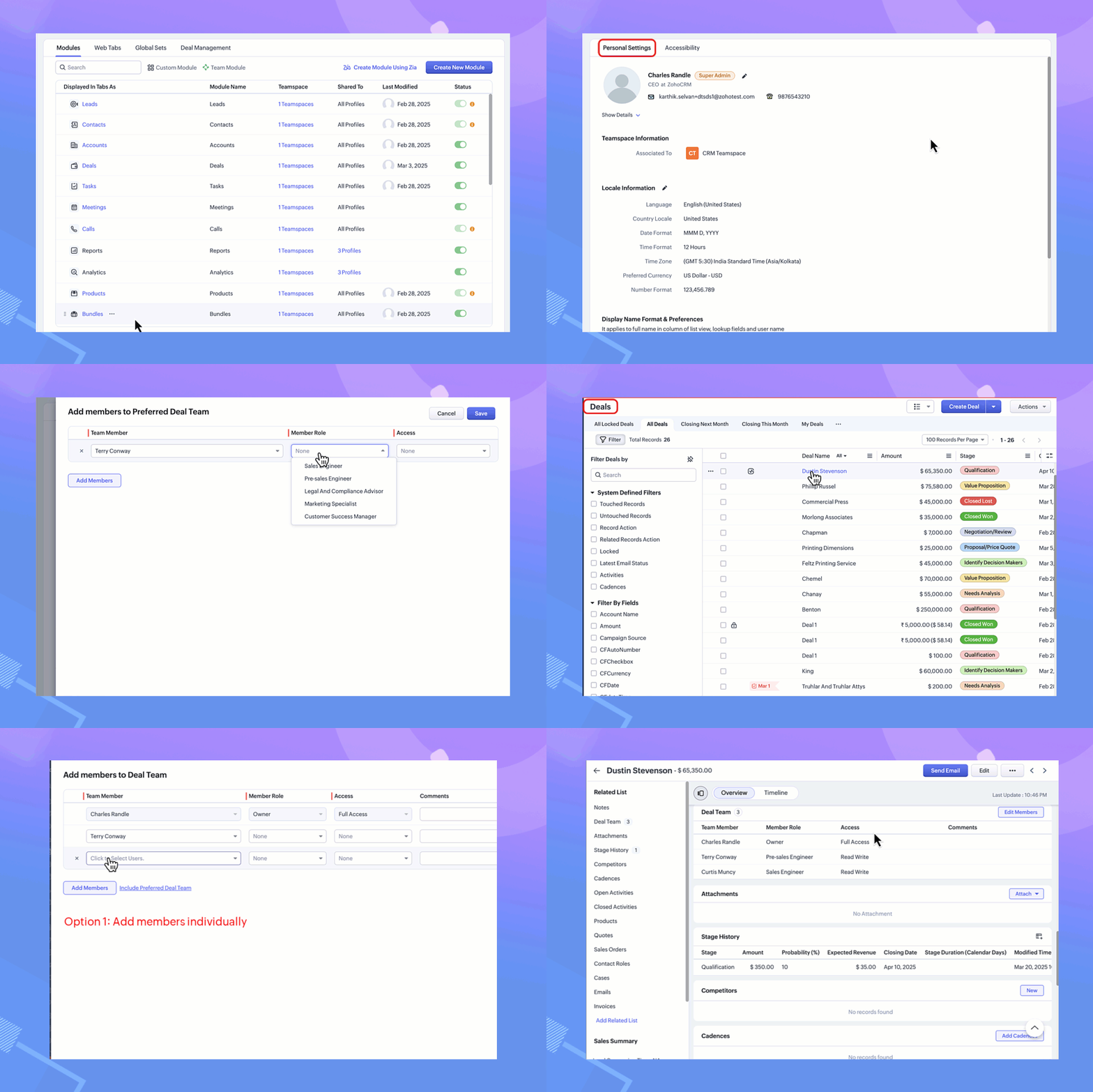
With these steps, team members can access the deal record based on their assigned roles and permissions.
Next, let us look at the second enhancement - Deal Split.
What is Deal Split?
Here again, the contributions of various team members involved in closing a deal are taken into consideration. Deals Split allows you to allocate the revenue that a company gets from a deal proportionally among team members based on their roles and efforts.
It is important to note here that there are two types of deals splits:
Revenue split: Members who contribute directly to the closure of the deal are included under revenue split. They will have their credits allocated directly based on the deal amount.
For example, the pre-sales engineer would get 10% for converting the cold call to a lead as they are directly contributing to the deal amount.
Note. As the maximum percentage revenue split is 100, the splits of all contributors can add to 100. Overlay split: Members who have an indirect influence on the deal are included under the overlay split.
Note. Here, their credits can be allocated as a percentage or the split amount itself. Since they do not contribute to the deal amount directly, their credits do not depend on the deal amount. Hence, the split up can amount up to 1000 per cent.
For example, a consultant who provides research or critical information on the customer. Another example of someone who comes under this category could be a legal team member who helps in drawing up the contract.
Note. As they probably work on fixed charges per hour, the overlay split can be entered as a percentage or an amount.- Navigate to Settings
Go to: Settings > Customization > Modules and Fields > Deal Management. - Toggle on the Deal Split
Select the type of split you would prefer for your organization.Revenue Split - It must add to a total of 100 per cent.Overlay Split - It can add up to 1000 per cent. - Customize your Deal Team roles with their split percentage.
- Save your changes.
- Go to the Deals Module.
- Open a deal record and locate the "Deal Team" related list.
- Click Add Members (to Revenue Split or Overlay Split) and select users, assign roles (as configured earlier), and set access permissions.
- Save your changes.
Note.The existing Deal Team related list records of the above selected layouts will now have the Deal Split records available.
If either one of the splits is enabled, the existing Deal Team members will be added to the enabled split automatically.
In case both the splits are enabled, the existing Deal Team members will be included to the Revenue Split. The user can proceed to edit and reassign the members to their required split.

Why use Team Selling and Deal Split?
- Improved Collaboration: Ensures seamless teamwork by involving all contributors in a deal.
- Transparency: Gives team members appropriate access to deal records for better coordination.
- Fair Recognition: Distributes revenue based on individual contributions, enhancing accountability.
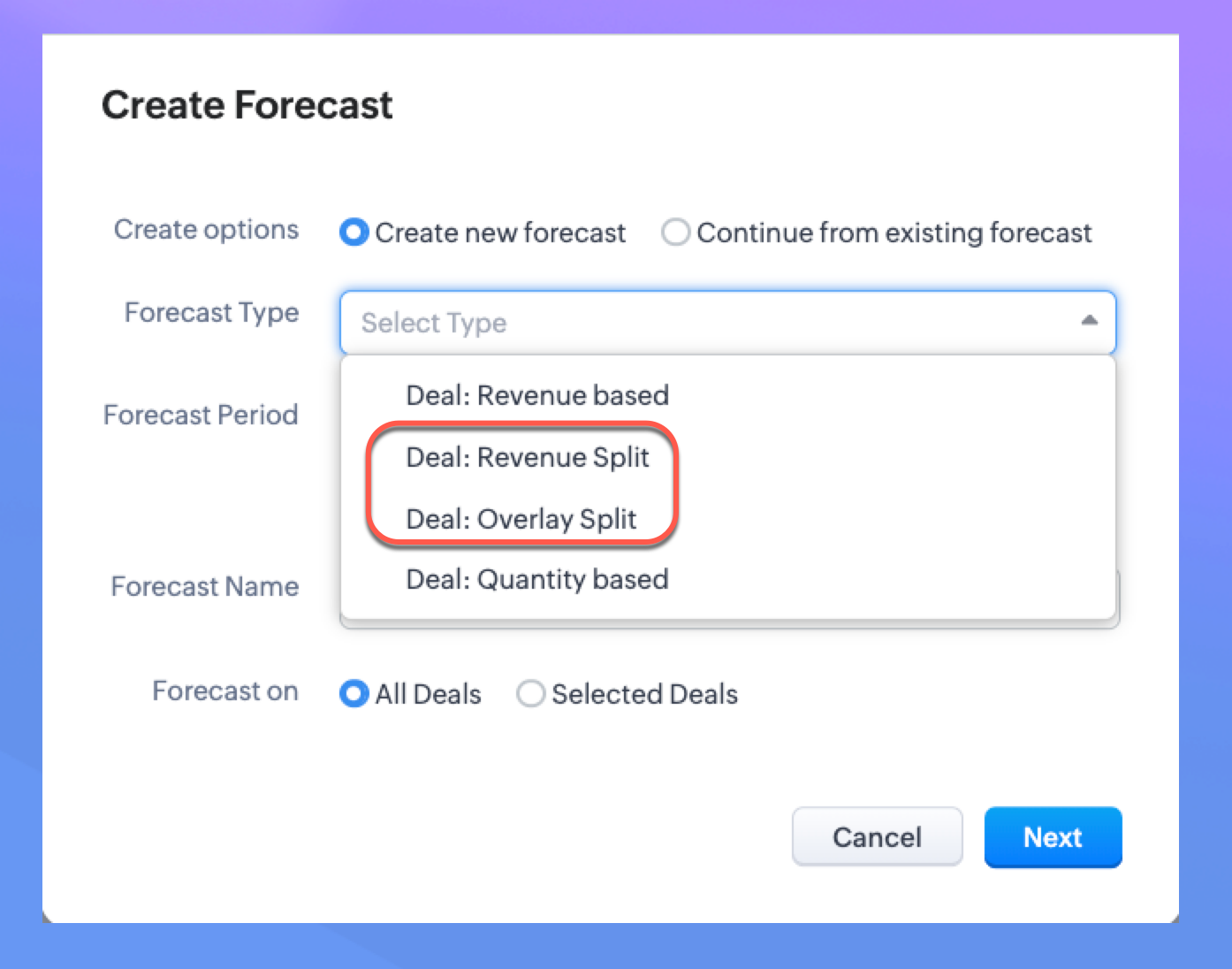
You can now create forecasts based on the splits configured
The introduction of Revenue Split and Overlay Split in Forecast Configuration can help organizations allocate credit fairly among team members who contribute to closing deals.
When a deal’s value is distributed among deal team members using the Revenue Split or Overlay Split, these allocations are automatically reflected in the forecast reports when a split-based forecast is created. By factoring in deal split, organizations get a clearer picture of individual and team contributions and thus can set more realistic targets, track sales team performance, and also distribute incentives effectively.
Since we have already defined the deal split, we can enable it in the configuration of Forecasts.

Note. Only the user with Module Customization can configure the Team Selling settings. Once configured, the users with Manage Deal Team profile permission can manage Deal Team related list and Preferred Deal Team (under Personal Settings).
Please check our help doc for more information on Team Selling and Deal Split.
Availability: Enterprise, Ultimate, CRMPlus, and Zoho One Enterprise editions.
Topic Participants
Anna Sakhi John
Subhash Kumar
Anna Sakhi
Sticky Posts
Presenting ABM for Zoho CRM: Expand and retain your customers with precision
Picture this scenario: You're a growing SaaS company ready to launch a powerful business suite, and are looking to gain traction and momentum. But as a business with a tight budget, you know acquiring new customers is slow, expensive, and often deliversGood news! Calendar in Zoho CRM gets a face lift
Dear Customers, We are delighted to unveil the revamped calendar UI in Zoho CRM. With a complete visual overhaul aligned with CRM for Everyone, the calendar now offers a more intuitive and flexible scheduling experience. What’s new? Distinguish activitiesCreate and populate a record in an instant: Introducing zero-shot field prompting to Zia's ICR
A couple of months ago, we upgraded our in-house AI image detection and validation tool, Zia Vision, with intelligent character recognition (ICR). By training Zia with sample images, you could create and enrich CRM records with data extracted from standardIn-person ZUG Meetups for Real Estate Professionals - US Q1 2026
The Real Estate Zoho User Group is going on a multi-city, in-person meetup tour across the US, and we’d love to see you there! These meetups are a great opportunity to: Connect with fellow real estate professionals using Zoho Share challenges and discoverNimble enhancements to WhatsApp for Business integration in Zoho CRM: Enjoy context and clarity in business messaging
Dear Customers, We hope you're well! WhatsApp for business is a renowned business messaging platform that takes your business closer to your customers; it gives your business the power of personalized outreach. Using the WhatsApp for Business integration
Recent Topics
Claude + MCP Server + Zoho CRM Integration – AI-Powered Sales Automation
Hello Zoho Community 👋 I’m excited to share a recent integration we’ve worked on at OfficehubTech: ✅ Claude + MCP Server + Zoho CRM This integration connects Zoho CRM with Claude AI through our custom MCP Server, enabling intelligent AI-driven responsesHow can I see content of system generated mails from zBooks?
System generated mails for offers or invices appear in the mail tab of the designated customer. How can I view the content? It also doesn't appear in zMail sent folder.Limitations on editing a message in Cliq
Hi I've checked the documentations and there's no mention of how many times a message can be edited. When trying with code, I get various numbers such as ~1000 edits or so. Please mention if there's a limit on how many times one can change a message viaNarrative 10: Assignment Rules - Streamlining Ticket Management
Behind the scenes of a successful ticketing system: BTS Series Narrative 10: Assignment Rules - Streamlining Ticket Management In the complex world of customer support, a flood of incoming tickets can hit the help desk in seconds. Businesses must do moreCustom form - Duplicate Value Present
I am new to Zoho People. I create a new form on Zoho People quite simple. A date (by default the current date) and a radio button with 3 options (Yes, No, Not applicable) I defined the date as ‘No duplicate’ as only one entry by date is allowed. I added:Zoho API connection issues
Hi, Today at around 1930 GMT our application started experiencing intermittent timeouts from the Zoho API. These intermittent timeouts are not enabling our app to work properly. The API connection was working just fine before. HTTPSConnectionPool(host='www.zohoapis.com',Query Regarding our Partnership between AIC-JKLU and Zoho
Dear Zoho Team, I am writing to raise a concern on behalf of AIC-JKLU, one of Zoho’s incubator partners. Recently, our startups have been facing difficulties while trying to get themselves onboarded on Zoho through our dedicated partner link. Unfortunately,Getting events in the future
Hi I am trying to get events in the future by calling this API Endpoint https://www.zohoapis.eu/crm/v8/Events?fields=Event_Title,Created_By,Created_Time,Start_DateTime But that gives me all events in the database. How do I make a query that returns allCreated Date/Invalid Fields
Since Saturday we have suddenly had issues with our webhooks and data retrieval from CRM. Specifically how Created Date is handled. It appears there was some sort of change within CRM that broke a lot of our code that has been in place for several years.Revenue Management: #9 Revenue Recognition in Media & Publishing
Media & Publishing industry has evolved in recent times. It offers subscriptions, bundles digital and print access, runs sponsored content, and sometimes even sells ad spaces. If you run a media or publishing business, you will always get into a situationZoho CRM Community Digest - July 2025 | Part 2
Hello, Everyone! We’re closing out July with a can’t-miss highlight: Zoholics Europe 2025! Happening from September to October, it’s your chance to level up your CRM skills, covering everything from automation and CPQ to dashboards and advanced workflows.How can I trigger a flow action only once while updating contact?
Hi, we have a trigger to merge&mail file when the field YYY is filled out. For this acion I used "Create or update module entry". But unfortunately we get tens of email on a day with this merged file, because the contact is being regularly updated. TheCopy a Record Template from one Form to another
I have a Creator application with several forms. I developed a record template for one of the reports/forms but want to use most of it for another of the form/report combinations in the application. Is there a way to copy the template (code or otherwise) to another form?Tip of the Week #70 – Create common team signatures for your shared inboxes
Did you know that a small detail, such as an email signature, can make a big difference in how your brand is perceived? One simple yet smart way to enhance your team’s communication is by creating common team signatures for your shared inboxes. InsteadEnhanced data export features: XLSX format, custom character encoding, and selective record export
Greetings all, Here are a few enhancements related to exporting CRM data, including the ability to export data in XLSX file format now. The Export feature under Data Administration now offers new options that expand its flexibility and enable users toTip #42 – How to manage data security with Privacy Settings – 'Insider Insights'
Data privacy is a cornerstone of trust in remote support. Through Privacy Settings in Zoho Assist, you can set up how data is gathered, stored, and handled in your organization. These settings ensure compliance, data protection for sensitive details,Zoho DataPrep and File Pattern configuration
I'm using Zoho data prep to ingest data from One Drive into Zoho Analytics... The pipeline is super simple but I can't any way to get all the files that I need. Basically I need to bring all the files with a certain pattern and for that I'm using a regexTicketbai! en el Pais Vasco
Hola a todos, En enero de 2.022 se va a implantar en el país vasco un nuevo sistema de facturación, denominado ticketbai!, ¿hay alguna previsión de realizar las adaptaciones en zoho books o zoho invoices? Ignoro la cantidad de clientes que tienen estasZoho CRM mobile app feature update: home page widgets, field tooltips and user image upload
Hello everyone! Your business doesn't pause when you're on the move, and neither should your CRM. That's why in our latest update, we've introduced a few new features to make your mobile CRM experience smoother and more efficient. Let's take a quick lookZoho CRM Plain Text Template: Line Breaks and Formatting Issue
Hello, I'm following the instructions to create email templates in Zoho CRM, but I'm having a problem with the plain text version. https://help.zoho.com/portal/en/kb/zoho-sign/integrations/zoho-apps/zoho-crm/articles/zoho-crm-email-templates#Steps_to_create_a_custom_email_templateOptimizing Task Handling: Auto-Remove Recurrence for cancelled Tasks.
Hello Everyone, A Custom function is a user-written set of code to achieve a specific requirement. Set the required conditions needed as when to trigger using the Workflow rules (be it Tasks / Project) and associate the custom function to it. Requirement:Important updates to your connectors
Hello everyone, Greeting from Zoho Creator! We're excited to announce that we'll be rolling out significant backend updates to Zoho Creator's built-in connectors to enhance security by following the latest frameworks. The existing version of some of theCreate, collaborate, and manage agreements with Zoho Sign
Agreements drive business. We launched Zoho Sign in 2017 as a simple digital signature tool to sign agreements from anywhere, at any time. Over the years, we've learned that most agreements go through last-minute changes before they're signed. Our usersFunction #25: Automatically generate purchase orders from a sales order
We kicked off the "Function Fridays" series with the goal of helping you automate your everyday accounting tasks. As we delve into today's post, I'm delighted to announce that we're here to present the 25th custom function in this series. While it ishiding a topic from all but one segment (or list)
My organization sends out a number of newsletters using Zoho Campaigns. One of those newsletters is for volunteers. In order to become a volunteer, a person has to first go through our volunteer orientation (training). After that, they can receive newslettersHow do I set up this automation correctly?
When contacts enter my Subscribers list, I want it to reference a custom field to see if it is empty. Then I want it to do two things: If empty: Assign a tag based on a different custom field. If that custom field is empty, assign a different tag. IfFunction #62: Display associated Quote on Invoice details screen
Hello everyone! Today, we are sharing a Related List script that makes it easy to view and access the quote from which an invoice was created right from the invoice details screen. This Related List displays the Quote number and Amount, allowing you toDesk x CRM Integration
Howdy! We currently use SalesIQ but we are considering moving across to Desk as it seems to have more functionality that we want. One of the pulls is the ability for our customers to self serve. But, I might be getting over excited and not actually needIssue with Save & Share Link – Works for Others but Not Creator
I’ve enabled the "Save and Share" feature in Zoho Forms, and it works correctly for all users accessing the public link—except for me (the form creator). Issue Details: When I save and share the link, recipients see a “no permission” error. The form isSave the pdf report from a registration form in a Folder
Through Zoho Forms I created a registration form with quite a lot of rules to handle different variables (TEAM types, payment in installments, etc.), and the result is pretty good. The automatic PDF that is sent to the respondent upon submission is alreadyzoho forms integration to zoho work drive
Scenario: A user fills out a Zoho Form, entering details such as email, mobile number, and other required information, and uploads supporting documents like PAN, Aadhaar, etc. Upon submission, the data is available in Zoho Forms Reports. Requirement:Zoho Forms to Zoho CRM Integration failed - can I restart it?
The integration of Zoho Form to Zoho CRM has failed. Is there a way for me to restart it for the impacted entry?insert an equation, but in document, it shows an image not available.
I'm new to Zoho writer and used Zoho writer in desktop app version . When I inserted an equation, I got an image not available sign. Any help is appreciated. Thanks, CharlesZoho Desk Android app update - Swipe action customization
Hello everyone! We have brought in support for the swipe action customization in latest version(v2.9.13) of the Zoho Desk Android app update, enabling you to configure left and right swipe gestures on tickets to carry out the actions swiftly without openingImport KB template OR Export template for zoho desk?
Greetings. Can you tell me if there is a way to get an EXPORT of my KB articles? OR is there a template you supply for importing KB articles into my zoho desk? I am looking for a method of understanding what fields can be imported, and what their possibleXML format to import knowledgebase into Zoho Desk
Hi, We just started to use Zoho Desk and want to import our knowledgebase from our old support system (Freshdesk) to Zoho Desk. Can anyone give us information about the format of xml file to import? There is no explanation on the related page.Arranging Ticket Templates
Is there any way to arrange our ticket templates? It doesn't look very organised when it's just arranged according to when they were created. We want the list to look more organised, by arranging/grouping them by topics, or even just by alphabeticalWhat they mean with "Portal"?
I just downloaded this app to take my personal notes on digital art studio because it seemed to me the most comfortable app to do it, I use it very often, what do they mean by “no activity on your portal”? I have about 1 year of work here and I don'tfavorites no longer listed
Hello, I can no longer navigate to my Favorites from the pulldown at the top of my grid view (see attached screenshot). I wasn't able to find it anywhere! Please help me display my Favorites. Thank you!Notecards Disappeared
Got a new phone. Downloaded and signed in Zoho Notebook. Not finding the Note cards. Just Empty Note books. Frustrating.Next Page