Kaizen 254 - Building a Temporal Lead Score Decay System in Zoho CRM

Hello, CRM Wizards!
Welcome to a fresh week of Kaizen.
In this post, we will build a temporal lead score decay system that works alongside your existing scoring rules by introducing percentage-based score decay driven solely by customer inactivity.
By the end of this tutorial, you will have a Current Intent Score that reflects both customer engagement and its recency, enabling your sales team to prioritize leads with the strongest current buying intent.
Business Problem
Scoring rules evaluate customer activities against configured criteria and adjust scores whenever those conditions are met.
However, once a score is awarded, it generally remains until another qualifying activity changes it or the scoring conditions are evaluated again. This means the score does not naturally lose value simply because the customer has been inactive.
As a result, a lead that accumulated a high engagement score several days ago may continue to appear more valuable than a lead with more recent engagement, even though its current buying intent has declined.
Solution Overview
To address this, we will introduce a percentage-based temporal decay model that gradually reduces a lead’s score based solely on the customer’s inactivity period.
The solution separates engagement scoring from intent scoring.
- The Engagement Score continues to represent the customer’s latest engagement based on your configured scoring criteria.
- The Current Intent Score is derived from the Engagement Score and gradually decreases over time according to a the decay model whenever no new customer activity occurs.
It consists of four components:
Engagement Score
A custom field, updated by the scoring rule whenever a qualifying customer activity occurs. This represents the customer’s latest engagement score and serves as the base score for calculating temporal decay.
Current Intent Score
A custom field, that stores the score after applying percentage-based temporal decay. This is the score that sales representatives should always use to prioritize leads, as it reflects both the customer’s engagement and the time elapsed since the last qualifying activity.
Workflow
Whenever the Engagement Score is updated, the workflow immediately copies its value to the Current Intent Score, ensuring that new customer activity instantly refreshes the lead’s current intent.
It also records the timestamp in the Last Engagement Time custom field, which the scheduled function later uses to calculate the inactivity period for score decay.
Scheduled Function
Runs once every day to identify inactive leads, calculate the inactivity period, apply the quadratic decay formula, and update the Current Intent Score.
The Engagement Score serves as the source score maintained by the scoring rule, while the Current Intent Score serves as the operational score used by the sales team for lead prioritization.
Prerequisites
I. Create the Required Custom Fields
Create the following two custom fields in the Leads module using the Working with Custom Fields help page.
Field | Data Type |
Current Intent Score | String |
Last Engagement Time | Date & Time |
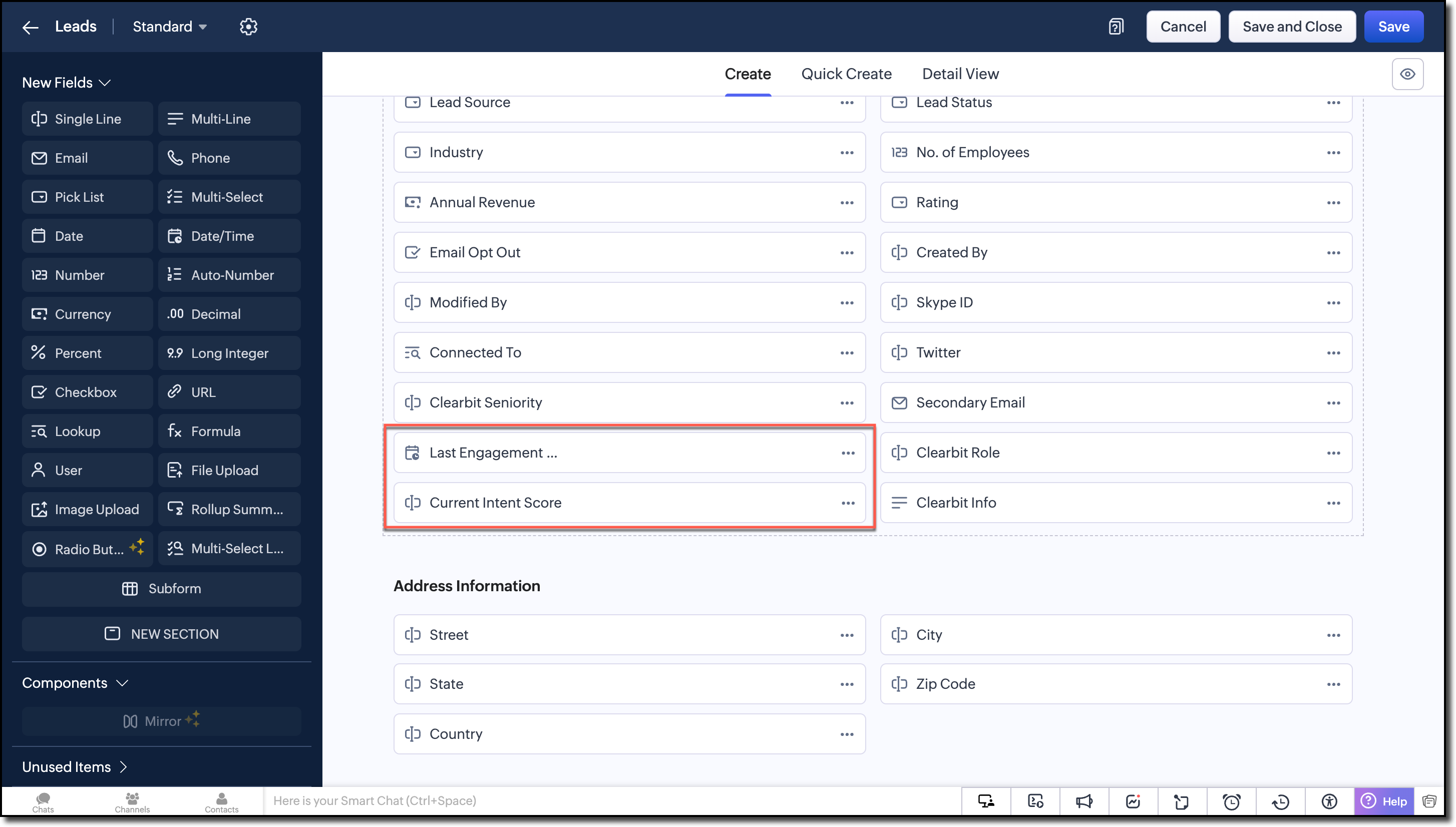
Make a Get Fields Metadata API to get the API names of these fields or go to Setup > Developer Hub > APIs and SDKs > CRM API > Leads to get the valid API names.
Store the API names, it will be used later in the scheduled function.

Note
The Engagement Score custom field can be created during the scoring rule configuration. This ensures that the field remains non-editable for users and cannot be modified through other actions.
II. Create a Connection
Refer to the Working with Connections help page for a step-by-step guide.
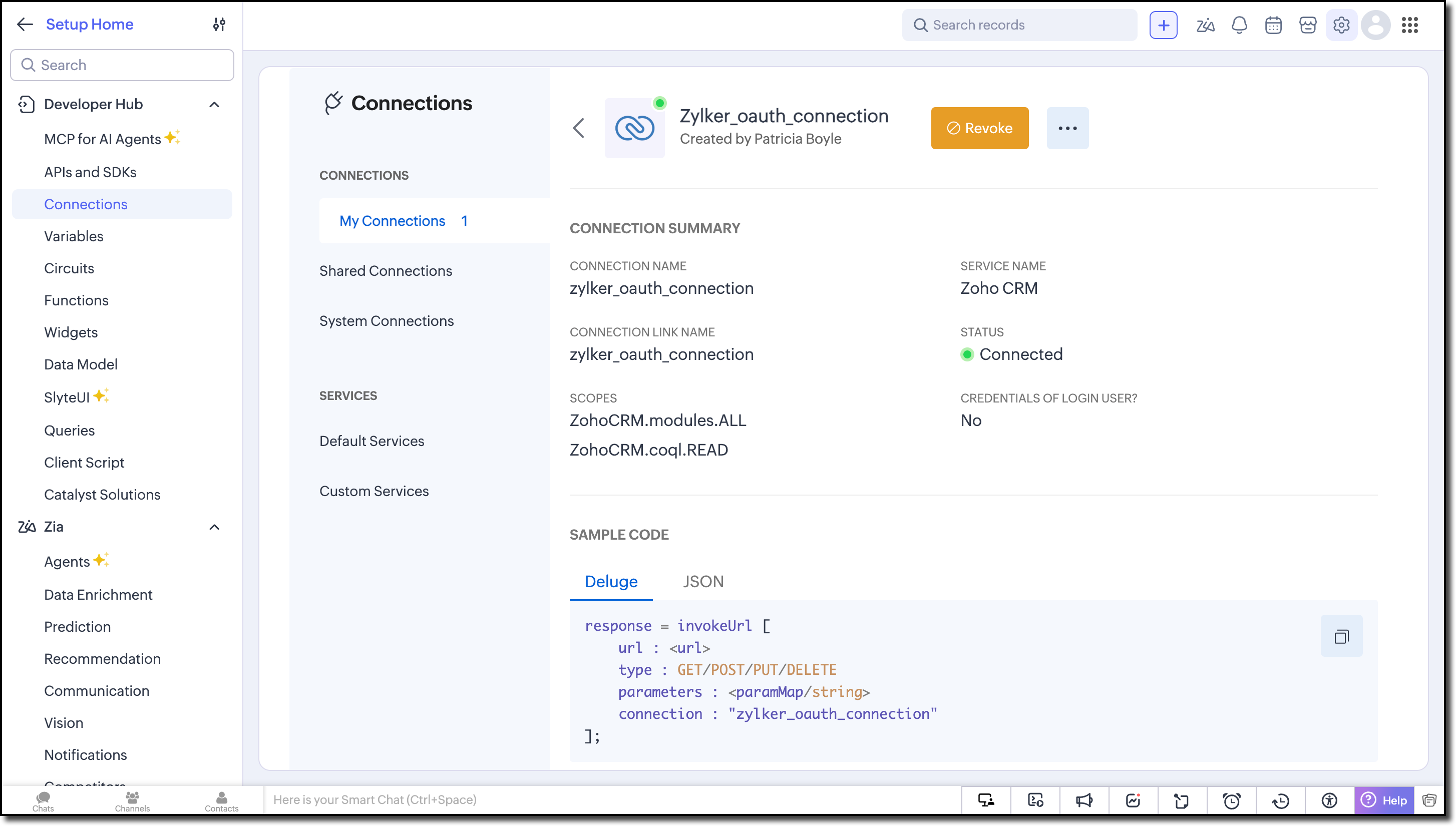
Go to Setup > Developer Hub > Connections and create a connection for Zoho CRM service with the following two oauth scopes:
- ZohoCRM.modules.ALL
- ZohoCRM.coql.READ
Step 1 - Configure the Scoring Rule
Create a scoring rule that reflects your business requirements. For detailed instructions, refer to the Configuring Scoring Rules help page.
For this demonstration, we will create a scoring rule with a maximum score of 100.
Navigate to Setup > Automation > Scoring Rules and click the New Scoring Rule button.
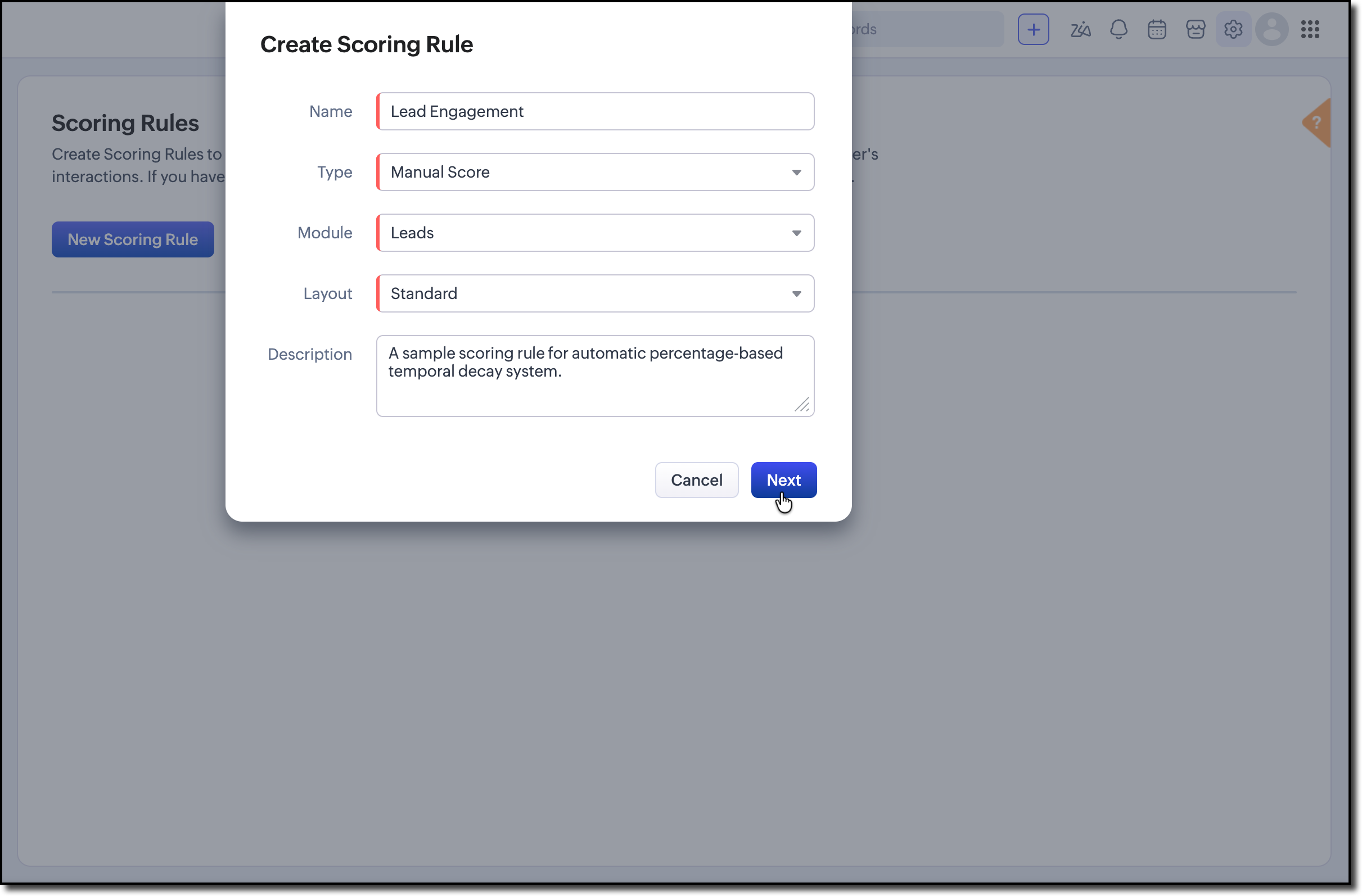
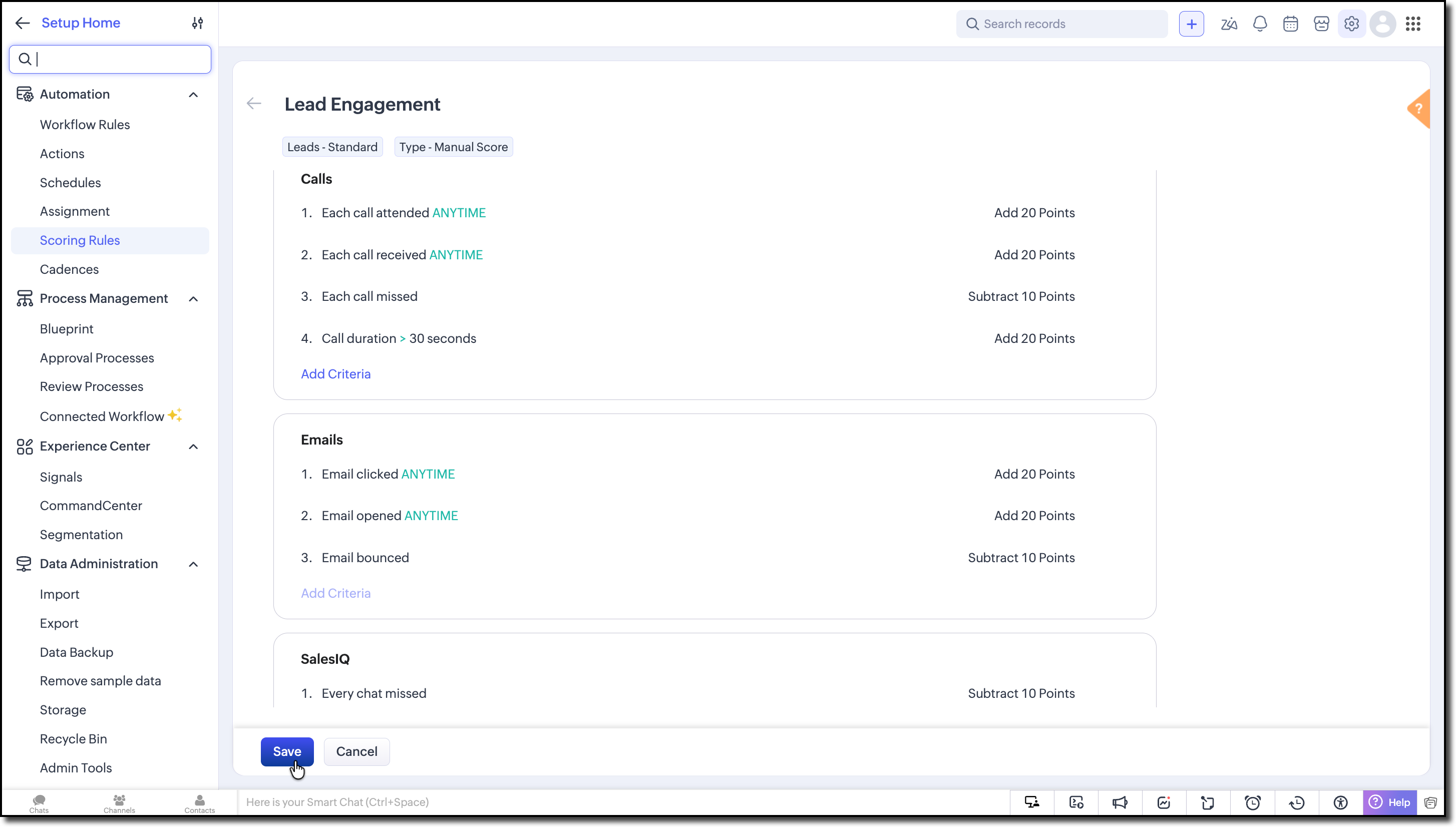
Configure the scoring criteria based on your business requirements.
For this example, we will use customer engagement activities supported by Zoho CRM, including:
- Emails: Opens, clicks, replies, and bounces.
- Calls: Incoming and outgoing call activities.
- Campaigns: Customer interactions with marketing campaigns.
- SalesIQ: Website visitor activities and engagement signals.
- Any other customer engagement signals relevant to your sales process.
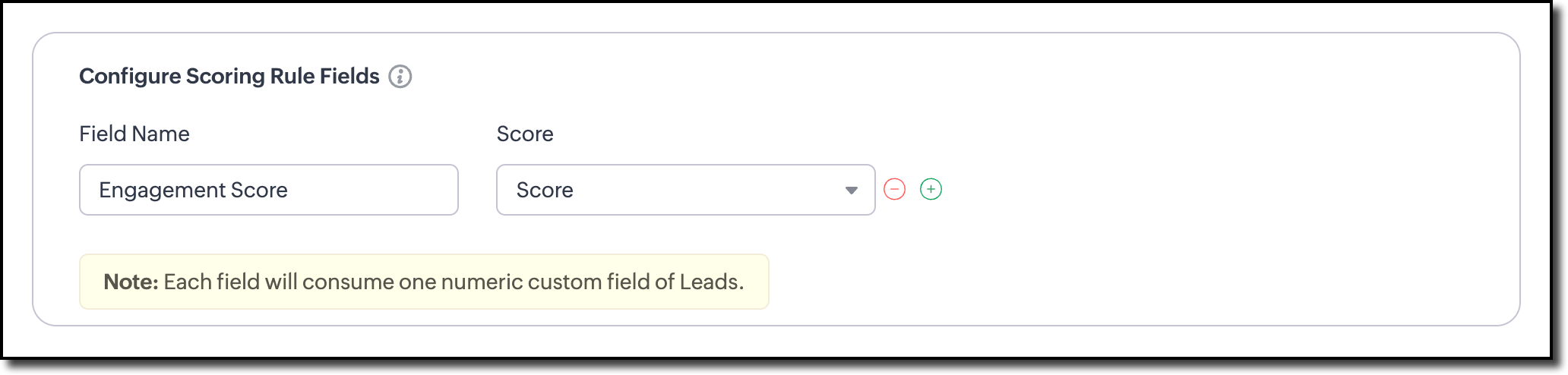
During the configuration, you will see the following option:
Would you like to add score fields to the records?
Click Yes, proceed.
Enter Engagement Score as the field name and choose Score from the adjacent dropdown.
Step 2 - Configure the Workflow
Next, create a workflow rule that executes whenever the Record Score is updated in the Leads module.
Refer to the Configuring Workflow Rules help page and Setting Field Updates help page for a step-by-step guidance.
Go to Setup > Automation > Workflow Rules.
Create a workflow for the Leads module and apply it to all records. Under Instant Actions, add two Field Update actions.
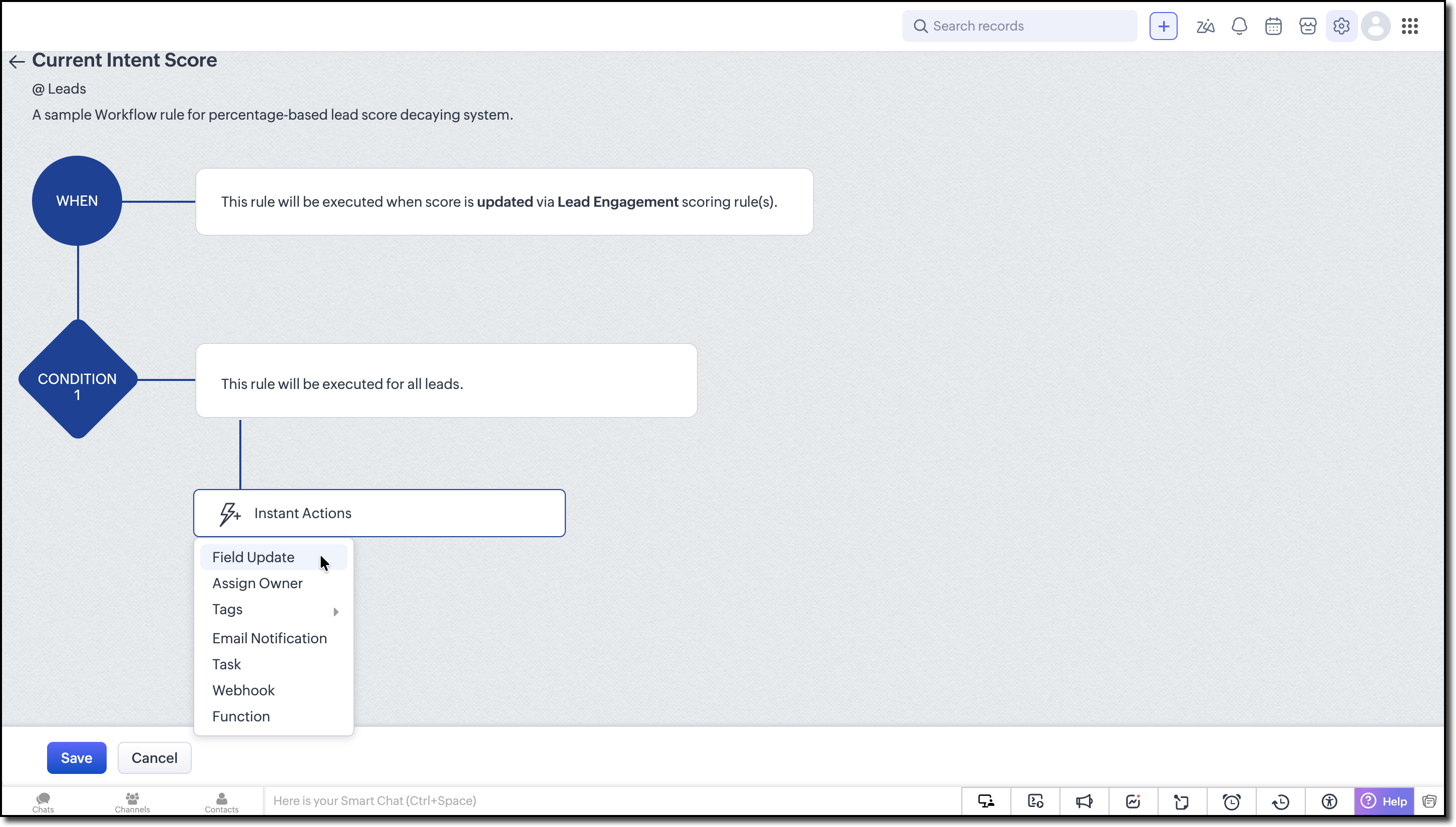
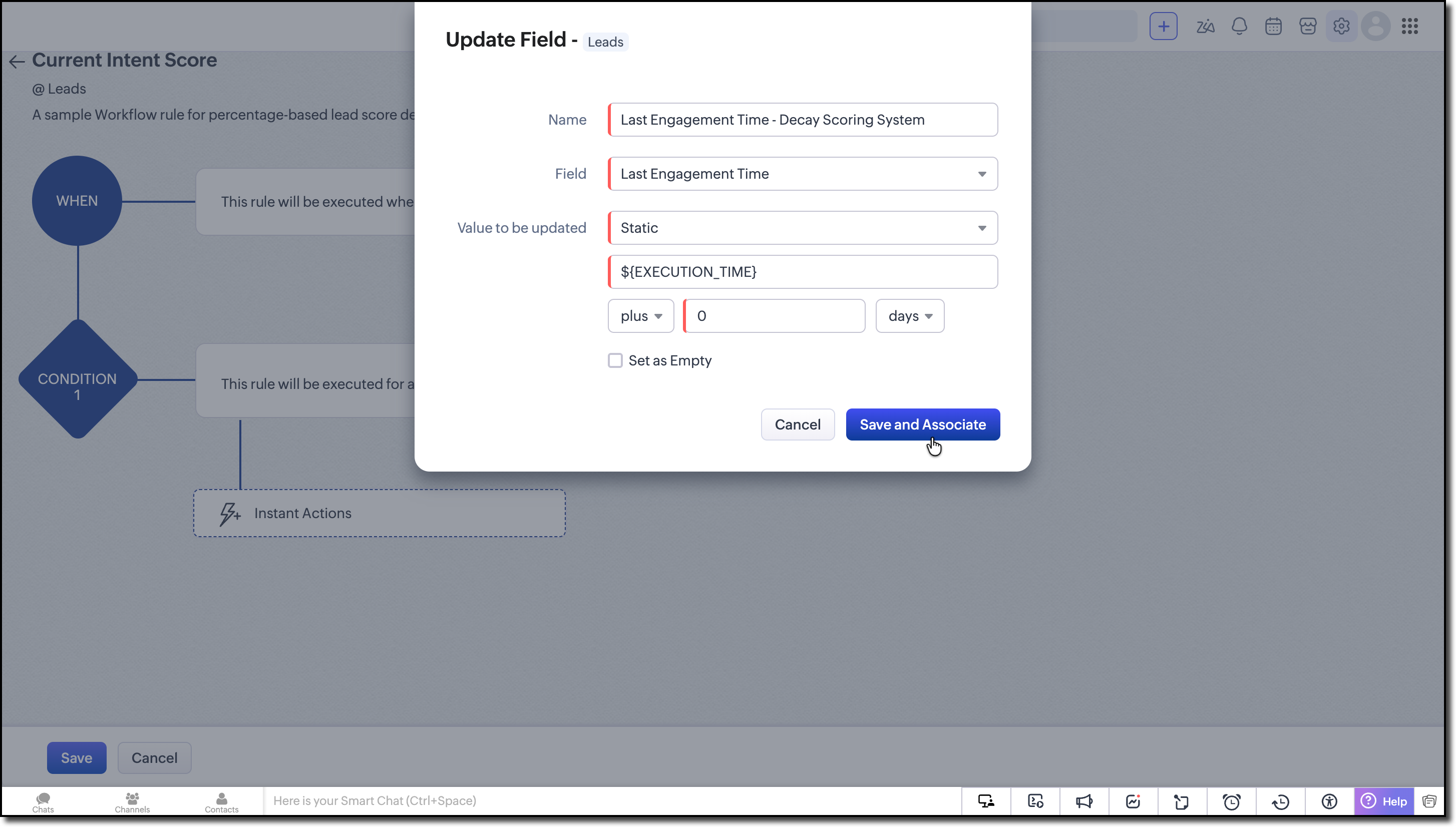
Field Update 1: Last Engagement Time
Configure the first field update as follows:
- Field: Last Engagement Time
- Value to be updated: Static
- Select Execution Day from the calendar picker.
This stores the date and time when the Engagement Score was last updated due to customer activity.
Field Update 2: Current Intent Score
Create another field update and configure it as follows:
- Field: Current Intent Score
- Value to be updated: Reference
- Reference Field: Engagement Score
Whenever the Engagement Score changes, the workflow immediately copies its value to the Current Intent Score.
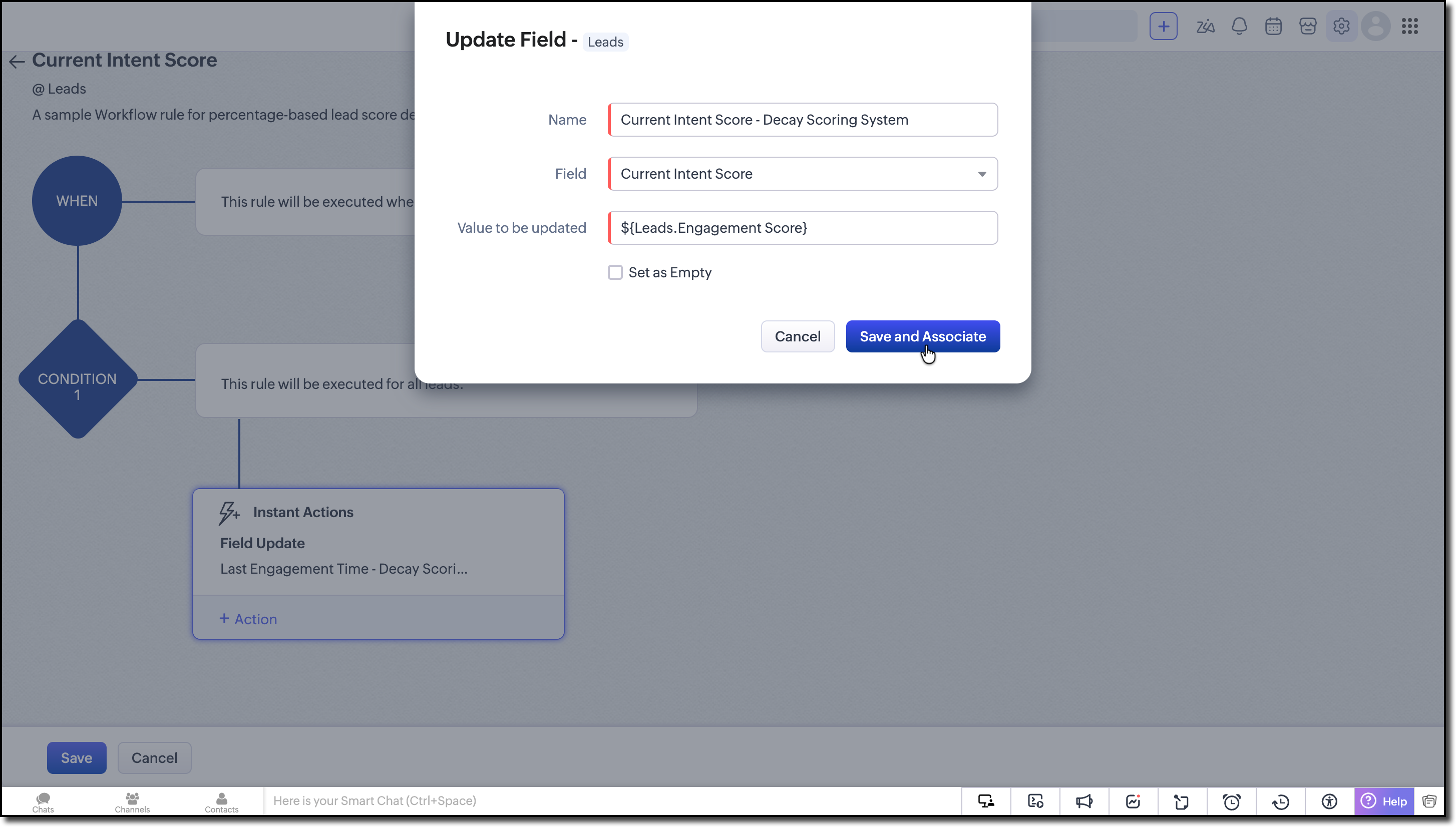
Since sales representatives always use the Current Intent Score to prioritize leads, this ensures that any new customer activity is reflected immediately instead of waiting for the next scheduled execution.
Save the workflow rule.
Step 3 - Create the Scheduled Function
The final step is to create a scheduled function that introduces percentage-based score decay during periods of inactivity.
For detailed instructions, refer to the Creating Schedules in Automation help page.
Go to Setup > Automation > Schedules and click Create New Schedule.
Configure the schedule to run once every day.
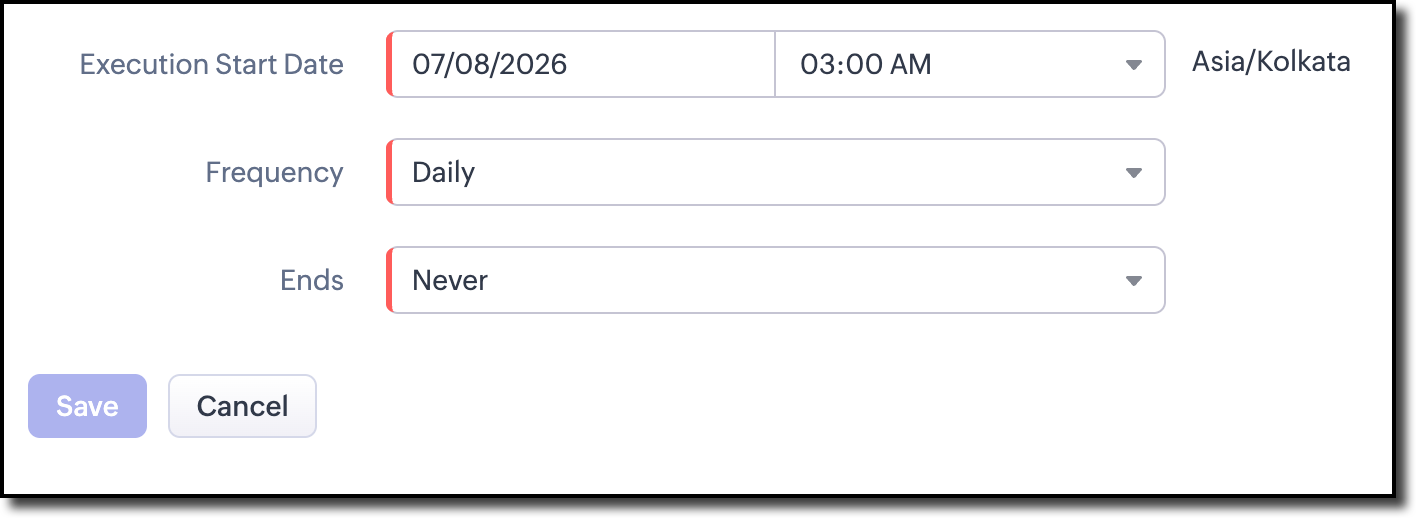
The scheduled function performs the following operations.
Fetch the Eligible Leads
Execute a COQL query via invokeUrl task to retrieve the following fields such as Lead ID, Engagement Score, Current Intent Score and Last Engagement Time.
Filter the records using the following criteria:
- Last Engagement Time is older than one day.
- Current Intent Score is greater than 0.
whereFilter = "Last_Engagement_Time < '" + cutoffDateTimeStr + "' AND (Current_Intent_Score is null OR Current_Intent_Score != '0')"; coqlQuery = "SELECT id, Engagement_Score, Current_Intent_Score, Last_Engagement_Time FROM Leads WHERE (" + whereFilter + ") LIMIT " + pageOffset.toString() + ", 2000"; coqlBody = Map(); coqlBody.put("select_query",coqlQuery); info coqlBody.toString(); coqlResponse = invokeurl [ type :POST parameters:coqlBody.toString() connection:"zylker_oauth_connection" ]; info coqlResponse; |
Since the score decay operates only during inactivity, leads that have already reached a Current Intent Score of 0 do not require further processing. If a qualifying customer activity occurs later, the workflow immediately refreshes the Current Intent Score, making the lead eligible for future decay calculations.
If your organization contains more than 2000 records, paginate through the COQL response until all eligible records have been processed. In Deluge, this can be achieved using the leftpad() string function and pageOffsets.add() method (add()) on a list object together to process large number of records without writing nested loops.
pageLoopList = "".leftPad(6).replaceAll(" ",",").toList().subList(0,6); pageOffset = 0; updateBatch = List(); for each el in pageLoopList { //Your code here } |

For more details, find the complete working code in the CRM Kaizen Git Repository.
Calculate the Inactivity Period
For every lead returned by the COQL query, calculate the number of inactive days using the current date and time and the Last Engagement Time field.
You can use the built-in zoho.currentdate system variable to determine the current date.
Apply Percentage-Based Temporal Decay
The score decay is applied solely based on inactivity. No additional customer activity is required for the score to change.
For the demo, we will use a quadratic percentage decay model so that buyer intent decreases rapidly immediately after the last engagement and then tapers off over time.
The remaining score is calculated as:

remainingFactor = (1 - (inactiveDays / 5))²
Current Intent Score = max(0, Engagement Score × remainingFactor)
Where, inactiveDays is capped at 5 and the score reaches 0 after 5 inactive days.
For an engagement score of 100, the score progression would look like this:
Inactive Days | Remaining Factor | Current Intent Score |
0 | 1.00 | 100 |
1 | 0.64 | 64 |
2 | 0.36 | 36 |
3 | 0.16 | 16 |
4 | 0.04 | 4 |
5 | 0.00 | 0 |
Update the Current Intent Score
After calculating the decayed score, use the Update Records API Deluge task to update the Current Intent Score for each lead.
Notice that the Engagement Score remains untouched. It continues to represent the customer’s latest engagement, while the Current Intent Score represents the customer’s current buying intent after accounting for inactivity.
Let's Test!
Assume a customer performs a qualifying activity that results in an Engagement Score of 60 and triggered the workflow rule.
If no further qualifying activity occurs for the next two days, the scheduled function identifies the lead as inactive, calculates the inactivity period, applies the percentage-based temporal decay model, and updates the Current Intent Score to 22.
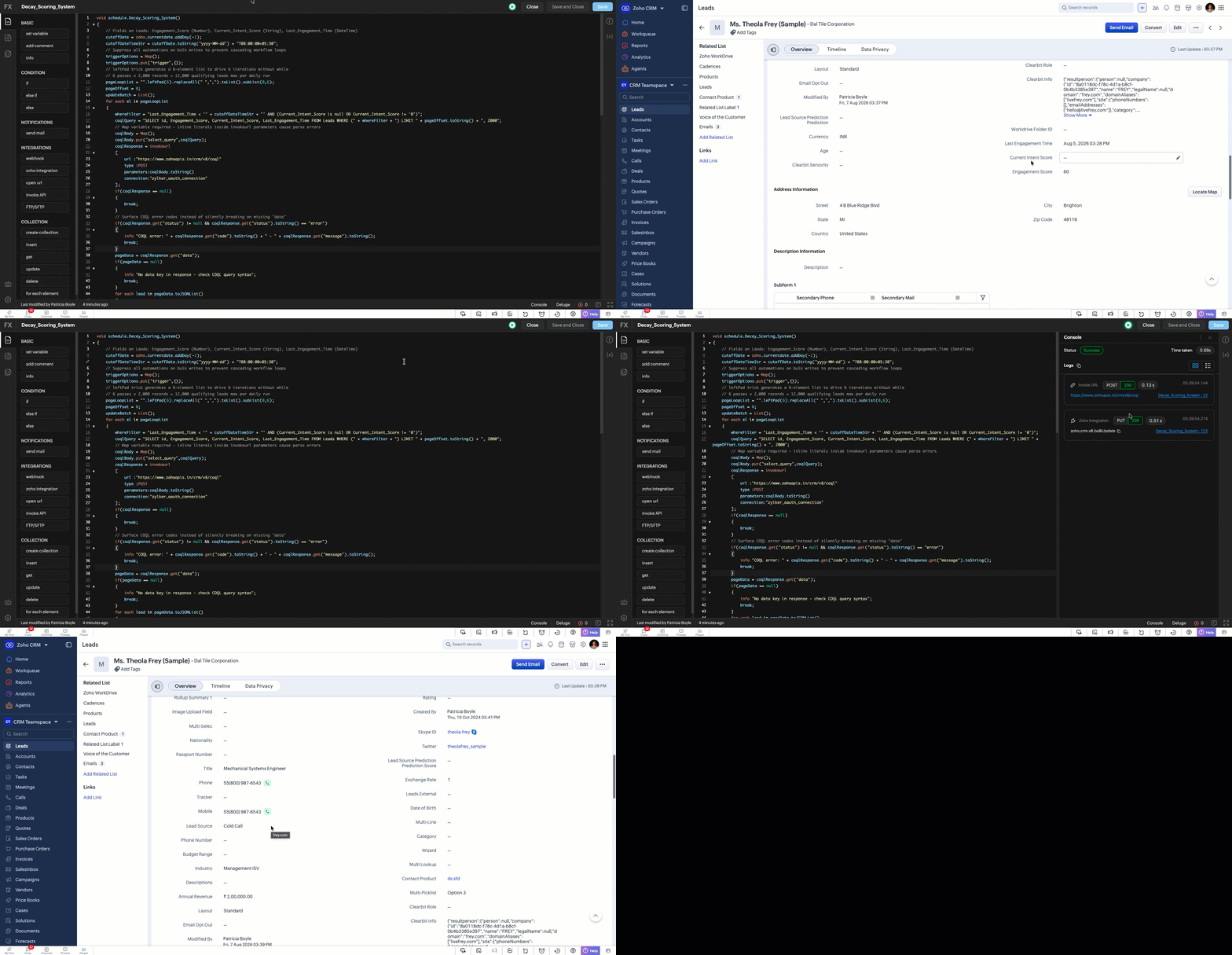
If the customer performs another qualifying activity before the next scheduled execution, the workflow immediately synchronizes the Current Intent Score with the latest Engagement Score, and the inactivity-based decay cycle starts again from the new Last Engagement Time.
The Current Intent Score complements your existing engagement scoring by introducing percentage-based temporal decay during periods of inactivity. This provides sales representatives with a score that reflects not only customer engagement, but also how recently that engagement occurred.
Although this example uses a five-day quadratic decay model, you can customize both the decay period and the decay formula to suit your business requirements.
Further Enhancements
The temporal score decay model presented in this demo uses a fixed decay curve for every lead. Depending on your business requirements, you can make the model more dynamic by introducing a decay factor into the calculation.
For example, the remaining factor can be calculated as:
remainingFactor = (1 - (inactiveDays / 5))² × decayFactor
This decay factor allows you to influence how quickly a lead’s Current Intent Score decays based on additional business context like territory, customer tier, product interest etc,.
Scenario 1: Prioritize High-Value Leads
You can derive the weight factor from the Annual Revenue field to slow down or accelerate the decay for different categories of leads. For example,
Annual Revenue | Decay Factor | Result |
Less than $100K | 0.8 | Faster decay |
$100K - $500K | 1.0 | Standard decay |
Greater than $500K | 1.2 | Slower decay |
Scenario 2: Decay Based on Lead Status
The Lead Status field can also influence the decay rate. For example,
| Lead Status | Decay Factor | Result |
Attempted to Contact | 0.8 | Faster decay |
Not Qualified | 0.6 | Much faster decay |
Contacted | 1.0 | Standard decay |
Pre-qualified | 1.2 | Slower decay |
This enables your sales process to align score decay with the maturity of each lead. Leads that are already progressing through the sales funnel retain their intent score longer, while inactive or lower-priority leads gradually lose priority more quickly.
We hope you find this kaizen helpful.
Have questions or suggestions? Drop them in the comments or write to us at support@zohocrm.com.
On to Better Building!
----------------------------------------------------------------------------------------------------------------
----------------------------------------------------------------------------------------------------------------

Previous Kaizen: Custom Validation for Blueprint to Enforce Mandatory File Uploads and File Extension Compliance Using Client Script | Kaizen Collection: Home
----------------------------------------------------------------------------------------------------------------