Exploring your Zoho Campaigns account
Quick Screen Tour

This document walk you through the various components present in the navigation bar and title bar of Zoho Campaigns.
Here's a quick screen tour to help you know your Campaigns interface better.
For a more thorough explanation of navigating the Campaigns interface.
Navigation Toolbar – The UI consists of a Navigation Toolbar on the left side that contains tabs links to Home, Analytics, Campaigns, Workflow, Audience, Library. This gives you a quick access to the various Zoho Campaigns features. 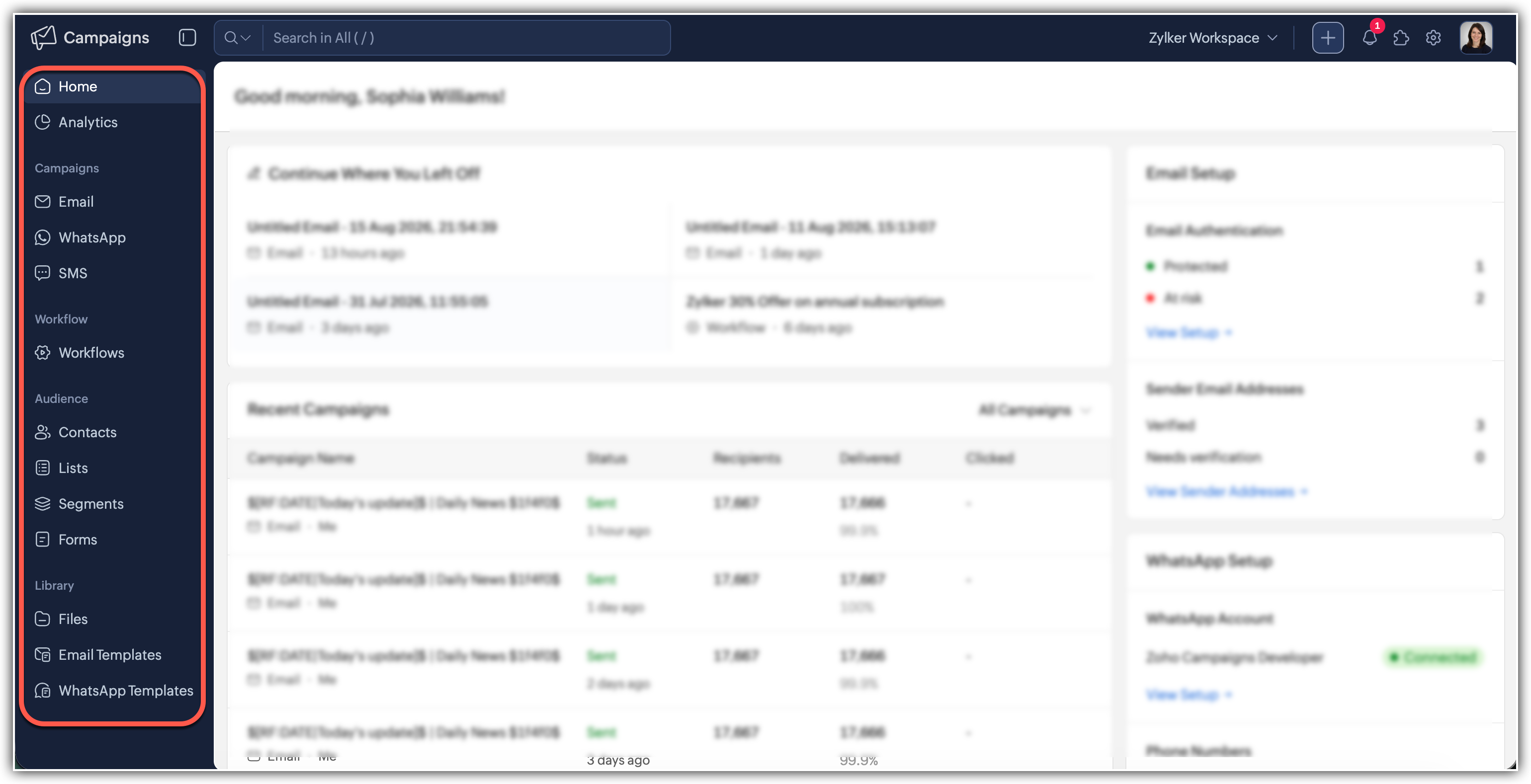
For example, when you log in for the first time, you are likely to see the home tab selected in the sidebar, and hence, it will be displayed in the main pane.
Main Pane – The main pane is for your work, with its content depending on your selection in the sidebar. So, if you choose the Contacts module in the sidebar, your list of contacts will be shown in the main pane. 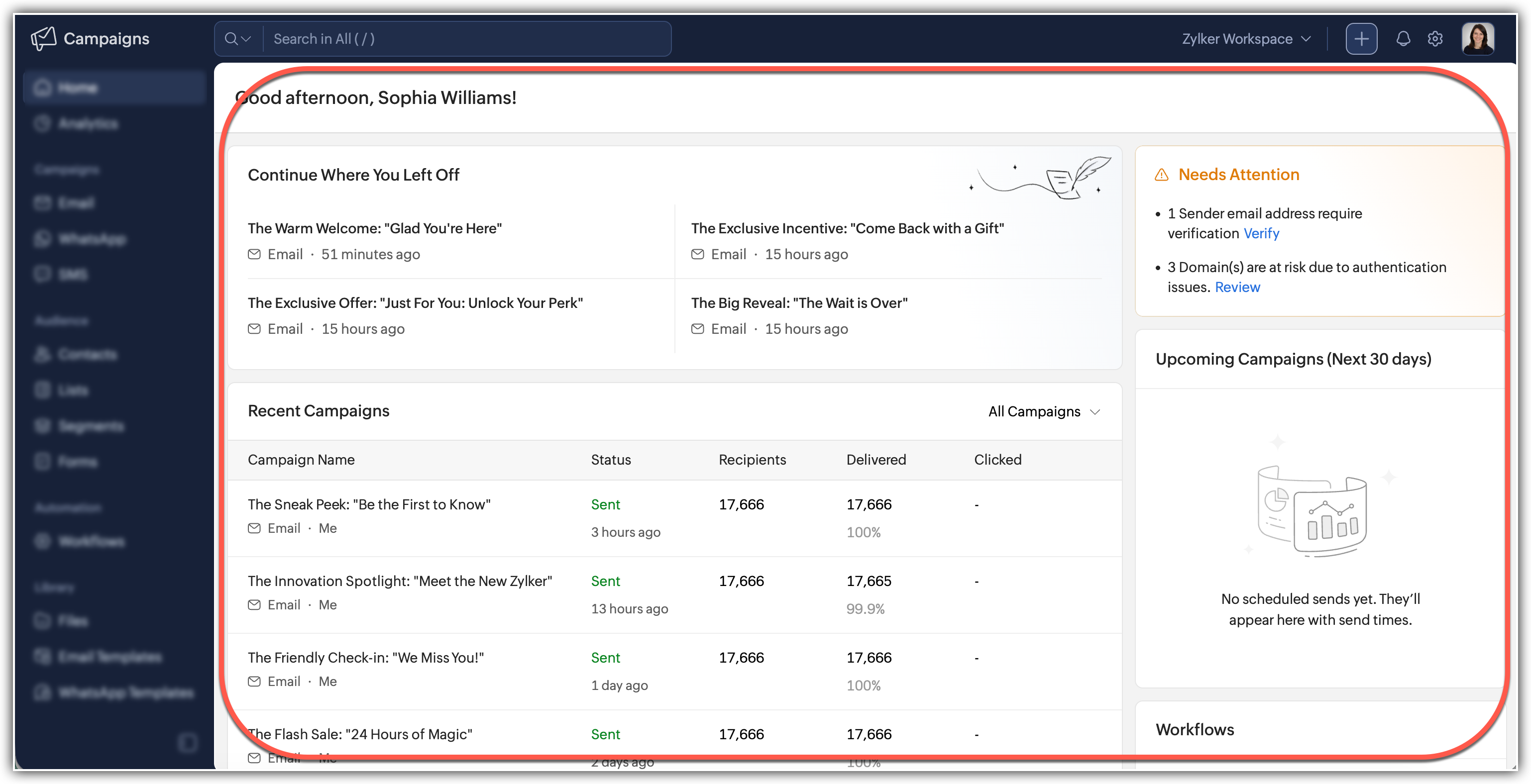
To maximize your main pane, you can hide the sidebar by clicking the collapse icon at the bottom. Whenever needed, you can expand it by clicking the show icon.
Module Navigation – The navigation toolbar displays the modules and the features. within
a workspace, allowing users to collapse or expand module and choose
the necessary feature. 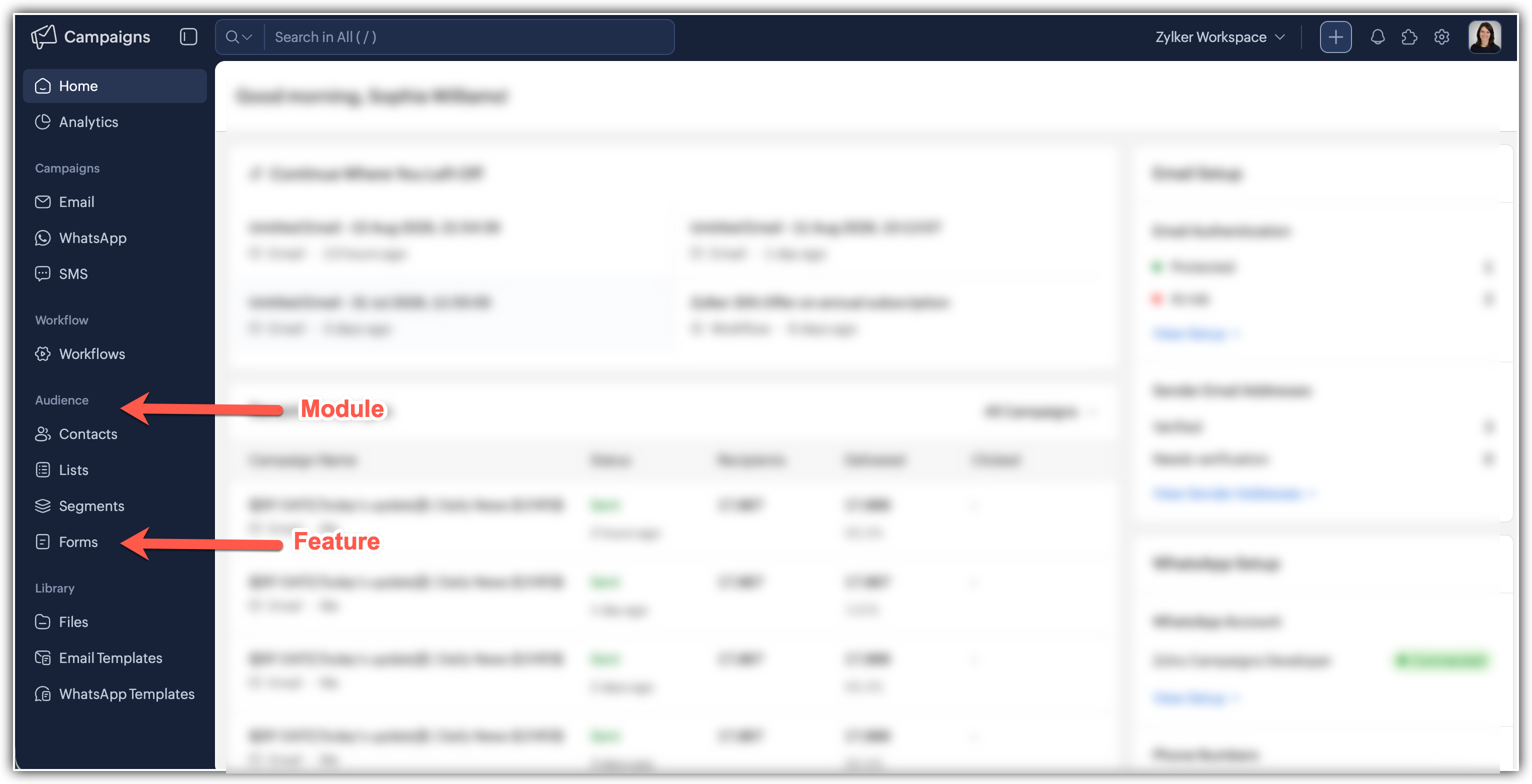
Global Search – This enables a user to search for information across the entire product. The global search feature shows results that contain your search terms, then displays related data based on campaigns, lists, contacts, and more.
Switch to another Workspace – Workspace can be created for each team within the Campaigns, whether it be for specific
business functions or cross-functional teams. You can switch from one Workspace to another if you are a member of multiple Workspace. To do
so, you can:
- Click on the workspace switcher located in the sidebar.
- Select the workspace you want to switch to.
To learn more about workspace, see Workspace.
Quick Create – Create new email campaigns, workflows, signup forms, social media posts, mailing lists, and lot more.
Notifications – Get notified about each and every activity taking place in your organization.
Integrations – Zoho Campaigns works with other Zoho apps and third-party services so that you can import contacts and content from the applications that help you run your business. 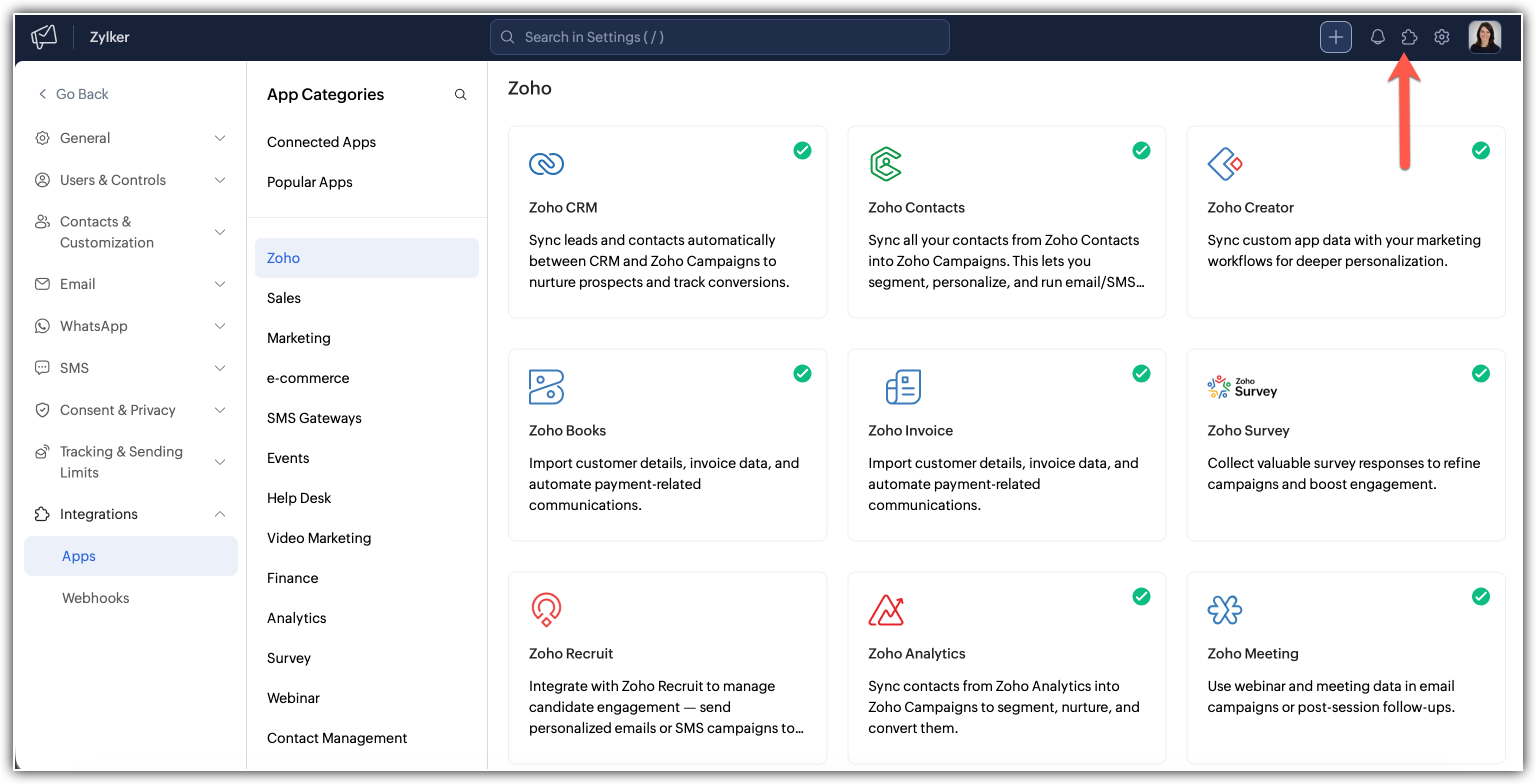
Settings – You can configure various settings associated with your account, such as organization settings, users and controls, configure email, SMS and WhatsApp settings, and more. 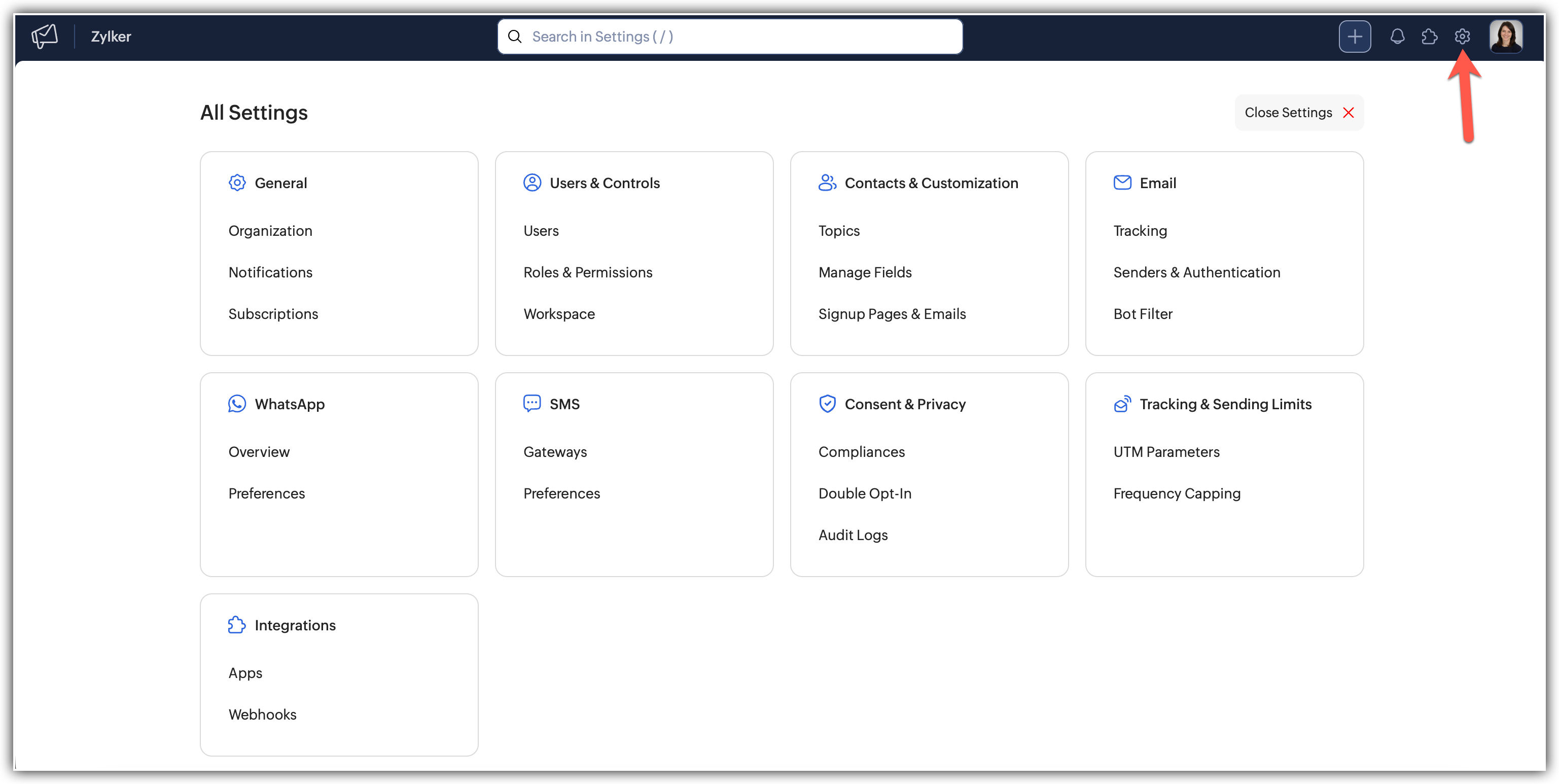
My Profile
Manage Subscriptions – This opens up the subscription plan menu. You have the ability to view the edition your organization is currently in. If you are an admin, you can upgrade to a suitable subscription plan that matches their needs. Learn how to manage your subscriptions. 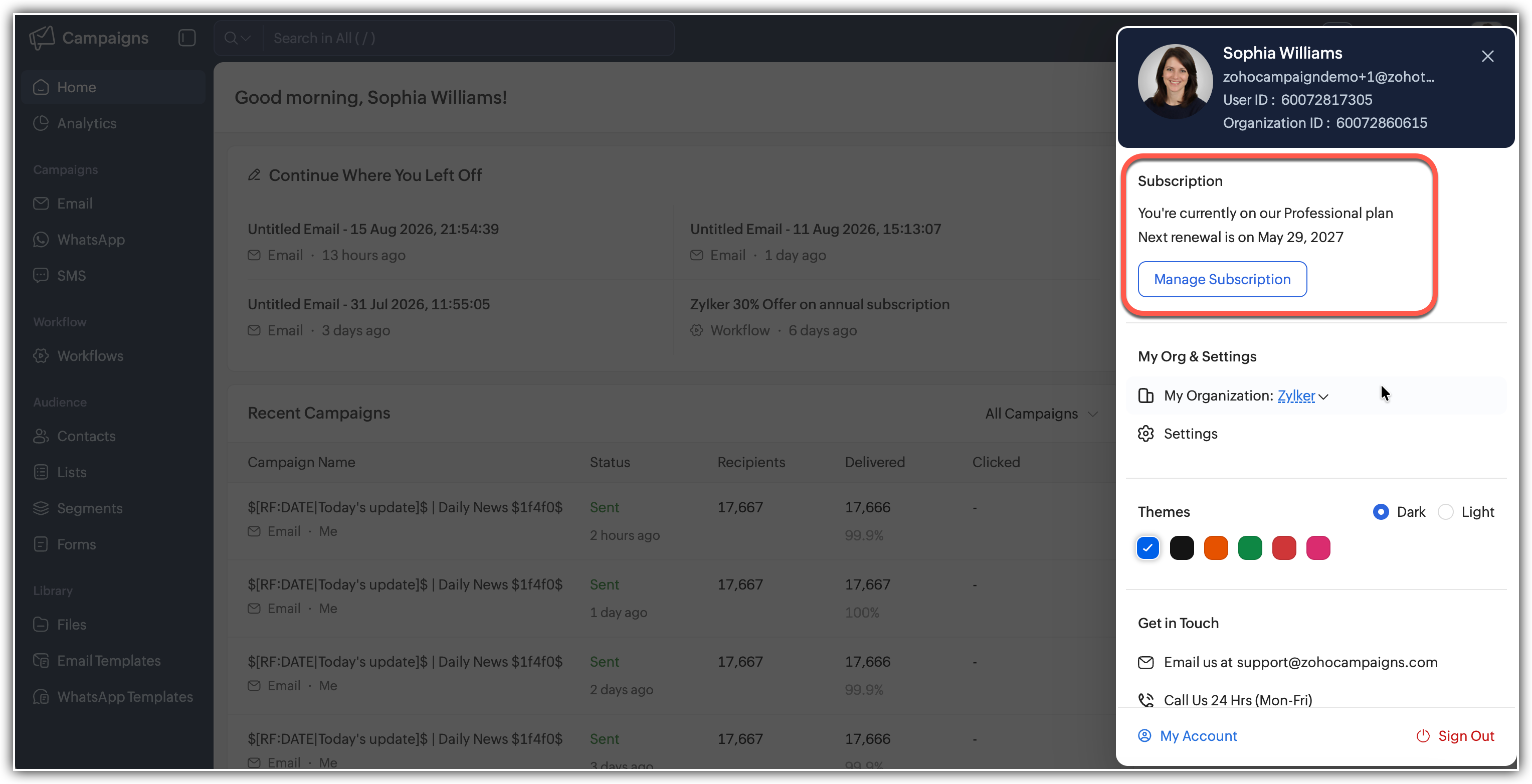
My Organization and Settings – If you are a member of multiple Campaigns organizations, you can switch between them. 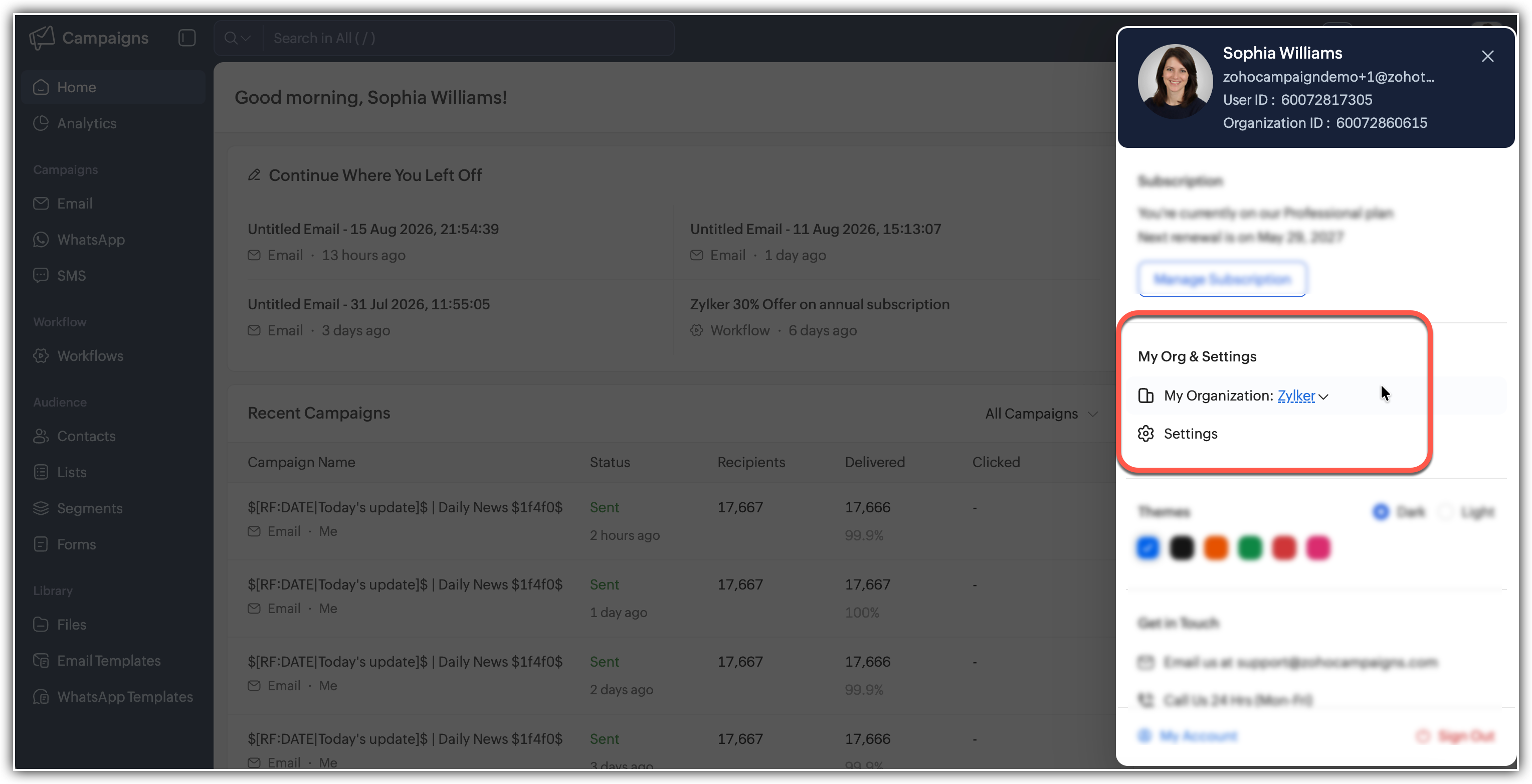
Themes – You can select the theme for your Campaigns account and decide whether you'd
like to work in the dark mode or light mode. Click the profile icon in
the top right of your screen to do this. Additionally, you can personalize your Campaigns account look with beautiful themes. Lighter color palettes offer a stylish appearance enhancing the look of
your Campaigns, making it not just functional but also visually pleasing.
Additionally, you can select dark themes in this mode to suit
your preference. 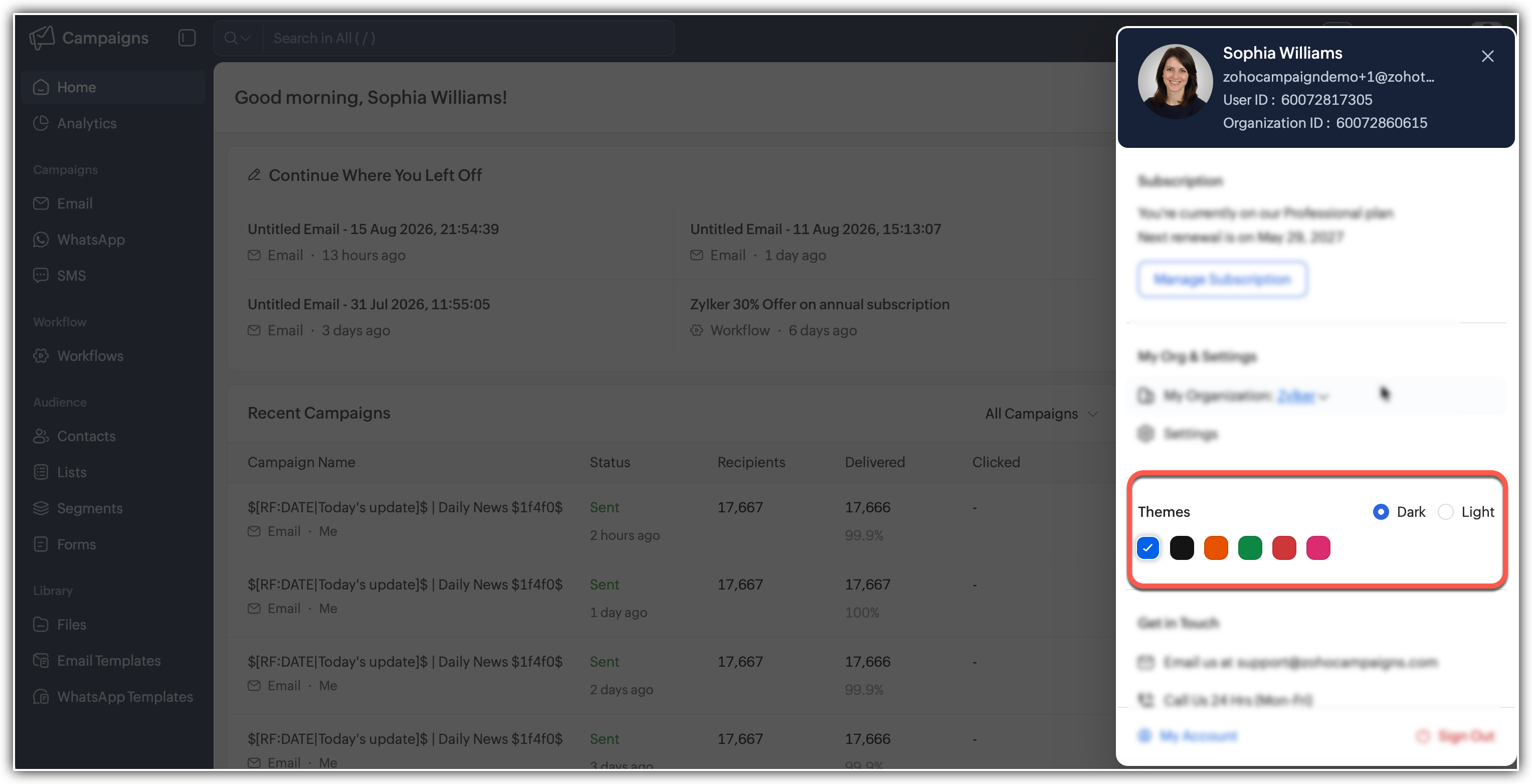
Support
- Submit a support request.
- Request a customized demo of Zoho campaigns or Call us 24 hours (Mon-Fri)
- Chat with us
- Share Feedback – Tell us how you feel about Zoho Campaigns.
Resources – This is a quick link to access our help guides, knowledge base, blogs, What's New, Webinars, and user community. We encourage users to start conversations in our user community and share their best practices for using Zoho Campaigns.
Use the Zoho Campaigns mobile app to access your Campaigns data on the go. You can work offline to view, add, edit, or delete contacts, and your changes sync automatically when you come back online. Download and explore Zoho Campaigns' mobile app (Apple / Android).
My Account – Here you can view your profile information such as email address, user ID, and account info. Learn how to manage your profile.
- In the Personal Information section, click the Edit button.
- You can edit your profile information, language, region, and other account information.