Contact Views
In Zoho Campaigns, you can filter contacts using predefined views so you're able to work on a particular set of contacts. These filters not only provide easy access to basic views but also save time creating segments for these views.
The filters are classified into two sections:
- Contact Status
- Inactive Contacts
These two sections contain various filters. Let us look at each filter under these sections brief.
Accessing the filters
To access these filters:
- From the Navigation Toolbar on the left, click Contacts and select All Contacts.
- At the top-left, you should see a view name called All Contacts or Marketing Contacts.
- Click the view name to access the filters.
- Click a different filter to go to that view.
Contact Status
The Contact Status section comprises filters based on the status of the contacts. This section includes the following filters:
- Marketing Contacts
- Unsubscribed Contacts
- Bounced Contacts
- Blocked Contacts
- Added in Last 30 days
- Added in Last 7 days
- Non-marketing Contacts
- All Contacts
- Invalid Contacts
Marketing Contacts
As the name states, this filter displays all the contacts whose subscription type is Marketing. You'll mainly engage with these contacts for your marketing needs.
Unsubscribed Contacts
This filter shows the contacts who've both unsubscribed of their own accord from your marketing emails, campaigns, and SMSs via the unsubscribe link provided and the contacts who've been unsubscribed by you or other users of your Zoho Campaigns account. They could've been marked as unsubscribed while creating a new contact, via import, bulk update, or via journeys. Their subscription type is Unsubscribed.
Bounced Contacts
This filter lists the contacts whose email addresses have suffered bounces. An email address can be bounced for a variety of reasons, such as:
- Recipient email address does not exist.
- Domain name does not exist.
- Typos render the email address invalid. (For example, gnail.com instead of gmail.com)
- Recipient email server has blocked delivery.
- The email address is inactive.
- The email account has been closed.
Only the contacts whose email addresses have suffered hard bounces will be listed in this view. If an email address has soft bounced, there are chances for the email to get delivered to that address in the subsequent retries. Hence, soft bounced email addresses won't be listed. Learn more about hard and soft bounces here.
Blocked Contacts
This filter is used only when a Zoho Campaigns user requests we block contacts whose email addresses are of a particular domain so existing contacts are blocked and future contacts of this domain don't get added.
Added in Last 30 days
These are the contacts that have been added to your Zoho Campaigns account within the last 30 days or a month.
Added in Last 7 days
These are the contacts that have been added to your Zoho Campaigns account within the last 7 days or a week.
Non-marketing Contacts
This filter lists all the contacts whose subscription type is Non-marketing. These contacts haven't provided you with permission to engage with them.
All Contacts
This filter displays the list of all the active contacts in your account. Active contacts includes contacts from marketing and non-marketing filters. These are the contacts whom you engage with on a regular basis by sending them marketing campaigns like email campaigns. Contacts that are unsubscribed, bounced, blocked, and invalid aren't considered active contacts.
Invalid Contacts
Whenever you create a contact in Zoho Campaigns, the system will do a real-time validation of the email address to see if it is valid or not. If it's an invalid email address, the system will flag it so you can't save the contact unless a valid email address is provided.
However, there are instances where the validity check gets bypassed and the contacts get added. It can be via a sync from a different Zoho application such as Zoho CRM, via import, or — very rarely — when you manually add a contact. In such cases, the system will do a check after the addition of these contacts and move them to the Invalid view automatically.
Inactive Contacts
Inactive Contacts refer to those contacts who haven't opened or viewed your email campaigns for a particular time period. This section comprises various filters based on when the contact opened or viewed your email campaigns.
- No opens in past 1 month
- No opens in past 3 months
- No opens in past 6 months
- No opens in past 1 year
- No opens in past 2 years
- No opens in past 3 years and more

Note:
The filter for all the views under inactive contacts work as follows:
If you're choosing the 'No opens in past 3 months' filter, it will display the contacts added 30 days before today (the day on which you access the filter) and no opens for the chosen time period (in this case, past 3 months).
No opens in past 1 month
This filter displays the contacts who haven't viewed or opened your email campaigns for the past month.
No opens in past 3 months
This filter lists the contacts who haven't viewed or opened your email campaigns for the past three months or the past quarter.
No opens in past 6 months
This filter shows the contacts who haven't viewed or opened your email campaigns for the past six months or the past half year.
No opens in past 1 year
This filter displays the contacts who haven't viewed or opened your email campaigns for the past year or past 12 months.
No opens in past 2 years
This filter lists the contacts who haven't viewed or opened your email campaigns for the past two years.
No opens in past 3 years or more
This filter shows the contacts who haven't viewed or opened your email campaigns for the past three years and beyond.
Setting a view as default
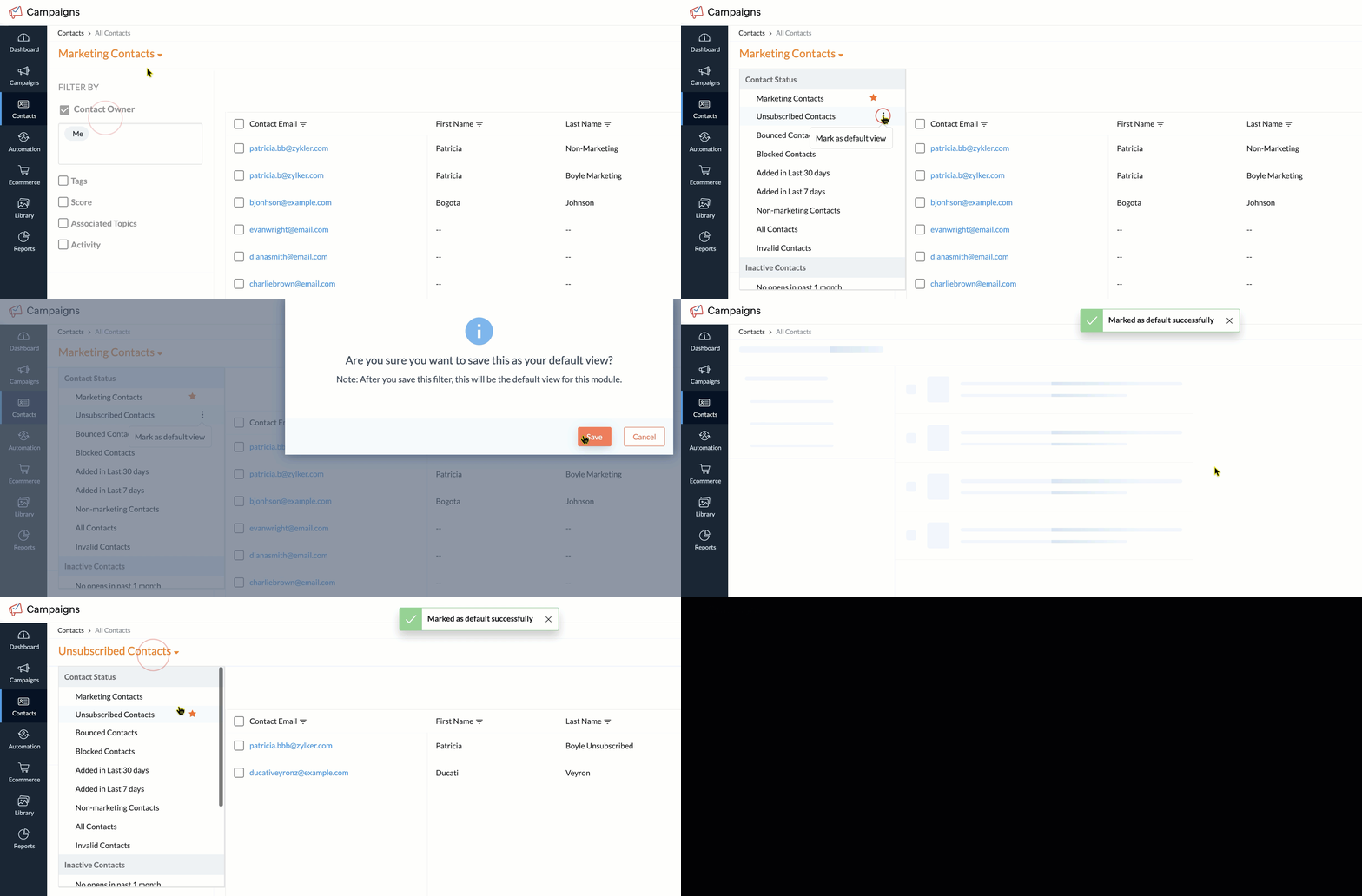
Set a view of your choice as the default so, each time you go into the All Contacts module, this view always appears:
- From the Navigation Toolbar on the left, click Contacts and select All Contacts.
- At the top-left, click the specific view name to access the list of filters.
- Hover over the desired filter and click the more actions button (the three vertical dots).
- Click Mark as default view.
- In the confirmation pop-up that appears, click Save.
View-based actions and permissions
This table shows the view name and a list of actions that can be performed in each view.
SECTION | CONTACT VIEWS | DEFINITION | EXPORT | DELETE | CHANGE SUBSCRIPTION TYPE | MASS UPDATE ACTIONS |
Contact Status | Marketing Contacts | Subscription type is marketing | ✓ | ✓ | ✓ | ✓ |
| Unsubscribed | Unsubscribed by the contact or by you/your users | ✓ |
|
|
|
| Bounced Contacts | Hard bounced email addresses | ✓ |
|
|
|
| Blocked Contacts | Blocked domain | ✓ |
|
|
|
| Added in Last 30 days | Contacts added in the past 30 days | ✓ | ✓ |
| ✓ |
| Added in Last 7 days | Contacts added In the past seven days | ✓ | ✓ |
| ✓ |
| Non-marketing Contacts | Subscription type is non-marketing | ✓ | ✓ | ✓ | ✓ |
| All Contacts | Marketing & non-marketing contacts | ✓ |
|
|
|
| Invalid Contacts | Invalid email address | ✓ |
|
|
|
Inactive Contacts | All the six views under this section | Unopened campaigns by contacts for a particular time | ✓ | ✓ |
| ✓ |
The last column labeled Mass Update Actions can be done when you select the contacts, and it includes the following bulk actions:
- Assign Tags
- Assign Topics
- Copy to Lists
- Mark as unsubscribed
- Mass Update