Understanding testing

Note: This feature is currently available as an early access feature for all enterprise plans of Creator 6
In a nutshell
Testing in Zoho Creator, powered by Zoho QEngine, lets you validate your applications automatically before they reach production. Once your application is published to the stage environment, you can create test cases in QEngine that simulate user interactions with your forms, reports, and pages and verify the expected outcomes. These test results help you identify failures and track your application's stability over time.
Availability
Available in enterprise plans of Zoho Creator.
Can be configured by the super admin of Creator account.
Can be accessed by super admins and admins.
Can also be accessed by developers who have access to the application and are a part of the associated project in QEngine.
1. Overview
Testing in Zoho Creator lets you verify that your applications keep working as you change them. When you add fields, modify workflows, or revise forms, you need to confirm that existing functionality continues to work as expected. Automated tests handle this check, so you do not have to go through every form and page manually after each change.
Zoho Creator uses environments to manage the application lifecycle. You modify an application in the development environment, publish it to the Stage environment to validate that it works properly, and then publish it to the Production environment for end users.
Testing fits into the stage step of this flow. The Testing feature is powered by Zoho QEngine, a unified test automation platform, and runs your tests against the version of the application published to the stage environment before it reaches users.
After you integrate Zoho QEngine, you define test cases in QEngine, organize them into test suites, and schedule test plans to run them automatically. Each time a test runs, QEngine checks whether your application still behaves as expected and helps you identify failures before publishing updates to production.
1.1. Key concepts in Zoho QEngine
- Test cases - A test case defines the steps to perform actions in your application, along with the inputs to provide and the outcomes to verify. You can create test cases through browser interactions, by building steps manually, or by using AI to generate them. Learn about test cases
- Test suites - A test suite groups related test cases so they can be run together. You can run them in sequence to identify exactly where a failure occurs, or parallelly test them for multiple test cases and for compatibility. Learn about test suites
- Test plans - A test plan defines the test suites to execute, the execution settings, such as the agent that runs the tests and the platform configuration, and the schedule for running them. Learn about test plans
- Results - Results show in real time whether each test case in a test plan execution passed or failed. You can also review execution times, trends, and run history. Learn about results
2. Use cases
i. Validating a multi-step onboarding flow
A logistics company's developer is maintaining a shipment tracking application used by hundreds of field agents that is created using Zoho Creator. The application has a multi-step onboarding form that collects vehicle details, route assignments, and document uploads. Every time the developer adds a new field or modifies a workflow, they need to verify that the onboarding flow still works end to end.
After integrating Zoho QEngine, they record a test case that walks through the complete onboarding process using sample data and add it to a test suite. Before each deployment to production, they run the test plan and review the results. If anything breaks, it can be caught in the stage environment before field agents encounter it. The developer then finds the failure using the test logs, applies the necessary fix in the Creator app, and re-runs the test plan to confirm the issue is resolved. Once all tests pass, the final application is published to production, restoring the full experience for field agents without any disruption to live operations.
ii. Test cases for a patient registration application
A hospital uses Zoho Creator to manage a registration application for its patients. An administrator responsible for the application must validate each update before it is published to production. The admin has no scripting experience, so they add the application to Testing and select the option that allows Zia in Zoho QEngine to analyze its stage version. Zia generates an initial set of manual test cases for the application.
In the application’s QEngine project, the admin reviews the generated manual test cases and uses Zia to convert them into automated test cases. The admin groups them into a test suite and runs them through a test plan whenever an update is published to the stage environment. After the tests pass, the admin publishes the update to production.
3. Navigate to Testing in Zoho Creator
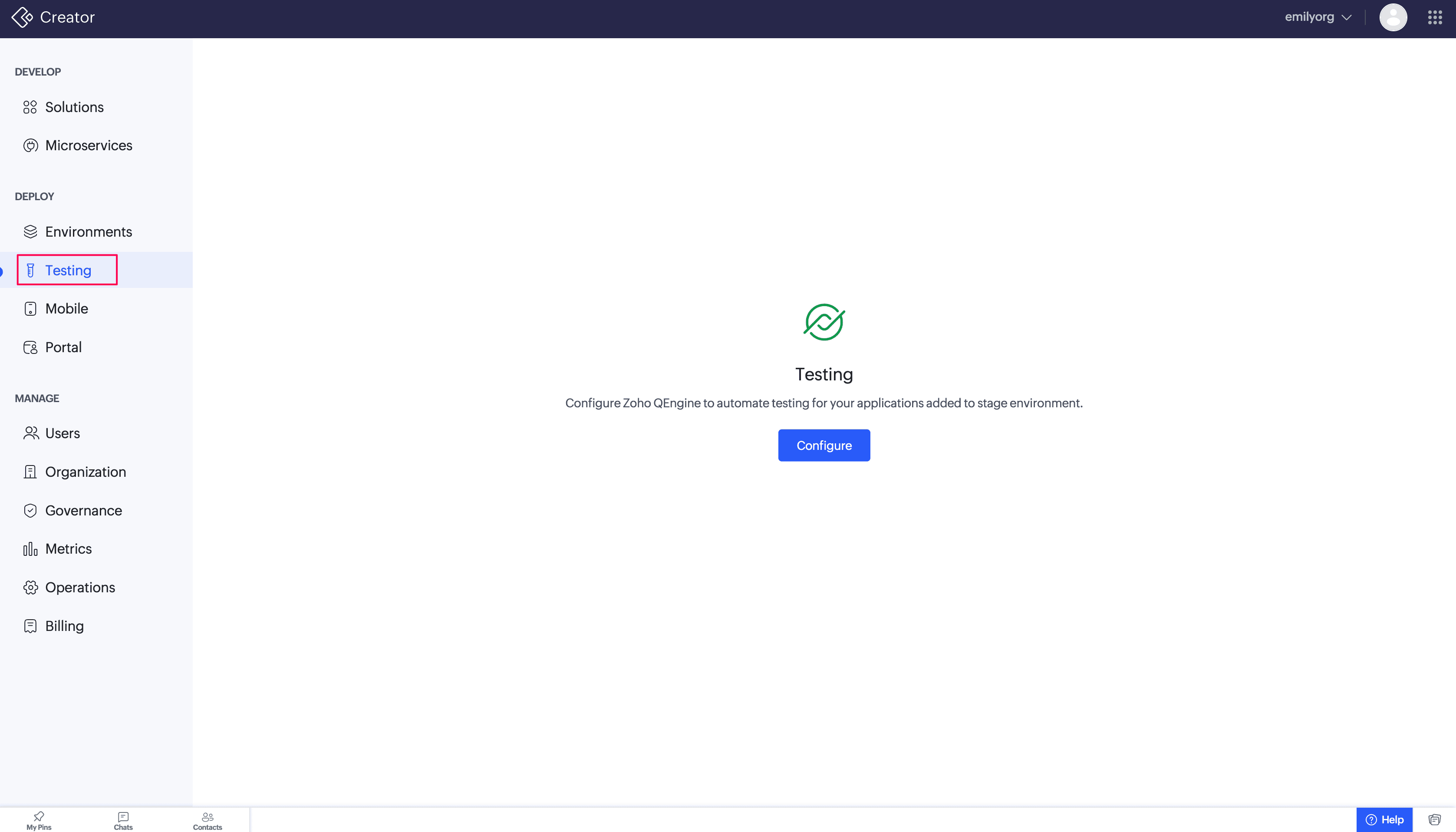
Testing can be accessed from Deploy > Testing in your Creator home page. Alternatively, you can navigate to Operations > System Integrations > Zoho QEngine to access the same feature. Learn more
4. Testing your application in Zoho QEngine
Testing a Creator application in Zoho QEngine follows four stages: create test cases, group them into test suites, run the suites through test plans, and review the results.
When your Creator application is published to the stage environment, every form, report, and page is accessible via a stage environment URL. Zoho QEngine tests these components as a web application, simulating user interactions like filling a form, submitting a record, navigating to a report, or clicking a button, and verifying that the outcome matches what each test case expects.
4.1. Creating test cases
Test cases define the steps QEngine runs against your application. You can create them in the following ways:
4.1.1 Zia generated test cases
Zia is an AI assistant in Zoho QEngine that generates test cases for your application. When you add an application to Testing, you can let Zia analyze its stage version and create an initial set of manual test cases automatically. Learn more about Zia in Zoho QEngine
4.1.2. Recording test cases
The recorder captures your interactions with the application as test steps automatically. You open a recording session from your test case, navigate to your Creator application's stage URL, and interact with it as a user would. Every action is saved as a step that you can review before adding the test case to a test suite. Learn how to record in QEngine
4.1.3. Building test cases manually
Builder and Editor are QEngine's two manual modes for creating test cases without recording. You can start by using the openURL task in Zoho QEngine and pasting your Creator app's stage URL to navigate to the application, then add the steps that simulate the interactions you want to test.
- Builder mode - Provides a no-code, drag-and-drop interface for adding web testing tasks from the task panel and configuring their parameters without writing scripts. This is suited for users who prefer a visual approach.
- Editor mode - Provides a scripting interface for writing web testing tasks with auto-complete, giving you full control over test steps. This is suited for users who want to write or customize test script directly.
4.2. After creating test cases
A test case can cover any form, report, or page in your application. For example, it can fill a form, submit a record, navigate to a report, or click a button, and then verify that the outcome matches what you expect.
Group related test cases into a test suite so they run together. Build suites around what you want to verify, such as one suite per form, one for a complete flow from submitting a record to viewing it in a report, or one for the checks you want to run before every release. You can set a suite to run its test cases in sequence to identify exactly where a failure occurs, or in parallel. Learn about test suites
A test plan runs one or more test suites with the execution settings and schedule you define. You can run a plan immediately or schedule it to run automatically. Learn about test plans
After a test plan runs, open the Results tab in Zoho QEngine to see whether each test case passed or failed. Review the results to decide whether the stage version of your application is ready for production. If a test fails, fix the issue in the development environment, publish the application to stage again, and rerun the test plan. Learn about results
5. Points to note
- Testing works only with applications published to the stage environment.
- Once the integration is configured, you can access the associated testing resources in Zoho QEngine without repeating the integration setup.
- Only one platform type (web, mobile, or API) can be targeted per test plan. Creator applications are tested only as web applications.
- Developers who need to access an application's testing resources mist have access to the application in Zoho Creator and can be added as users to the associated project in QEngine.