Documents in Zoho CRM

This feature is available for new signups in all DCs. It is being rolled out to existing users in phases. Till then, users without this update can refer to Document Library within CRM.
In Zoho CRM, the Documents tab is the central repository where all business-related documents are stored, organized, and shared across your organization. It is powered by Zoho WorkDrive, Zoho's own file management tool. Examples of the kinds of documents that are stored in the Documents tab include brochures, request for information (RFIs), invoices, comparison docs, presentations, forms, contract templates, product manuals, internal handbooks, and so on.

If a user has access to the Documents tab, they will also have access to the Zoho CRM team folder.
The Documents tab will not only store documents but also any attachments added to records in Zoho CRM. For instance, if you attach an RFI to a lead's record, you can also access it in the Documents tab. Please note that the attachments can be accessed by the record owner alone.
Scenario
Mark, a sales
representative, found himself facing a significant challenge: poor
document management within the sales team.
As the company grew, the volume of sales documents increased exponentially, causing chaos and inefficiency. Some examples of these include:
As the company grew, the volume of sales documents increased exponentially, causing chaos and inefficiency. Some examples of these include:
- Finding the right sales proposal, contract, or presentation became a time-consuming treasure hunt.
- Organizing the documents became a daunting task, leading to wasted hours searching through folders and attachments.
- Mark and his colleagues struggled to coordinate edits, gather feedback, and maintain version control.
- Safeguarding
confidential information proved challenging. Without proper access
controls, sensitive client data was vulnerable to unauthorized access,
posing a significant risk to the company's reputation and client trust.
Sarah,
the proactive CRM administrator, knew that improving document
management was crucial for the team's success. She also knew that the
CRM could play a crucial role in this. So, Sarah dove into this task and
improved document management for the sales team by:
- Making
the Documents tab in Zoho CRM the single source of truth for
sales-related documentation. All sales-related documents were moved to
team folders within the Documents tab. This made it easier to find the
right document quickly.
- Sarah
managed the Documents tab and enabled team folder-related permissions
for Mark. This ensured that team folders were created and managed
judiciously.
- Since version
control, collaborative editing, and comments are available for files
added to the Documents tab, it became much easier for the sales team to
collaborate with each other and to maintain the consistency of their
files.
- Sarah and Mark mapped
users to the team folders they needed and also ensured that they were
given the right level of access. This ensured that sensitive information
was available only to those who needed it.
Mark and
his team felt a sense of relief as they effortlessly managed their
documents within the CRM. This, in turn, boosted their productivity and
responsiveness. As the company grew, Sarah kept exploring the other
features available as part of WorkDrive and sought to use them to help her sales team.
Availability
Users with permission to the Documents tab in their profile can access this feature.
Users with permission to the Documents tab in their profile can access this feature.
Under the Documents permission, the following options are available:
- View: The user can view the Documents tab. It is enabled by default when you enable the Documents tab permission.
- Create Team Folder: As the name indicates, this option allows the user to create team folders.
- Associate Team Folder: Team folders can be created in WorkDrive as well. The user can associate such team folders to the Documents tab in CRM.
- Edit Team Folder: This allows the user to edit a team folder and set access permissions for existing team folders.
Note: Permissions for the Documents tab in CRM are separate from the permissions in WorkDrive. This means that a user may have certain permissions in CRM that do not necessarily carry over to WorkDrive. For example, if a user has the ability to create a team folder in CRM, they may not have that same ability in WorkDrive unless specifically granted.Users can perform actions within a team folder based on their assigned role, which may vary across different team folders.
For assigning role-based access to individual team folders, see Managing team folders.
To access the Documents tab
The Documents tab functions similarly to other tabs or modules in your CRM and can be found at the top of your CRM's interface. You can rename, organize, and hide the Documents tab, just like with other tabs. For instructions on how to do so, see Organize modules.

If you are using the next gen UI, you can access it via the sidebar on the left.
In the Documents tab, the left pane will contain the following options:
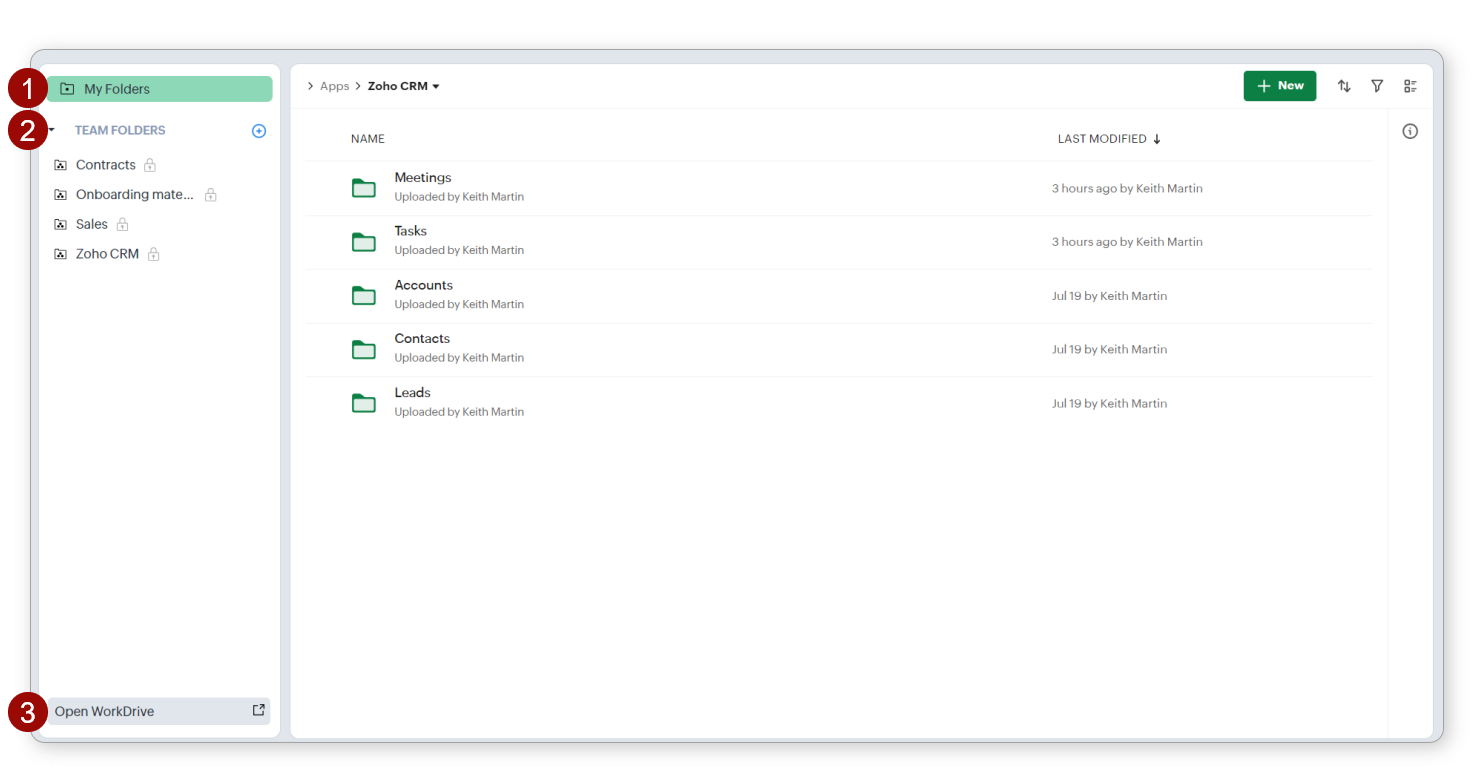
- My Folders: This section will contain the attachments of records owned by you. Please note that you will not be able to create files or folders in this section from the Documents tab.
- Team Folders: These are folders and files that are available to multiple users, roles, and groups. These are spaces for collaboration and sharing information within teams.
- Open WorkDrive: This option allows you to access the same files and folders from Zoho WorkDrive's interface. WorkDrive admins can access additional admin-related features like Admin Console only on the WorkDrive side.
The right pane will contain folders and files under the main folder selected on the left pane.
Note: If you create a new WorkDrive account from Zoho CRM, you will be mapped to the Essential plan by default. If you are in this plan, you will not be able to create and manage team folders within Zoho Workdrive. You will have to do that within the CRM only.To configure the Documents tab (for new CRM users)
Configuring the WorkDrive integration is a one-time process that happens when you first login to your new CRM account.
If you do not have an existing WorkDrive account, a new WorkDrive account will be created and linked to the CRM org automatically.
If you have a WorkDrive account, a Set up WorkDrive popup will appear. You have two options:
If you do not have an existing WorkDrive account, a new WorkDrive account will be created and linked to the CRM org automatically.
If you have a WorkDrive account, a Set up WorkDrive popup will appear. You have two options:
- You can map one of the existing WorkDrive accounts to the CRM org.
- You can create a new WorkDrive account and link it to the CRM org
Alert: If you create a new WorkDrive account from Zoho CRM, you will be mapped to the Essential plan by default. For all editions of Zoho CRM, the storage plan will be 5 GB for the org and additional storage of additional storage per CRM user license (512 MB/user license for Standard and Professional, 1 GB/ user license for Enterprise and Ultimate).
If you connect your WorkDrive account or switch to a paid plan on WorkDrive, that plan's storage limits will be used.
Note
- Once you've made the configuration, you will not be able to switch the WorkDrive account that is connected to your CRM org. In case you want to do this, please contact support@zohocrm.com for assistance.
- You can manage file storage of your Documents tab by following the instructions provided here: File storage.
See also