Data Backup in Zoho CRM
Data Backup allows you to maintain a copy of CRM data that may be mandatory to abide by company's guidelines and regulations. It also helps to have a copy of previous data for reference.

This is the revamped backup process that is available only to select users in certain DCs. We are yet to release this to users of all DCs. See this space for information about DC-availability.

Availability & Permissions
- Users with administrative profile can request for data backup.
- Ultimate Edition users can avail four backups without any payment.

Notes :
- Data backup for emails with IMAP configuration is currently not supported.
- The data backup takes a few minutes to hours depending on the size of the data that needs to be archived. Smaller the data, lesser time it takes to complete the backup.
- The backup can be downloaded from Setup > Data Administration > Data Backup.
- Backup download link remains active for a maximum of 7 days from the date of backup creation.
- The backup will be stored in the same DC where the customer has the account.
- The backup includes data from the 'File Upload' and 'Image Upload' fields. The data that's been backed up will be saved in the Attachments folder, and the corresponding reference files will be available in the Data folder.
- Users can back up records that are saved as draft versions in wizards
- CRM allows you to back up records that have been saved as drafts in wizards. Drafted records are labelled 'Draft', while other records are labelled 'Available' during data backup. Please refer to the screenshot above of a sample data backup file.
Choose which module to backup
The first step in a data backup is choosing what to download. In Zoho CRM, Data includes all modules except activities like Tasks, Calls, Meetings, and Emails. These activities are listed separately, so you can select them only if needed, along with Attachments.
Download Immediately
For instant downloads, simply choose the modules to backup and click Backup Now.
Schedule Backup
You can schedule backups to take place at certain intervals. Listed here are the options available for you, to choose when to backup your CRM data.
- Every two weeks
- Weekly
- Monthly
Every two weeks
The backup runs once every two weeks. You can choose the day and time to initiate the backup. For example, if you select Thursday at 12:00 PM, the backup request is triggered every alternate Thursday at that time. The actual backup start may happen later, depending on your data size and the number of backup requests in the queue.
Quick tip
- This type is recommended for the paid edition (except Ultimate) users, as they can efficiently utilize the 2 free backups and will not have to purchase additional backup(s).
- The Ultimate edition users will use only two free back ups out of the four entitled back ups. They can utilize the remaining two to obtain a backup archive on demand.
Monthly
You can choose the date or day on which the backup is to be ready for downloading. For example, if data backup is scheduled to take place by date and the chosen date is 15th, then the backup will be ready for downloading on the 15th of every month.
If data backup is scheduled to take place by day and the first Monday is chosen, then the backup will be ready for downloading on the first Monday, every month.
Weekly
You can choose the day when the backup should be initiated. For example, If you choose Monday, the data backup will take place on every Monday of the month.
Note
- Paid edition users, who select "Weekly" data backup will be able to purchase it directly from the backup window. They can click the Make Payment option in the subsequent prompt message and purchase the backup.
Upload to Cloud
You can choose to upload your backup to the cloud upon completion. Zoho CRM lets you decide to upload to your Zoho Workdrive or to your Google Workdrive.
Upload to Zoho Workdrive
If you have a Zoho Workdrive account you can also upload your backup there. Enable Upload to cloud option and select the Zoho Workdrive option. Next select to which folder you want to add your backup and click Add. Next click Backup Now to complete.
Upload to Google Drive
Enable Upload to cloud option and select the Google Drive option. Next select to which folder you want to add your backup and click Add to this Folder. Next click Backup Now to complete.
Download Data Backup
Once the data backup is ready, the admin and the user will be notified by email. The email includes a link that takes them to the backup page in Zoho CRM, if they are logged in. From the Downloads section, they can download the backup, where data and attachments are provided as separate ZIP folders.
- CRM Data - The records under each module will be made available. All data from org and custom modules will be included except activities such as Tasks, emails, calls, meeting and attachments.
- CRM Attachments - All the attachments, tasks, emails, calls and meetings in your CRM Account will be available.
To download data backup
- Log in to your Zoho CRM with administrative privileges.
- Go to Setup > Data Administration > Data Backup.
- Click the zip file link under the Downloads section to download it.
Backup History
The chronological sequence of action performed, pertaining to data backup will be listed here. They include:
- Configuration - Upon scheduling backup, the log will be updated with the configuration chosen by the user. For example, Sophia Isha scheduled a BiWeekly backup.
- Backup is ready to download - When the backup is ready for downloading.
- Download initiated - When the backup is downloaded by the user.
- Stopping a scheduled backup
- Backup purchase details - Details of backup add-on purchased will be updated in the log.
Data Backup Notification
Administrators who configured backup, get popup notifications in the following cases:
In-App Notifications
In-App Notifications
- When the data backup is ready for download.
- When the latest data backup is scheduled.
- When the latest data backup is in progress.
- When the data backup to cloud is in progress.
- When the data backup to the cloud is completed.
- When the data backup has stopped.
- When the scheduled data backup failed.
- When the backup failed to upload to the cloud.
Email Notification
- When a backup is completed, the admin who initiated it and the Super Admin will be notified via email.
Stop Recurring Backup
When you have a data backup scheduled, you can choose to cancel it when the need arises.
Note
- This operation will not stop your recurring subscription payment for weekly backup, to cancel your subscription payment, please visit subscription page.
- You can't stop a backup when it's currently running or after the backup is ready for downloading.
To stop backup
- Login to your Zoho CRM account with the Administrator privileges.
- Go to Setup > Data Administration > Data Backup.
- In the Data backup page, click Stop Backup from the backup summary window.
- Click I understand, Stop backup , in the popup. Click Cancel to stop the operation.
Purchase backup
Users with the free edition of Zoho CRM have to purchase onetime data backup add-on or upgrade to a paid edition of Zoho CRM and utilize the free data backup available. Once that is exhausted, if you would like to backup the CRM data, you can purchase the add-on.
Note that the pricing will be displayed based on your login location.
To purchase backup from the subscription page (Only for users in free edition)
- Login to your Zoho CRM account with the Administrator privileges.
- Click your Profile > Current plan > Manage. You will be redirected to the Zoho store page.
- In Non-recurring Add-ons, click Buy More.
- The currency will automatically adjust to your login location. See more Edition-wise pricing comparison.
- Select the number of backup units you would like to purchase from the drop-down list and click Proceed.
- Click Proceed to Pay.
- Choose one of the payment methods to pay.
To purchase from data backup window (Users with free edition)
- Login to your Zoho CRM account with the Administrator privileges.
- Go to Setup > Data Administration > Data Backup.
- In the Data Backup page, click purchase additional backups. You will be redirected to the Zoho Store page.
- In Non-recurring Add-ons, click Buy More. The currency will automatically adjust to your login location. See more Edition-wise pricing comparison.
- Select the number of backup units from the drop down list.
- Click Proceed to Pay.
- Choose one of the payment methods to pay.
Purchase backup while upgrading Zoho CRM
You can purchase a weekly data backup and onetime data backup add-on at the time of upgrading from your free edition to a paid edition of Zoho CRM (Standard/Professional/Enterprise/Ultimate). To purchase backup while upgrading :
- Login to your Zoho CRM account with the Administrator privileges.
- Click your Profile > Manage Subscription > Upgrade Edition.
- Choose the edition of Zoho CRM you need and click Upgrade.
- Click Proceed to pay and make payment.
- Enable the weekly data backup checkbox to add that to your subscription.
- You can also choose to purchase onetime data backup by selecting the number of units from the drop-down list.
Purchase Onetime data backup add-on (User with paid edition of Zoho CRM)
Once your free data backup has been exhausted, you can purchase backup add-on if you would like to schedule a backup. To purchase data backup from the subscription page
- Login to your Zoho CRM account with the Administrator privileges.
- Click your Profile > Manage Subscription.
- In the Zoho Store page, click Buy More in the Nonrecurring Add-Ons section.
- Select the number of one time backup add-on from the drop-down and click Continue.
- Click Make Payment to confirm your order.
- The purchase summary will be displayed.
Downgrade Add-Ons
To downgrade add-ons
- Login to your Zoho CRM account with the Administrator privileges.
- Click your Profile > Manage Subscription.
- In the Zoho Store page, click Downgrade User/Add-Ons.
- Select the number of units to downgrade and click Proceed.
- Click Confirm .
File Format
The exported CRM data will be in.CSV format, compressed in a single archived (*.ZIP) file. You can open the file in Text Editor or in spreadsheet program. Listed below are the steps to open the CSV file in Microsoft Excel:
For Microsoft Excel 2007 users:
- Open Microsoft Excel.
- On the Data tab, select From Text , from the 'Get External Data' section.
- In the Import Text File dialog box, select the exported CSV file, and then click Import.
- In the Text Import wizard dialog box, specify the following:
- File type : Choose the file type as "Delimited".
- File Origin : Select the file origin as " Unicode(UTF-8) ", and then click Next.
- Delimiters : Select the delimiter as " Comma ", and then click Finish.
- You will be prompted to select the range of cells.
- Select the range of cells and the corresponding CRM data will be imported in the spreadsheet.
For Microsoft Excel 2003 users:
- Open Microsoft Excel .
- Click Data tab > Get External Data > Import Data .
- In the Select Data Source dialog-box, select the exported CSV file, and click Open .
- In the Text Import Wizard dialog box, specify the following:
- File type : Choose the file type as "Delimited".
- File Origin : Select the file origin as "Unicode(UTF-8) ", and then click Next.
- Delimiters : Select the delimiter as "Comma ", and then click Finish .
- You will be prompted to select the range of cells.
- Select the range of cells and the corresponding CRM data will be imported in the spreadsheet.
Notes
- Zoho CRM does not, in any way, include any kind of harmful information or data into your exported files. However, as a precautionary measure to safeguard yourself from unknown security threats, it is recommended that you look for warnings about executable operations when opening an exported file in MS Excel. Please refrain from updating any commands in the CSV file exported from Zoho CRM.
- Following items will not be part of data backup:
- Email - Email content and attachments.
- Documents.
- Any data that is obtained through Integration.
Restoring lost data
Data loss creates anxiety in any business. In most cases, it is immediately noticeable. However, in edge cases, due to some technical anomaly or manual overlook, the loss of data presents itself as painful news. In those unfortunate scenarios, you can take the following measures to try and recover the lost data.
- Investigate using audit log
- Restore from recycle bin
- Restore from backed-up data
- Contact CRMs technical support team
- Corrective measures after restoration
Investigate using audit log
Business processes rely on data to make decisions. Especially if you have automations based on a particular field, unprecedented and unintended change in data will alter the course of your business. So, besides the loss of data, accidental (mass) updates made to a field could also cause mayhem. This is where behavioral investigation using audit log will become beneficial.
The audit log records all occurrences in your CRM organization and stores them in chronological order for up to 60 days. You can understand both the changes and deletions in your CRM data. It will display which user changed or deleted a piece of data and when.
To learn more about Audit logs, read Monitoring Audit Log.
Restore from recycle bin
If you have realized your data loss within 60 days from the time of deletion, you can easily restore the parent and associated data from the recycle bin. However, you have to ensure the recycle bin is not manually emptied.
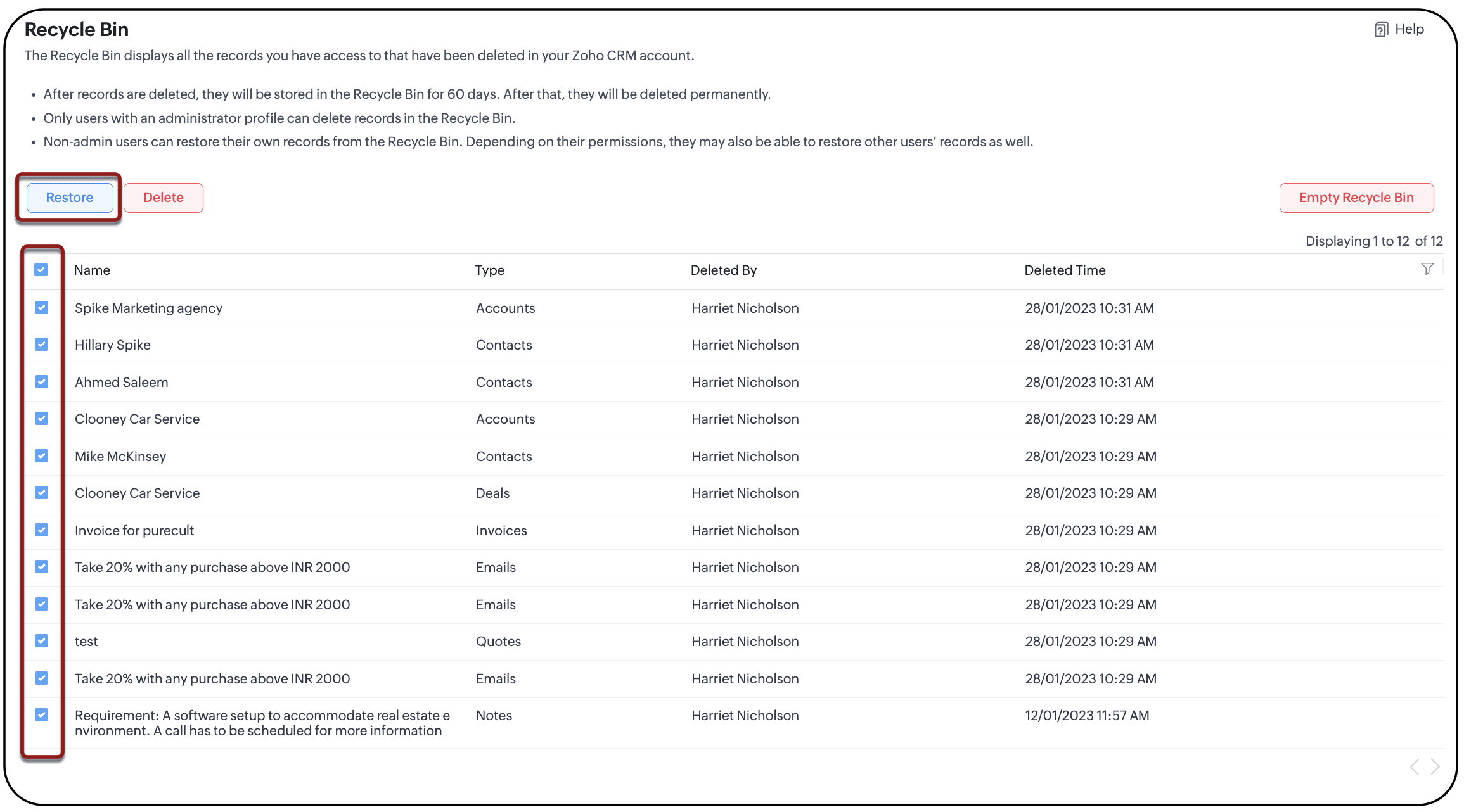
To learn more about Recyle bin, check out this detailed article.
Restoring backed-up files
If the time of your data loss has crossed the threshold limit of 60 days or if the recycle bin was emptied and no information is found in the audit log, the backed-up data will help you. Data backup is a highly recommended practice for businesses with high data inflow. If you have already backed up your data, then you can download your data immediately or schedule a backup routine. Either way, a backup will include all data and attachments.
Restoration:
A backup download will save a copy of your data and attachment in your local system. This, is a collection of files like record information from respective modules along with attachments in .csv format.
Note: Each record in the backup file will be assigned with an automated, unique alphanumeric ID. We recommend not to make any changes to those for it will impede the restoration.
There are two ways in which you can manage restoration of the backed-up files.
- Data import: If your data loss was a field information or if a record has no associated information from other modules, you can choose to import the respective file from the backup download into that particular module. If the deleted record has associated information from other modules, then data migration is recommended. Click here to learn more about data import.
- Data migration: If your data loss has records with related lists from other modules (like account, related contacts, notes, deals, activities, and so on) or have accidentally erased the whole of CRM data, it is difficult to identify and name from the backup download. In such cases, you can opt for data migration. Data migration is a complete import of your backup file to your CRM system. Click here to learn more about data migration within Zoho CRM organizations.
Contact CRM's technical support team
Data migration is a technical undertaking of importing a whole database that needs meticulous focus. Wrongly-mapped fields will garble the whole of your CRM account, causing further confusion. For this reason, we recommend you to contact our support team at support@zohocrm.com to recover your data. Our technical support experts will evaluate your account and assist you in the recovery process.
Corrective measures after restoration
Now that you have restored, it is important you ensure the following:
- Schedule routine data backup
- Export Audit log at regular intervals
- Validate permissions provision for users and limit deletion to users with administrator profile. To learn more about profiles in Zoho CRM, read Manage Users, Roles, and Permissions .