Import data from Google BigQuery
Prerequisite
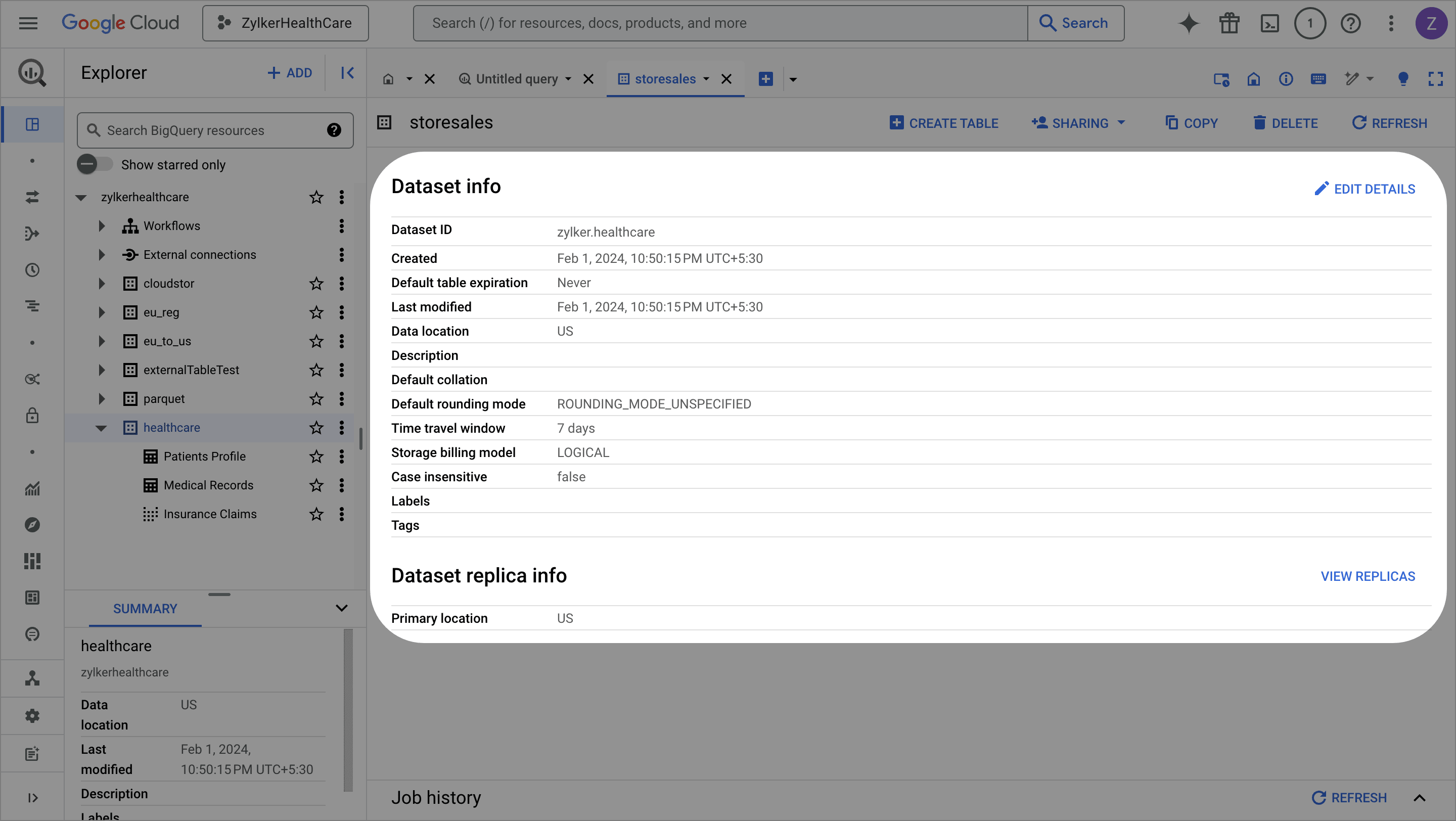
The Project Id and the Dataset location details are required to fetch the data from Google BigQuery.
- Login to your Google account.
- Choose the Project which has the datasets that you wish to import. The Project ID is displayed in the Project Selector at the top left of the BigQuery console, where you can select or switch between different projects.
- Click any table name to view the details. The Dataset info pane will list the details about the Dataset Location. Refer to BigQuery locations article to learn more.
To import data from Google BigQuery
 The incremental fetch option is not available when the data is imported using a query from databases. Click here to know more about incremental fetch from cloud database.
9. Once you complete importing data, the Pipeline builder page opens and you can start applying transforms to the ETL pipeline. You can also right-click the stage and choose the Prepare data option to prepare your data using various transforms in the DataPrep Studio page. Click here to know more about the transforms.
To edit the Google BigQuery connection
1. Click Saved connections from the left pane under the Choose your data source box while creating a new dataset.
2. You can manage your saved connections right from the data import screen. Click the (ellipses) icon to share, edit, view the connection overview, or remove the connection.
3. Click the Edit connection option. You can update the Project ID in the saved connection and click Update.
FAQs
1. I’m getting the error, “Loading tables has failed. Error connecting to Google BigQuery. Error details: reauth related error (invalid_rapt)” while connecting Google BigQuery in Zoho DataPrep. How can I resolve this?

SEE ALSO
Learn about importing data using saved data connections.
Import data from cloud storage services