Agentic AI Configuration in Zoho DataPrep
Zoho DataPrep supports AI integrations with both Zoho LLM and OpenAI to power advanced GenAI features, including Ask Zia, Formula Generator, Transform by Example, and Dataset Finder. You can configure one or both vendors and assign a preferred vendor to each feature individually from the GenAI configuration page under Feature Control in Settings.

OpenAI Integration with Zoho DataPrep

OpenAI in Zoho DataPrep works in a BYOK (Bring Your Own Key) model, in which users bring their own ChatGPT API Key and OpenAI Organization ID. If you are already an OpenAI user, you can use your API key and organization ID to unlock AI features in DataPrep.
Here's a quick video on ChatGPT integration with Zoho DataPrep.
 Data Privacy Notice: Zoho DataPrep utilizes OpenAI's ChatGPT API, an external service based in the USA, subject to OpenAI's Terms of Use. Please be aware that the information sent to OpenAI depends on the access provided by you, the user. The data shared with ChatGPT is based on the features you enable. Details such as column names and/or selected cell data will be shared based on each feature. You can choose to enable or disable each feature based on the level of data you want to share. Therefore, exercise caution while using this service and ensure that the data you provide does not contain confidential or personal information.
Notes:
- The generative responses are coming in from ChatGPT's training data. Accuracy, consistency, and relevance of the response are subjective to the type of prompts and the data available in its training set.
- ChatGPT doesn't respond to prompts about personal information.
Here's a short demo that illustrates the various features in Zoho DataPrep powered by OpenAI's ChatGPT integration.
To configure and enable OpenAI's ChatGPT integration
1. Click the settings icon at the top-right corner of the top bar to open Settings.
2. Under Feature Control, select GenAI configuration.
3. Click the Authentication tab.
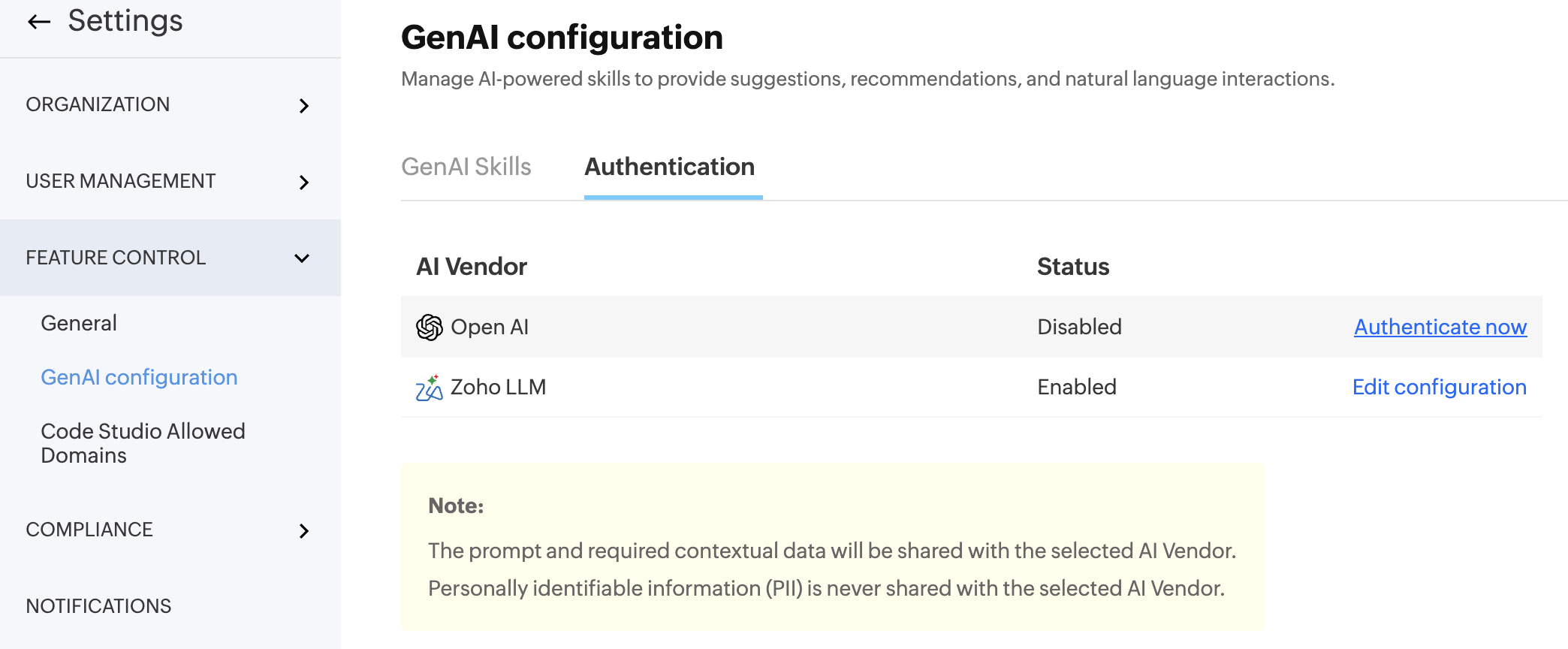

Note: The OpenAI configuration on DataPrep's Settings page will be visible only to the Account admin.
Only the Account admin can enable features for your DataPrep organization.
4. Click Authenticate now next to OpenAI.
5. A consent pop-up will be shown. Please read the data privacy notice carefully before you proceed. By proceeding, you acknowledge and accept the risks and OpenAI's terms of use policy.
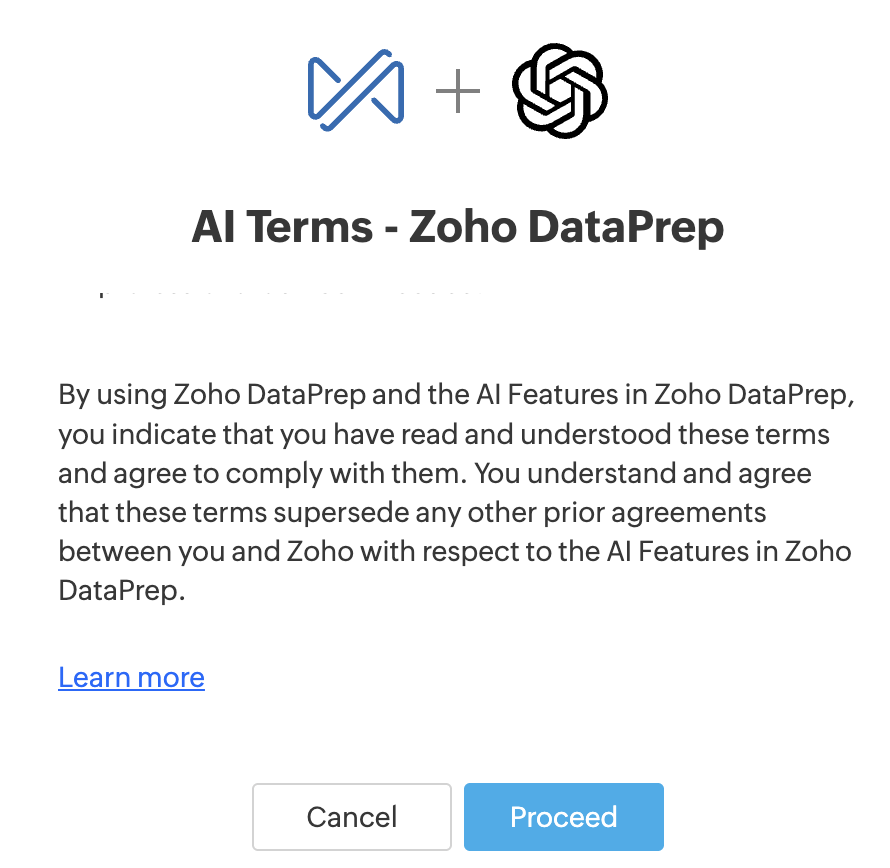
6. Provide the API Key and Organization ID of your OpenAI organization to configure OpenAI integration in your DataPrep organization.
5. A consent pop-up will be shown. Please read the data privacy notice carefully before you proceed. By proceeding, you acknowledge and accept the risks and OpenAI's terms of use policy.
6. Provide the API Key and Organization ID of your OpenAI organization to configure OpenAI integration in your DataPrep organization.
Note: The key will be encrypted and securely stored in Zoho DataPrep. Learn how to get the Organization ID and the API key from OpenAI7. Once saved, go to the GenAI Skills tab. Toggle on the features you want to make available across your DataPrep organization. Select OpenAI from the vendor dropdown next to each feature you want to power with OpenAI.
8. After enabling the features, you will be able to use them in your DataPrep organization.
- You can find the External dataset finder feature while importing data using the +Add dataset button.
- You can find the Formula suggester feature in the "Add formula" transform available in the Transform menu on the DataPrep studio page.
- You can find the Transform by example feature in the right-click menu of your data column.
- You can find the Build pipelines and Prepare data using Ask Zia feature from the top right corner of the Studio page and Pipeline builder.
Organization ID and API key in OpenAI
1. Go to your settings page in OpenAI to get the Organization name and ID. Here's a snapshot for reference. Read more from OpenAI
2. Go to the API keys tab under the Organization section to get your API Key. Here's a snapshot for reference. Read more from OpenAI
Zoho LLM integration with Zoho DataPrep
Zoho LLM is Zoho's own large language model. You can enable it directly from the GenAI configuration settings without needing an external API key. Once enabled, it powers AI features in Zoho DataPrep, including Ask Zia, Formula Generator, Transform by Example, and Dataset Finder.
Note: This setting is visible and accessible only to the Account admin.To configure and enable Zoho LLM
1. Click the settings icon at the top-right corner of the top bar to open Settings.
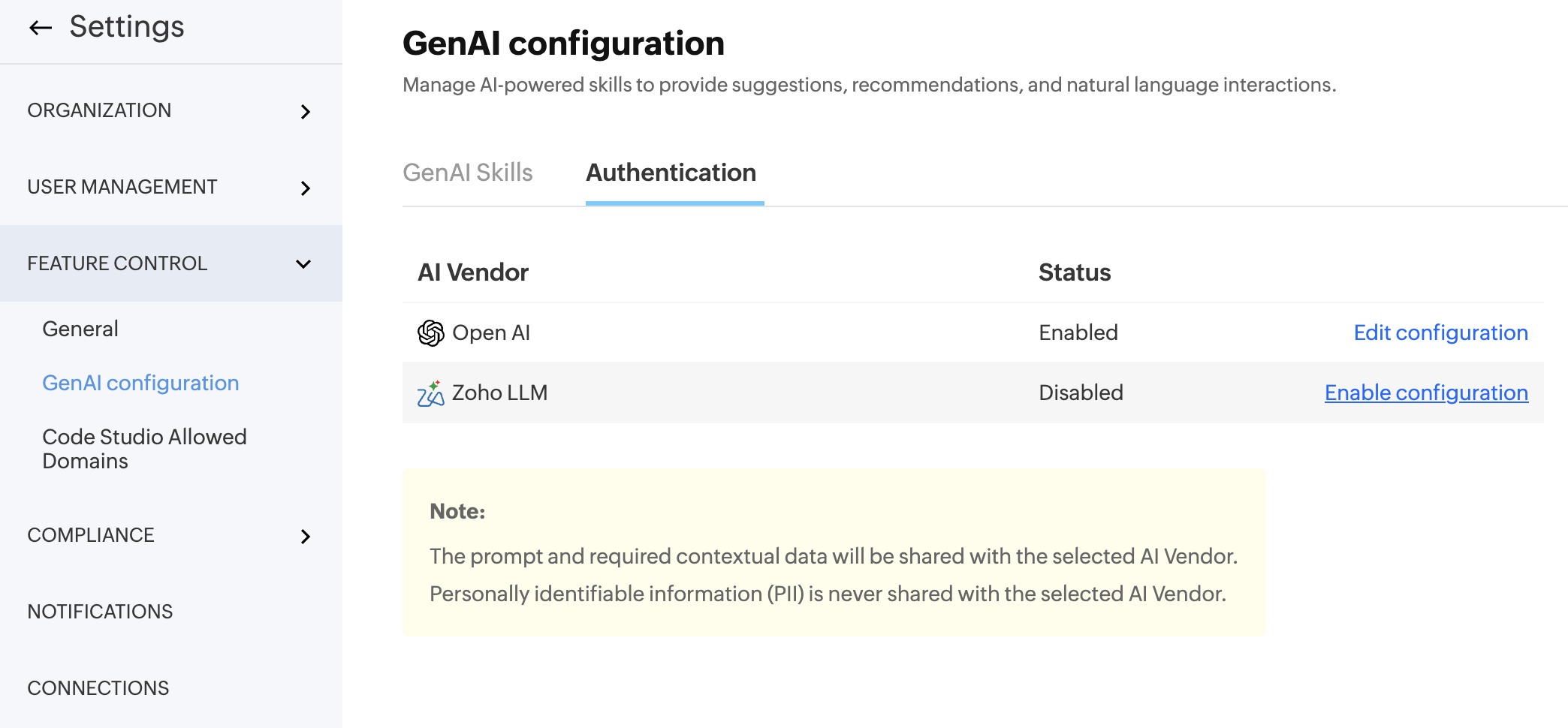
2. Under Feature Control, select GenAI configuration.
3. Click the Authentication tab.
4. Locate Zoho LLM in the AI Vendor list and click Enable configuration.
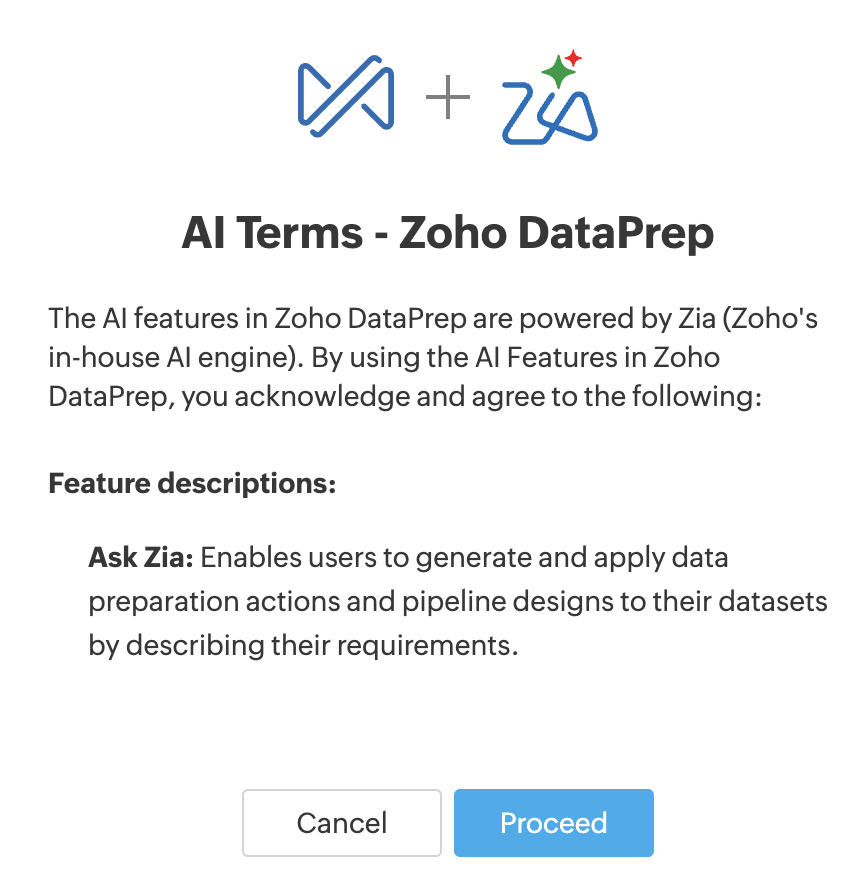
5. A consent pop-up will be shown. Please read the data privacy notice carefully before you proceed.
6. In the Authentication panel, confirm that the Zoho LLM toggle is enabled and click Save.
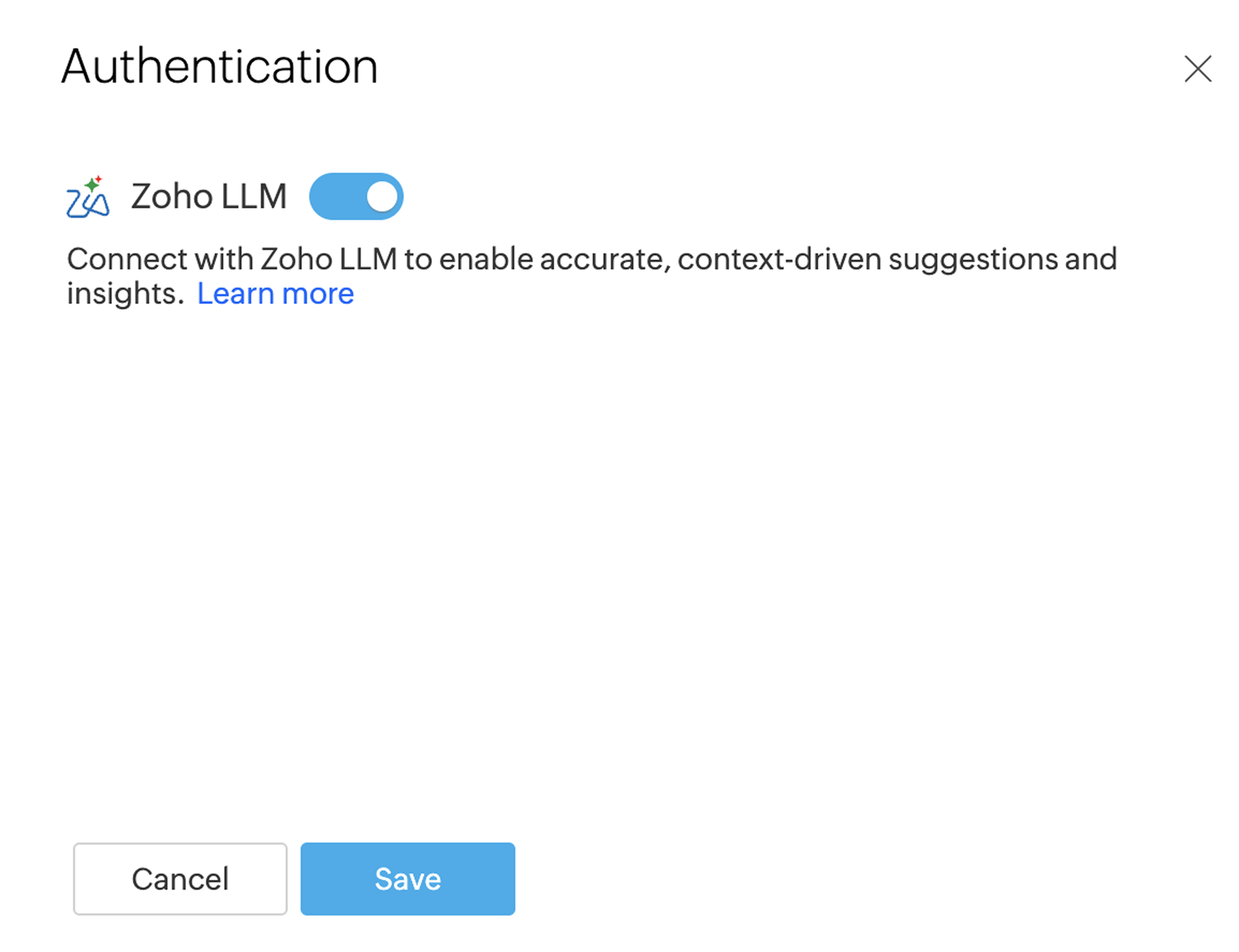
7. Once saved, go to the GenAI Skills tab and toggle on the features you want to make available across your DataPrep organization. Select Zoho LLM from the vendor dropdown next to each feature you want to use.
8. After enabling the features, you will be able to use them in your DataPrep organization.
- You can find the External dataset finder feature while importing data using the +Add dataset button.
- You can find the Formula suggester feature in the "Add formula" transform available in the Transform menu on the DataPrep studio page.
- You can find the Transform by example feature in the right-click menu of your data column.
- You can find the Build pipelines and Prepare data using Ask Zia feature from the top right corner of the Studio page and Pipeline builder.
SEE ALSO