How to choose the right field type?
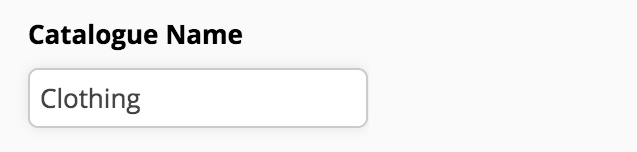
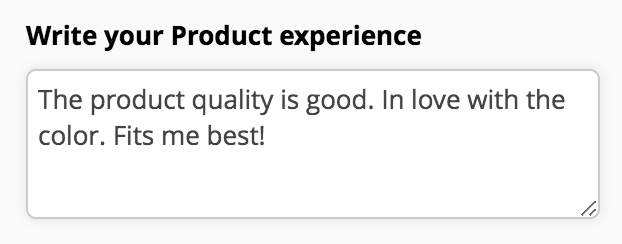
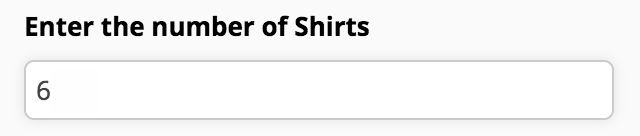
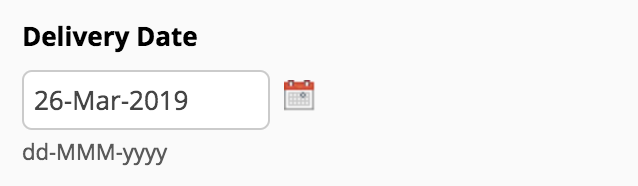
Zoho Forms provides you with a variety of form fields to get data from your respondents. Knowing which field to use is crucial to obtain the right data.
We
also
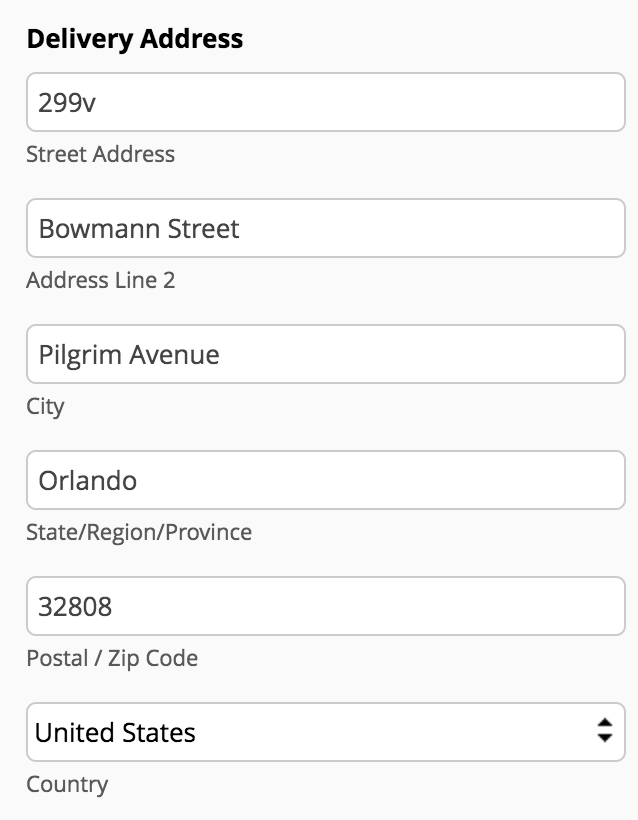
have dedicated fields for name, address, phone number, email address, website, and currency.

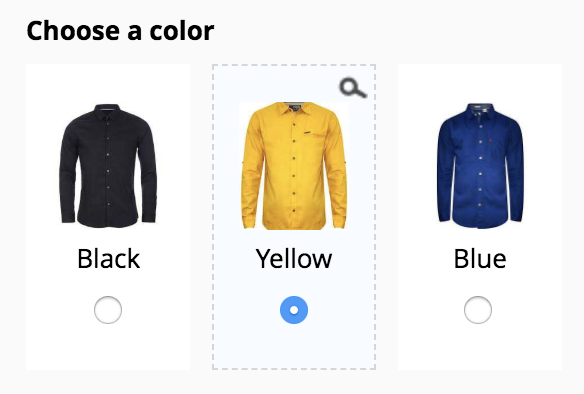
How to decide which choice-based field to use?
Other fields
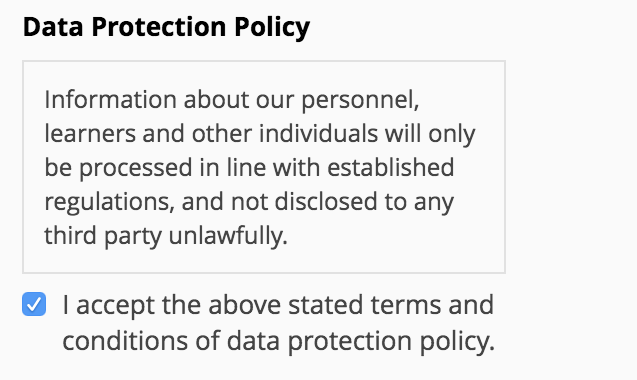
Let your users upload necessary files and images, like resumes, photos, screenshots, etc., using the
File Upload
and
Image Upload fields.
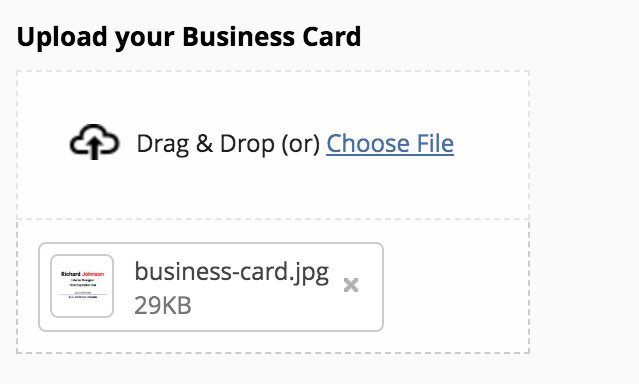
Having a long form with a lot of questions? The form can look unorganized if you keep adding questions without breaking them up into sections and pages. Break your form into sections, using the
Section
field, and organize the sections into separate pages using the
Page Break
field
to
provide a clean form filling experience to your respondents.
Learn more about multi-page forms.
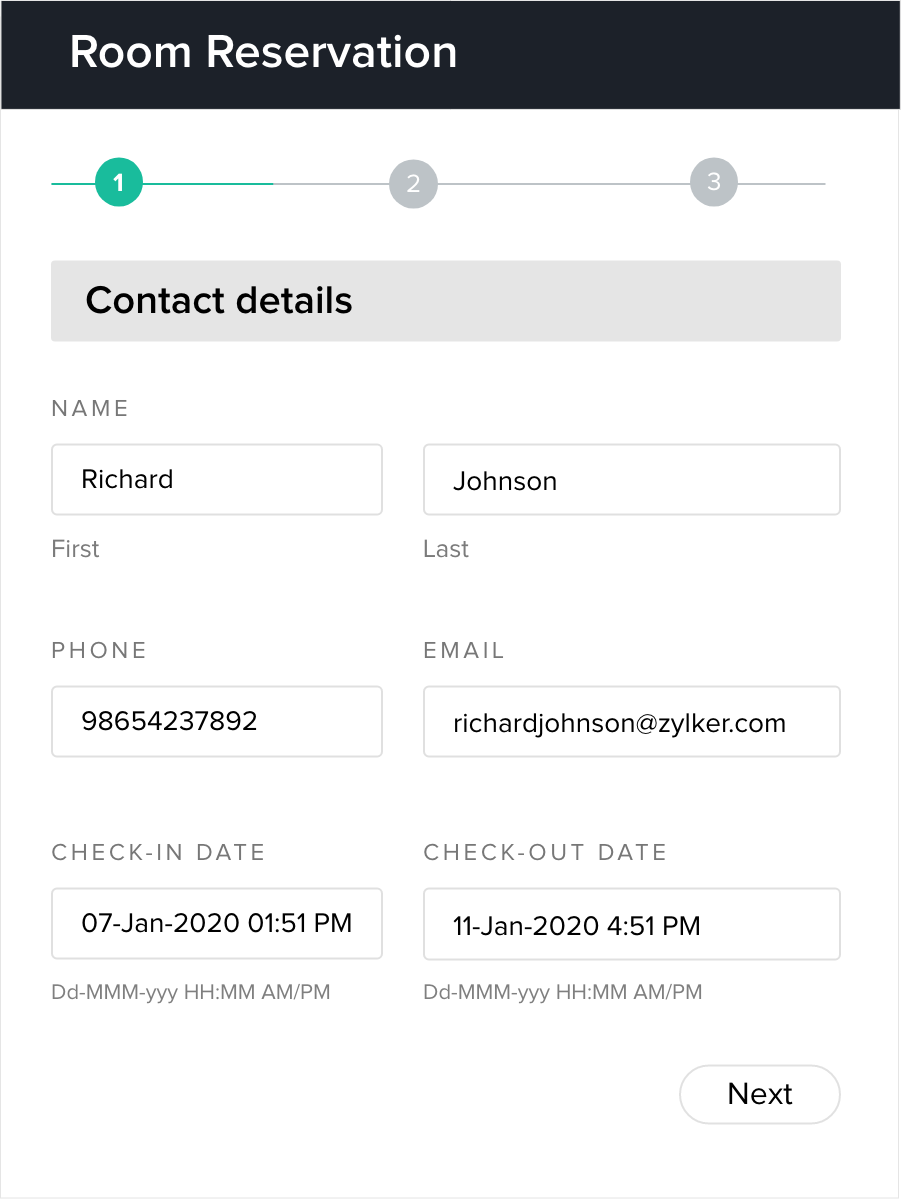
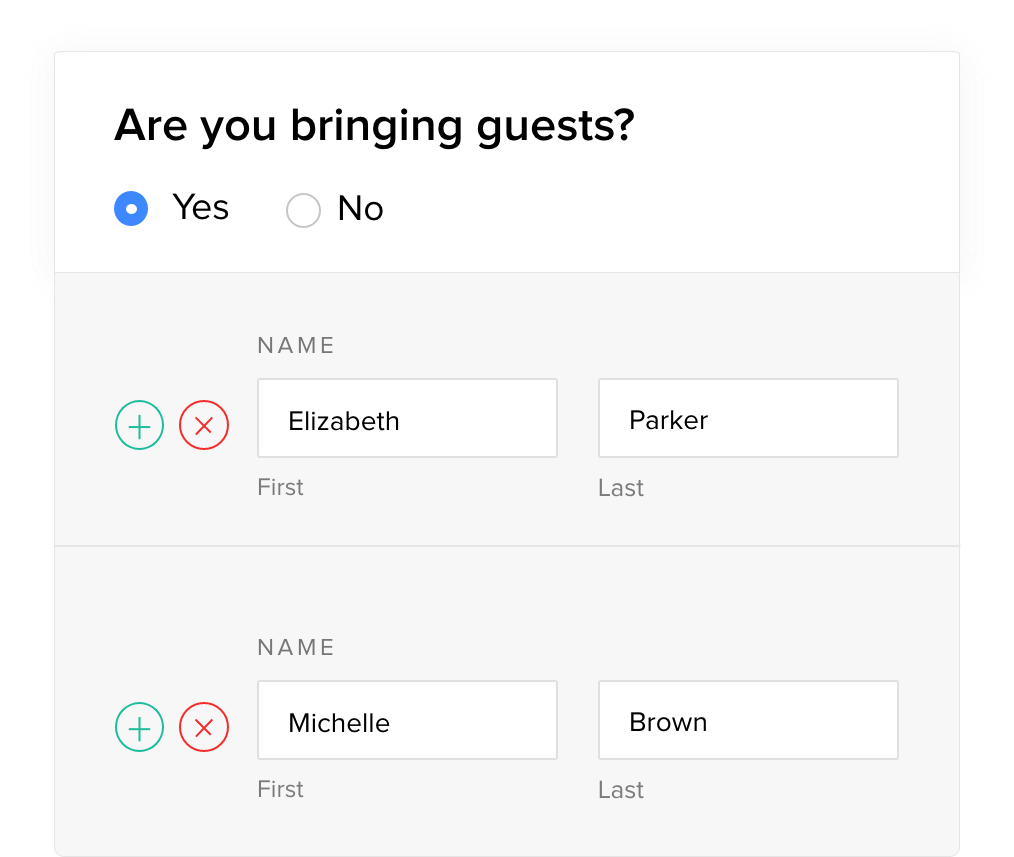
Collect multiple line items in your form with the
Subform
field. Create repeating sections with one Subform. For example, it can be used in order forms, booking forms, application forms, etc., to collect additional details associated with the primary form.
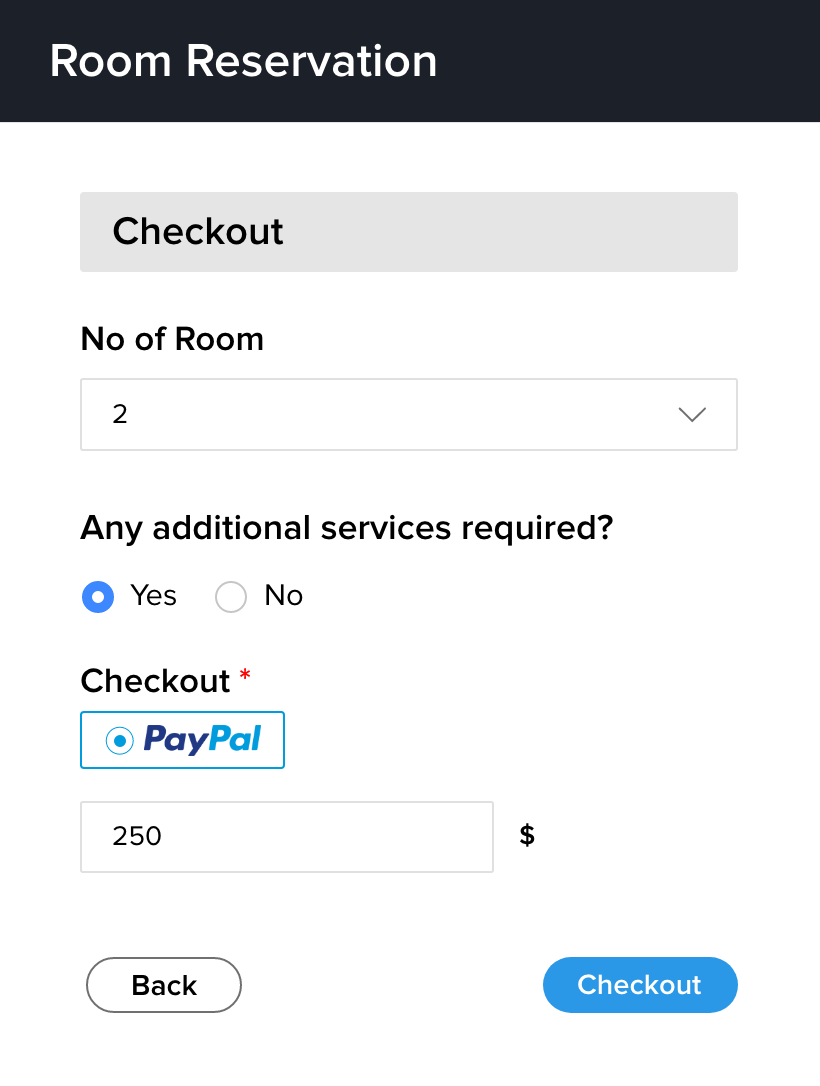
Want to collect payments with your form? Use the
Payment
field to process
the payments through third-party merchants. You can also configure formulas to calculate the payment amount using the
Formula
field and trigger workflows only on successful payment.
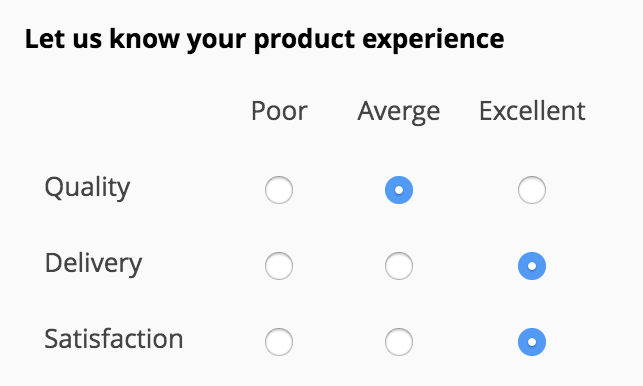
Let customers rate your products and
services
with the
Rating
or
Slider
fields.

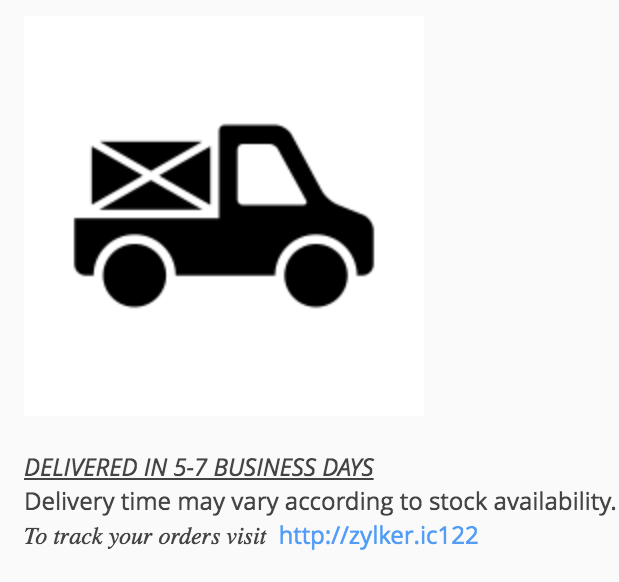
Provide more information about your service or product in a few lines using the
Description
field.
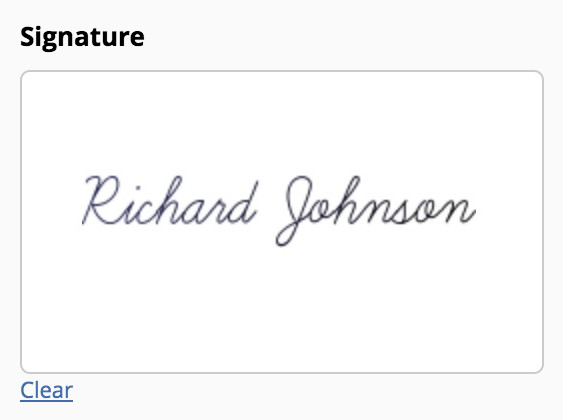
You can get your respondents to sign application forms, enrollment forms, etc., using the
Signature
field.
Generate unique identification numbers for each form entry using the Unique ID field that helps identify individual submissions. This field is great when it comes to keeping track of your orders. It remains invisible to the customers when they’re filling out the form, but when they hit “submit,” you receive a unique reference number for the form submission along with the information that the customer filled out.
Explore more about the fields available in Zoho Forms!