Zoho People Integration with Zoho Recruit
Introduction
The Zoho Recruit integration brings your hiring and HR workflows together, eliminating the gap between selecting a candidate and getting them set up in Zoho People. Once a candidate clears the hiring process in Zoho Recruit, their profile, along with offer details, compensation data, education history, and experience can be pushed directly into Zoho People without manual re-entry.
From there, you can convert them as an employee or move them into the onboarding workflow, with all mapped field data carrying over automatically. The integration also supports auto-pushing candidates based on a status trigger, so the handoff can happen without any manual action at all.
Click here to learn more about setting up the Zoho People integration from Zoho Recruit.
Click here to learn more about setting up the Zoho People integration from Zoho Recruit.
From the Zoho People perspective the main purpose of the Zoho Recruit integration is to seamlessly push candidates directly from Zoho Recruit directly into Zoho People.
Candidates from Zoho Recruit can be pushed to Zoho People as:
- Candidates
- Employees (referred to as 'Users' in Zoho People)
With the candidates pushed from Zoho Recruit, the following actions can be performed:
- Sync compensation data along with the offer details.
- Assign salary package to the candidate in Zoho People.
- Generate an offer letter for the candidate in Zoho People.
- Get the offer signed/accepted in Zoho Recruit, then assign a salary package in Zoho People.
- Convert candidate as employee (user).
Setting Up The Integration (With Compensation Data Sync)
Follow these steps to configure Zoho Recruit integration with Zoho People:
- As a prerequisite, Ensure that the Compensation service is enabled and configured within Zoho People, with the 'Getting Started' flow completed. Learn more about configuring Compensation service.
- Ensure the use of "Detailed employee pay tracking with benefits and breakup" option as the 'Salary tracking method'. You can find this option in the Settings > Compensation > Configuration page.
- Next, head to recruit.zoho.com, Login to your account, and navigate to Settings > Zoho (within "Marketplace") and click on Setup Now / Configure button with the Zoho People integration.
- Once the integration is enabled, Enable the "Push Offer Details to Zoho People" option.

Ensure that the same currency is used across both Zoho People and Zoho Recruit. For e.g., if USD is used in Zoho Recruit, the same must be used in Zoho People. You can add Currencies in both applications.
For Zoho People, navigate to Settings > Compensation > Currencies (or) Settings > Onboarding > Compensation > Currencies.
For Zoho Recruit, navigate to Setup > Company Details > Currencies.
If the 'Employee pay only' option is used then only the Salary (CTC) field will be synced between the two applications, without breakup.
For Zoho People, navigate to Settings > Compensation > Currencies (or) Settings > Onboarding > Compensation > Currencies.
For Zoho Recruit, navigate to Setup > Company Details > Currencies.
If the 'Employee pay only' option is used then only the Salary (CTC) field will be synced between the two applications, without breakup.

Before proceeding to the next step, ensure that the necessary fields are added in Zoho Recruit. By default, only the Compensation Amount field will be present. Add 'Currency Fields' for breakup components such as Basic Pay, HRA, Fixed Allowances. To do this navigate to Recruit > Setup > Modules (within 'Customization) and configure the 'Offers' module. Simply drag and drop currency fields to the form, rename them and Save your changes.
Once the breakup components are created here, these fields will appear on the Compensation Module mapping page.
- Next, proceed with mapping the corresponding Zoho People fields to the Zoho Recruit fields. To map the compensation breakup, head to the Compensation Module tab in recruit.
Adding the Candidate in Zoho Recruit and Generating an Offer
You can also directly generate the offer letter in Zoho People.
- From Zoho Recruit, go to the Candidates tab and click on the Create Candidates button (+ button)
- Fill out the candidate information
- Click on Save and Associate
- Select a Job Opening
- Click on Associate
- Now head to the Applications tab and select job application that you just processed, click on the More options button and select Generate Offer Letter option.

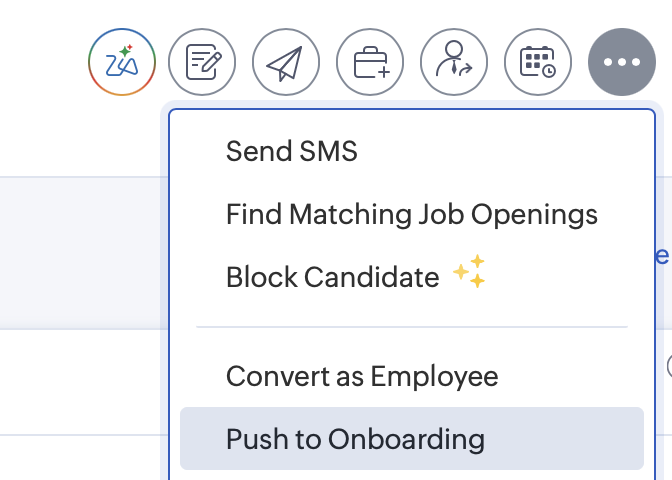
If you wish to Generate the offer letter in Zoho People directly (instead of Zoho Recruit), then head to the candidate record in Zoho Recruit, click on More Options and select Push to Onboarding button directly.
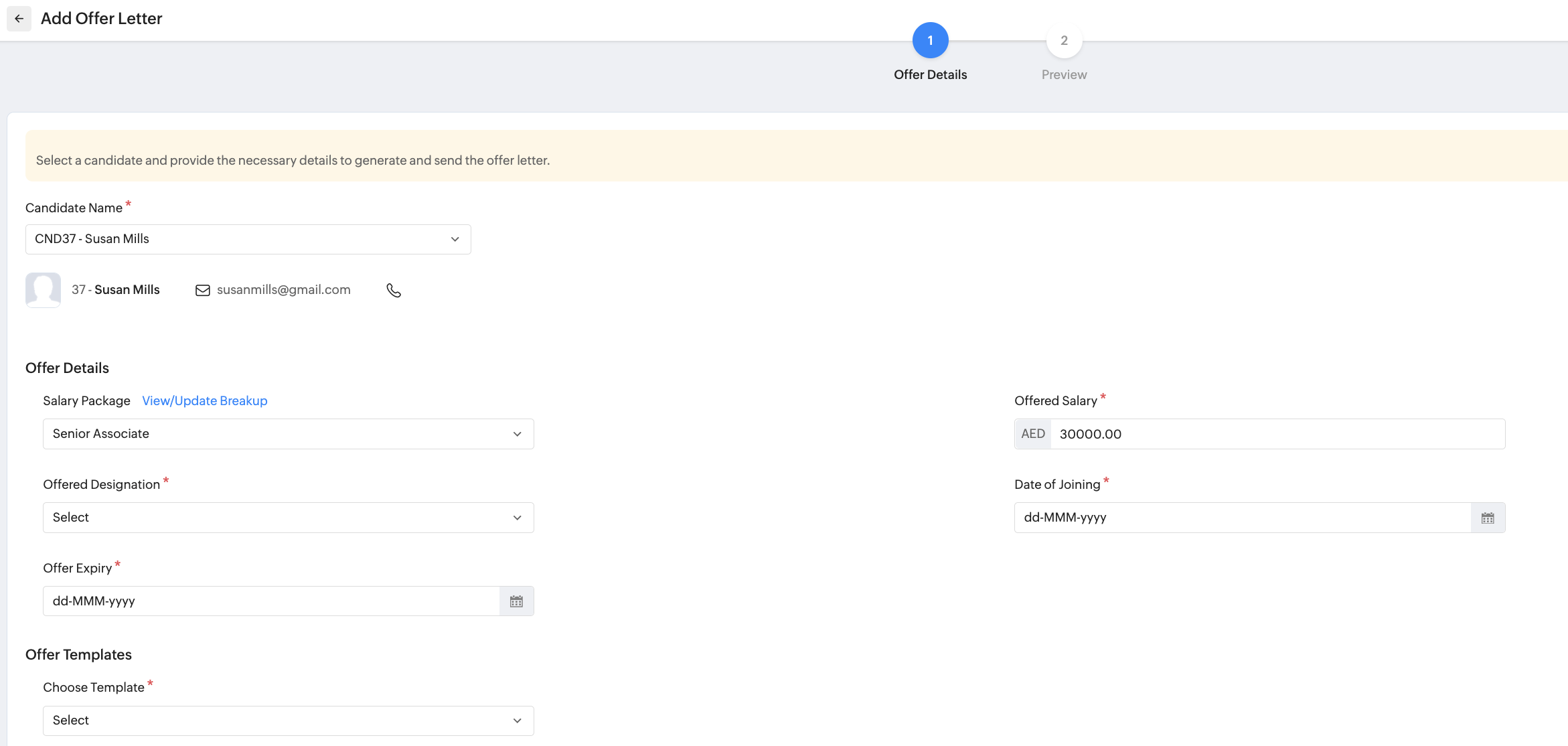
Once this is done, you can select the candidate record in Zoho People and generate and send the offer letter directly.
Learn more about offer and appointment letter in Zoho People
Once this is done, you can select the candidate record in Zoho People and generate and send the offer letter directly.
Learn more about offer and appointment letter in Zoho People
- Select currency, fill out the compensation details breakup, select the expected date of joining, offer expiry date and click Save and Next
- Once you preview the template, click Send
The Offer email will now be sent to the candidate. (The Recruit Status will change from "Associated" to "Offer-Made")
The candidate must accept the offer for the process to proceed.
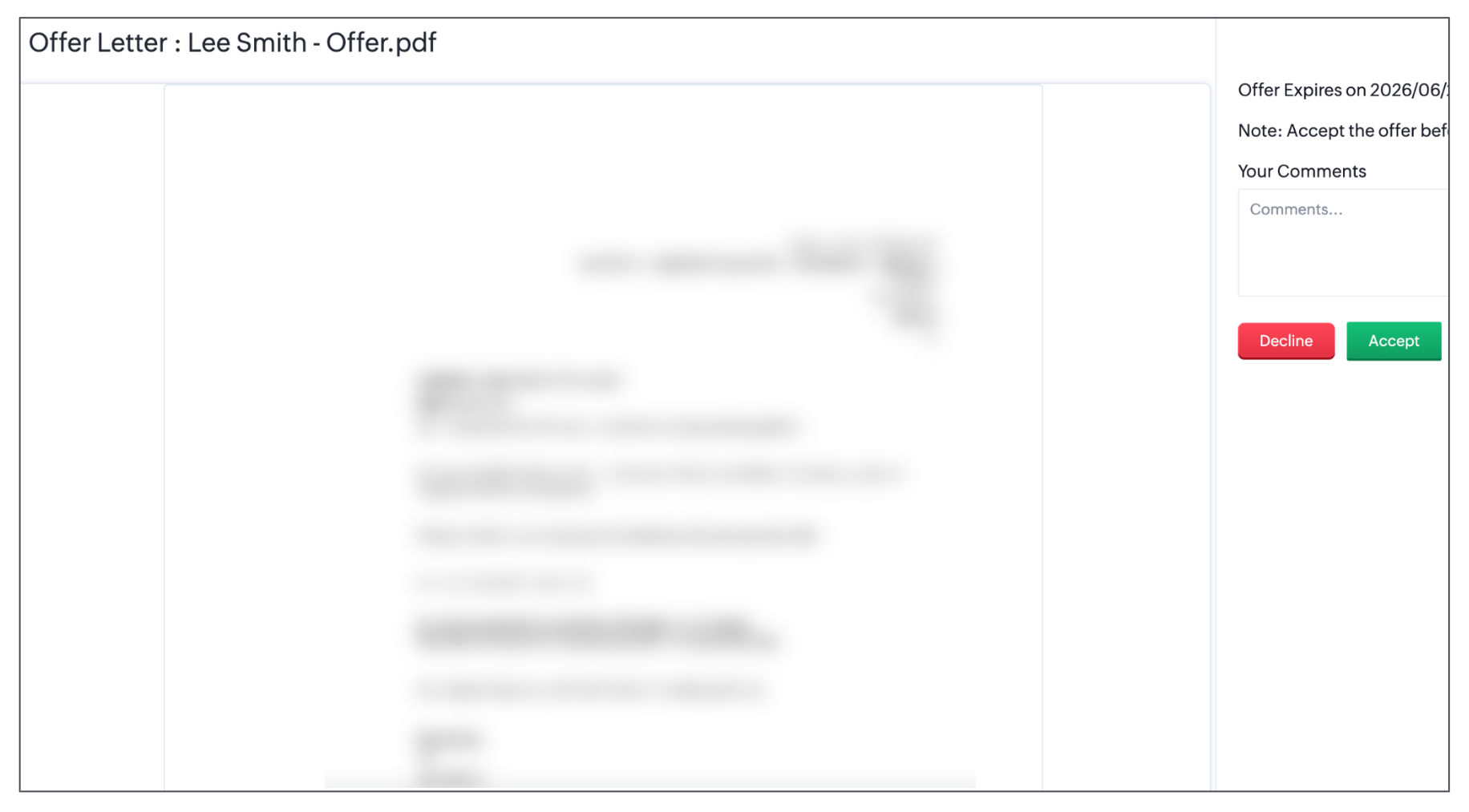
The Recruit status will indicate "Offer-Accepted" once the candidate accepts the offer.
Push Candidate to Zoho People
In the previous section, we saw how to add the candidate in Zoho Recruit, Generate an offer and send it to the candidate. Once the candidate has accepted the offer, we now have two main options:
1. Push to Onboarding - Push to the Onboarding service within Zoho People as an candidate.
2. Convert as Employee - Push directly as an user in Zoho People.
To view these options, head to the Candidates tab in Zoho Recruit and select the offer accepted candidate's record and click on the More options icon. There is also a third option:
3. Automatically move Candidates to Zoho People - When enabled, you can choose between one of the above options to be automatically triggered based on the candidate status.
Read below to understand the difference between these flows.
Read below to understand the difference between these flows.
'Push to Onboarding' Flow
Follow these steps to understand the 'Push to Onboarding' flow:
- Form the candidate's profile, click on the Push to Onboarding button, followed by reviewing the details and clicking on the Convert button to finalize the action.
- Now the candidate with 'offer accepted' will be pushed automatically to Zoho People.
- Go to Zoho People. Navigate to Operations > Onboarding > Offer Letters > Accepted Offers. Here you can see the candidate record that is added. Select the record.
- Click on the Assign Package button and proceed with assigning an offer package from Zoho People and click Submit.
- Once this is done, Head to the Candidate tab, select the candidate record and convert them to an user (making them a permanent employee of the organization.).
Now you have the candidate added as an employee in Zoho People, with compensation data updated based on the salary package assigned to them. (You can skip step 5, if you directly wish to proceed with the compensation data synced from Zoho Recruit with no changes to salary package).
'Convert as Employee' Flow
Here is the difference when using the 'Convert as Employee' flow:
Similar to the above flow, when the 'Convert as Employee' flow is used, the candidate will be pushed as an Employee (user in Zoho People), along with the compensation details entered in Zoho Recruit.

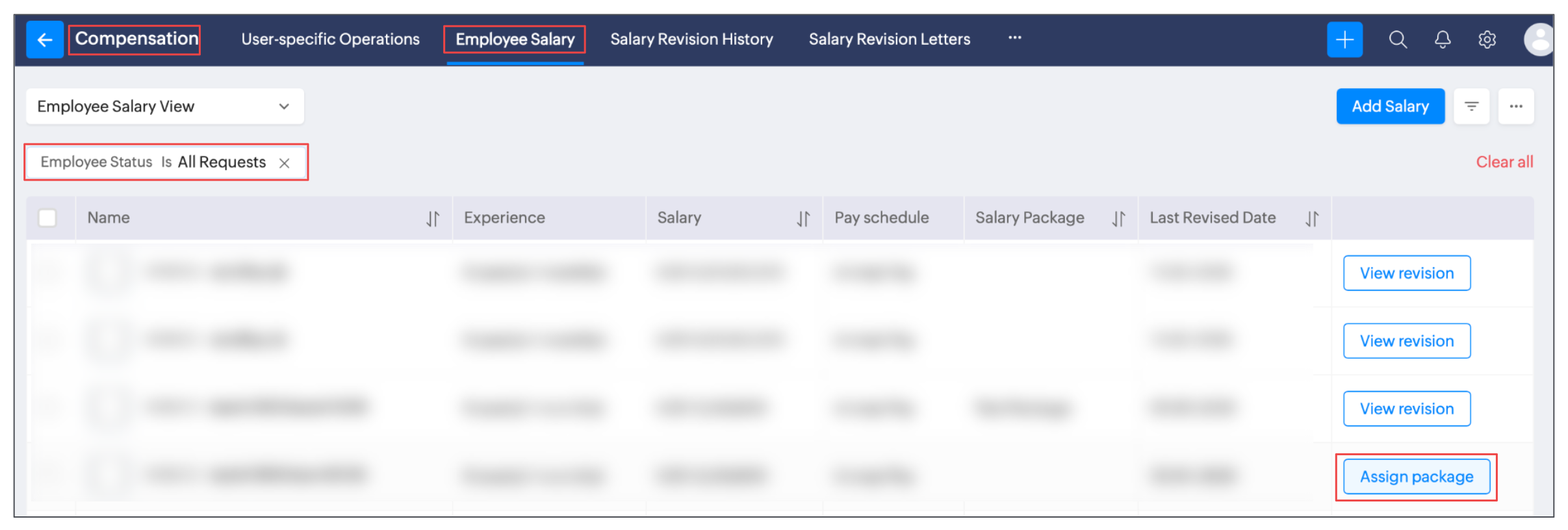
You can still assign a salary package to employees added as users from Zoho Recruit, do this by navigating to Operations > Compensation > Employee Salary (set Filter 'Employee Status' as 'All Requests') then click on the Assign Package button in the corresponding record.
'Automatically Move Candidate to Zoho People' Flow
Zoho Recruit allows triggering either the 'Push to Onboarding' flow or 'Convert as Employee' flow automatically. To enable this option, follow these steps:
- Go to Zoho Recruit. Head to Setup > Zoho (within Marketplace) > in the Zoho People card, click on Manage.
- Enable the 'Automatically move Candidates to Zoho People' option
- Choose between:Push to Onboarding - Push to the Onboarding service within Zoho People as an candidate.Convert as Employee - Push directly as an user in Zoho People.
- Set the move trigger status:
Hired - Candidate will only be moved when the status has been updated to hired.
Offer accepted - Candidate will only be moved when they have accepted an offer. - Finally, click on Update.
Now the selected flow will be automatically triggered when the candidate is moved to the set status.