You can grant access to specific forms within a service, allowing the user to create, edit, process, and manage form records.
User Access Control
What is User Access Control?
User access control in Zoho People helps manage and restrict user permissions to ensure secure handling of sensitive employee data and system functions. Administrators can define roles, assign access levels, and control who can view, edit, or perform specific tasks within the application.
Security is a critical aspect of HRMS, and in Zoho People, all organizational data is stored in forms. To ensure robust data protection and controlled access, administrators can configure detailed access permissions for forms, fields, and actions based on user roles.
Role-based access ensures that only authorized employees can view, add, edit, or delete form records, providing controlled and secure data management in Zoho People.
Watch our help video on User Access Control
Configure User Access Control
Roles
In Zoho People, roles define the access permissions and responsibilities assigned to users within the organizational account. Roles ensure that users have the appropriate level of access to forms, modules, and data in Zoho People based on their job functions.
Zoho People offers predefined roles while also allowing customization to meet specific organizational needs. Roles in Zoho People are classified as follows:
- General Role
- Specific Role
General Role
General roles are the permission-based access roles that can be assigned to any user in your organization. These roles are not restricted by location, department, or designation. Common roles include Admin, Director, Manager, Team Member, and Team Incharge. You can also create custom roles based on your organizational needs.
Admin Role: Admins have unrestricted access to all Zoho People services, including all forms, services, operations and settings. This role is ideal for administrators managing system-wide configurations and overseeing HR processes.
Director, Manager, Team Member, and Team Incharge Roles: These roles come with configurable access permissions, allowing you to tailor access levels based on job responsibilities and requirements. Permissions can be adjusted to control access to specific forms, fields, and services.
You can Set up Function based Permissions and Permission Specific to Forms in a Service (View, Edit, Add and Delete) for these roles.
Super Administrators
Super Administrator is the primary account owner who has the highest level of access and authority within the Zoho People. This role is automatically assigned to the individual who creates the Zoho People account and is responsible for managing the account at the organizational level.
Account Super Administrator profile is visible on the settings page.
Super Administrator role rights can be transferred to any user with Admin role in Zoho People. This feature is particularly useful if the account was initially set up by an individual who is no longer managing the system or if there’s a need to delegate account ownership due to organizational changes, such as role transitions or restructuring.
Change Super Administrator
To transfer Super Administrator rights:
Only account Super Administrator can transfer rights.
- Login as a Super Administrator of the account.
- From your home page, navigate to Settings > Manage Accounts > User Access Control > Roles > General Role.
- In Admin Role, click edit icon and select any admin role users as Super Administrators.
- Authenticate with the account password to transfer the rights.
Add General Role
You can only edit Director and Team Incharge role to your preference. For Manager and Team member you can only modify their permissions.
To add new general role:
- Navigate to Settings > Manage Accounts > User Access Control > Roles > General Role.
- Click Add General Role.
- Enter the Role name.
- Select a particular role from the Clone role drop-down thereby allowing to create a role that is similar to that of an existing role. This means that the same set of permissions or access will be applicable to the cloned role as well.
- Click Create.
 You can Set up Function based Permissions and Permission Specific to Forms in a Service (View, Edit, Add and Delete) for these roles.
Assign General Role
You can assign a General Role to a user by hovering over the desired role, clicking the add icon at the top-right corner of the role, and selecting the user. You can also view the number of users assigned to each role.
Alternatively, you can:
- Navigate to Settings > Manage Accounts > Users, click on the user record and search for role field and change role.
- Navigate to Operations > Employee Information > Employees, click on the user record and search for role field and change role.
Specific Role
In addition to a standard General Role, an organization might require an employee to have an additional role, such as handling the HR operations for a specific location or department. This can be achieved by creating specific roles and assigning them to your employees.

Specific Role feature is available only for Enterprise plan users. Learn more.
The Data Admin role in the Specific Role category provides complete data access to all form-based services in Zoho People and based on the permissions configured in the respective form.
Add Specific Role
To add a Specific Role
- Navigate to Settings > Manage Accounts > User Access Control > Roles > Specific Role.
- Click Add Specific Role.
- Enter the Role name.
- Select a particular role from the Clone role drop-down to create a role that is similar to that of an existing role. This means that the same set of permissions or access will be applicable to the cloned role as well.
- Click Create.
Specific Role Assignment
To assign the specific role to your employees:
- Navigate to Settings > Manage Accounts > User Access Control > Roles > Specific Role Assignment.
- Click Assign Specific Role.
- Select the Employee.
- Select the specific role which you would like to assign to the selected employee.
- Set the role applicability.
- Click Save.You can assign multiple Specific role to your employees by using Assign Another Role option.
Configure Specific Role Permissions for a Form
You must associate a Specific Role with the required Zoho People form and define permissions to enable users in that role to manage the corresponding form data.
- Navigate to Settings > Select a Service > Permissions > Specific Role.
- On the Record permissions > Specific role, Field permissions, Import and Export permissions, and Tabular Section Permissions, set up the required specific role permissions (View, Edit, Add and Delete).
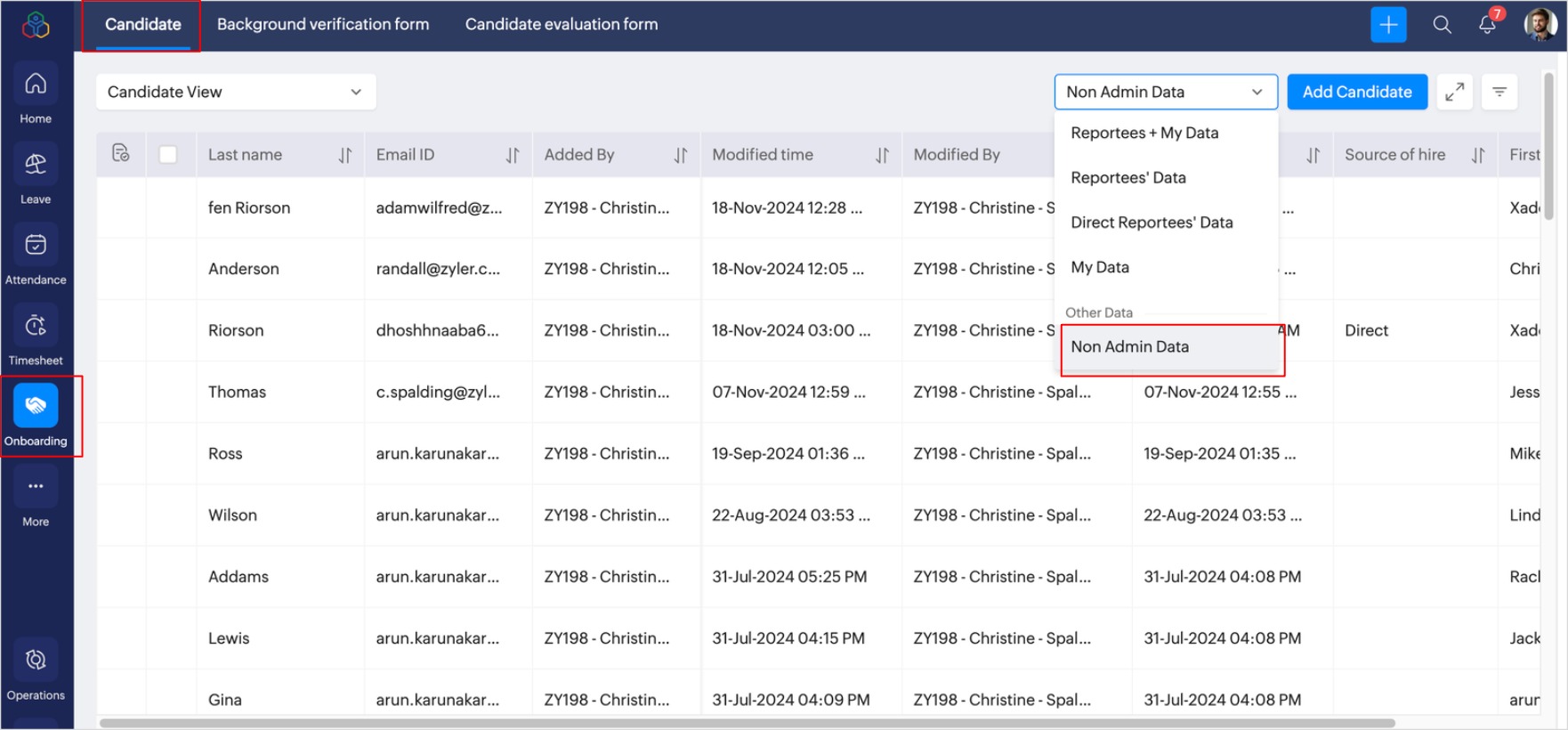
Upon configuring specific role for a form, the employee applicable to Specific Role can manage the data of the form by selecting Data Admin or Non Admin Data from the dropdown.
Function Based Permissions
You can configure Function based permissions to General Role users. Select the general role, and enable or disable access to the following functions in Zoho People.
Administrators
The Administrator tab allows you to assign any employee (non-admin users) in your organization as administrators for specific modules and functions.
You can grant access to:
- Module Settings
- Module Data (Operations)
- Other administrative functions such as Automation, Tabs & Forms Customization, Permissions, and Subscription.
To configure specific administrators:
- Navigate to Settings > Manage Accounts > User Access Control > Administrator.
- Click Add User.
 If you cannot find the user, check whether the user has already been added as an administrator in Module & Settings, Control Panel, or Forms Administrators. If the user is already listed, click the user and grant additional administrator access if required.
 - Select a user from your organization.
- Click Add.
- Enable the required permission:
- Settings - Allows the user to configure and manage complete module settings.
- Data/Operation - Allows the user to manage operational data in the module, such as creating, editing, processing, and managing records.
- In the Locations section, you can restrict access to selected locations if necessary. - Scroll to the end of the permission page to grant access to specific functions of all services, such as setting up Service Automation, Forms Customization, Permission Configuration, and Subscription Management.
- Click Save.
The user will be granted the selected access.
View Consolidated Admin Permissions for Specific Users
To view consolidate admin permissions provided for specific users:
- Navigate to Settings > Manage Accounts > User Access Control > Administrator.
- Click on the required tab to view access permissions:
Module & Settings
Displays the users who have been granted Settings and Data (Operations) permissions for specific modules.
Control Panel
Displays the users who have been granted access to all module Automation configuration, Forms Customization, User Permission Configuration, and Account Subscription Management.
Forms
Displays the users who have been granted administrative access to manage records of specific forms within services.
Applicability Groups
Applicability Groups help you define and manage groups of employees based on criteria such as department, location, designation, role, employment type, organization structure fields, or individual selection. Employees who meet the defined criteria are automatically included in the group.
These groups can be reused across Zoho People modules to define applicability for permissions, policies, and other features.
To define applicability groups:
- Navigate to Settings > Manage Accounts > User Access Control, click on Add.
- Enter the group name,
- Set the criteria.
- Click Save.
Currently, these groups can be tagged in the permission applicability section of HR process to control access and applicability.