Zoho People — Mobile Application Help Guide
Zoho People’s mobile applications for iOS and Android enable employees and managers to access essential Zoho People functions and stay on top of HR activities from anywhere, at any time, right from the convenience of their mobile devices.

The Zoho People mobile app is designed for all Zoho People users, offering features for both standard employees (referred to as the “Team Member” role) and managers. However, service configuration and certain advanced functionalities are available only through the Zoho People web application for administrators. Enabled features, account licensing, and configured permissions can affect what is available to mobile app users.
Getting Started
Downloading the App
Install Zoho People from the Google Play Store or App Store on your Android/Apple device. (Simply search "Zoho People")
Logging In
- Open the Zoho People app.
- Enter your work email address and tap Next.
- Enter your password and tap Sign In.
- If your organization uses Single Sign-On (SSO), you will be redirected to your organization's login page automatically.
First-Time Setup
After logging in:
- The home screen shows tabs relevant to your role.
- If your organization uses location-based attendance, the app will request location permission. Grant this permission for attendance tracking to work correctly.
Multi-Organization Access
If you belong to more than one organization, you can switch between them from More > Settings (Gear icon) > Organization at any time.
Home Screen & Navigation
The Home Screen in the Zoho People mobile app features three 'Spaces'. Namely: My Space, Team Space, and Organization Space. The Spaces will be covered in detail later in the document. Users can navigate between the three 'Spaces' using the corresponding buttons and swipe between the sub-tabs.
Shortcuts for Home, Quick Add, More (access to services), and some services are present in the bottom bar.
Access to Zia Assistant, Employee Search, And Notifications are present in the top right corner. Access to your profile is in the top left corner.

You can disable employee search if required, To do this, navigate to the web application of Zoho People and follow the instructions below:
Navigate to Settings > User Access Control > Function Based Permissions, Use the drop-down to select a Role (e.g., Team Member) and disable "Search Employee".
Access Zia - Zoho People's AI Assistant
Simply click on the Zia icon on the bottom-right corner to bring up Zia. Ensure you have updated your mobile app to the latest version via the Playstore (Android) or App Store (iPhone). Zia must first be enabled through Zoho People web before it can be accessed via the mobile app. Learn more about Zia for Zoho People here. Zia is an AI agent powered by our Zlabs-hosted LLM, with support for additional AI vendors based on configuration, designed to intelligently assist users with everyday HR operations.
Zia helps users navigate HR tasks effortlessly by answering policy-related questions, generating actionable insights, and building reports. Whether you're an HR professional managing operations, a manager tracking team information, an employee looking for quick answers, or a business leader seeking insights, Zia acts as a reliable assistant that reduces manual effort and saves time.
Zia helps users navigate HR tasks effortlessly by answering policy-related questions, generating actionable insights, and building reports. Whether you're an HR professional managing operations, a manager tracking team information, an employee looking for quick answers, or a business leader seeking insights, Zia acts as a reliable assistant that reduces manual effort and saves time.
My Space
An employee-focused space. Sub-tabs will depend on employee role, permissions, and services configured in Zoho People web.
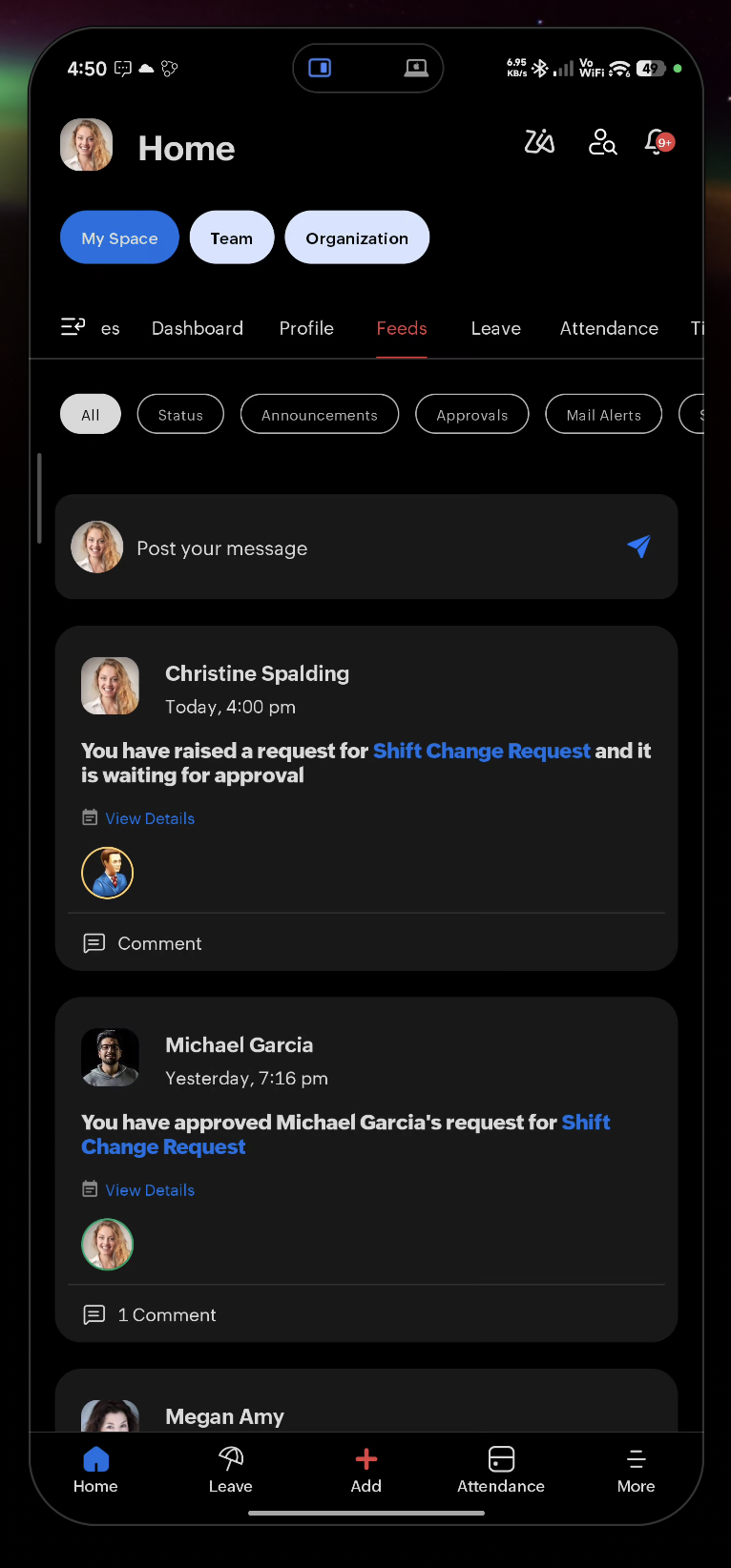
Here is a quick overview of the various tabs available here:
Here is a quick overview of the various tabs available here:
- Activities — Pending actions requiring your attention
- Dashboard — Widgets showing attendance status, upcoming holidays, quick links, and action items
- Profile — Profile data, contact information, availability, skill set, tags, summary, and other employee profile information
- Feeds — Company and personal feed updates
- Feedback — Performance feedback received and given
- Leave — Your leave requests and balance
- Attendance — Weekly employee attendance information
- My Shift — Your current shift schedule
- Time Sheet — View and your timesheets
- Time Logs — View and add new time log entries
- Files — Documents accessible to you
- Cases — Your open HR cases
- Goals / KRA Goals — Your performance goals
- Jobs — Jobs assigned to you
Tabs listed within My Space can be enabled/disabled/rearranged
based on user preference by tapping the customize ( )icon.
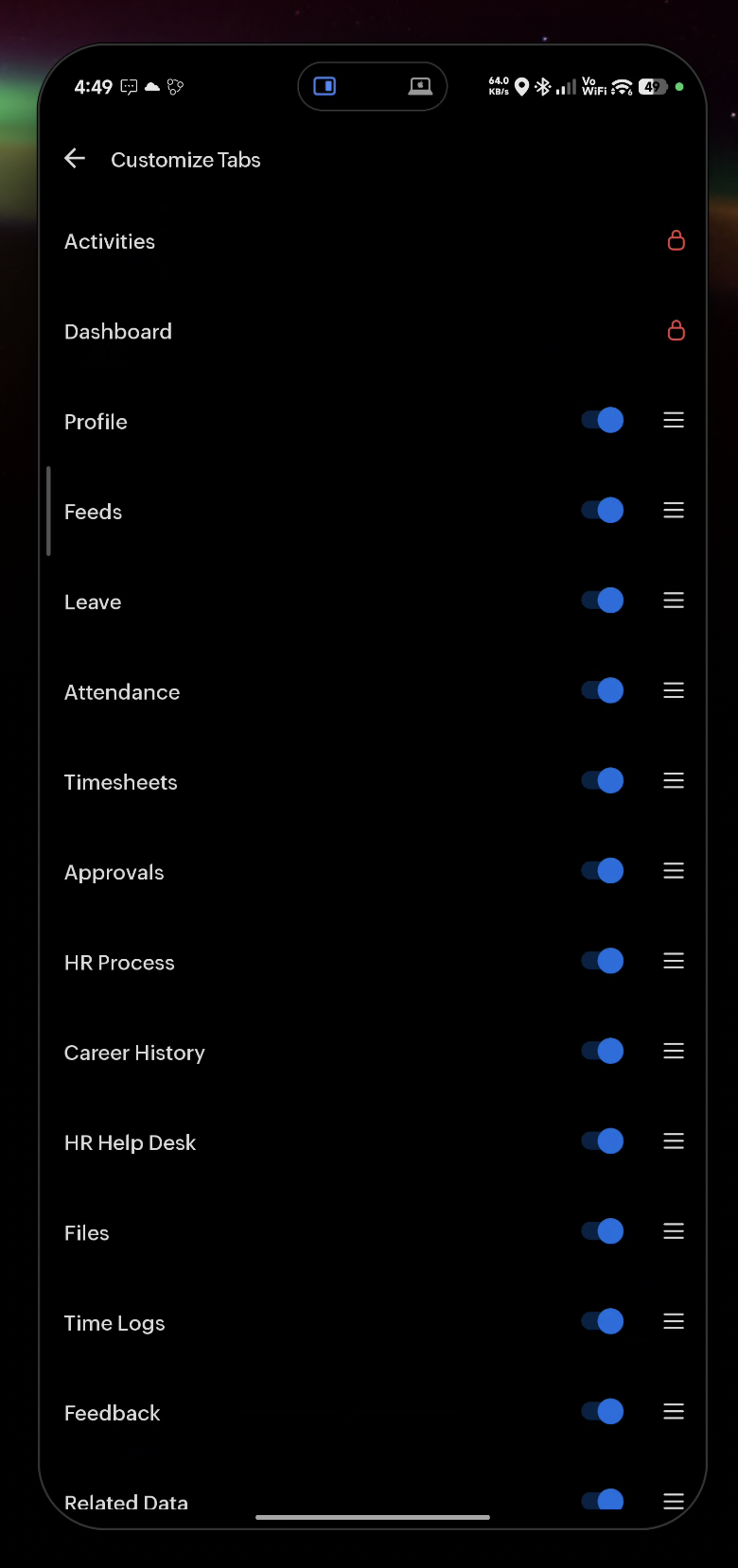
based on user preference by tapping the customize (
Team Space
A team-centric space for managers and admins.
- Team Space — Team details including team email ID, strength, work anniversaries, new hires, birthday buddies, and department files
- Reportees — Your direct reports with attendance and leave status. Includes search and all-reportees filter
- Department — View department head, sub-departments, and associated employees
- Department Wall — View and post department messages
- Surveys — View ongoing department surveys
- Approvals — All pending approval requests from your team
- Feedback — Team feedback activity
Organization Space
- Announcements — Company-wide announcements
- Policies — Company policy documents
- Employee Tree — Visual organizational hierarchy
- Birthday Folks — Employee birthdays
- New Hires — Recently joined employees
Quick Add
Quick Add is accessible from the home screen and gives you fast access to common actions without navigating through menus.
Tap the Quick Add button (+ icon) on the home screen to open the sheet and choose an action such as:
- Apply for Leave
- Add Attendance Regularization Request
- Post Status Message
- Log Time
- Submit a Comp Request

Available actions depend on your organization's configuration and your role.
Attendance

Attendance features in the mobile app will work based on the configuration in Zoho People web.
- Employees: Mark attendance, submit regularization, permission, and on-duty requests, and view location timeline.
- Managers: Monitor team attendance and view team member locations.
Access the Attendance Service from Home > More > Attendance (or it will be listed in the bottom bar).
Checking In and Out
From the Attendance tab or via the home screen widget:
- Tap Check In to record your arrival.
- If location is required, the app captures your GPS coordinates automatically.
- If your organization requires camera verification, the front camera will activate for a photo.
- Tap Check Out when your work day ends.
Viewing Attendance Entries
From the Attendance tab:
- View your weekly or monthly attendance records.
- Each entry shows check-in time, check-out time, total work hours, and status.
- Tap any entry to see full details.
Requesting Attendance Regularization
Use this when you missed a check-in or check-out or need to correct an entry.
From the Attendance service, select Regularization and tap Add:
- Select the date to regularize.
- Enter the correct check-in and check-out times.
- Provide a reason.
- Tap Submit.
The request is sent to your manager for approval.
Requesting a Permission
From the Attendance section, select Hourly Permissions and tap Add:
- Select the date, from time, and to time.
- Select the permission type.
- Enter a reason.
- Tap Submit.
Submitting an On-Duty Request
Use this when you are working outside the office (field work, client visits, etc.).
From the Attendance section, select On Duty and tap Add:
- Select the date(s).
- Choose the on-duty type.
- Enter a reason.
- Tap Submit.
Live Location Tracking
Click here to access the detailed Zoho People Location Tracking setup guide.
If your organization has enabled live location tracking:
- The app records your GPS location at regular intervals during your shift.
- You can view your own Location Timeline — a map showing your location check points through the day.
- If location data is missing or incorrect, use the Location Issue Resolver (accessible from the location screen) to diagnose and fix the issue.
For Managers: View real-time or historical locations of team members from Team Space > Reportees.
You can access our detailed troubleshooting guide for location tracking based on your mobile manufacturer here:
Troubleshooting Guide for Location Tracking in Mobile.
Troubleshooting Guide for Location Tracking in Mobile.
Monitoring Team Attendance (Managers)
From Team Space > Reportees:
- See check-in status for all direct reports.
- Identify who is present, absent, or on leave.
- Tap any employee to view their detailed attendance records.
- View team member locations on a map (if live tracking is enabled by your organization).
Leave (Time Off / Leave Tracker)
Leave features in the mobile app will work based on the configuration in Zoho People web.
- Employees: Apply for leaves, view leave balance, manage comp-off.
- Managers: Approve or reject leave requests.
Applying for Leave
From My Space > Leave, tap Add or Apply Leave:
- Select the leave type (e.g., Annual Leave, Sick Leave, Casual Leave — types configured by your org).
- Choose the start date and end date.
- For a half-day, select the half-day option when available.
- Add a reason (required or optional based on policy).
- Attach supporting documents if required.
- Tap Preview to review, then tap Submit.
Whether a raised leave request can be cancelled depends on your organization’s settings and approval workflow.
Viewing Leave Balance
From My Space > Leave, tap Leave Balance (or Home > More > Leave > My Data > Leave Balance)
- View available, used, and pending balance for each leave type assigned to you.
Tracking Your Leave Requests
From My Space > Leave, view all leave requests with their status:
- Pending — Awaiting approval
- Approved — Confirmed
- Rejected — Declined by approver
- Cancelled — Withdrawn by you
Tap any request to see full details or to cancel it.
Viewing Public Holidays Calendar
From the Leave service, select Holidays:
- Browse your organization's holiday calendar for the year.
- Filter by location or holiday type.
Managing Comp-Off (Compensatory Off)
From My Space > Leave, select Compensatory Off:
- Tap Add to submit a comp-off request for working on a holiday or weekend.
- Select the date on which you worked extra.
- Specify the number of hours or days.
- Tap Submit for approval.
- Once approved, the credit is added to your leave balance.
Approving Leave Requests (Managers)
From Home page, navigate to Approvals, or navigate to Home > Leave (listed in bottom bar or within More option) > Team > Leave Requests)
- View all pending leave requests from your team.
- Tap a request to review the details.
- Tap Approve or Reject.
- Add a comment if needed, then confirm.
Timesheets (Time Tracker)
Timesheet features in the mobile app will work based on the configuration in Zoho People web.
- Employees: Log time, create and submit timesheets.
- Managers: Review and approve team timesheets. Add team-specific projects and jobs. (typical use case)
Logging Time
From My Space > Time Logs, tap Add:
- Select the project and job (if applicable to your organization).
- Enter the date, start time, and end time (or total hours).
- Add a description of the work done.
- Tap Save.
Adding a Break Log
From an existing time log entry:
- Open the Timesheet service.
- Tap Add Break (amber stopwatch icon on the top-right corner).
- Specify the break start and end time.
- Tap Save.
Creating and Submitting a Timesheet
From My Space > Time Sheet, tap Add (or) Navigate to Home > Timesheets (within the bottom bar or within the 'More' option)
- Select the time period (daily or weekly, as configured).
- Review the time logs pulled into the timesheet.
- Add any missing time logs directly within the timesheet if needed.
- Tap Submit to send for approval.
Your timesheets can have the following statuses:
- Draft — Not yet submitted
- Pending — Submitted, awaiting approval
- Approved — Confirmed by your manager
- Rejected — Returned for correction
Approving Timesheets (Managers)
From Team Space > Approvals or Home > More > Approvals
- View pending timesheets submitted by your team.
- Tap a timesheet to review logged hours by project and job.
- Tap Approve or Reject.
- Add comments if returning for correction.
Approvals
Managers and admins manage all pending requests from a centralized approvals section.
From Team Space > Approvals, approval categories include:
- Leave requests
- Attendance regularization
- Permission requests
- On-duty requests
- Comp-off requests
- Timesheets
- Shift change requests
Approving or Rejecting a Request
- Select the relevant category tab.
- Tap a request to view its full details.
- Tap Approve or Reject.
- Add a comment if required.
- Confirm your action.
Filtering Approvals
Tap Filter icon ( ) to narrow results by date range, employee, or request status.
Performance Management
Performance features in the mobile app will work based on the configuration in Zoho People web.
- Employees: Complete self-appraisals, set and track goals, and KRAs.
- Managers: Conduct employee reviews, monitor team performance.
Viewing Appraisal Cycles
Navigate to Home > Performance (within the bottom bar or within the More section) > Appraisal
- View all active and past appraisal cycles.
- Each cycle shows the review period, status, and your completion progress.
Completing a Self-Appraisal
From Performance > Appraisals, open an active cycle and tap Self-Appraisal:
- For each KRA (Key Result Area) or goal, enter your self-rating and comments.
- Rate your competencies as prompted.
- Add supporting notes or evidence where applicable.
- Tap Submit when complete.
Setting and Tracking Goals (KRAs)
From My Space > Goals or KRA or navigate to the Performance Service within the More option.
- Tap Add Goal or Add KRA.
- Enter the goal title, description, and target date.
- Set the weightage if required by your org.
- Link the goal to a competency or skill if applicable.
- Tap Save.
- Open any existing goal to update current achievement progress.
Conducting an Employee Review (Managers)
From the Performance section, open Team Reviews:
- Select a reportee with a pending review.
- Rate each of their KRAs, goals, and competencies.
- Add comments and feedback.
- Tap Submit Review.
Multi-Rater (360-Degree) Feedback
If your organization uses multi-rater feedback:
- Open the Feedback section.
- View feedback requests assigned to you.
- Tap a request and complete the form.
- Submit — responses are handled as per your organization's confidentiality settings.
OKR
OKR (Objectives and Key Results) is a goal-setting framework used to define, align, and track goals across organizations, teams, and individuals.
- Objective: Defines what you want to achieve. It should be clear, meaningful, and outcome-focused.
- Key Result: Measures the success of an objective using specific and measurable outcomes.
- Sub Key Result: Breaks a key result into smaller actionable milestones to help track execution and progress in detail.
OKRs help organizations improve alignment, maintain focus, monitor progress, and measure performance effectively.
With the mobile app, you can track goals, update progress, and stay aligned with team objectives anytime, anywhere—without needing desktop access. To learn more about the service, refer to the OKR Introduction.
OKR Management in the Zoho People Mobile App
- View and manage organizational, department, location, and individual OKRs
- Create and update objectives and key results
- Align objectives with team and organizational objectives
- Check progress percentages and status updates
- Add comments, check-ins, and progress notes
- Track deadlines and review timelines
View and Manage OKRs
From your mobile app, click on OKR service (if the service is not visible in home screen, click on more option and select OKR service)
- My OKRs: Employees can view and manage the objectives added and assigned to them in the My OKRs tab.
- Team OKRs: Reporting managers can view and manage their reportees’ OKRs in the Team OKRs tab.
- Department OKRs: Department heads and administrators can view and manage their department OKRs in the Department OKRs tab.
- Location OKRs: Location administrators and administrators can view and manage the OKRs added for a specific work location in the Location OKRs tab.
- Organization OKRs: Administrators can view and manage the OKRs added at the organizational level in the Organization OKRs tab.
Add Objective
To add Objective at any level such as Individual (My OKRs), Team, Department, location or Organization, navigate to the respective tab, click on the (+) icon at the top right, add the necessary details and click Save or if approval is configured click Send for Approval.
Employees can add their own objectives based on permission defined by the administrators.
Add Key Result
To add Key result to an any Objective, click on the Add Key Result icon on the objective, or click on the objective and add (+) icon on the top right.
Key results can be assiged to only reportees or all employees based on permission defined by the administrators.
Add Sub Key Result
To add Sub Key Result to any Key Result. Click on the Objective, Click on the ellipsis icon on the Key Result, and click Add Sub-key Result.
Update OKR Progress
Objective progress is automatically updated based on updating the progress of its key results. Similarly, key result progress is automatically updated based on updating the progress of its sub key results, helping you update and track overall progress accurately and efficiently.
To update Key result or Sub key result progress in Zoho People Mobile app:
Navigate to the Key result or Sub key result, click on the Check In button. Enter the value, select the check-in date, enter comments, and click Update.
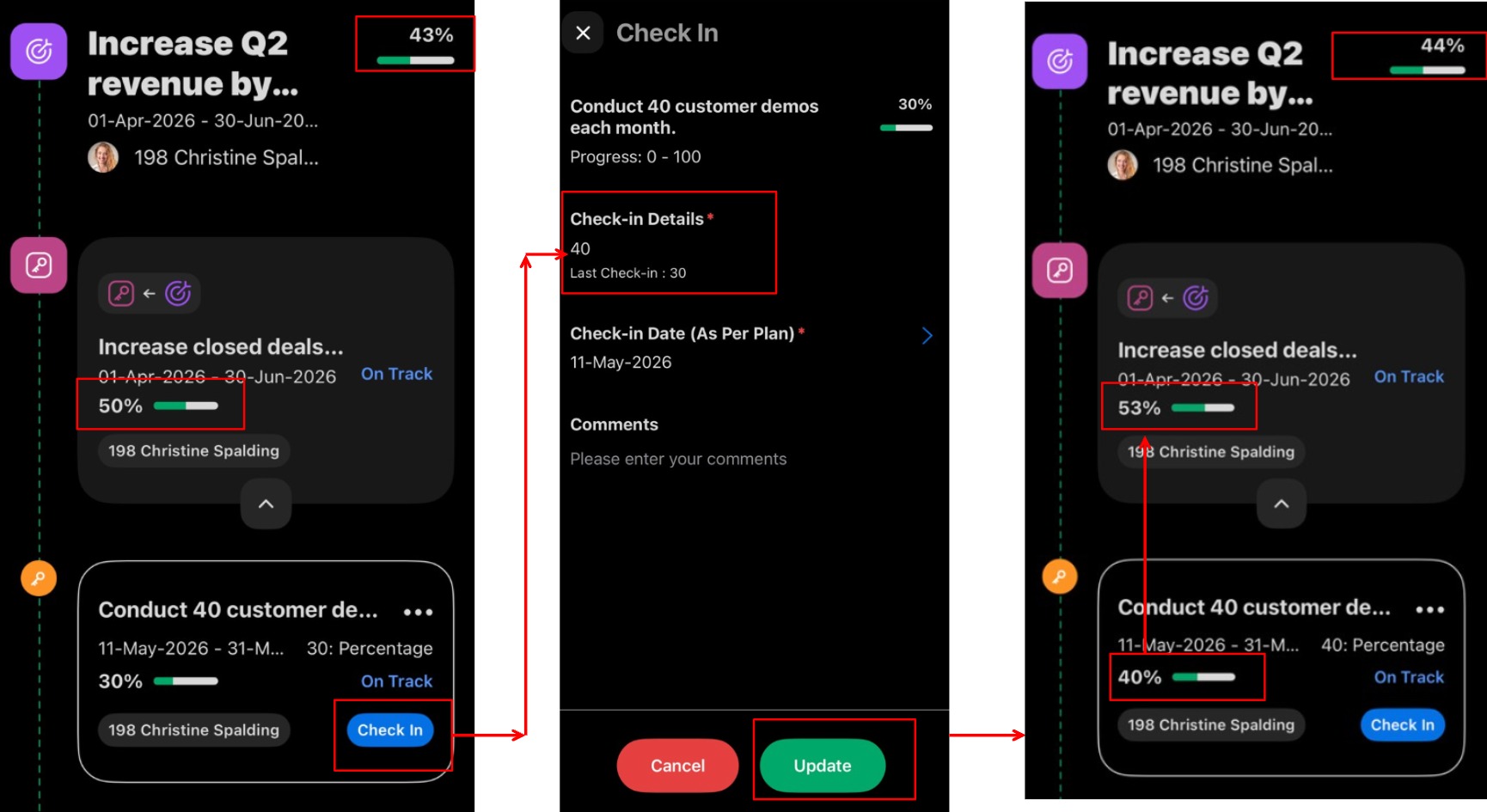
To update Key result or Sub key result progress in Zoho People Mobile app:
Navigate to the Key result or Sub key result, click on the Check In button. Enter the value, select the check-in date, enter comments, and click Update.
The overall progress summary for each level is shown at the bottom of the screen for better visibility and tracking. For department OKRs, select the department in the filter option to view.
Align Objective
Link an objective with department or organizational OKRs to ensure goals contribute to broader business objectives. Progress is automatically updated based on the aligned objective contributions.
To align an objective in Zoho People mobile app:
Navigate to the respective tab such as My OKRs, Location OKRs, or Department OKRs. Click Align on the required objective, choose whether to align it with a department or organizational objective, select the parent objective, and then click Align.
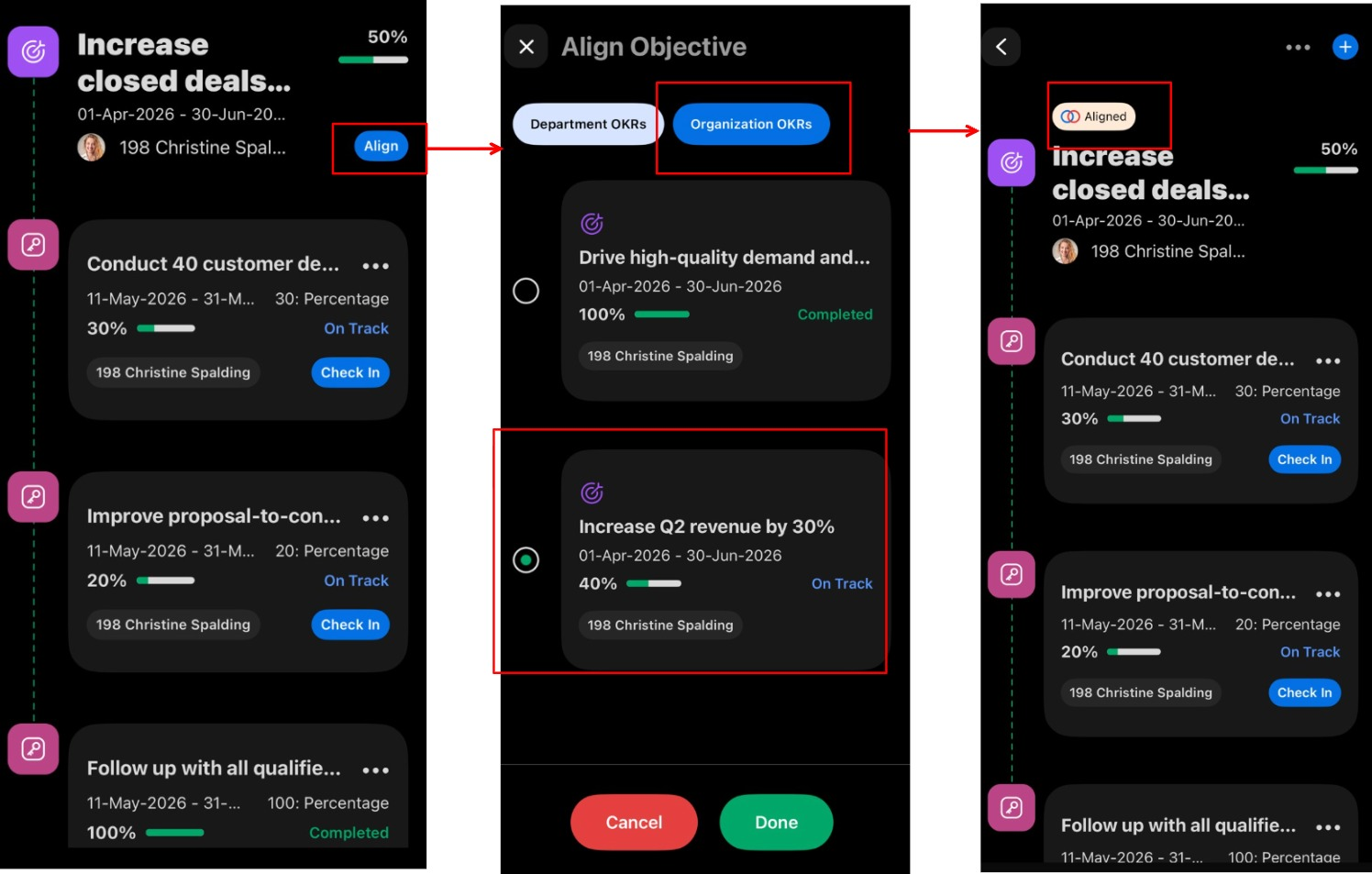
Navigate to the respective tab such as My OKRs, Location OKRs, or Department OKRs. Click Align on the required objective, choose whether to align it with a department or organizational objective, select the parent objective, and then click Align.
More Options (View, Edit, Delete)
The More options (...) icon is available for objectives, key results, and sub key results, allowing you to view details, edit, or delete the record.
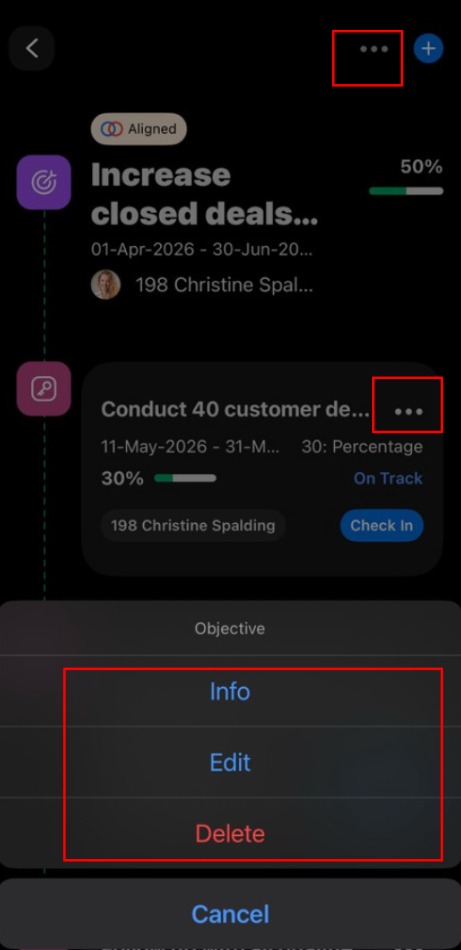
Operations - OKR
OKR Operations allows you to view and manage the OKRs of any employee in your organization. Access to Operations is restricted to OKR module data admins and administrators.
From the home page, click the More options (...) icon and navigate to Operations > OKR. Enter the employee name in User-specific Operations, then select the employee to view and manage their OKR details.
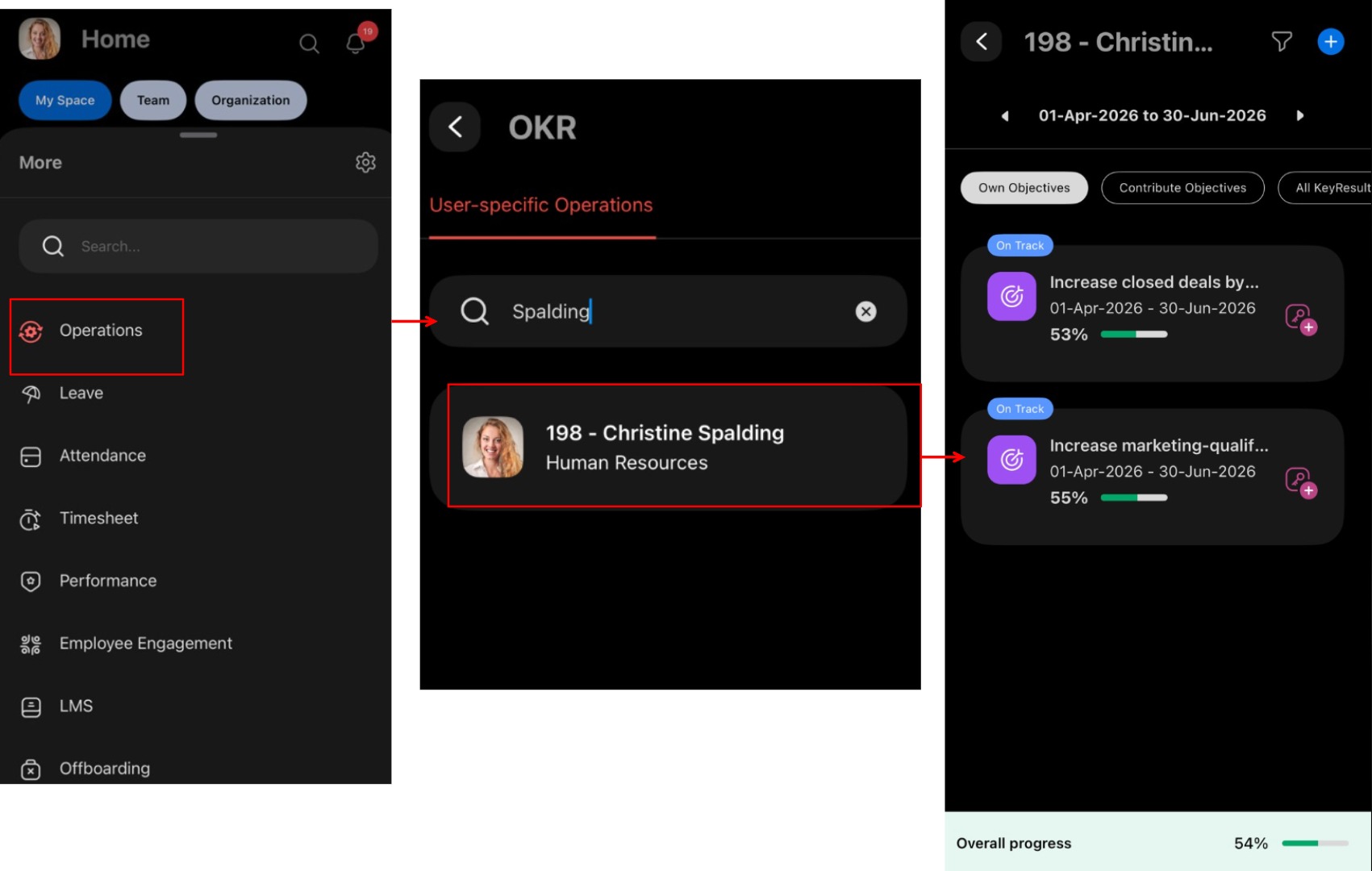
Learning Management (LMS)
- Employees: Browse, enroll in, and complete courses; take tests; join discussions.
- Managers: View team training progress, handle approvals.
Browsing Courses
From the LMS service (Home > LMS (within More icon), select Catalog:
- Browse the course catalog.
- Filter by category, status (Enrolled, Completed, Not Started), or type.
- Tap a course to view its description, module list, and estimated duration.
Enrolling in a Course
- Open a course.
- Tap Enroll (available when self-enrollment is permitted).
- The course appears in My Courses.
Accessing Course Content
From My Courses, open a course and tap a module to begin. Supported content types:
- PDFs and Documents
- Videos (streamed within the app)
- Web Links (external content opens in-app)
- Tests and Assignments.
Completing Tests and Assignments
- Open a module that contains a test or assignment.
- Answer all questions. A time limit may apply.
- Tap Submit.
- View your result after submission.
Monitoring Team Training (Managers)
From Team Space > Reportees or the Learning section:
- View each direct report's course enrollment and completion status.
- See progress percentages and pending course assignments.
Feeds
Feeds display social-style updates within your organization.
From My Space > Feeds:
- View employee updates, event announcements, and other posts shared within the organization.
- Scroll to browse all recent posts.
- Tap a post to read the full content.
Announcements
Announcements are formal company-wide communications distinct from the social Feeds.
From Home > Organisation Space > Announcements:
- View official announcements published by HR or administrators.
- Tap an announcement to read the full content.

Announcements are managed and published by admins. Employees and managers can view but not create announcements from the mobile app.
Employee Self-Service
Employee Self Service covers personal profile and HR document access available to all employees directly within the app.
Viewing Your Profile
Your profile is accessible from My Space or the profile icon:
- View your personal details, designation, department, and reporting manager.
- Profile edits are typically managed through your organization's Zoho People web portal. (The pencil 'edit' icon may appear, allowing editing specific records for admin users)
Viewing Payslips
Payslips are accessible from your employee profile:
- Open your profile.
- Tap the Payslips tab or section.
- Select the relevant pay period to view your payslip.
Payslip availability depends on your organization's payroll configuration with Zoho Payroll.
Compensation
Compensation features in the mobile app will work based on the configuration in Zoho People web.
The Compensation module lets employees view their compensation details securely.
From your Home page tab, tap your Profile Picture, then tap View Profile and select the Compensation tab.
- View your current compensation breakdown.
- Browse compensation history via View History.

Security Information
Compensation data is protected with an additional biometric lock (fingerprint or face unlock). You will be prompted to authenticate before compensation details are displayed, regardless of whether App Lock is enabled on the app itself.
Compensation data availability depends on your organization's configuration in Zoho People.
Files
Browsing Files
From My Space > Files or navigate to Home > More > Files service.
Files are organized into access-based categories:
- Shared With Me — Files shared directly with you
- Shared With My Role — Files shared based on your role or designation
- Department Files — Documents for your department
- Location Files — Documents for your office location
- Team Files — Files accessible to your team
- Policy Files — Company-wide policies and handbooks
If there are mandatory policies with acknowledgement / consent
requirement enforced by your organization, you will see a pop-up
seeking your action.
requirement enforced by your organization, you will see a pop-up
seeking your action.
Cases (HR Helpdesk)
The Cases module lets employees raise and track HR support requests.
Raising a Case
Navigate to Home > More > HR Help Desk:
- Select a category (case categories are configured by your admin).
- Enter a subject and description.
- Attach supporting documents if needed.
- Tap Submit.
A case reference is created and routed to the appropriate HR team.
Tracking Your Cases
Navigate to Home > HR Help Desk (within More icon) > My Requests
- View all submitted cases with their current status: Open, In Progress, Resolved, or Closed.
- Tap a case to view responses or add further comments.
Use the Watchlist option to follow up on cases associated with you.
Employee Engagement (Surveys)
eNPS surveys can be created using the mobile app, while Engagement and Pulse surveys are limited to participation only.
Creating eNPS Survey
Navigate to Home > More > Employee Engagement > Surveys > eNPS and click on the + icon to create a new eNPS survey.
Completing a Survey (Employees)
From the Home page, navigate to the Surveys service or navigate to Home > More > Employee Engagement and tap on a pending survey:
- Answer each question — rating scale, free text, or multiple choice.
- Tap Submit when complete.
Responses are anonymous unless your organization has configured otherwise.
Supported Survey Types
All survey types. i.e., eNPS, Annual engagement surveys, and pulse surveys can all be taken from the mobile app via Home > More > Employee Engagement.
Survey Analytics (Managers & Admins)
This feature is only applicable for eNPS surveys. Navigate to Home > More > Employee Engagement > Surveys > eNPS
- Managers can view team-level participation and summary results.
- Admins can access detailed metrics, participation rates, and report data.
Tasks
Viewing Tasks
Navigate to Home > More > Tasks:
- View tasks assigned to you and tasks you created.
- Tasks are categorized by status and type.
Creating a Task
Tap Add from the Tasks section:
- Enter the task name and description.
- Set a due date.
- Assign it to a team member if applicable (managers).
- Tap Save.
Updating Task Status
- Open a task from the task list.
- Tap the status field and select the updated status.
Shift Management
Viewing Your Shift Schedule
Navigate to Home > Attendance > Shift tab:
- View assigned shifts for the current and upcoming periods.
- Tap a shift to see its start time, end time, and shift type.
Requesting a Shift Change
From the Attendance > Shift tab, tap the Circle Edit (pencil) icon:
- Select the date you want to change.
- Choose the requested shift.
- Add a reason.
- Tap Submit.
Your manager will be notified to approve or reject.
Approving Shift Change Requests (Managers)
From Attendance > Shift > Shift Change:
- Review the pending request.
- Tap Approve or Reject.
Offboarding
Submitting an Exit Request (Employees)
Navigate to Home > More > Offboarding service, tap Add Resignation Request:
- Select the reason for leaving.
- Enter your last working day.
- Add any additional comments.
- Tap Submit.
Tracking Offboarding Status
From the Team page in the Offboarding service:
- View your exit request status and the approvals required.
- Track pending tasks in the offboarding checklist.
Zia Assistant
Zia is Zoho People's built-in assistant that helps you get HR information and perform actions through a conversational interface.
Click on the Zia or AI Chat icon (accessible from the home screen):
- Tap the chat icon to open the conversation.
- Type your question or request and tap Send.
Zia's ability to answer questions depends on your organization's data and the features enabled in your Zoho People account.
Mobile App Settings
Access Settings from the profile icon or gear icon inside the More option.
Important Settings
Switching Organizations
Settings > Organization - If you belong to multiple Zoho People organizations, tap the organization name to switch between them.
Changing the App Theme
Settings > Theme - Switch between Light Mode, Dark Mode, or System Default mode.
Changing the App Language
Settings > Language - Select your preferred language. The app restarts to apply the change.
Location Settings
Settings > Location Settings
- Improve Location Accuracy — Toggle on to use Wi-Fi and mobile networks alongside GPS. Recommended if the check-in location is inaccurate.
- Troubleshoot Location Tracking — Appears if live location tracking is enabled. Tap to access a guided troubleshooter for location issues.
App Lock
Settings > Privacy & Security > App Lock
- Enable App Lock to require PIN or biometric authentication (fingerprint / face unlock) every time the app is opened.
- Choose your preferred authentication method.
Enable/Disable Push Notifications
Settings > Push Notifications If enabled, you will receive important notifications directly on your phone (outside the app).
Signing Out
Settings > Sign Out (shut down icon)
Tap Sign Out to log out. You will need to log in again with your credentials.
Want to share feedback?
Click on the feedback option within the 'About' section in the settings page. You can also enable 'Shake for feedback' if required.
Click on the feedback option within the 'About' section in the settings page. You can also enable 'Shake for feedback' if required.
"Operations" in Zoho People Mobile App
Operations in the mobile app brings essential employee-data views and Zoho People service-related operational actions to your mobile device. To access Operations, navigate to Home > More > Operations.
Only administrators or managers with data access will be able to access this feature.
Here is a gist of the actions that can be performed through Operations.
Attendance Service:
Perform user-specific operations:
For viewing, editing, and employee-specific attendance data. Simply search for a user and navigate through the tabs to view and edit specific attendance data.
Additionally, you can also:
Manage Regularization, On Duty, Hourly Permissions, and Extra Agreement Handling, Labour Union Representation (for Japanese organizations).
Shift:
Perform user-specific operations:
Search for a specific user and view their shift information. Approve shift change requests.
Additionally, you can also Manage Employee Shift Mapping, Shift Change Requests
Onboarding:
View and Add Background verification form, Candidate evaluation form records.
Leave | Time Off:
Perform user-specific operations:
View leave summary, leave balance Approve and add leave, compensatory, leave grant requests on the user's behalf.
Additionally, you can also:
View, add and approve Leave Requests. Add and approve Compensatory Off requests. View Public Holidays. View and Add Leave Grant requests.
View, add and approve Leave Requests. Add and approve Compensatory Off requests. View Public Holidays. View and Add Leave Grant requests.
Employee Engagement
Add and manage default and custom metrics used within surveys.
Files
View and manage employee and organization files.
Tasks
View and track tasks by status. Add new tasks.
Performance
Perform user-specific operations:
Add and manage Goals, Competencies, Skill Sets, KRAs for specific employees. Share feedback directly to an employee.
Additionally, you can also:
View Compentencies. Skill Sets, add and view your Goals.
Timesheet:
Perform user-specific operations:
Search for a user and add and view Time Logs, Timesheets, Jobs, and Projects on their behalf.
Additionally, you can also:
View and add jobs pertaining to employees, departments, or divisions.
View and add projects pertaining to employees, departments or projects.
View and add your timesheets.
View and add new clients.
HR Help Desk
View and manage 'My Cases'. View and manage cases by status. i.e., Open Cases, Escalated Cases, Unpicked Cases
Offboarding
Track offboarding requests by status. i.e, In Progress, Completed, Rejected, Cancelled, Revoked. You can select an individual request to view more details.
Additionally, you can also:
View and manage resignation, termination, and deceased employee requests.
For the LMS service, Operations lists only the custom forms added to the service.