OKR - Service - Zoho People
 OKR service is available from the Premium and Enterprise plans of Zoho People.
Introduction
OKRs (Objectives and Key Results) in Zoho People help your organization focus on what truly matters by setting clear goals and tracking measurable progress. Objectives define what your organization, team, or individual wants to achieve and should be short, inspiring, and aligned with the organization’s strategy. Key Results specify how success will be measured and must be specific, measurable, and time-bound, with each objective typically having 2–5 Key Results to maintain focus. Sub-Key Results break down Key Results into smaller, actionable steps, making complex goals more manageable and providing clarity on milestones.
You can define the objective, and your employees, department heads, or location-based admins can set the Key Results aligned to it. These Key Results guide their efforts and help track progress toward achieving the common goal.
Elements of OKR
Objective
An Objective is a clear, purposeful goal that an individual, team, department, location, or organization strives to achieve within a defined timeframe. It sets the direction, highlights priorities, and defines what success looks like in qualitative terms. Objectives are aspirational yet aligned with the overall business strategy.
Key Result
A Key Result is a measurable outcome that reflects progress toward an Objective. It defines how success will be quantified, making it easier to track achievement. Key Results are specific, actionable, and time-bound, providing clear benchmarks to evaluate performance.
Sub-Key Result
A Sub-Key Result further breaks down a Key Result into smaller, actionable steps. It allows teams or individuals to manage complex goals more effectively by tracking intermediate milestones or detailed actions. Sub-Key Results ensure that large objectives remain actionable and measurable at a granular level.
OKR Example:Objective: Increase overall company revenue in Q3.
Key Result 1: Close 30 new deals with high-value prospects.
Key Result 1: Close 30 new deals with high-value prospects.
Sub-Key Results:
- Identify and qualify 50 potential high-value leads.
- Conduct 30 product demos with qualified prospects.
- Send 25 customized proposals to interested leads.
Key Results 2: Increase upsell revenue from existing customers by 15%.
Sub-Key Results:
- Identify 20 customers with strong upsell potential.
- Launch a targeted upsell email campaign.
- Conduct 10 account review meetings to propose upgrades.
- Identify 20 customers with strong upsell potential.
- Launch a targeted upsell email campaign.
- Conduct 10 account review meetings to propose upgrades.
Set up OKR Service
To set up OKR service, refer to OKR - Settings - Zoho People
OKR Levels
In Zoho People, OKRs exist at four levels. The selected level determines the objective owner and who can view it. You can further restrict visibility using the visibility options when creating the objective.
Level | Who owns it | Use |
Individual (My) | A single employee | Your personal goals |
Department | A department | Team-wide goals |
Location (If enabled) | A specific office/location | Region or site specific goals |
Organization | The company | Company-wide strategic goals |
Individual objectives appear under My Objectives, while other objectives appear under their respective Team, Department, Location, or Organization views.
Organization OKRs
Organizational objectives, or Organizational OKRs, are high-level, strategic goals set at the company-wide level. They define what the organization aims to achieve within a specific period, guide teams and employees toward a common direction, align departments with the company’s mission, and establish measurable outcomes for overall success.
To add Organization OKRs, navigate to OKR > Organization OKRs from the left-side tab.
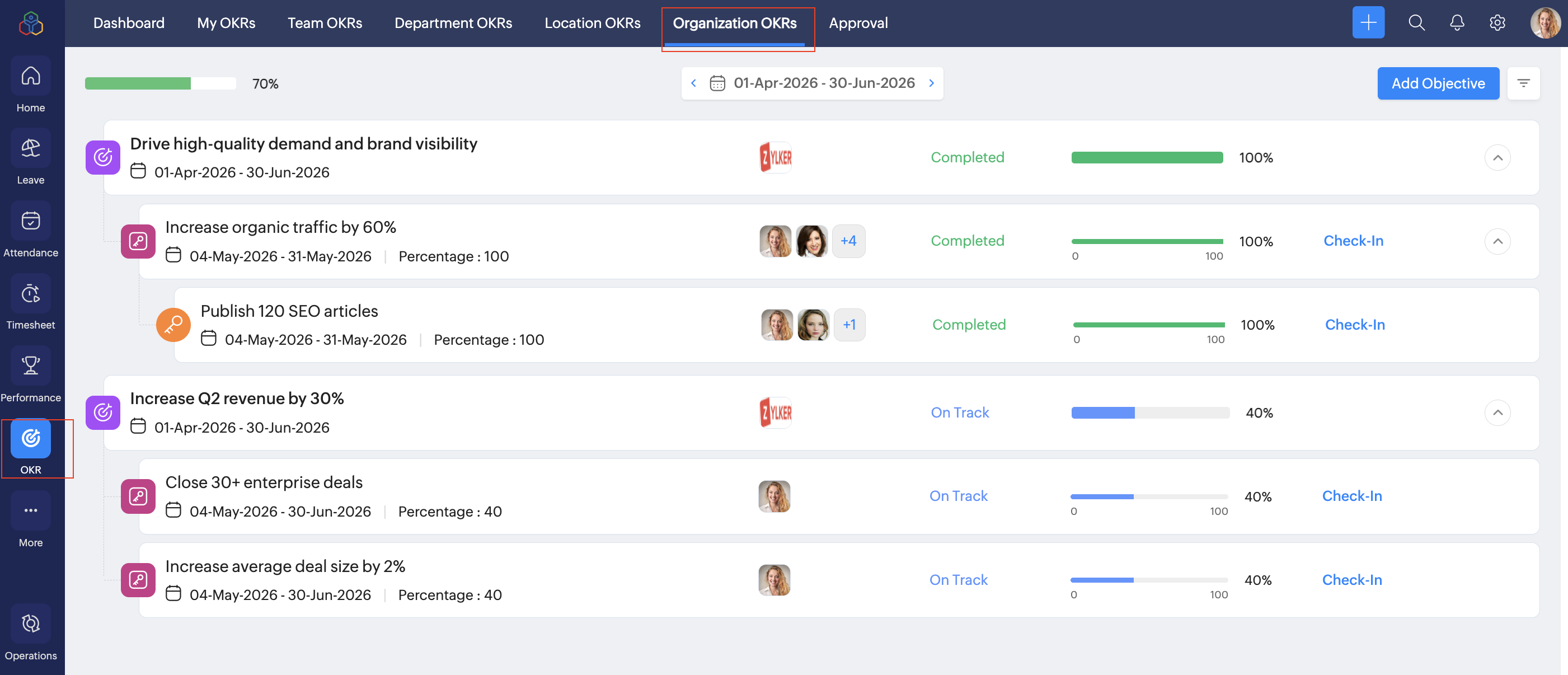
Who can add Organization objectives?
Administrators
To whom do the Organizational OKRs apply?
All employees can view Organizational Objectives and create related Objectives at the Individual (My OKR), Department, or Location level, and align them as Key Results with the Organizational Objectives.
Location OKRs
A Location OKR includes objectives created for a specific work location. These OKRs address location-specific goals while supporting broader organizational priorities.
To add Location based OKRs, enabled location based OKR in OKR settings, and navigate to OKR > Location OKRs from the left-side tab.
Who can add location objective?
Administrators and Location specific administrators
To whom do the location OKRs apply?
Employees assigned to that location can view and work toward the location based objective.
If aligned, this location objective becomes a Key Result for a Department or Organization Objective.
Department OKR
A Department OKR includes objectives created for a specific department such as Sales, Marketing, HR, or Finance. These OKRs help drive functional excellence and departmental performance. Any objective added at the department level appears under Department OKR.
To add Department based OKRs, navigate to OKR (left side tab) > Department > OKR.
Who can add department objective?
Administrators and Department head based on permission configured in OKR settings.
To whom do the department objectives apply?
Employees who are part of that department
Department OKRs can be aligned to an Organizational Objective as a Key Result, strengthening alignment between teams and company-wide goals.
Individual OKRs (My OKR)
The My OKR tab in the OKR service includes:
Based on permissions, employees can add their own objectives in My OKR.- Objectives added by the employee
- Objectives assigned by their reporting manager
- Key Results the employee is tagged to from:
- Individual OKRs
- Department OKRs
- Location OKRs
- Organizational OKRs
These OKRs help employees track their own goals and understand how their work aligns with broader department and organizational priorities.
To add individual (My OKR), navigate to OKR (left side tab) > My OKR.
 Use the filter options Own Objectives, Contributed Objectives, and All Key Results to view the relevant items.Based on permissions, Reporting Managers can add OKRs for their reportees under OKR > Team OKRs and manage their objectives effectively.
Add Objective
To add an Objective:
- Navigate to OKR from the left-side menu.
- Click the required tab (My OKRs / Team OKRs / Department OKRs / Location OKRs / Organization OKRs) where you want to add the objective.
- Click Add Objective.
- Enter the objective name, achievement period, description and visibility.
- Visibility Options allow you to choose who can view the objective. These options are available only for Department, Location, and Organization okr.
- Only Me: The objective is visible only to you.
- Department: Visible only to users in the selected department.
- Location: Visible only to users in the selected location.
- Organization: Visible to all users in the organization.
- Click Submit,
Note:
- If you are adding a Location Objective, select the location to which the objective applies.
- If you are adding a Department Objective, select the department to which the objective applies.
Add Key Results to Objective
Key Results are specific, actionable, and time-bound goals providing clear benchmarks to complete an objective.
- Employees can check in Key Results on a timely basis, and the parent Objective value will be updated accordingly.
- You cannot add a Key Result to an objective once its completion period has ended.
To add Key Result:
- Navigate to OKR from the left-side menu.
- Click the required tab (My OKRs / Team OKRs / Department OKRs / Location OKRs / Organization OKRs) where you want to add the Key Result to an objective
- Hover over the objective.
- Click on the Add (+) icon to add Key Result.- Adding a new Key Result after progress has already been made on the objective will update the objective’s completion percentage.
- Select the Progress Type as either Percentage, Metric, or Milestones:Percentage: The Key Result progress is updated using a value between 0–100%.
Metric: The Key Result progress is updated using numeric values within the defined From and To range, it can be 0–999 or 999–0, based on your configuration.
Milestones: OKR milestones are measurable checkpoints that help employees and managers track progress toward achieving a Key Result (KR) over a defined period. They divide a Key Result into smaller, time-bound targets, making it easier to monitor progress and identify whether the expected outcome is on track. - Read more about Milestones
How OKR milestones work
When you select Milestone as the progress type for a Key Result, you can define multiple milestones within the Key Result's period. Each milestone represents a stage of progress toward achieving the Key Result.
The cumulative progress is calculated based on the progress value assigned to each milestone.
Example
Consider a Key Result with the following details:Field Value Objective Improve product documentation Key Result Complete 100% of the assigned help articles Progress Type Milestone Period September 15 to September 30, 2026 Milestone Name From Date End Date Progress Value Cumulative Progress Complete initial draft Sep 15 Sep 20 33% 33% Complete technical review Sep 21 Sep 25 33% 66% Publish final articles Sep 26 Sep 30 34% 100% When all three milestones are completed, the cumulative progress reaches 100%, indicating that the Key Result has been fully achieved.
- Read more about MetricsIf you choose Metric, you can specify whether progress should be tracked as an increase or decrease in the metric to achieve the objective.
Example (Increase in Metric)
Key Result: Increase monthly website sign-upsProgress Type: MetricFrom: 200 sign-upsTo: 500 sign-upsMetric Direction: IncreaseAs the number of sign-ups increases toward the target, the Key Result progresses based on the check-in value.Example (Decrease in Metric)
Key Result: Reduce customer support ticket backlogProgress Type: MetricFrom: 500 ticketsTo: 100 ticketsMetric Direction: DecreaseAs the number of pending tickets decreases toward the target, the Key Result progresses based on the check-in value. - Enter the Key result.
- Select the achievement period.
- Select any employee as owner of the Key Result. Only these selected employees can check-in Key results.
- Enter the Key result description.
- Select the check-in interval. This option lets you set how frequently employees can update the Key Result progress.
Weekly: You can select all days or a specific day of the week for Key Result check-ins.
Monthly: You can select specific days of the month when Key Result check-ins are allowed. - Click Submit.
Add Sub-Key Results to Key Result
A Sub-Key Result further breaks down a Key Result into smaller, actionable steps. It allows teams or individuals to manage complex goals more effectively by tracking intermediate milestones or detailed actions.
- Employees can check in Sub-Key Results on a timely basis, and the parent Key Result and Objective values will be updated.
To add Sub Key Result:
- Navigate to OKR from the left-side menu.
- Click the required tab (My OKRs / Team OKRs / Department OKRs / Location OKRs / Organization OKRs) where you want to add the Sub-Key Result to a Key Result.
- Hover over the Key Result.
- Click on the Add (+) icon to add Sub-Key Result.Adding a new Sub-Key Result after progress has already been made on the Key Result will reset the Key Result’s completion percentage to zero and update the Objective’s completion percentage.
- Select the Progress Type as either Percentage, Metric, or Milestones:Percentage: The Key Result progress is updated using a value between 0–100%.Metric: The Key Result progress is updated using numeric values within the defined From and To range, it can be 0–999 or 999–0, based on your configuration.Milestones: OKR milestones are measurable checkpoints that help employees and managers track progress toward achieving a Key Result (KR) over a defined period. They divide a Key Result into smaller, time-bound targets, making it easier to monitor progress and identify whether the expected outcome is on track.
- Read more about milestones
How OKR milestones work
When you select Milestone as the progress type for a Key Result, you can define multiple milestones within the Key Result's period. Each milestone represents a stage of progress toward achieving the Key Result.
The cumulative progress is calculated based on the progress value assigned to each milestone.
Example
Consider a Key Result with the following details:Field Value Objective Improve product documentation Key Result Complete 100% of the assigned help articles Progress Type Milestone Period September 15 to September 30, 2026 Milestone Name From Date End Date Progress Value Cumulative Progress Complete initial draft Sep 15 Sep 20 33% 33% Complete technical review Sep 21 Sep 25 33% 66% Publish final articles Sep 26 Sep 30 34% 100% When all three milestones are completed, the cumulative progress reaches 100%, indicating that the Key Result has been fully achieved.
- Read more about metricsIf you choose Metric, you can specify whether progress should be tracked as an increase or decrease in the metric to achieve the Key Result.
Example (Increase in Metric)
Sub-Key Result: Increase monthly website sign-upsProgress Type: MetricFrom: 200 sign-upsTo: 500 sign-upsMetric Direction: IncreaseAs the number of sign-ups increases toward the target, the Sub-Key Result progresses based on the check-in value.Example (Decrease in Metric)
Sub-Key Result: Reduce customer support ticket backlogProgress Type: MetricFrom: 500 ticketsTo: 100 ticketsMetric Direction: DecreaseAs the number of pending tickets decreases toward the target, the Sub-Key Result progresses based on the check-in value. - Enter the sub-key result.
- Select the achievement period.
- Select any employee as owner of the Sub-Key Result. Only these selected employees can check-in Sub-Key results.
- Enter the Sub-key result description.
- Select the check-in interval. This option lets you set how frequently employees can update the Sub-Key Result progress.
Weekly: You can select all days or a specific day of the week for Sub-Key Result check-ins.
Monthly: You can select specific days of the month when Sub-Key Result check-ins are allowed. - Click Submit.
Objective Alignment in OKRs
Objective Alignment is the process of linking one OKR to another to ensure that every goal, whether at the organizational, location, departmental, or individual level, supports higher-level objectives. Alignment helps create a shared direction, encourages collaboration, and ensures that all employees and teams contribute effectively to the organization’s strategic priorities.
When an objective is aligned to another OKR, it can act as a Key Result for the parent objective. This establishes a clear hierarchy of goals and demonstrates how work at different levels contributes to overall organizational success.
At least one key result must be present to align objective.
Directly Assign a Key Result to an Objective (No Alignment)
Instead of aligning OKRs, you can directly add a Key Result under an objective. Use this method when you want measurable outcomes without hierarchical linking.
Example:
Objective: Enhance marketing reach.
Key Result: Increase social media engagement by 30%.
How to Align Objective with other Objective
To Align objective with other objective:
- Navigate to the OKR service from the left-side menu in your application.
- Open the appropriate tab depending on where the objective is located. You can choose from:
- My OKRs
- Team OKRs
- Department OKRs
- Location OKRs
- In the list of objectives, hover over the objective you want to align.
- Click on the ellipsis icon and Align option.
- A window will open. Select the Objective you want to align with. You can choose from:
- Department OKRs
- Location OKRs
- Organization OKRs
- After selecting the objective, click Align to complete the process.
- Your objective is now successfully aligned with the chosen Department, Location, or Organizational OKR.
Alignment Options
(i) Align a Location Objective to a Department or Organizational OKR
Location-level objectives can be linked to Department or Organizational OKR higher-level OKRs to show how regional goals support department-wide or company-wide priorities.
Example:
Organization Objective: Improve global customer satisfaction.
Location OKR (London): Reduce support ticket backlog.
When aligned, the London location objective becomes a Key Result under the global customer satisfaction objective.
When aligned, the London location objective becomes a Key Result under the global customer satisfaction objective.
(ii) Align a Department OKR to an Organizational OKR
Department OKRs can be connected to organizational objectives to ensure that departmental work directly contributes to strategic business outcomes.
Example:
Example:
Organization Objective: Increase annual revenue.
Department OKR (Sales): Close ₹3 crore in new deals.
Aligned, the Sales objective becomes a Key Result for the organization’s revenue objective.
Aligned, the Sales objective becomes a Key Result for the organization’s revenue objective.
(iii) Align an Individual OKR (My OKR) to Department or Organizational OKRs (My OKR)
Employee-level objectives can be aligned to department or company-wide objectives, clarifying each employee’s role in achieving broader outcomes.
Example:
Department Objective: Improve support quality.
Individual OKR: Achieve 95% positive feedback on tickets.
Aligned, the individual goal becomes a Key Result for the department objective.
Aligned, the individual goal becomes a Key Result for the department objective.
How to Complete Objectives and Key Results
Objectives are marked as completed only when all Key Results linked to that Objective are completed. Employees must check in the Key Result to which they are assigned as owner and periodically update its values to show progress toward completing the objective.
Objectives cannot be marked as completed directly.
Similarly, Key Results are marked as completed only when all Sub-Key Results linked to that Key Result are completed. Employees must check in to each Sub-Key Result and update progress regularly.
- Navigate to the OKR service from the left-side menu in your application.
- Click on My OKRs.
- Select the tab form where you would like to update Key result or Sub-key result progress.
- Hover over the Key result or Sub-Key result.
- Click Check-in.
- Enter the check-in value and comment.
- Click Submit.
The key result progress will be updated, and the parent objective’s progress will be updated accordingly.
When a Key Result or Sub Key Result is configured with Milestone as the progress type, you can check in your progress against the milestones defined for it.
Each milestone represents a stage of the Key Result. As you complete a milestone, you can update its progress during check-in. The progress of the Key Result is updated based on the progress of the completed milestones.
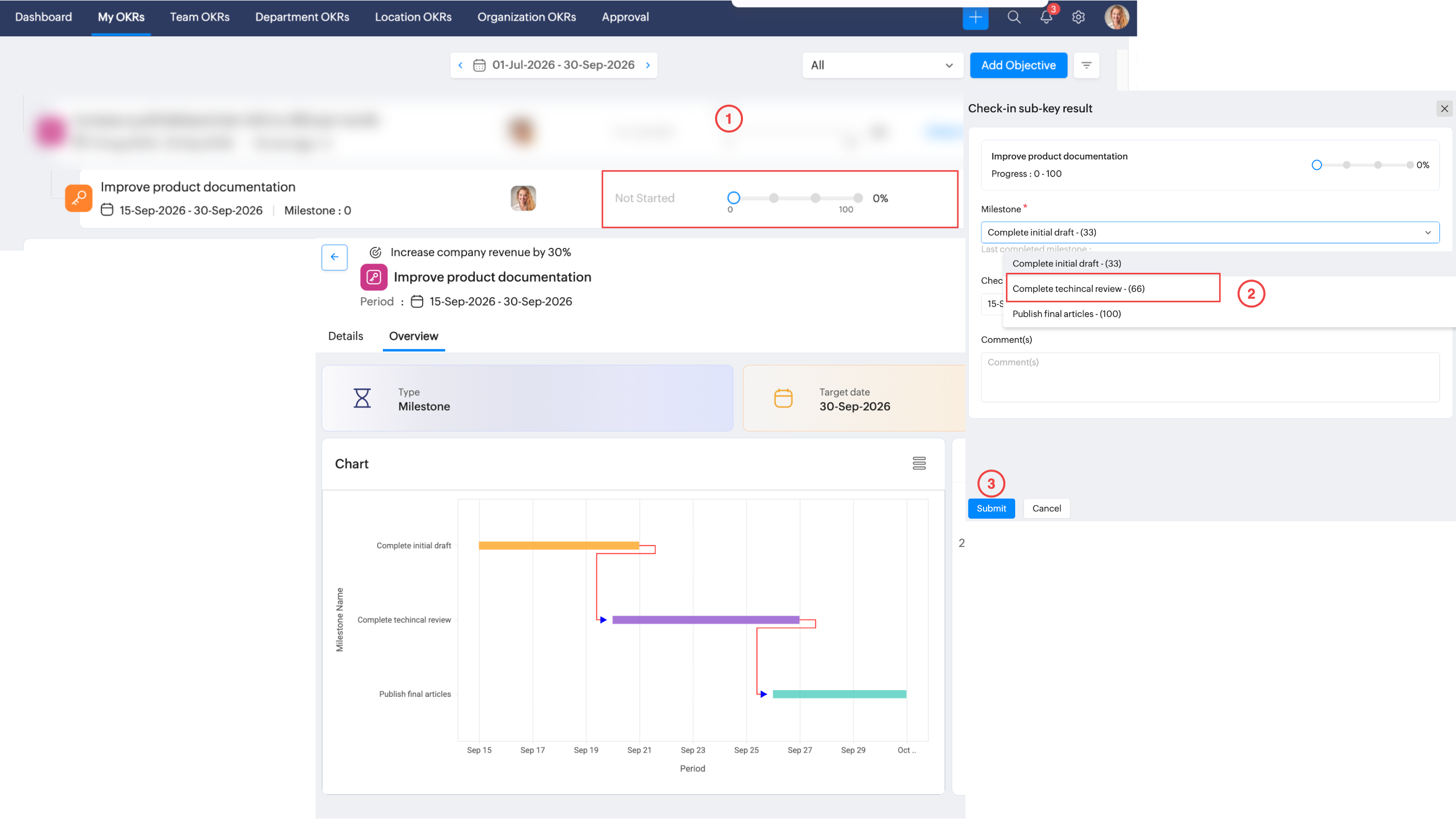
View Objective and Key Result Details
To view objective details such its description, associated Key results, and alignment to other objective, click on the objective
To view the Key Result or Sub-Key results details such as description, check-in plan, check-in history, and frequency, click on the Key result or Sub-Key result.
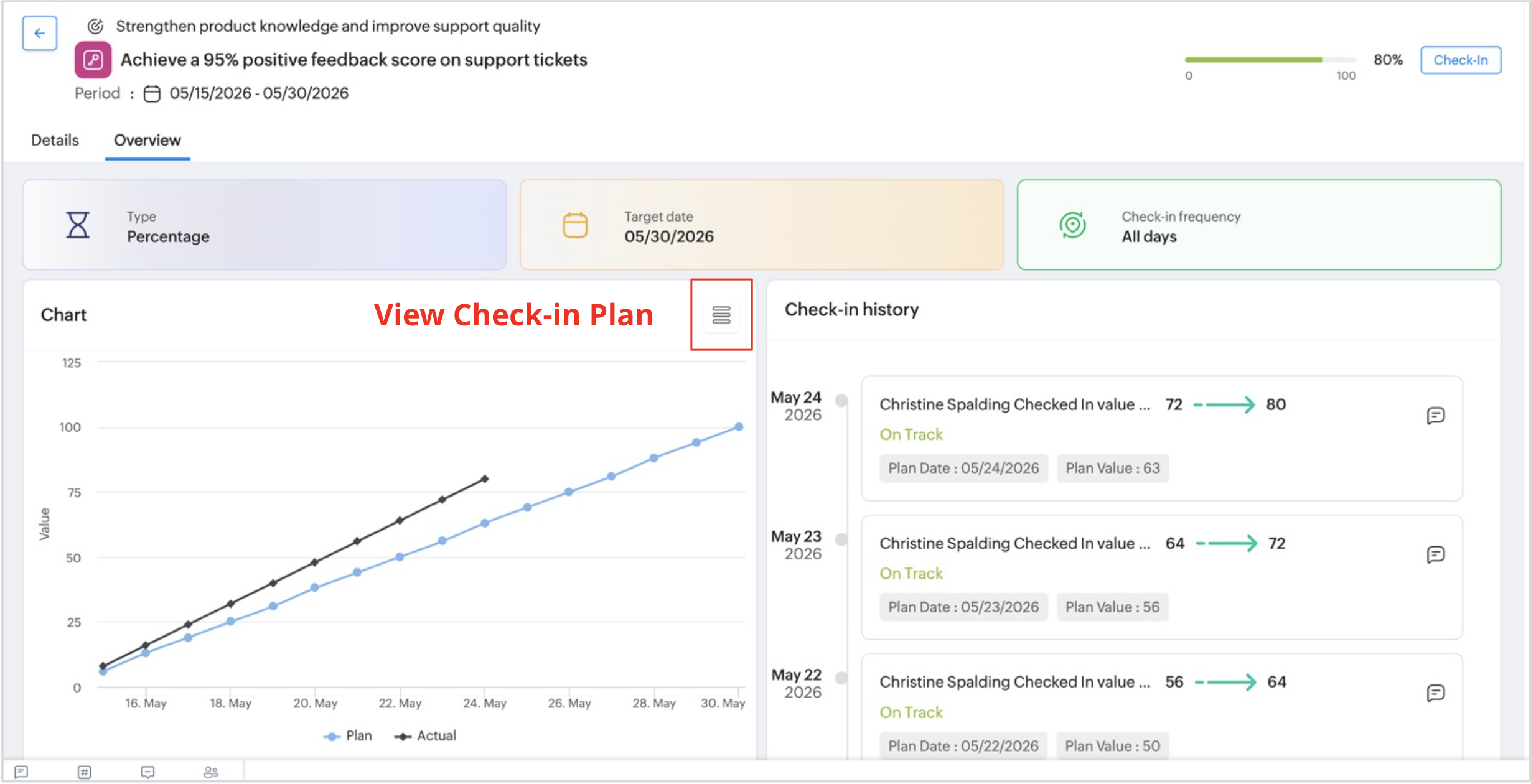
View Check-in Plan
The View Check-in Plan option lets you view the planned target values for each day of a check-in cycle. It displays the expected progress based on the selected check-in type and target range, helping employees and managers track planned progress against actual achievements.
To view the check-in plan:
- Click on the key result or sub key result.
- Go to the Overview tab.
- In the Chart section, click the View Check-in Plan (list) icon.
- The Check-in Plan window opens, displaying the planned target values.
The check-in plan window includes:
- Progress – Displays the configured progress range (for example, 0–100).
- Type – Displays the check-in type
- Date – The scheduled date for each check-in.
- Target check-in value – The expected target value to be achieved on that date.
Note:
- The check-in plan is generated automatically based on the Key result or Sub Key Result target date, progress range, and check-in frequency.
- The values shown are planned milestones and serve as a reference for tracking progress.
- The values shown are planned milestones and serve as a reference for tracking progress.
Dashboard
Use the OKR dashboard to track objective progress, monitor check-ins, and review team performance for the selected period.
Dashboard Overview
The dashboard provides a consolidated view of:
- Your and organization OKRs progress summary
- Objective completion status
- Upcoming check-ins
- Team OKR progress
- Period-based performance tracking
Filter OKRs by View
Use the dropdown at the top-left to switch between:
- My OKRs – View your individual OKRs statuses
- Organization OKRs – View organization-wide OKRs statuses
Click View all to navigate to the corresponding OKR section.
OKR Reports
The following reports are available under OKR Reports:
- Objectives
- Key Results
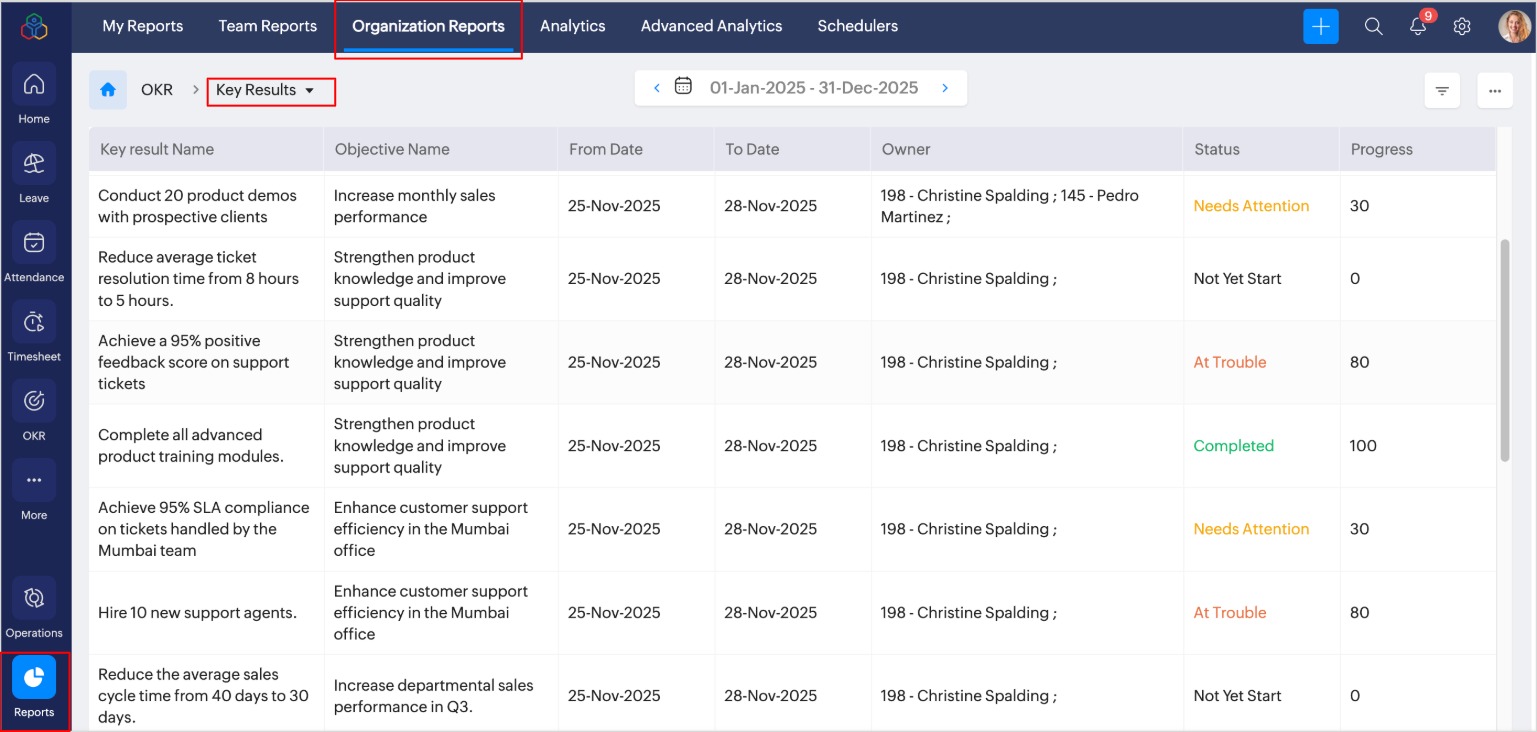
To view OKR reports, click Reports > Organization Reports in the bottom-left corner of the page:
Objectives Report
The Objectives report displays user (individual), department, location, and organizational objectives. It includes details such as the objective period (from and to dates), status, and current progress percentage.
Key Results Report
The Key Results report shows all Key Results added in the OKR service, along with their associated objective, period, owner, current status, and progress percentage.
Learn more: