Variables
In a nutshell
Variables store values to be passed during test execution, making test cases adaptable without rewriting scripts for each input. QEngine supports global variables for reusable values, environment-specific variables that override global values based on the selected test environment, and built-in system variables for tracking runtime properties of the system under test. Global variable values can also be updated at runtime, allowing data to flow across test cases within the same plan.
Variables store values to be passed during test execution, making test cases adaptable without rewriting scripts for each input. QEngine supports global variables for reusable values, environment-specific variables that override global values based on the selected test environment, and built-in system variables for tracking runtime properties of the system under test. Global variable values can also be updated at runtime, allowing data to flow across test cases within the same plan.
1. Overview
A variable acts as a dynamic placeholder, where you can store values you want to pass during testing. These values can be of various data types, such as strings, numbers, booleans, and connections. By using variables, you can create adaptable test cases without needing to rewrite the entire script for each value. This enables seamless switching between different test environments, while allowing you to store environment-specific information, such as URLs or API endpoints.
Testing often requires data that is dynamic. Say a tester is testing a login functionality for a mobile application that supports multiple roles, such as Admin, User, and Guest. Each role has different levels of access to various features within the application. The tester wants to ensure that the login process works correctly for all roles, so they create a variable named "UserRole" and assign it different values for each role (Admin, User, and Guest). As part of their test cases, the tester can use this variable to dynamically set the role before attempting the login.
You can use the same variable with different values for different environments. These are referred to as Environment Variables. For example, “https://www.<domain_name>.com” is a base URL for most websites. If URLs are hard coded within test cases, making changes to them will require separate edits to individual test cases. Instead, you can create a global variable and assign the base URL as the value. The variable can be used in your test cases, and you can edit it whenever you need to reflect a change across cases. Similarly, if the URL changes by region, it can be assigned to a group inside environment variables, under the same global variable.
Let's consider another example. You are testing an ecommerce website that offers different payment gateways based on the geographical location of the user. You want to ensure that users from different countries are presented with the correct payment options during checkout. For this, you create a variable named "Country" to store the user's country. The variable can be populated with different values corresponding to different countries:
INDIA: IN; United States of America: USA; United Kingdom: UK; and more. Depending on the value of the variable, the appropriate payment options and gateway will be displayed during the checkout process.
Apart from these, Zoho QEngine provides some built-in system variables to maintain the various dynamic properties of the system under testing.
2. Creating variables
Variables empower testers to dynamically store and manipulate data throughout the testing process. Zoho QEngine supports three kinds of variables:
2.1 Global variables
Global variables are placeholders that represent values and are accessible across platforms. These variables are not limited to a specific test case or function; instead, they can be used across multiple test cases and modules within a testing project.
Now, let's see how you can create global variables:
1. Navigate to Settings > Variables and click Create Variable.
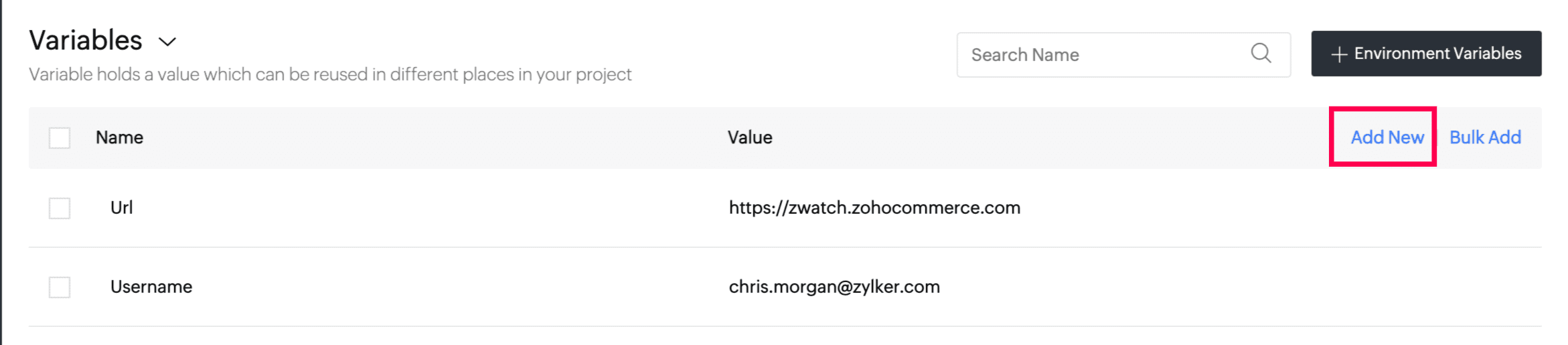
2. Enter the variable name and select its data type. Next, input the value. A new row will appear when a value is entered for the variable. Alternatively, you can click the Add New button to access the new row.
 Note: Variables support data types like string, number, boolean, and connections. While saving connections as variables, it gives you the option to select an existing connection or create a new one.
  Tip: Use complete words instead of abbreviations when declaring a variable. This makes it easier to understand the variable inside the test script.
3. The Bulk Add option lets you create multiple variables instantly. Variables can be entered in <variable_name>:<variable_value> format.
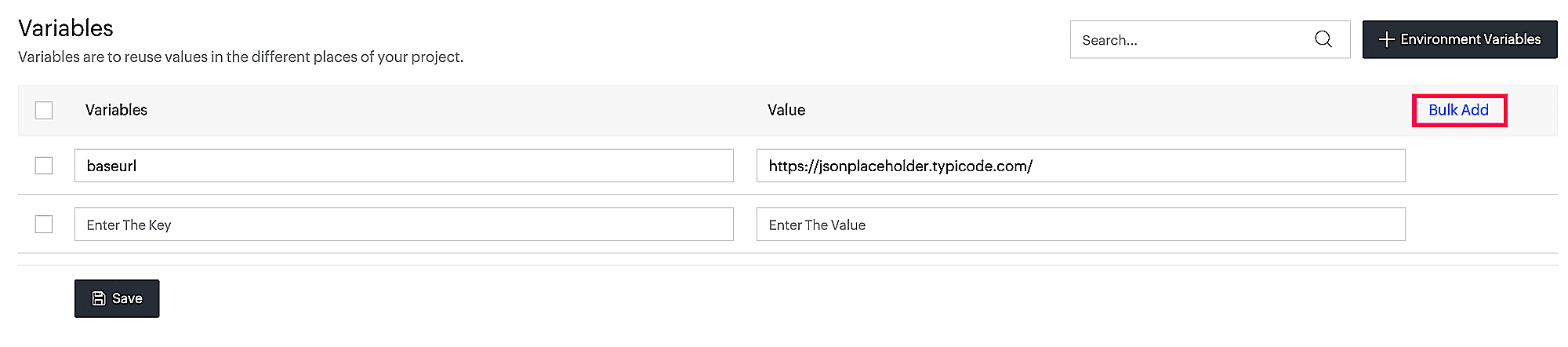
- Type in your variable names and values in the format <variable_name>:<variable_value>, one after the other in the form of a list.
- Click Save to store the variables.
Note: The bulk add feature only lets you add string-type variables.
2.2 Environment-specific variables
Environment variables let you assign multiple values to a global variable. While creating a test plan or during a preview run, you can choose which values should be considered during test execution. Here, when you select an environment variable during test plan creation, its value overrides the default value of the corresponding global variables. For example, say you create a variable named "testurl" and assign it the global value, "test.com" and the environment value, "localtest.com." While creating a test plan, if you select the environment variable, the value considered is localtest.com. If no environment variable is selected, the default value, test.com, is applied.
Multiple environment variables with different values can be created for a single global variable.
1. To create environment variables, click +Environment Variables.
2. Enter a group name for the environment variable, and click Create. The name you specify here will be used to refer to the environment variable. A new variable will not be created.
All the global variables in your account will be listed in a dropdown menu.
Note: You can create a new global environment variable by typing a new variable name in the dropdown menu. The new variable will be listed as a global variable with the same value. 3. Choose an existing variable or create new, specify the desired datatype. Now, assign a value, and click Save.
Note: Variables support data types like string, number, boolean, and connections. While saving connections as variables, it gives you the option to select an existing connection or create a new one.
3. Manage Variables
Edit Variables
To edit global or environment variables:
- Navigate to Settings > Variables. You can view the list of saved variables.
- Click on the required variable to edit the variable name, data type, or values.
Delete Variables
To perform delete action on created variables:
- Hover on the required variable and click on the delete icon. The delete prompt will ask you to confirm the action.
Additionally, you can perform delete action in bulk by checking the box for the required variables.
Note: Variables that are referred to inside test cases can only be deleted once they are removed from test cases where they've been used.Manage Environment Variable
You can edit or delete the environment variable groups. By hovering over the group name, you'll see the edit or delete icon. The edit option allows you to modify the environment variable group name, while the delete option deletes the respective environment variable group altogether.
Mask Variables
Variable values stored can be masked to ensure confidentiality. Only admins and the tester who created the variable have permission to unmask.
To perform masking on stored variables:
- Hover on the required variable and click on the mask icon {
}.
Additionally, you can perform this action in bulk by checking the box for the required variables.
4. Using variables inside test cases
In Zoho QEngine, you can use variables to:
- Store global and environment-specific values: Variables must be entered in {{$<variable>}} format. These variables have a global scope.
- Pass data in chained API requests: Variables created within API testing environments must be entered in the format, {{<variable>}}. The scope of these variables is limited to the test case.
4.1 Using variables in Editor mode
Variables can be used inside test cases using the symbol "$". As you type "$", variables will be auto-suggested from your saved list. Choose the one you would like to use.
4.2 Using variables in Builder mode
- The variables section has a list of global and local variables. Select the required variable.
- Click Done. The value for the arguments of the respective task will be supplied.
5. Using variables for connections in API Testing
Connections stored as variables enhance maintainability and make it easier to update connection details across multiple requests if necessary.
To use the connections in API testing:
- Navigate to Authentication > Type in the created API request.
- Select Variables.
- Select the required variable from the Value drop-down. All connection-type variables will be listed for selection.
6. Updating values of variables dynamically at runtime
Zoho QEngine offers the ability to dynamically change values of global variable during test execution, enhancing flexibility in data handling. Users can write logic to adjust values of these variables based on inputs, system conditions, or other runtime factors. This feature allows for responsive and adaptive scripts, enabling more complex workflows that adjust to varying conditions.
The syntax for dynamically updating a global variable in Zoho QEngine is as follows:
- $<variable_name> = <value> ;
If a variable's value is dynamically updated within a test case that is part of a test plan, the variable’s latest value can be accessed in subsequent test cases within the same plan. This dynamic continuity ensures seamless data flow across related test cases, enabling scenarios such as user authentication flows, data verification, and multi-step operations. For example, if a variable, such as a user ID or session token, is generated or fetched in the first test case, it can then be passed to the next test case. This approach allows each test case to build on the previous one’s output, creating a streamlined flow.
Use Case: Tracking Transaction ID Across Test Cases in an E-Commerce
Imagine you’re testing an e-commerce application, specifically verifying the flow of a transaction ID across various test cases. There’s a global variable called $transactionID that starts with an initial value of null. This global variable is used across several test cases, allowing it to update dynamically as the transaction progresses.
As the test plan kicks off, the first test simulates a user initiating a purchase from the home page. When the "Place Order" button is clicked, a unique transaction ID, such as TXN12345, is generated and stored in the global variable $transactionID. With this assignment, the global variable $transactionID now changes from null to "TXN12345". Next, another test simulates processing the payment. The system retrieves $transactionID and uses it to verify that the payment is being processed for the correct transaction.
Once the payment is validated, the global variable ensures continuity as the transaction status is updated to "Payment Confirmed." In a subsequent test, the transaction proceeds to the fulfilment stage. Using $transactionID, the system ensures the correct order is marked as "Shipped," and all related records are updated consistently. Each operation reinforces that the transaction ID links the stages accurately. At the end of all the test cases, we retrieve $transactionID, which now holds the final value "TXN12345". This confirms that the transaction ID was correctly tracked across all stages. Once the test plan finishes, the variable $transactionID is reset to its original value, null, preparing it for any future test cycles.
7. Points to remember
- Variable names cannot have spaces. Use an underscore(_) where you need a space.
- Variable names cannot start with a number.
- Variable names are case sensitive. "var" and "Var" will be considered two different variable names.
- Ideally, you should create a global variable first, and then create corresponding environment variables with new values.
- The scope of a variable created during API testing is limited to the test case. Global and environment variables have global scope.