Inbox Automation
Managing a busy inbox becomes a lot easier when the right interactions automatically land with the right people. Assignment rules in Zoho Social let you set up conditions so that incoming interactions are routed to your team members automatically, no manual sorting or deciding who handles what. Once a criteria and rule type is set, Social takes care of the assignment every time a matching interaction comes in.
It consists of the following steps:
- Specify the rule criteria
- Choose the assignment rule type
Specifying Rule Criteria
Rule criteria are the set of conditions used to identify which interactions the assignment rule should apply to. These conditions help filter incoming interactions based on specific details such as the channel, interaction type, priority, keywords, and more. Once an interaction matches the configured criteria, the rule is triggered and the selected actions are carried out automatically.
You can also choose whether the interaction should match:
- All conditions you added
- Any one of the conditions
Here's a breakdown of every criteria you can set up:
- Channel - Choose the social media channel from which the interaction is received, such as Facebook, X, LinkedIn, Instagram, and so on.
- Operations: is/isn't
- Use case: If you want all Facebook and Instagram interactions to go to your social media team, set Channel is Facebook and Channel is Instagram. Or if your support team handles everything except LinkedIn, set Channel isn't LinkedIn.
- Interaction Type - Filter interactions based on what kind they are, such as a comment, direct message, reply, review, @mention, and so on.
- Operations: is/isn't
- Use case: If you want all direct messages routed to your support team and comments handled separately by your community team, set Interaction Type to Direct Message for the first rule, and Interaction Type to Comment for the second.
- Content - Filter interactions based on specific words or phrases present in the message text.
- Operations: Exactly matches with/Does not match with/Contains/Does not contain/Starts with/Ends with
- Use case: If your support team handles all pricing queries, set Keywords contains "price" or "pricing" so those interactions are routed directly to them without manual sorting.
- Content Type - Filter based on the type of media attached to or included in the interaction, such as image, video, text, and so on.
- Operations: is / isn't / contains / doesn't contain
- Use case: Set Content Type is Video to route all video-based interactions to a team member who can review and respond to multimedia content effectively.
- Sentiment - Filter interactions based on the detected sentiment of the message, such as Positive, Negative, or Neutral.
- Operations: is / isn't
- Use case: Set Sentiment is Negative to automatically flag and assign all unhappy or frustrated customer messages to your senior support staff for quicker resolution.
- Verified User - Filter interactions based on whether the sender is a verified account on their respective social network.
- Operations: is from / is not from a verified account
- Use case: Assign interactions from verified accounts — like verified brand pages or public figures — directly to your brand manager or PR team for a more thoughtful response.
- Followers Count - Filter interactions based on how many followers the sender's account has.
- Operations: greater than / less than / equal to / between
- Use case: Set Followers Count between 10,000 and 100,000 to automatically flag interactions from mid-tier influencers and assign them to your influencer marketing team.
- Creation Time - Filter interactions based on the day and time they were received.
- Operations: during / not during (specified days and time)
- Use case: Set Message Time during Monday to Friday, 9 AM – 6 PM to assign interactions received during business hours to your core team, and route everything else to your after-hours support team.
- Sender - Filter interactions from specific users based on your existing contacts and interaction history.
- Operations: is / isn't
- Use case: If you have VIP clients or recurring contacts you always want to prioritize, set Sender is [Contact Name] so their messages are always assigned to a dedicated team member.
- First-Time Interaction - Filter based on whether this is the first time a particular user has interacted with your brand.
- Operations: Yes / No
- Use case: Set First-Time Interaction is Yes to automatically assign new conversations to a designated onboarding or welcome team member who can make a great first impression.
- Language - Filter interactions based on the language the message is written in. You can choose from a wide range of languages in the dropdown.
- Operations: is / isn't
- Use case: Set Language is French to route French-language interactions to a team member who can respond fluently.
- CRM Contacts - Filter based on whether the sender exists in your connected CRM as a known contact.
- Operations: is / isn't / is a known contact / is an unknown contact
- Use case: Set CRM Contact is known to route interactions from your existing CRM contacts to your account management team, while new or unknown senders go to the general support queue.
- CRM Lead - Filter based on whether the sender is already a lead in your CRM.
- Operations: Yes / No
- Use case: Set Existing Lead is Yes to make sure messages from potential customers who are already in your pipeline are assigned to the relevant sales team member handling that lead.
Specifying Assignment rule type
Once the rule criteria are matched, these are the actions Zoho Social will perform automatically on those interactions. You can add multiple actions to a single rule.
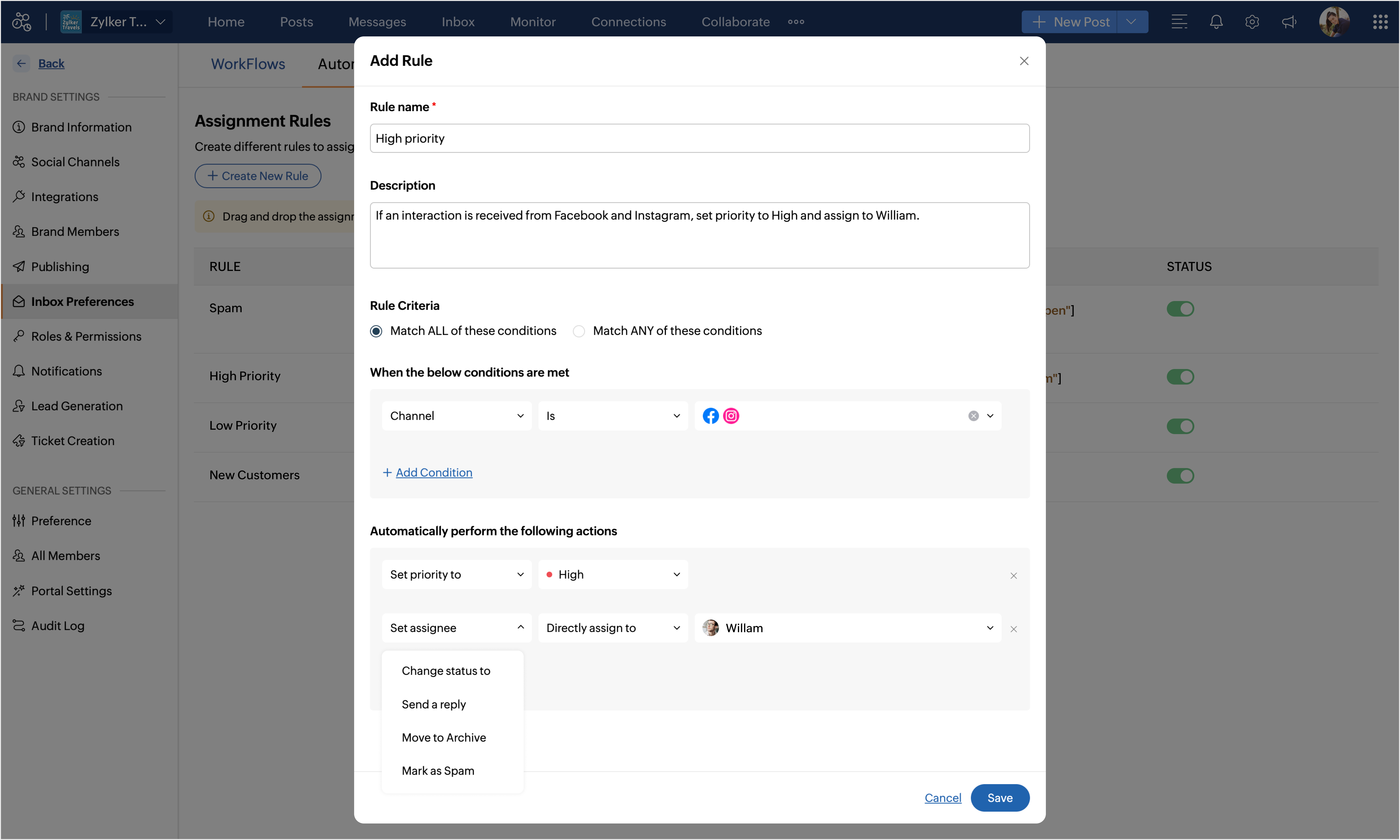
- Set Priority: Automatically assign a priority level — High, Medium, or Low — to the matched interaction.
- Use case: If an interaction is from a verified user or contains the keyword "urgent," set Priority to High so it immediately stands out in the queue.
- Change Status - Update the status of the interaction automatically — for example, mark it as Open, On Hold, or Closed.
- Use case: If a rule detects that an interaction is spam or irrelevant based on keywords, you can change its status to Closed right away without anyone having to act on it manually.
- Set Assignee - Assign the interaction to one specific team member.
- Directly Assign to: Assign interaction directly to team member
- Use case: All pricing-related queries (detected via keywords) go directly to your sales rep, without any manual intervention.
- Round Robin Assignment - Distribute matched interactions equally among all members, selected members, or members of a chosen role. This is done by assigning each new interaction to a different member until all of them are assigned the same number of interactions, and the cycle repeats.
- All Members - Every member in your Zoho Social portal.
- Select Members - Specific members you choose from the dropdown.
- Role-based Members - All members belonging to a selected role.
- Use case: Assign all Instagram DMs in a round robin to all your customer support agents so the workload stays balanced throughout the day.
- Send a Reply - Automatically send a reply to the interaction — either by choosing from your saved templates or by typing a custom message.
- Use case: For all interactions received outside business hours, send an automated message letting users know you'll get back to them the next working day.
- Send a Private Reply - Automatically send a private reply (Direct Message) when users comment with the keywords you specify.
- Use case: When a user comments with a keyword such as “DM” or “link,” send them a private reply with the configured message. If a reply comment is configured in the automation rule, it will also be posted along with the private reply.
- Move to Archive: Automatically move the interaction to the archive.
- Use case: Interactions that match low-priority, non-actionable criteria like generic thank-you comments can be archived automatically to keep your inbox focused on what matters.
- Mark as Spam - Automatically flag the interaction as spam and remove it from your active inbox.
- Use case: Set this action for any interaction containing known spam phrases or keywords like "click here to win" or "free giveaway".
- Close Interaction - Mark the interaction as closed without requiring any manual action from a team member.
- Use case: If an interaction comes in after hours and is from a known resolved contact, you can close it automatically if no follow-up is expected.
- Send Alert - Send a notification to selected team members via email or in-app notification when the rule is triggered. You can also set a delay before the alert goes out.
- Use case: Whenever a high-priority interaction is received, alert your team lead immediately via email so they can step in if needed.
To create an assignment rule
- Navigate to Settings > Brand Settings > Inbox Preferences > Automation.
- Click Create New Rule.
- Enter a Rule Name and a Description for your reference.
- In the Rule Criteria section, do the following:
- Select Match ANY of the conditions or Match ALL of these conditions, depending on how you want the rule to work.
- Choose a condition from the dropdown list and set the appropriate operator and value.
- Click + Add Condition to keep adding more criteria as needed.
- In the Actions section, choose what should happen when the rule conditions are met. You can add multiple actions to a single rule.
- Click Save

Note:
Learn more about Inbox Preferences