Cliq Mobile Settings (Android)
You can quickly configure your app to manage status, notifications, themes, privacy and security, personalize, and set up data and storage-specific settings using the Cliq mobile app.
Go to your mobile app, click your contact image and select Settings.
- There is a list of settings that you can change.
Current Status
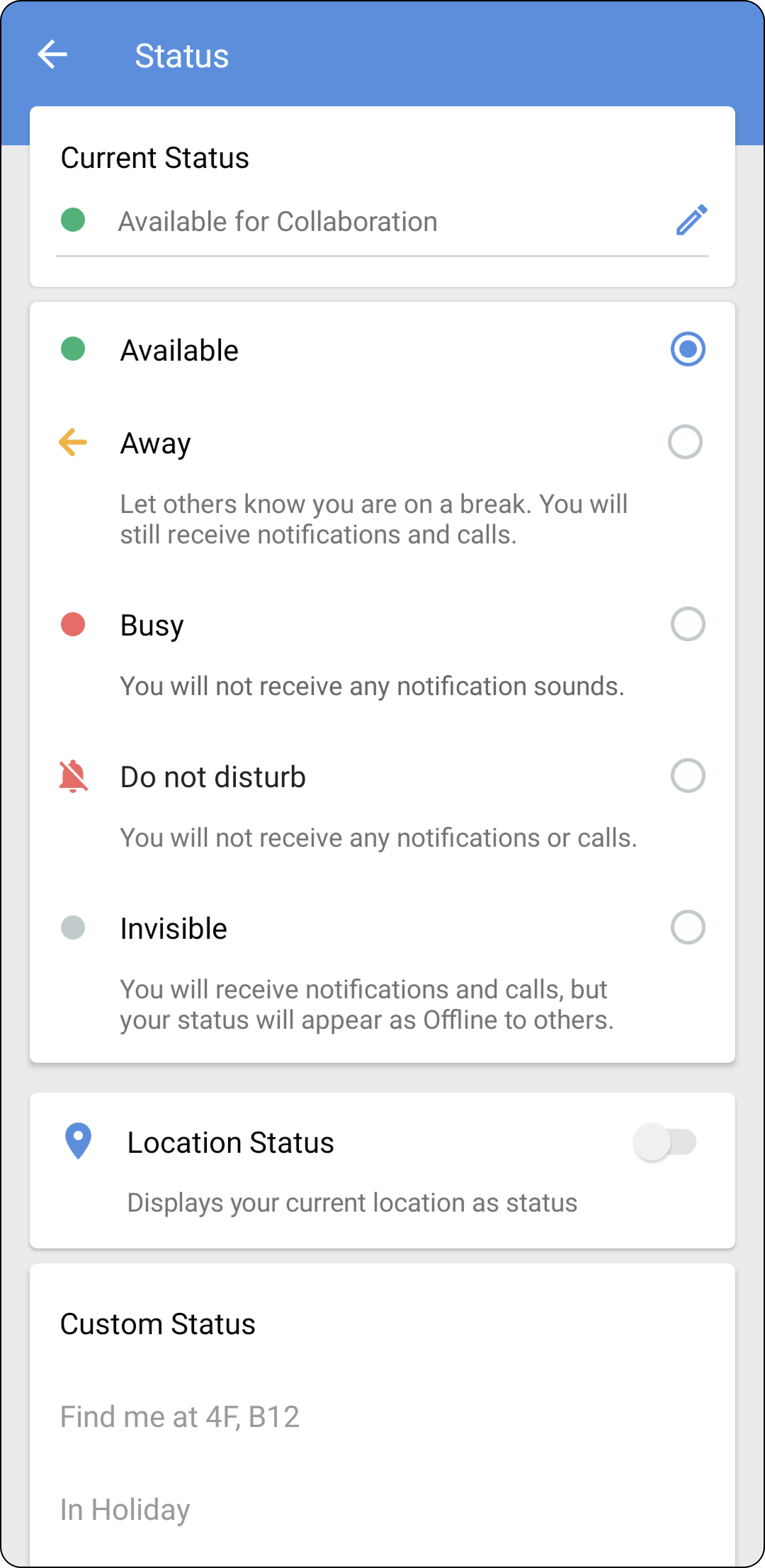
You will be able to change your status to a set of pre-defined statuses in Cliq or create your own status by typing after clicking the edit icon. You can also enable your location status, which will display your current location as a status. The location can either be city-level or your exact location.
Personalize
Cliq will allow you to customize the app according to your need. Below are a few settings you can enable using your mobile app.
Hide muted chats
When you mute a chat, the muted chat will appear with a mute icon next to it. If you want to have a separate list where all the muted conversations will be displayed, you can enable the toggle button. This will make sure the muted chats are not displayed under your chat list and are listed in a separate view.
Enter to send
To send a message instead of moving on to the next line while you press Enter, enable the toggle button.
Voice message confirmation
If you want to avoid accidentally sending a voice message, you can enable voice message confirmation so that a confirmation pop-up appears before you send a voice message.
Show threads in chat list
If you want your threads to be displayed in the chat list, you can enable the show threads in chat list toggle button; otherwise, the threads will be displayed inline with the parent chat.
Font
You can select either the device font or the app font to send messages in Cliq.
Data and storage
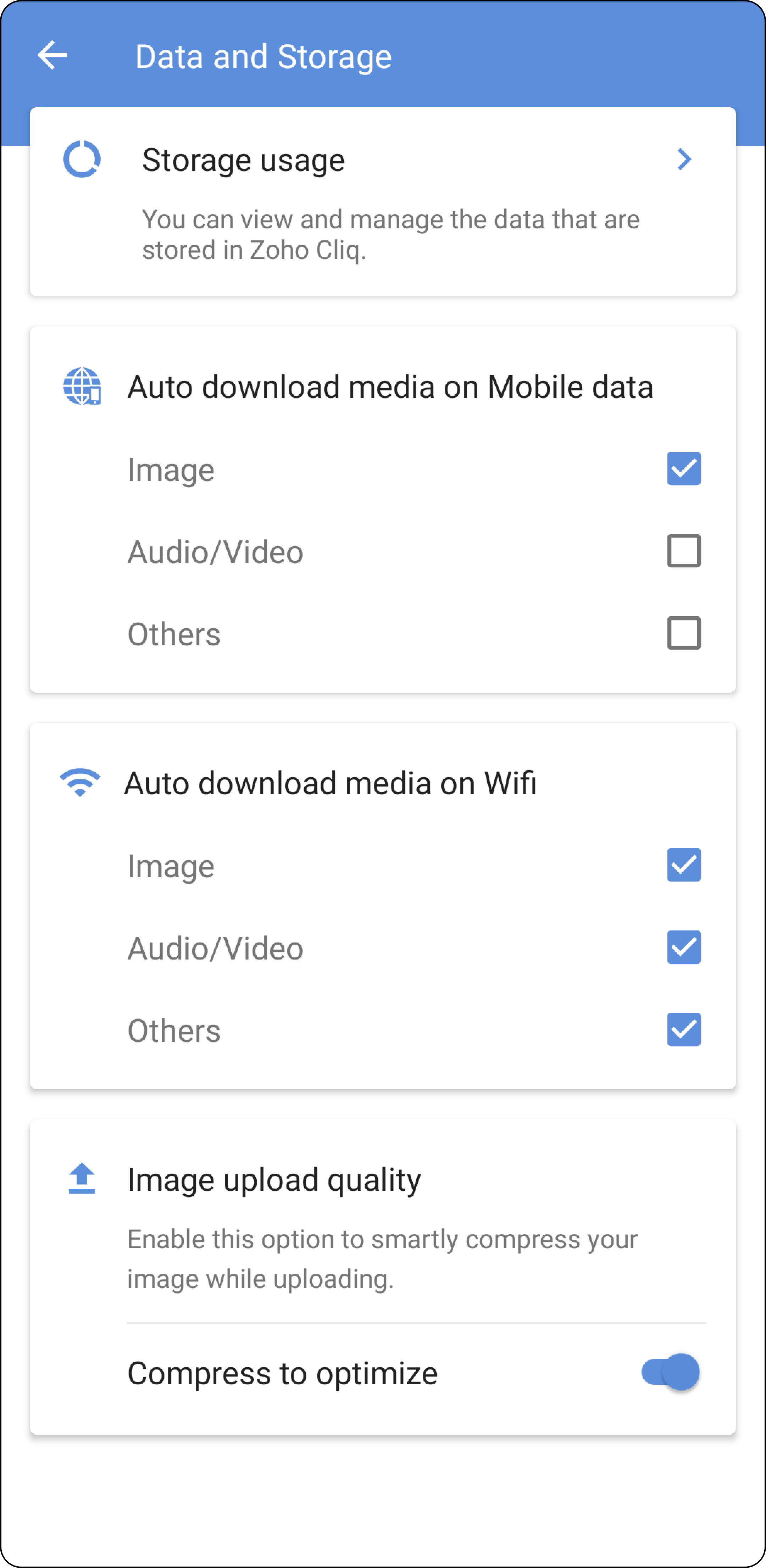
Manage how your media gets downloaded, check storage usage, and compress your image while uploading if necessary using the data and storage settings in Cliq.
Storage usage
You can view the media storage details inside Storage Usage. You can set the time to remove photos, videos, and other files that are not accessed from this device. You will also view a list of media you've shared in chats, along with how much data was shared.
Auto download media on mobile data
You can check images, audio/video or other media you would like to download while using mobile data.
Auto download media on wifi
You can check images, audio/video or other media you would like to download while using wifi.
Image upload quality
By enabling compress to optimize you can smartly compress your image while uploading.
Notifications
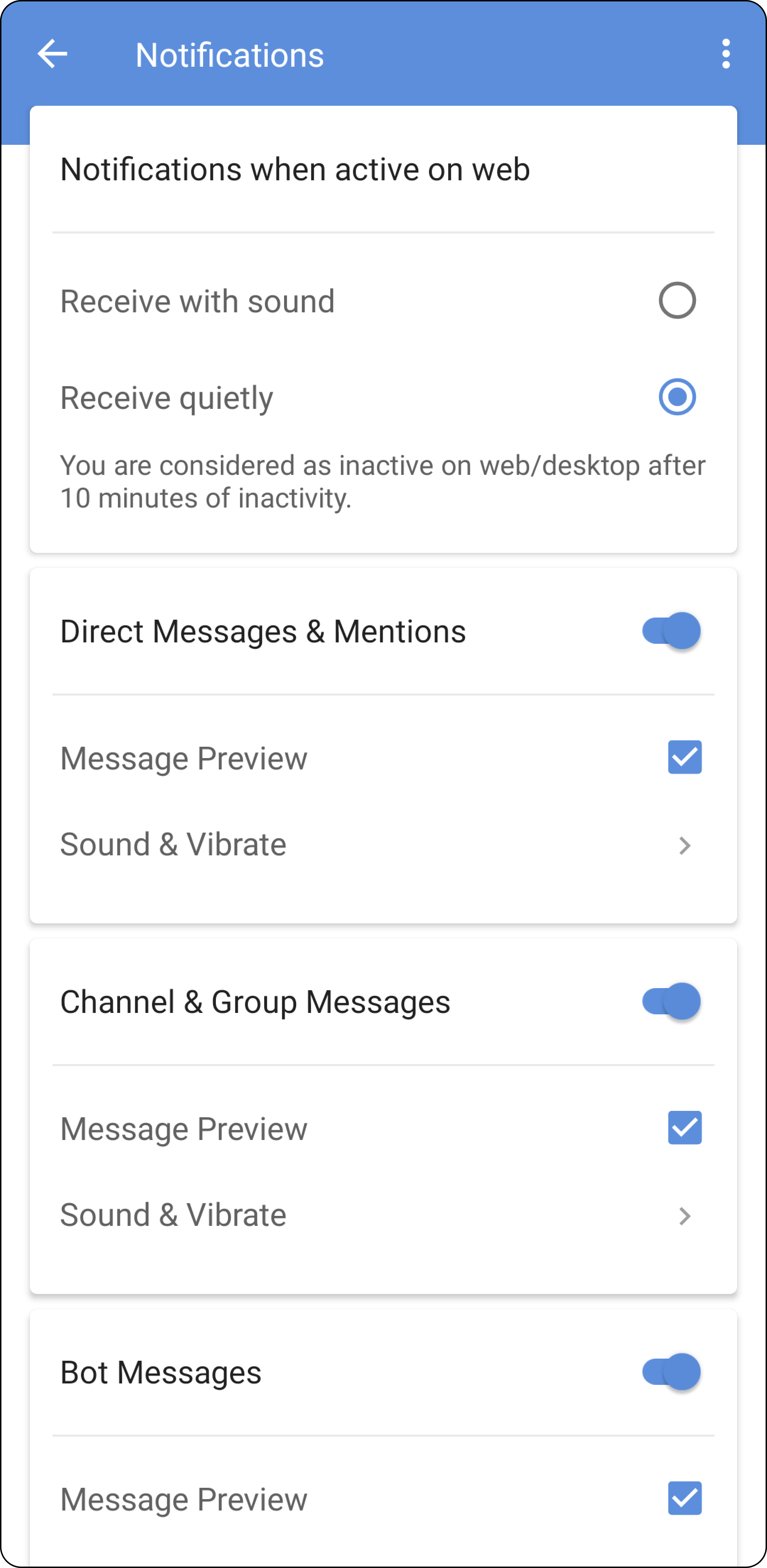
You can select which messages you need notifications for in Cliq using the Notifications setting.
Notifications when active web
Notifications when active web
You can select if you want to receive mobile notifications with sound or not when active in web.
Direct messages & mentions
Enable this toggle if you want to receive notifications from direct messages and when you're mentioned. You can also check the message preview along with the notification and allow sound & vibration while receiving notification.
Enable this toggle if you want to receive notifications from direct messages and when you're mentioned. You can also check the message preview along with the notification and allow sound & vibration while receiving notification.
Channel & group messages
Enable this toggle if you want to receive notifications from channel and group messages. You can also check the message preview along with the notification and allow sound and vibration while receiving notification.
Enable this toggle if you want to receive notifications from channel and group messages. You can also check the message preview along with the notification and allow sound and vibration while receiving notification.
Bot messages
Enable this toggle if you want to receive notifications from bots. You can also check the message preview along with the notification and allow sound and vibration while receiving notification.
Enable this toggle if you want to receive notifications from bots. You can also check the message preview along with the notification and allow sound and vibration while receiving notification.
Daily reminder notification
Enable this toggle if you want to receive daily reminder notification. You can also check the message preview along with the notification and allow sound and vibration while receiving notification.
Enable this toggle if you want to receive daily reminder notification. You can also check the message preview along with the notification and allow sound and vibration while receiving notification.
Do not disturb
You can set DND mode when you have to do something without being disturbed by your colleagues. When you set DND mode you will not get notifications and your status will change so that your colleagues know that you are doing something important and are not available to collaborate with.
Quiet DND
You can decide on how long you want to enable DND mode using the Quiet DND options. You can set for 30/60 mins, 8 hours, until tomorrow or forever.
Quiet hours
You can also customize the timing you want DND to be enabled everyday using the Quiet hours.
Quiet days
By enabling Quiet days you can set the DND mode for particular days of the week.
Themes
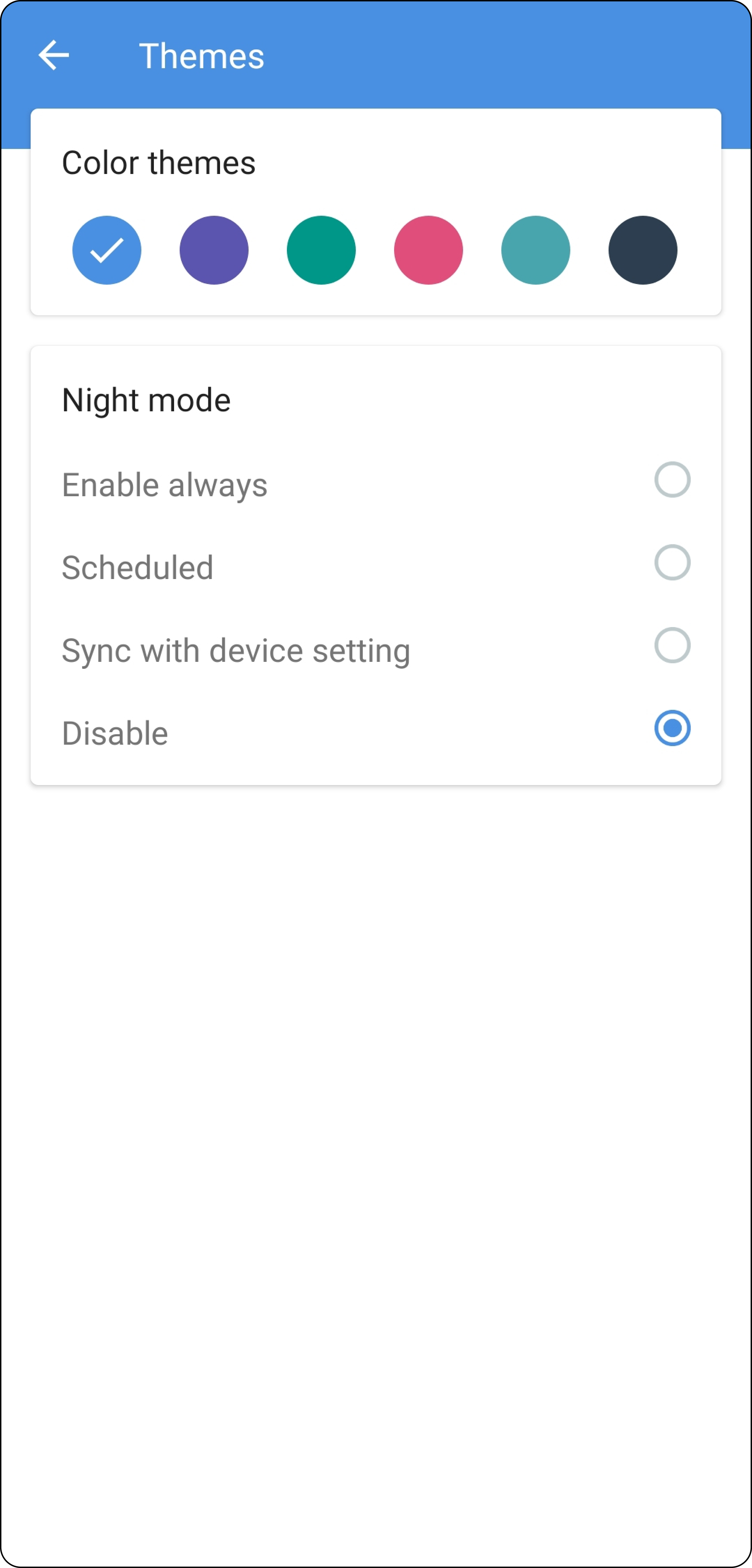
You can set which color theme you want your Cliq to appear in or you also enable night mode that will change your app to a black color theme.
Color themes
There are a set of predefined color themes you can set to change how your Cliq app appears.
Night mode
Night mode
You can either disable the night mode or specify a timing from sunrise to sunset to activate it automatically. You can also sync it with device setting or enable it always.
Security and privacy
Cliq provides a group of settings that a user can add for more security and privacy apart from the general authentication for logging in. Here are a few settings you can enable using your mobile.
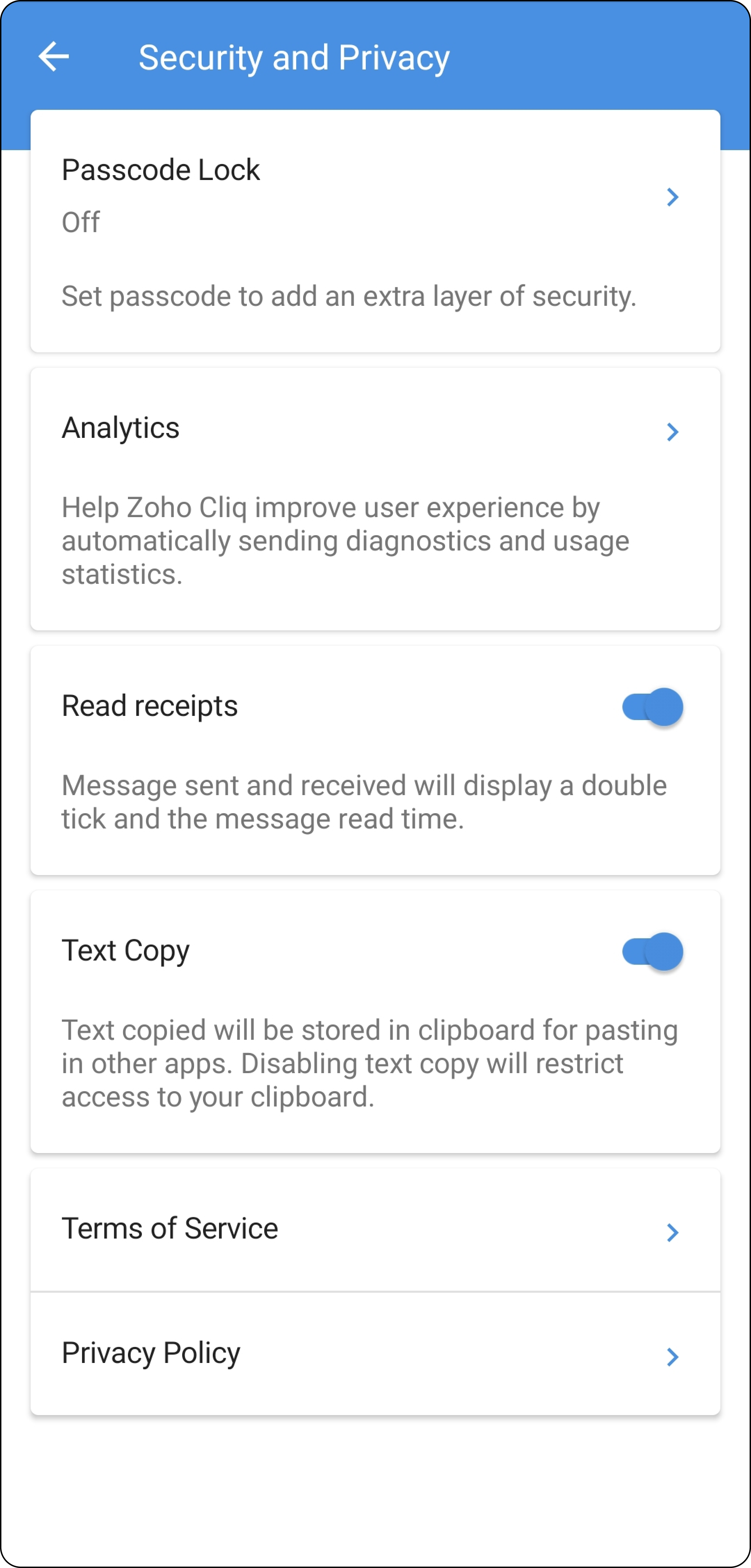
Passcode lock
By enabling passcode lock, you can set a pin or password to use your Cliq mobile. The pin or password can be of 4 characters. You can change your passcode later by entering your old passcode.
Analytics
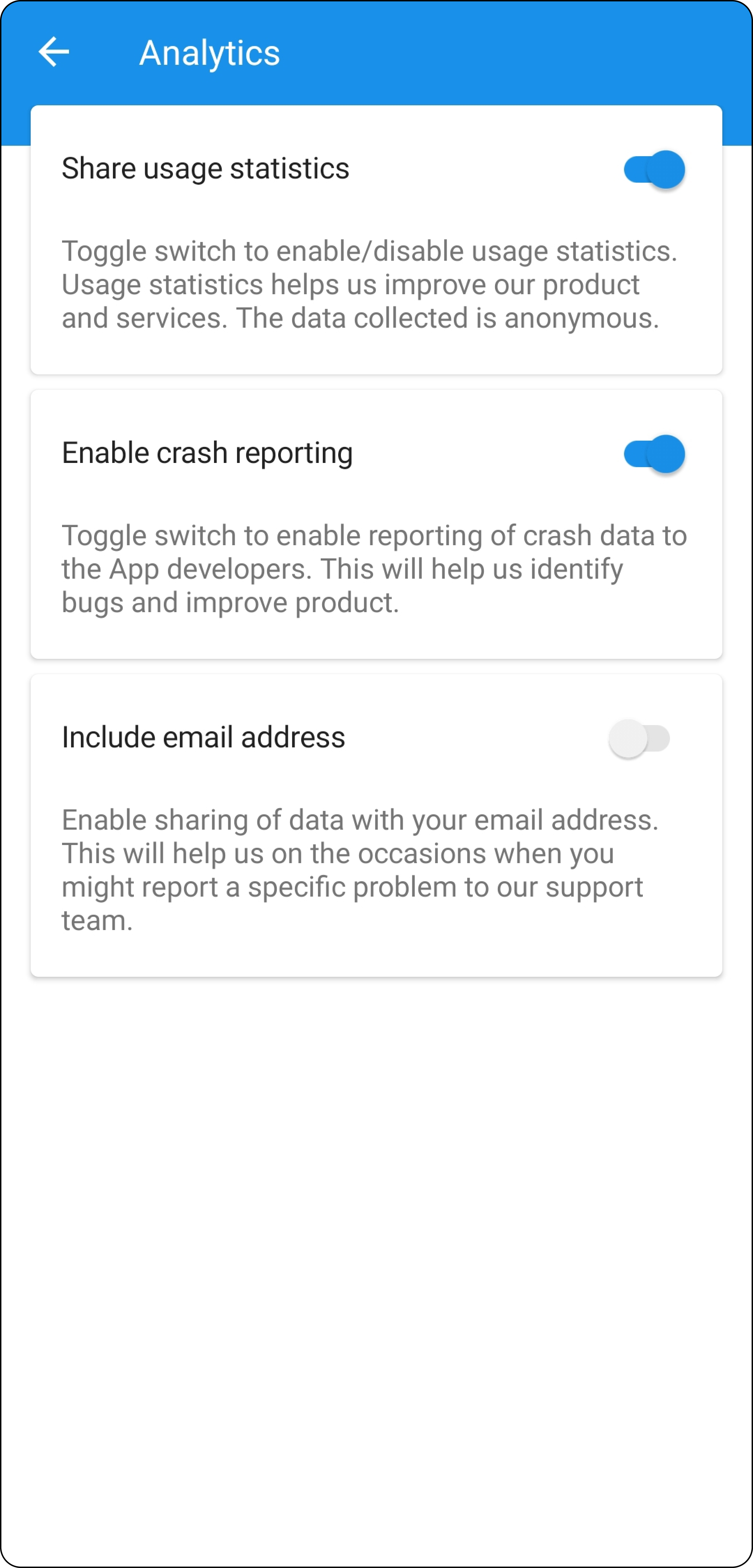
You can send diagnostics and usage statistics of Cliq to Analytics. Cliq uses the statistics with the consent of the user. The usage statistics helps us to improve our product and services and the data we collect is anonymous. You can also include your email address while sharing your data that will help us in-case you face issues or raise request to our support team. The crash reporting helps our app developers to identify bugs and improve product.
Read receipts
By disabling the read receipts the messages sent or received will display a single tick and by enabling it will be displayed with a double tick.
Text copy
If you want to copy a message from Cliq and sent to other apps, you can enable the text copy and the text will be copied to your clipboard and you can paste it in other apps. You can also disable the text copy to restrict access to your clipboard.
Language
You can also change the language of your Zoho Cliq account. Click on the language you want to change your account to.
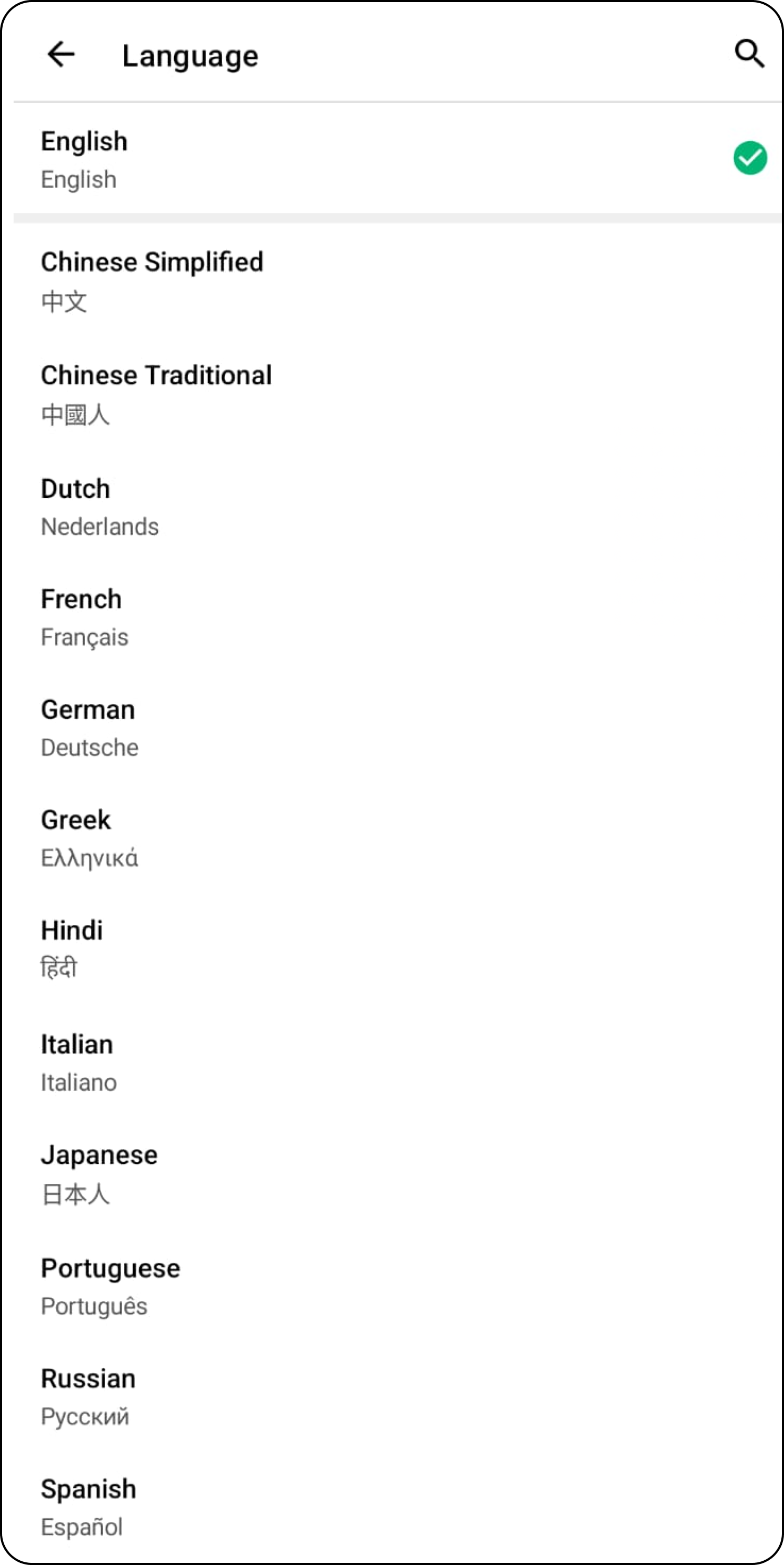
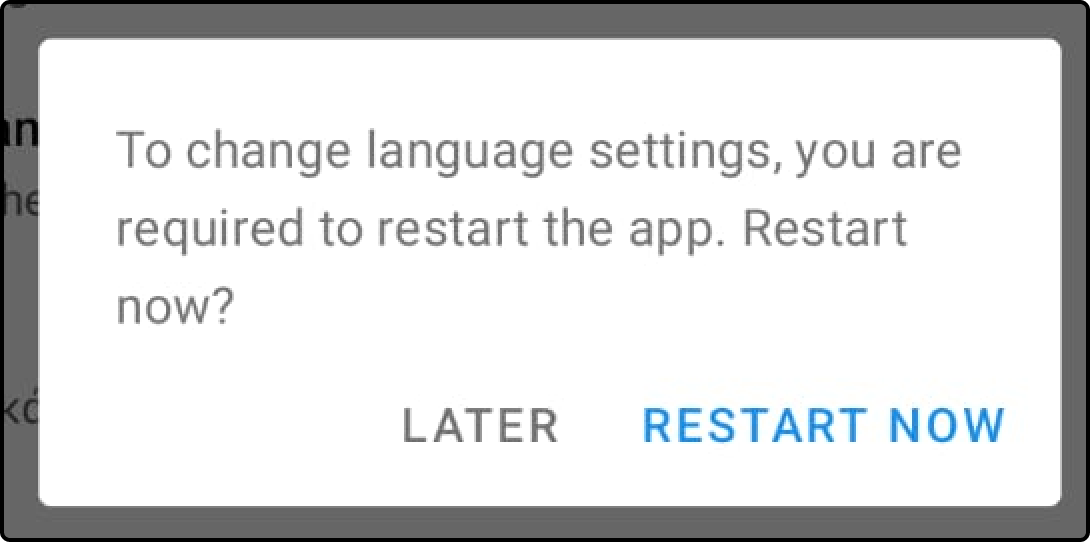
Once you have selected the desired language, Cliq will prompt a confirmation dialog box asking you to restart your app in order to change your language. Select "Restart Now" for the changes to reflect.

Note:
If you have multi-accounts in your Zoho Cliq app, the changes will be reflected on the current account.
The default language is English.
Note:
If you have multi-accounts in your Zoho Cliq app, the changes will be reflected on the current account.
The default language is English.
About us
Here you will find information about Cliq and the current version.
Feedback
You can send your feedback about our features in the feedback section and our team will take them into consideration while implementing or updating features.
Sign out
You can sign out from the current account using the sign out option.