Sending documents for signature via WhatsApp
Available in all paid plans and data centers
Zoho Sign now offers users the ability to deliver document links or authenticate their recipients by sending document signing link directly to their WhatsApp number, apart from the standard email and SMS delivery method.
Some of the key benefits include:
- Reach recipients who prefer WhatsApp over SMS or email
- Faster document turnaround time
- High success rate
Prerequisites
- A paid Zoho Sign account
- You must be a Zoho Sign administrator to enable and configure this integration
- Adequate Zoho Sign credits (for Zoho Sign users)/ IM credits (for Zoho One users)
- Facebook/Meta business account
Integrating WhatsApp business account
- From your Zoho Sign dashboard, hover over Settings in the left navigation pane and click Integrations.
- Scroll to find WhatsApp, or alternatively, search for WhatsApp in the search bar.
- Click Configure.
- Click Enable.

Setting up WhatsApp Business
- You must either create a Meta Business Account or associate your existing one to integrate your WhatsApp Business account with Zoho Sign.
- Agree to WhatsApp Client ISV Terms & WhatsApp Client Terms and click Connect Meta Business.
- Enter the Meta Business credentials and click Log in.
- Choose an already created business portfolio, or create a new business portfolio by entering the relevant business details.
- Once done, click Next.
- Choose an already created WhatsApp Business account, or create one.
- Click Next.
- Review the application's permission and click Continue.
- Click Finish.
- Enter the Channel Name. This channel name is for internal purpose alone and won't be visible to your recipients.
- Select the WhatsApp business number and click Save.

Upon successful integration, we will submitting predefined WhatsApp templates for verification.
How to verify WhatsApp template status
Upon successful integration, the predefined templates are automatically submitted to WhatsApp for review. WhatsApp independently reviews and verifies all message templates as a part of their communication services policy. These templates can be used upon approval, which can take up to 24 hours to verify and approve.
To view the template and its status:
- Hover over the Settings tab and select Branding.
- Navigate to WhatsApp templates.
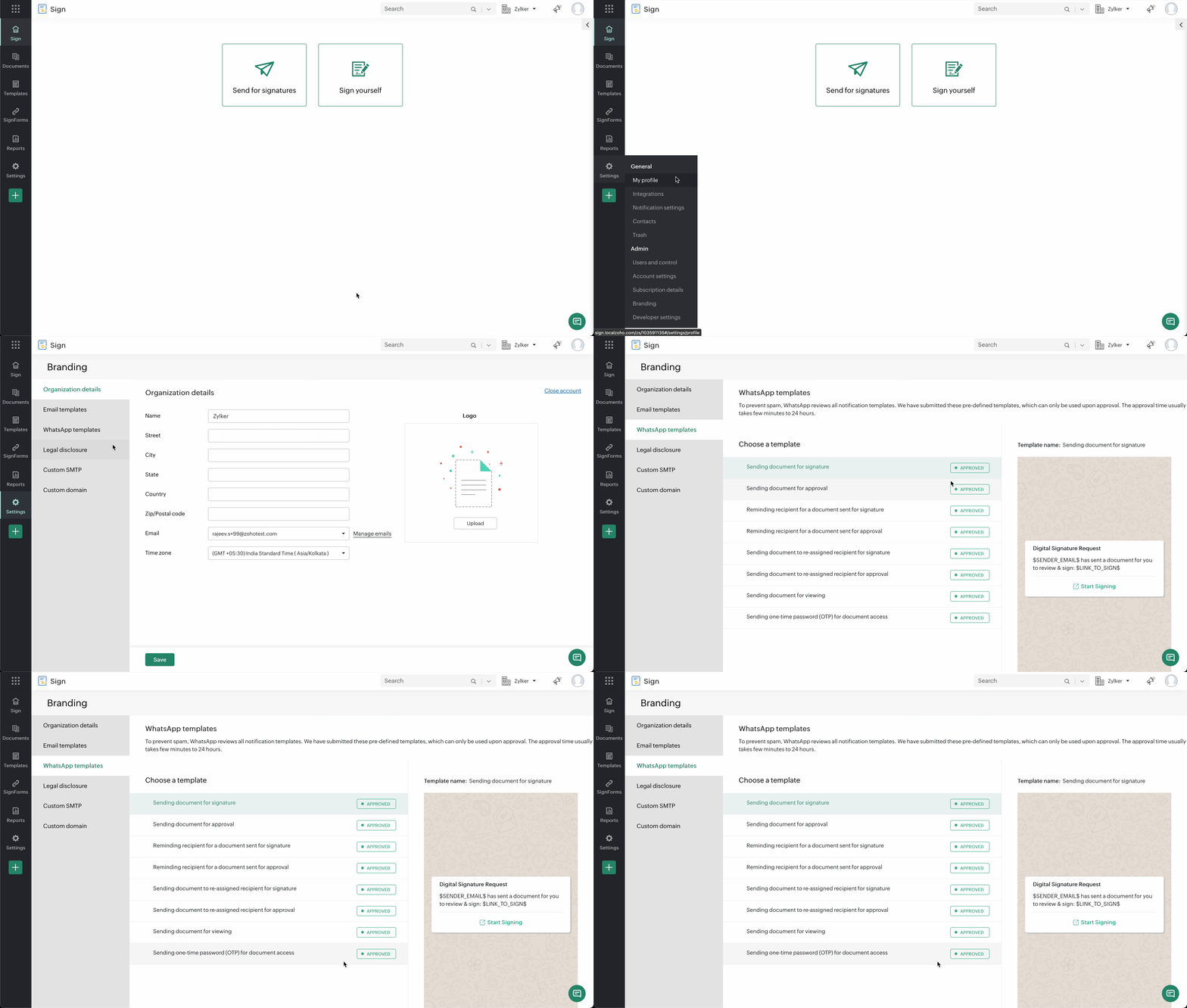
How to choose WhatsApp as the document delivery method
By default, both the modes (Email and Email+SMS) will be enabled. However, you can follow these steps to choose WhatsApp as the delivery mode:
- From the left navigation pane, click Settings > Account Settings.
- Check WhatsApp and click Save.
How to choose WhatsApp delivery for a recipient
- Click Send for signatures on your dashboard to upload the document.
- After all the recipient details are entered, select the delivery mode from the dropdown.
- If you choose Email+WhatsApp as the delivery mode, you have to enter your recipient's phone number. If the recipient is not in your Zoho Sign contacts, or if the recipient's phone number is not present in their contact details, you will have to select the appropriate country code and enter their number in the field provided. You can find the list of all the countries here.
- Fill in all the necessary fields and send the document out for signature.
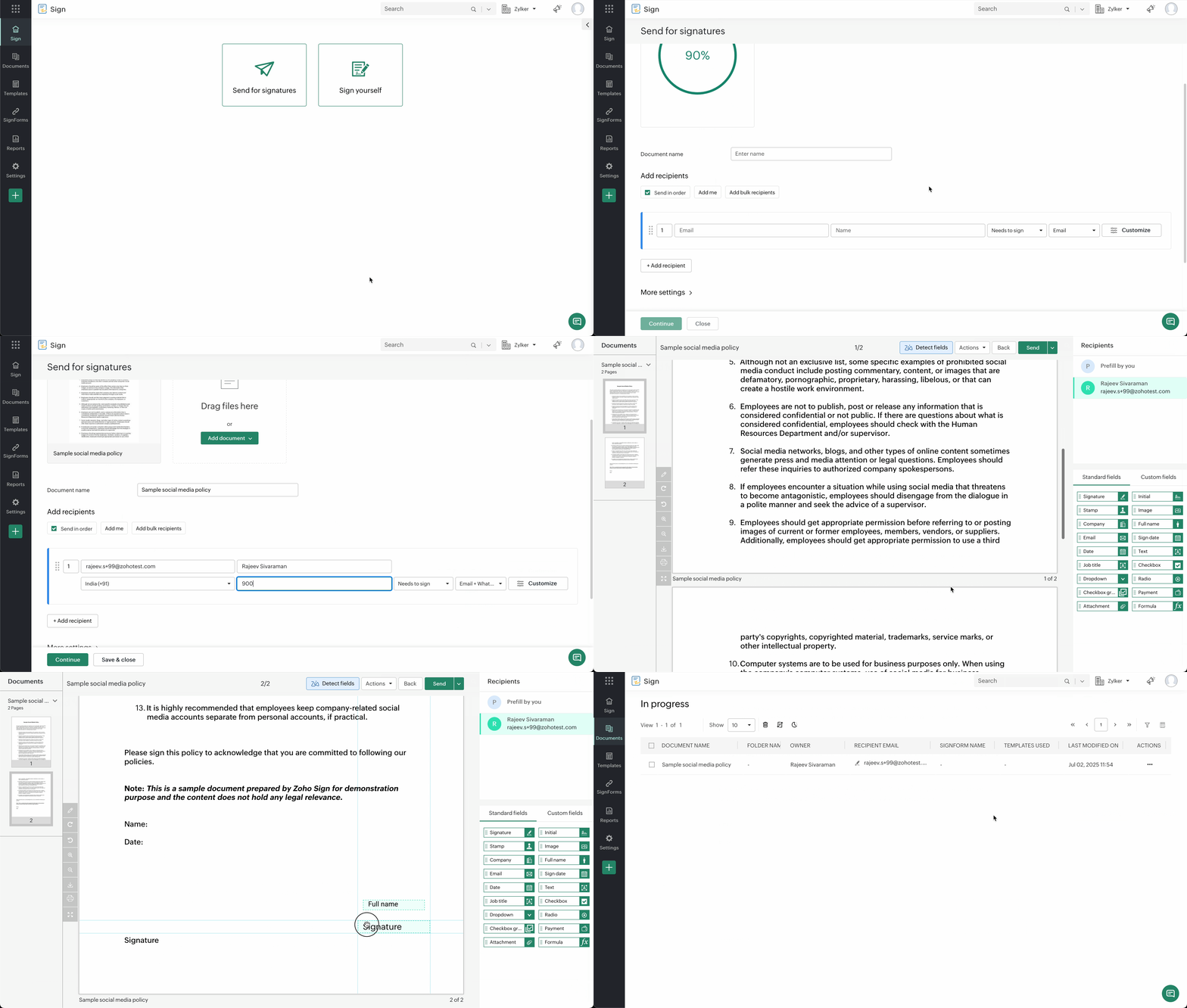
Your recipient(s) will receive a WhatsApp message similar to one that you can see below.
How are Zoho Sign credits consumed?
Zoho Sign credits will be consumed for standalone Zoho Sign subscriptions. This includes documents sent from integrations such as Zoho CRM, Zoho Recruit, Zoho Books, etc. Zoho Sign credits will be consumed to the nearest IM credits value. Since the IM credits vary from region to region, you can access the IM credits values here.
You can find the credits consumed by visiting the credits consumption chart, Settings > Subscription Details > More actions > Usage history.