Kaizen #205 - Answering Your Questions | Managing Picklists and Enabling History Tracking via Zoho CRM APIs
Hello everyone!
Welcome back to another post in our Kaizen series.
In this post, we will look at how you can manage picklist fields in Zoho CRM using APIs. This topic was raised as feedback to Kaizen #200, so we are taking it up here with more details.

In this post, we will cover the following:
- What is a picklist field in Zoho CRM?
- Picklist vs Multi-select Picklist
- Working with picklist fields via APIs
- Creating a picklist field using the Create Custom Field Metadata API
- Updating a picklist field using the Update Custom Field Metadata API
- Assigning picklist values when creating records using the Insert Records API
- Updating picklist values in existing records using the Update Records API
- History tracking for picklists
- What is history tracking for picklists in Zoho CRM?
- Use case
- Enabling history tracking for a picklist using the Create Custom Fields API
What is a picklist field in Zoho CRM?
A Picklist field is a drop-down field in Zoho CRM that contains a predefined list of values. While creating or updating a record, you can select one value from this list instead of entering it manually. This helps you avoid typing errors.
Example :
A Region field with values East, West, North, and South.
If a lead is from the East, the user simply selects East from the picklist instead of typing it manually.
Picklist vs Multi-select Picklist
Picklist | Multi-select Picklist |
Users can select only one value from the list. | Users can select multiple values at once. |
A standard Region picklist works when a record belongs to only one region. Example : East | A Multi-select Region picklist works when a record spans multiple regions. Example : East, North |
Global picklist / Global set : User can create a picklist in common and associate the created picklist across the modules to maintain accuracy. Refer to Kaizen #161: Global Sets using Zoho CRM APIs for more details.
Working with picklist fields via APIs
Creating a picklist field using the Create Custom Field API
You can create a new Picklist field in a module by calling the Create Custom Field Metadata API. For example, you can create a picklist field named Region with the values: East, West, North, South.
Request URL : {{api-domain}}/crm/v8/settings/fields?module=Leads
Request Method : POST
Sample Input
When creating a picklist field, set its data type as picklist and provide the list of options, each with a mandatory display_value. You can also configure additional properties such as actual_value, lexical sorting, and color coding.
{ "fields": [ { "field_label": "Select Region", "data_type": "picklist", // Specify the data type as picklist "tooltip": { "name": "info_icon", "value": "Select your region here" }, "profiles": [ { "id": "5725767000000026011", "permission_type": "read_write" } ], "pick_list_values": [ { "display_value": "East", //The unique display value for the picklist, which will be displayed in the CRM UI. Use the display_value in API requests during create, update, and upsert operations. "actual_value": "IN_East" //The unique reference value associated with the particular option. }, { "display_value": "West", "actual_value": "IN_West" }, { "display_value": "North", "actual_value": "IN_North" }, { "display_value": "South", "actual_value": "IN_South" } ], "pick_list_values_sorted_lexically": true, //Sorts options alphabetically. Default value is false. "enable_colour_code": true //Allows color coding for picklist options. Default value is false. } ] } |
Note : To create a multi-select picklist field, set the data_type key to multiselectpicklist in the request body ("data_type": "multiselectpicklist").
Sample Response
{ "fields": [ { "code": "SUCCESS", "details": { "id": "5725767000007613005" }, "message": "field created", "status": "success" } ] } |
Updating a picklist field using the Update Custom Field API
The PATCH - Field Metadata API lets you modify an existing Picklist field. Use the Get Fields Metadata API to get your picklist field ID.
You can:
- Add new options
- Update the picklist
- Remove existing options using Update Custom Layout API
Here is a sample request that updates the Select Region dropdown field in the Leads module.
Request URL : {{api-domain}}/crm/v8/settings/fields/5725767000007613005?module=Leads
Request Method : PATCH
Adding a new option to the existing picklist field
Sample Input
{ "fields": [ { "pick_list_values": [ { "display_value": "Central", //adding a new option to the existing picklist field "actual_value": "IN_Central" } ], } ] } |
Updating picklist
{ "fields": [ { "profiles": [ { "id": "5725767000000026011", "permission_type": "read_only" //updating the permission_type } ], "pick_list_values": [ { "display_value": "South Region", //updating the display field's value "id": "5725767000007613010" //unique ID of the option } ], "enable_colour_code": false //disabling color code for the options } ] } |
Note : Use the actual_value or unique ID of a picklist option to update its display value. Use the Get Fields Metadata API or Get Layouts Metadata API to get the details.
Removing existing options using Update Custom Layout API
To remove picklist values, keep only the required options in your input. Any options not included in the request will automatically move to the unused section.
First, fetch the required layout, section, field, and option IDs using the Get Layouts Metadata API. Then, in your request body, specify only the picklist values you want to retain.
Request URL : {{api-domain}}/crm/v8/settings/layouts/5725767000000091055?module=Leads
Request Method : PATCH
Sample Input
{ "layouts": [ { "id": "5725767000000091055", //layout id "sections": [ { "id": "5725767000000209001", //section id "fields": [ { "id": "5725767000007613005", //field id "pick_list_values": [ { "display_value": "Central", "id": "5725767000007626001" }, { "display_value": "East", "id": "5725767000007613004" } ] } ] } ] } ] } |
Here, Central and East regions remain as active picklist options, and West, North, and South regions are moved to the unused section.
Updated response
Use the Get Fields Metadata API to check the updated response. The Central and East are still active options (type: used), and North, South, and West are inactive options (type: unused)
{ "fields": [ . . . { "field_label": "Select Region", "id": "5725767000007613005", "api_name": "Select_Region", "pick_list_values": [ { "display_value": "-None-", "sequence_number": 1, "reference_value": "-None-", "colour_code": null, "actual_value": "-None-", "id": "5725767000007613013", "type": "used" //default option }, { "display_value": "Central", "sequence_number": 6, "reference_value": "Central", "colour_code": null, "actual_value": "IN_Central", "id": "5725767000007626001", "type": "used" }, { "display_value": "East", "sequence_number": 2, "reference_value": "East", "colour_code": null, "actual_value": "IN_East", "id": "5725767000007613004", "type": "used" }, { "display_value": "North", "sequence_number": 4, "reference_value": "North", "colour_code": null, "actual_value": "IN_North", "id": "5725767000007613008", "type": "unused" }, { "display_value": "South", "sequence_number": 5, "reference_value": "South", "colour_code": null, "actual_value": "IN_South", "id": "5725767000007613010", "type": "unused" }, { "display_value": "West", "sequence_number": 3, "reference_value": "West", "colour_code": null, "actual_value": "IN_West", "id": "5725767000007613006", "type": "unused" } ], "data_type": "picklist" } ] } |
Assigning picklist values using the Insert Records API
When you insert a record, you can directly pass the picklist option’s display value (not the ID) in the request body.
Request URL : {api-domain}/crm/v8/{module_api_name}
Request Method : POST
Sample Input
{ "data": [ { "Company": "Zylker", "Last_Name": "David", "Select_Region": "Central" // Picklist value to assign } ] } |
Note:
- When creating, updating, or upserting records,
- You can either pass an existing picklist value or add a new one, through the API. Please note that the new value will only be stored in that record, and will not be added to the picklist field’s metadata.
- In the UI, you can only select from the available dropdown options.
- Always use the display_value of the picklist option, not the picklist option’s ID.
- You can also assign the default option (-None-). In this case, the picklist field’s value will be stored as null ("Select_Region": null)
Sample Response
{ "data": [ { "code": "SUCCESS", "details": { "Modified_Time": "2025-08-23T04:51:39-07:00", "Modified_By": { "name": "Patricia Boyle", "id": "5725767000000411001" }, "Created_Time": "2025-08-23T04:51:39-07:00", "id": "5725767000007623017", "Created_By": { "name": "Patricia Boyle", "id": "5725767000000411001" } }, "message": "record added", "status": "success" } ] } |
Updating picklist values in existing records using the Update Records API
When updating, you also use the picklist display value in the field.
Request URL : {api-domain}/crm/v8/Leads/5725767000007628002
Request Method : PUT
Sample Input
{ "data": [ { "Select_Region": "West" // New picklist value } ] } |
This will replace the existing picklist value with West.
History tracking for picklists
What is history tracking for picklists in Zoho CRM?
You can enable history tracking for a picklist field using the Create Custom Field API. Once enabled, Zoho CRM automatically creates a related list for the tracked picklist and a separate module.
Every time the picklist value changes, Zoho CRM creates a new entry in this related list. Each entry shows the old value, the new value, who made the change, and when it was made, and how long the record stayed in the previous value before moving to the next one.
Use case
Zylker's sales team tracks lead progress through the statuses such as New, Contacted, Qualified, and Converted. The team wants to know how long a lead remains in each status and identify if follow-ups are delayed or leads are not progressing.
You can achieve this by enabling history tracking on the Status picklist. You can also monitor every status change, who made it, and how long the lead stayed in the previous status. This helps the team monitor, identify delays, and improve the follow-up process.
The log stores:
- New Value - updated region in the Moved_To__s key.
- Changed By - user who made the update in the Modified_By key.
- Changed On - date and time when the region was changed in the Last_Activity_Time key.
- Duration - how long the record stayed in the previous value before the change in the Duration_Time and Duration_Days keys.
Enabling history tracking for a picklist using the Create Custom Fields API
Request URL : {{api-domain}}/crm/v8/settings/fields?module=Leads
Request Method : POST
Sample Input
{ "fields": [ { "field_label": "Status", "data_type": "picklist", "pick_list_values": [ { "display_value": "New", "actual_value": "New" }, { "display_value": "Contacted", "actual_value": "Contacted" }, { "display_value": "Qualified", "actual_value": "Qualified" }, { "display_value": "Converted", "actual_value": "Converted" } ], "history_tracking_enabled": true, //(mandatory) Enables history tracking for the picklist "history_tracking": { "related_list_name": "Status History", //Lets you give a custom name to the history related list that CRM creates. "duration_configuration": "time", //Decides how to track the timing of changes: days - History is tracked by days and time - History is tracked by time. Note : Before specifying the time value, enable the duration customization feature in your organization by contacting support@zohocrm.com. "followed_fields": [ // The followed_fields lets you retrieve additional field values whenever the picklist value changes. { "api_name": "Owner" } ] } } ] } |
Sample Response in UI
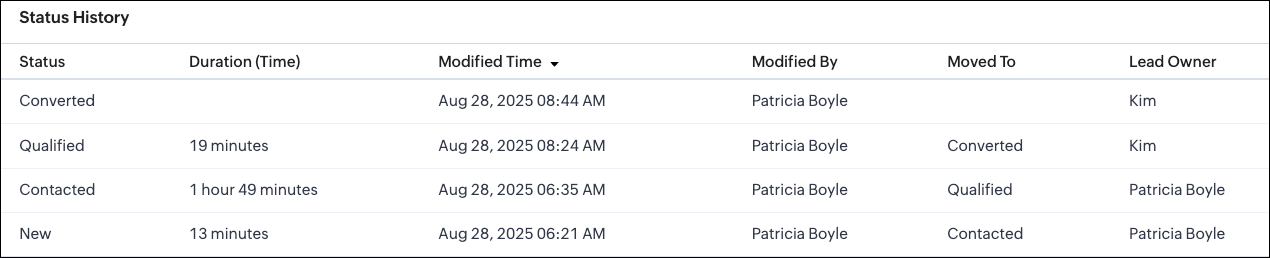
Sample Response via API
Whenever a picklist option changes, the system creates a new record in the related list module. In this example, Status History is the related list module. The sample response below shows how a particular change looks when retrieved using the Get Records API.
Request URL : {{api-domain}}/crm/v8/Status_History/5725767000007739323
Request Method : GET
Sample Response
{ "data": [ { "Status": "Contacted", "$approval": { "delegate": false, "takeover": false, "approve": false, "reject": false, "resubmit": false }, "Modified_Time": "2025-08-28T06:35:15-07:00", "$currency_symbol": "$", "$field_states": null, "$review_process": null, "$editable": true, "Duration_Time": "6568847", //The system stores the duration in milliseconds. "$sharing_permission": "full_access", "Lead_Owner": { "name": "Patricia Boyle", "id": "5725767000000411001" }, "Moved_To__s": "Qualified", "$orchestration": false, "Last_Activity_Time": "2025-08-28T08:24:44-07:00", "Full_Name": { "name": "Zylker", "id": "5725767000007735001" }, "Modified_By": { "name": "Patricia Boyle", "id": "5725767000000411001", }, "$review": null, "$process_flow": false, "$in_merge": false, "id": "5725767000007739350", "$approval_state": "approved", "$pathfinder": false, "$zia_visions": null } ] } |
Note :
- You can select up to 10 fields in total, with a maximum of 5 user fields for all modules except Deals.
- Encrypted fields cannot be specified.
- In the Deals module,
- History tracking is enabled by default for the Stage picklist field.
- You cannot enable history tracking for any other picklist field in the Deals module.
- You can only update the existing Stage picklist field using the Update Custom Field API.
- You can add up to 6 followed fields, with a maximum of 5 user fields.
We hope this post helps you confidently manage picklists and track their history in Zoho CRM. Try it out, and let us know your experience in the comment section or reach out to us at support@zohocrm.com
Stay tuned for more insights in our upcoming Kaizen posts!
Cheers!

Previous Kaizen : Kaizen# 204 - Answering Your Questions - Perform Field Updates before Blueprint transition via Client Script | Kaizen Directory : Home
Related Links :
Topic Participants
Subramanian K
Sticky Posts
Kaizen #226: Using ZRC in Client Script
Hello everyone! Welcome to another week of Kaizen. In today's post, lets see what is ZRC (Zoho Request Client) and how we can use ZRC methods in Client Script to get inputs from a Salesperson and update the Lead status with a single button click. In thisKaizen #222 - Client Script Support for Notes Related List
Hello everyone! Welcome to another week of Kaizen. The final Kaizen post of the year 2025 is here! With the new Client Script support for the Notes Related List, you can validate, enrich, and manage notes across modules. In this post, we’ll explore howKaizen #217 - Actions APIs : Tasks
Welcome to another week of Kaizen! In last week's post we discussed Email Notifications APIs which act as the link between your Workflow automations and you. We have discussed how Zylker Cloud Services uses Email Notifications API in their custom dashboard.Kaizen #216 - Actions APIs : Email Notifications
Welcome to another week of Kaizen! For the last three weeks, we have been discussing Zylker's workflows. We successfully updated a dormant workflow, built a new one from the ground up and more. But our work is not finished—these automated processes areKaizen #152 - Client Script Support for the new Canvas Record Forms
Hello everyone! Have you ever wanted to trigger actions on click of a canvas button, icon, or text mandatory forms in Create/Edit and Clone Pages? Have you ever wanted to control how elements behave on the new Canvas Record Forms? This can be achieved
Recent Topics
Can a default task Priority be set?
The "Priority" field in the Task layout does not allow a default to be set. Is there another way of doing it? Because the current default is "None" and the Zoho Kanban board design has selected this field as critical information to surface by includingAdding a threshold to a line chart based on date range
I have a line chart that is tracking a percentage over time. It also has a filter for 50 different clients. I would like to create a threshold that is based on a portion of the date range. As I understand it, this would be done by adding a column to theResize Signature field dynamically
On the tablet, it is perfect. But on smaller mobile devices and PCs, both web and application, it is too small for people to sign. Is there any plan to make the signature field size dynamically in the future update?Super Admin Logging in as another User
How can a Super Admin login as another user. For example, I have a sales rep that is having issues with their Accounts and I want to view their Zoho Account with out having to do a GTM and sharing screens. Moderation Update (8th Aug 2025): We are workingZoho Creator Application - New User Not able to access the application
In Zoho Creator, The newly added user not able to access the " Added Application" - User has received the Invitation Email, but while clicking "confirm Account" in the invitation Email, the following error message has appeared. "Sorry! you cannot acceptDeleting Salutation Field
We have updated our lead input screen and 'Salutation' has appeared. This is not visible in the 'Edit Pgae Layout' screen so cannot be moved to 'List of Removed Fields' Salutation is visible in the list in 'Customization - Fields' however I can only 'Edit' or 'Replace' I cannot delete and I do not need this field on my lead input screen. Please can you advise how to get rid of this. Screen shots can be provided if needed. Thank you TashaAuto-Generate & Update Asset Serial Numbers using a custom function (Assets Module)
Hello Team, I’ve been working on a script to automate one of our processes in Zoho FSM, and the core functionality has been successfully implemented. However, I’m encountering an issue related to serial number allocation, which is not working as expected.Partner with HDFC And Sbi Bank.
Hdfc and sbi both are very popular bank if zoho books become partner with this banks then many of the zoho books users will benefit premium features of partnered banks.Zoho Mail iOS app update: Access Delegated Mailbox.
Hello everyone! You can now access the delegated mailbox from within the iOS version of the Zoho Mail app. To access the delegated mailbox: Open the Zoho Mail app. Go on to the 'Email' module. Tap the profile picture. Choose the delegated mailbox PleaseHow to convert Lead's country field from Text to Pick List
Hi, I would like to change the default country field in ZCRM from text to pick list. It looks like not I can't delete default country field and recreate it as pick list nor can i create an new custom field country because such a label belong to default field. So what do I have to do? Any ideas? LHow create a draft via workflow?
I wish to create a workflow rule for specific emails that creates a draft response - not an automatic email reply, but just a draft with a set response ready to be verified by an agent who can then manually select recipients. Alternatively, the workflowNew feature: Invite additional guests for your bookings
Hello everyone, Greetings from Zoho Bookings! We are happy to announce the much-awaited feature Guest Invite, which enhances your booking experience like never before. This feature allows additional participants to be invited for the bookings to makeImproved Contact Sync flow in Google Integration with Zoho CRM
Hello Everyone, Your contact sync in Google integration just got revamped! We have redesigned the sync process to give users more control over what data flows into Google and ensure that this data flows effortlessly between Zoho CRM and Google. With thisImage field in custom module
Hi guy, Is there any hope of adding a custom image field in the custom module? We created a custom module to keep track of assets, and it would be helpful if we could attach an image to the record. Thanks RudyCannot reorder fields in Page Layout in Expenses and Purchase Requests
It is very inconvenient that the custom fields in Page Layout cannot be re-ordered. The only way is to remove the fields and re-create them; however, it is impractical. This would affect the reports and dashboards we are having. Not able to re-order theالخصم على مستوى فاتورة المبيعات
السلام عليكم ورحمة الله وبركاته مطلوب في إنشاء خصم على مستوى فاتورة المبيعات وليس على مستوى البند أريد معرفة الطريقة؟VAT and Taxes option not available
Dear ZOHO Team , The VAT and Taxes options in my ZOHO books account not available,I tried to find how to enable or check the way to use this option but unfortunately couldn't find it anywhere ,I'm in UAE ,kindly let me know what to do to solve this issueDefault Tagging on API-generated Transactions
If one assigns tags to an Item or Customer, those tags get auto-populated in each line item of an Invoice or Sales Order when one creates those documents. However, if one creates the Sales Order or Invoice via the API (either directly coding or usingDirect Feed (Bank)
Is Direct feed integration for AlRajhi and ADCB bank supported by Zoho Books in GCC/SaudiSales Order, Invoice and Payment numbers
Hi zoho friends, it is me again, the slow learner. I'm wondering if there is a way to have it so the Sales order, invoice and payment numbers are all the same? It would be easier for me if they were the same number so there is not so many reference numbersMS Teams for daily call operations
Hello all, Our most anticipated and crucial update is finally here! Organizations using Microsoft Teams phone system can now integrate it effectively with Zoho CRM for tasks like dialling numbers and logging calls. We are enhancing our MS Teams functionalityCustomer Satisfaction (CSAT) Report
From data to decisions: A deep dive into ticketing system reports The customer satisfaction (CSAT) report helps teams understand how customers feel about their support experience, identify service gaps, and continuously improve the help desk. It turnsTimeline Tracking Support for records updates via module import and bulk write api
Note: This update is currently available in Early Access and will soon be rolled out across all data centers (DCs) and for all editions of Zoho CRM. The update will be available to all users within your organization, regardless of their profiles or roles.Shifts in Zoho People vs Zoho Shifts?
Hello Zoho People Team, We hope you are doing well. We are evaluating the Shifts functionality within Zoho People and comparing it to the standalone Zoho Shifts product. We’ve encountered comments and discussions suggesting that the Shifts feature insideDisable fields in During action in Blueprint?
Hi there. I've tried field disable (setReadOnly(true)) using client script and the event is onMandatoryFormLoad on detail page, assuming it'll work on blueprint fields, but it bears no result. Is this the expected behaviour? That we can't do this yet?Develop and publish a Zoho Recruit extension on the marketplace
Hi, I'd like to develop a new extension for Zoho Recruit. I've started to use Zoho Developers creating a Zoho CRM extension. But when I try to create a new extension here https://sigma.zoho.com/workspace/testtesttestest/apps/new I d'ont see the option of Zoho Recruit (only CRM, Desk, Projects...). I do see extensions for Zoho Recruit in the marketplace. How would I go about to create one if the option is not available in sigma ? Cheers, Rémi.Best Email Backup Wizard in 2026
While searching for an email backup solution, my main hesitation was reliability. As a user, I had already seen many tools that looked promising but failed when handling large mailboxes, skipped folders, or caused authentication issues during the backupSubforms and automation
If a user updates a field how do we create an automation etc. We have a field for returned parts and i want to get an email when that field is ticked. How please as Zoho tells me no automation on subforms. The Reason- Why having waited for ever for FSMAllow Managers to Create Shifts for Their Departments in Zoho People
Hello Zoho People Product Team, Greetings and hope you are doing well. This feature request is related to Zoho People - please don't move it to zoho one! We would like to submit a feature request regarding shift management permissions in Zoho People.Zoho Learn and Zoho CRM integration
I would like to see an integration between Zoho Learn and Zoho CRM. 1. To be able to add articles in a related list in all modules 2. Zia to suggest related articles in a Deal or Case or Lead 3. Ability to read / search articles during a call / followMaintain steady traffic to your domain: How Domain Aliasing helps
Consider this scenario: An organization has its primary domain as administrator.com. Now it wants to shorten its domain to admin.com because it's simpler and easier to remember. However, changing the domain completely can cause the following problems:Why Sharing Rules do Not support relative date comparison???
I am creating a Sharing Rule and simply want to share where "Last Day of Coverage" (Date field) is Greater than TODAY (Starting Tomorrow). However, sharing rules don't have the option to compare a date field to a relative date (like today), only to StaticHow do I migrate OLM file to Gmail?
Migrating emails from Outlook for Mac to Gmail can be challenging because Gmail does not support OLM files directly. This limitation often causes confusion and delays, especially when users need quick access to important emails and mailbox data on a web-basedCRM x WorkDrive: File storage for new CRM signups is now powered by WorkDrive
Availability Editions: All DCs: All Release plan: Released for new signups in all DCs. It will be enabled for existing users in a phased manner in the upcoming months. Help documentation: Documents in Zoho CRM Manage folders in Documents tab Manage filesWorkflow rule only allows 10 workflow per module
Apparently a Zoho professional edition only allows 10 workflow rules per module. This makes workflow allocation literally impossible while allocating potential to different members of the team. I have 15 licenses. Is there a way in which related alerts can be varied? In other words, is it possible to have different related alerts be triggered with different rule criteria. so if I say, if potential is 'x' then trigger related alert 'x' and if potential is 'y' then trigger related alert 'y' Thanks,IF Statement in Zoho CRM Formula Field
Hi, I am attempting to write a formula field that will give me one result if one statement AND another statement are true, then a different value if the first statement AND a different statement are true, else 0. Stated differently: if account = destinationCRM Percent custom fields: When will it show the % symbol and behave like %?
1. Actually Percent custom fields fail to show the % symbol. 2. When in formulas Percent fields work like number: 100 x 5% = 5 ideal world 100 x 5% = 500 what happens actually 3. When importing Percent fields the % symbol has to be removed and the dataFree Webinar: Zoho Sign for Zoho Projects: Automate tasks and approvals with e-signatures
Hi there! Handling multiple projects at once? Zoho Projects is your solution for automated and streamlined project management, and with the Zoho Sign extension, you can sign, send, and manage digital paperwork directly from your project workspace. JoinAutomatically CC an address using Zoho CRM Email Templates
Hi all - have searched but can't see a definitive answer. We have built multiple email templates in CRM. Every time we send this we want it to CC a particular address (the same address for every email sent) so that it populates the reply back into ourEditing the Ticket Properties column
This is going to sound like a dumb question, but I cannot figure out how to configure/edit the sections (and their fields) in this column: For example, we have a custom "Resolution" field, which parked itself in the "Ticket Information" section of thisNext Page