Kaizen 215 - Workflow APIs - Part 3

Welcome back to another week of Kaizen!
Over the last couple of weeks, we’ve joined Zylker Cloud Services as they review and improve their workflows. In Part 1, we discovered and audited their sprawling workflow landscape. In Part 2, we learned how to use the Configuration API to understand valid triggers and actions, preventing errors before they happen.
Now, it is time to take action. Zylker has identified the "VP Alert - High Value Deal" workflow as a prime candidate for an update. It is old, has never run, and its logic might be too narrow. We will also explore how to create a new workflow from scratch to handle a new business requirement.
STEP 5: Update an Existing Workflow
From our audit in Step 2, we know that the existing ‘VP Alert - High Value Deal’ workflow (id: 4876876000016390024) hadn’t triggered even once. The original $50,000 threshold missed many valuable deals. Most winning opportunities actually land above $30,000. It has never executed, suggesting the criteria are too strict.
Let us use the Update Workflow Rule API to fix it. We'll change the criteria to trigger for deals greater than or equal to $30,000 and add an additional email notification.
What you can and cannot update
When working with the Update Workflow Rule API, not every field in a workflow is open for modification. Think of it like editing an existing automation blueprint. Some foundations are fixed, while others are flexible.
You can update:
Name and Description
Trigger : You can update triggers, but only within the same trigger type. For example, you can change a Record Action trigger from create to edit, but not from a Record Action trigger to a Score-based trigger. For more details on this, please refer to our detailed help documentation here.
Conditions and Criteria : add, remove, or refine them.
Actions : add new ones, remove existing ones, or update their configuration.
Status : activate or deactivate a workflow rule.
What cannot be updated
There are a few key restrictions to remember:
You cannot change the module associated with the workflow.
You cannot switch trigger categories (e.g., from Record Action to Email Trigger).
You cannot retain unsupported actions when changing to a trigger that doesn’t support them. For instance, if you change a trigger from Edit to Delete, but keep an Assign Owner action, the update will fail, because “Assign Owner” isn’t valid for Delete triggers.
Updating an existing workflow is not about replacing everything. it is about editing precisely what needs to change.
Here is how to do it:
Fetch the workflow details using the Get Workflow Rule API. This gives the full structure, including condition IDs, action IDs, and trigger details.
Identify what needs to change.
In this case, to fix the “VP Alert - High Value Deal” workflow, we can update the Workflow rule to:
lower the threshold to $300,000
change the comparator to greater_than.
To make the workflow more useful, Zylker has also decided to add a few new actions.
But before doing that, the developers needed to confirm which actions are supported for this workflow’s trigger type. That is where last week’s Configuration API comes in handy. Since we already know this is a Record Action trigger (create_or_edit), we can refer to the configuration response we explored in Part 2 to see which actions are valid.
{ "api_name": "create_or_edit", "deprecated": false, "name": "CreateorEdit", "scheduled_actions_supported": true, "actions": [ "field_updates", "assign_owner", "add_tags", "remove_tags", "email_notifications", "tasks", "create_record", "create_connected_record", "add_meeting", "webhooks", "functions", "circuits", "flow" ] }, |
The response clearly shows that email notifications, field updates, and tags are all supported for this trigger type. With that confidence, in addition to updating the condition, we can also add a 'Priority' tag to those records that trigger the Workflow. This makes the workflow more visible and actionable across the sales hierarchy.
Sample Request:
PUT {{api-domain}}/crm/v8/settings/automation/workflow_rules/4876876000016390024
{ "workflow_rules": [ { "description": "Notify sales leadership and track strategic opportunities", "name": "VP Alert - High Value Deal.", "conditions": [ { "sequence_number": 1, "criteria_details": { "criteria": { "group_operator": "AND", "group": [ { "comparator": "greater_than", // change in comparator operator "field": { "api_name": "Amount" }, "value": "300000" // Lowered threshold }, { "comparator": "equal", "field": { "api_name": "Stage" }, "value": "Negotiation/Review" } ] } }, "instant_actions": { "actions": [ { "type": "add_tags", "module": "Deals", "details": { "tags": [ { "name": "Priority" } ], "overwrite": true } } ] }, "id": "4876876000016390025" // id of the condition to be updated } ] } ] } |
After this update, the workflow now triggers for any deal worth more than $300,000 in the Negotiation/Review stage. Apart from sending the email notifications and adding the follow up task, it also tags these deals as Priority.
Edit vs Add:
To edit an existing condition or action, include its existing id in your update payload. Zoho CRM will recognize it as an update to that object.
To add a new condition or action, simply omit the id. CRM treats any object without an ID as a new addition.
STEP 6: Create a new Workflow Rule
With the “VP Alert - High Value Deal” workflow now fixed and performing as expected, Zylker’s sales team quickly began to see results.
But their sales team noticed that deals often stall after proposals are sent, with no systematic follow-up. Zylker has hence refined the requirements for a new Workflow.
They want to automatically trigger follow-up actions when a high-value deal (above ₹30,000) is marked “Closed Lost” due to pricing reasons. This workflow must ensure that every lost opportunity is reviewed, tagged, and re-engaged after a cooling-off period. To achieve this, they want to create a workflow to be triggered whenever a deal’s Stage is updated to Closed Lost. It must perform the following actions:
Add tags Lost due to Pricing and Re-engagement Pending.
Send an email alert to the Sales team, with the details of the failed Deal, so they can look into the reasons.
After 30 business days, automatically create another “Lost Deal - Feedback” task to remind the owner to re-contact the customer for feedback, and for future opportunities.
Before proceeding, Zylker makes an API call to the Workflow Configuration endpoint. This ensures that their chosen trigger type and actions are supported. From the response snippet below, it is clear that a field_update trigger supports scheduled actions and the required action types.
{ "api_name": "field_update", "deprecated": false, "name": "FieldUpdate", "scheduled_actions_supported": true, "actions": [ "field_updates", "assign_owner", "add_tags", "remove_tags", "email_notifications", "tasks", "create_record", "create_connected_record", "add_meeting", "webhooks", "functions", "circuits", "flow" ] } |
With these details validated, we can now move on to adding a new workflow for Zylker using the Create Workflow Rule API request.
Understanding the input JSON structure
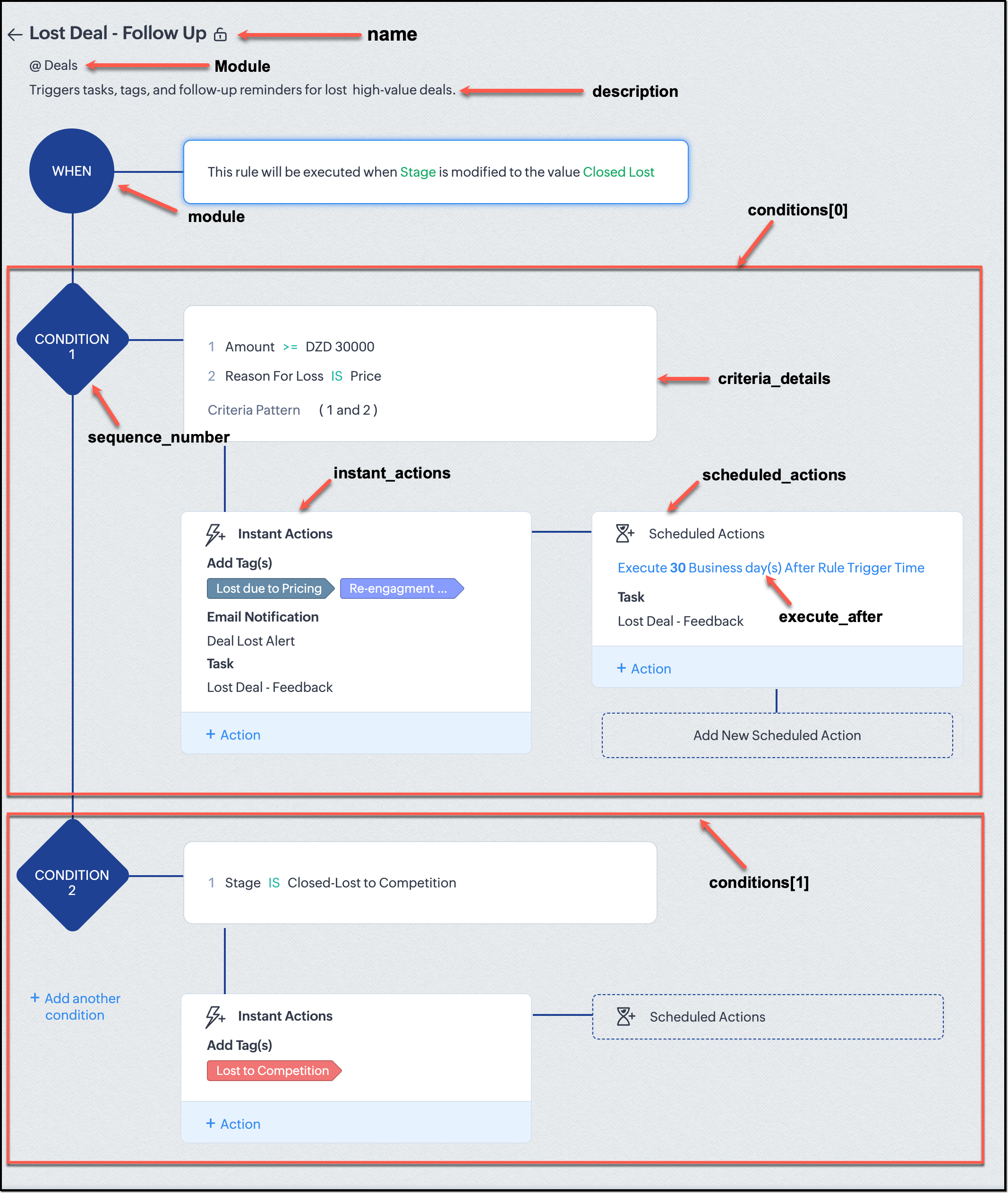
Every workflow definition follows the same hierarchy - defining when the rule runs, what conditions it checks, and which actions it performs.
The top-level input object contains a workflow_rules array. You must include just one workflow rule object per request. Each workflow rule defines its name, trigger type, and one or more condition blocks, each with its own criteria and actions.
Here is a breakdown of what is inside a single workflow rule:
{ "workflow_rules": [ { "name": "VP Alert - High Value Deal.", //name of the workflow rule "description": "Notify leadership when high-value deals are lost due to pricing.", "module": { "api_name": "Deals" }, //module to which the workflow applies "execute_when": { ... }, //trigger configuration (e.g., on record edit, field update, etc.) "conditions": [ { "sequence_number": 1, // order of execution. this is the first condition "criteria_details": { ... }, // condition logic (criteria group) "instant_actions": { "actions": [ ... ] }, //instant actions executed instantly cheduled_actions": [ // schedules actions executed after a delay { "execute_after": { ... }, // delay period for the scheduled action "actions": [ ... ] } ] }, { "sequence_number": 2, // second condition "criteria_details": { ... }, "instant_actions": { "actions": [ ... ] } } ] } ] } |
Associative vs. Non-Associative Actions
Every workflow rule performs one or more actions like sending an email, creating a task, or updating a field, etc. These actions fall into two broad categories: associative and non-associative.
Type | Description | Example Actions |
Non- Associative Actions | These are defined inside the workflow rule itself. They do not need to exist beforehand. You can configure their details directly within the workflow payload. | Create record, schedule a call, add a meeting, convert records, social actions, create record on email received, assign owner, |
Associative Actions | These are reusable actions created separately in CRM and referenced by their IDs. They can be used across multiple workflows and other automation tools. | Field updates, Email notifications, tasks, Webhooks, Add/Remove tags |
When you create or update a workflow via API, the associative actions require you to pass their existing action IDs. These IDs can be fetched using the corresponding Actions APIs : Field Updates, Email Notifications, Webhooks, and Tasks. In the coming weeks of Kaizen, we will take a closer look at each of these Actions APIs. We will see how to create, manage, and delete them within your workflow automation strategy.
Sample Request:
POST {{api-domain}}/crm/v8/settings/automation/workflow_rules
{ "workflow_rules": [ { "execute_when": { "details": { "trigger_module": { "api_name": "Deals", "id": "4876876000000002181" }, "criteria": { "comparator": "equal", "field": { "api_name": "Stage", "id": "4876876000000002565" }, "type": "value", "value": "Closed Lost" }, "repeat": false, "match_all": false }, "type": "field_update" }, "module": { "api_name": "Deals", "id": "4876876000000002181" }, "description": "Triggers tasks, tags, and follow-up reminders for high-value deals lost due to pricing", "name": "Lost Deal due to Pricing - Follow Up", "conditions": [ { "sequence_number": 1, "instant_actions": { "actions": [ { "name": "Lost Deal - Feedback", "id": "4876876000016794047", "type": "tasks" }, { "details": { "module": { "api_name": "Deals", "id": "4876876000000002181" }, "over_write": false, "tags": [ { "name": "Lost due to Pricing", "id": "4876876000016794071", "color_code": "#658BA8" }, { "name": "Re-engagement pending", "id": "4876876000016794075", "color_code": "#879BFC" } ] }, "type": "add_tags" }, { "name": "Deal Lost Alert", "id": "4876876000016794062", "type": "email_notifications" } ] }, "scheduled_actions": [ { "execute_after": { "period": "business_days", "unit": 30 }, "actions": [ { "name": "Lost Deal - Feedback", "id": "4876876000016794047", "type": "tasks" } ] } ], "criteria_details": { "criteria": { "group_operator": "AND", "group": [ { "comparator": "greater_equal", "field": { "api_name": "Amount", "id": "4876876000000002557" }, "type": "value", "value": "30000" }, { "comparator": "equal", "field": { "api_name": "Reason_For_Loss__s", "id": "4876876000002440001" }, "type": "value", "value": "Price" } ] } } } ] } ] } |
The execute_when defines when the workflow should fire.
type = field_update means this rule runs when a field’s value changes.
criteria : Stage = Closed Lost so the rule triggers whenever the Stage field is updated to Closed Lost.
repeat = false ensures it will not trigger multiple times for the same record.
In simple terms: “Whenever a deal is marked as Closed Lost, run this workflow.” The criteria_details section refines the trigger. The workflow only runs when the Amount ≥ ₹30,000 AND Reason for Loss = Price.
The instant_actions section inside the conditions array has the actions to be executed immediately when the criteria are met.
Add Tags : labels the record for easy filtering and reporting.
Send Email Alert : notifies the sales team instantly about the lost deal.
The scheduled_actions defines what happens after some time has passed. In this case, after 30 business days. Here, the workflow automatically creates a “Lost Deal - Feedback” task, reminding the deal owner to follow up with the customer to get feedback, and for future opportunities.
- The Amount is greater than or equal to ₹30,000, and
The Reason for Loss is “Price.”
By combining these elements, this workflow achieves a full closed-loop follow-up system.
Conclusion:
Zylker’s updated and new workflows make their automation smarter and more responsive. They are now able to spot key deals and ensure lost opportunities are revisited.
We hope you are now well on your way to mastering Workflow APIs. Share your thoughts in the comments or write to us at support@zohocrm.com.

Additional Reading:
- Workflow APIs - Part 1 - Auditing Workflows
- Workflow APIs - Part 2 - Find out what actions and triggers are supported for each module
Topic Participants
Anu Abraham
Sticky Posts
Kaizen #198: Using Client Script for Custom Validation in Blueprint
Nearing 200th Kaizen Post – 1 More to the Big Two-Oh-Oh! Do you have any questions, suggestions, or topics you would like us to cover in future posts? Your insights and suggestions help us shape future content and make this series better for everyone.Kaizen #226: Using ZRC in Client Script
Hello everyone! Welcome to another week of Kaizen. In today's post, lets see what is ZRC (Zoho Request Client) and how we can use ZRC methods in Client Script to get inputs from a Salesperson and update the Lead status with a single button click. In thisKaizen #222 - Client Script Support for Notes Related List
Hello everyone! Welcome to another week of Kaizen. The final Kaizen post of the year 2025 is here! With the new Client Script support for the Notes Related List, you can validate, enrich, and manage notes across modules. In this post, we’ll explore howKaizen #217 - Actions APIs : Tasks
Welcome to another week of Kaizen! In last week's post we discussed Email Notifications APIs which act as the link between your Workflow automations and you. We have discussed how Zylker Cloud Services uses Email Notifications API in their custom dashboard.Kaizen #216 - Actions APIs : Email Notifications
Welcome to another week of Kaizen! For the last three weeks, we have been discussing Zylker's workflows. We successfully updated a dormant workflow, built a new one from the ground up and more. But our work is not finished—these automated processes are
Recent Topics
One time sale item in billing automatically detects as service
if i have some items which i don't want to add in my "item" list because its sold only for one time. but when i type item name in invoice, it (system) automatically takes it as a service and despite of HSN , it shows SAC code to be entered. if its selectable i.e. either item or service , it would be very helpful and a must have feature.Project template after project creation
How can I apply a project template AFTER the project has been created?convert the project to templet
i have some deployment ME product for different customer , i need to create a fixed template for use it rather then keeping creating this template every timeRelated Module in Sharing Rules
Zoho CRM team recently added the feature to filter records by Related Records It will be really beneficial if we can have this feature for Sharing Rules as wellAssignment Thresholds Resetting After Lead Conversion
Hello everyone, We're facing an issue with Zoho CRM's lead assignment thresholds that makes them unsuitable for our workflow. I'm hoping to find a potential workaround or solution from the community. Here’s our current process: A new lead is created automaticallyTerritory view for custom modules?
I have recently activated territories however I can't seem to find how to use territories for custom modules? These modules have territories: Contacts / Accounts / Opportunities These modules don't have territories: Buildings (custom module) andApproval Process Comments
Is it possible to view the comments entered during the approval or rejection of a record in the approval process? If not, is there a way to require a field to be completed upon approval or rejection?Login for test case
Had a few questions regarding authentication test cases and couldn't find an answer in the the docs. 1. If an app like Zoho Creator requires authentication before providing access, do I need to create a login function and add it to each test case? 2.Customer members area
Does FSM support a customer members area? If not what do you propose we use if we want the data used in FSM for customers to give them an area / login to see past orders, create new orders and general announcements.Notes created in mobile can no longer be accessed in desktop
Working with a 2013 Mac running OS 10.14.6; Desktop Notebook version 4.5.3. Using Motorola Moto G Power 5G - 2024; Android app version 6.7 I have been using Notebook for some years. Starting several weeks ago, the notes newly created ion the phone canFunction #49: Manage varying installment payments using Zoho Books
. Hello everyone, and welcome back to our series! Last week, we discussed automating the collection of fixed installment payments in Zoho Books. But what if your payment structure involves charging varying percentages of the invoice total as installments?Is it possible for contacts to "Re-enter" a workflow in Zoho Campaign?
We are currently working on a way to automatically add users to from one list to other lists based on specific criteria, but can't seem to find a native way of doing this so we are trying to use Workflows to do this. So, for example, if a user's status is set to "Active," then they should be added to the list "Active Users." If the same user's status is then set to "Paused," they should be added to the list "Paused Users" and removed from the list "Active Users." This works fine for the first goBulk upload images and specifications to products
Hi, Many users have asked this over the years and I am also asking the same. Is there any way in which we can bulk upload product (variant) images and product specifications. The current way to upload/select image for every variant is too cumbersome.Out of Office for Just One of My Alias Email
Can I set up the Out of Office Reply for Just One of my Alias Email Addresses?Can I map multiple Surveys into the CRM using the same fields?
Hello, We are a healthcare practice that offers two distinct services (Nutrition and Primary Care). We use Zoho Survey for our lead generation form (Get Started Survey), which allows people to express interest in one of the two services and even allowsDealing with API responses where integers have more than 16 digits
Hi there How do I deal with an api response contaning an int or float with more than 16 digits (before any decimal places for a float). I constantly receive the response "Unable to cast the 'BigInteger' value into a 'BIGINT' value because the input isAdd Zoho Mail for users who do not need Zoho One
We have licenses for ZOho One for teams that need to use the suite of products that Zoho One offers. We have 8 more people who only need email access and we would like to add just a Zoho Mail. They do not need the Zoho One license. We are currentlyZML vs HTML Snippet - which is better?
Are there certain use cases where one is better than the other?Load PO_Date field (Purchase Order) with current date in Deluge
Hi, I'm not a full time developer, just helping to customize our CRM, in the small company I work for. There must be something wrong with me, because I can't do something so simple as complete a field with the current date in a function using Deluge.Zoho CRM in Microsoft Power Automate Custom Connector
Hi everyone, I’m building a Power Automate flow that integrates Microsoft Bookings with Zoho CRM. The goal is to automatically create a meeting (event) in Zoho CRM whenever a new appointment is booked via Microsoft Bookings. To achieve this, I createdSpell check sucks
Come on guys, it's 2024 and your spell check is completely retarded. You gotta fix it.Zoho One Login Issue - Unable to receive OTP
Hi Support Team, I am experiencing a unique login issue with Zoho One. I am attempting to log in from India using Zoho Login credentials provided by a USA-based client. Their Zoho account is hosted on a US data center. After entering the username andIn the Zoho Creator Customer Payment form i Have customer field on select of the field Data want to fetch from the invoice from based on the customer name In the Customer Payment form i Have subf
In the Zoho Creator Customer Payment form i Have customer field on select of the field Data want to fetch from the invoice from based on the customer name In the Customer Payment form i Have subform update Invoice , there i have date field,Invoice numberProblem of Import Client Users From CRM and or Expense
I am premium plan user on Projects. I have about 500 customers on Expense and CRM that integrated with each other. According to at below link, I am trying to import clients from CRM, system not allowed to select any customer. If I import from Expense,equest to Disassociate Bigin from Zoho One and Migrate to Standalone (Upgrade to Bigin Premier – 3 Seats, Annual)
Dear Zoho One Support Team, I’m writing to request your assistance to disassociate (remove) the Bigin application from our Zoho One organization while preserving all existing Bigin data. After the disconnection is successfully completed, we intend toUnable to enable tax checkboxes
Hi Zoho Commerce Support, I'm writing to report an issue I'm having with the tax settings in my Zoho Commerce store. I've created several tax rates under Settings > Taxes, but all of them appear with the checkbox disabled. When I try to enable a checkbox,Zoho Commerce - Enable Company Name and Tax Number collection for B2B orders in Global Edition
Please enable Company Name and Tax Details option on checkout settings in Zoho Commerce Global Edition. It is still important to collect Company Name and Tax Number for B2B sales in many countries. My business is based in Ireland (in the EU) and I haveZohoSign and ZohoBooks Integration/Workflow
Hello All, We utilize ZohoSign for signatures on tax eFiles. We utilize Dynamic KBA. Additionally, we use ZohoBooks for invoicing for these services. Is there a way to accomplish the following: Send a copy of the Tax Return, Invoice and eFiles in oneManage monthly tasks with projectsf
Hi All I run a finance and operations team where we need both teams to complete monthly tasks to ensure we hit our deadlines. Can Zoho projects be used for this. There many finance focused tools but we have Zoho one so want to explore Thanks WillZoho Suite is very slow
Since today Zoho is incredibly slow over all applications! What's going on?Combine and hide invoice lines
In quickbooks we are able to create a invoice line that combines and hides invoices lines below. eg. Brochure design $1000 (total of lines below, the client can see this line) Graphic Design $600 (hidden but entered to reporting andZoho Devops
We have a Zoho one account which we have integrated with an SAS educational product, sold on a subscription model, using webhooks and API calls. We make some use of custom fields and cross module lookups and relationships. We utilize CRM, Books and billingFuel up your sales with the Zoho SalesIQ + Bigin integration
Hi everyone! We’re happy to bring you the all-new Zoho SalesIQ + Bigin integration. With this, every prospect from your website instantly becomes a contact in Bigin, complete with transcripts and follow-up tasks, so you never lose a lead again. Let'sIntroducing AI-powered Assessments & Zoho's native LLM, Zia
We’ve shipped a cleaner, faster way to create assessments in Zoho Recruit. 🚀 Instead of manually building question banks or copying old templates, you can now generate ready-to-use assessments in just a few clicks, all tailored to the role you’re hiringAbility to Reset Visitor Fields During an Active Chat Flow
Hello Zoho SalesIQ Team, We hope you are doing well. We would like to propose a feature enhancement to Zoho SalesIQ regarding the management of visitor fields within Zobot flows. Use Case: Our bot asks the visitor to provide information about a 3rd personExternal ID in Zoho CRM
Hello everyone! We know that Zoho CRM allows you to integrate third-party apps and manipulate data through APIs. While you integrate a third-party application, you may want to store the third-party reference IDs in Zoho CRM's records. To meet this needSome emails are not being delivered
I have this problem where some of my mail just seems to disappear. When I send it, it appears as sent with no mention of any problem, but my recipient never gets it, not even in the Spam folder. Same for receiving, I have a secondary e-mail address, andNew in Zoho Chat : Search for contacts, files, links & conversations with the all new powerful 'Smart Search' bar.
With the newly revamped 'Smart Search' bar in Zoho Chat, we have made your search for contacts, chats, files and links super quick and easy using Search Quantifiers. Search for a contact or specific conversations using quantifiers, such as, from: @user_name - to find chats or channel conversations received from a specific user. to: @user_name - to find chats or channel conversations sent to a specific user. in: #channel_name - to find a particular instance in a channel. in: #chat_name - to findTemplate modifiactions
Hello, I am struggling with the templates in ZOHO Books. Especially with the placement of some items, like company address, ship to, bill to etc. For example: One item I like from template X (placement of ship to and bill to next to each other in theAggregating the First Value in the Group By of a dataset
Hi I am trying to get the following Aggregate Formula to work in my chart, but cannot seem to get the right format. I have a series of data that I am running an include_groupby and want to SUM only a column in the first row of each group. So for example.Next Page