Kaizen 215 - Workflow APIs - Part 3

Welcome back to another week of Kaizen!
Over the last couple of weeks, we’ve joined Zylker Cloud Services as they review and improve their workflows. In Part 1, we discovered and audited their sprawling workflow landscape. In Part 2, we learned how to use the Configuration API to understand valid triggers and actions, preventing errors before they happen.
Now, it is time to take action. Zylker has identified the "VP Alert - High Value Deal" workflow as a prime candidate for an update. It is old, has never run, and its logic might be too narrow. We will also explore how to create a new workflow from scratch to handle a new business requirement.
STEP 5: Update an Existing Workflow
From our audit in Step 2, we know that the existing ‘VP Alert - High Value Deal’ workflow (id: 4876876000016390024) hadn’t triggered even once. The original $50,000 threshold missed many valuable deals. Most winning opportunities actually land above $30,000. It has never executed, suggesting the criteria are too strict.
Let us use the Update Workflow Rule API to fix it. We'll change the criteria to trigger for deals greater than or equal to $30,000 and add an additional email notification.
What you can and cannot update
When working with the Update Workflow Rule API, not every field in a workflow is open for modification. Think of it like editing an existing automation blueprint. Some foundations are fixed, while others are flexible.
You can update:
Name and Description
Trigger : You can update triggers, but only within the same trigger type. For example, you can change a Record Action trigger from create to edit, but not from a Record Action trigger to a Score-based trigger. For more details on this, please refer to our detailed help documentation here.
Conditions and Criteria : add, remove, or refine them.
Actions : add new ones, remove existing ones, or update their configuration.
Status : activate or deactivate a workflow rule.
What cannot be updated
There are a few key restrictions to remember:
You cannot change the module associated with the workflow.
You cannot switch trigger categories (e.g., from Record Action to Email Trigger).
You cannot retain unsupported actions when changing to a trigger that doesn’t support them. For instance, if you change a trigger from Edit to Delete, but keep an Assign Owner action, the update will fail, because “Assign Owner” isn’t valid for Delete triggers.
Updating an existing workflow is not about replacing everything. it is about editing precisely what needs to change.
Here is how to do it:
Fetch the workflow details using the Get Workflow Rule API. This gives the full structure, including condition IDs, action IDs, and trigger details.
Identify what needs to change.
In this case, to fix the “VP Alert - High Value Deal” workflow, we can update the Workflow rule to:
lower the threshold to $300,000
change the comparator to greater_than.
To make the workflow more useful, Zylker has also decided to add a few new actions.
But before doing that, the developers needed to confirm which actions are supported for this workflow’s trigger type. That is where last week’s Configuration API comes in handy. Since we already know this is a Record Action trigger (create_or_edit), we can refer to the configuration response we explored in Part 2 to see which actions are valid.
{ "api_name": "create_or_edit", "deprecated": false, "name": "CreateorEdit", "scheduled_actions_supported": true, "actions": [ "field_updates", "assign_owner", "add_tags", "remove_tags", "email_notifications", "tasks", "create_record", "create_connected_record", "add_meeting", "webhooks", "functions", "circuits", "flow" ] }, |
The response clearly shows that email notifications, field updates, and tags are all supported for this trigger type. With that confidence, in addition to updating the condition, we can also add a 'Priority' tag to those records that trigger the Workflow. This makes the workflow more visible and actionable across the sales hierarchy.
Sample Request:
PUT {{api-domain}}/crm/v8/settings/automation/workflow_rules/4876876000016390024
{ "workflow_rules": [ { "description": "Notify sales leadership and track strategic opportunities", "name": "VP Alert - High Value Deal.", "conditions": [ { "sequence_number": 1, "criteria_details": { "criteria": { "group_operator": "AND", "group": [ { "comparator": "greater_than", // change in comparator operator "field": { "api_name": "Amount" }, "value": "300000" // Lowered threshold }, { "comparator": "equal", "field": { "api_name": "Stage" }, "value": "Negotiation/Review" } ] } }, "instant_actions": { "actions": [ { "type": "add_tags", "module": "Deals", "details": { "tags": [ { "name": "Priority" } ], "overwrite": true } } ] }, "id": "4876876000016390025" // id of the condition to be updated } ] } ] } |
After this update, the workflow now triggers for any deal worth more than $300,000 in the Negotiation/Review stage. Apart from sending the email notifications and adding the follow up task, it also tags these deals as Priority.
Edit vs Add:
To edit an existing condition or action, include its existing id in your update payload. Zoho CRM will recognize it as an update to that object.
To add a new condition or action, simply omit the id. CRM treats any object without an ID as a new addition.
STEP 6: Create a new Workflow Rule
With the “VP Alert - High Value Deal” workflow now fixed and performing as expected, Zylker’s sales team quickly began to see results.
But their sales team noticed that deals often stall after proposals are sent, with no systematic follow-up. Zylker has hence refined the requirements for a new Workflow.
They want to automatically trigger follow-up actions when a high-value deal (above ₹30,000) is marked “Closed Lost” due to pricing reasons. This workflow must ensure that every lost opportunity is reviewed, tagged, and re-engaged after a cooling-off period. To achieve this, they want to create a workflow to be triggered whenever a deal’s Stage is updated to Closed Lost. It must perform the following actions:
Add tags Lost due to Pricing and Re-engagement Pending.
Send an email alert to the Sales team, with the details of the failed Deal, so they can look into the reasons.
After 30 business days, automatically create another “Lost Deal - Feedback” task to remind the owner to re-contact the customer for feedback, and for future opportunities.
Before proceeding, Zylker makes an API call to the Workflow Configuration endpoint. This ensures that their chosen trigger type and actions are supported. From the response snippet below, it is clear that a field_update trigger supports scheduled actions and the required action types.
{ "api_name": "field_update", "deprecated": false, "name": "FieldUpdate", "scheduled_actions_supported": true, "actions": [ "field_updates", "assign_owner", "add_tags", "remove_tags", "email_notifications", "tasks", "create_record", "create_connected_record", "add_meeting", "webhooks", "functions", "circuits", "flow" ] } |
With these details validated, we can now move on to adding a new workflow for Zylker using the Create Workflow Rule API request.
Understanding the input JSON structure
Every workflow definition follows the same hierarchy - defining when the rule runs, what conditions it checks, and which actions it performs.
The top-level input object contains a workflow_rules array. You must include just one workflow rule object per request. Each workflow rule defines its name, trigger type, and one or more condition blocks, each with its own criteria and actions.
Here is a breakdown of what is inside a single workflow rule:
{ "workflow_rules": [ { "name": "VP Alert - High Value Deal.", //name of the workflow rule "description": "Notify leadership when high-value deals are lost due to pricing.", "module": { "api_name": "Deals" }, //module to which the workflow applies "execute_when": { ... }, //trigger configuration (e.g., on record edit, field update, etc.) "conditions": [ { "sequence_number": 1, // order of execution. this is the first condition "criteria_details": { ... }, // condition logic (criteria group) "instant_actions": { "actions": [ ... ] }, //instant actions executed instantly cheduled_actions": [ // schedules actions executed after a delay { "execute_after": { ... }, // delay period for the scheduled action "actions": [ ... ] } ] }, { "sequence_number": 2, // second condition "criteria_details": { ... }, "instant_actions": { "actions": [ ... ] } } ] } ] } |
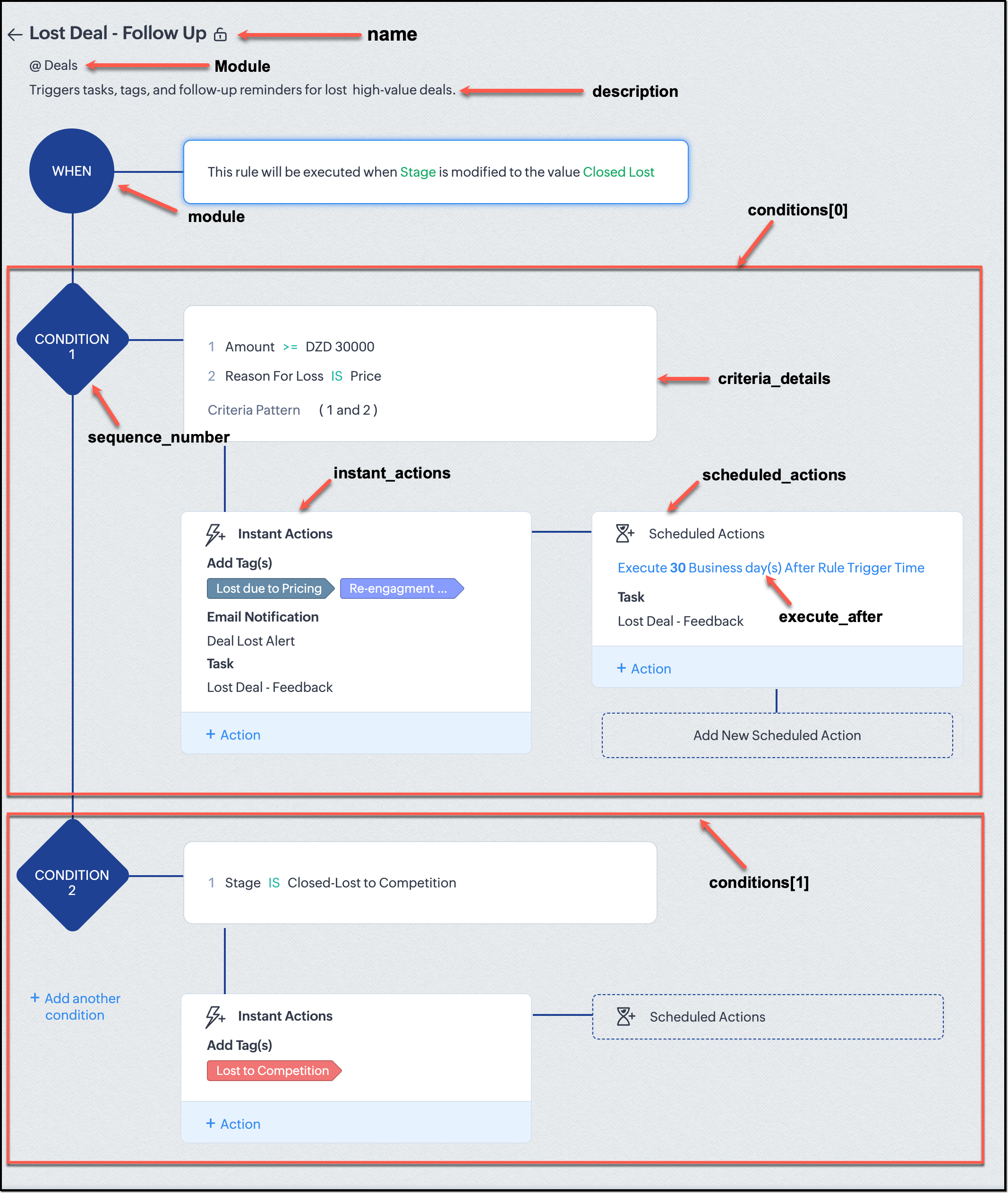
Associative vs. Non-Associative Actions
Every workflow rule performs one or more actions like sending an email, creating a task, or updating a field, etc. These actions fall into two broad categories: associative and non-associative.
Type | Description | Example Actions |
Non- Associative Actions | These are defined inside the workflow rule itself. They do not need to exist beforehand. You can configure their details directly within the workflow payload. | Create record, schedule a call, add a meeting, convert records, social actions, create record on email received, assign owner, |
Associative Actions | These are reusable actions created separately in CRM and referenced by their IDs. They can be used across multiple workflows and other automation tools. | Field updates, Email notifications, tasks, Webhooks, Add/Remove tags |
When you create or update a workflow via API, the associative actions require you to pass their existing action IDs. These IDs can be fetched using the corresponding Actions APIs : Field Updates, Email Notifications, Webhooks, and Tasks. In the coming weeks of Kaizen, we will take a closer look at each of these Actions APIs. We will see how to create, manage, and delete them within your workflow automation strategy.
Sample Request:
POST {{api-domain}}/crm/v8/settings/automation/workflow_rules
{ "workflow_rules": [ { "execute_when": { "details": { "trigger_module": { "api_name": "Deals", "id": "4876876000000002181" }, "criteria": { "comparator": "equal", "field": { "api_name": "Stage", "id": "4876876000000002565" }, "type": "value", "value": "Closed Lost" }, "repeat": false, "match_all": false }, "type": "field_update" }, "module": { "api_name": "Deals", "id": "4876876000000002181" }, "description": "Triggers tasks, tags, and follow-up reminders for high-value deals lost due to pricing", "name": "Lost Deal due to Pricing - Follow Up", "conditions": [ { "sequence_number": 1, "instant_actions": { "actions": [ { "name": "Lost Deal - Feedback", "id": "4876876000016794047", "type": "tasks" }, { "details": { "module": { "api_name": "Deals", "id": "4876876000000002181" }, "over_write": false, "tags": [ { "name": "Lost due to Pricing", "id": "4876876000016794071", "color_code": "#658BA8" }, { "name": "Re-engagement pending", "id": "4876876000016794075", "color_code": "#879BFC" } ] }, "type": "add_tags" }, { "name": "Deal Lost Alert", "id": "4876876000016794062", "type": "email_notifications" } ] }, "scheduled_actions": [ { "execute_after": { "period": "business_days", "unit": 30 }, "actions": [ { "name": "Lost Deal - Feedback", "id": "4876876000016794047", "type": "tasks" } ] } ], "criteria_details": { "criteria": { "group_operator": "AND", "group": [ { "comparator": "greater_equal", "field": { "api_name": "Amount", "id": "4876876000000002557" }, "type": "value", "value": "30000" }, { "comparator": "equal", "field": { "api_name": "Reason_For_Loss__s", "id": "4876876000002440001" }, "type": "value", "value": "Price" } ] } } } ] } ] } |
The execute_when defines when the workflow should fire.
type = field_update means this rule runs when a field’s value changes.
criteria : Stage = Closed Lost so the rule triggers whenever the Stage field is updated to Closed Lost.
repeat = false ensures it will not trigger multiple times for the same record.
In simple terms: “Whenever a deal is marked as Closed Lost, run this workflow.” The criteria_details section refines the trigger. The workflow only runs when the Amount ≥ ₹30,000 AND Reason for Loss = Price.
The instant_actions section inside the conditions array has the actions to be executed immediately when the criteria are met.
Add Tags : labels the record for easy filtering and reporting.
Send Email Alert : notifies the sales team instantly about the lost deal.
The scheduled_actions defines what happens after some time has passed. In this case, after 30 business days. Here, the workflow automatically creates a “Lost Deal - Feedback” task, reminding the deal owner to follow up with the customer to get feedback, and for future opportunities.
- The Amount is greater than or equal to ₹30,000, and
The Reason for Loss is “Price.”
By combining these elements, this workflow achieves a full closed-loop follow-up system.
Conclusion:
Zylker’s updated and new workflows make their automation smarter and more responsive. They are now able to spot key deals and ensure lost opportunities are revisited.
We hope you are now well on your way to mastering Workflow APIs. Share your thoughts in the comments or write to us at support@zohocrm.com.

Additional Reading:
- Workflow APIs - Part 1 - Auditing Workflows
- Workflow APIs - Part 2 - Find out what actions and triggers are supported for each module
Topic Participants
Anu Abraham
Sticky Posts
Kaizen #198: Using Client Script for Custom Validation in Blueprint
Nearing 200th Kaizen Post – 1 More to the Big Two-Oh-Oh! Do you have any questions, suggestions, or topics you would like us to cover in future posts? Your insights and suggestions help us shape future content and make this series better for everyone.Kaizen #226: Using ZRC in Client Script
Hello everyone! Welcome to another week of Kaizen. In today's post, lets see what is ZRC (Zoho Request Client) and how we can use ZRC methods in Client Script to get inputs from a Salesperson and update the Lead status with a single button click. In thisKaizen #222 - Client Script Support for Notes Related List
Hello everyone! Welcome to another week of Kaizen. The final Kaizen post of the year 2025 is here! With the new Client Script support for the Notes Related List, you can validate, enrich, and manage notes across modules. In this post, we’ll explore howKaizen #217 - Actions APIs : Tasks
Welcome to another week of Kaizen! In last week's post we discussed Email Notifications APIs which act as the link between your Workflow automations and you. We have discussed how Zylker Cloud Services uses Email Notifications API in their custom dashboard.Kaizen #216 - Actions APIs : Email Notifications
Welcome to another week of Kaizen! For the last three weeks, we have been discussing Zylker's workflows. We successfully updated a dormant workflow, built a new one from the ground up and more. But our work is not finished—these automated processes are
Recent Topics
Field authorization for Linking module in Zoho CRM portal
Hi guys! Currently building a customer portal for one of my clients, and I ran into a bit of a roadblock while using a multi-select lookup field. The issue is that there is no way to hide or define access in the linking module created by this multi-selectKaizen #63 - Layout Rules in Zoho CRM
Hello and welcome to another week of Kaizen! This week, we will be discussing Layout Rules in Zoho CRM. If you need to modify the layout of a module based on user inputs, or to show or hide sections based on the value of a specific field, we have got"Trigger flow for each entry" not working
I've read this article on how to trigger a flow for each entry in my array. https://help.zoho.com/portal/en/kb/flow/user-guide/create-a-flow/articles/webhook-trigger#Trigger_flow_for_each_entry I cannot get the flow to run for each variant in this JSONZoho CRM Portals - allow access per account
Hello all, I am trying to set up a portal for our customer but I seem to be hitting an obstacle and I am not sure if it is my problem or a limitation in the software. So basically the way I understand the portal Contact Email > Each Record or RelatedAndroid - Writer não acentua em Português com teclado bluetooth
Gosto muito do Zoho, tanto o Note quando o Writer. Infelizmente, o Writer sofre de um problema sério: ao usar um teclado bluetooth, forma mais cômoda de lidar com um processador de texto, os acentos (todos!) da Língua Portuguesa não são aceitos. TodosSet File Upload fields as mandatory
Currently the CRM for some reason lacks the ability to set a file upload field as mandatory So we have an issue We have a requirement that before a Deal stage is set as Deal is Won the member needs to upload a file Now for some weird reason in Zoho IEditing HTML in Zoho CRM Email Template
I am trying to create a template within the CRM email option, but need to be able to use custom HTML. There does not seem to be a way to do so.How to make attachments mandatory
I want the user to be unable to mark an opportunity as Closed – Won if it doesn’t have any attachments. I’ve already tried client scripts and functions, but nothing worked.SLA Ticket Report
From data to decisions: A deep dive into ticketing system reports Service level agreement (SLA) ticket reports in a help desk system are crucial for ensuring that services are delivered according to established commitments. They help maintain accountabilityZoho Backstage - PCI Compliance / Web Security
I have a couple of questions related to Backstage and payment processing.... 1. my purchasing division is not giving approval to use Backstage yet because of some security issues. In order for us to take payments via a payment gateway like Authorize.netZoho Tables August 2025 Update: Faster and Smoother
We’ve been working behind the scenes to make Zoho Tables faster, lighter, and more reliable. Here are the highlights: Faster Response Times Optimised the way responses are generated. Reduced memory consumption by 20–25%, leading to smoother performanceVideo Upload from app says "unsupported aspect ratio" but is verified to be correct.
I and my social media person are experiencing a problem where Social will not accept video uploads to Instagram. The error we receive is "unsupported aspect ratio" but looking directly at the file in question we see that the width and ratio both matchDisposable Email Addresses
Dear zMail Team, Can you also bring out a few disposable email addresses for each accounts? That way occasional registrations and imminent spam from them can be largely solved right? ---- Deepak Vasudevan http://thamizhththendral.blogspot.com/Zoho sheet - Zoho expense
I want to schedule to create an expense using Zoho Sheet and flow. That is the EMI that I pay on a particular date to the bank and should be itemised, like principal and interest on the loan. Can someone help me in this regard??Ability to configure a schedule/shift for each user and/or crew in Zoho FSM
Hello, In our team of Field Agents, we have different shifts. Some field agent always work from 7:00 AM to 4:00 PM while others work the evening shift like 4:00 PM to 11:00 PM. Sometime shift are on weekdays only or on weekend. It would be great to beFree webinar: Streamlining customer service paperwork with the Zoho Sign extension for Zoho Desk
Hello Everyone! Have you been wondering about bridging the gap between digitised customer service and business paperwork? Join our free webinar to learn how you can do this by connecting Zoho Sign, our digital signature app, with Zoho Desk, our onlineMail Search should allow grouping by conversation like Gmail.
Having switched from gmail I have found the search function hard to use. Mostly because mail is not grouped by conversation in search. If I search for a word when looking for a conversation had with someone then sometimes 10 emails will come up from theImprove Zoho Learn updated article notifications
I noticed today while updating an article, that the notification users get says "[User Name] has published article [Article Name]..." My feedback to the product team is that it would be really helpful for an end user, if the system notification differentiatedSafari Support
Safari, the world's second largest browser, zoho desk does not officially or fully support. That needs to change.Can I get images from an "Image Upload" field in a webhook?
I want to send images from 2 "image upload" fields via a webhook. Is this possible?Ticket closure notification - all contacts cc'd on email thread
Hello, If a client sends an email to our service desk and cc's in other people that work at the same company - so that they are in the loop of the service request. When the we close the ticket, only the ticket owner (person who emailed us - which createdInactive account cleanup policy for Zoho Sign
Zoho Sign reserves the right to delete accounts that are license free and inactive for more than 120 days. The account deletion will be initiated only after the user receives prior email notice about possible data deletion and how to backup the data.Missde API documentation for Sales Receipt
Hi! I noticed that the Sales Receipt endpoint is not currently listed in your API documentation (https://www.zoho.com/books/api/v3/introduction/). Could you please provide any available temporary documentation for this endpoint, along with a detailedMulti-currency in Zoho CRM Forecast and Reports
As a company we have branches in 4 different countries with as many different currencies. Our Sales Teams would like to work with their local currency as much as possible. The Forecast module using only 1 currency is practically usable only by the salesHow to select from pricebook when creating a salesorder or quote
I am creating a sales order and when selecting the Products I do not see any where to select from pricebooks. How do i associate this to my orders?I cannot find my older documents from 2024 and 2023
I cannot find my older documents from 2024 and 2023.Customising Help Center
Hi I don't think it is possible to add custom pages to help center? We'd like to use this as a customer portal with support tickets, FAQ/Guides, Billing and contracts. Is there any plans to add a feature like this or an alternative way to do it otherTicket Approvals - External Users
The ticket approval option - we need to be able to select external users (Contacts) for approvals. Sometimes we are working with an end user and their boss needs to approve a purchase. For example, working with a cashier on a broken cash register andForce Users to Ask Answer Bot a question... First
End users will always skip talking to a bot. It would be nice if Zoho adopted the standard and forced users to first ask a question to answer bot (or zia in some fashion) and then pass to the agent if it wasn't answered. Options to force the user to speakView Answer Bot conversations?
We are trialing Zia and are experimenting with Answer Bot on our knowledge base. So far so good! Management asks me if it is possible to view Answer Bot conversations, the purpose being to look over its shoulder and confirm that it is working as desMass Email an Account
It would be nice to mass email an account stating there is an outage at their business or something specific to an account is needed to be mass communicated. Even if it makes a ticket for every Email Out to every contact in the Account. Think: the customerMultiple Topics assigned to a single Campaign
Hello, is it possible to assign multiple Topics to a single Campaign? We frequently write a content to our subscribers that spans multiple Topics and we would like to send it to all Contacts that are subscribed to at least one of the Topics. But it looksZoho Projects Fonts and Accessibility missing
I cannot find any more the tab where I can change the font in Zoho Project. I also checked the knowledgebase and there they have accessibility tab which I am completely missing. Is there some setup I am missing or is it a problem with our account?Zoho Books Custom Widgets Deprecation Error
I created a simple sample widget with zet and published it using sigma Both in the Sandbox and Production the Widgets are showing this errorProblems with PDF files in notebook
I'm evaluating Zoho Notebook as an alternative to Evernote and imported my Evernote account to Zoho Notebook. First issue is that notes in Evernote that comprise a PDF are turned into a 'group' with a single note page (that has the text from the EvernoteAPI (v3) Tasks sorting issue
We are using the v3 API for Projects. When we gat all tasks, per page of 100 tasks, we get the task info alright. But when we try to sort based on DESC(last_modified_time) we don't get the correct sort order. It is roughly sorted by the last_modified_time,Assemblies make my stock go negative
I am sure this is just the way that we are using this feature, but we use assemblies, a lot. The issue for us is the way that the relive inventory and the fact that it makes our composite item stock go negative. I have added flows to auto assemble andUser Activity Reports
I'd like to get data related to user activity. For example, Login and logout times, emails sent/received, new records created , etc. Is that currently available. I just can't seem to find anything . Thanks, DaveHelp: Populate “Contact Owner” details into Customer custom fields (for email templates) in Zoho Books
We want to send invoices on behalf of our sales agents, and include the agent’s name, email, and phone in the email body using placeholders. Plan is to copy the Customer Owner details into three Customer custom fields, so they can be used as placeholdersUndocumented Books API error message - 1000 - The requested action could not be completed. Please try again. | Unexpected error
This code sometimes throws this error 1000 - The requested action could not be completed. Please try again. | Unexpected error What does it mean? result = zoho.books.updateRecord("salesorders",organization.get("organization_id"),salesorder_id,sales_Next Page