Kaizen 215 - Workflow APIs - Part 3

Welcome back to another week of Kaizen!
Over the last couple of weeks, we’ve joined Zylker Cloud Services as they review and improve their workflows. In Part 1, we discovered and audited their sprawling workflow landscape. In Part 2, we learned how to use the Configuration API to understand valid triggers and actions, preventing errors before they happen.
Now, it is time to take action. Zylker has identified the "VP Alert - High Value Deal" workflow as a prime candidate for an update. It is old, has never run, and its logic might be too narrow. We will also explore how to create a new workflow from scratch to handle a new business requirement.
STEP 5: Update an Existing Workflow
From our audit in Step 2, we know that the existing ‘VP Alert - High Value Deal’ workflow (id: 4876876000016390024) hadn’t triggered even once. The original $50,000 threshold missed many valuable deals. Most winning opportunities actually land above $30,000. It has never executed, suggesting the criteria are too strict.
Let us use the Update Workflow Rule API to fix it. We'll change the criteria to trigger for deals greater than or equal to $30,000 and add an additional email notification.
What you can and cannot update
When working with the Update Workflow Rule API, not every field in a workflow is open for modification. Think of it like editing an existing automation blueprint. Some foundations are fixed, while others are flexible.
You can update:
Name and Description
Trigger : You can update triggers, but only within the same trigger type. For example, you can change a Record Action trigger from create to edit, but not from a Record Action trigger to a Score-based trigger. For more details on this, please refer to our detailed help documentation here.
Conditions and Criteria : add, remove, or refine them.
Actions : add new ones, remove existing ones, or update their configuration.
Status : activate or deactivate a workflow rule.
What cannot be updated
There are a few key restrictions to remember:
You cannot change the module associated with the workflow.
You cannot switch trigger categories (e.g., from Record Action to Email Trigger).
You cannot retain unsupported actions when changing to a trigger that doesn’t support them. For instance, if you change a trigger from Edit to Delete, but keep an Assign Owner action, the update will fail, because “Assign Owner” isn’t valid for Delete triggers.
Updating an existing workflow is not about replacing everything. it is about editing precisely what needs to change.
Here is how to do it:
Fetch the workflow details using the Get Workflow Rule API. This gives the full structure, including condition IDs, action IDs, and trigger details.
Identify what needs to change.
In this case, to fix the “VP Alert - High Value Deal” workflow, we can update the Workflow rule to:
lower the threshold to $300,000
change the comparator to greater_than.
To make the workflow more useful, Zylker has also decided to add a few new actions.
But before doing that, the developers needed to confirm which actions are supported for this workflow’s trigger type. That is where last week’s Configuration API comes in handy. Since we already know this is a Record Action trigger (create_or_edit), we can refer to the configuration response we explored in Part 2 to see which actions are valid.
{ "api_name": "create_or_edit", "deprecated": false, "name": "CreateorEdit", "scheduled_actions_supported": true, "actions": [ "field_updates", "assign_owner", "add_tags", "remove_tags", "email_notifications", "tasks", "create_record", "create_connected_record", "add_meeting", "webhooks", "functions", "circuits", "flow" ] }, |
The response clearly shows that email notifications, field updates, and tags are all supported for this trigger type. With that confidence, in addition to updating the condition, we can also add a 'Priority' tag to those records that trigger the Workflow. This makes the workflow more visible and actionable across the sales hierarchy.
Sample Request:
PUT {{api-domain}}/crm/v8/settings/automation/workflow_rules/4876876000016390024
{ "workflow_rules": [ { "description": "Notify sales leadership and track strategic opportunities", "name": "VP Alert - High Value Deal.", "conditions": [ { "sequence_number": 1, "criteria_details": { "criteria": { "group_operator": "AND", "group": [ { "comparator": "greater_than", // change in comparator operator "field": { "api_name": "Amount" }, "value": "300000" // Lowered threshold }, { "comparator": "equal", "field": { "api_name": "Stage" }, "value": "Negotiation/Review" } ] } }, "instant_actions": { "actions": [ { "type": "add_tags", "module": "Deals", "details": { "tags": [ { "name": "Priority" } ], "overwrite": true } } ] }, "id": "4876876000016390025" // id of the condition to be updated } ] } ] } |
After this update, the workflow now triggers for any deal worth more than $300,000 in the Negotiation/Review stage. Apart from sending the email notifications and adding the follow up task, it also tags these deals as Priority.
Edit vs Add:
To edit an existing condition or action, include its existing id in your update payload. Zoho CRM will recognize it as an update to that object.
To add a new condition or action, simply omit the id. CRM treats any object without an ID as a new addition.
STEP 6: Create a new Workflow Rule
With the “VP Alert - High Value Deal” workflow now fixed and performing as expected, Zylker’s sales team quickly began to see results.
But their sales team noticed that deals often stall after proposals are sent, with no systematic follow-up. Zylker has hence refined the requirements for a new Workflow.
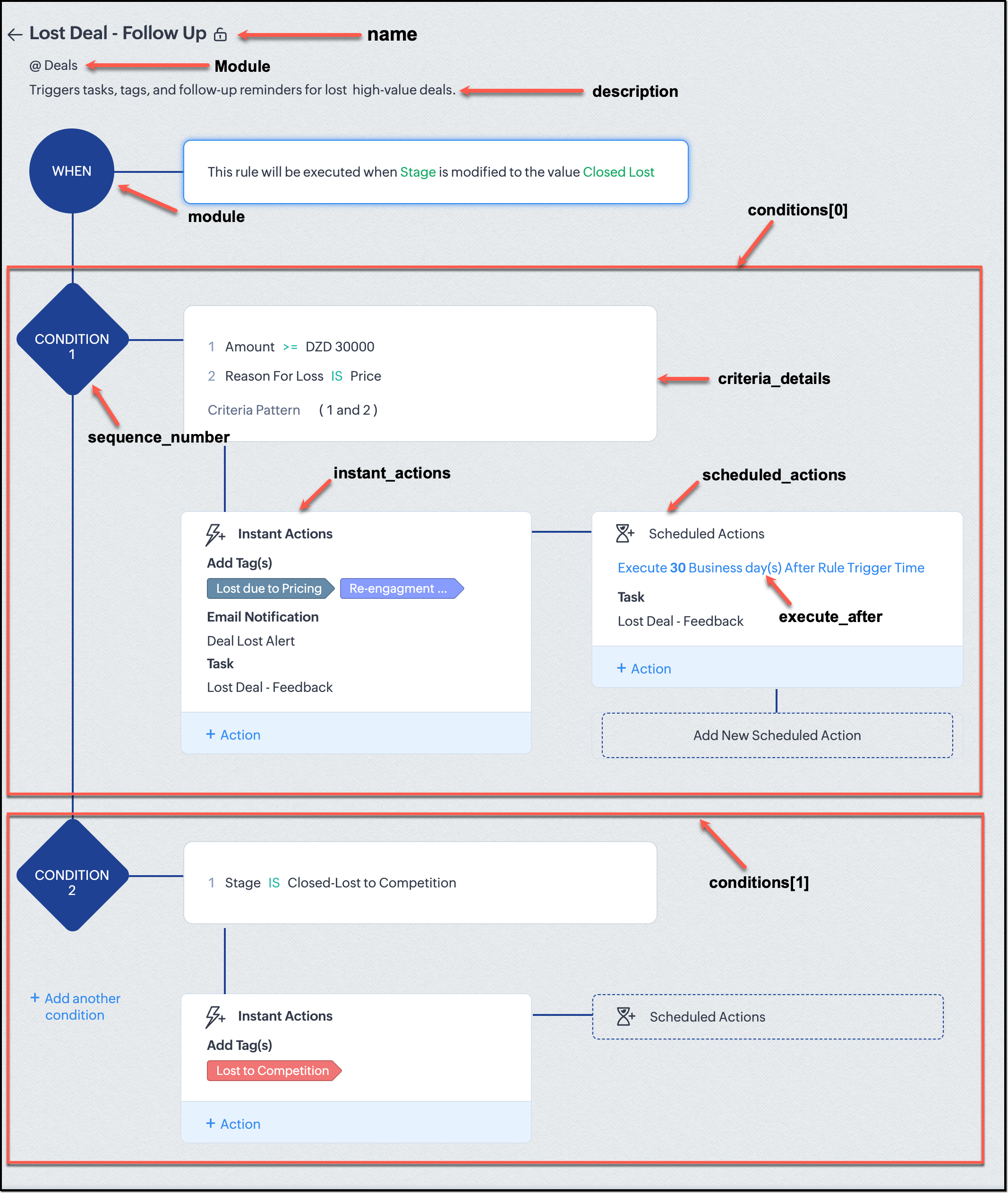
They want to automatically trigger follow-up actions when a high-value deal (above ₹30,000) is marked “Closed Lost” due to pricing reasons. This workflow must ensure that every lost opportunity is reviewed, tagged, and re-engaged after a cooling-off period. To achieve this, they want to create a workflow to be triggered whenever a deal’s Stage is updated to Closed Lost. It must perform the following actions:
Add tags Lost due to Pricing and Re-engagement Pending.
Send an email alert to the Sales team, with the details of the failed Deal, so they can look into the reasons.
After 30 business days, automatically create another “Lost Deal - Feedback” task to remind the owner to re-contact the customer for feedback, and for future opportunities.
Before proceeding, Zylker makes an API call to the Workflow Configuration endpoint. This ensures that their chosen trigger type and actions are supported. From the response snippet below, it is clear that a field_update trigger supports scheduled actions and the required action types.
{ "api_name": "field_update", "deprecated": false, "name": "FieldUpdate", "scheduled_actions_supported": true, "actions": [ "field_updates", "assign_owner", "add_tags", "remove_tags", "email_notifications", "tasks", "create_record", "create_connected_record", "add_meeting", "webhooks", "functions", "circuits", "flow" ] } |
With these details validated, we can now move on to adding a new workflow for Zylker using the Create Workflow Rule API request.
Understanding the input JSON structure
Every workflow definition follows the same hierarchy - defining when the rule runs, what conditions it checks, and which actions it performs.
The top-level input object contains a workflow_rules array. You must include just one workflow rule object per request. Each workflow rule defines its name, trigger type, and one or more condition blocks, each with its own criteria and actions.
Here is a breakdown of what is inside a single workflow rule:
{ "workflow_rules": [ { "name": "VP Alert - High Value Deal.", //name of the workflow rule "description": "Notify leadership when high-value deals are lost due to pricing.", "module": { "api_name": "Deals" }, //module to which the workflow applies "execute_when": { ... }, //trigger configuration (e.g., on record edit, field update, etc.) "conditions": [ { "sequence_number": 1, // order of execution. this is the first condition "criteria_details": { ... }, // condition logic (criteria group) "instant_actions": { "actions": [ ... ] }, //instant actions executed instantly cheduled_actions": [ // schedules actions executed after a delay { "execute_after": { ... }, // delay period for the scheduled action "actions": [ ... ] } ] }, { "sequence_number": 2, // second condition "criteria_details": { ... }, "instant_actions": { "actions": [ ... ] } } ] } ] } |
Associative vs. Non-Associative Actions
Every workflow rule performs one or more actions like sending an email, creating a task, or updating a field, etc. These actions fall into two broad categories: associative and non-associative.
Type | Description | Example Actions |
Non- Associative Actions | These are defined inside the workflow rule itself. They do not need to exist beforehand. You can configure their details directly within the workflow payload. | Create record, schedule a call, add a meeting, convert records, social actions, create record on email received, assign owner, |
Associative Actions | These are reusable actions created separately in CRM and referenced by their IDs. They can be used across multiple workflows and other automation tools. | Field updates, Email notifications, tasks, Webhooks, Add/Remove tags |
When you create or update a workflow via API, the associative actions require you to pass their existing action IDs. These IDs can be fetched using the corresponding Actions APIs : Field Updates, Email Notifications, Webhooks, and Tasks. In the coming weeks of Kaizen, we will take a closer look at each of these Actions APIs. We will see how to create, manage, and delete them within your workflow automation strategy.
Sample Request:
POST {{api-domain}}/crm/v8/settings/automation/workflow_rules
{ "workflow_rules": [ { "execute_when": { "details": { "trigger_module": { "api_name": "Deals", "id": "4876876000000002181" }, "criteria": { "comparator": "equal", "field": { "api_name": "Stage", "id": "4876876000000002565" }, "type": "value", "value": "Closed Lost" }, "repeat": false, "match_all": false }, "type": "field_update" }, "module": { "api_name": "Deals", "id": "4876876000000002181" }, "description": "Triggers tasks, tags, and follow-up reminders for high-value deals lost due to pricing", "name": "Lost Deal due to Pricing - Follow Up", "conditions": [ { "sequence_number": 1, "instant_actions": { "actions": [ { "name": "Lost Deal - Feedback", "id": "4876876000016794047", "type": "tasks" }, { "details": { "module": { "api_name": "Deals", "id": "4876876000000002181" }, "over_write": false, "tags": [ { "name": "Lost due to Pricing", "id": "4876876000016794071", "color_code": "#658BA8" }, { "name": "Re-engagement pending", "id": "4876876000016794075", "color_code": "#879BFC" } ] }, "type": "add_tags" }, { "name": "Deal Lost Alert", "id": "4876876000016794062", "type": "email_notifications" } ] }, "scheduled_actions": [ { "execute_after": { "period": "business_days", "unit": 30 }, "actions": [ { "name": "Lost Deal - Feedback", "id": "4876876000016794047", "type": "tasks" } ] } ], "criteria_details": { "criteria": { "group_operator": "AND", "group": [ { "comparator": "greater_equal", "field": { "api_name": "Amount", "id": "4876876000000002557" }, "type": "value", "value": "30000" }, { "comparator": "equal", "field": { "api_name": "Reason_For_Loss__s", "id": "4876876000002440001" }, "type": "value", "value": "Price" } ] } } } ] } ] } |
The execute_when defines when the workflow should fire.
type = field_update means this rule runs when a field’s value changes.
criteria : Stage = Closed Lost so the rule triggers whenever the Stage field is updated to Closed Lost.
repeat = false ensures it will not trigger multiple times for the same record.
In simple terms: “Whenever a deal is marked as Closed Lost, run this workflow.” The criteria_details section refines the trigger. The workflow only runs when the Amount ≥ ₹30,000 AND Reason for Loss = Price.
The instant_actions section inside the conditions array has the actions to be executed immediately when the criteria are met.
Add Tags : labels the record for easy filtering and reporting.
Send Email Alert : notifies the sales team instantly about the lost deal.
The scheduled_actions defines what happens after some time has passed. In this case, after 30 business days. Here, the workflow automatically creates a “Lost Deal - Feedback” task, reminding the deal owner to follow up with the customer to get feedback, and for future opportunities.
- The Amount is greater than or equal to ₹30,000, and
The Reason for Loss is “Price.”
By combining these elements, this workflow achieves a full closed-loop follow-up system.
Conclusion:
Zylker’s updated and new workflows make their automation smarter and more responsive. They are now able to spot key deals and ensure lost opportunities are revisited.
We hope you are now well on your way to mastering Workflow APIs. Share your thoughts in the comments or write to us at support@zohocrm.com.

Additional Reading:
- Workflow APIs - Part 1 - Auditing Workflows
- Workflow APIs - Part 2 - Find out what actions and triggers are supported for each module
Topic Participants
Anu Abraham
Sticky Posts
Kaizen #198: Using Client Script for Custom Validation in Blueprint
Nearing 200th Kaizen Post – 1 More to the Big Two-Oh-Oh! Do you have any questions, suggestions, or topics you would like us to cover in future posts? Your insights and suggestions help us shape future content and make this series better for everyone.Kaizen #226: Using ZRC in Client Script
Hello everyone! Welcome to another week of Kaizen. In today's post, lets see what is ZRC (Zoho Request Client) and how we can use ZRC methods in Client Script to get inputs from a Salesperson and update the Lead status with a single button click. In thisKaizen #222 - Client Script Support for Notes Related List
Hello everyone! Welcome to another week of Kaizen. The final Kaizen post of the year 2025 is here! With the new Client Script support for the Notes Related List, you can validate, enrich, and manage notes across modules. In this post, we’ll explore howKaizen #217 - Actions APIs : Tasks
Welcome to another week of Kaizen! In last week's post we discussed Email Notifications APIs which act as the link between your Workflow automations and you. We have discussed how Zylker Cloud Services uses Email Notifications API in their custom dashboard.Kaizen #216 - Actions APIs : Email Notifications
Welcome to another week of Kaizen! For the last three weeks, we have been discussing Zylker's workflows. We successfully updated a dormant workflow, built a new one from the ground up and more. But our work is not finished—these automated processes are
Recent Topics
Narrative 5: The essential role of SLAs
Behind the scenes of a successful ticketing system - BTS Series Narrative 5: The essential role of SLAs Every organization that interacts with customers establishes a timeframe within which agents should respond to queries as part of a service level agreementNextdoor Integration
Does Zoho social work with Nextdoor? www.nextdoor.com? Are there any plans for an integration?My email sending has beed blocked due to high bounce rate. NEED HELP
User ID: 886739811 Dear Zoho Team, I hope this message finds you well. My account (User ID: 886739811) was blocked from sending emails last week due to an unusually high bounce rate. This spike was caused by a bot attack on our platform, which led toCan Zoho CRM Emails be used in Zoho Analytics in any capacity?
We're wanting to display details about Lead Activity in regular reports through Zoho Analytics but we're having difficulty integrating Emails at all. We'd like to be able to note when an email is received and when it is sent somewhere other than justScheduled Maintenances
Hi, Why is adding scheduled maintenance so arduous. It should be a simple process and take very little time for basically a recurring job. Creating 3 records with similar data seems crazy to me. Is there a easy way to do this? I have to create hundredsSubform Fields for Form Rules & Subform Fields as a Condition with Form Fields as the Action
Hi, The Subform in Field Rules is great, but it is missing completley from Form Rules and it lacks being able to have Subform Fields in the Condition while having Form Fields in the Action, it works the other way around. Thanks DanPower of Automation :: Implementing Deadline-Based Task Scoring with Custom Fields
Hello Everyone, A custom function is a software code that can be used to automate a process and this allows you to automate a notification, call a webhook, or perform logic immediately after a workflow rule is triggered. This feature helps to automateZoho Forms - Subform Integration with Zoho CRM?
I created a form in Zoho Forms that includes a sub-form for information that I want to integrate with the CONTACTS module. I am unable to find a way integrate/map the fields in the sub-form with the Contacts module in Zoho CRM. Is there a way to do thisFilter by user in Pivot Chart
I have a Pivot chart where the data should be filtered by user. The user enters the system and should see only the data that correspond to it. Can anyone help me?Is ZeptoMail Still Supported? No Response to API Query in Over a Week
Is ZeptoMail Still Supported? No Response to API Query in Over a Week I’m posting here to express my growing frustration and concern over the lack of professionalism I’ve experienced with Zoho's ZeptoMail support. On July 21st, I received a response askingAdd ID to the recycling bin page
Feature request to add the ID to the recycling bin page. This would be helpful for reference when trying to recover things. This is the long zoho ID for each item. - ticket ID - contact ID - account ID - etc.Remove System Defined Ticket Layout
Hi ZohoDesk, I have created a new Ticket Layout and made it the default and I want to remove the original default one so there is only one to choose from. It won't allow me to do this, or go into the options and take the tick out of the show in Help Center.ZOHOLICS Japan 2025 開催のお知らせ
ユーザーの皆さま こんにちは、Zoho コミュニティチームの中野です。 年に一度の自社最大イベント、「ZOHOLICS Japan 2025」(ゾーホリクス)の開催が決定しましたので、こちらでお知らせします。 今年の開催回は、特別ゲストやZoho のエキスパートが、 最新のDX事情や皆さまのビジネスプロセス改善、業績アップのヒントとなる情報をお届けします。 Zoho コミュニティからは、Zoho Championの西尾さん(@西尾 真言)、 コミュニティアンバサダープログラム(ZCAP)メンバーの箕輪さんにご登壇いただき、Unable to connect Zoho Learn to other Zoho Tools
Hello Zoho, Can you work on Zoho Learn. I am unable to connect it with other Zoho tools like Zoho people or even Zoho SalesiQ. This is needed, especially if I am connect Ai to my systems. Please work on connecting your applications better, especiallyChatbot for Urdu language
Hello, I have successfully set up Zoho Desk and integrated it with Moodle using ASAP. I am now looking for a chatbot that supports the Urdu language to enhance student support. My goal is to enable the chatbot within ASAP so that students can ask questions,Multi Level Hierarchical Query
Hi guys I have a situation where i am trying to extract the descendants of a particular entry. So long story short, i have the Account table with Agency (A) id = 1, and that has child Agency (B) id = 2. This child agency (B) has a child agency (C) idAI-Powered Grouping and Tagging of Related Issues and Tasks in Zoho Projects
Dear Zoho Projects Team, Greetings, We would like to suggest a feature that would greatly enhance how we manage feature requests and bug reports submitted through the Zoho Desk to Zoho Projects integration. Use Case: Our support agents handle customerHow to change side bar from dark mode to light mode?
The side bar on the left side in workdrive doesn't appear to have a way to fix it from dark mode - is there a way to? I can't read in dark mode without excessive headaches, and I would really like to be able to see while I have workdrive open, as workdriveHow to see history on Bulk send of Customer Statements
Hi, We bulk send statements to customers every month via Books - every month we have customers emailing requesting a statement. Currently I have no visibility on if a customer was sent the statement or not and if our process is being followed or overlookedHow to add buttons elements in the Header
I am trying to add CTA (Call to Action) buttons in the right side of the main navigation menu. This is a common practice for sites but I can't seem to figure this out for Zoho Sites. Is there a custom workflow that could be shared with me?Automatic back up - Zoho Recruit, books, people,crm, analytics
Hello, Has anyone found a good way of automatically backing up Zoho (CRM, expense, recruit, people, books, analytics).? I have found with tool that does, but it doesn't include recruit or analytics It's a bit annoying and time consuming having to go todelete departments on zoho desk
I created test departments on zoho desk. how can i delete them now?Validation, checking if a file has been attached to the ticket
A very useful option would be to allow checking, under specific conditions, whether the user has attached a file to the application, e.g., a bug report. Some applications require files to be attached, and the system could enforce this after the systemAI & Zoho Recruit
Hello, I guess we all are using AI in our personal and professional lives. Now, let's imagine. Recruitment is just a succession of stages and steps. For which step would you like to see AI implemented into Zoho Recruit ? I'll start : - Automatic translationZoho Flow not handling Boolean properly
Hi, I have a checkbox in one system that I'm trying to sync with a checkbox in Zoho CRM. The value from the source system comes in as blank (unticked) or 1 (ticked). I've written the following custom function to convert the output to either boolean falseQuotes Module - import data
Hello Zoho, is it possible to import Quotes records? I was trying and i have no results. Raport shows no data imported. Could you help me please how to do it?Balance Sheet - Zoho Analytics
Hi Team, I’m looking to implement a feature that captures the conversion rate based on the filters applied. By default, it should fetch the most recent conversion rate, and when a filter (such as a timeline filter) is applied, it should return the conversionfiles sent will not open for recipient
work files (done in writer) which previously opened will not open for the recipientMigration of Mails from Pipedrive
Hi, so far the migration from Pipedrive to ZOHO works pretty good. For full completeness of the migration we miss all the mails linked to Deals, Contacts, Customers, ... What possibilities do we have to have Pipedrive fully migrated to ZOHO? Best Regards,Published sheets don't work anymore
Hi, Published sheets don't work anymore. The display of values is very very slow and calculations are not displayed at all. Thanks!#1 Zoho Billing vs. Zoho Books: Which one should I choose?
Managing your business finances isn't just about sending invoices. It's about keeping everything organized, accurate, and moving towards your organization's goals. At Zoho, we understand the complexity, which is why we offer two powerful yet distinctIs Zoho tables still being developed?
Has this product been abandoned? I haven't seen any useful new features or stability improvements over the past six months or more. I think Tables is a great concept, filling a niche between spreadsheets and full database tools, but the current implementationHow to connect oracle ADW with Analytics
I want to add Oracle ADW as a data source in Zoho Analytics, but I couldn't find any relevant documentation. Can anyone suggest how to do it, or let me know if it's even possible? Thanks!!add attachments to automated emails?
Hi, I'm looking for a way to have documents saved under an account, be grabbed and sent to an email address once a specific status has been updated. For example we have a tab we've labeled as sales orders, when the status is changed to shipped, it emails the customer the tracking number and estimated delivery date. I'd like it to also grab pdf docs (COA, BOL, etc) from that order and send in that email. Currently we have to go into zoho change the status to shipped, then email all the docs to[Action Required] Zendesk - Zoho Analytics integration requires re-authentication
Dear Zendesk integration users, Zendesk is transitioning to a new OAuth model that uses refresh tokens for improved security and stability (read more). As a result, all Zendesk users in Zoho Analytics must re-authenticate their Zendesk connections onRerun Migration?
I migrated a mailbox a few days ago, but didn't do the cutover on the MX records until today. How can I rerun the migration to sync the mailboxes? The old account has had a fair amount of activity since the first migration. I am used to other systemsطلب حذف الدومين والمؤسسة من حساب zoho
السلام عليكم، أود طلب حذف الدومين التالي من حسابي في Zoho، حيث لا يظهر لي خيار الحذف في لوحة التحكم: اسم الدومين: hudajstore.com البريد المرتبط: [contact@hudajstore.com] علمًا بأنني المسؤول عن المؤسسة، ولا أستخدم الدومين حاليًا، وأرغب في إلغاء ربطه وحذفMicrosoft Outlook Add-in Update: Enhancing Efficiency for Recruiters
We've released an update to the Zoho Recruit Microsoft Outlook Add-in, which brings a host of features designed to streamline your recruiting process and boost productivity. Let's delve into the details: Associate Emails with records in Zoho Recruit YouNew integration: Zoho Books + Zoho Forms
Hello Zoho Forms community! We are thrilled to announce the addition of another integration that brings speed and efficiency to your financial workflows. Zoho Forms can now be integrated with Zoho Books! Here’s a quick rundown on Zoho Books! For anyoneWitness Sign - Automation with Zoho Creator
Hi there, I used to be able do automatically send a Zoho Sign document from Zoho Creator where each signer had one witness. The action code was as follows for each signer and witness: // CLIENT eachActionMap1 = Map(); eachActionMap1.put("signing_order","1");Next Page