Bidirectional sync between Zoho Bookings and Zoho CRM - Part 1
Hey, community members!
The default integration between Zoho CRM and Zoho Bookings is unidirectional, which means that any appointments booked, rescheduled, or deleted in Zoho Bookings will be reflected in Zoho CRM. However, any modifications made to events in Zoho CRM that originated from Zoho Bookings will not be reflected back in Zoho Bookings. Hence, as we're announcing in this community post, we've made the sync bidirectional.
This community post will cover the process of configuring appointment bookings from Zoho CRM in Zoho Bookings, as well as managing appointment statuses such as Canceled, No Show and Completed. We have addressed the rescheduling action in a separate post. To view it, please click on the following link: Reschedule Action
This community post will be beneficial for active Zoho CRM users who handle all their meetings within Zoho CRM. Additionally, you can use this community post as a reference to explore various automation possibilities tailored to your business requirements. For instance, with this post's guidance, when you update a booking's status field to "Completed" in Zoho CRM, it will automatically sync with Zoho Bookings and trigger an automated "Mark as completed" email to customers. This enhancement will improve your Zoho Bookings and Zoho CRM synchronization experience, making appointment management easier.
Prerequisites of bidirectional sync:
- Zoho Bookings Premium subscription
- Zoho CRM paid subscription
- Enable Zoho CRM integration within Zoho Bookings
The purpose of enabling the Zoho CRM integration within Zoho Bookings is to transfer booking details from Zoho Bookings to Zoho CRM. In this configuration, the mandatory field is the Booking ID, which is passed from Zoho Bookings to Zoho CRM through the integration. Whenever an appointment is booked, customer details will be sent to the designated CRM module, and a corresponding record will be created in the Meetings module within Zoho CRM, which will help in automating the workflow.
Here's the complete demo video that covers all the configurations discussed in the community post below:
Timestamps for your reference:
0:35 - Purpose of this community post
Here's the complete demo video that covers all the configurations discussed in the community post below:
Timestamps for your reference:
0:35 - Purpose of this community post
1:26 - Zoho CRM plugin installation
4:43 - Custom field creation
7:20 - Function creation
9:22 - Connection creation
10:24 - Configuring arguments
11:06 - Workflow creation
13:33 - Argument mapping
14:41 - Output verification
17:41 - Conclusion
How we're approaching this bidirectional sync
1. Booking an appointment from Zoho CRM
Install the Zoho Bookings for Zoho CRM plugin within your Zoho CRM application. This plugin enables the creation of a "New Appointment" button within the Zoho CRM Leads and Contacts module, which enables you to select the desired booking page you wish to open. You can choose from various workspace, service, or staff booking pages. After configuration, you can initiate the process of scheduling bookings directly from within your Zoho CRM account.
- Guide on Zoho Bookings and Zoho CRM plugin installation: Booking page selection for Zoho CRM plugin
2. Booking status: Completed or No Show
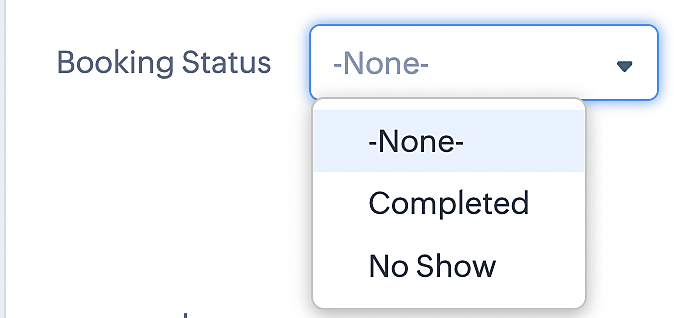
To update a booking's status (Completed or No Show), we've added a new picklist properties field named "Booking Status" in the Meetings module and configured it with two options: "completed" and "no show". Depending on the booking status chosen, the corresponding booking in Zoho Bookings will be updated.
- Details on how to add a custom field to the Meetings module : Customizing modules
- Here's a video that demonstrates how to add a field to a module in Zoho CRM: Adding fields
Reference:
3. Booking status: Canceled
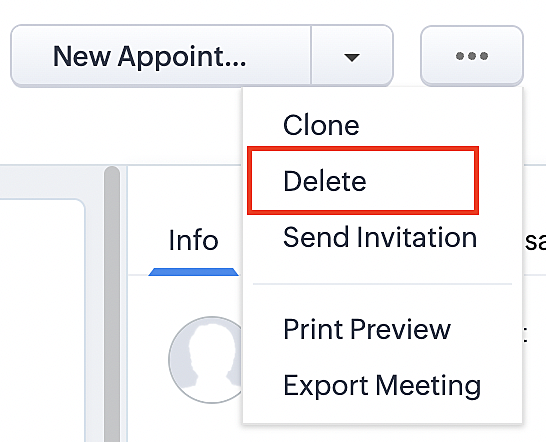
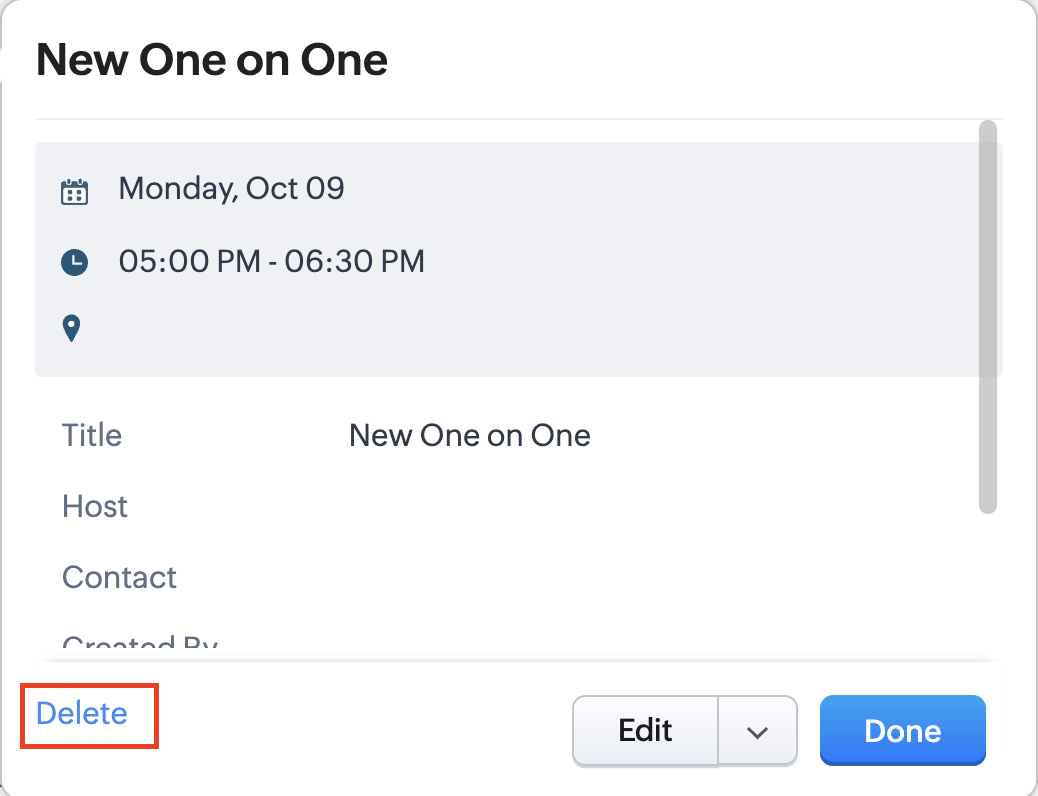
Whenever a meeting is deleted from the Meetings module, the corresponding booking in the Zoho Bookings app will also be canceled automatically. The meeting can be deleted either from the Meetings module or directly from the calendar.
To enable bidirectional sync between Zoho CRM and Zoho Bookings
Complete these steps in Zoho CRM.
Step 1: Creating connections
You first need to establish a connection between Zoho CRM and Zoho Bookings. Zoho Bookings is listed as one of the default connections in Zoho CRM, making it simple to set up. Select the Zoho Bookings connection, define the connection name and scope, and you'll be all set. This connection will enable you to link both applications and facilitate the seamless transfer of data.
Read here for more details on how to create connection in Zoho CRM: Connections
Step 2: Creating functions
In this context, we'll be creating three functions: one for marking appointments as completed, another for canceling appointments, a third for marking appointments as no shows, and a fourth for rescheduling appointments. For each function, we must also configure arguments, which pass values or data into a function when making a call. Here, we'll pass the booking ID to the function as an argument to update the necessary booking status.
i. To create a function for marking appointments as completed:
1. Go to Setup > Developer Space > Functions.
2. In the Functions page, click + Create New Function.

3. Configure the function name, display name, and description.
4. Set the category as automation.
This opens the Deluge script page.
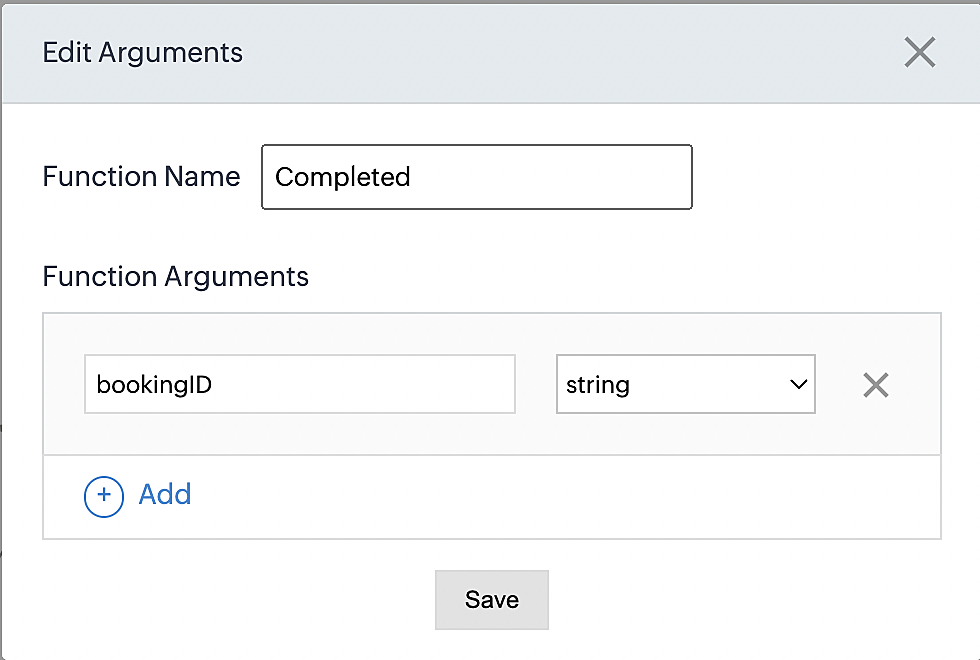
5. Next, configure the function's arguments:
A. Click on Edit Arguments on the Deluge script page.

B. Set the Parameter Name as bookingID. (Please note that the "bookingID" value is case sensitive and must match
the term used in the code).
C. Set the type as string.
Reference:
Please configure the below code in the Deluge script page.
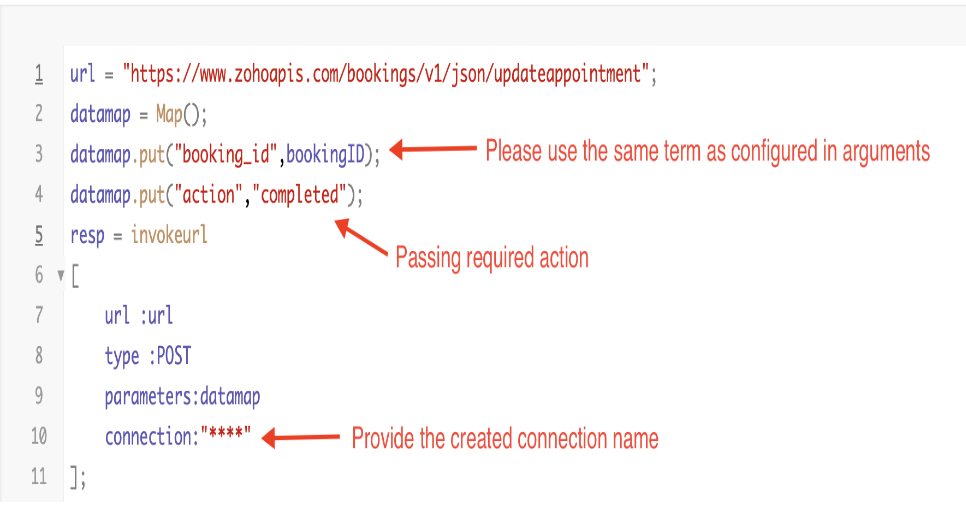
By completing these steps, we've configured a function that will mark appointments as completed.
ii. To create a function for marking appointments as no shows
1. Go to Setup > Developer Space > Functions.
2. In the Functions page, click + Create New Function.

3. Configure the function name, display name, and description.
4. Set the category as automation.
This opens the Deluge script page.
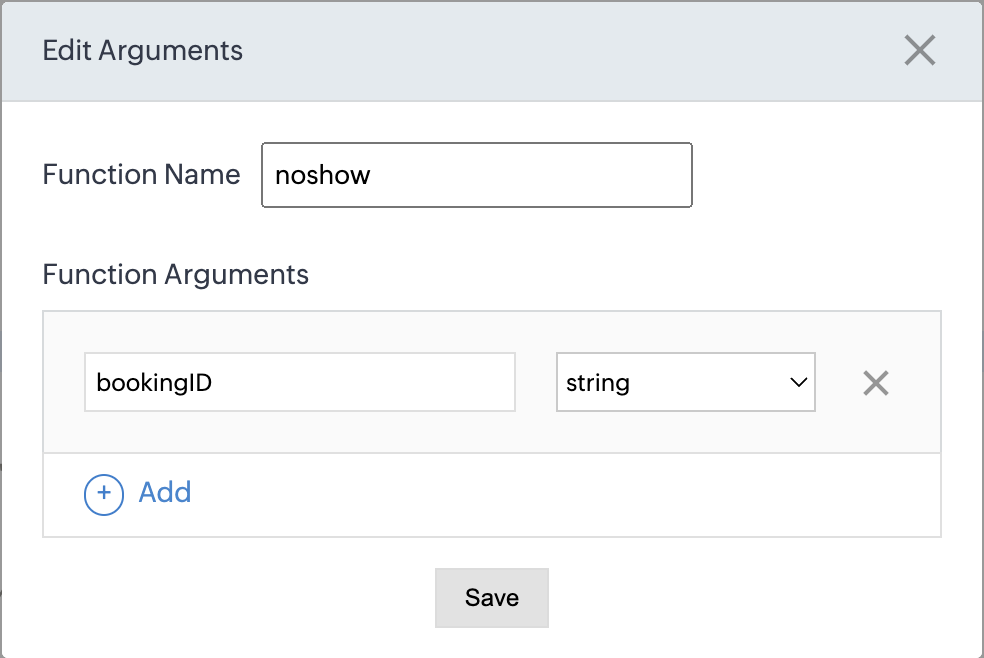
5. Next, configure the function's arguments:
A. Click on Edit Arguments on the Deluge script page.

B. Set the Parameter Name as bookingID. (Please note that the "bookingID" value is case sensitive and must match
the term used in the code).
C. Set the type as string.
Reference:
Please configure the below code on the Deluge script page.
Code link: No show
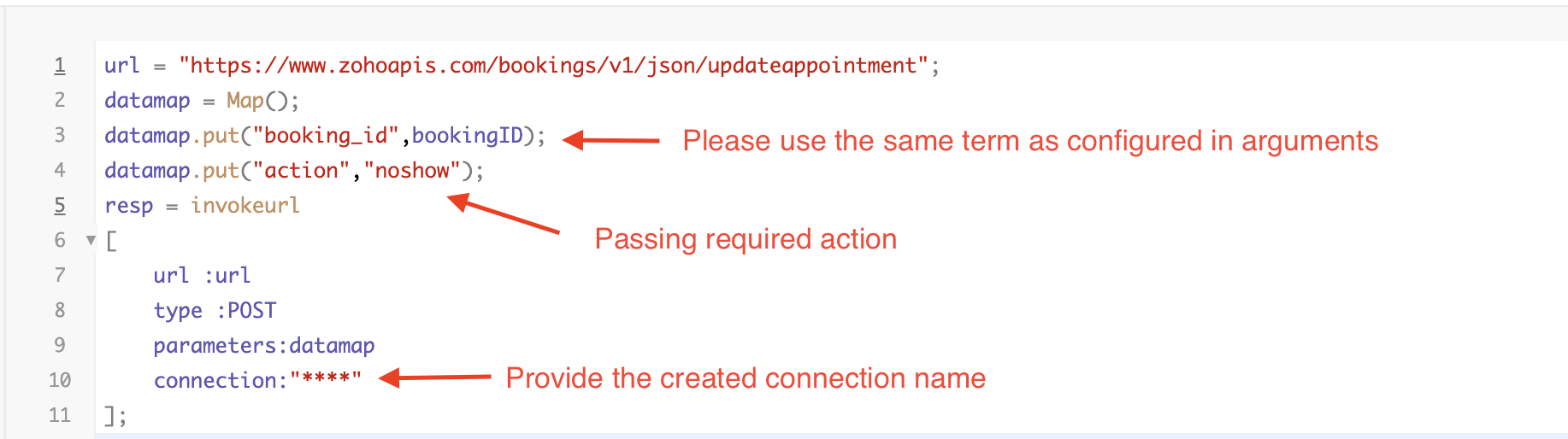
By completing these steps, we've configured a function that marks appointments as no shows.
iii. To create a function for marking appointments as canceled
1. Go to Setup > Developer Space > Functions.
2. In the Functions page, click + Create New Function.

3. Configure the function name, display name, and description.
4. Set the category as automation.
This opens the Deluge script page.
5. Next, configure the function's arguments:
A. Click on Edit Arguments on the Deluge script page.

B. Set the Parameter Name as bookingID. (Please note that the "bookingID" value is case sensitive and must match
the term used in the code).
C. Set the type as string.
Reference
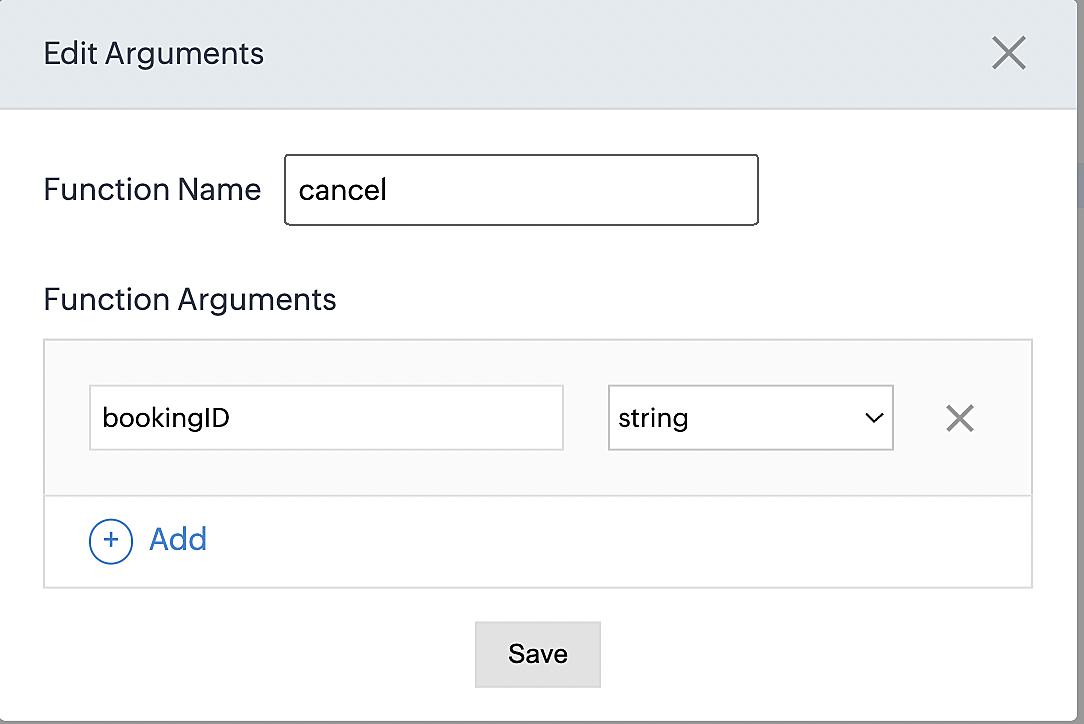
Please configure the below code on the Deluge script page.
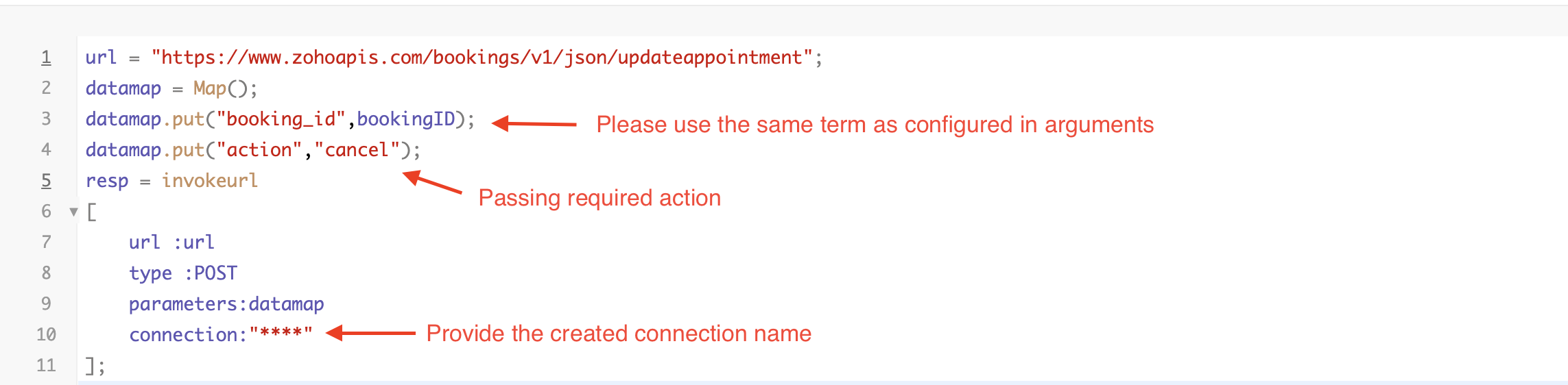
By completing these steps, we've configured a function that marks appointments as canceled.
Code explanation
Below is an explanation of the code that covers all the configurations present in the three functions mentioned above (cancel, mark as completed, and mark as no show).
Line 1: Based on the Zoho Bookings account's data center, we're setting up the API endpoint URL configuration.
Lines 2 - 4: To update appointments, we utilize the Zoho Bookings API. Within the update appointment API, there are two mandatory fields that need to be included: BookingID and action (completed/cancel/noshow).
Lines 5 - 10: We use the invokeURL task for API calls. To learn more about the invokeURL task, please refer to the following document: InvokeURL task for API calls
Now, let's proceed and learn about the process of creating a workflow and linking the established functions to it. This will enable us to automate the entire appointment status updating process.
Step 3: Creating a workflow
Workflow rules are sets of actions (email notifications, tasks and field updates) that are executed when specified conditions are met. Here, we'll generate workflow rules for each action to activate the respective function, thereby automating the appointment status updating process.
i. Creating a workflow for "canceling" appointments in Zoho Bookings when a meeting is deleted in Zoho CRM
Part 1: Creating the rule
1. Go to Setup > Automation > Workflow Rules.
2. In the Workflow Rules page, click Create Rule.

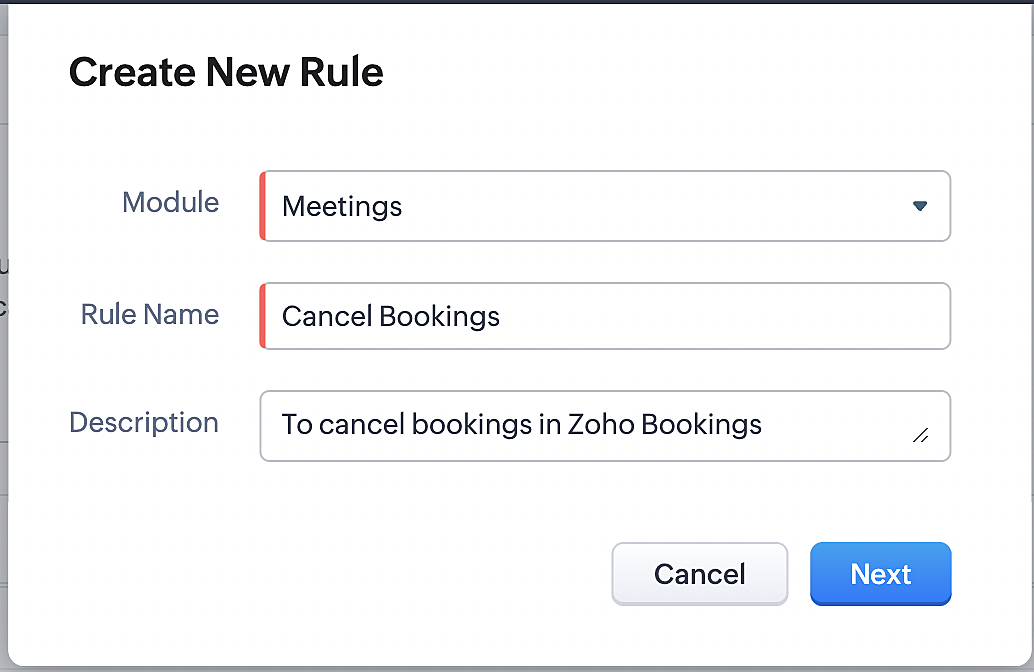
3. Select "Meetings" under Module and configure rule name and description as required.
More details: Create Rule
Reference:
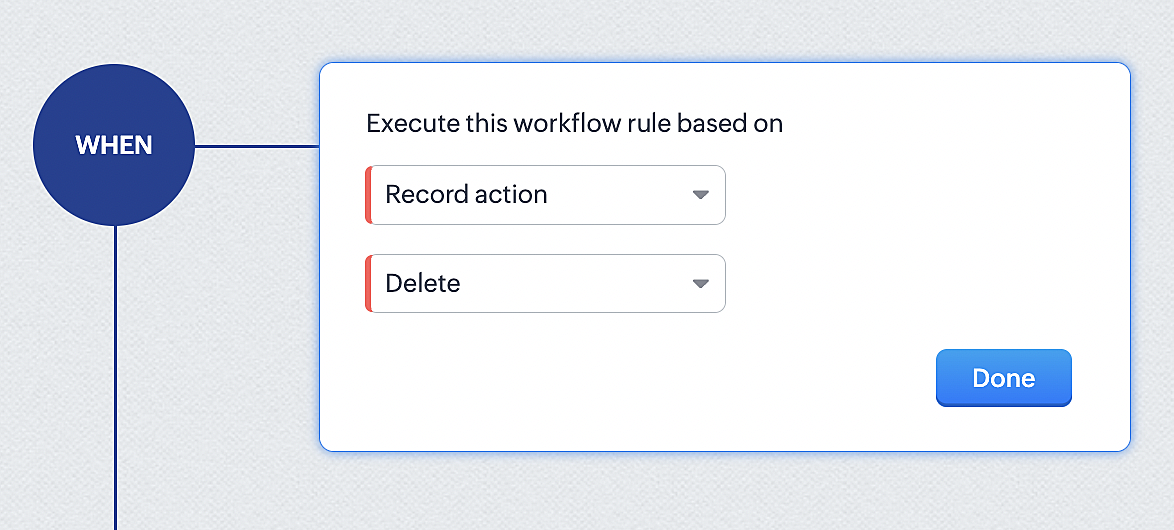
1. Select Record Action > Delete > Done to execute the rule when meetings are deleted.
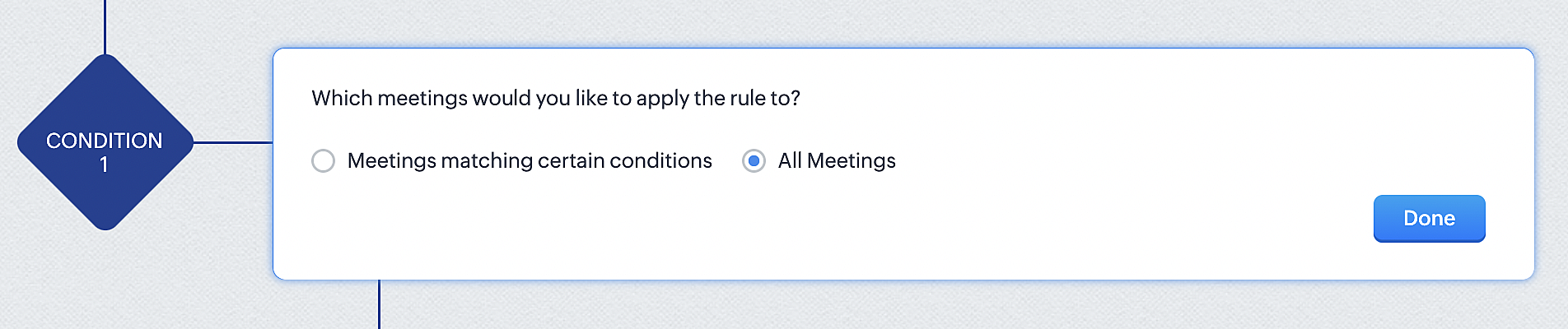
2. Configure condition > All Meetings.
3. Instant Actions > Function.
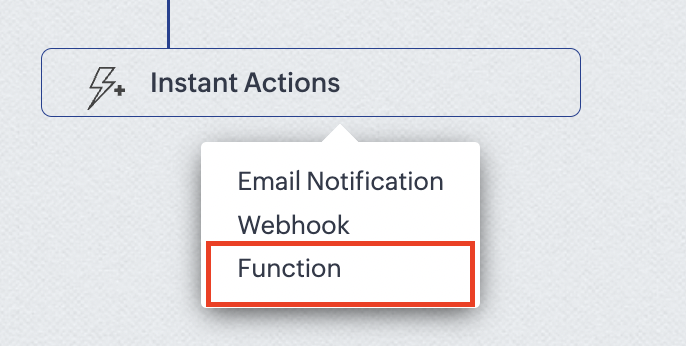
4. Click the New Function button.

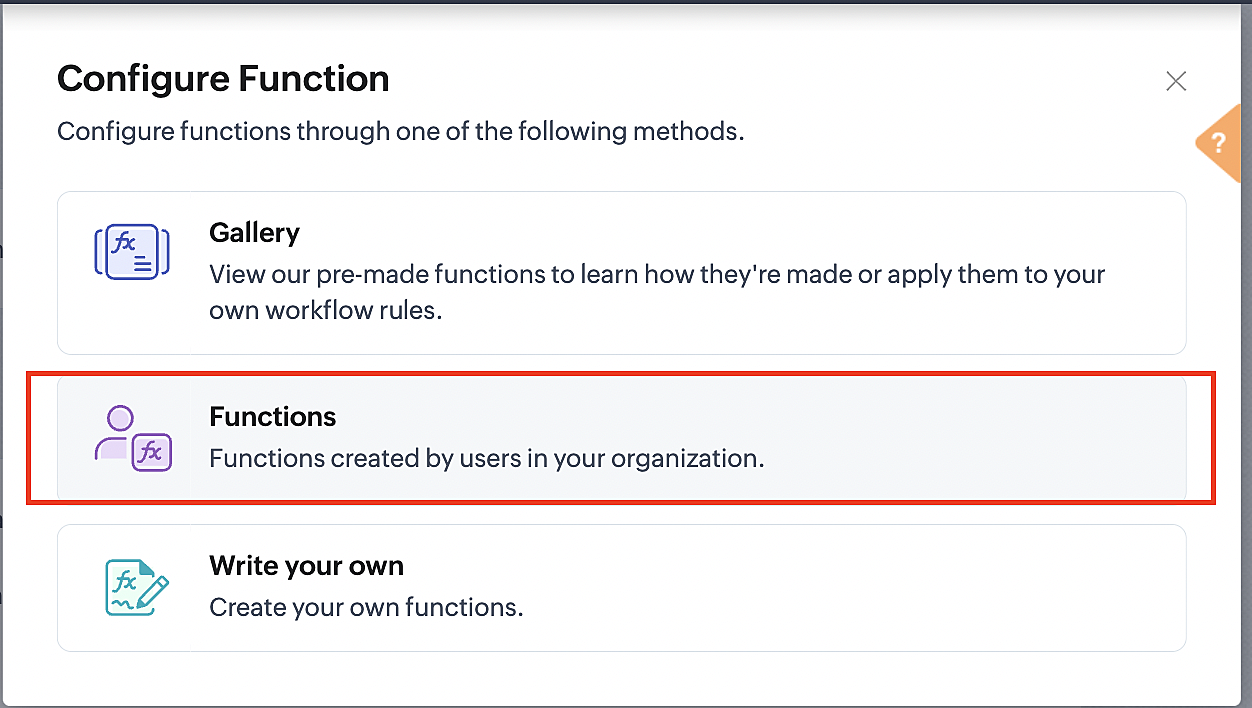
5. In the Configure custom function page, select the "cancel" function you created from among the functions users in your organization have created.
Part 3: Argument mapping
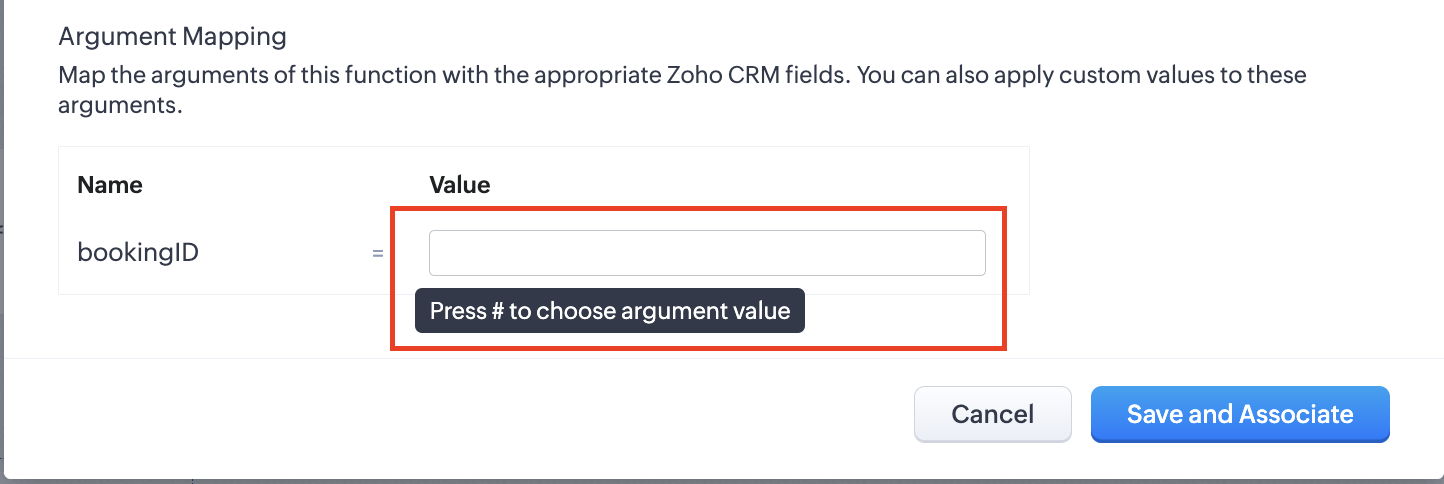
1. Press # to choose an argument value.
2. Select Meetings under Module and BookingId in the field.
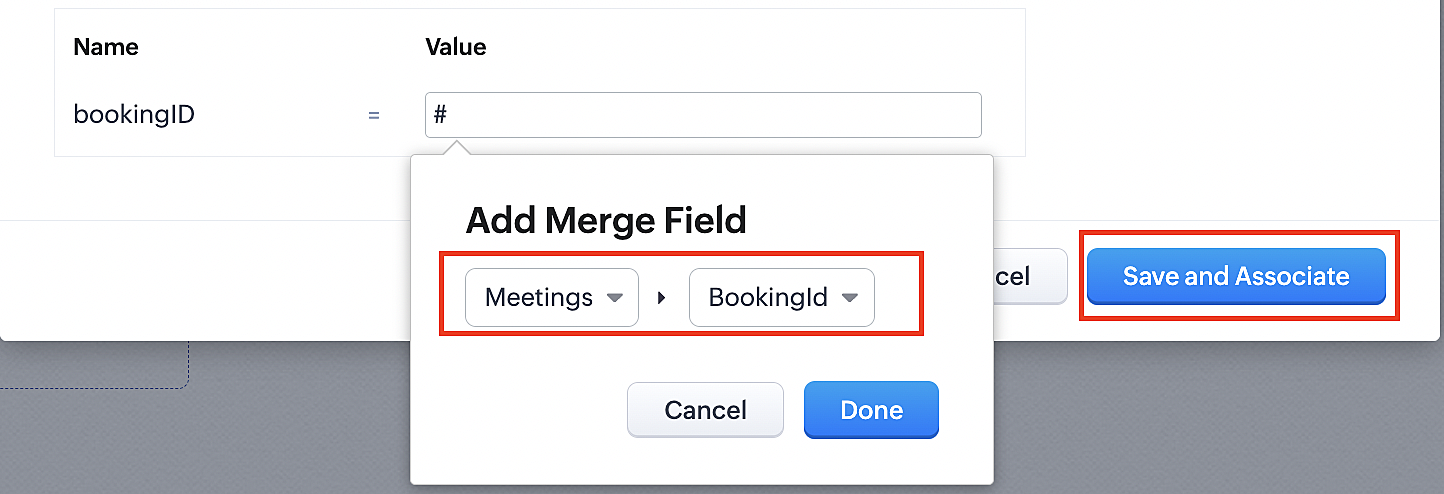
3. Click the Save and Associate button.
Reference:
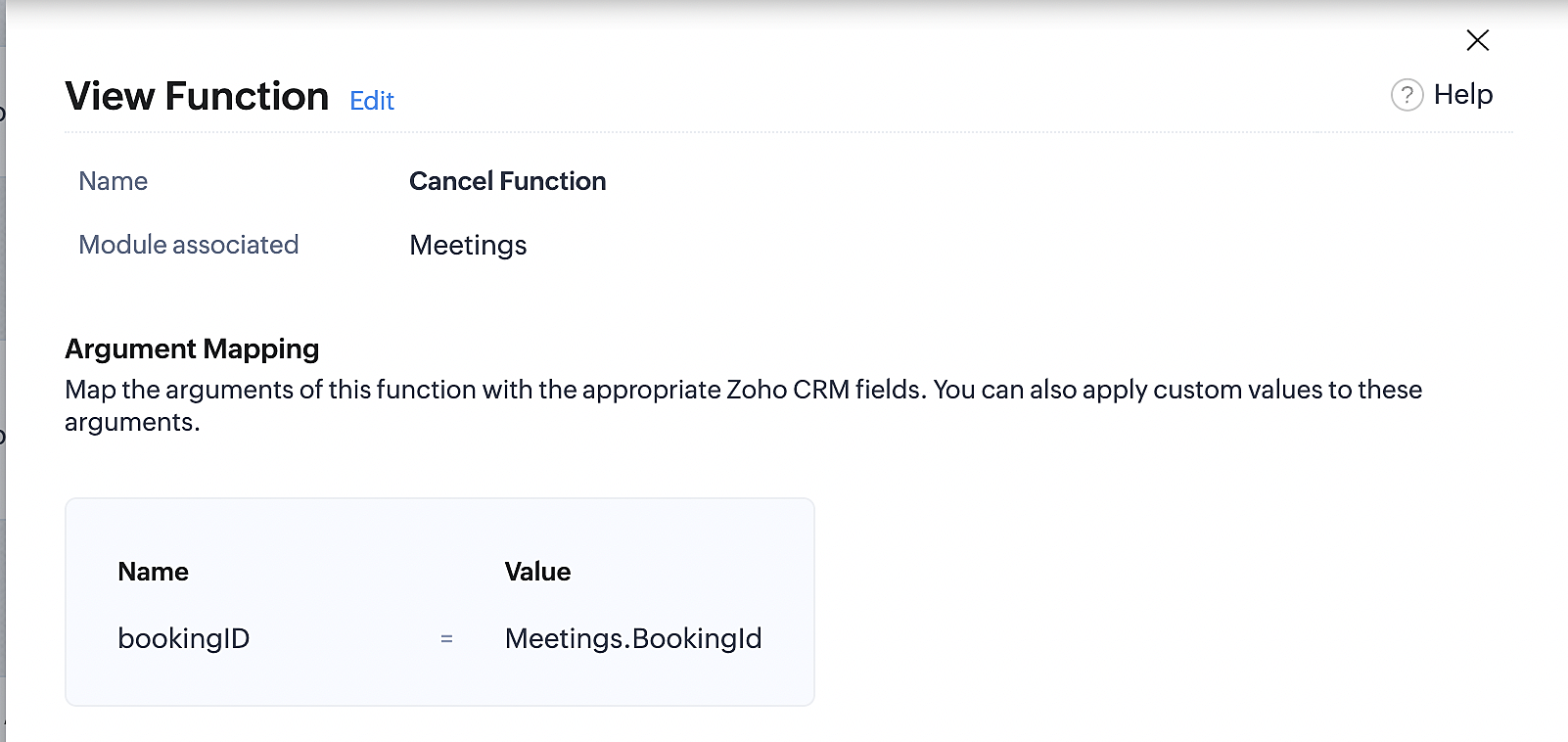
Below is the final flow of the cancel booking workflow:
At the end of Part 3, we will have created a workflow that will be executed automatically when meetings are deleted in Zoho CRM. Simultaneously, the bookings associated with the meeting will also be canceled in Zoho Booking.
ii. Creating workflow for updating an appointment's status as "no show" in Zoho Bookings when the meeting's booking status is marked as no show in Zoho CRM
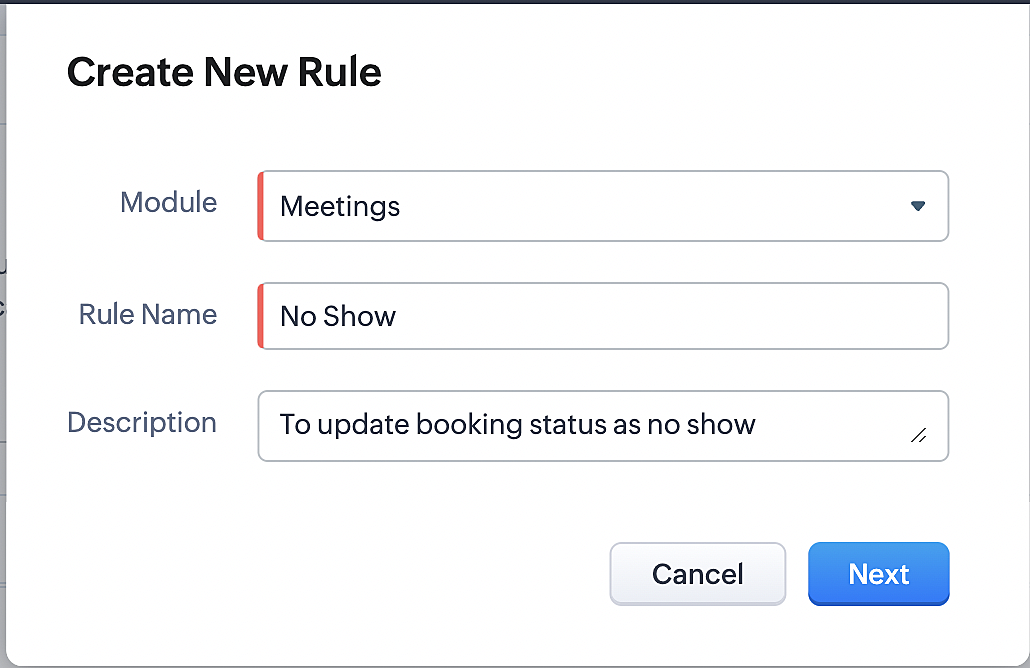
Part 4: Creating the rule
1. Go to Setup > Automation > Workflow Rules.
2. In the Workflow Rules page, click Create Rule.

3. Select Meetings under Module and configure the rule name and description as required.
Reference:
Part 5: Specifying the rule trigger
If you encounter difficulties while navigating through the steps mentioned below, please refer to Part 2 above, where we have provided step-by-step screenshots for clarification.
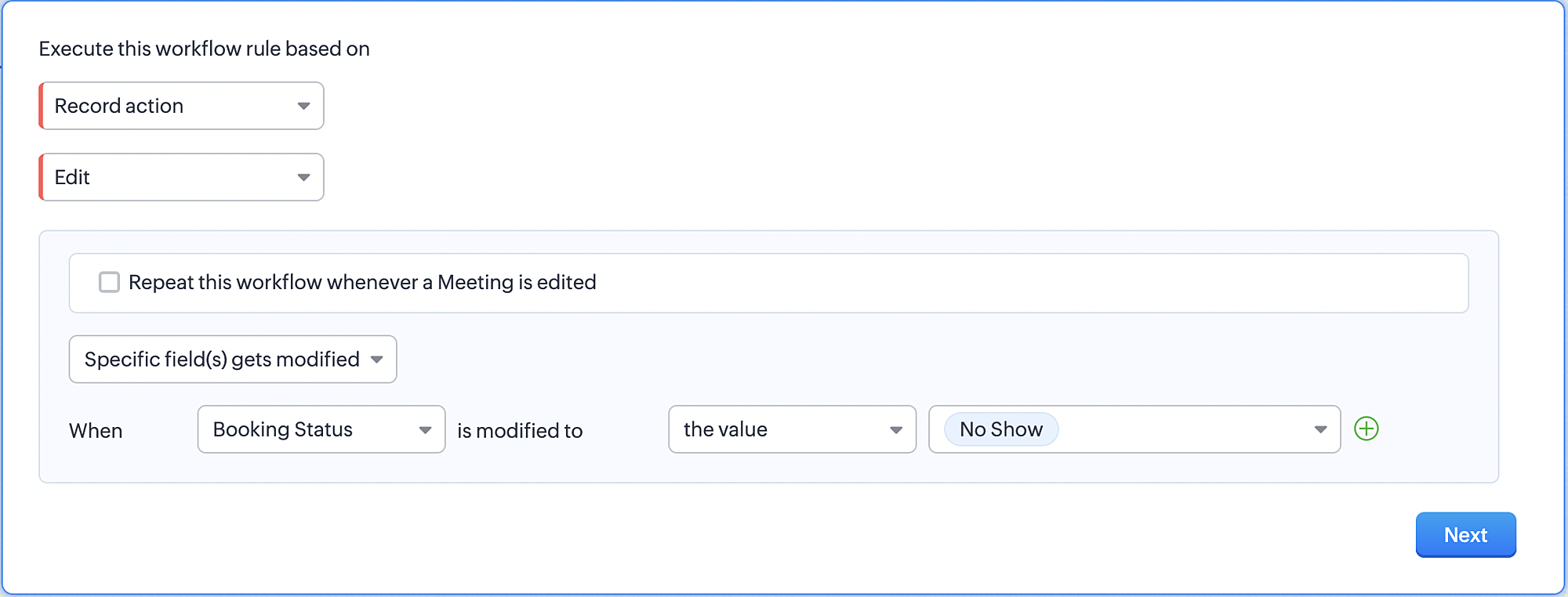
1. Record Action > Edit.

2. Enable the Specific field(s) gets modified and configure it per the screenshot below.
a. This is to ensure that the workflow is executed only when the booking status under the meeting module is
updated to "No Show".
updated to "No Show".
3. Configure condition > All Meetings.
4. Instant Actions > Function > New Function.
5. In the Configure custom function page, select the "no show" function you created from among the functions
users in your organization have created.
users in your organization have created.
Part 6: Argument mapping:
If you encounter difficulties while navigating through the steps mentioned below, please refer to Part 3 above, where we have provided step-by-step screenshots for clarification.
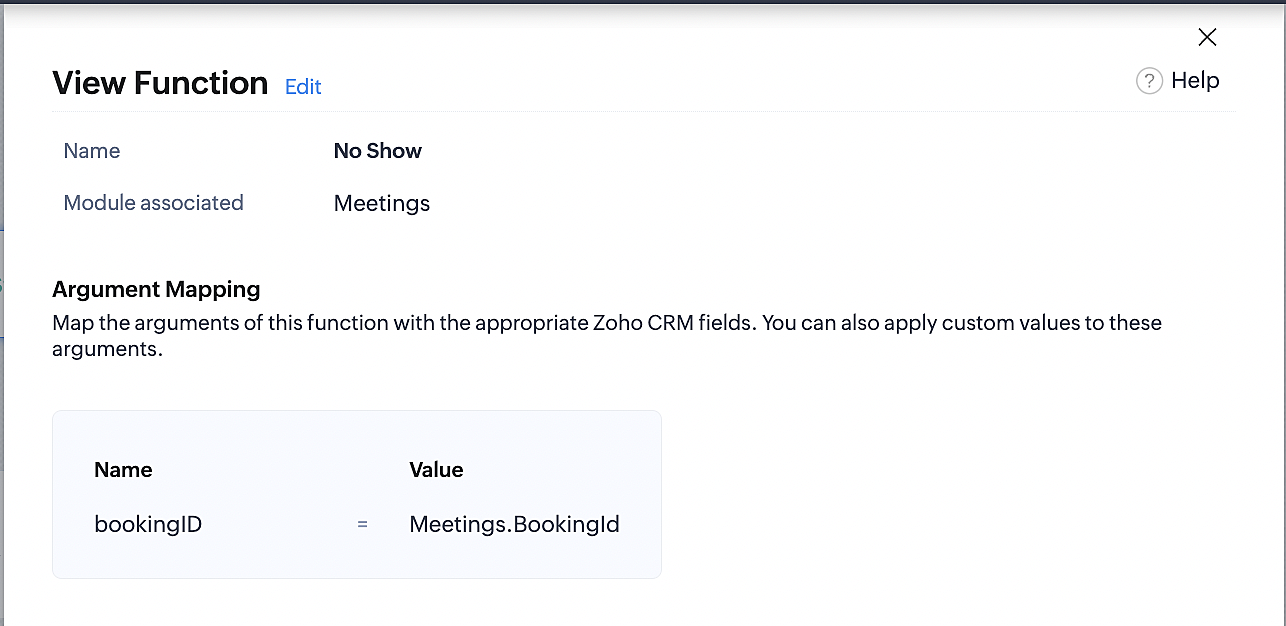
1. Press # to choose an argument value.
2. Select Meetings under Module and configure the field as "BookingId".
3. Click Save and Associate button.
Reference:
Below is the final flow of the "No Show" booking status workflow:
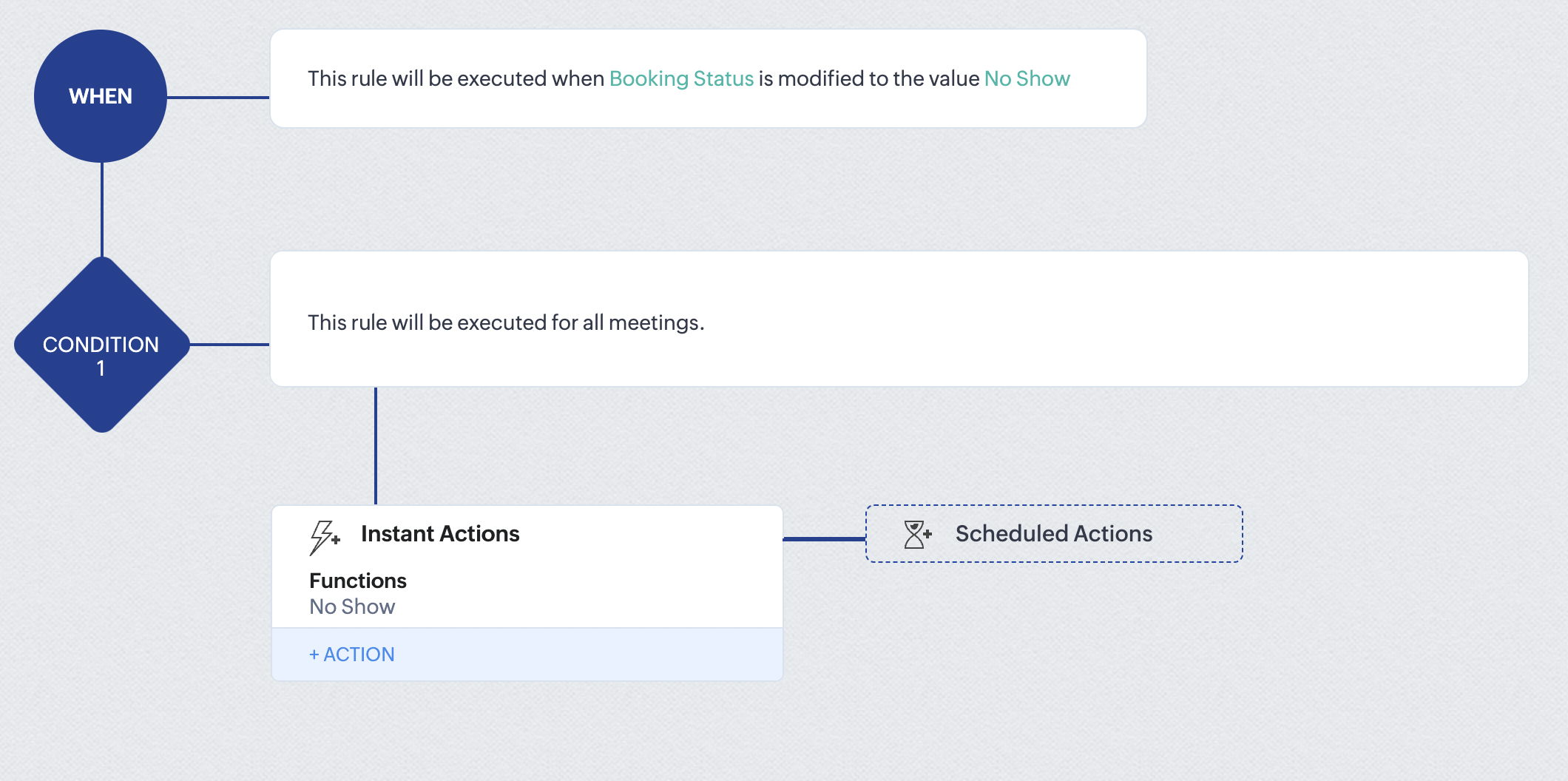
At the end of part 6, we will have created a workflow that automatically executes when the booking status field within the Zoho CRM Meetings module is updated to "No Show." This action will result in the associated bookings for that meeting also being marked as "No Show" in Zoho Bookings.
iii. Creating workflow for updating appointment status as "Completed" in Zoho Bookings when the booking status field of the meeting is marked as completed in Zoho CRM.
Part 7: Creating the rule
1. Go to Setup > Automation > Workflow Rules.
2. In the Workflow Rules page, click Create Rule.

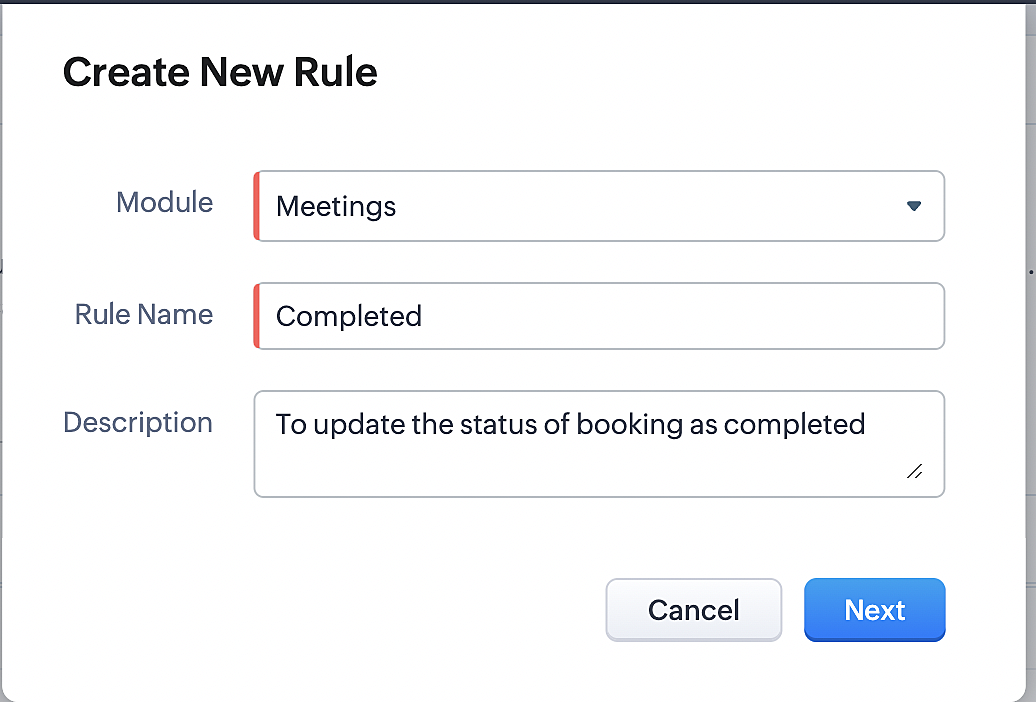
3. Select Meetings under Module and configure rule name and description as required.
Reference:
Part 8: Specifying the rule trigger
If you encounter difficulties while navigating through the steps mentioned below, please refer to Part 2 above, where we have provided step-by-step screenshots for clarification.
1. Record Action > Edit.

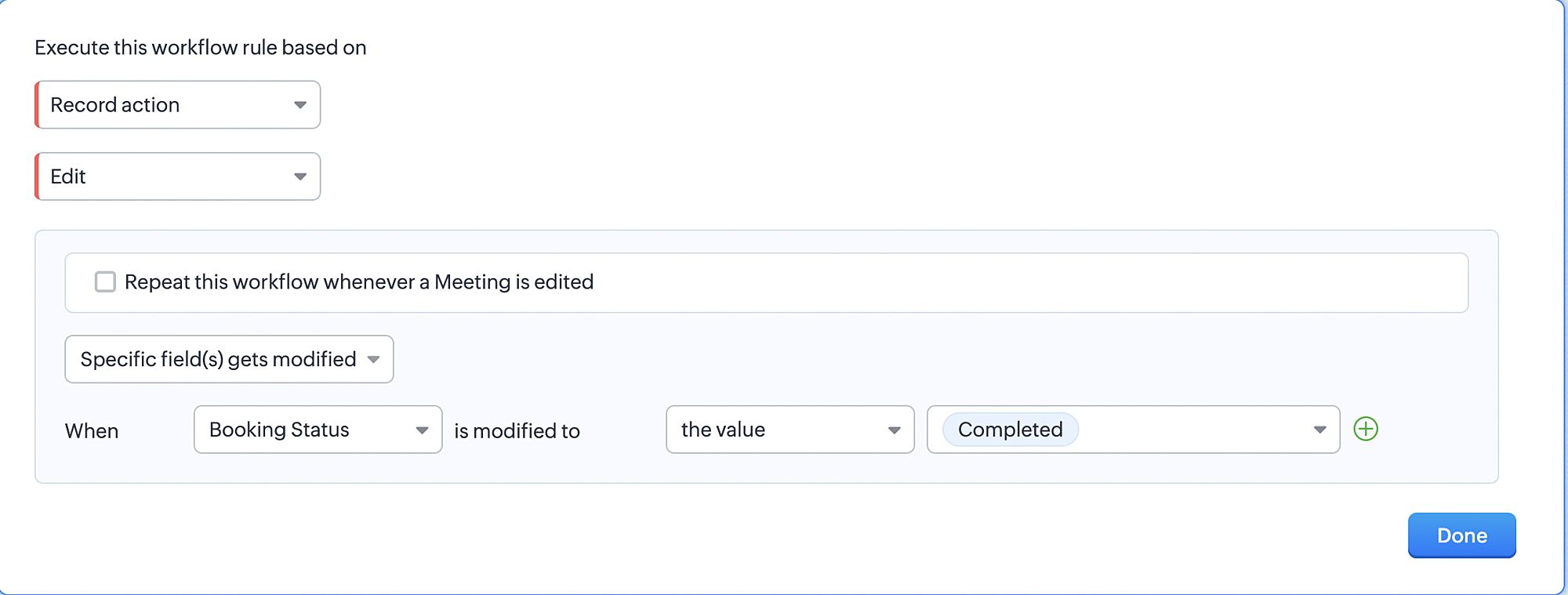
2. Enable the Specific field(s) gets modified setting and configure it per the screenshot below.
a. This serves to ensure that the workflow is executed only when the booking status under the Meetings module is
updated to "Completed".
3. Configure condition > All Meetings.
4. Instant Actions > Function > New Function.
5. In the Configure custom function page, select the "completed" function you created from among the functions users
in your organization have created.
Part 9: Argument mapping:
If you encounter difficulties while navigating through the steps mentioned below, please refer to Part 3 above, where we have provided step-by-step screenshots for clarification.
1. Press # to choose an argument value.
2. Select Meetings under Module and configure the field as "BookingId".
3. Click Save and Associate button.
Reference:
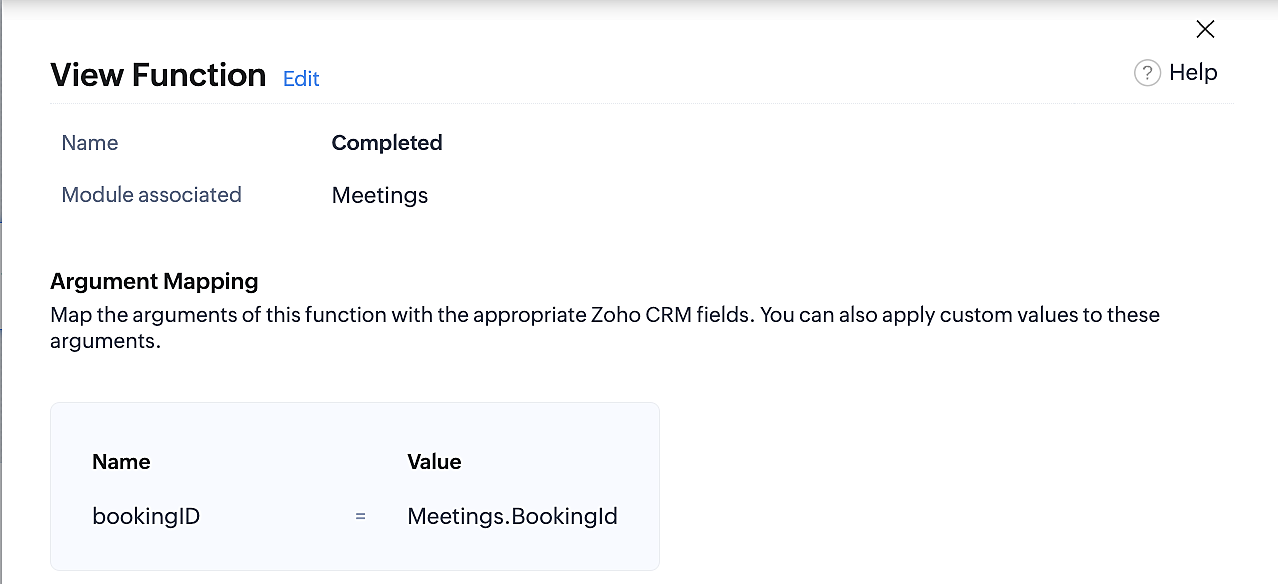
Below is the final flow of the "Completed" booking status workflow:
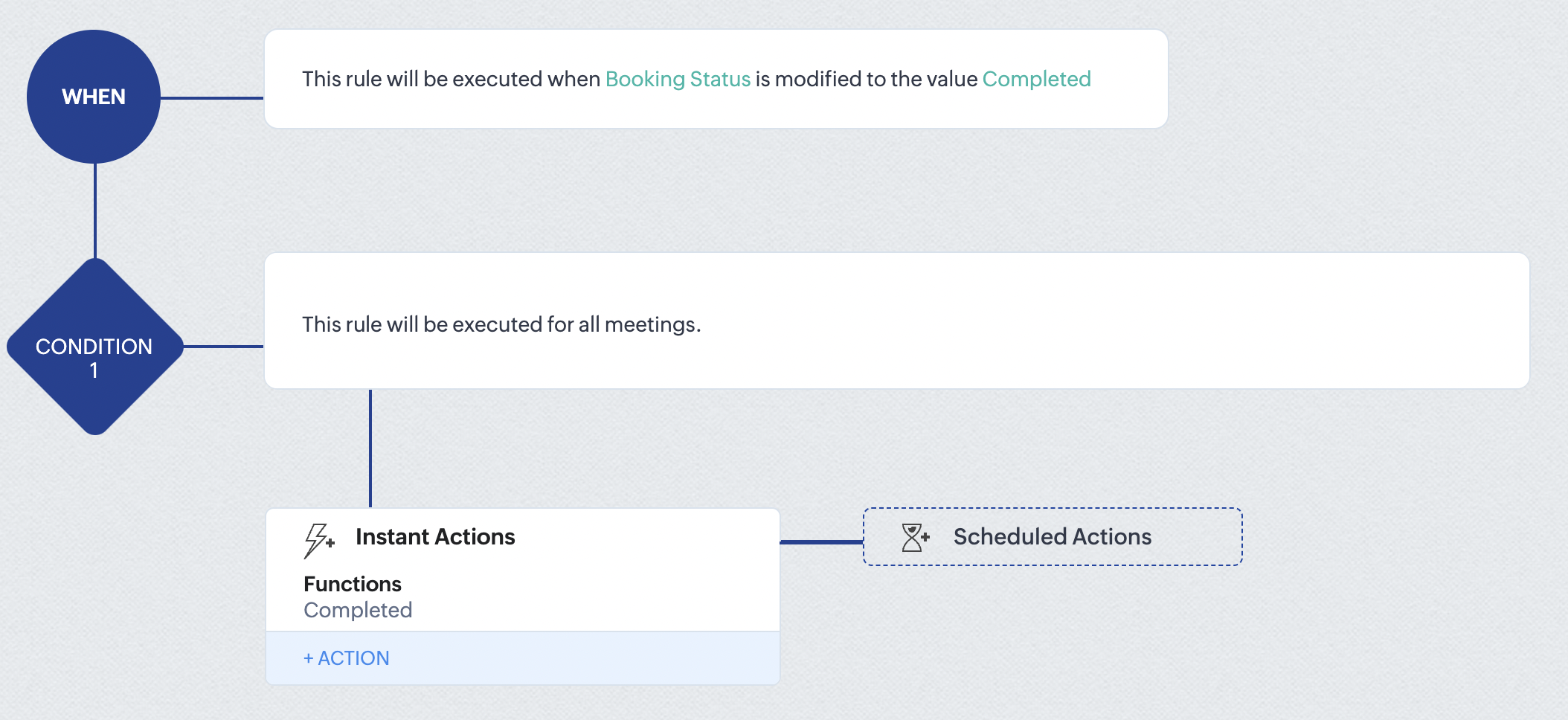
At the end of part 9, we will have created a workflow that is automatically executed when the booking status field within the Zoho CRM Meetings module is updated to "Completed." As a result, the associated bookings for that meeting will also be marked as "Completed" in Zoho Bookings.
Conclusion
We've reached the end of this community post. With the integration mentioned above in place, you'll be able to book, cancel, and update the status of appointments in Zoho Bookings directly from your Zoho CRM application. This will help you effectively manage your appointments in one place. As mentioned above, we've covered the rescheduling action in a separate post, which you can access by clicking on the following link: Reschedule Action
Furthermore, we've outlined a method for automating appointment statuses in detail. You can use this document as a reference to explore the various possibilities that suit your needs.
If you have any questions or need assistance with your configuration, please email us at hello@zohobookings.com or support@zohobookings.com.
Topic Participants
Kaushik S
bruce
Ishwarya SG
PrismaNote Support
Sticky Posts
Enhancement to ICR’s field prompting: Preferred data extraction using advanced field prompting
Dear Customers, We hope you’re well A quick background Intelligent Character Recognition (ICR) comes as part of Zia’s optical recognition capability called Zia Vision. When we introduced it last April, the data extraction was training-based and was applicableGood news! Calendar in Zoho CRM gets a face lift
Dear Customers, We are delighted to unveil the revamped calendar UI in Zoho CRM. With a complete visual overhaul aligned with CRM for Everyone, the calendar now offers a more intuitive and flexible scheduling experience. What’s new? Distinguish activitiesAccessibility in Zoho CRM: Not just a feature—a way to empower
For instructions on setting up these controls, please check this help document: Configuring accessibility controls. Hello everyone, Today (December 3, 2024), on the International Day of Persons with Disabilities, we begin our journey towards a CRM thatScaling the customer journey: What's new in CommandCenter
Dear Customers, The last time we connected about CommandCenter, it was about the tool's new controls and revamped UI. Personally, the overhaul of the UI from the last update, still excites me. Today, we're here with news about its scalability and addedZoho CRM's sales trend and sales follow-up trend dashboards are now customizable
Dear Customers, We're here with good news! Sales trend and sales follow-up trend are two system-defined dashboards that help you understand trends and anomalies in your sales outreach and conversion efforts. They use Zia's intelligence to identify patterns
Recent Topics
Is there a way to update all the start and end dates of tasks of a project after a calendar change?
Hi! Here's my situation. I've built a complete project planning. All its tasks have start dates and due dates. After completing the planning, I've realized that the project calendar was not the right one. So I changed the project calendar. I now haveLookup fields can't be used for anything important
Hi It seems the lookup fields are mostly.... informative, you can at most link stuff between modules... You can't use lookup fields in blueprints, you can't use them in layout rules or anything... It that correct?Zoho Writer Frequently not loading
I've reported this as a problem already but I can't log into my email right now or get onto the main site so you're going to hear about it again here: at least once a week, Zoho Writer will just refuse to load entirely. The main page will load and loadRead Thread Details
Does anyone know how to "read" the complete thread details in a ticket? I figured out how to pull a summary of the threads using a webhook, but it doesn't have all the details I want. I tried to create a loop in flow, which should have worked, but insteadHow to Structure Data in Zoho Creator Applications
Data structure is undoubtedly one of the most critical pillars in application development within Zoho Creator. Well-structured projects scale easily, enable more robust automations, and drastically reduce rework. Poorly modeled applications, on the otherApplication Architecture in Zoho Creator: Why You Should Think About It from the Start
Many companies begin using Zoho Creator by building simple forms to automate internal processes. This is natural — the platform is extremely accessible and allows applications to be built very quickly. The challenge begins to appear when the applicationCaptcha can't be enabled conditionally
Hi Problem: captcha on a form can't be enabled conditionally. Why is this a problem: Because I use the same form on our website (public) in the portal and mobile app. In the portal it works but in the mobile app it doesn't. So there should be a way toImproved RingCentral Integration
We’d like to request an enhancement to the current RingCentral integration with Zoho. RingCentral now automatically generates call transcripts and AI-based call summaries (AI Notes) for each call, which are extremely helpful for support and sales teams.WorkDrive issues with Windows Explorer Not Responding
We are using WorkDrive to collaborate on editing video content. We have a lot of files and quite a few are a few gigs. Recently anytime I try and work with the files Explorer freezes for a couple minutes whether it's dragging the files into Premiere orIs it possible to retrieve function (Deluge) code from Zoho CRM externally?
Hi Everyone, Is it possible to fetch or retrieve the Deluge function code from Zoho CRM using an external method (API or any other approach)? I would like to know if there is any way to access or extract the function script outside of Zoho CRM, or ifZoho CRM Integration Form + Custom Fields
Hi! I've created an Integration Form from Zoho CRM's Vendors Module, but I can choose a few standard fields and no custom fields I've created in Zoho CRM. There is a plan to add this feature soon? Thanks in advance.Como estruturar dados em aplicações Zoho Creator
A estrutura de dados é um dos pilares mais críticos no desenvolvimento de aplicações no Zoho Creator. Projetos bem estruturados escalam com facilidade, permitem automações mais robustas e reduzem drasticamente retrabalho. Já aplicações mal modeladas rapidamenteCreditos API
Queria saber se alguém poderia me ajudar a resolver um problema na compra e utilização de créditos de mensagens API do WhatsApp. ja tentei todos o tutoriais porem não consegui realizar a compre, pois ao clicar no botão de comprar créditos aparece a mensagemUsing Zoho Forms vs Zoho Survey
Hello - I'm looking for advice on whether to use Zoho Survey or Zoho Forms for our small non-profit. We have a Zoho One subscription, so have access to both. The main use case at the moment is application forms for our professional development programs.Enable integration of CRM CPQ functionality for ZohoOne customers using Zoho Finance application
Hi there. I can't believe I'm needing to launch this idea as I would have thought this was a little obvious. Following a number of conversations with the technical team it's become evident that the CPQ functionality within CRM cannot integrate with ZohoZoho Certified Workshops in Berlin | 20. - 21. April
Liebe Mitglieder der deutschen Zoho-Community! Wir freuen uns, Ihnen mitteilen zu können, dass unsere Zoho Certified Workshops am 20. und 21. April nach Deutschland zurückkehren! 📍Wo finden die Workshops statt? Die zertifizierten Workshops finden imZoho Payroll Expansion Plans
Dear Zoho Team, I truly appreciate the continuous innovation and improvements you bring to your suite of products. However, I—and I’m sure many others—would love some clarity on your Zoho Payroll expansion roadmap. Currently, it’s only available in theUsar o Inventory ou módulo customizado no CRM para Gestão de Estoque ?
Minha maior dor hoje em usar o zoho é a gestão do meu estoque. Sou uma empresa de varejo e essa gestão é fundamental pra mim. Obviamente preciso que esse estoque seja visível no CRM, Inicialmente fiz através de módulos personalizados no próprio Zoho CRM,How do I setup the performance review module?
I am pretty adept when it comes to learning software and I've set up quite a few Zoho Apps over the past 3 years. But for the life of me, I can not figure out Zoho People performance reviews. I've figured out the "Organization" & LMS Modules, but theRecurring Addons
Hi, I know you can set the pricing interval for addons to weekly, monthly and yearly & set it for one off or recurring, which these are fine as a base addon item. It really would be helpful if when creating a subscription when you add on the addon itemCancellation Fees
Hi, It really would be good if Billing could take subscription management further with cancellations & being able to apply or set a cancellation fee for a plan that is either fixed or prorated. It is not uncommon in subscriptions for cancellation feesAllow agents to enable or disable feed notifications from certain departments
Hello everyone, Agents who are part of multiple departments receive feed notifications frequently from across the departments. They may not be actively involved in performing every action in all departments. For example, an agent could be a part of bothWorkDrive API returning empty response even after placing file in Team Folder
Hi everyone, I am trying to fetch a file from Zoho WorkDrive using a Deluge standalone function in Zoho People. The API call executes successfully using a configured connection, but the response is coming back empty. I have verified the following: TheAddress Typeahead Extension for Zoho Books
I installed the Address Typeahead extension for zoho books but when I went to configure it, it said that that version was deprecated. Is there a newer version somewhere?Transaction Rules & Customer Payments
So I have a situation as follows. We have many clients who are all invoiced on the 1st of each month on a recurring invoice for 1 of 10 plans. This means that almost all payment dates are the same (some people pay late) and that a lot of the amounts areCan I Integrate ADP Payroll with Zoho Books?
Hi, I am hoping that I can integrate ADP Payroll with Zoho Books so that I do not need to manually input the payroll journal entries. Is this possible? If so, how do I do that?Zoho Books | Product updates | February 2026
Hello users, We’ve rolled out new features and enhancements in Zoho Books. From Advanced Reporting Tags to the ability to mark projects as completed, explore the latest updates designed to improve your bookkeeping experience. Introducing Advanced ReportingDarshan Hiranandani : How many participants can join a Zoho Meeting at once?
Hi everyone, I'm Darshan Hiranandani, trying to find out the maximum number of participants that can join a Zoho Meeting at once. Has anyone here used Zoho Meeting for larger groups and can share their experience or knowledge about the participant limit?Ask The Expert: Deep Dive into Zoho CRM, Desk, SalesIQ, and Campaigns!
Are you using Zoho to power your sales, support, and marketing, and have questions about configuration, automation, or best practices? We have great news: the “Ask The Expert” session is coming to the Zoho Benelux Community! This session is specificallyHow to create a new Batch and update Stock via Inventory?
Hi everyone, We are building an automation where a user enters batch details (Batch Number, Mfg Date, Expiry, and Quantity) into a Custom Module. I need this to trigger an API call to Zoho Inventory to: Create the new batch for the item. Increase theZoho books Inventory valuation report VS Stock GL value
At one client, we track inventory using composite (bundled) items, and in the system settings we have enabled the option to prevent stock from going below zero. After the year-end physical count and quantity adjustments, we identified a mismatch: InventoryZoho Zoom extension for CRM
When meetings are booked through Zoho using the Zoom extension, the Zoom link in the invite is a host start link that contains an expiring ZAK token. The invite should instead use a standard attendee join link or a non-expiring host link - why is thisStereo audio
L.S. Is stereo audio supported in Zoho Meetings? I would like to conduct music lessons with Meetings, but the audio needs to be good (if not great!) and stereo, and not too much compressed and such.Zoho Surveys
Dear Zoho Support Team, I hope this message finds you well. I am writing to inquire about the availability and documentation for the Zoho Survey API. Background: I am currently working on a project that requires programmatic access to survey data andZoho FSM API Delete Record
Hi FSM Team, It would be great if you could delete a record via API. Thank you,Writing SQL Queries - After Comma Auto Suggesting Column
When writing SQL Queries, does anyone else get super annoyed that after you type a comma and try to return to a new line it is automatically suggest a new column, so hitting return just inputs this suggested column instead of going to a new line? AnyoneNew Enhancements to Zoho CRM and Zoho Creator Integration
Hello Everyone, We’ve rolled out enhancements to the Zoho Creator and Zoho CRM integration to align with recent updates made to the Zoho Creator platform. With enhancements to both the UI and functionality, This update also tightens access control byDesk API that can search Merged Tickets
Is there any method that can still search a ticket that was already merged? zoho.desk.searchRecords - doesn't explicitly mentionIssue with "Send Email" from Quotes not loading Email Template data
Hi everyone, I'm currently experiencing an issue when using the "Send Email" option from a Quote record in Zoho CRM. What’s happening: When I go to the Quotes module and select a record, then click Send Email, the attached file (Quote) correctly pullsSuggestions for Improved Table Management and Dashboard Filter Controls in Zoho Analytics
Dear Zoho Analytics Community, I hope you are doing well. I would like to share a few suggestions based on issues I am currently experiencing while working with visualizations and dashboards. Firstly, when I create a new visualization using the Sales-OrderNext Page