Get Holiday ready with Zoho Mail's Offline mode
With the holiday season right around the corner, this is the perfect time to get ready to unplug, relax, and enjoy a well-deserved break. In addition to preparing yourself, you can also make sure your organization members are set for their time away from work without missing anything important. But how can they still stay prepared when they may not have internet access?
Which is why Zoho Mail’s Offline Mode is the right way to ensure they can still access their essential emails—even without an reliable internet connection.
Why Use Zoho Mail’s Offline Mode
Zoho Mail’s Offline Mode lets you access your inbox even without an internet connection. You can open emails, read important messages, and draft replies that will be automatically sent once you are back online. These emails are stored in your browser and displayed from the browser storage when you’re offline. Offline Mode must be turned on while you are still connected to the internet so your email data can be saved to your browser.
Note : The browser tab or Window (where Offline Mode was enabled) must be open—closing it will remove access to the offline data. While offline, you can only read emails, compose new drafts, and reply to existing drafts; no other actions will work until you reconnect to the internet.
Enable Offline mode
- Login to Zoho Mail.
- Click the Settings icon.
- Navigate to Offline Mode.
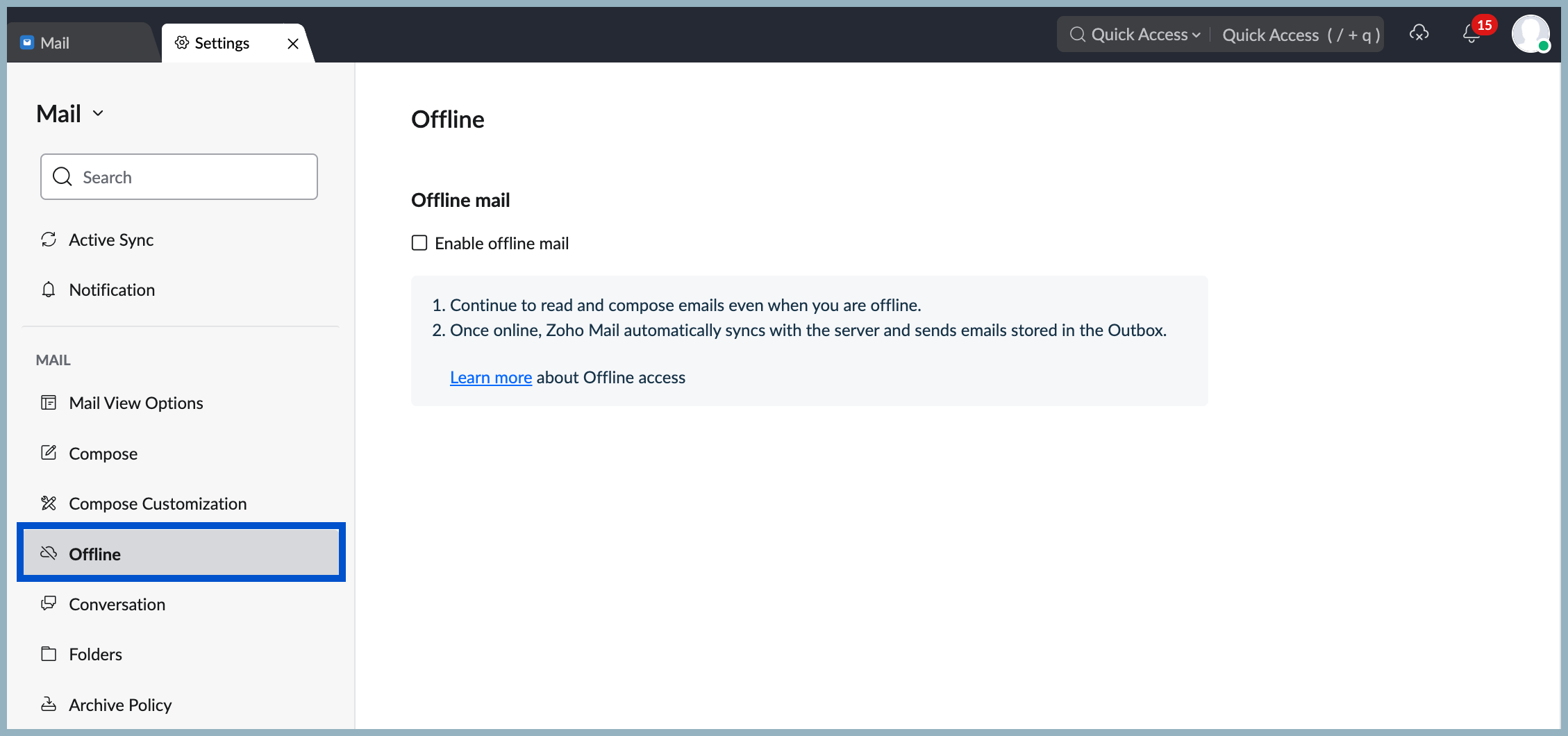
- Select the checkbox Enable offline mode.
- Click on the date drop-down in the Save emails section to select the number of days.
- You can also choose to Include attachments from the emails.
Stay fully offline, yet effortlessly in sync with your work.
Topic Participants
Sania Sultana H
Sticky Posts
Get Holiday ready with Zoho Mail's Offline mode
With the holiday season right around the corner, this is the perfect time to get ready to unplug, relax, and enjoy a well-deserved break. In addition to preparing yourself, you can also make sure your organization members are set for their time away fromWeekly Tips: Secure your attachment downloads with Zoho Mail
Safety is one of our main concerns, whether it’s about device security or online protection. We use tools like fingerprint scanners, facial recognition, and two-factor authentication to keep our devices and email accounts secure. We use methods like OTPWeekly Tips : Make collaboration effortless with Whiteboard in Zoho Mail
Working with your team often means switching between emails, notes, and other applications just to explain an idea. Maybe you are trying to sketch a layout, plan a workflow, or quickly brainstorm ideas—with text alone, things can get confusing. So howWeekly Tips : Make your email content error free with Spell check in Zoho Mail
As someone who writes multiple emails a day, we are bound to make both grammatical and spelling errors. Most of them we may not even notice, and even if we do, we may not have the time to correct each one individually when we are in a hurry. So how doWeekly Tips : Master Keyboard Shortcuts in Zoho Mail
If you spend a lot of time managing emails, switching between your mouse and keyboard can slow you down. Whether you are replying to clients, organizing your inbox, or searching for messages, every second counts. So, how can you streamline your email
Recent Topics
Vertical images displayed as horizontal
Some pictures that originally are in vertical position are displayed in horizontal after the upload. It seems that system rotates them by 90 degrees. How can I fix this issue?Zoho Desk iOS app update: Saved filters and sort options
Hello everyone! Saved filters created on the web(desk.zoho.com) for tickets are now accessible on the Zoho Desk iOS app. You can easily rename, delete, or clear filters on the go. We have also introduced Sort options on the ticket listing screen, allowingBig Things Just Dropped in the SalesIQ Universe: Top Upgrades You’ll Love in Nova’25
Nova'25 has landed, and it’s packed with meaningful upgrades to help you engage smarter, work faster, and scale with ease. Whether you're into proactive messaging, smarter automation, or better admin control, there's something here for everyone. Here'sTime Entries in Analytics
I am trying to import a zoho sheet into zoho analytics. In my sheets one of the columns has "time Entries" in this "format HH:MM am/pm" example 11:00 PM. After import, i noticed that analytics converted the time to "00 Jan 1900 23:00:00".. how do i maintainAmazon invoice in Zoho Books
I have just made my first few sales on Amazon India. Amazon Seller account generates invoices for the sales made on Amazon. These invoices are sent to customers also. Now when I was only making offline sales, I used to create Invoices in Zoho Book. NowZoho Creator Upcoming Updates - November 2025
Hello everyone, Welcome to your monthly roundup of new features and enhancements! We hope you've already taken a look at Release Projection 2—it details the features coming your way for the rest of the year. And this month, we're excited to start rollingZoho Webinar + HubSpot : Simplifiez la gestion de vos données de webinaires
Les webinaires sont aujourd’hui essentiels pour interagir avec vos prospects et vos clients. Cependant, la gestion des données entre plusieurs plateformes peut vite devenir complexe. Grâce à la nouvelle intégration entre Zoho Webinar et HubSpot, vos outilsI am trying to give access to one of our educators access to 3 forms in Zoho and she is not able to view the data - Access issue
Hi Team, When I try to provide read access to one of our educators on Zoho for Pre-training , post training and Impact survey forms submit form access which also allows them to read , it does not show them dataHow to book GST paid in zoho books
hi, i am a new user to Zoho books and not able to book GST paid in books, kindly suggest how i can book it in books. thanks, siddharthPUNJAB NATIONAL BANK (CORPORATE) INDIA - NOT AVAILABLE IN BANKING
Dear sir, Kindly fix it. PUNJAB NATIONAL BANK (INDIA) is available but PUNJAB NATIONAL BANK (CORPORATE) is not available. Kindly enable this banking since we need to categorize the entries. Regards, Sanjay Jena email id/ user id : travewithmerchant@Is it possible to create a word cloud chart in ZoHo Analystics?
Hi there, I have a volume of transaction text that I would like to analyse using word cloud (or other approcah to detect and present word frequency in a dataset). For example, I have 50,000 records describing menu items in restaurants. I want to be ableKaizen #216 - Actions APIs : Email Notifications
Welcome to another week of Kaizen! For the last three weeks, we have been discussing Zylker's workflows. We successfully updated a dormant workflow, built a new one from the ground up and more. But our work is not finished—these automated processes areFacturation électronique 2026 - obligation dès le 1er septembre 2026
Bonjour, Je me permets de réagir à divers posts publiés ici et là concernant le projet de E-Invoicing, dans le cadre de la facturation électronique prévue très prochainement. Dans le cadre du passage à la facturation électronique pour les entreprises,Your bot just got smarter: AI-Powered routing that reads between the lines
What if your bot could tell the difference? Between a visitor who just needs a quick answer, someone actively comparing options, and a frustrated customer one click away from leaving? Most bots can't. They deliver the same response to everyone, missingWeekly Tips : Master Keyboard Shortcuts in Zoho Mail
If you spend a lot of time managing emails, switching between your mouse and keyboard can slow you down. Whether you are replying to clients, organizing your inbox, or searching for messages, every second counts. So, how can you streamline your emailIntroducing custom lookup fields in the Tickets, Contacts, and Accounts modules
Hello all, We are excited to announce a new enhancement that will empower you to further customize the Tickets, Contacts, and Accounts modules. Now, you will be able to create custom lookup fields in your Tickets, Contacts, and Accounts layouts for moreDKIM cannot be enabled for the domain as no verified default selector present
Can't get the DKIM working. May you please check my account (nksy.us) to see what's wrong?Contacts per department
Hello, Is it possible to limit Contacts to a Department? ThanksCollections Management: #3 Tackling Payment Failures
Sam refreshed the dashboard. "Payment failed". Same customer. Same subscription. This is happening for the third time. He sends a usual email: "Your renewal payment failed again. Could you please check and retry?" A couple of days passed, and there wasHow do I increase the email attachment size in Zoho CRM ?
It looks like I'm limited to 10MB when sending an attachment using the email widget on a record in Zoho CRM. Is there a way to increase the size? Or can I use some other tool? From what I'm reading online, I'm maxed out at 10MB. Any insight would be greatlyWhatsApp Channels in Zoho Campaigns
Now that Meta has opened WhatsApp Channels globally, will you add it to Zoho Campaigns? It's another top channel for marketing communications as email and SMS. Thanks.Zoho sign and creator error message {"code":9043,"error_param":"Checked by","message":"Extra key found","status":"failure"}
Good day, I receive the error message: {"code":9043,"error_param":"Checked by","message":"Extra key found","status":"failure"} when running below code from creator to sign, void TestForSign(int ID) { //Fetch Template Details (Optional, for dynamic mapping)Download a writer template as .docx instead of .pdf.
I have been trying to implement a feature to download a writer template as a .docx and got it working partly but it isn't good. Earlier I checked our code and I saw openurl("https://crm.zoho.com/crm/org121314/specific/Template.do?action=print&step=pdfPreview&id="Allow the usage of Multi-Select fields as the primary field on "Layout Rules"
We want to force our users to enter some explanation strings when a multi-select field has been utilized. I can't understand the reason for the usage restriction of Multi-Select fields as a primary field. This is a simple "Display hidden mandatory fieldExtract Archived Projects using Zoho Projects API
In my organization we archive the projects when they are already completed, charged, invoiced, so that only those that are still pending process remain active. I need to access all projects (active and archived) from an external system, but the API v3Ask the Experts: Five-hour live Q&A session with Zoho WorkDrive product experts
Have questions about WorkDrive 5.0? Let’s talk! We recently launched Zoho WorkDrive 5.0, packed with powerful updates to help your team work smarter, stay secure, and get more value from your business content. From content-centric workflows and AI-poweredFile upload support for subforms
Dear All, Subforms help you add and track data related to your CRM records. We've always supported most of the commonly used field types in subforms, so as to cater to your business requirements. Now we're happy to extend support to file upload fields.Circular record relationship in CRM
Given there is a lookup in custom module Transactions creating a related list on the chosen Contact record. I. e. a lookup field on Transactions module points to Contacts. The related list on a Contact record can thus have have many transaction records.Is it possible to pull the Zoho desk data into Zoho analytics in real time
Hi - I am looking to add more dashboards and reports of Zoho Desk in analytics. I see there is a schedule to pull the data into analytics, but I'm wondering if there is an option to pull the data in real time instead of a specific interval?Enhance productivity with the revamped Zoho Sheet View
Hello folks, For some time now, you've been able to use the Zoho Sheet View to quickly edit multiple records or to insert a batch of new records. Its tabular interface allows users to engage in these tasks productively. Despite this, the existing SheetHow to set value of dropdown field to variable
For the life of me, I can't figure out why the following code won't set input.status to the previousSelection. Steps to reproduce: 1. Click input.complete 2. input.status dropdown updates from '1-Backlog' to '4-Done' 3. Click input.complete again to deselect[Product Update] TimeSheets module is now renamed as Time Logs in Zoho Projects.
Dear Zoho Analytics customers, As part of the ongoing enhancements in Zoho Projects, the Timesheets module has been renamed to Time Logs. However, the module name will continue to be displayed as Timesheets in Zoho Analytics until the relevant APIs are[WEBINAR][MEA] Learn how to control your inventory and multi-channel sales with the Zoho Inventory & Zoho Books integration
Hello there, We are hosting an exclusive live webinar tailored for businesses across the Middle East and African countries, where you'll learn how to take full control of your inventory and multi-channel sales while keeping your accounting perfectly inLess clicks, more connection – the usability edge of Zoho Desk
Imagine joining a new workplace, eager to prove your skills, partner with peers, learn new tools, and build a strong foundation for your career. The standards you've set could drive pressure into your head. You now discover the organization is using ZohoTip #3 Automating total item weight calculation for your sales orders in Zoho Inventory
Hello, Hope the day is treating you well. Last week, we saw how we could automate the calculation of total shipping charges from numerous shipments for your sales orders and invoices. This week, we will see how you can automate the calculation of total item weight for your sales orders. How does this work? First, you are required to capture the weight of all your items using a custom field. And when you create a sales order, you can either have the system display the individual weights for you orWhy Format section gets disabled when we create Merge Template over PDF
I need some assistance I have a Client who is going to give certificates to users who passes his exam. So, I am using mail merge but in ZOHO writer after I upload the PDF and create merge Template over PDF the format Section gets disabled. My problemWhatsapp Integration on Zoho Campaign
Team: Can the messages from Zoho Campaign delivered through Whatsapp... now customers no longer are active on email, but the entire campaign module is email based.... when will it be available on whatsapp.... are there any thirdparty providers who canHow to calculate separate totals for Product Line Items filtered by category in Quotes?
Hello! I'm working with Quotes in Zoho CRM and need help calculating conditional totals for line items. Current setup: I have two tables in my Quote template (Zoho Writer), both displaying Quoted Line Items Table 1 (top): Shows all products where ProductI Need Help Verifying Ownership of My Zoho Help Desk on Google Search Console
I added my Zoho desk portal to Google Search Console, but since i do not have access to the html code of my theme, i could not verify ownership of my portal on Google search console. I want you to help me place the html code given to me from Google searchZoho Desk API Documentation missing a required field
We are trying to create a section using this information. Even after preparing everything based on that page, we still get an error. The error we get is this: {"errorCode":"INVALID_DATA","message":"The data is invalid due to validation restrictions","errors":[{"fieldName":"/translations","errorType":"missing","errorMessage":""}]}Next Page