Tip #13: How to share 'Drafts' in Zoho Mail

Struggling with drafting your emails? Drafting certain emails can be tricky. Whether it is a communication to a client or announcing a new discount to your customers or sending feedback to your employees, choice of words and tone of emails can be confusing.
We always get help from someone or get someone's feedback before we send out such emails. But copying the content from your editor, putting it in a chat and getting feedback and again correcting your draft gets clumsy. The troubles multiply when you have more than one person providing feedback and when the feedback comes back and forth multiple times.
Zoho Mail's Draft sharing feature allows you to easily share, collaborate and repeat the review cycle any number of times. The instant notifications and the ability to view updated drafts helps everyone involved stay on the same page.
Steps to share drafts:
- Login to Zoho Mail account
- Click 'New Mail' and draft the email you want to write.
- Click 'Save draft' to save the draft email.
- Once you have finished drafting the content, click the 'Share' link.
- In the comment box, type in the names of your colleagues with whom you want to share the draft with.
- Click 'Share' draft to share the draft with the mentioned users.
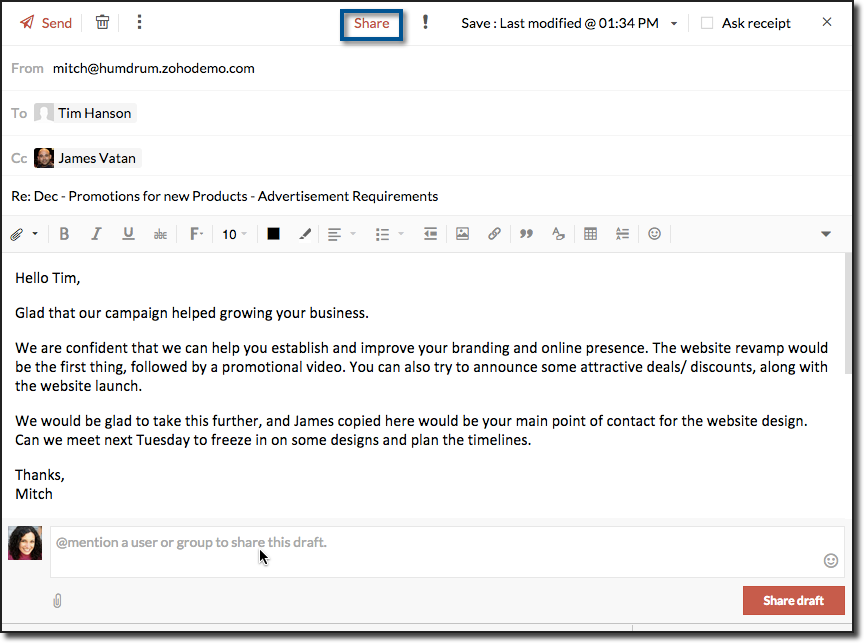
- The users with whom the drafts are shared will receive a notification about shared draft.
- The collaborators will now be able to add comments to your drafts.
- You will be notified for every new comment.
- You can make changes to the draft.
- Whenever your draft is auto-saved or manually saved, the collaborators viewing your old draft will notice a refresh icon.

- Once you complete all the intended changes, you can also manually trigger a notification using the 'Notify all' link in the top.
Share drafts enables a smooth collaboration and communication around a draft and a neat draft review process and result in well drafted and effective emails.
Go ahead and send effective emails using shared drafts. Let us know your feedback / suggestions to make draft sharing even more effective.
See you next week with yet another interesting tip!
Topic Participants
Ramya A
rkeith
andrey
peaky bliner
Sticky Posts
Get Holiday ready with Zoho Mail's Templates
As the holiday season approaches, it’s time to step away from work and unwind. You may not be able to respond to every email or send individual messages to wish everyone holidays greetings—but It is still important to stay connected. How do you send thoughtfulWeekly Tips: Protect Confidential Information with PGP in Zoho Mail
We deal with confidential information almost every day, whether it is being sent out or received. Though emails sent using Zoho Mail are encrypted both during transit and at rest, attempts to access and steal your sensitive data are always a threat thatWeekly Tips: Secure your attachment downloads with Zoho Mail
Safety is one of our main concerns, whether it’s about device security or online protection. We use tools like fingerprint scanners, facial recognition, and two-factor authentication to keep our devices and email accounts secure. We use methods like OTPGet Holiday ready with Zoho Mail's Offline mode
With the holiday season right around the corner, this is the perfect time to get ready to unplug, relax, and enjoy a well-deserved break. In addition to preparing yourself, you can also make sure your organization members are set for their time away fromWeekly Tips : Make collaboration effortless with Whiteboard in Zoho Mail
Working with your team often means switching between emails, notes, and other applications just to explain an idea. Maybe you are trying to sketch a layout, plan a workflow, or quickly brainstorm ideas—with text alone, things can get confusing. So how
Recent Topics
I am trying to give access to one of our educators access to 3 forms in Zoho and she is not able to view the data - Access issue
Hi Team, When I try to provide read access to one of our educators on Zoho for Pre-training , post training and Impact survey forms submit form access which also allows them to read , it does not show them dataHow to book GST paid in zoho books
hi, i am a new user to Zoho books and not able to book GST paid in books, kindly suggest how i can book it in books. thanks, siddharthPUNJAB NATIONAL BANK (CORPORATE) INDIA - NOT AVAILABLE IN BANKING
Dear sir, Kindly fix it. PUNJAB NATIONAL BANK (INDIA) is available but PUNJAB NATIONAL BANK (CORPORATE) is not available. Kindly enable this banking since we need to categorize the entries. Regards, Sanjay Jena email id/ user id : travewithmerchant@Is it possible to create a word cloud chart in ZoHo Analystics?
Hi there, I have a volume of transaction text that I would like to analyse using word cloud (or other approcah to detect and present word frequency in a dataset). For example, I have 50,000 records describing menu items in restaurants. I want to be ableUnable to Delete Items – No Visible Transactions but Error “Items which are a part of other transactions cannot be deleted…”
Hello Community, We are using Zoho Inventory for our business and encountered a persistent issue that is preventing us from deleting certain items. The message shown is: “Items which are a part of other transactions cannot be deleted. Instead, mark themKaizen #216 - Actions APIs : Email Notifications
Welcome to another week of Kaizen! For the last three weeks, we have been discussing Zylker's workflows. We successfully updated a dormant workflow, built a new one from the ground up and more. But our work is not finished—these automated processes areFacturation électronique 2026 - obligation dès le 1er septembre 2026
Bonjour, Je me permets de réagir à divers posts publiés ici et là concernant le projet de E-Invoicing, dans le cadre de la facturation électronique prévue très prochainement. Dans le cadre du passage à la facturation électronique pour les entreprises,Your bot just got smarter: AI-Powered routing that reads between the lines
What if your bot could tell the difference? Between a visitor who just needs a quick answer, someone actively comparing options, and a frustrated customer one click away from leaving? Most bots can't. They deliver the same response to everyone, missingWeekly Tips : Master Keyboard Shortcuts in Zoho Mail
If you spend a lot of time managing emails, switching between your mouse and keyboard can slow you down. Whether you are replying to clients, organizing your inbox, or searching for messages, every second counts. So, how can you streamline your emailIntroducing custom lookup fields in the Tickets, Contacts, and Accounts modules
Hello all, We are excited to announce a new enhancement that will empower you to further customize the Tickets, Contacts, and Accounts modules. Now, you will be able to create custom lookup fields in your Tickets, Contacts, and Accounts layouts for moreDKIM cannot be enabled for the domain as no verified default selector present
Can't get the DKIM working. May you please check my account (nksy.us) to see what's wrong?Collections Management: #3 Tackling Payment Failures
Sam refreshed the dashboard. "Payment failed". Same customer. Same subscription. This is happening for the third time. He sends a usual email: "Your renewal payment failed again. Could you please check and retry?" A couple of days passed, and there wasHow do I increase the email attachment size in Zoho CRM ?
It looks like I'm limited to 10MB when sending an attachment using the email widget on a record in Zoho CRM. Is there a way to increase the size? Or can I use some other tool? From what I'm reading online, I'm maxed out at 10MB. Any insight would be greatlyWhatsApp Channels in Zoho Campaigns
Now that Meta has opened WhatsApp Channels globally, will you add it to Zoho Campaigns? It's another top channel for marketing communications as email and SMS. Thanks.Zoho sign and creator error message {"code":9043,"error_param":"Checked by","message":"Extra key found","status":"failure"}
Good day, I receive the error message: {"code":9043,"error_param":"Checked by","message":"Extra key found","status":"failure"} when running below code from creator to sign, void TestForSign(int ID) { //Fetch Template Details (Optional, for dynamic mapping)Download a writer template as .docx instead of .pdf.
I have been trying to implement a feature to download a writer template as a .docx and got it working partly but it isn't good. Earlier I checked our code and I saw openurl("https://crm.zoho.com/crm/org121314/specific/Template.do?action=print&step=pdfPreview&id="Allow the usage of Multi-Select fields as the primary field on "Layout Rules"
We want to force our users to enter some explanation strings when a multi-select field has been utilized. I can't understand the reason for the usage restriction of Multi-Select fields as a primary field. This is a simple "Display hidden mandatory fieldExtract Archived Projects using Zoho Projects API
In my organization we archive the projects when they are already completed, charged, invoiced, so that only those that are still pending process remain active. I need to access all projects (active and archived) from an external system, but the API v3Ask the Experts: Five-hour live Q&A session with Zoho WorkDrive product experts
Have questions about WorkDrive 5.0? Let’s talk! We recently launched Zoho WorkDrive 5.0, packed with powerful updates to help your team work smarter, stay secure, and get more value from your business content. From content-centric workflows and AI-poweredFile upload support for subforms
Dear All, Subforms help you add and track data related to your CRM records. We've always supported most of the commonly used field types in subforms, so as to cater to your business requirements. Now we're happy to extend support to file upload fields.Circular record relationship in CRM
Given there is a lookup in custom module Transactions creating a related list on the chosen Contact record. I. e. a lookup field on Transactions module points to Contacts. The related list on a Contact record can thus have have many transaction records.Is it possible to pull the Zoho desk data into Zoho analytics in real time
Hi - I am looking to add more dashboards and reports of Zoho Desk in analytics. I see there is a schedule to pull the data into analytics, but I'm wondering if there is an option to pull the data in real time instead of a specific interval?How to set value of dropdown field to variable
For the life of me, I can't figure out why the following code won't set input.status to the previousSelection. Steps to reproduce: 1. Click input.complete 2. input.status dropdown updates from '1-Backlog' to '4-Done' 3. Click input.complete again to deselect[Product Update] TimeSheets module is now renamed as Time Logs in Zoho Projects.
Dear Zoho Analytics customers, As part of the ongoing enhancements in Zoho Projects, the Timesheets module has been renamed to Time Logs. However, the module name will continue to be displayed as Timesheets in Zoho Analytics until the relevant APIs are[WEBINAR][MEA] Learn how to control your inventory and multi-channel sales with the Zoho Inventory & Zoho Books integration
Hello there, We are hosting an exclusive live webinar tailored for businesses across the Middle East and African countries, where you'll learn how to take full control of your inventory and multi-channel sales while keeping your accounting perfectly inLess clicks, more connection – the usability edge of Zoho Desk
Imagine joining a new workplace, eager to prove your skills, partner with peers, learn new tools, and build a strong foundation for your career. The standards you've set could drive pressure into your head. You now discover the organization is using ZohoTip #3 Automating total item weight calculation for your sales orders in Zoho Inventory
Hello, Hope the day is treating you well. Last week, we saw how we could automate the calculation of total shipping charges from numerous shipments for your sales orders and invoices. This week, we will see how you can automate the calculation of total item weight for your sales orders. How does this work? First, you are required to capture the weight of all your items using a custom field. And when you create a sales order, you can either have the system display the individual weights for you orWhy Format section gets disabled when we create Merge Template over PDF
I need some assistance I have a Client who is going to give certificates to users who passes his exam. So, I am using mail merge but in ZOHO writer after I upload the PDF and create merge Template over PDF the format Section gets disabled. My problemWhatsapp Integration on Zoho Campaign
Team: Can the messages from Zoho Campaign delivered through Whatsapp... now customers no longer are active on email, but the entire campaign module is email based.... when will it be available on whatsapp.... are there any thirdparty providers who canHow to calculate separate totals for Product Line Items filtered by category in Quotes?
Hello! I'm working with Quotes in Zoho CRM and need help calculating conditional totals for line items. Current setup: I have two tables in my Quote template (Zoho Writer), both displaying Quoted Line Items Table 1 (top): Shows all products where ProductZoho Desk API Documentation missing a required field
We are trying to create a section using this information. Even after preparing everything based on that page, we still get an error. The error we get is this: {"errorCode":"INVALID_DATA","message":"The data is invalid due to validation restrictions","errors":[{"fieldName":"/translations","errorType":"missing","errorMessage":""}]}Fetch Subform values through a lookup of a lookup
Hi, I'm having an issue fetching the values of a subform through a lookup field through another lookup field. The code works perfectly to show me the subform row ID, but the second I try to get any readable data, it says "Error occurred. Please contactTurn Decision Box to a button
Dear all, I need your help on CSS to turn a Decision Box to a Button. I have a Decision Box like: Turn on/off to refresh the information. (on User Input, either True or False, will refresh the information) Now I want to simulate to treat it like a RefreshEmails not being received from a particular domain
Cannot receive any emails sent from atco.com Domain is in the spam whitelist so should be no reason for it not to be coming through. Have filed a ticket and besides a generic response of we are looking at it - it seems there is no actual support workersStock Count
The stock count is a nice new feature, but we cannot figure out how to: 1. Use it without assigning to a person, we have a team or one of multiple do stock counts as do most any company. 2. Add any extra fields to what the "counter" sees. The most importantSend Whatsapp message from Whatsapp template with custom variables
Hi, I'm trying to do some basic integration for sending WhatsApp messages from Zoho CRM using Zoho Desk whatsapp templates. When creating new whatsapp template in Zoho Desk we can choose ticket related fields as variables but it's not clear how to useOutgoing blocked: Unusual activity detected.
I just made payment for my Zohomail Today and have been debited so i will like to be Unblocked because this is what it says (Outgoing blocked: Unusual activity detected) Thank you i await your swift responsesIntegrating with My Own Application and ZOHO CRM Simultaneously
I have my own WhatsApp bot that uses my WhatsApp business account. I want to use the same phone number to integrate with ZOHO as well. What is the recommended way to do that? Should I integrate my application with ZOHO, forwarding messages whenever theHow do i move multiple tickets to a different department?
Hello, i have several tickets that have been assigned to the wrong department. I am talking about hundreds of automatically generated ones that come from a separate system. How can i select them all at once to move them to another department in one go? I can select them in "unsassigned open tickets view" but i can't find a "move to another department" option. I also can't seem to assign multiple tickets to the same agent in that same view. Could somebody advice?Account for Cryptocurrency Holdings in Zoho Books/Custom Currencies?
Hello, I've recently started using Zoho to run my small business and I've really been enjoying all of its features. However, I've been struggling to find a way to account for cryptocurrencies in Zoho Books. My company mines a Cryptocurrency token calledNext Page