Bidirectional sync between Zoho Bookings and Zoho CRM - Part 1
Hey, community members!
The default integration between Zoho CRM and Zoho Bookings is unidirectional, which means that any appointments booked, rescheduled, or deleted in Zoho Bookings will be reflected in Zoho CRM. However, any modifications made to events in Zoho CRM that originated from Zoho Bookings will not be reflected back in Zoho Bookings. Hence, as we're announcing in this community post, we've made the sync bidirectional.
This community post will cover the process of configuring appointment bookings from Zoho CRM in Zoho Bookings, as well as managing appointment statuses such as Canceled, No Show and Completed. We have addressed the rescheduling action in a separate post. To view it, please click on the following link: Reschedule Action
This community post will be beneficial for active Zoho CRM users who handle all their meetings within Zoho CRM. Additionally, you can use this community post as a reference to explore various automation possibilities tailored to your business requirements. For instance, with this post's guidance, when you update a booking's status field to "Completed" in Zoho CRM, it will automatically sync with Zoho Bookings and trigger an automated "Mark as completed" email to customers. This enhancement will improve your Zoho Bookings and Zoho CRM synchronization experience, making appointment management easier.
Prerequisites of bidirectional sync:
- Zoho Bookings Premium subscription
- Zoho CRM paid subscription
- Enable Zoho CRM integration within Zoho Bookings
The purpose of enabling the Zoho CRM integration within Zoho Bookings is to transfer booking details from Zoho Bookings to Zoho CRM. In this configuration, the mandatory field is the Booking ID, which is passed from Zoho Bookings to Zoho CRM through the integration. Whenever an appointment is booked, customer details will be sent to the designated CRM module, and a corresponding record will be created in the Meetings module within Zoho CRM, which will help in automating the workflow.
Here's the complete demo video that covers all the configurations discussed in the community post below:
Timestamps for your reference:
0:35 - Purpose of this community post
Here's the complete demo video that covers all the configurations discussed in the community post below:
Timestamps for your reference:
0:35 - Purpose of this community post
1:26 - Zoho CRM plugin installation
4:43 - Custom field creation
7:20 - Function creation
9:22 - Connection creation
10:24 - Configuring arguments
11:06 - Workflow creation
13:33 - Argument mapping
14:41 - Output verification
17:41 - Conclusion
How we're approaching this bidirectional sync
1. Booking an appointment from Zoho CRM
Install the Zoho Bookings for Zoho CRM plugin within your Zoho CRM application. This plugin enables the creation of a "New Appointment" button within the Zoho CRM Leads and Contacts module, which enables you to select the desired booking page you wish to open. You can choose from various workspace, service, or staff booking pages. After configuration, you can initiate the process of scheduling bookings directly from within your Zoho CRM account.
- Guide on Zoho Bookings and Zoho CRM plugin installation: Booking page selection for Zoho CRM plugin
2. Booking status: Completed or No Show
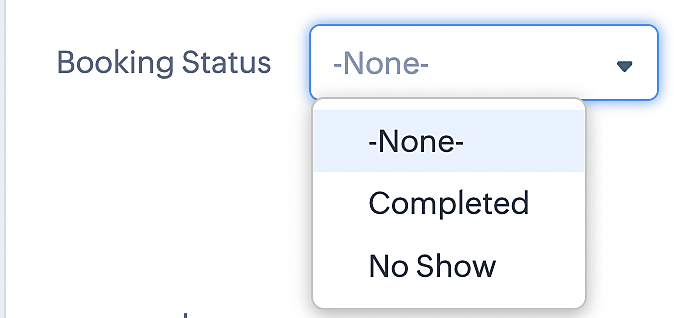
To update a booking's status (Completed or No Show), we've added a new picklist properties field named "Booking Status" in the Meetings module and configured it with two options: "completed" and "no show". Depending on the booking status chosen, the corresponding booking in Zoho Bookings will be updated.
- Details on how to add a custom field to the Meetings module : Customizing modules
- Here's a video that demonstrates how to add a field to a module in Zoho CRM: Adding fields
Reference:
3. Booking status: Canceled
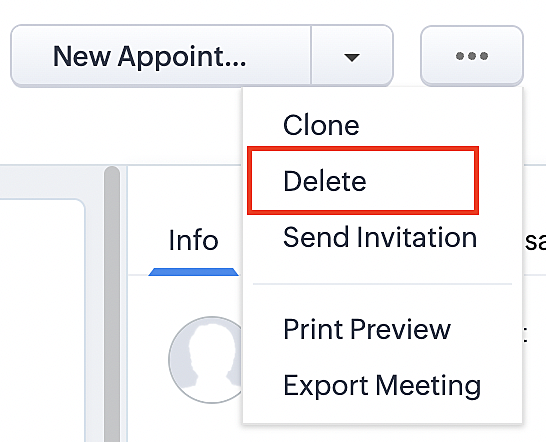
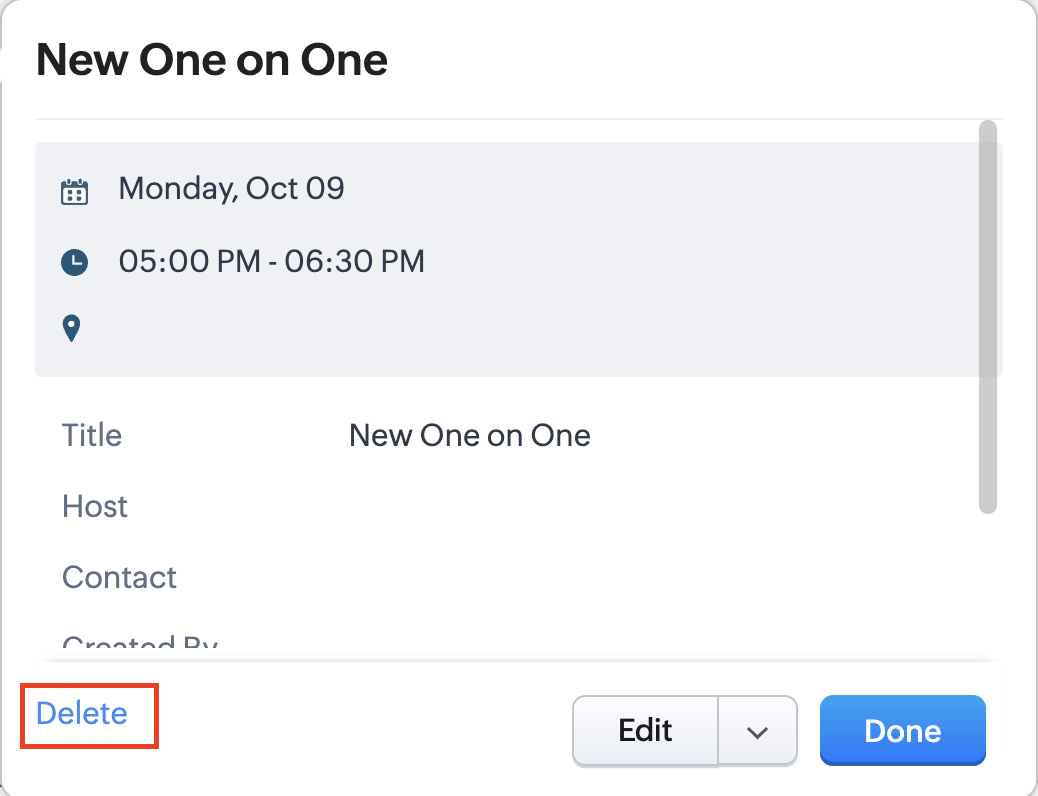
Whenever a meeting is deleted from the Meetings module, the corresponding booking in the Zoho Bookings app will also be canceled automatically. The meeting can be deleted either from the Meetings module or directly from the calendar.
To enable bidirectional sync between Zoho CRM and Zoho Bookings
Complete these steps in Zoho CRM.
Step 1: Creating connections
You first need to establish a connection between Zoho CRM and Zoho Bookings. Zoho Bookings is listed as one of the default connections in Zoho CRM, making it simple to set up. Select the Zoho Bookings connection, define the connection name and scope, and you'll be all set. This connection will enable you to link both applications and facilitate the seamless transfer of data.
Read here for more details on how to create connection in Zoho CRM: Connections
Step 2: Creating functions
In this context, we'll be creating three functions: one for marking appointments as completed, another for canceling appointments, a third for marking appointments as no shows, and a fourth for rescheduling appointments. For each function, we must also configure arguments, which pass values or data into a function when making a call. Here, we'll pass the booking ID to the function as an argument to update the necessary booking status.
i. To create a function for marking appointments as completed:
1. Go to Setup > Developer Space > Functions.
2. In the Functions page, click + Create New Function.

3. Configure the function name, display name, and description.
4. Set the category as automation.
This opens the Deluge script page.
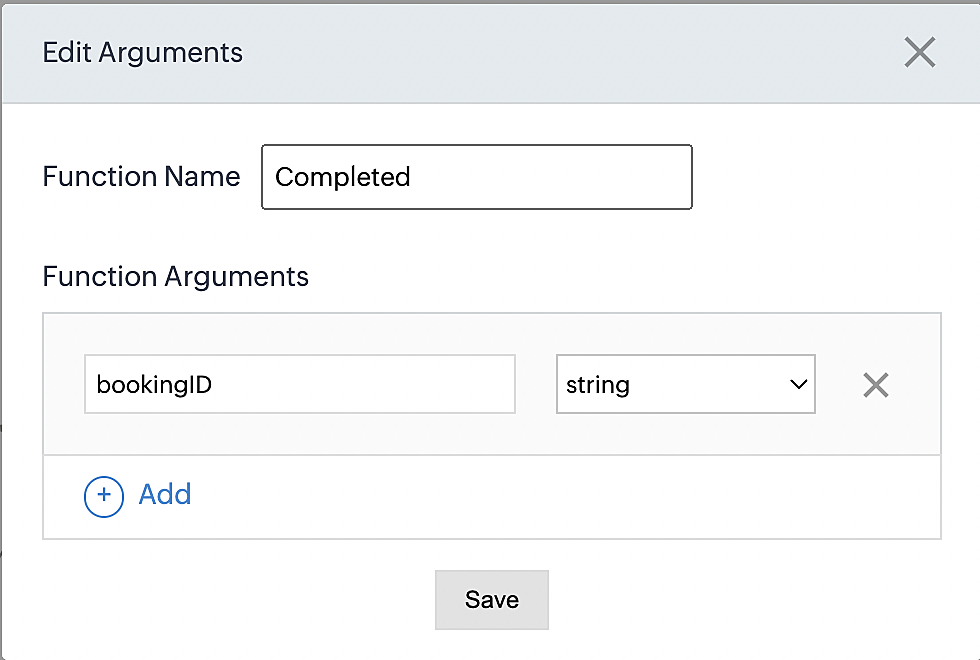
5. Next, configure the function's arguments:
A. Click on Edit Arguments on the Deluge script page.

B. Set the Parameter Name as bookingID. (Please note that the "bookingID" value is case sensitive and must match
the term used in the code).
C. Set the type as string.
Reference:
Please configure the below code in the Deluge script page.
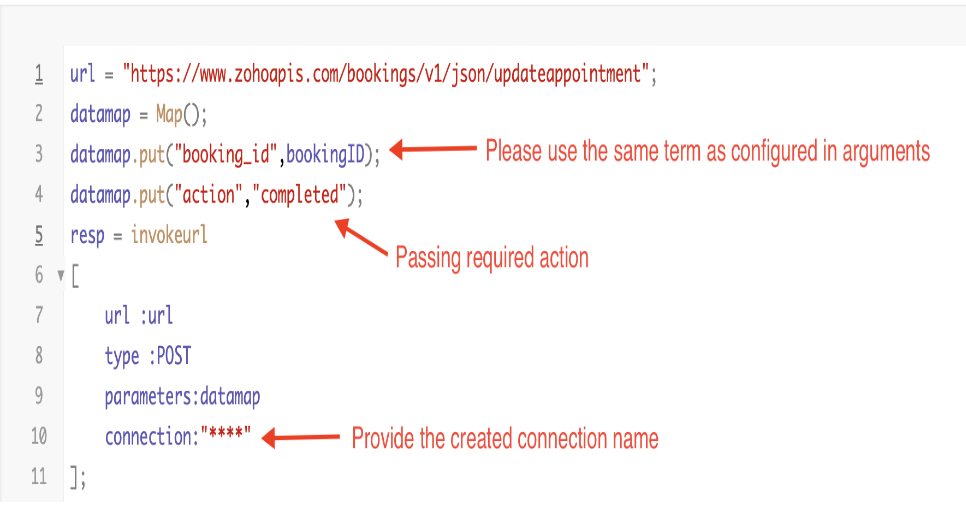
By completing these steps, we've configured a function that will mark appointments as completed.
ii. To create a function for marking appointments as no shows
1. Go to Setup > Developer Space > Functions.
2. In the Functions page, click + Create New Function.

3. Configure the function name, display name, and description.
4. Set the category as automation.
This opens the Deluge script page.
5. Next, configure the function's arguments:
A. Click on Edit Arguments on the Deluge script page.

B. Set the Parameter Name as bookingID. (Please note that the "bookingID" value is case sensitive and must match
the term used in the code).
C. Set the type as string.
Reference:
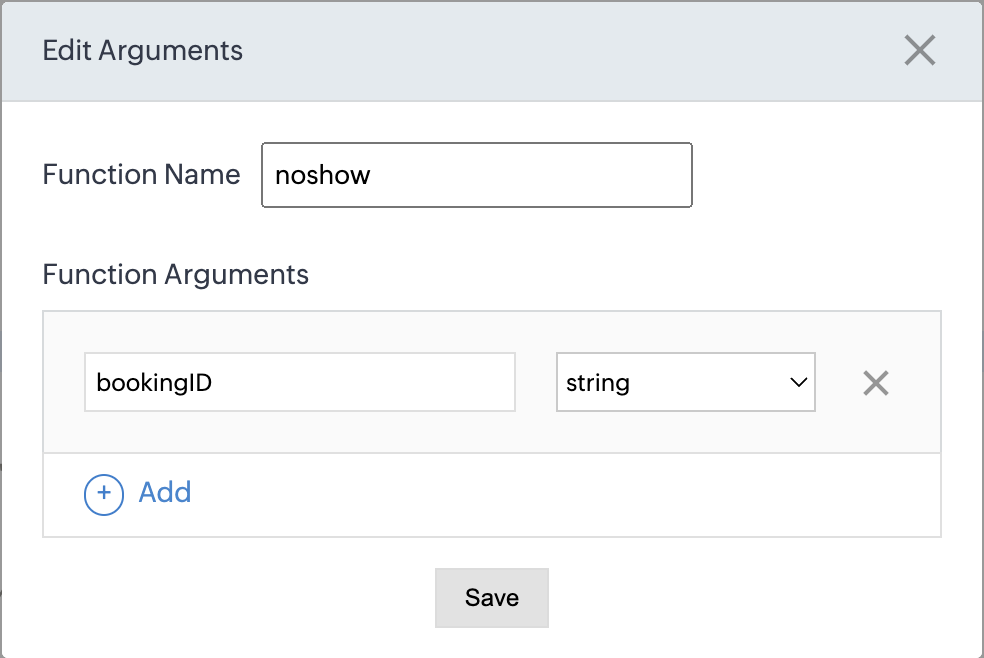
Please configure the below code on the Deluge script page.
Code link: No show
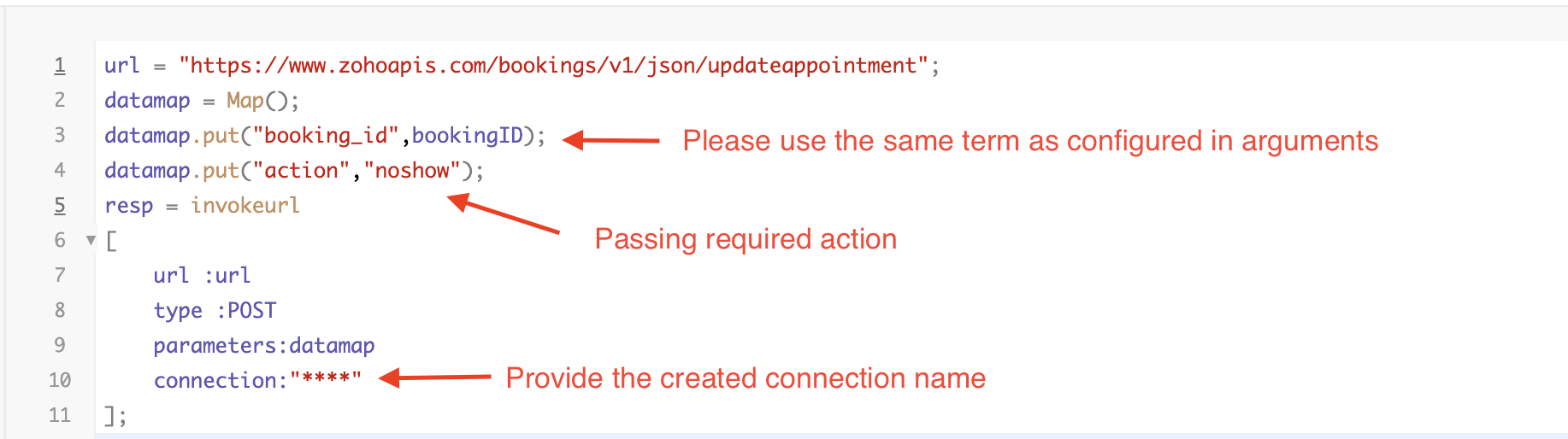
By completing these steps, we've configured a function that marks appointments as no shows.
iii. To create a function for marking appointments as canceled
1. Go to Setup > Developer Space > Functions.
2. In the Functions page, click + Create New Function.

3. Configure the function name, display name, and description.
4. Set the category as automation.
This opens the Deluge script page.
5. Next, configure the function's arguments:
A. Click on Edit Arguments on the Deluge script page.

B. Set the Parameter Name as bookingID. (Please note that the "bookingID" value is case sensitive and must match
the term used in the code).
C. Set the type as string.
Reference
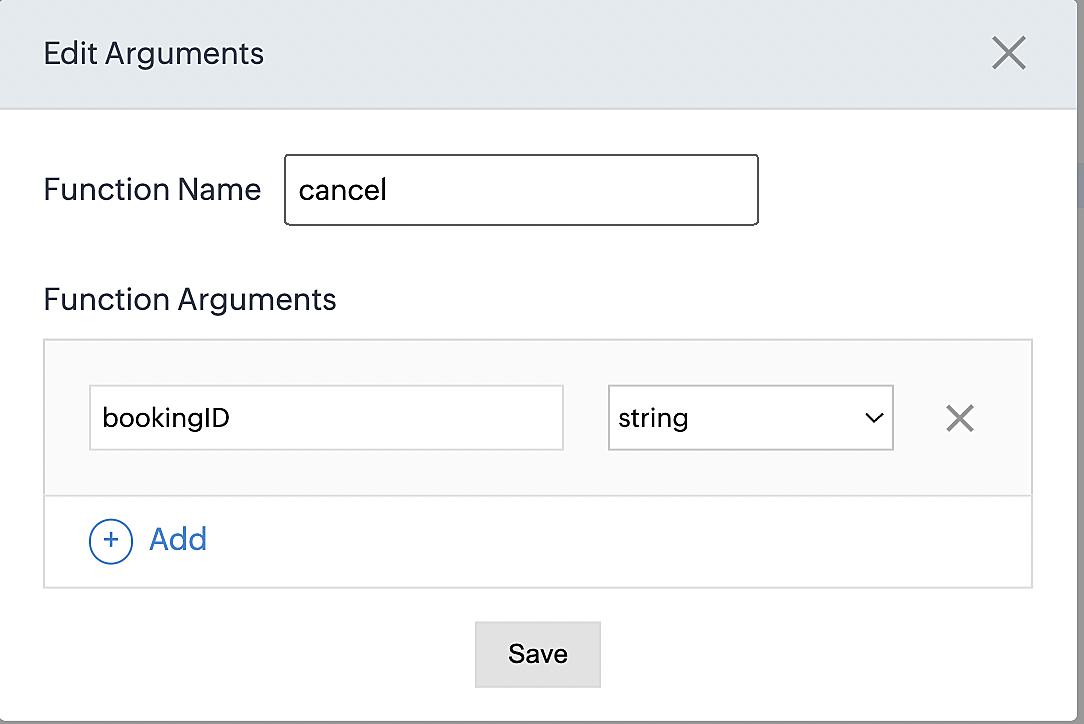
Please configure the below code on the Deluge script page.
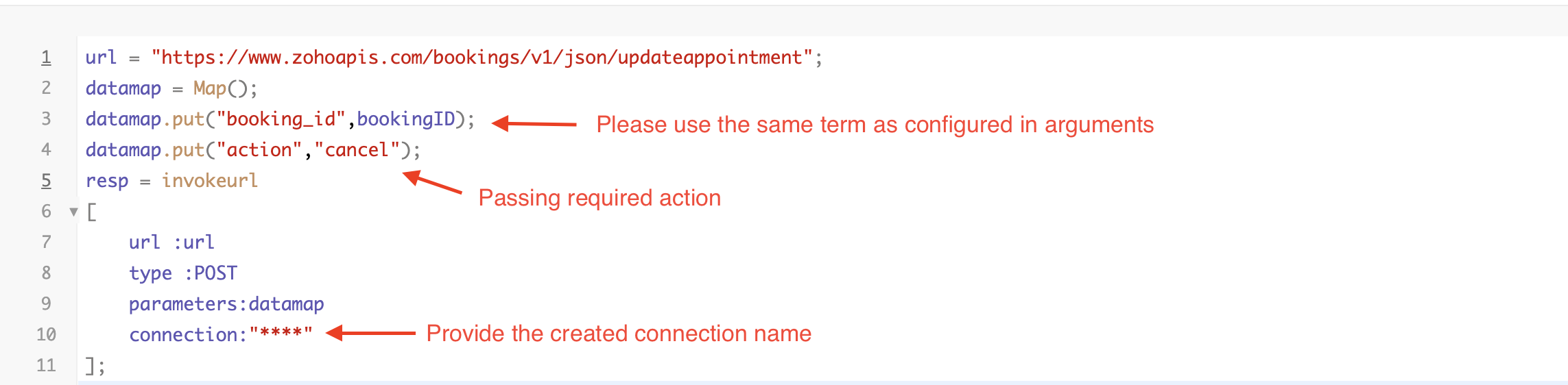
By completing these steps, we've configured a function that marks appointments as canceled.
Code explanation
Below is an explanation of the code that covers all the configurations present in the three functions mentioned above (cancel, mark as completed, and mark as no show).
Line 1: Based on the Zoho Bookings account's data center, we're setting up the API endpoint URL configuration.
Lines 2 - 4: To update appointments, we utilize the Zoho Bookings API. Within the update appointment API, there are two mandatory fields that need to be included: BookingID and action (completed/cancel/noshow).
Lines 5 - 10: We use the invokeURL task for API calls. To learn more about the invokeURL task, please refer to the following document: InvokeURL task for API calls
Now, let's proceed and learn about the process of creating a workflow and linking the established functions to it. This will enable us to automate the entire appointment status updating process.
Step 3: Creating a workflow
Workflow rules are sets of actions (email notifications, tasks and field updates) that are executed when specified conditions are met. Here, we'll generate workflow rules for each action to activate the respective function, thereby automating the appointment status updating process.
i. Creating a workflow for "canceling" appointments in Zoho Bookings when a meeting is deleted in Zoho CRM
Part 1: Creating the rule
1. Go to Setup > Automation > Workflow Rules.
2. In the Workflow Rules page, click Create Rule.

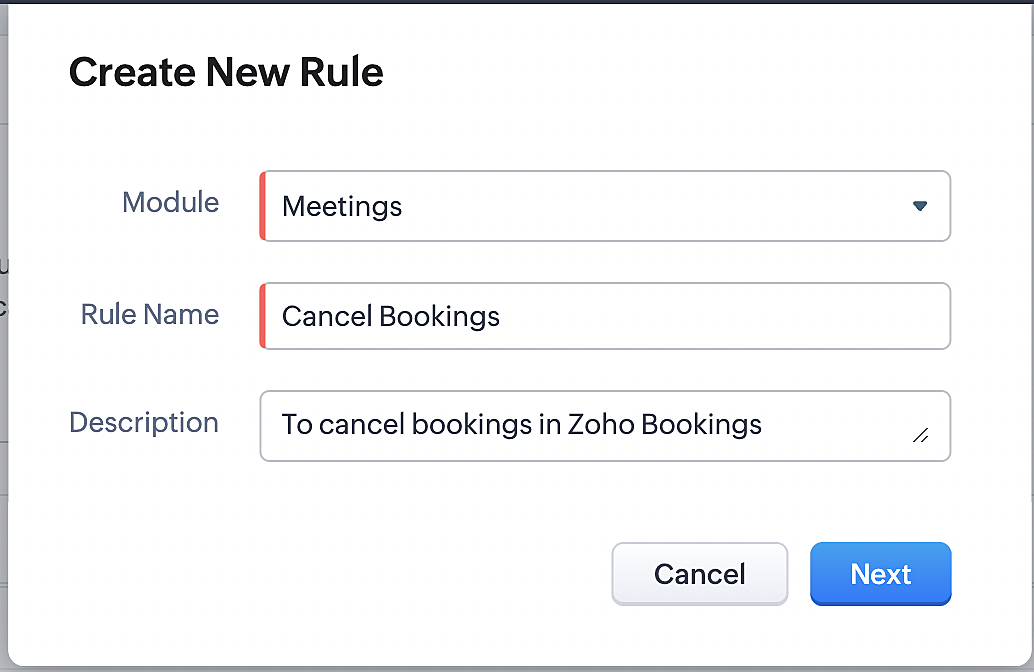
3. Select "Meetings" under Module and configure rule name and description as required.
More details: Create Rule
Reference:
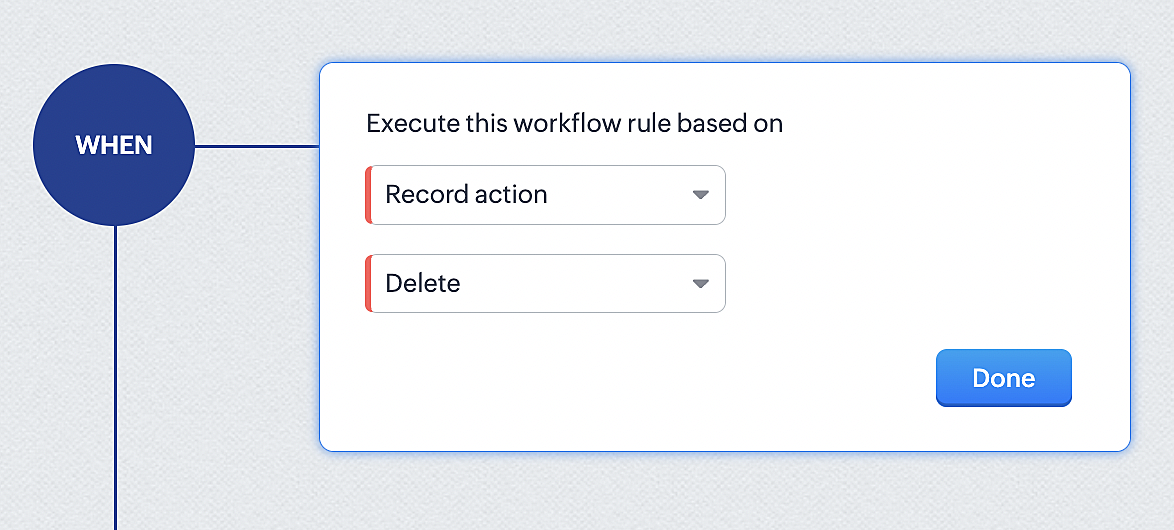
1. Select Record Action > Delete > Done to execute the rule when meetings are deleted.
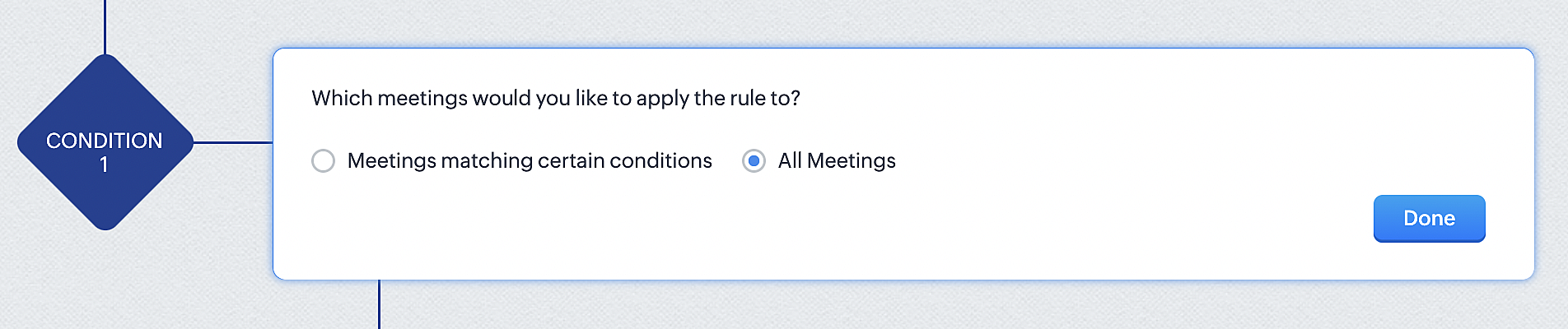
2. Configure condition > All Meetings.
3. Instant Actions > Function.
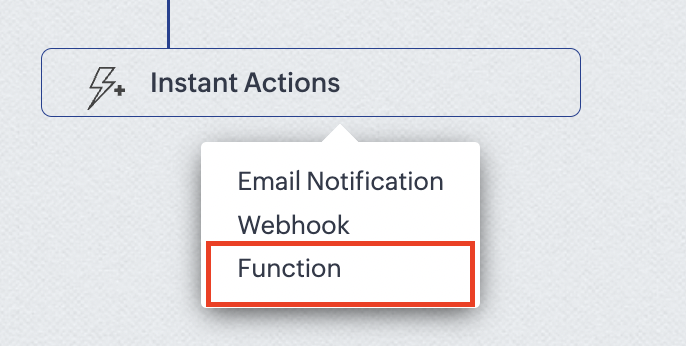
4. Click the New Function button.

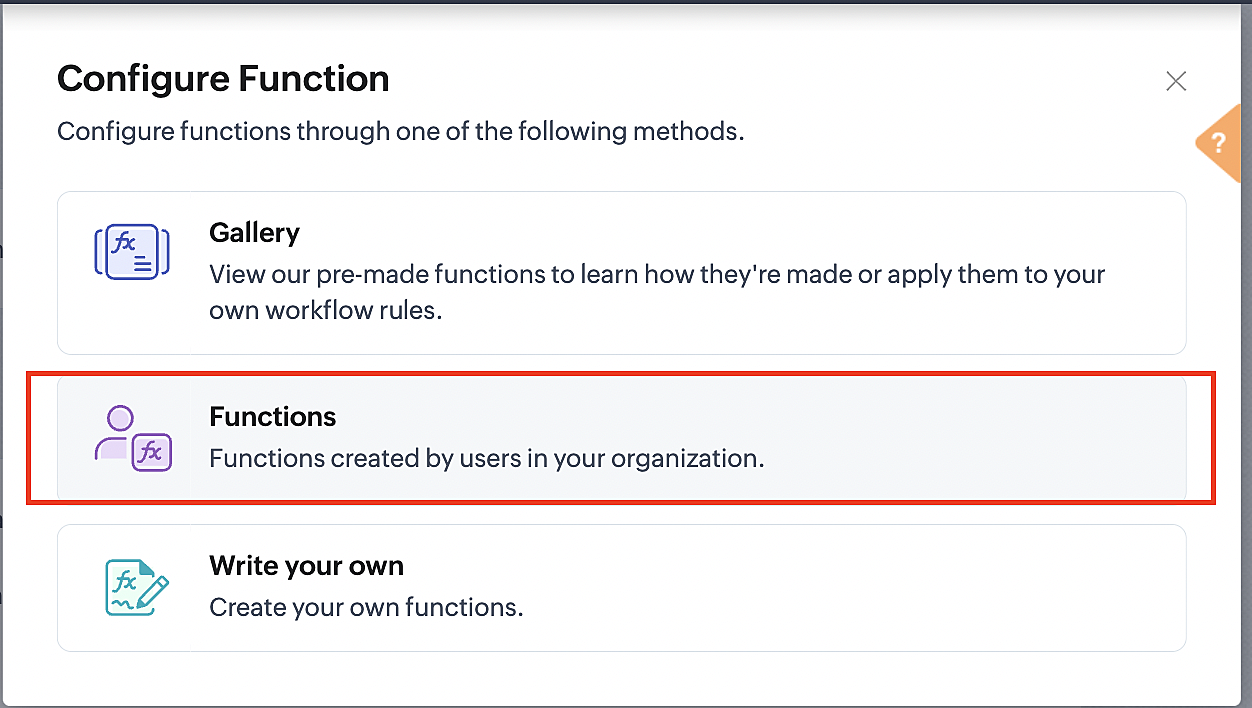
5. In the Configure custom function page, select the "cancel" function you created from among the functions users in your organization have created.
Part 3: Argument mapping
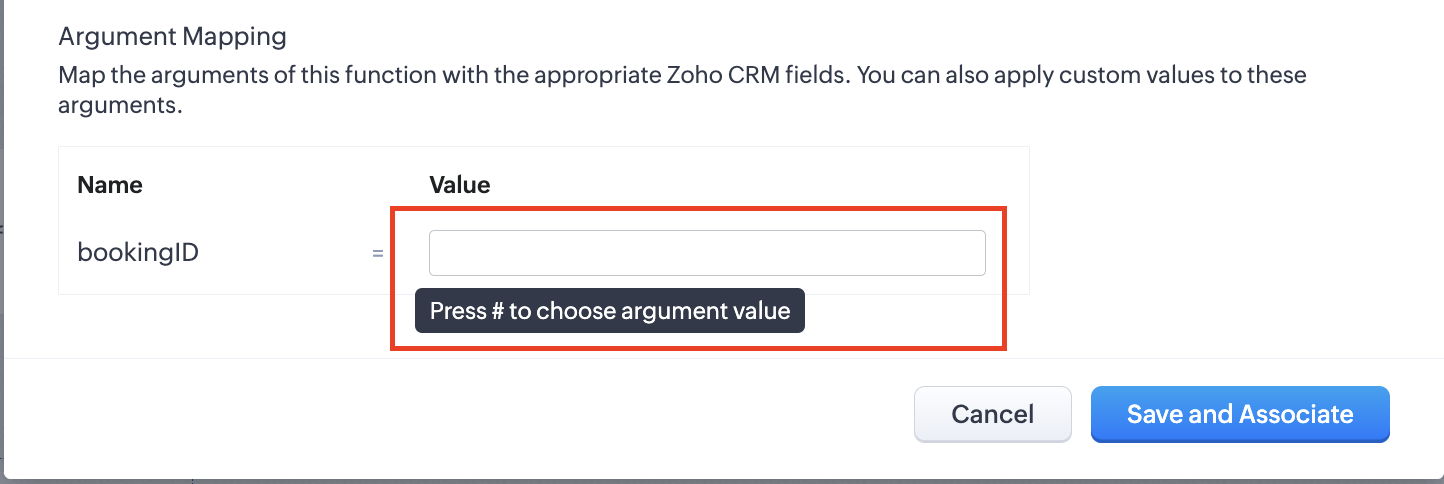
1. Press # to choose an argument value.
2. Select Meetings under Module and BookingId in the field.
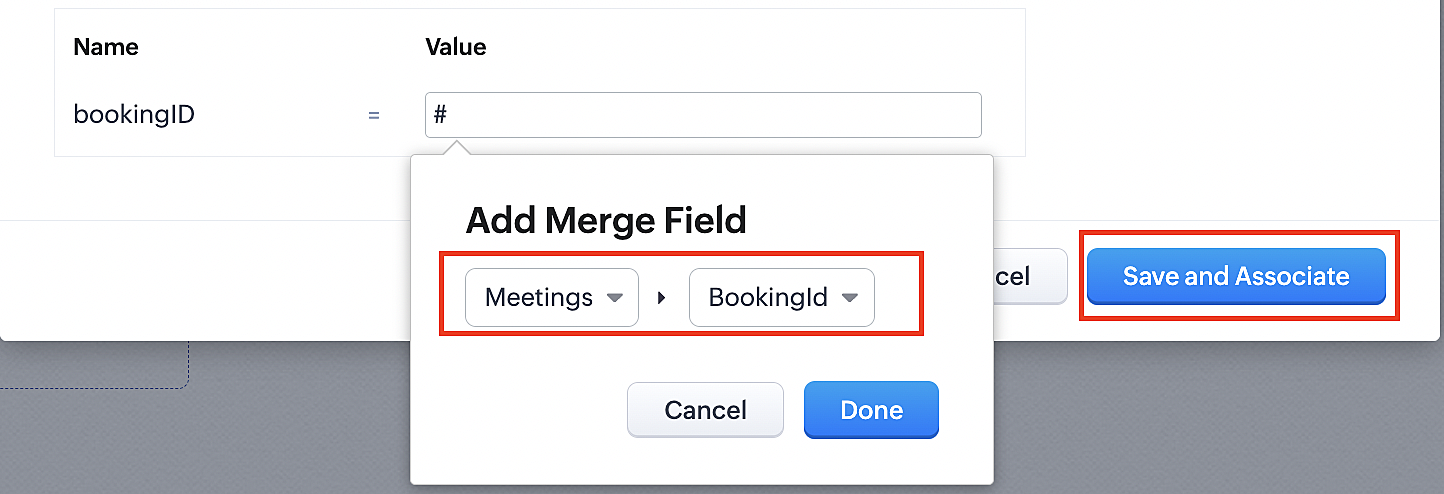
3. Click the Save and Associate button.
Reference:
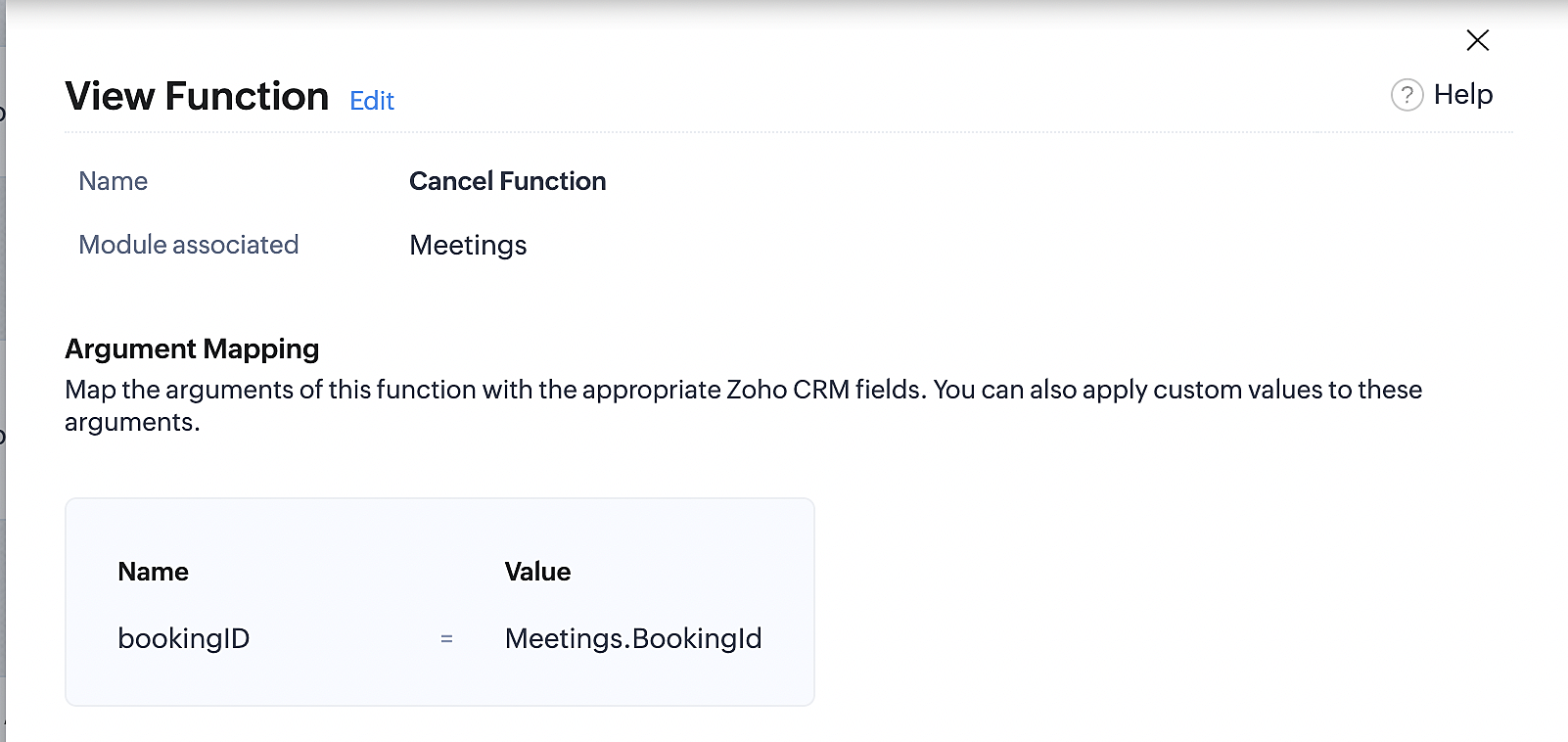
Below is the final flow of the cancel booking workflow:
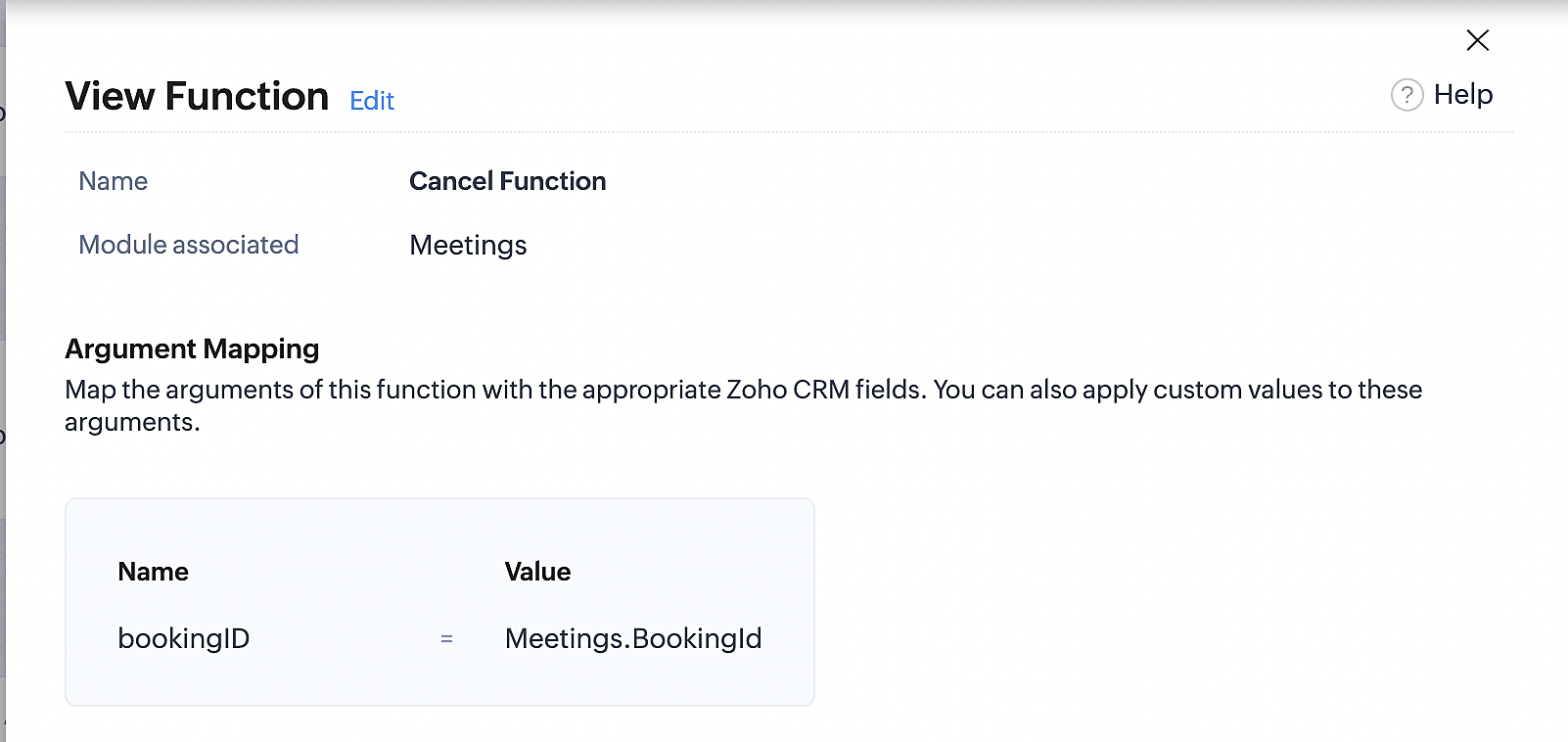
At the end of Part 3, we will have created a workflow that will be executed automatically when meetings are deleted in Zoho CRM. Simultaneously, the bookings associated with the meeting will also be canceled in Zoho Booking.
ii. Creating workflow for updating an appointment's status as "no show" in Zoho Bookings when the meeting's booking status is marked as no show in Zoho CRM
Part 4: Creating the rule
1. Go to Setup > Automation > Workflow Rules.
2. In the Workflow Rules page, click Create Rule.

3. Select Meetings under Module and configure the rule name and description as required.
Reference:
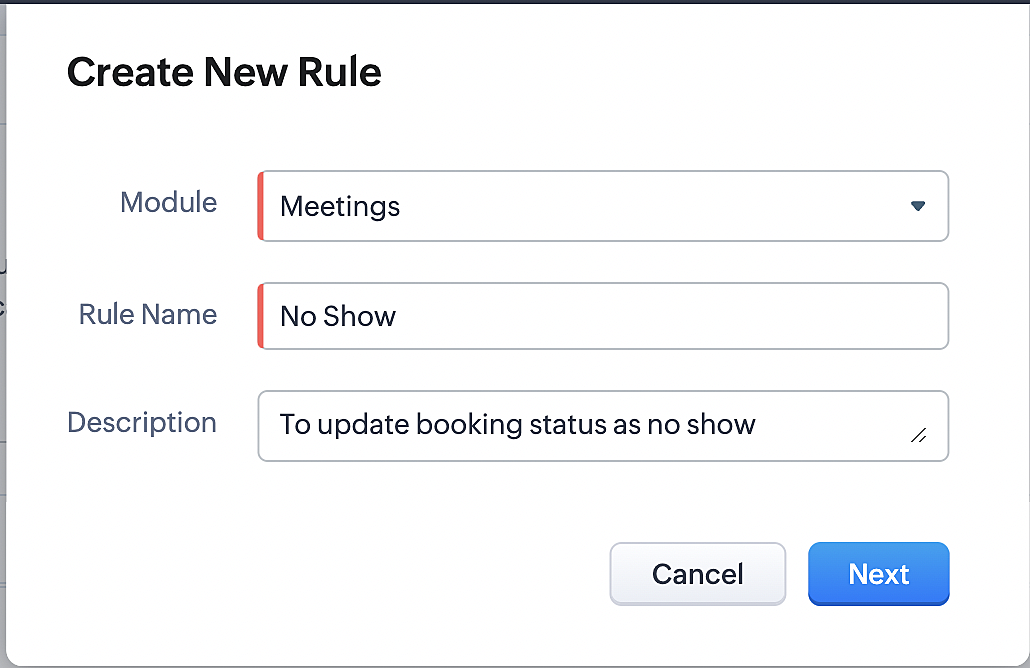
Part 5: Specifying the rule trigger
If you encounter difficulties while navigating through the steps mentioned below, please refer to Part 2 above, where we have provided step-by-step screenshots for clarification.
1. Record Action > Edit.

2. Enable the Specific field(s) gets modified and configure it per the screenshot below.
a. This is to ensure that the workflow is executed only when the booking status under the meeting module is
updated to "No Show".
updated to "No Show".
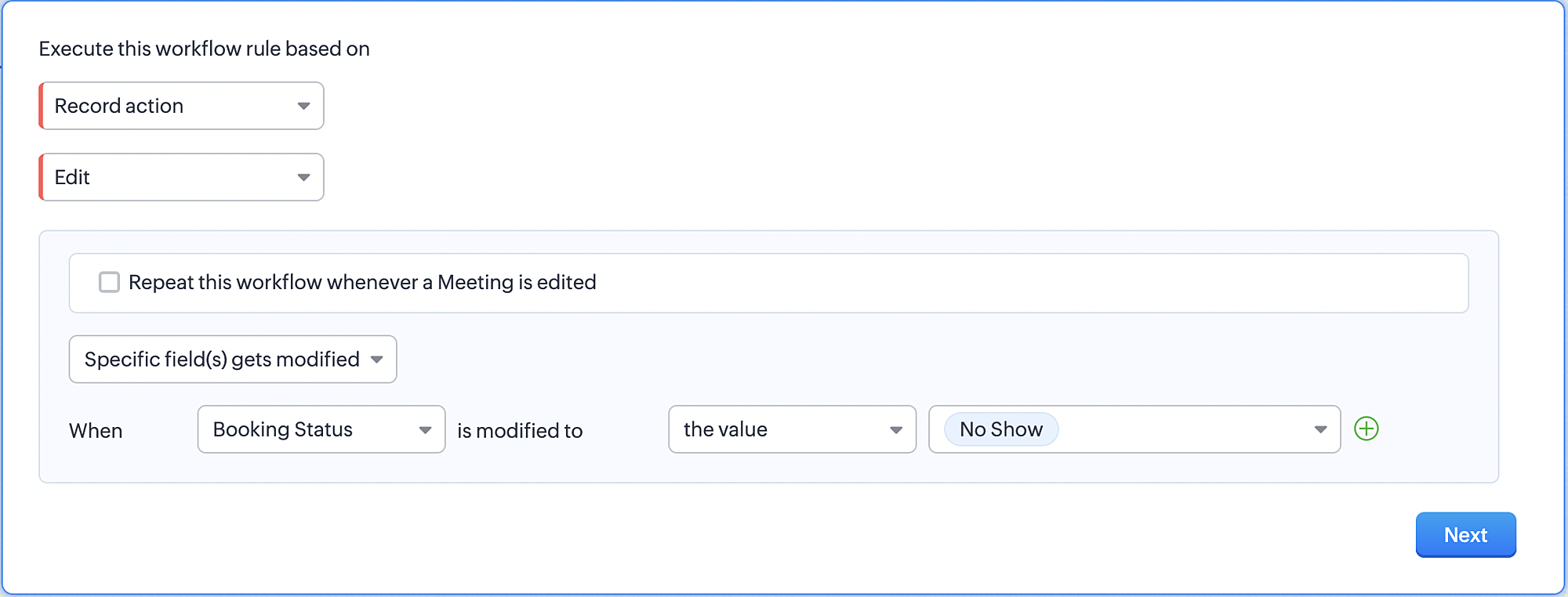
3. Configure condition > All Meetings.
4. Instant Actions > Function > New Function.
5. In the Configure custom function page, select the "no show" function you created from among the functions
users in your organization have created.
users in your organization have created.
Part 6: Argument mapping:
If you encounter difficulties while navigating through the steps mentioned below, please refer to Part 3 above, where we have provided step-by-step screenshots for clarification.
1. Press # to choose an argument value.
2. Select Meetings under Module and configure the field as "BookingId".
3. Click Save and Associate button.
Reference:
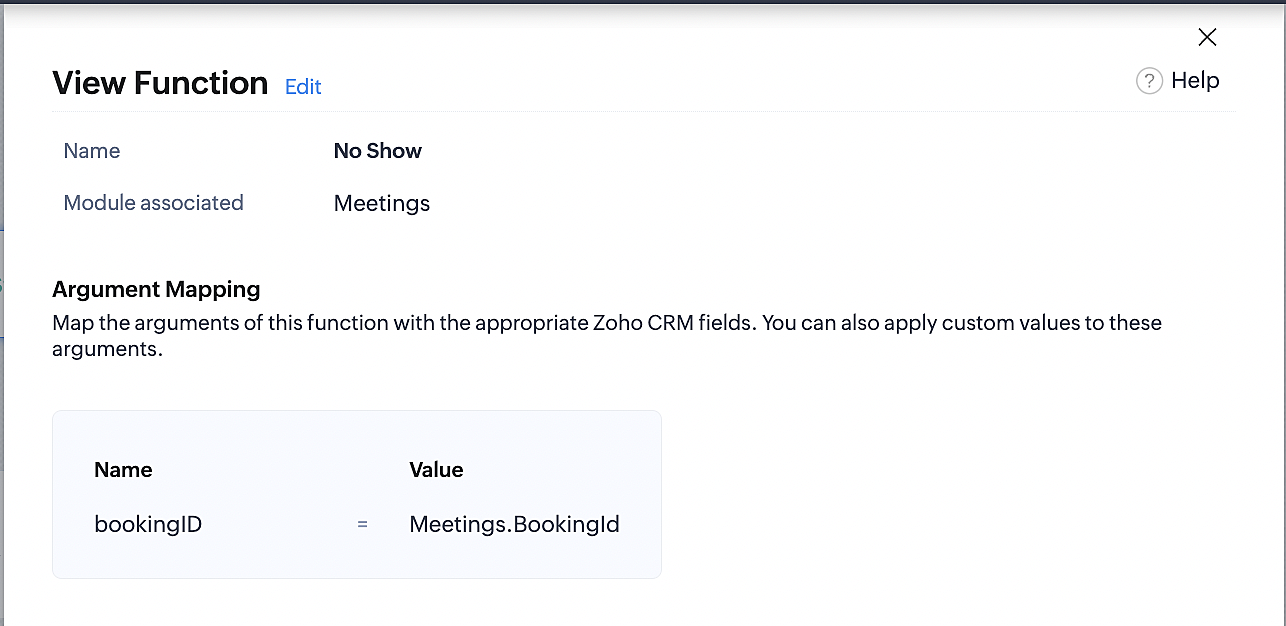
Below is the final flow of the "No Show" booking status workflow:
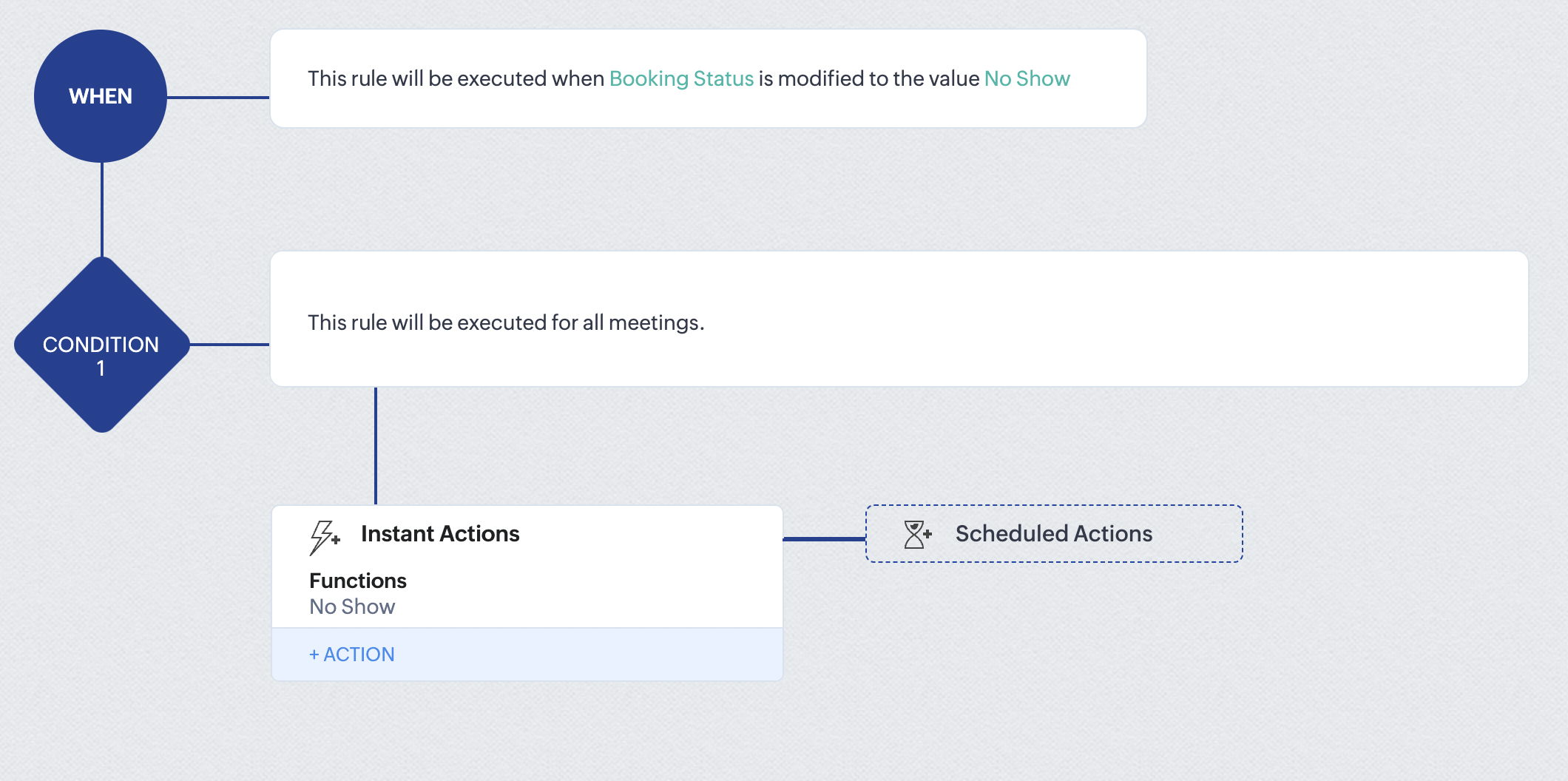
At the end of part 6, we will have created a workflow that automatically executes when the booking status field within the Zoho CRM Meetings module is updated to "No Show." This action will result in the associated bookings for that meeting also being marked as "No Show" in Zoho Bookings.
iii. Creating workflow for updating appointment status as "Completed" in Zoho Bookings when the booking status field of the meeting is marked as completed in Zoho CRM.
Part 7: Creating the rule
1. Go to Setup > Automation > Workflow Rules.
2. In the Workflow Rules page, click Create Rule.

3. Select Meetings under Module and configure rule name and description as required.
Reference:
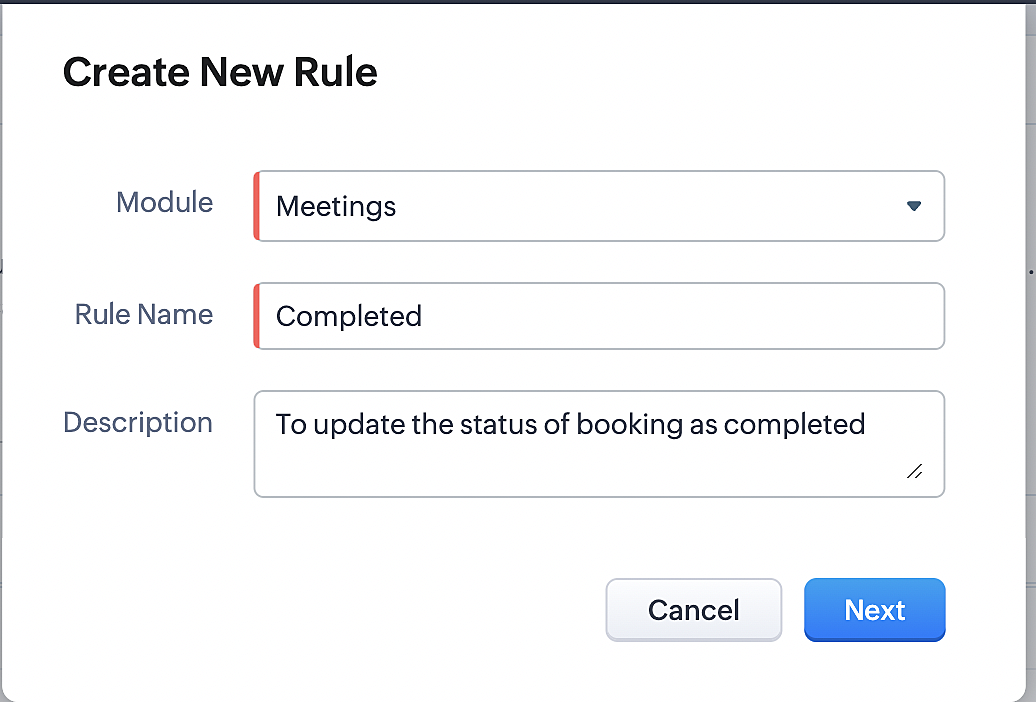
Part 8: Specifying the rule trigger
If you encounter difficulties while navigating through the steps mentioned below, please refer to Part 2 above, where we have provided step-by-step screenshots for clarification.
1. Record Action > Edit.

2. Enable the Specific field(s) gets modified setting and configure it per the screenshot below.
a. This serves to ensure that the workflow is executed only when the booking status under the Meetings module is
updated to "Completed".
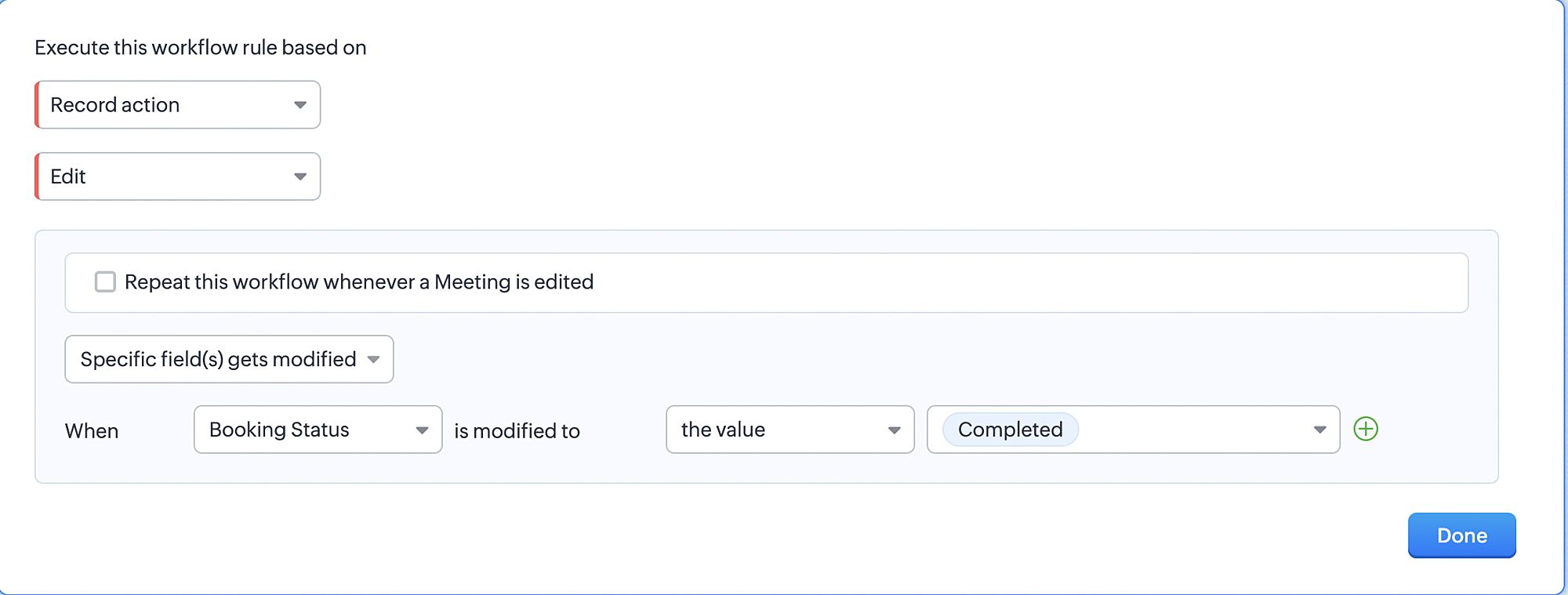
3. Configure condition > All Meetings.
4. Instant Actions > Function > New Function.
5. In the Configure custom function page, select the "completed" function you created from among the functions users
in your organization have created.
Part 9: Argument mapping:
If you encounter difficulties while navigating through the steps mentioned below, please refer to Part 3 above, where we have provided step-by-step screenshots for clarification.
1. Press # to choose an argument value.
2. Select Meetings under Module and configure the field as "BookingId".
3. Click Save and Associate button.
Reference:
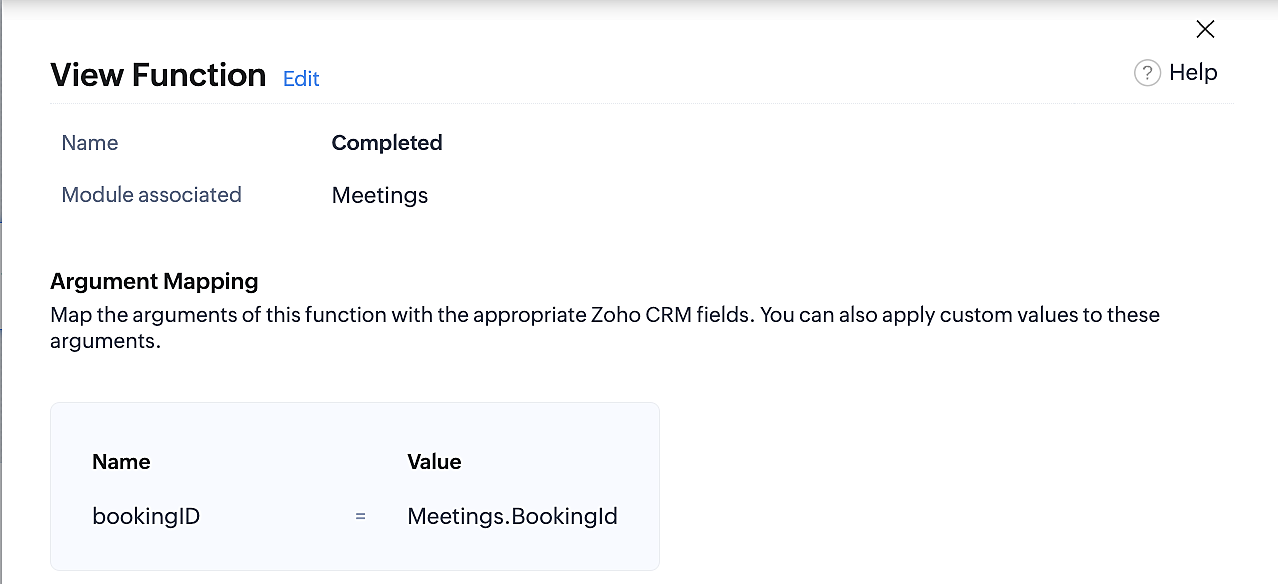
Below is the final flow of the "Completed" booking status workflow:
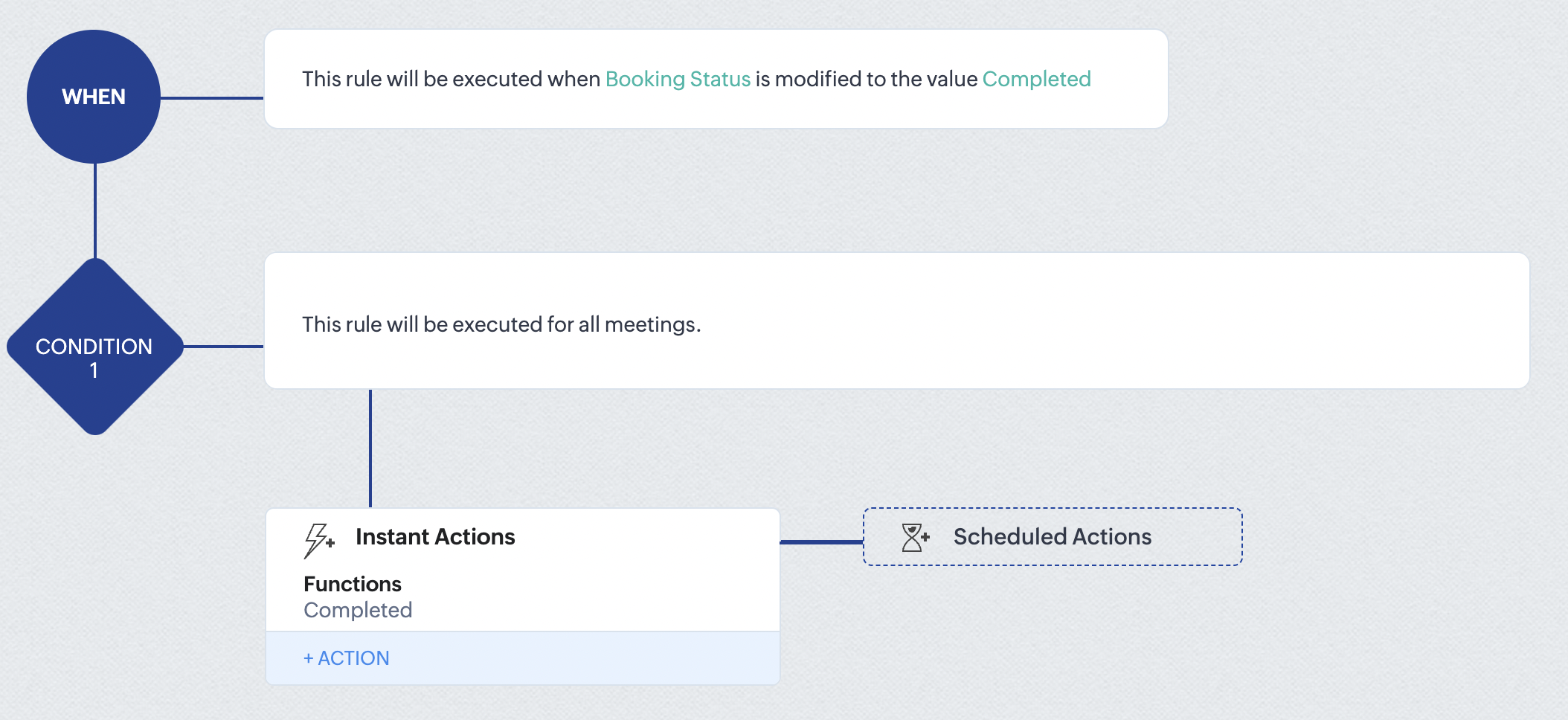
At the end of part 9, we will have created a workflow that is automatically executed when the booking status field within the Zoho CRM Meetings module is updated to "Completed." As a result, the associated bookings for that meeting will also be marked as "Completed" in Zoho Bookings.
Conclusion
We've reached the end of this community post. With the integration mentioned above in place, you'll be able to book, cancel, and update the status of appointments in Zoho Bookings directly from your Zoho CRM application. This will help you effectively manage your appointments in one place. As mentioned above, we've covered the rescheduling action in a separate post, which you can access by clicking on the following link: Reschedule Action
Furthermore, we've outlined a method for automating appointment statuses in detail. You can use this document as a reference to explore the various possibilities that suit your needs.
If you have any questions or need assistance with your configuration, please email us at hello@zohobookings.com or support@zohobookings.com.
Topic Participants
Kaushik S
bruce
Ishwarya SG
PrismaNote Support
Sticky Posts
Zoho CRM's sales trend and sales follow-up trend dashboards are now customizable
Dear Customers, We're here with good news! Sales trend and sales follow-up trend are two system-defined dashboards that help you understand trends and anomalies in your sales outreach and conversion efforts. They use Zia's intelligence to identify patternsIntroducing Multiple Sandbox Types and Support for Module's Data Population
Register here for the upcoming Focus Group webinar on Multiple Sandbox | Help documentation to learn more about the new enhancements Hello everyone, Sandbox in CRM is a testing environment for users to create and test new configurations like workflowGood news! Calendar in Zoho CRM gets a face lift
Dear Customers, We are delighted to unveil the revamped calendar UI in Zoho CRM. With a complete visual overhaul aligned with CRM for Everyone, the calendar now offers a more intuitive and flexible scheduling experience. What’s new? Distinguish activitiesVoC in Zoho CRM is now data savvy: Explore response drilldown, summary components and participation in CRM criteria
VoC has all the goods when it comes to customer intelligence—which is why we're constantly enhancing it. We recently added the following: A customer drilldown component that shows you the list of prospects and customers behind a chart's attribute ExpandedWrapping up 2025 on a high note: CRM Release Highlights of the year
Dear Customers, 2025 was an eventful year for us at Zoho CRM. We’ve had releases of all sizes and impact, and we are excited to look back, break it down, and rediscover them with you! Before we rewind—we’d like to take a minute and sincerely thank you
Recent Topics
Does Zoho Writer have Dropdowns
I want to add a drop down field in Zoho writer. Is this possible?Facturation électronique 2026 - obligation dès le 1er septembre 2026
Bonjour, Je me permets de réagir à divers posts publiés ici et là concernant le projet de E-Invoicing, dans le cadre de la facturation électronique prévue très prochainement. Dans le cadre du passage à la facturation électronique pour les entreprises,Connecting Multiple WooCommerce Stores to a Single Zoho Marketing Automation Account
Is it possible to connect multiple WooCommerce stores to a single Zoho Marketing Automation account?Service Title in Service Report Template Builder
I am currently working on the Service Report Template Builder in Zoho FSM. I have created three separate service report templates for different workflows: Preventive Maintenance Report Requested Service Report Installation Report My issue is that I cannotUpdate: New Security Admin Role
Hello Zoho Directory Admins! This post is to highlight the recent role and permission changes introduced as part of the security enhancements. Previously, Helpdesk Admins had the security permissions and were responsible for managing the security configurationsClient Script | Update #14 - Client Script Support for Quick Create
Hello Everyone! We are back with another exciting and highly awaited update in Client Script! Over the past months, many of you shared your insights and requests, asking for the power to extend Client Script functionality to Quick Create forms. This capabilityEmpty folders are now appearing in the sidebar...
...and the folder list is now auto-collapsed by default with no way to change. Neither of these recent updates are useful or user-friendly. ==================== Powered by Haiku https://www.haiku.co.uk ====================Upload from Zoho Creator File Upload field to OpenAI Vector Store
I’ve struggled for quite a while to get this working properly. For a long time we relied on Azure Functions as a workaround to handle file transfers between Zoho Creator and OpenAI Vector Stores. It worked, but added unnecessary infrastructure and complexity.Career site URL - Suggestion to modify URL of non-english job posting
Hi, I would like to suggest making a few modification to career sites that are not in english. Currently, the URL are a mix of different languages and are very long. It makes for very unprofessional looking URLs... Here is an example of one of our URLI'd like to suggest a feature enhancement for SalesIQ that would greatly improve the user experience across different channels.
Hello Zoho Team, Current Limitation: When I enable the pre-chat form under Brands > Flow Controls to collect the visitor’s name and email, it gets applied globally across all channels, including WhatsApp, Messenger, and Instagram. This doesn't quite alignThe Social Playbook - February edition: Why moment marketing works (and how brands use it)
Imagine the final season of your favorite series is about to drop. Your entire feed is talking about it. Trailers everywhere. Fan theories. Hype at 100%. Now your go-to burger place launches a limited-edition meal box themed around that series—customPDF Attachment Option for Service Reports
Hello Team, I would like to check with you all if there is an option to attach PDF documents to the service reports. When I try to attach a file, the system only allows the following formats: JPEG, JPG, and PNG. Could you please confirm whether PDF attachmentsManage Every Customer Conversation from Every Channel inside Zoho SalesIQ
Your customers message you from everywhere. But are you really able to track, manage, and follow through on every conversation, without missing anything? With interactions coming in from websites, mobile apps, and messaging platforms like WhatsApp andApprovals in Zoho Creator
Hi, This is Surya, in one of my creator application I have a form called job posting, and I created an approval process for that form. When a user submits that form the record directly adding to that form's report, even it is in the review for approval.Cliq Bots - Post message to a bot using the command line!
If you had read our post on how to post a message to a channel in a simple one-line command, then this sure is a piece of cake for you guys! For those of you, who are reading this for the first time, don't worry! Just read on. This post is all about howDepositing funds to account
Hello, I have been using Quickbooks for many years but am considering moving to Zoho Books so I am currently running through various workflows and am working on the Invoicing aspect. In QB, the process is to create an invoice, receive payment and then【Zoho CRM】営業日のロジックに関するアップデート
ユーザーの皆さま、こんにちは。コミュニティチームの中野です。 今回は「Zoho CRM アップデート情報」の中から、営業日のロジックに関するアップデートをご紹介します。 本アップデートにより、ワークフローにおける営業日の計算方法が改善されました。 週末などの非営業日にワークフローのトリガーが発生した場合でも、 「+0」「+1」「+2 営業日」といった設定が、意図どおりに正確に動作するようになりました。 営業日に基づくワークフローでは、日付項目を基準に「何営業日後に処理を実行するか」を指定します。Merged cells are unmerging automatically
Hello, I have been using Zoho sheets from last 1 year. But from last week facing a issue in merged cells. While editing all merged cells in a sheet became unmerged. I merged it again, but it again unmerged. In my half an hour work I have to do this 3-4Introducing Built-in Telephony in Zoho Recruit
We’re excited to introduce Built-in Telephony in Zoho Recruit, designed to make recruiter–candidate communication faster, simpler, and fully traceable. These capabilities help you reduce app switching, handle inbound calls efficiently, and keep everyJust want email and office for personal use
I am unclear as how to how I would have just a personal email (already do have it and love it) and get to use docs, notebook, workdrive etc. In other words mostly everything I had a google. I find gocs can be free with 5gb and so can mail with 5gb. AreUnable to change the "credentials of login user" option when creating a connection
I want to create a new Desk connection where the parameter to use 'credentials of login user' is set to YES. I'm able to create a new connection but am never given the option to change this parameter. Is this a restriction of my user profile, and if so,Show backordered items on packing slip
Is it possible to show a column on the Packing Slip that shows number of backordered items when a PO is only partially filled? I would also like to see the Backordered column appear on POs after you receive items if you didn't get ALL of the items or partial amounts of items. And lastly, it would be nice to have the option of turning on the Backordered column for invoices if you only invoice for a partial order. -TomZoho Sheet for Desktop
Does Zoho plans to develop a Desktop version of Sheet that installs on the computer like was done with Writer?Zoho CRM Community Digest - January 2026 | Part 1
The new year is already in motion, and the Zoho CRM Community has been buzzing with steady updates and thoughtful conversations. In this edition, we’ve pulled together the key product enhancements, Kaizen learnings, and helpful discussions from the firstZoho CRM Feature Requests - SMS and Emails to Custom Modules & Time Zone Form Field
TLDR: Add Date/Time/Timezone form field, and be able to turn off auto timezone feature. Allow for Zoho Voices CRM SMS Extension to be able to be added to custom modules, and cases. Create a feature that tracks emails by tracking the email chain, ratherIntroducing Bigin's Add-in for Microsoft Outlook
Hello Everyone, Email is an important way to communicate with customers and prospects. If you use Outlook.com for emails and Bigin as your CRM, the Outlook Add-in helps you connect them easily so you can see your Bigin contact details right inside Outlook.com.Ask the Expert – Zoho One Admin Track : une session dédiée aux administrateurs Zoho One
Vous administrez Zoho One et vous vous posez des questions sur la configuration, la gestion des utilisateurs, la sécurité ou encore l’optimisation de votre back-office ? Bonne nouvelle : une session Ask the Expert – Zoho One Admin Track arrive bientôt,Zoho Commerce
Hi, I have zoho one and use Zoho Books. I am very interested in Zoho Commerce , especially with how all is integrated but have a question. I do not want my store to show prices for customers that are not log in. Is there a way to hide the prices if notWill be possible to create a merge mail template for products?
Hi, we would need to create a mail merge template for products (native) module. Will be possibile? or do you have a smart solutions to merge products data with a mail merge? thanks ChrisAll new Address Field in Zoho CRM: maintain structured and accurate address inputs
The address field will be available exclusively for IN DC users. We'll keep you updated on the DC-specific rollout soon. It's currently available for all new sign-ups and for existing Zoho CRM orgs which are in the Professional edition. Latest updateHow to Associate Zoho Projects in Zoho CRM
Hi I need script for associating projects in zoho projects to particular Account in zoho CRM side. It can be done manually but I need the automation for this process. There are no api regarding associating a project in zoho crm account. Need assistanceAdd Claude in Zoho Cliq
Let’s add a real AI assistant powered by Claude to your workspace this week, that your team can chat with, ask questions, and act on conversations to run AI actions on. This guide walks you through exactly how to do it, step by step, with all the codeNeed to set workflow or journey wait time (time delay) in minutes, not hours
Minimum wait time for both Campaigns workflows and Marketing Automation journeys is one hour. I need one or the other to be set to several minutes (fraction of the hour). I tried to solve this by entering a fraction but the wait time data type is an integerEditing Item Group to add Image
I did not have the image of the product when the Item Group was created. Now I have the product image, and would like to associate/add to the Item Group. However the Item Group Edit functionality does not show/allow adding/changing image. Please helComposite Product (kit) - Dynamic Pricing
I am setting up Composite Products for item kits that I sell. I also sell the items from the kit individually. Problem is when pricing changes on an individual part, the Composite Product price does not change meaning when the cost of item # 2 in theUrgent: Slow Loading Issue on Zoho Commerce Website
Dear Zoho Support Team, I am experiencing slow loading times on my Zoho Commerce website, which is affecting its performance and user experience. The issue persists across different devices and networks. Could you please investigate this matter and provideZoho Books - France
L’équipe de Zoho France reçoit régulièrement des questions sur la conformité de ses applications de finances (Zoho Books/ Zoho Invoice) pour le marché français. Voici quelques points pour clarifier la question : Zoho Books est un logiciel de comptabilitéNew in Office Integrator: Download documents as password-protected PDFs
Hi users, We're excited to introduce password-protected PDF as a download option in Zoho Office Integrator's document editor. This allows you to securely share your confidential information from within your web app. Highlights of the password-protectedSales IQ - Zobot en multilangue
Bonjour, J'ai un Zobot installé sur mon site depuis longtemps. J'ai ajouté plusieurs langues, dans la configuration et dans le générateur de bot sans code Pourtant, le Chat continue à s'afficher en Francais. Comment enclencher le multilangue en frontStreamlining E-commerce Photography with AI Background Tools
Hey Zoho Community, I’ve been messing around with ways to make product images less of a headache for fashion brands on Zoho Commerce. You know how boring generic backdrops can get, and how much time traditional photoshoots eat up, right? I tried out thisNext Page