Bidirectional sync between Zoho Bookings and Zoho CRM - Part 1
Hey, community members!
The default integration between Zoho CRM and Zoho Bookings is unidirectional, which means that any appointments booked, rescheduled, or deleted in Zoho Bookings will be reflected in Zoho CRM. However, any modifications made to events in Zoho CRM that originated from Zoho Bookings will not be reflected back in Zoho Bookings. Hence, as we're announcing in this community post, we've made the sync bidirectional.
This community post will cover the process of configuring appointment bookings from Zoho CRM in Zoho Bookings, as well as managing appointment statuses such as Canceled, No Show and Completed. We have addressed the rescheduling action in a separate post. To view it, please click on the following link: Reschedule Action
This community post will be beneficial for active Zoho CRM users who handle all their meetings within Zoho CRM. Additionally, you can use this community post as a reference to explore various automation possibilities tailored to your business requirements. For instance, with this post's guidance, when you update a booking's status field to "Completed" in Zoho CRM, it will automatically sync with Zoho Bookings and trigger an automated "Mark as completed" email to customers. This enhancement will improve your Zoho Bookings and Zoho CRM synchronization experience, making appointment management easier.
Prerequisites of bidirectional sync:
- Zoho Bookings Premium subscription
- Zoho CRM paid subscription
- Enable Zoho CRM integration within Zoho Bookings
The purpose of enabling the Zoho CRM integration within Zoho Bookings is to transfer booking details from Zoho Bookings to Zoho CRM. In this configuration, the mandatory field is the Booking ID, which is passed from Zoho Bookings to Zoho CRM through the integration. Whenever an appointment is booked, customer details will be sent to the designated CRM module, and a corresponding record will be created in the Meetings module within Zoho CRM, which will help in automating the workflow.
Here's the complete demo video that covers all the configurations discussed in the community post below:
Timestamps for your reference:
0:35 - Purpose of this community post
Here's the complete demo video that covers all the configurations discussed in the community post below:
Timestamps for your reference:
0:35 - Purpose of this community post
1:26 - Zoho CRM plugin installation
4:43 - Custom field creation
7:20 - Function creation
9:22 - Connection creation
10:24 - Configuring arguments
11:06 - Workflow creation
13:33 - Argument mapping
14:41 - Output verification
17:41 - Conclusion
How we're approaching this bidirectional sync
1. Booking an appointment from Zoho CRM
Install the Zoho Bookings for Zoho CRM plugin within your Zoho CRM application. This plugin enables the creation of a "New Appointment" button within the Zoho CRM Leads and Contacts module, which enables you to select the desired booking page you wish to open. You can choose from various workspace, service, or staff booking pages. After configuration, you can initiate the process of scheduling bookings directly from within your Zoho CRM account.
- Guide on Zoho Bookings and Zoho CRM plugin installation: Booking page selection for Zoho CRM plugin
2. Booking status: Completed or No Show
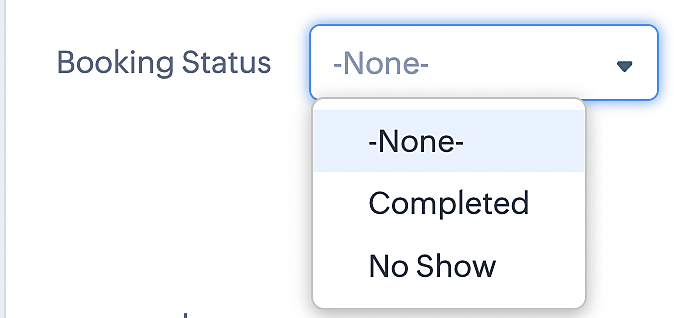
To update a booking's status (Completed or No Show), we've added a new picklist properties field named "Booking Status" in the Meetings module and configured it with two options: "completed" and "no show". Depending on the booking status chosen, the corresponding booking in Zoho Bookings will be updated.
- Details on how to add a custom field to the Meetings module : Customizing modules
- Here's a video that demonstrates how to add a field to a module in Zoho CRM: Adding fields
Reference:
3. Booking status: Canceled
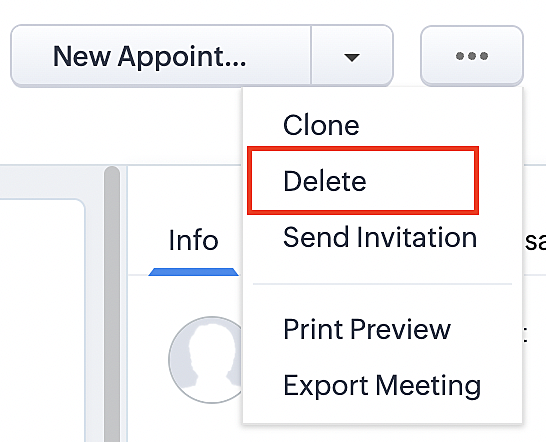
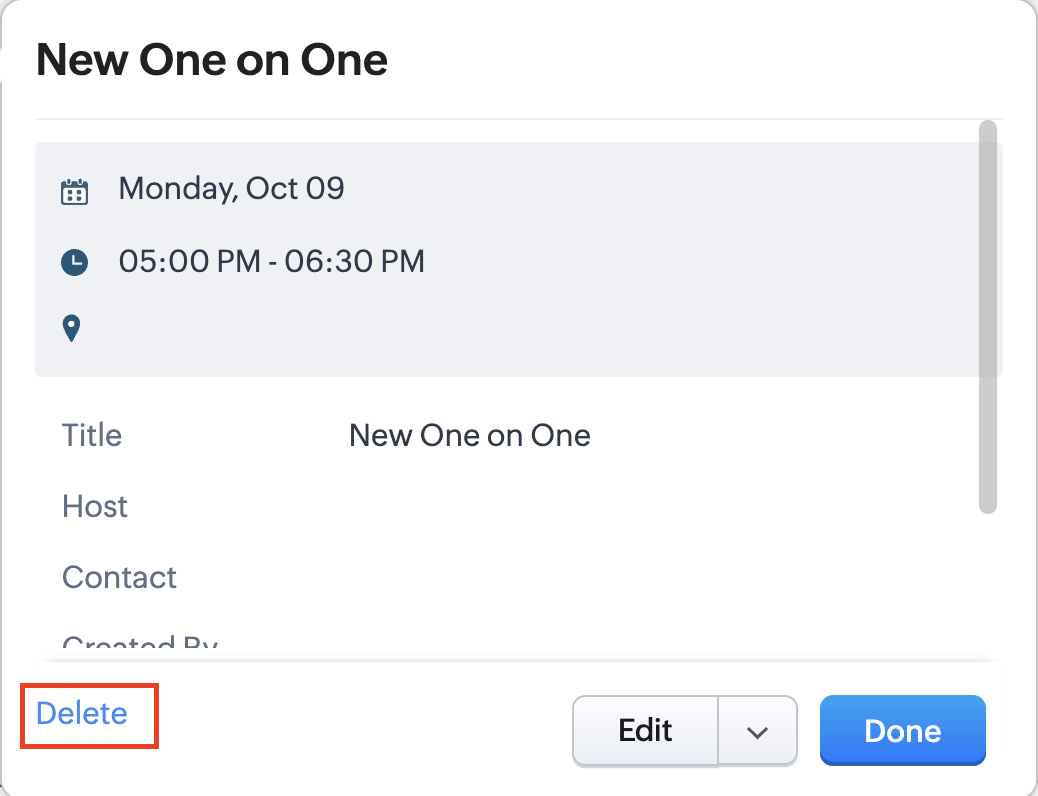
Whenever a meeting is deleted from the Meetings module, the corresponding booking in the Zoho Bookings app will also be canceled automatically. The meeting can be deleted either from the Meetings module or directly from the calendar.
To enable bidirectional sync between Zoho CRM and Zoho Bookings
Complete these steps in Zoho CRM.
Step 1: Creating connections
You first need to establish a connection between Zoho CRM and Zoho Bookings. Zoho Bookings is listed as one of the default connections in Zoho CRM, making it simple to set up. Select the Zoho Bookings connection, define the connection name and scope, and you'll be all set. This connection will enable you to link both applications and facilitate the seamless transfer of data.
Read here for more details on how to create connection in Zoho CRM: Connections
Step 2: Creating functions
In this context, we'll be creating three functions: one for marking appointments as completed, another for canceling appointments, a third for marking appointments as no shows, and a fourth for rescheduling appointments. For each function, we must also configure arguments, which pass values or data into a function when making a call. Here, we'll pass the booking ID to the function as an argument to update the necessary booking status.
i. To create a function for marking appointments as completed:
1. Go to Setup > Developer Space > Functions.
2. In the Functions page, click + Create New Function.

3. Configure the function name, display name, and description.
4. Set the category as automation.
This opens the Deluge script page.
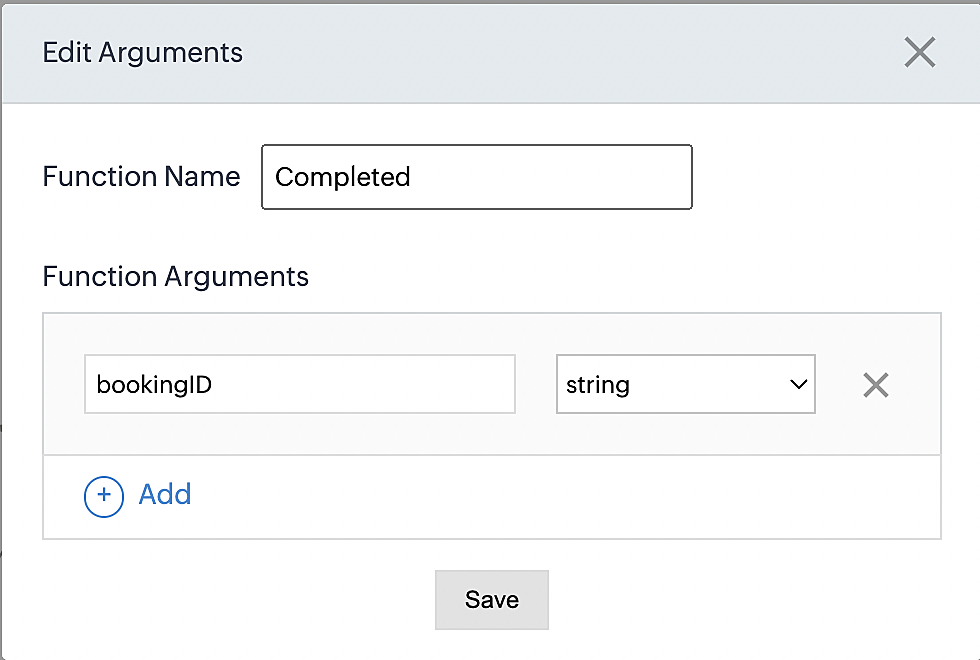
5. Next, configure the function's arguments:
A. Click on Edit Arguments on the Deluge script page.

B. Set the Parameter Name as bookingID. (Please note that the "bookingID" value is case sensitive and must match
the term used in the code).
C. Set the type as string.
Reference:
Please configure the below code in the Deluge script page.
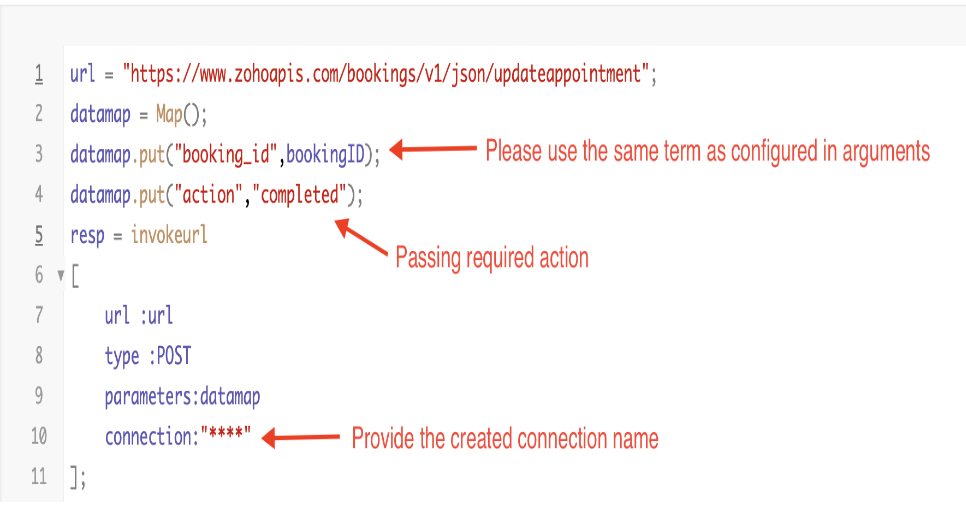
By completing these steps, we've configured a function that will mark appointments as completed.
ii. To create a function for marking appointments as no shows
1. Go to Setup > Developer Space > Functions.
2. In the Functions page, click + Create New Function.

3. Configure the function name, display name, and description.
4. Set the category as automation.
This opens the Deluge script page.
5. Next, configure the function's arguments:
A. Click on Edit Arguments on the Deluge script page.

B. Set the Parameter Name as bookingID. (Please note that the "bookingID" value is case sensitive and must match
the term used in the code).
C. Set the type as string.
Reference:
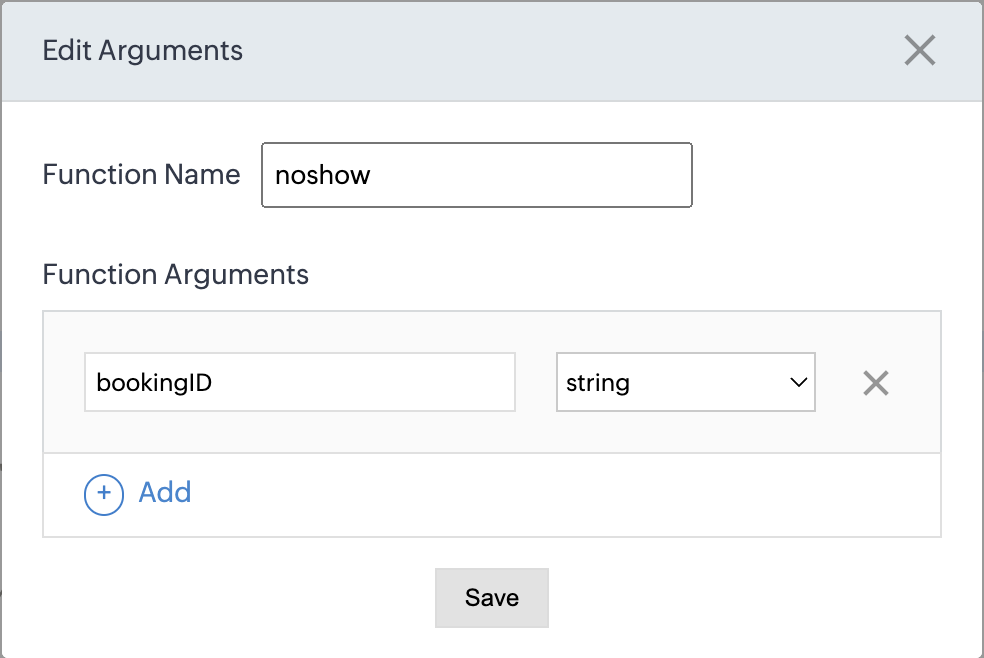
Please configure the below code on the Deluge script page.
Code link: No show
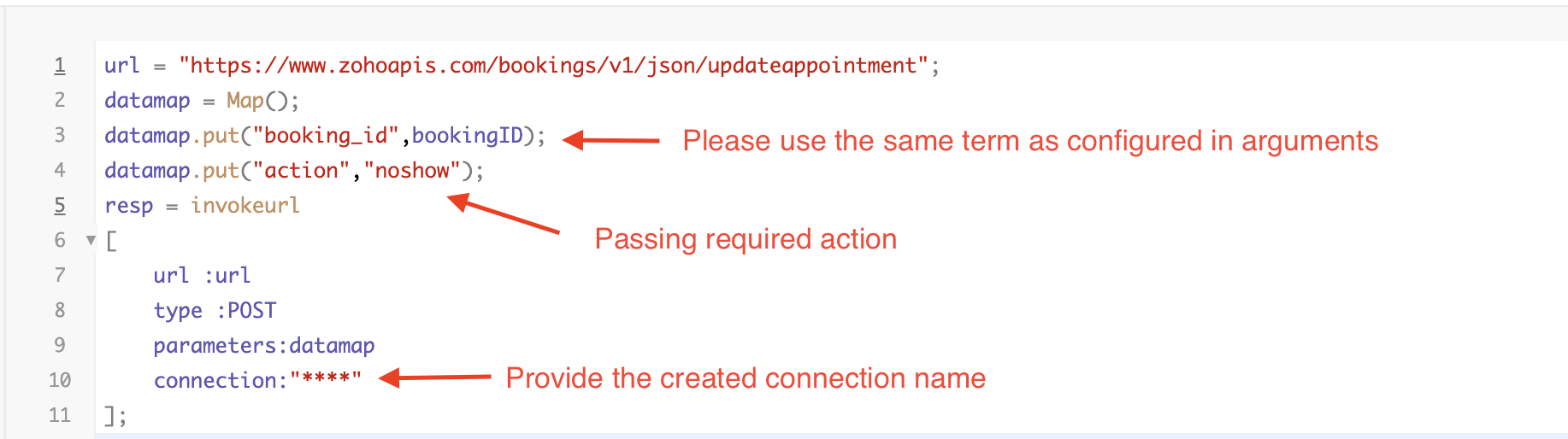
By completing these steps, we've configured a function that marks appointments as no shows.
iii. To create a function for marking appointments as canceled
1. Go to Setup > Developer Space > Functions.
2. In the Functions page, click + Create New Function.

3. Configure the function name, display name, and description.
4. Set the category as automation.
This opens the Deluge script page.
5. Next, configure the function's arguments:
A. Click on Edit Arguments on the Deluge script page.

B. Set the Parameter Name as bookingID. (Please note that the "bookingID" value is case sensitive and must match
the term used in the code).
C. Set the type as string.
Reference
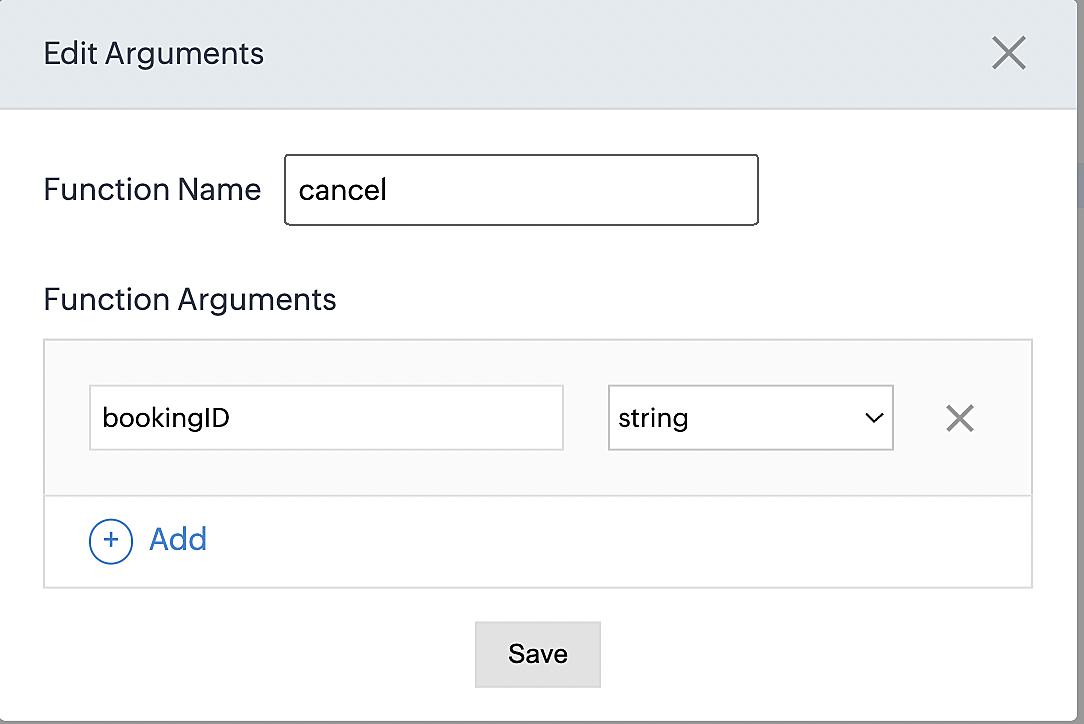
Please configure the below code on the Deluge script page.
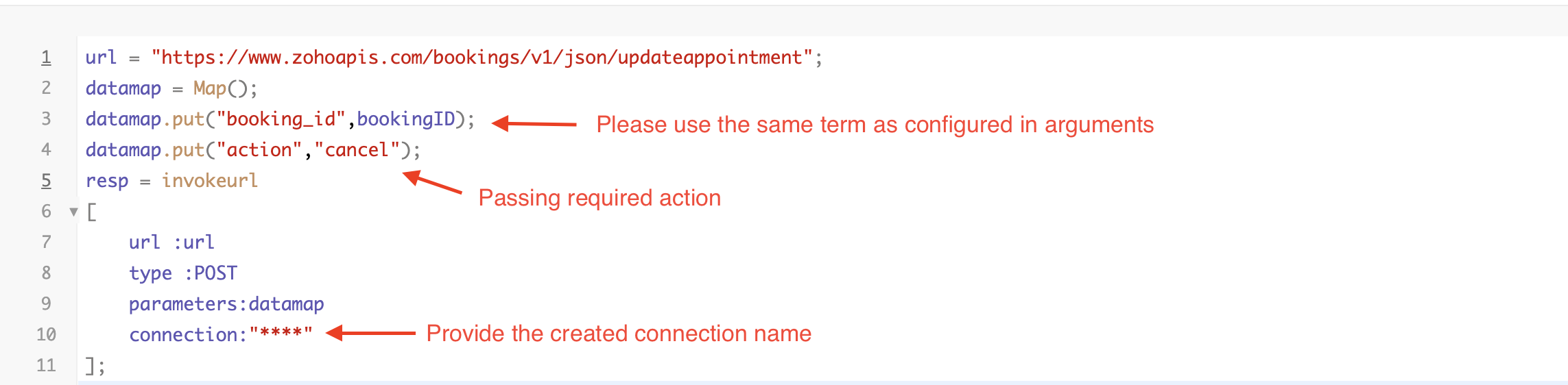
By completing these steps, we've configured a function that marks appointments as canceled.
Code explanation
Below is an explanation of the code that covers all the configurations present in the three functions mentioned above (cancel, mark as completed, and mark as no show).
Line 1: Based on the Zoho Bookings account's data center, we're setting up the API endpoint URL configuration.
Lines 2 - 4: To update appointments, we utilize the Zoho Bookings API. Within the update appointment API, there are two mandatory fields that need to be included: BookingID and action (completed/cancel/noshow).
Lines 5 - 10: We use the invokeURL task for API calls. To learn more about the invokeURL task, please refer to the following document: InvokeURL task for API calls
Now, let's proceed and learn about the process of creating a workflow and linking the established functions to it. This will enable us to automate the entire appointment status updating process.
Step 3: Creating a workflow
Workflow rules are sets of actions (email notifications, tasks and field updates) that are executed when specified conditions are met. Here, we'll generate workflow rules for each action to activate the respective function, thereby automating the appointment status updating process.
i. Creating a workflow for "canceling" appointments in Zoho Bookings when a meeting is deleted in Zoho CRM
Part 1: Creating the rule
1. Go to Setup > Automation > Workflow Rules.
2. In the Workflow Rules page, click Create Rule.

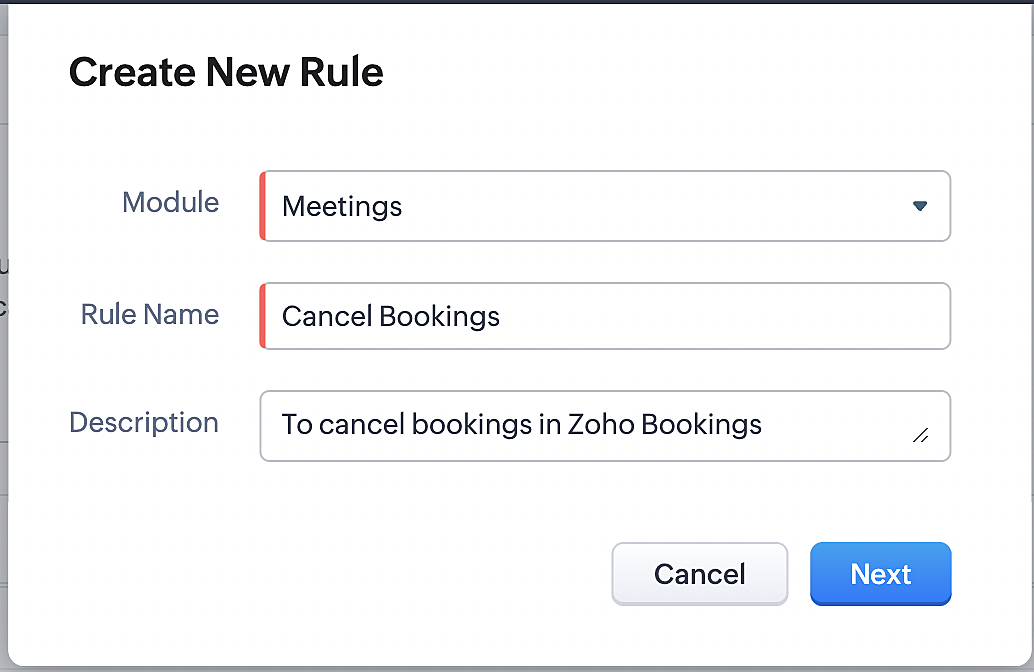
3. Select "Meetings" under Module and configure rule name and description as required.
More details: Create Rule
Reference:
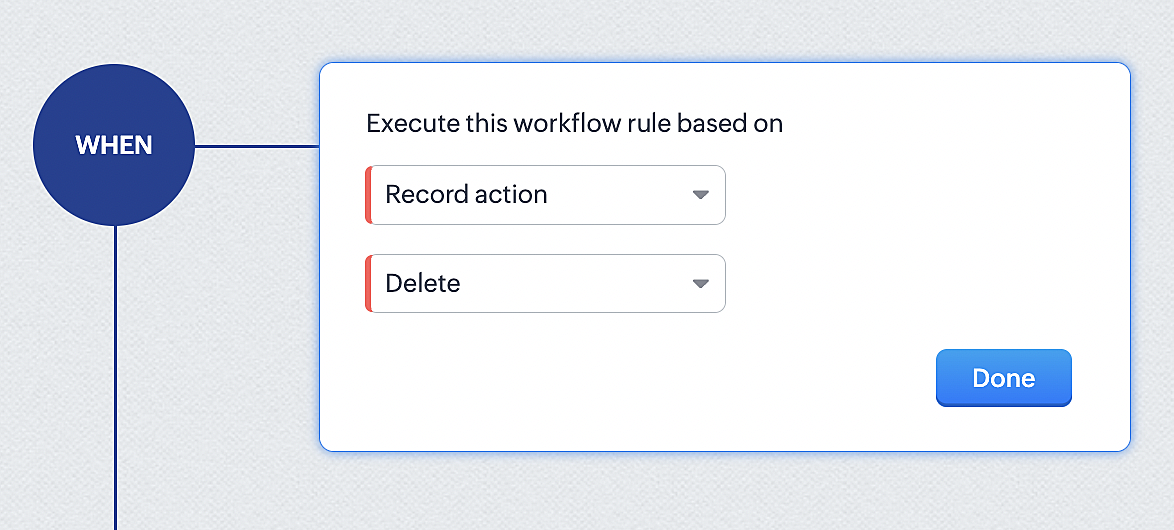
1. Select Record Action > Delete > Done to execute the rule when meetings are deleted.
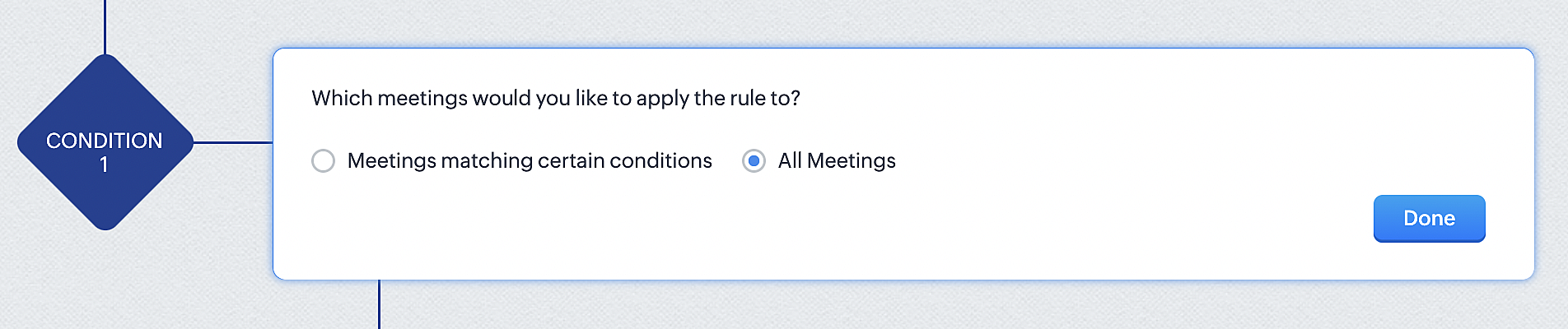
2. Configure condition > All Meetings.
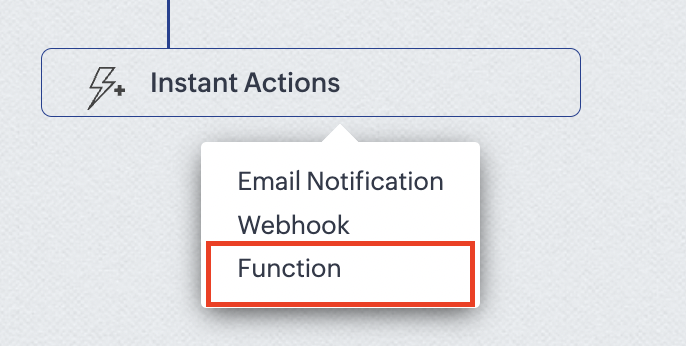
3. Instant Actions > Function.
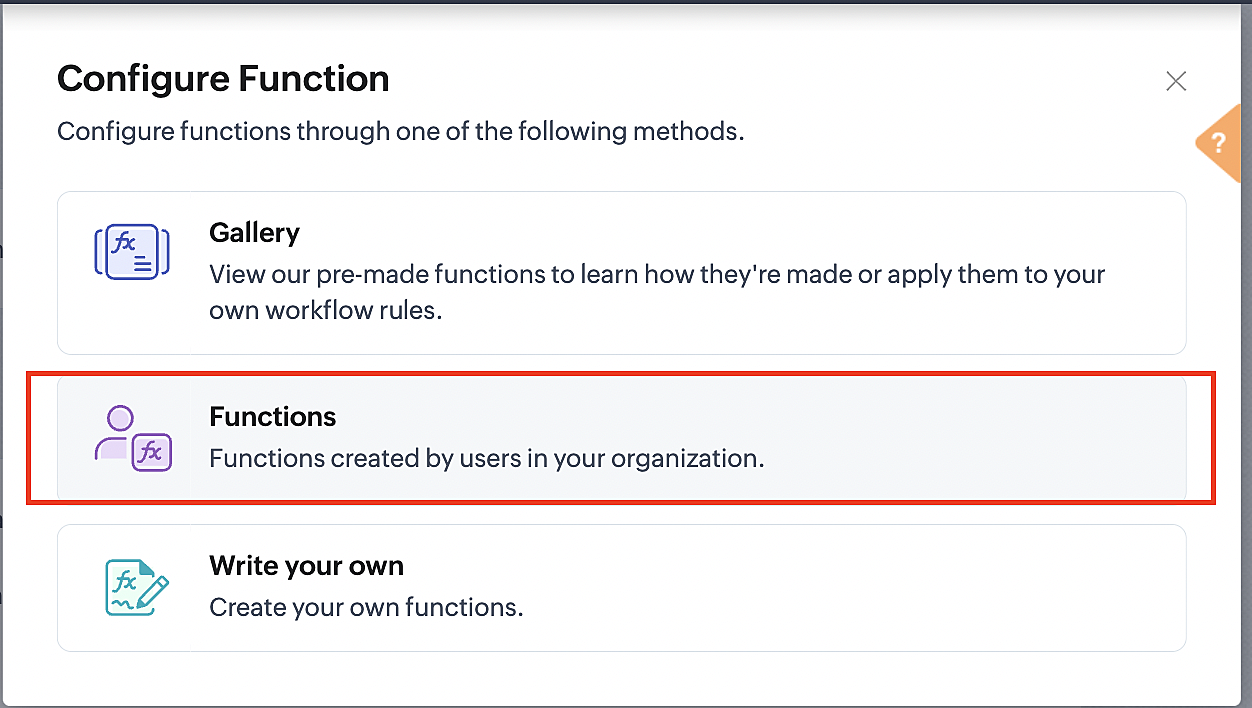
4. Click the New Function button.

5. In the Configure custom function page, select the "cancel" function you created from among the functions users in your organization have created.
Part 3: Argument mapping
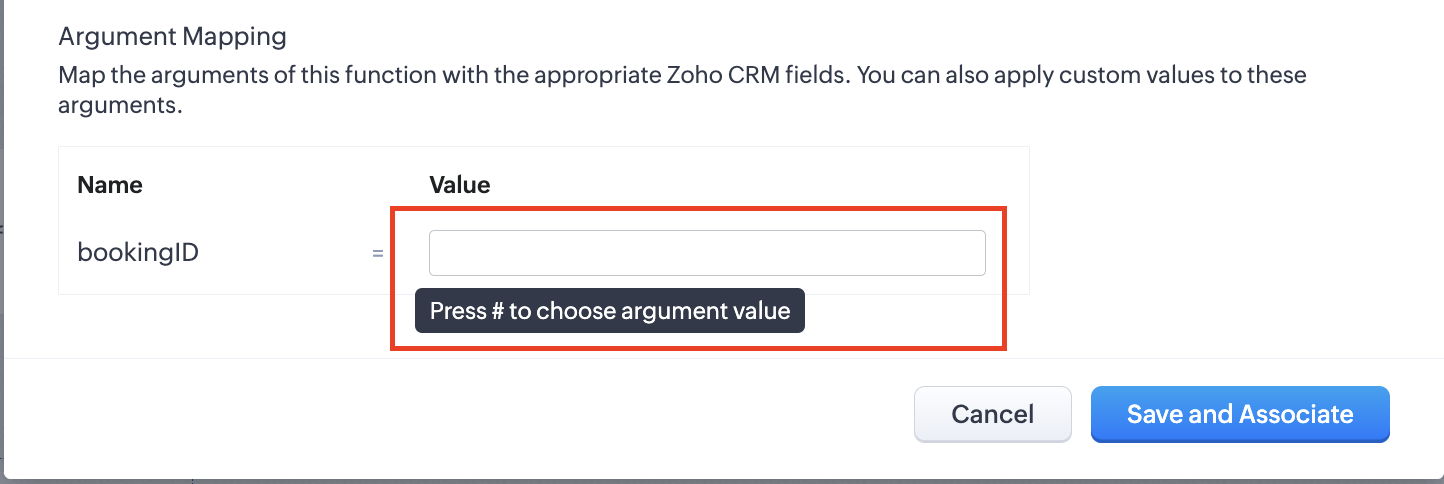
1. Press # to choose an argument value.
2. Select Meetings under Module and BookingId in the field.
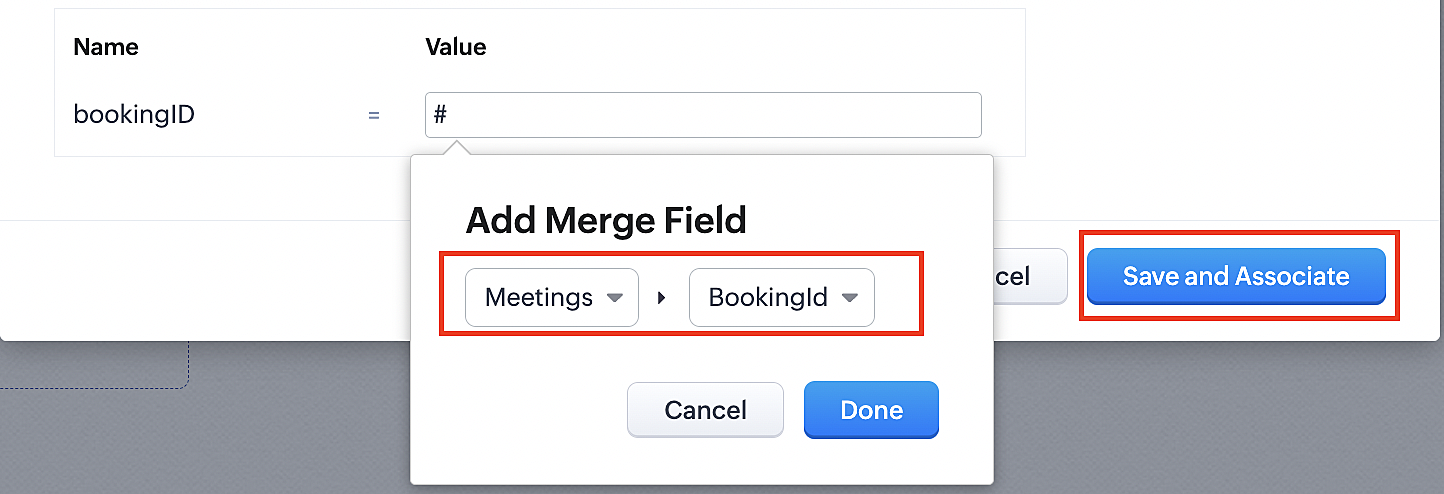
3. Click the Save and Associate button.
Reference:
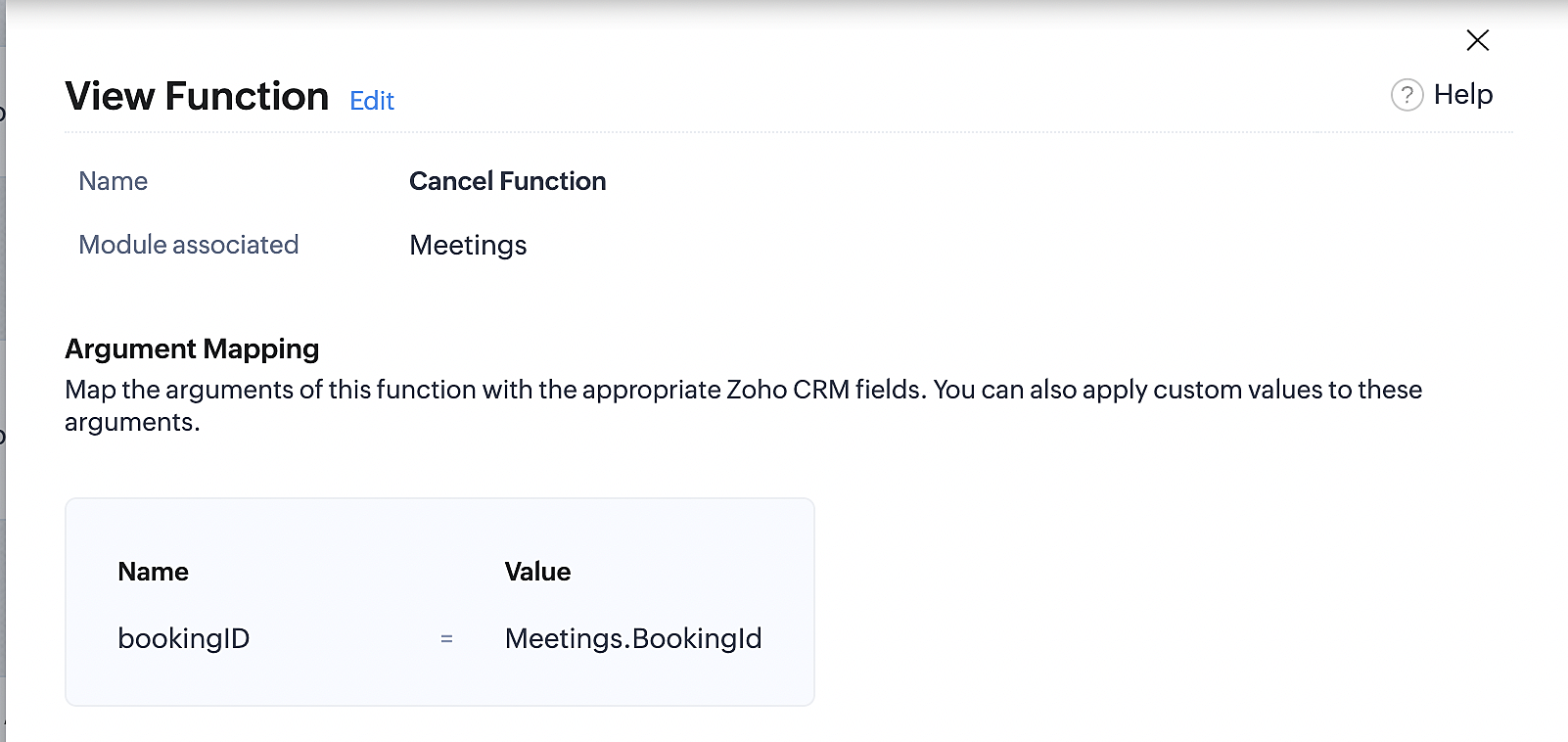
Below is the final flow of the cancel booking workflow:
At the end of Part 3, we will have created a workflow that will be executed automatically when meetings are deleted in Zoho CRM. Simultaneously, the bookings associated with the meeting will also be canceled in Zoho Booking.
ii. Creating workflow for updating an appointment's status as "no show" in Zoho Bookings when the meeting's booking status is marked as no show in Zoho CRM
Part 4: Creating the rule
1. Go to Setup > Automation > Workflow Rules.
2. In the Workflow Rules page, click Create Rule.

3. Select Meetings under Module and configure the rule name and description as required.
Reference:
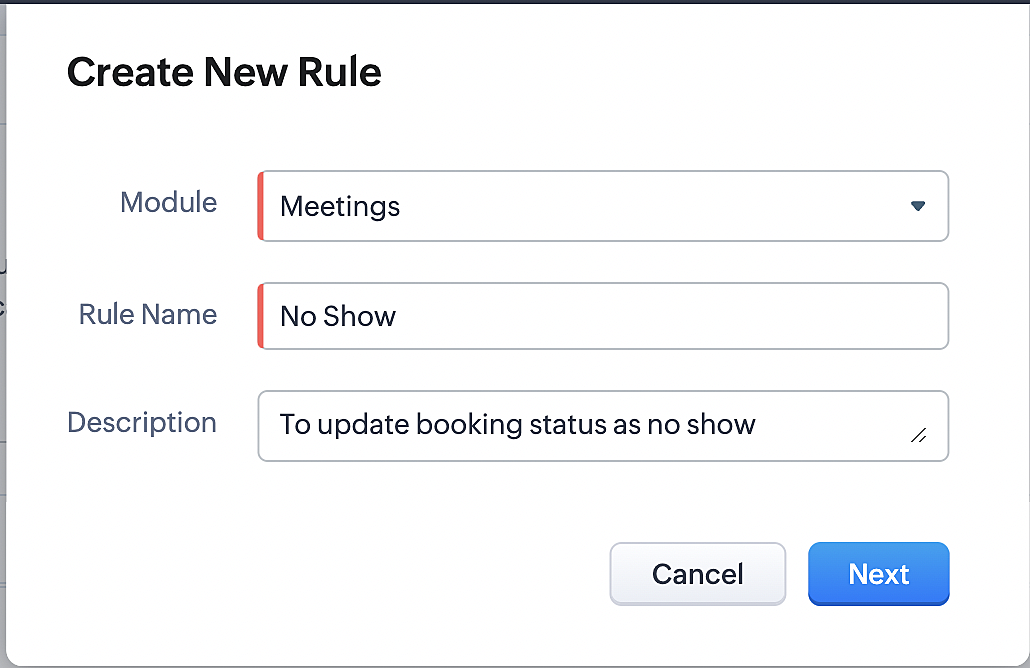
Part 5: Specifying the rule trigger
If you encounter difficulties while navigating through the steps mentioned below, please refer to Part 2 above, where we have provided step-by-step screenshots for clarification.
1. Record Action > Edit.

2. Enable the Specific field(s) gets modified and configure it per the screenshot below.
a. This is to ensure that the workflow is executed only when the booking status under the meeting module is
updated to "No Show".
updated to "No Show".
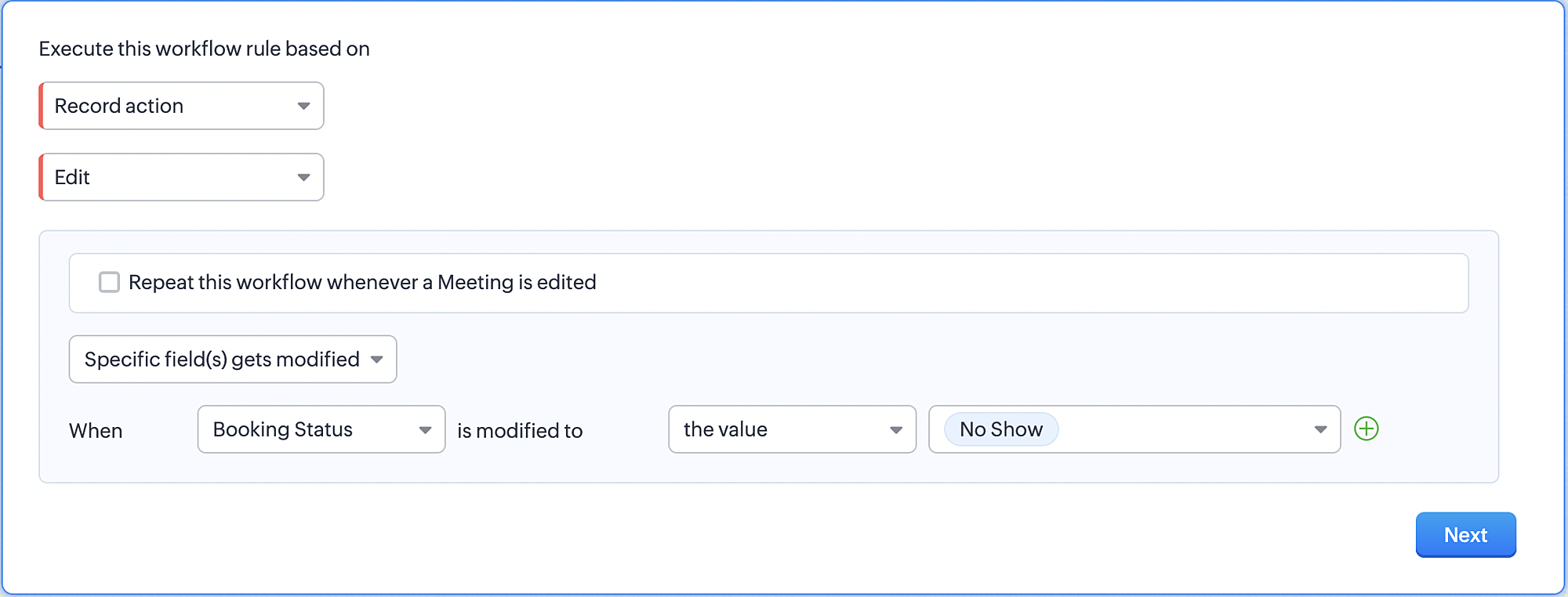
3. Configure condition > All Meetings.
4. Instant Actions > Function > New Function.
5. In the Configure custom function page, select the "no show" function you created from among the functions
users in your organization have created.
users in your organization have created.
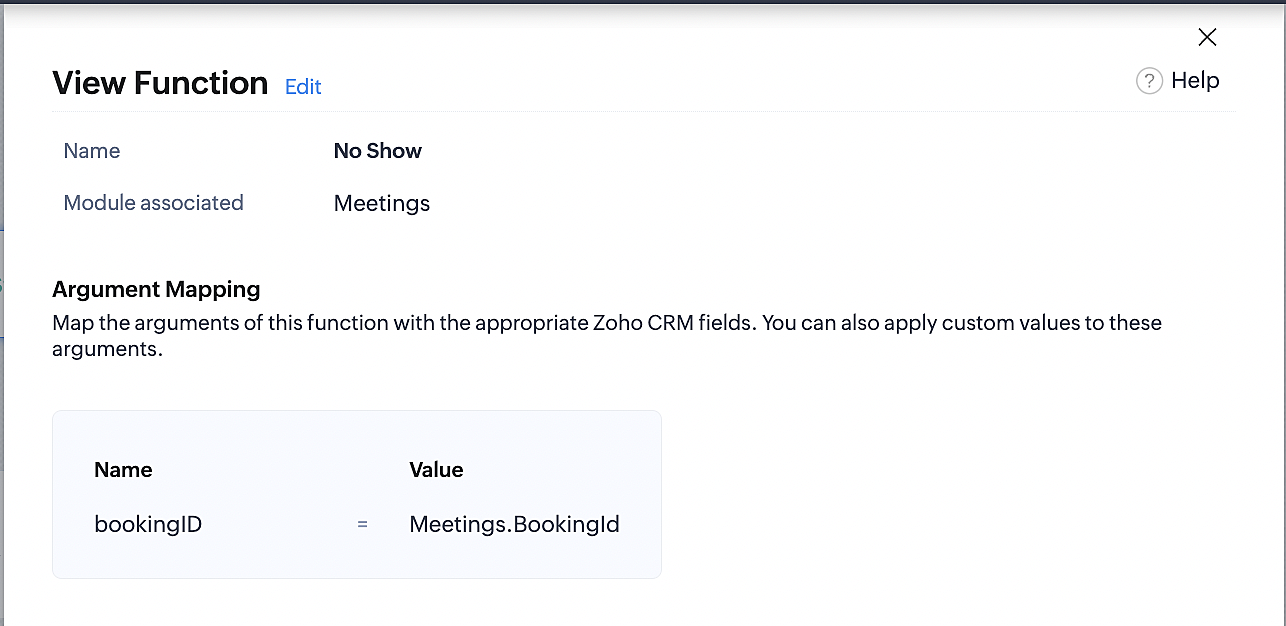
Part 6: Argument mapping:
If you encounter difficulties while navigating through the steps mentioned below, please refer to Part 3 above, where we have provided step-by-step screenshots for clarification.
1. Press # to choose an argument value.
2. Select Meetings under Module and configure the field as "BookingId".
3. Click Save and Associate button.
Reference:
Below is the final flow of the "No Show" booking status workflow:
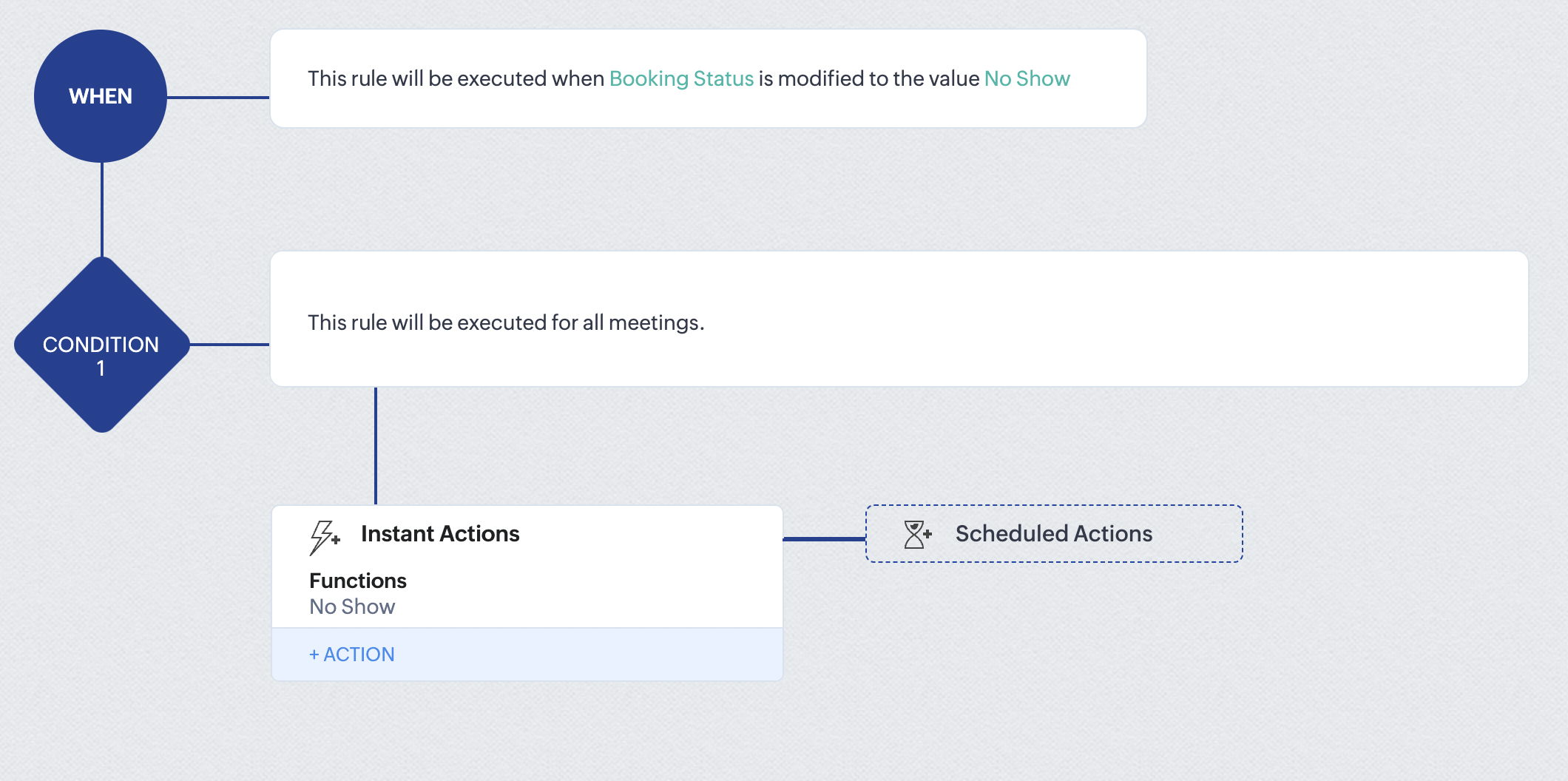
At the end of part 6, we will have created a workflow that automatically executes when the booking status field within the Zoho CRM Meetings module is updated to "No Show." This action will result in the associated bookings for that meeting also being marked as "No Show" in Zoho Bookings.
iii. Creating workflow for updating appointment status as "Completed" in Zoho Bookings when the booking status field of the meeting is marked as completed in Zoho CRM.
Part 7: Creating the rule
1. Go to Setup > Automation > Workflow Rules.
2. In the Workflow Rules page, click Create Rule.

3. Select Meetings under Module and configure rule name and description as required.
Reference:
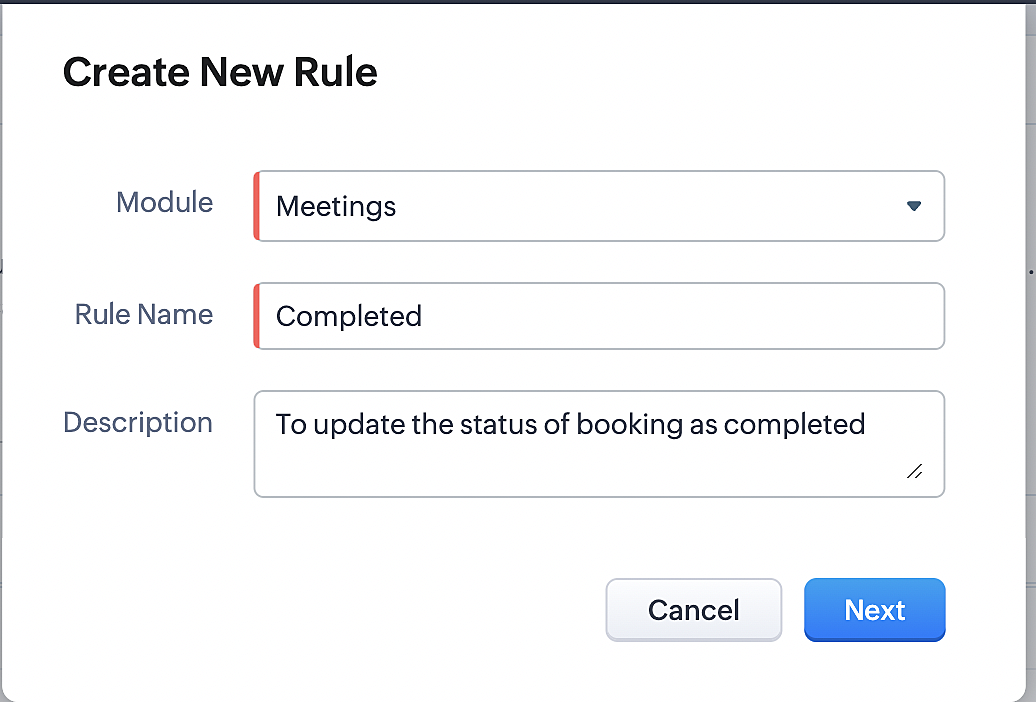
Part 8: Specifying the rule trigger
If you encounter difficulties while navigating through the steps mentioned below, please refer to Part 2 above, where we have provided step-by-step screenshots for clarification.
1. Record Action > Edit.

2. Enable the Specific field(s) gets modified setting and configure it per the screenshot below.
a. This serves to ensure that the workflow is executed only when the booking status under the Meetings module is
updated to "Completed".
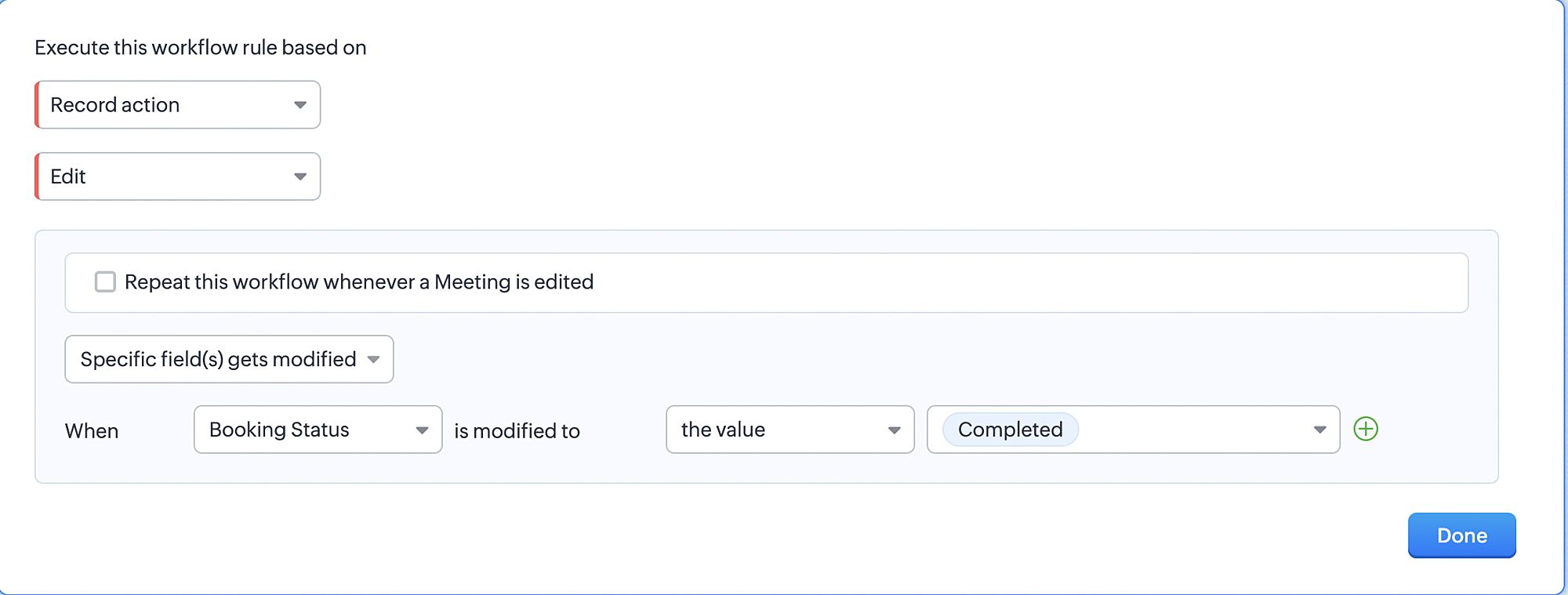
3. Configure condition > All Meetings.
4. Instant Actions > Function > New Function.
5. In the Configure custom function page, select the "completed" function you created from among the functions users
in your organization have created.
Part 9: Argument mapping:
If you encounter difficulties while navigating through the steps mentioned below, please refer to Part 3 above, where we have provided step-by-step screenshots for clarification.
1. Press # to choose an argument value.
2. Select Meetings under Module and configure the field as "BookingId".
3. Click Save and Associate button.
Reference:
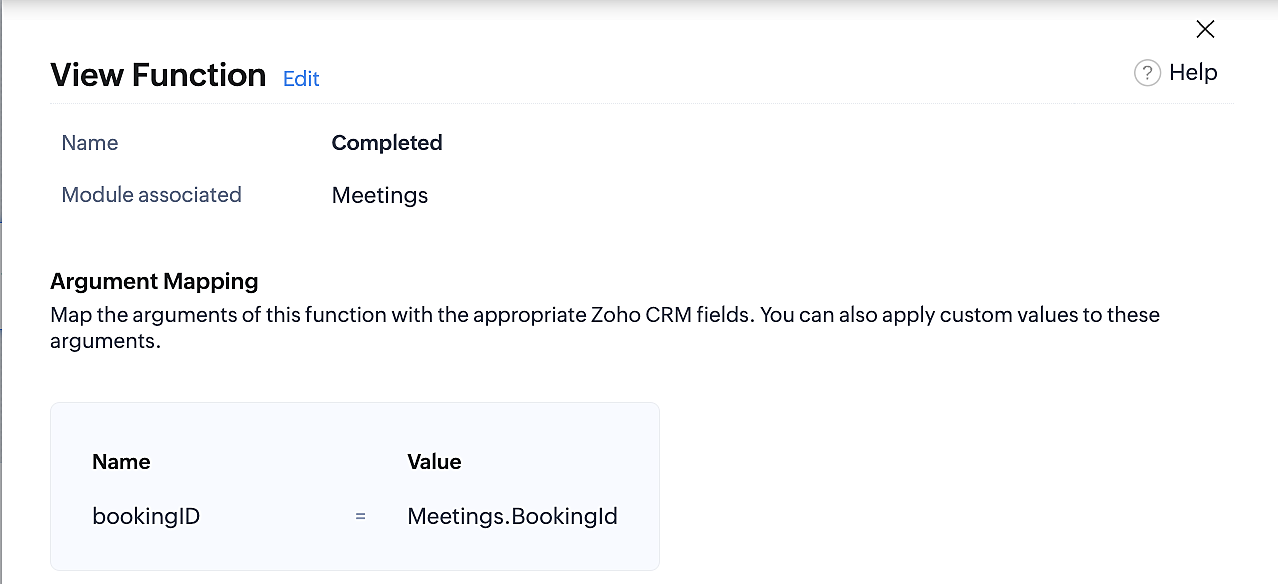
Below is the final flow of the "Completed" booking status workflow:
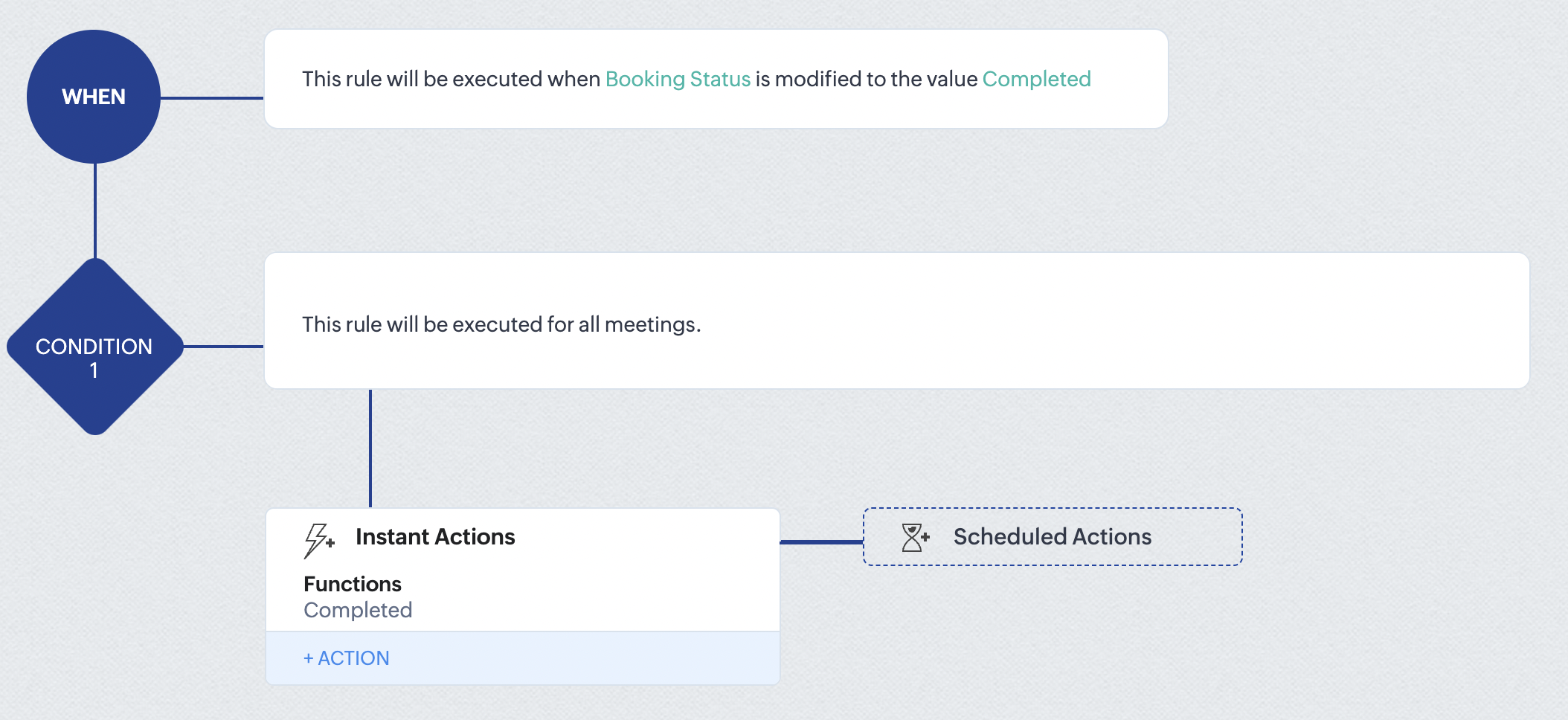
At the end of part 9, we will have created a workflow that is automatically executed when the booking status field within the Zoho CRM Meetings module is updated to "Completed." As a result, the associated bookings for that meeting will also be marked as "Completed" in Zoho Bookings.
Conclusion
We've reached the end of this community post. With the integration mentioned above in place, you'll be able to book, cancel, and update the status of appointments in Zoho Bookings directly from your Zoho CRM application. This will help you effectively manage your appointments in one place. As mentioned above, we've covered the rescheduling action in a separate post, which you can access by clicking on the following link: Reschedule Action
Furthermore, we've outlined a method for automating appointment statuses in detail. You can use this document as a reference to explore the various possibilities that suit your needs.
If you have any questions or need assistance with your configuration, please email us at hello@zohobookings.com or support@zohobookings.com.
Topic Participants
Kaushik S
bruce
Ishwarya SG
PrismaNote Support
Sticky Posts
Zoho CRM's sales trend and sales follow-up trend dashboards are now customizable
Dear Customers, We're here with good news! Sales trend and sales follow-up trend are two system-defined dashboards that help you understand trends and anomalies in your sales outreach and conversion efforts. They use Zia's intelligence to identify patternsIntroducing Multiple Sandbox Types and Support for Module's Data Population
Register here for the upcoming Focus Group webinar on Multiple Sandbox | Help documentation to learn more about the new enhancements Hello everyone, Sandbox in CRM is a testing environment for users to create and test new configurations like workflowGood news! Calendar in Zoho CRM gets a face lift
Dear Customers, We are delighted to unveil the revamped calendar UI in Zoho CRM. With a complete visual overhaul aligned with CRM for Everyone, the calendar now offers a more intuitive and flexible scheduling experience. What’s new? Distinguish activitiesVoC in Zoho CRM is now data savvy: Explore response drilldown, summary components and participation in CRM criteria
VoC has all the goods when it comes to customer intelligence—which is why we're constantly enhancing it. We recently added the following: A customer drilldown component that shows you the list of prospects and customers behind a chart's attribute ExpandedWrapping up 2025 on a high note: CRM Release Highlights of the year
Dear Customers, 2025 was an eventful year for us at Zoho CRM. We’ve had releases of all sizes and impact, and we are excited to look back, break it down, and rediscover them with you! Before we rewind—we’d like to take a minute and sincerely thank you
Recent Topics
Is there a way to show contact emails in the Account?
I know I can see the emails I have sent and received on a Contact detail view, but I want to be able to see all the emails that have been sent and received between all an Accounts Contacts on the Account Detail view. That way when I see the Account detailUnable to Assign Multiple Categories to a Single Product in Zoho Commerce
Hello Zoho Commerce Support Team, I am facing an issue while assigning categories to products in Zoho Commerce. I want to assign multiple categories to a single product, but in the Item edit page, the Category field allows selecting only one categoryCollapsing and expanding of lists and paragraphs
hello Would you ever implement Collapsing and expanding of lists and paragraphs in zoho writer ? Best regardsSaving issue
First problem I opened a MS word file in writer. after the work is done, it does not save instantly, I waited for like 10min and it still did not save. second problem When I save a file, then file gets saved as another copy. I just did save, not saveNotifications Feeds unread count?
How do I reset the unread count on feeds notifications? I've opened every notification in the list. And the count never goes to zero.Zoho CRM Quotes – Subform and PDF/Writer Limitations
Hello, I am encountering the following limitations in Zoho CRM Quotes: Custom product images cannot be uploaded in the subform – the image upload field cannot be added; only the file upload field is available. File upload placeholders cannot be used inZoho Finance Limitations 2.0 #3: Can't assign a Contact to a Finance Record (estimate, sales order or invoice)
If you use a business to business scenario with different contact people within the company you can't assign a finance record (estimate, invoice, etc...) to that person. Why this matters? No way to find out which person placed the order without manualRanking by group in report
Dears, I am new to Zoho Analytics and I would like to ask you guys help to creating a ranking column. Report type: Pivot Matter: I want to create a ranking column on the right of Percentage. This ranking is group by column Type, and ranking by Final Score/Percent.Zoho CRM for Everyone's NextGen UI Gets an Upgrade
Hello Everyone We've made improvements to Zoho CRM for Everyone's Nextgen UI. These changes are the result of valuable feedback from you where we’ve focused on improving usability, providing wider screen space, and making navigation smoother so everythingZoho Community Digest — Febrero 2026
¡Hola, comunidad! Un mes más os traemos las novedades más interesantes de Zoho para febrero de 2026, incluyendo actualizaciones de producto publicadas oficialmente, cambios de políticas y noticias del ecosistema. Pero antes de lanzarnos a las actualizaciones,Disable Zoho Contacts
We don't want to use this app... How can we disable it?Department Overview by Modified Time
We are trying to create visuals to show the work our agents do in Zoho Desk. Using Zoho Analytics how can we create a Department Overview per modified time and not ticket created time? In order for us to get an accurate view of the work our agents areFilter button in the Zoho Sheet Android App doesn't toggle on
I am a new Zoho Sheets user and experiencing a specific issue with the filter functionality in the Android mobile application. Detailed Issue Description: The filter icon appears correctly in the toolbar. Upon tapping the filter icon/button, the toggle【Zoho CRM】商談タブへのデータインポート
Zoho使用前にエクセルで管理していた商談情報を、Zoho一括管理のため、商談タブにインポートしたいのですが、お客さまの氏名だけが紐づけられませんでした。 「Zoho CRMにインポートする項目を関連付ける」のところが画像のようになっています。 (弊社では、「姓」を「★個人データ名」という項目名に変更し、フルネームを入れて使用しています。) どのようにしたら氏名をインポートできるかご存じの方がいらっしゃいましたら、ご教示いただきたく、よろしくお願いいたします。 (投稿先が間違っていましたらご指CRM Cadences recognise auto-responses
I have leads in a Cadence. I get an auto-responder reply "I'm out of the office..." Normally Cadences seems to know that isn't a real reply and keeps the lead enrolled in the cadence. However, today, Cadences has UNENROLLED a Lead who sent an auto-reponseSalesIQ Chat Notifications
I am the admin of our salesIQ implementation. About two weeks ago, I started hearing/seeing notification for ALL chats messages from monitored agents/chat participants. I don't need to see these, we have a manager who deals with this. I can't stop theHow to Create a Fixed Sliding Time Window (D-45 to D-15) in Zoho Analytics ?
Hello, I would like to create a report in Zoho Analytics based on a sliding time window between D-45 and D-15, with a fixed snapshot of that specific period. The data displayed should strictly reflect activity recorded between D-45 and D-15 only, withoutExport Zoho Books to another accounting package?
Is an export feature to Quickbooks or Accpac available (or a form that is easily imported by them)? My reasons: 1) my accountant, who prepares my corporate tax return, prefers to work with their own accounting system. If I can convert Zoho books a form that is easily importable into Quickbooks or an Accpac format, this process would be easy. 2) I don't want to keep my data in a proprietary format on the cloud somewhere without a way to easily extract it to a format that can be read my a well establishedAnchor Links in Dashboards
Hello, Our dashboards frequently have multiple sections that would be more easily skipped between using anchor links. Please consider adding an anchor link feature to the text widget? This could be done by adding an anchor link option to the text widget next to the "remove" option (see screenshot). The option would assign an ID to the <div> containing the text widget in the live dashboard. Then, the chosen ID could be linked using a traditional <a href="#link_id"> in the html section of the textIntroducing Auto-trigger for Screening Bot
Still manually sending screening tests after every application? Not anymore. With Auto-trigger for Screening Bot, screening now begins automatically. When a candidate applies for a job that has an attached assessment, Recruit checks whether the test hasSEO for your Zoho Sites Website
Join our live webinar to learn how to use Zoho Sites' SEO tools to boost your website's ranking. Our product specialist will demonstrate everything you need to know about optimizing your web pages to make them search engine friendly. Register here for free: https://www.zoho.com/sites/webinars/Importing into Multiselect Picklist
Hi, We just completed a trade show and one of the bits of information we collect is tool style. The application supplied by the show set this up as individual questions. For example, if the customer used Thick Turret and Trumpf style but not Thin Turret,New 2026 Application Themes
Love the new themes - shame you can't get a little more granular with the colours, ie 3 different colours so one for the dropdown menu background. Also, I did have our logo above the application name but it appears you can't change logo placement positionAdd line item numbers to sales order/invoice creation page
It would be really helpful if there were line numbers visible as we are creating a sales order and/or invoice. There are line numbers visible in the PDF once the sales order is created. I would like to be able to see the line numbers as I am buildingAPI to Apply Retainer invoice payment to Invoice
Hi Team, I could not find API to apply the Retainer invoice payment to existing Invoice. Can you please help ? Attaching the screenshotReconciling a month with no transactions
I'm treasurer for a small non profit cemetery association and I'm trying to reconcile a bank statement for a month that did not have any transactions. Do I skip the month entirely and go a month with transactions?push notification to Cliq when user is @mentioned in CRM notes
push notification to Cliq when user is @mentioned in CRM notes. Currently users that is @mentioned gets an email to be notified. User/s that is @mentioned should get a Cliq notification.Customize your Booking page using Zia
We’re excited to introduce an AI-based enhancement that automatically customizes your booking page effortlessly. By simply providing your business website URL, Zoho Bookings can automatically design a booking page that matches or complements your brandMultiple header in the quote table???
Hello, Is it possible in Zoho CRM to add multiple headers or sections within the Quote product table, so that when the quote is printed it shows separate sections (for example “Products” and “Services”)? To clarify, I’m asking because: This does not appearFeature Request: Render Markdown (.md) files in Zoho Cliq
Hi, We regularly share Markdown (.md) files in Zoho Cliq. However, when we open these files in Cliq, the content does not render as Markdown—it displays as plain text. This forces us to copy/paste the content into an external Markdown viewer to read itZoho Workdrive download was block by security software
Hi Team, Recently workdrive download was blocked by huorong security. Could you please advise how to put zoho workdrive as white list? every time we put "*.zohoexternal.com" or "workdrive.zohoexternal.com", the warning msg will still pop in next dowZoho mail to contacts and leads, but not to accounts?
We use the accounts tab a lot for our business because they can be linked to the sales orders. Now we want to use the mail add on to link communication of our emails to our accounts. However this is only possible for contacts and leads? It would be convenientAPI keys not showing in ZeptoMail dashboard
Hi there, I'm hoping someone can provide some assistance as support isn't replying. I am trying to configure my transactional emails, but the dashboard doesn't show any of my API details - the `div` is there but it's emtpy. Every time I click "GenerateDoes Zoho Learn integrate with Zoho Connect,People,Workdrive,Project,Desk?
Can we propose Zoho LEarn as a centralised Knowledge Portal tool that can get synched with the other Zoho products and serve as a central Knowledge repository?Reading from and writing to Zoho Projects Custom Module with Deluge
Does anyone know if there is a way to read from and write to the Custom Modules that Zoho now supports. I would love to be able to loop through a set of data and create the entities I need to for this new custom module I'm looking to put together.How Does Knowledge Base Search and Article Recommendation Work?
Hello, I would like to understand how the Knowledge Base search engine works. Specifically, does it search based on: The article title only? The full article content? Both, the article and the content? Keywords? Tags? Also, how does the system determineZoho Books/Inventory - Restrict Items With Pricebook
Hi Zoho Team, I'm trying to address as use case where a client needs to restrict which products certain customers can purchase. I have been able to find a way to do this based on the current Zoho Books or Zoho Inventory configuation. My feature requestBest Way to Integrate Zoho Campaigns with Amazon SES Without Third-Party Tools
I am looking for the most seamless and efficient method to integrate Zoho Campaigns with Amazon SES. My goal is to avoid using any third-party automation tools like Zapier, Make, or Pabbly, and instead, leverage Zoho's native capabilities for this integration.Release Notes | January 2026
We have rolled out a set of powerful new enhancements across Zoho Vertical Studio that bring several long-awaited capabilities to your applications. These updates focus on deeper customization, smarter automation, better reporting, and improved usabilityHow to charge Convenience fee OR payment gateway charges to the end client who is paying the invoice?
Hello, I am creating this topic after having discussions with various sets of users and have understood that with people moving more and more to digital payments, it is important for the client to enable the "Convenience fee" kind of scenario. I haveNext Page