Kaizen #205 - Answering Your Questions | Managing Picklists and Enabling History Tracking via Zoho CRM APIs
Hello everyone!
Welcome back to another post in our Kaizen series.
In this post, we will look at how you can manage picklist fields in Zoho CRM using APIs. This topic was raised as feedback to Kaizen #200, so we are taking it up here with more details.

In this post, we will cover the following:
- What is a picklist field in Zoho CRM?
- Picklist vs Multi-select Picklist
- Working with picklist fields via APIs
- Creating a picklist field using the Create Custom Field Metadata API
- Updating a picklist field using the Update Custom Field Metadata API
- Assigning picklist values when creating records using the Insert Records API
- Updating picklist values in existing records using the Update Records API
- History tracking for picklists
- What is history tracking for picklists in Zoho CRM?
- Use case
- Enabling history tracking for a picklist using the Create Custom Fields API
What is a picklist field in Zoho CRM?
A Picklist field is a drop-down field in Zoho CRM that contains a predefined list of values. While creating or updating a record, you can select one value from this list instead of entering it manually. This helps you avoid typing errors.
Example :
A Region field with values East, West, North, and South.
If a lead is from the East, the user simply selects East from the picklist instead of typing it manually.
Picklist vs Multi-select Picklist
Picklist | Multi-select Picklist |
Users can select only one value from the list. | Users can select multiple values at once. |
A standard Region picklist works when a record belongs to only one region. Example : East | A Multi-select Region picklist works when a record spans multiple regions. Example : East, North |
Global picklist / Global set : User can create a picklist in common and associate the created picklist across the modules to maintain accuracy. Refer to Kaizen #161: Global Sets using Zoho CRM APIs for more details.
Working with picklist fields via APIs
Creating a picklist field using the Create Custom Field API
You can create a new Picklist field in a module by calling the Create Custom Field Metadata API. For example, you can create a picklist field named Region with the values: East, West, North, South.
Request URL : {{api-domain}}/crm/v8/settings/fields?module=Leads
Request Method : POST
Sample Input
When creating a picklist field, set its data type as picklist and provide the list of options, each with a mandatory display_value. You can also configure additional properties such as actual_value, lexical sorting, and color coding.
{ "fields": [ { "field_label": "Select Region", "data_type": "picklist", // Specify the data type as picklist "tooltip": { "name": "info_icon", "value": "Select your region here" }, "profiles": [ { "id": "5725767000000026011", "permission_type": "read_write" } ], "pick_list_values": [ { "display_value": "East", //The unique display value for the picklist, which will be displayed in the CRM UI. Use the display_value in API requests during create, update, and upsert operations. "actual_value": "IN_East" //The unique reference value associated with the particular option. }, { "display_value": "West", "actual_value": "IN_West" }, { "display_value": "North", "actual_value": "IN_North" }, { "display_value": "South", "actual_value": "IN_South" } ], "pick_list_values_sorted_lexically": true, //Sorts options alphabetically. Default value is false. "enable_colour_code": true //Allows color coding for picklist options. Default value is false. } ] } |
Note : To create a multi-select picklist field, set the data_type key to multiselectpicklist in the request body ("data_type": "multiselectpicklist").
Sample Response
{ "fields": [ { "code": "SUCCESS", "details": { "id": "5725767000007613005" }, "message": "field created", "status": "success" } ] } |
Updating a picklist field using the Update Custom Field API
The PATCH - Field Metadata API lets you modify an existing Picklist field. Use the Get Fields Metadata API to get your picklist field ID.
You can:
- Add new options
- Update the picklist
- Remove existing options using Update Custom Layout API
Here is a sample request that updates the Select Region dropdown field in the Leads module.
Request URL : {{api-domain}}/crm/v8/settings/fields/5725767000007613005?module=Leads
Request Method : PATCH
Adding a new option to the existing picklist field
Sample Input
{ "fields": [ { "pick_list_values": [ { "display_value": "Central", //adding a new option to the existing picklist field "actual_value": "IN_Central" } ], } ] } |
Updating picklist
{ "fields": [ { "profiles": [ { "id": "5725767000000026011", "permission_type": "read_only" //updating the permission_type } ], "pick_list_values": [ { "display_value": "South Region", //updating the display field's value "id": "5725767000007613010" //unique ID of the option } ], "enable_colour_code": false //disabling color code for the options } ] } |
Note : Use the actual_value or unique ID of a picklist option to update its display value. Use the Get Fields Metadata API or Get Layouts Metadata API to get the details.
Removing existing options using Update Custom Layout API
To remove picklist values, keep only the required options in your input. Any options not included in the request will automatically move to the unused section.
First, fetch the required layout, section, field, and option IDs using the Get Layouts Metadata API. Then, in your request body, specify only the picklist values you want to retain.
Request URL : {{api-domain}}/crm/v8/settings/layouts/5725767000000091055?module=Leads
Request Method : PATCH
Sample Input
{ "layouts": [ { "id": "5725767000000091055", //layout id "sections": [ { "id": "5725767000000209001", //section id "fields": [ { "id": "5725767000007613005", //field id "pick_list_values": [ { "display_value": "Central", "id": "5725767000007626001" }, { "display_value": "East", "id": "5725767000007613004" } ] } ] } ] } ] } |
Here, Central and East regions remain as active picklist options, and West, North, and South regions are moved to the unused section.
Updated response
Use the Get Fields Metadata API to check the updated response. The Central and East are still active options (type: used), and North, South, and West are inactive options (type: unused)
{ "fields": [ . . . { "field_label": "Select Region", "id": "5725767000007613005", "api_name": "Select_Region", "pick_list_values": [ { "display_value": "-None-", "sequence_number": 1, "reference_value": "-None-", "colour_code": null, "actual_value": "-None-", "id": "5725767000007613013", "type": "used" //default option }, { "display_value": "Central", "sequence_number": 6, "reference_value": "Central", "colour_code": null, "actual_value": "IN_Central", "id": "5725767000007626001", "type": "used" }, { "display_value": "East", "sequence_number": 2, "reference_value": "East", "colour_code": null, "actual_value": "IN_East", "id": "5725767000007613004", "type": "used" }, { "display_value": "North", "sequence_number": 4, "reference_value": "North", "colour_code": null, "actual_value": "IN_North", "id": "5725767000007613008", "type": "unused" }, { "display_value": "South", "sequence_number": 5, "reference_value": "South", "colour_code": null, "actual_value": "IN_South", "id": "5725767000007613010", "type": "unused" }, { "display_value": "West", "sequence_number": 3, "reference_value": "West", "colour_code": null, "actual_value": "IN_West", "id": "5725767000007613006", "type": "unused" } ], "data_type": "picklist" } ] } |
Assigning picklist values using the Insert Records API
When you insert a record, you can directly pass the picklist option’s display value (not the ID) in the request body.
Request URL : {api-domain}/crm/v8/{module_api_name}
Request Method : POST
Sample Input
{ "data": [ { "Company": "Zylker", "Last_Name": "David", "Select_Region": "Central" // Picklist value to assign } ] } |
Note:
- When creating, updating, or upserting records,
- You can either pass an existing picklist value or add a new one, through the API. Please note that the new value will only be stored in that record, and will not be added to the picklist field’s metadata.
- In the UI, you can only select from the available dropdown options.
- Always use the display_value of the picklist option, not the picklist option’s ID.
- You can also assign the default option (-None-). In this case, the picklist field’s value will be stored as null ("Select_Region": null)
Sample Response
{ "data": [ { "code": "SUCCESS", "details": { "Modified_Time": "2025-08-23T04:51:39-07:00", "Modified_By": { "name": "Patricia Boyle", "id": "5725767000000411001" }, "Created_Time": "2025-08-23T04:51:39-07:00", "id": "5725767000007623017", "Created_By": { "name": "Patricia Boyle", "id": "5725767000000411001" } }, "message": "record added", "status": "success" } ] } |
Updating picklist values in existing records using the Update Records API
When updating, you also use the picklist display value in the field.
Request URL : {api-domain}/crm/v8/Leads/5725767000007628002
Request Method : PUT
Sample Input
{ "data": [ { "Select_Region": "West" // New picklist value } ] } |
This will replace the existing picklist value with West.
History tracking for picklists
What is history tracking for picklists in Zoho CRM?
You can enable history tracking for a picklist field using the Create Custom Field API. Once enabled, Zoho CRM automatically creates a related list for the tracked picklist and a separate module.
Every time the picklist value changes, Zoho CRM creates a new entry in this related list. Each entry shows the old value, the new value, who made the change, and when it was made, and how long the record stayed in the previous value before moving to the next one.
Use case
Zylker's sales team tracks lead progress through the statuses such as New, Contacted, Qualified, and Converted. The team wants to know how long a lead remains in each status and identify if follow-ups are delayed or leads are not progressing.
You can achieve this by enabling history tracking on the Status picklist. You can also monitor every status change, who made it, and how long the lead stayed in the previous status. This helps the team monitor, identify delays, and improve the follow-up process.
The log stores:
- New Value - updated region in the Moved_To__s key.
- Changed By - user who made the update in the Modified_By key.
- Changed On - date and time when the region was changed in the Last_Activity_Time key.
- Duration - how long the record stayed in the previous value before the change in the Duration_Time and Duration_Days keys.
Enabling history tracking for a picklist using the Create Custom Fields API
Request URL : {{api-domain}}/crm/v8/settings/fields?module=Leads
Request Method : POST
Sample Input
{ "fields": [ { "field_label": "Status", "data_type": "picklist", "pick_list_values": [ { "display_value": "New", "actual_value": "New" }, { "display_value": "Contacted", "actual_value": "Contacted" }, { "display_value": "Qualified", "actual_value": "Qualified" }, { "display_value": "Converted", "actual_value": "Converted" } ], "history_tracking_enabled": true, //(mandatory) Enables history tracking for the picklist "history_tracking": { "related_list_name": "Status History", //Lets you give a custom name to the history related list that CRM creates. "duration_configuration": "time", //Decides how to track the timing of changes: days - History is tracked by days and time - History is tracked by time. Note : Before specifying the time value, enable the duration customization feature in your organization by contacting support@zohocrm.com. "followed_fields": [ // The followed_fields lets you retrieve additional field values whenever the picklist value changes. { "api_name": "Owner" } ] } } ] } |
Sample Response in UI
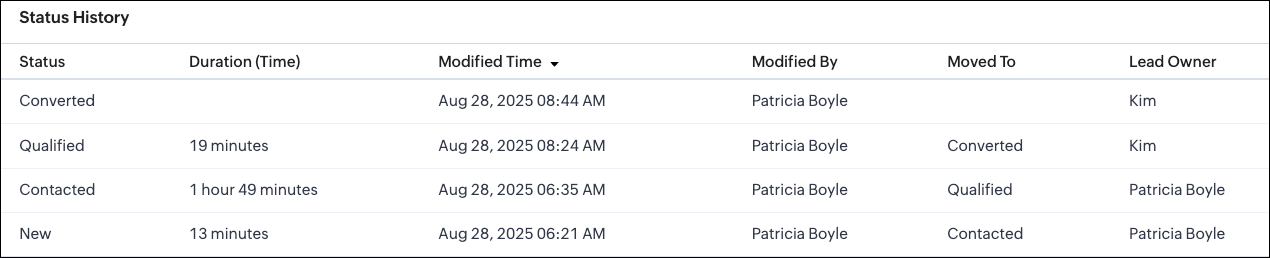
Sample Response via API
Whenever a picklist option changes, the system creates a new record in the related list module. In this example, Status History is the related list module. The sample response below shows how a particular change looks when retrieved using the Get Records API.
Request URL : {{api-domain}}/crm/v8/Status_History/5725767000007739323
Request Method : GET
Sample Response
{ "data": [ { "Status": "Contacted", "$approval": { "delegate": false, "takeover": false, "approve": false, "reject": false, "resubmit": false }, "Modified_Time": "2025-08-28T06:35:15-07:00", "$currency_symbol": "$", "$field_states": null, "$review_process": null, "$editable": true, "Duration_Time": "6568847", //The system stores the duration in milliseconds. "$sharing_permission": "full_access", "Lead_Owner": { "name": "Patricia Boyle", "id": "5725767000000411001" }, "Moved_To__s": "Qualified", "$orchestration": false, "Last_Activity_Time": "2025-08-28T08:24:44-07:00", "Full_Name": { "name": "Zylker", "id": "5725767000007735001" }, "Modified_By": { "name": "Patricia Boyle", "id": "5725767000000411001", }, "$review": null, "$process_flow": false, "$in_merge": false, "id": "5725767000007739350", "$approval_state": "approved", "$pathfinder": false, "$zia_visions": null } ] } |
Note :
- You can select up to 10 fields in total, with a maximum of 5 user fields for all modules except Deals.
- Encrypted fields cannot be specified.
- In the Deals module,
- History tracking is enabled by default for the Stage picklist field.
- You cannot enable history tracking for any other picklist field in the Deals module.
- You can only update the existing Stage picklist field using the Update Custom Field API.
- You can add up to 6 followed fields, with a maximum of 5 user fields.
We hope this post helps you confidently manage picklists and track their history in Zoho CRM. Try it out, and let us know your experience in the comment section or reach out to us at support@zohocrm.com
Stay tuned for more insights in our upcoming Kaizen posts!
Cheers!

Previous Kaizen : Kaizen# 204 - Answering Your Questions - Perform Field Updates before Blueprint transition via Client Script | Kaizen Directory : Home
Related Links :
Topic Participants
Subramanian K
Sticky Posts
Kaizen #198: Using Client Script for Custom Validation in Blueprint
Nearing 200th Kaizen Post – 1 More to the Big Two-Oh-Oh! Do you have any questions, suggestions, or topics you would like us to cover in future posts? Your insights and suggestions help us shape future content and make this series better for everyone.Kaizen #226: Using ZRC in Client Script
Hello everyone! Welcome to another week of Kaizen. In today's post, lets see what is ZRC (Zoho Request Client) and how we can use ZRC methods in Client Script to get inputs from a Salesperson and update the Lead status with a single button click. In thisKaizen #222 - Client Script Support for Notes Related List
Hello everyone! Welcome to another week of Kaizen. The final Kaizen post of the year 2025 is here! With the new Client Script support for the Notes Related List, you can validate, enrich, and manage notes across modules. In this post, we’ll explore howKaizen #217 - Actions APIs : Tasks
Welcome to another week of Kaizen! In last week's post we discussed Email Notifications APIs which act as the link between your Workflow automations and you. We have discussed how Zylker Cloud Services uses Email Notifications API in their custom dashboard.Kaizen #216 - Actions APIs : Email Notifications
Welcome to another week of Kaizen! For the last three weeks, we have been discussing Zylker's workflows. We successfully updated a dormant workflow, built a new one from the ground up and more. But our work is not finished—these automated processes are
Recent Topics
How do I bulk archive my projects in ZOHO projects
Hi, I want to archive 50 Projects in one go. Can you please help me out , How can I do this? Thanks kapilCopy contents of File Upload Field into Workdrive
Hello, I have set up our CRM so that a Workdrive folder is automatically created for each Deal via workflow, this adds the id of the folder into a dedicated field. We also have a field on each Deal called 'Approved Layout', which is a file upload field.Kaizen #198: Using Client Script for Custom Validation in Blueprint
Nearing 200th Kaizen Post – 1 More to the Big Two-Oh-Oh! Do you have any questions, suggestions, or topics you would like us to cover in future posts? Your insights and suggestions help us shape future content and make this series better for everyone.Deleting a memorized email address
How can I delete a memorized email address? Even though the address has been deleted from Contacts, Zoho mail still auto suggests the address when typing it into the TO field. Thanks!Multiple Cover Letters
We are using the staffing firm edition of Recruit and we have noticed that candidates cannot add more than one cover letter. This is a problem as they might be applying for multiple jobs on our career site and when we submit their application to a client,Introducing Record Category in CRM: Group options to see record status at a glance.
Release update: Currently available for CN, JP, and AU DCs (all paid editions). It will be made available to other DCs by mid-March. Hello everyone, We are pleased to introduce Record Category in Zoho CRM - a new capability where the user can get an overview553 Relaying disallowed. Invalid Domain - gzkcompany.ro
Hi there, Can you please assist me in getting the right domain settings? I just renewed my domain subscription, after expired and i got error: 553 Relaying disallowed. Invalid Domain - gzkcompany.ro Zoho mail can receive emails, but its impossible toNot able to receive emails for a while
I am not able to receive emails for a while now.Confirmation requested: eligibility and process to downgrade to Forever Free — tenant bigbanghawking.com
Thank you for your reply. I am testing Zoho Mail from Brazil with the tenant bigbanghawking.com (endpoint: mail.zoho.com) and we are currently on the Premium trial that expires 21/01/2026. Before deciding whether to pay or cancel, I need written confirmationCreate Tasklist with Tasklist Template using API v3
In the old API, we could mention the parameter 'task_template_id' when creating a tasklist via API to apply a tasklist template: https://www.zoho.com/projects/help/rest-api/tasklists-api.html#create-tasklist In API v3 there does not seem to be a way toZoho API v2.0 - get ALL users from ALL projects
Hello, I've been trying to work on an automatization project lately and I find it difficult to work with this strict structure. To be more explicit, if i would like to get all users participating in a project i would need to get all projects first. Same thing with projects. If i want to get all projects, I would need to get all portals first. The problem with this aproach is that it consumes a lot of time and resources. I want to ask if there is another way of getting[Webinar] Solving business challenges by transitioning to Zoho Writer from legacy tools
Moving to Zoho Writer is a great way to consolidate your business tools and become more agile. With multiple accessibility modes, no-code automation, and extensive integration with business apps and content platforms, Zoho Writer helps solve your organization'sالموقع لا يقوم بالسداد
السلام عليكم ورحمة الله وبركاته وبعد من أمس وانا احاول السداد للدومين YELLOWLIGHT ولا اتمكن من السداد اقوم بتعبئة جميع البيانات ولكن دون جدوى يطلع لى حدث خطأ ماNew in Office Integrator: Enhanced document navigation with captions and cross references
Hi users, We're pleased to introduce captions, table of tables and figures, and cross-references in the document editor in Zoho Office Integrator. This allows you to structure documents efficiently and simplify document navigation for your readers fromEnhancements for Currencies in Zoho CRM: Automatic exchange rate updates, options to update record exchange rates, and more
The multi-currency feature helps you track currencies region-wise. This can apply to Sales, CTC, or any other currency-related data. You can record amounts in a customer’s local currency, while the CRM automatically converts them to your home currencyLive Chat for user
Hi everyone, I’m new to Zoho Creator and wanted to ask if it’s possible to add a live chat option for all logged-in portal users so they can chat internally. I’m trying to create a customer portal similar to a service desk, but for vehicle breakdowns,Where Do I set 24h time format in Cliq?
Where Do I set 24h time format? ThanksNew activity options for workflows
Greetings, We are excited to announce the addition of two new dynamic actions to our workflow functionality: Create Event and Schedule Call. These actions have been thoughtfully designed to enhance your workflow processes and bring more efficiency to🎉 ¡Seguimos trayendo novedades a Español Zoho Community! 🎉 Confirmada la agenda y ubicación para los Workshops Certificados
Si todavía no te has hecho con tu entrada para nuestros Workshops Certificados del próximo 26 y 27 de marzo o, por el contrario, estabas esperando que confirmáramos dónde los celebraremos, ¡este post es para ti! 📍¿Dónde nos vemos?📍 Nuestros WorkshopsUser is already present in another account error in assigning users to marketing automation
Hello everyone Greeting, I had a problem in assigning user in marketing automation, when I try to add it I see this error: (User is already present in another account error) what should I do?How do I get complete email addresses to show?
I opened a free personal Zoho email account and am concerned that when I enter an email address in the "To", "CC", fields, it changes to a simple first name. This might work well for most people however I do need to see the actual email addresses showingWhat's New in Zoho POS - January 2026
Hello everyone, Welcome to Zoho POS’s monthly updates, where we share our latest feature updates, enhancements, events, and more. Let’s take a look at how January went. Sort and resolve conflicts Conflicts are issues that may arise when registers andRemoving Tables from HTML Inventory Templates - headers, footers and page number tags only?
I'm a bit confused by the update that is coming to HTML Inventory Templates https://help.zoho.com/portal/en/kb/crm-nextgen/customize-crm-account/customizing-templates/articles/nextgen-update-your-html-inventory-templates-for-pdf-generator-upgrade It saysOutlook is blocking incoming mail
Outlook is blocking all emails sent from the Zoho server. ERROR CODE :550 - 5.7.1 Unfortunately, messages from [136.143.169.51] weren't sent. Please contact your Internet service provider since part of their network is on our block list (S3150). It looksNot receiving email from customers and suppliers
I am getting error . most of the customers tell me not able to send me email please check i have attached screenshotCreate user
Hello I want to create user, but i get this error Unusual activity detected from this IP. Please try again after some time.File emails in Shared email folder
Hi, I am unable to allow users to collaborate in Shared email folders: User 1 shares a folder let's say "SharedTopic" with full permissions Users 2 and 3 can see this folder but are unable to add emails to this folder or search in this folder. For example,Consolidated report for multi-organisation
I'm hoping to see this feature to be available but couldn't locate in anywhere in the trial version. Is this supported? The main aim to go to ERP is to have visibility of the multi-organisation in once place. I'm hopeful for this.Integrating Zoho Suite and apps more with Linux
I just got introduced with Zoho just couple of months ago, and I've already planned to contribute to it, even though it's not an open-source software. Still I have found it's potential to beat the tech giants and still being respective towards data privacyHow to Switch from Outlook for Mac to Outlook for Windows
The most often used file formats for users to manage crucial data are OLM and PST files. PST files keep a copy of data on the configured system from Outlook, while the OLM file contains the Mac Outlook data items, which are only accessible with OutlookZoho CRM for Everyone's NextGen UI Gets an Upgrade
Hello Everyone We've made improvements to Zoho CRM for Everyone's Nextgen UI. These changes are the result of valuable feedback from you where we’ve focused on improving usability, providing wider screen space, and making navigation smoother so everythingStop the Workarounds: We Need Native Multi-Step Forms
After over 17 years of community requests, I'm hoping the Zoho team can finally address the lack of native multi-page form support in Zoho Creator. This has been one of the longest-standing feature requests in the community, with threads spanning nearlyName autocomplete
Hi, During searching emails the web tool does not always propose the auto-completion of the saved emails. As a result I either have to go to contacts and look up the exact email, or the exact full name including the middle name and any dots, which isAre custom portals accessible on the Zoho learn smartphone app?
In other words, can users external to my organisation, once signed up, use the app in the same way as internal users? ThanksHow to increase my Zoho sign limit.
I cannot send a document/contract for signature. Zoho sign says I reached my monthly limit. May I know how to fix this please? Thanks!Can not add m365 outlook account to zohomail.
I am attempting to use zoho mail as an imap client to add my outlook.com m365 account. In the m365 exchange admin center i have made sure the imap is enabled. In zoho mail i go to settings, mail accounts, add account, add imap account, i select "outlook",Unable to attach Work Order / Service Appointment PDF to Email Notifications (Zoho FSM)
I’m trying to include the Work Order PDF or Service Appointment PDF as an attachment in Email Notifications (automation/notification templates), but I don’t see any option to attach these generated PDFs. Is this currently supported in Zoho FSM? If not,local file csv import problem
The issue occurs when I upload a CSV file via Databridge. In the preview, everything looks correct — the values are in the proper columns. However, after clicking Import, the first column becomes empty, and the values from that column appear in a newFunción Deshacer y Rehacer
Hola. Soy un reciente usuario de Zoho Notebook que he migrado desde Evernote. He encontrado en falta una función que considero muy importante: un botón para "deshacer". Es frustrante cuando se borra un parte del texto o un archivo de una nota, generalmenteTip #59- Technician Console: Exploring View option- 'Insider Insights'
Hello Zoho Assist Community! Ever wondered how technicians adapt quickly during a live support session? Imagine a customer reaching out with an issue that’s disrupting their work. The technician starts a remote session and begins troubleshooting rightNext Page