Kaizen #205 - Answering Your Questions | Managing Picklists and Enabling History Tracking via Zoho CRM APIs
Hello everyone!
Welcome back to another post in our Kaizen series.
In this post, we will look at how you can manage picklist fields in Zoho CRM using APIs. This topic was raised as feedback to Kaizen #200, so we are taking it up here with more details.

In this post, we will cover the following:
- What is a picklist field in Zoho CRM?
- Picklist vs Multi-select Picklist
- Working with picklist fields via APIs
- Creating a picklist field using the Create Custom Field Metadata API
- Updating a picklist field using the Update Custom Field Metadata API
- Assigning picklist values when creating records using the Insert Records API
- Updating picklist values in existing records using the Update Records API
- History tracking for picklists
- What is history tracking for picklists in Zoho CRM?
- Use case
- Enabling history tracking for a picklist using the Create Custom Fields API
What is a picklist field in Zoho CRM?
A Picklist field is a drop-down field in Zoho CRM that contains a predefined list of values. While creating or updating a record, you can select one value from this list instead of entering it manually. This helps you avoid typing errors.
Example :
A Region field with values East, West, North, and South.
If a lead is from the East, the user simply selects East from the picklist instead of typing it manually.
Picklist vs Multi-select Picklist
Picklist | Multi-select Picklist |
Users can select only one value from the list. | Users can select multiple values at once. |
A standard Region picklist works when a record belongs to only one region. Example : East | A Multi-select Region picklist works when a record spans multiple regions. Example : East, North |
Global picklist / Global set : User can create a picklist in common and associate the created picklist across the modules to maintain accuracy. Refer to Kaizen #161: Global Sets using Zoho CRM APIs for more details.
Working with picklist fields via APIs
Creating a picklist field using the Create Custom Field API
You can create a new Picklist field in a module by calling the Create Custom Field Metadata API. For example, you can create a picklist field named Region with the values: East, West, North, South.
Request URL : {{api-domain}}/crm/v8/settings/fields?module=Leads
Request Method : POST
Sample Input
When creating a picklist field, set its data type as picklist and provide the list of options, each with a mandatory display_value. You can also configure additional properties such as actual_value, lexical sorting, and color coding.
{ "fields": [ { "field_label": "Select Region", "data_type": "picklist", // Specify the data type as picklist "tooltip": { "name": "info_icon", "value": "Select your region here" }, "profiles": [ { "id": "5725767000000026011", "permission_type": "read_write" } ], "pick_list_values": [ { "display_value": "East", //The unique display value for the picklist, which will be displayed in the CRM UI. Use the display_value in API requests during create, update, and upsert operations. "actual_value": "IN_East" //The unique reference value associated with the particular option. }, { "display_value": "West", "actual_value": "IN_West" }, { "display_value": "North", "actual_value": "IN_North" }, { "display_value": "South", "actual_value": "IN_South" } ], "pick_list_values_sorted_lexically": true, //Sorts options alphabetically. Default value is false. "enable_colour_code": true //Allows color coding for picklist options. Default value is false. } ] } |
Note : To create a multi-select picklist field, set the data_type key to multiselectpicklist in the request body ("data_type": "multiselectpicklist").
Sample Response
{ "fields": [ { "code": "SUCCESS", "details": { "id": "5725767000007613005" }, "message": "field created", "status": "success" } ] } |
Updating a picklist field using the Update Custom Field API
The PATCH - Field Metadata API lets you modify an existing Picklist field. Use the Get Fields Metadata API to get your picklist field ID.
You can:
- Add new options
- Update the picklist
- Remove existing options using Update Custom Layout API
Here is a sample request that updates the Select Region dropdown field in the Leads module.
Request URL : {{api-domain}}/crm/v8/settings/fields/5725767000007613005?module=Leads
Request Method : PATCH
Adding a new option to the existing picklist field
Sample Input
{ "fields": [ { "pick_list_values": [ { "display_value": "Central", //adding a new option to the existing picklist field "actual_value": "IN_Central" } ], } ] } |
Updating picklist
{ "fields": [ { "profiles": [ { "id": "5725767000000026011", "permission_type": "read_only" //updating the permission_type } ], "pick_list_values": [ { "display_value": "South Region", //updating the display field's value "id": "5725767000007613010" //unique ID of the option } ], "enable_colour_code": false //disabling color code for the options } ] } |
Note : Use the actual_value or unique ID of a picklist option to update its display value. Use the Get Fields Metadata API or Get Layouts Metadata API to get the details.
Removing existing options using Update Custom Layout API
To remove picklist values, keep only the required options in your input. Any options not included in the request will automatically move to the unused section.
First, fetch the required layout, section, field, and option IDs using the Get Layouts Metadata API. Then, in your request body, specify only the picklist values you want to retain.
Request URL : {{api-domain}}/crm/v8/settings/layouts/5725767000000091055?module=Leads
Request Method : PATCH
Sample Input
{ "layouts": [ { "id": "5725767000000091055", //layout id "sections": [ { "id": "5725767000000209001", //section id "fields": [ { "id": "5725767000007613005", //field id "pick_list_values": [ { "display_value": "Central", "id": "5725767000007626001" }, { "display_value": "East", "id": "5725767000007613004" } ] } ] } ] } ] } |
Here, Central and East regions remain as active picklist options, and West, North, and South regions are moved to the unused section.
Updated response
Use the Get Fields Metadata API to check the updated response. The Central and East are still active options (type: used), and North, South, and West are inactive options (type: unused)
{ "fields": [ . . . { "field_label": "Select Region", "id": "5725767000007613005", "api_name": "Select_Region", "pick_list_values": [ { "display_value": "-None-", "sequence_number": 1, "reference_value": "-None-", "colour_code": null, "actual_value": "-None-", "id": "5725767000007613013", "type": "used" //default option }, { "display_value": "Central", "sequence_number": 6, "reference_value": "Central", "colour_code": null, "actual_value": "IN_Central", "id": "5725767000007626001", "type": "used" }, { "display_value": "East", "sequence_number": 2, "reference_value": "East", "colour_code": null, "actual_value": "IN_East", "id": "5725767000007613004", "type": "used" }, { "display_value": "North", "sequence_number": 4, "reference_value": "North", "colour_code": null, "actual_value": "IN_North", "id": "5725767000007613008", "type": "unused" }, { "display_value": "South", "sequence_number": 5, "reference_value": "South", "colour_code": null, "actual_value": "IN_South", "id": "5725767000007613010", "type": "unused" }, { "display_value": "West", "sequence_number": 3, "reference_value": "West", "colour_code": null, "actual_value": "IN_West", "id": "5725767000007613006", "type": "unused" } ], "data_type": "picklist" } ] } |
Assigning picklist values using the Insert Records API
When you insert a record, you can directly pass the picklist option’s display value (not the ID) in the request body.
Request URL : {api-domain}/crm/v8/{module_api_name}
Request Method : POST
Sample Input
{ "data": [ { "Company": "Zylker", "Last_Name": "David", "Select_Region": "Central" // Picklist value to assign } ] } |
Note:
- When creating, updating, or upserting records,
- You can either pass an existing picklist value or add a new one, through the API. Please note that the new value will only be stored in that record, and will not be added to the picklist field’s metadata.
- In the UI, you can only select from the available dropdown options.
- Always use the display_value of the picklist option, not the picklist option’s ID.
- You can also assign the default option (-None-). In this case, the picklist field’s value will be stored as null ("Select_Region": null)
Sample Response
{ "data": [ { "code": "SUCCESS", "details": { "Modified_Time": "2025-08-23T04:51:39-07:00", "Modified_By": { "name": "Patricia Boyle", "id": "5725767000000411001" }, "Created_Time": "2025-08-23T04:51:39-07:00", "id": "5725767000007623017", "Created_By": { "name": "Patricia Boyle", "id": "5725767000000411001" } }, "message": "record added", "status": "success" } ] } |
Updating picklist values in existing records using the Update Records API
When updating, you also use the picklist display value in the field.
Request URL : {api-domain}/crm/v8/Leads/5725767000007628002
Request Method : PUT
Sample Input
{ "data": [ { "Select_Region": "West" // New picklist value } ] } |
This will replace the existing picklist value with West.
History tracking for picklists
What is history tracking for picklists in Zoho CRM?
You can enable history tracking for a picklist field using the Create Custom Field API. Once enabled, Zoho CRM automatically creates a related list for the tracked picklist and a separate module.
Every time the picklist value changes, Zoho CRM creates a new entry in this related list. Each entry shows the old value, the new value, who made the change, and when it was made, and how long the record stayed in the previous value before moving to the next one.
Use case
Zylker's sales team tracks lead progress through the statuses such as New, Contacted, Qualified, and Converted. The team wants to know how long a lead remains in each status and identify if follow-ups are delayed or leads are not progressing.
You can achieve this by enabling history tracking on the Status picklist. You can also monitor every status change, who made it, and how long the lead stayed in the previous status. This helps the team monitor, identify delays, and improve the follow-up process.
The log stores:
- New Value - updated region in the Moved_To__s key.
- Changed By - user who made the update in the Modified_By key.
- Changed On - date and time when the region was changed in the Last_Activity_Time key.
- Duration - how long the record stayed in the previous value before the change in the Duration_Time and Duration_Days keys.
Enabling history tracking for a picklist using the Create Custom Fields API
Request URL : {{api-domain}}/crm/v8/settings/fields?module=Leads
Request Method : POST
Sample Input
{ "fields": [ { "field_label": "Status", "data_type": "picklist", "pick_list_values": [ { "display_value": "New", "actual_value": "New" }, { "display_value": "Contacted", "actual_value": "Contacted" }, { "display_value": "Qualified", "actual_value": "Qualified" }, { "display_value": "Converted", "actual_value": "Converted" } ], "history_tracking_enabled": true, //(mandatory) Enables history tracking for the picklist "history_tracking": { "related_list_name": "Status History", //Lets you give a custom name to the history related list that CRM creates. "duration_configuration": "time", //Decides how to track the timing of changes: days - History is tracked by days and time - History is tracked by time. Note : Before specifying the time value, enable the duration customization feature in your organization by contacting support@zohocrm.com. "followed_fields": [ // The followed_fields lets you retrieve additional field values whenever the picklist value changes. { "api_name": "Owner" } ] } } ] } |
Sample Response in UI
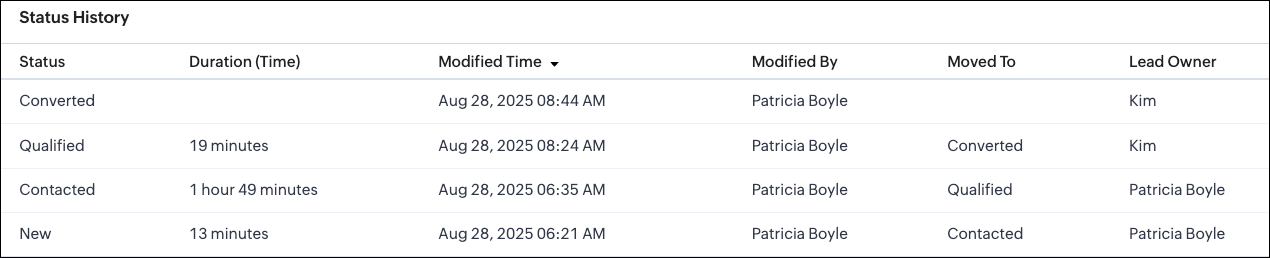
Sample Response via API
Whenever a picklist option changes, the system creates a new record in the related list module. In this example, Status History is the related list module. The sample response below shows how a particular change looks when retrieved using the Get Records API.
Request URL : {{api-domain}}/crm/v8/Status_History/5725767000007739323
Request Method : GET
Sample Response
{ "data": [ { "Status": "Contacted", "$approval": { "delegate": false, "takeover": false, "approve": false, "reject": false, "resubmit": false }, "Modified_Time": "2025-08-28T06:35:15-07:00", "$currency_symbol": "$", "$field_states": null, "$review_process": null, "$editable": true, "Duration_Time": "6568847", //The system stores the duration in milliseconds. "$sharing_permission": "full_access", "Lead_Owner": { "name": "Patricia Boyle", "id": "5725767000000411001" }, "Moved_To__s": "Qualified", "$orchestration": false, "Last_Activity_Time": "2025-08-28T08:24:44-07:00", "Full_Name": { "name": "Zylker", "id": "5725767000007735001" }, "Modified_By": { "name": "Patricia Boyle", "id": "5725767000000411001", }, "$review": null, "$process_flow": false, "$in_merge": false, "id": "5725767000007739350", "$approval_state": "approved", "$pathfinder": false, "$zia_visions": null } ] } |
Note :
- You can select up to 10 fields in total, with a maximum of 5 user fields for all modules except Deals.
- Encrypted fields cannot be specified.
- In the Deals module,
- History tracking is enabled by default for the Stage picklist field.
- You cannot enable history tracking for any other picklist field in the Deals module.
- You can only update the existing Stage picklist field using the Update Custom Field API.
- You can add up to 6 followed fields, with a maximum of 5 user fields.
We hope this post helps you confidently manage picklists and track their history in Zoho CRM. Try it out, and let us know your experience in the comment section or reach out to us at support@zohocrm.com
Stay tuned for more insights in our upcoming Kaizen posts!
Cheers!

Previous Kaizen : Kaizen# 204 - Answering Your Questions - Perform Field Updates before Blueprint transition via Client Script | Kaizen Directory : Home
Related Links :
Topic Participants
Subramanian K
Sticky Posts
Kaizen #198: Using Client Script for Custom Validation in Blueprint
Nearing 200th Kaizen Post – 1 More to the Big Two-Oh-Oh! Do you have any questions, suggestions, or topics you would like us to cover in future posts? Your insights and suggestions help us shape future content and make this series better for everyone.Kaizen #226: Using ZRC in Client Script
Hello everyone! Welcome to another week of Kaizen. In today's post, lets see what is ZRC (Zoho Request Client) and how we can use ZRC methods in Client Script to get inputs from a Salesperson and update the Lead status with a single button click. In thisKaizen #222 - Client Script Support for Notes Related List
Hello everyone! Welcome to another week of Kaizen. The final Kaizen post of the year 2025 is here! With the new Client Script support for the Notes Related List, you can validate, enrich, and manage notes across modules. In this post, we’ll explore howKaizen #217 - Actions APIs : Tasks
Welcome to another week of Kaizen! In last week's post we discussed Email Notifications APIs which act as the link between your Workflow automations and you. We have discussed how Zylker Cloud Services uses Email Notifications API in their custom dashboard.Kaizen #216 - Actions APIs : Email Notifications
Welcome to another week of Kaizen! For the last three weeks, we have been discussing Zylker's workflows. We successfully updated a dormant workflow, built a new one from the ground up and more. But our work is not finished—these automated processes are
Recent Topics
Calling the new 'Custom API' feature from within a Custom Widget
From what I've learned it is not possible to call an endpoint from the new "Custom API" feature within a Creator Widget. The SDK's doesn't support it yet, when calling it natively you end up with CORS issues or at least I couldn't get it working evenCannot post to Instagram. I get the error: Insufficient permission to publish on this page. Check with your page Admin to update permissions.
We had another admin that left the company. Since he left, we get this error when posting to Instagram.Zoho desk desktop application
does zoho desk has a destop applicaion?Ability to re-order Workflow Rules
We really need the ability to re-order workflow rules within departments. Either the ability to drag/drop them into a different order or something.Create an article template
I have a question concern the Knolwedge Database from Zoho Desk. There is any possibility to create an article template ? Exemple of what I research : TODAY : I want to create a lot af articles with the same baseline > I create one article > I copy/pasteChange of Blog Author
Hi, I am creating the blog post on behalf of my colleague. When I publish the post, it is showing my name as author of the post which is not intended and needs to be changed to my colleague's name. How can I change the name of the author in the blogs?? Thanks, RamananZoho FSM API Delete Record
Hi FSM Team, It would be great if you could delete a record via API. Thank you,Instant Messaging Update | Now migrate your WhatsApp Business phonenumber from another BSP to Zoho Desk | Dec'23
Hi All, Everything seems to move at lightning speed these days, and time is certainly flying by for the IM team. But we are delighted at how much ground we covered this year. 🚀 For one, we enabled WhatsApp business phone number migration so that youUpload ticket attachments via Drag-&-Drop
Hello, if you want to upload a file to the ticket attachment you need to click the button and use the file browser to select and upload the desired file. In many cases, it would be much more efficient if you could simply drag the file to the browser window...Can we disable add to cart in Zoho Commerce?
Hello, Our sales happen on the phone. During the call the customer is directed to our website to inspect the products together with the sales rep. So we need a way to present our inventory. I figured Zoho Commerce is a good fit for this use case. HoweverIntroducing WhatsApp integration in Bigin
Greetings! In today's business landscape, messaging apps play a significant role in customer operations. Customers can engage with businesses, seek support, ask questions, receive personalized recommendations, read reviews, and even make purchases—allZoho One account closure vs deactivation
I wonder what are the best practices and guidelines around deactivating vs deleting Zoho accounts in organisations? Any practical considerations?Global Search placement in the new UI
Having a hard time with the global search placement in the UI redesign. Surely I can't be the only one. Previously global search placement was perfect. A bar at the top/center of the page. Exactly where you would expect it to be. Since the new UI hasSchedule Zoho CRM reports only on Business Days
Hello, Is it possible to schedule reports only on business days ? We currently get daily sales reports on weekend which has no value since the sales team doesn't work on weekends. ThanksHow to install Widget in inventory module
Hi, I am trying to install a app into Sales Order Module related list, however there is no button allow me to do that. May I ask how to install widget to inventory module related list?How to track a contact or customer's past product purchases in Bigin Premiere?
Hello there. I am the sole user of Bigin for a small company (chess club), and would like to track current and past purchases made by a contact (player) or company (family which includes the player). Players may register for multiple tournaments, takeLENTITUD EN RECIBIR MAIL
Buenas tardes, Estamos experimentando lentitud en la recepción de correos electrónicos.Items should display under specific warehouse
I have configured the multi warehouse but it show all the items under all warehouse which is not correct according to our business logic, so i want that items should only display under that specific warehouse not under all the warehouses not even with zero quantity. Some items should be common but not all so is there any option for that purpose so i can specific the items to its warehouse. RegardsPartial refunds
I am trying to process refund for a one item invoice, however the refund is partial: i am getting this error while creating credit note, can anyone share some wisdom about thisBest practice importing items and matching assemblies
Hi, I was wondering what would be the best practice to import items and composite items (assemblies) From my backup, what should I import first? The items or the composite items? I am on Zoho one, using inventory and books. Kind regards, SabineBulk Fill In & Edit PO/Bill/SO/Invoice
Hello, I am adding stock in bulk on a PO, the system is automatically populating the Rate (price) and Tax from the item data. Problem is that the bill rate is different from the rate on the item data, so I have to manually erase each and enter the price.Separate Items & Services
Hi, please separate items and services into different categories. Thank youItems Below Reorder Point Report?
Is there a way to run a report of Items that are below the Reorder Point? I don't see this as a specific report, nor can I figure out how to customize any of the other stock reports to give me this information. Please tell me I'm missing something sCancelled Transfer order problem
Hello, We've canceled a transfer order, and we can't add the related items to a new Transfer Order. The system tells us that the bin doesn't have the required quantity, but when we check the item, it indicates that there are 2 units in the bin. It alsoCreating a Chart from a Report
In Zoho Analytics, is it possible to create a chart from a Pivot View report? We are looking to use Zoho Analytics to replace Excel for Sales reports and would like to be able to show both the table and the chart together.Client Portal ZOHO ONE
Dear Zoho one is fantastic option for companies but it seems to me that it is still an aggregation of aps let me explain I have zoho books with client portal so client access their invoice then I have zoho project with client portal so they can access their project but not their invoice without another URL another LOGIN Are you planning in creating a beautiful UI portal for client so we can control access to client in one location to multiple aps at least unify project and invoice aps that wouldEmail Insights included in Bigin emals are marked as SPAM everywhere
Today I noticed that email recipients who use Office 365 never receive emails sent from Bigin. Further examination showed that all Email Insights links in email headers are marked as spam/phishing by Office 365. Example screen included. The problem isData Import | Zoho Analytics Custom Query Window Size
Please increase the window size for the Custom Query Data Import. It's impossible to work with such a small query window.Name changed in settings for mailbox but still not changed when typed in To field
In the email account secretary@ i have updaetd the new staff members details but the old members name still appears when I type secretary@ in the To field. I cant work out where Zoho is finding the old name from. I have deleted the browser cache. If ICannot add my name to my domain name
I want to have My name@mydomain.com and it says my name is linked to another account already. Please fix it since I do not have another account.Invoice status on write-off is "Paid" - how do I change this to "Written off"
HI guys, I want to write off a couple of outstanding invoices, but when I do this, the status of the invoices shows as "Paid". Clearly this is not the case and I need to be able to see that they are written off in the customer's history. Is there a wayEstablishing new Zoho email account on laptop
Good Morning: I am very long time Outlook business user and decided to try your email service last night and had established an account. I am trying to verify my account; how do I establish my Zoho email account on my laptop? I opened the account withunable to send message reason 550 5.4.6 unusual sending activity
My email account can't send message. It shows unable to send message reason 550 5.4.6 unusual sending activity detectedhow to add email to existing organization i w
I am already registered my organization and i have an email id. I need one more email id but i can't find anywhere .i want the cheapest email id . how to add ?e-mail bloqueado
Estou com meu e-mail lucas@peplus.me bloqueado, preciso desbloquear para retorno de usos em minhas atividades.zoho labels api not working
We're using n8n to automte email reply using zoho api. I'm facing issue with label api. I added the required scopes but its not working. i followed zoho api documentation but didn't work. also, where do i find/how do i create zoho oauth token mentioneeedDesk DMARC forwarding failure for some senders
I am not receiving important emails into Desk, because of DMARC errors. Here's what's happening: 1. email is sent from customer e.g. john@doe.com, to my email address, e.g info@acme.com 2. email is delivered successfully to info@acme.com (a shared inboxStreams/Shared email doesn't show up in windows trident app. It works fine on MAC. Is there any difference between 2 install ?
I can see streams/share email boxs on my MAC version of trident app but i can't see them in windows version of trident app. Is there any difference between 2 install? I try to find setting but not able to see any setting to add stream/share email boxes.add zoho account
How to add a zoho mail to previous zoho account? I have twoZoho Desk Mobile App Year-End Roundup - 2025
Dear Zoho Desk users, Greetings! As you gear up for the festive season, we are excited to share a quick journey into all that is released in 2025! Zia's generative AI capabilities Zia insights can be highly beneficial in helping agents manage daily supportNext Page