Kaizen #205 - Answering Your Questions | Managing Picklists and Enabling History Tracking via Zoho CRM APIs
Hello everyone!
Welcome back to another post in our Kaizen series.
In this post, we will look at how you can manage picklist fields in Zoho CRM using APIs. This topic was raised as feedback to Kaizen #200, so we are taking it up here with more details.

In this post, we will cover the following:
- What is a picklist field in Zoho CRM?
- Picklist vs Multi-select Picklist
- Working with picklist fields via APIs
- Creating a picklist field using the Create Custom Field Metadata API
- Updating a picklist field using the Update Custom Field Metadata API
- Assigning picklist values when creating records using the Insert Records API
- Updating picklist values in existing records using the Update Records API
- History tracking for picklists
- What is history tracking for picklists in Zoho CRM?
- Use case
- Enabling history tracking for a picklist using the Create Custom Fields API
What is a picklist field in Zoho CRM?
A Picklist field is a drop-down field in Zoho CRM that contains a predefined list of values. While creating or updating a record, you can select one value from this list instead of entering it manually. This helps you avoid typing errors.
Example :
A Region field with values East, West, North, and South.
If a lead is from the East, the user simply selects East from the picklist instead of typing it manually.
Picklist vs Multi-select Picklist
Picklist | Multi-select Picklist |
Users can select only one value from the list. | Users can select multiple values at once. |
A standard Region picklist works when a record belongs to only one region. Example : East | A Multi-select Region picklist works when a record spans multiple regions. Example : East, North |
Global picklist / Global set : User can create a picklist in common and associate the created picklist across the modules to maintain accuracy. Refer to Kaizen #161: Global Sets using Zoho CRM APIs for more details.
Working with picklist fields via APIs
Creating a picklist field using the Create Custom Field API
You can create a new Picklist field in a module by calling the Create Custom Field Metadata API. For example, you can create a picklist field named Region with the values: East, West, North, South.
Request URL : {{api-domain}}/crm/v8/settings/fields?module=Leads
Request Method : POST
Sample Input
When creating a picklist field, set its data type as picklist and provide the list of options, each with a mandatory display_value. You can also configure additional properties such as actual_value, lexical sorting, and color coding.
{ "fields": [ { "field_label": "Select Region", "data_type": "picklist", // Specify the data type as picklist "tooltip": { "name": "info_icon", "value": "Select your region here" }, "profiles": [ { "id": "5725767000000026011", "permission_type": "read_write" } ], "pick_list_values": [ { "display_value": "East", //The unique display value for the picklist, which will be displayed in the CRM UI. Use the display_value in API requests during create, update, and upsert operations. "actual_value": "IN_East" //The unique reference value associated with the particular option. }, { "display_value": "West", "actual_value": "IN_West" }, { "display_value": "North", "actual_value": "IN_North" }, { "display_value": "South", "actual_value": "IN_South" } ], "pick_list_values_sorted_lexically": true, //Sorts options alphabetically. Default value is false. "enable_colour_code": true //Allows color coding for picklist options. Default value is false. } ] } |
Note : To create a multi-select picklist field, set the data_type key to multiselectpicklist in the request body ("data_type": "multiselectpicklist").
Sample Response
{ "fields": [ { "code": "SUCCESS", "details": { "id": "5725767000007613005" }, "message": "field created", "status": "success" } ] } |
Updating a picklist field using the Update Custom Field API
The PATCH - Field Metadata API lets you modify an existing Picklist field. Use the Get Fields Metadata API to get your picklist field ID.
You can:
- Add new options
- Update the picklist
- Remove existing options using Update Custom Layout API
Here is a sample request that updates the Select Region dropdown field in the Leads module.
Request URL : {{api-domain}}/crm/v8/settings/fields/5725767000007613005?module=Leads
Request Method : PATCH
Adding a new option to the existing picklist field
Sample Input
{ "fields": [ { "pick_list_values": [ { "display_value": "Central", //adding a new option to the existing picklist field "actual_value": "IN_Central" } ], } ] } |
Updating picklist
{ "fields": [ { "profiles": [ { "id": "5725767000000026011", "permission_type": "read_only" //updating the permission_type } ], "pick_list_values": [ { "display_value": "South Region", //updating the display field's value "id": "5725767000007613010" //unique ID of the option } ], "enable_colour_code": false //disabling color code for the options } ] } |
Note : Use the actual_value or unique ID of a picklist option to update its display value. Use the Get Fields Metadata API or Get Layouts Metadata API to get the details.
Removing existing options using Update Custom Layout API
To remove picklist values, keep only the required options in your input. Any options not included in the request will automatically move to the unused section.
First, fetch the required layout, section, field, and option IDs using the Get Layouts Metadata API. Then, in your request body, specify only the picklist values you want to retain.
Request URL : {{api-domain}}/crm/v8/settings/layouts/5725767000000091055?module=Leads
Request Method : PATCH
Sample Input
{ "layouts": [ { "id": "5725767000000091055", //layout id "sections": [ { "id": "5725767000000209001", //section id "fields": [ { "id": "5725767000007613005", //field id "pick_list_values": [ { "display_value": "Central", "id": "5725767000007626001" }, { "display_value": "East", "id": "5725767000007613004" } ] } ] } ] } ] } |
Here, Central and East regions remain as active picklist options, and West, North, and South regions are moved to the unused section.
Updated response
Use the Get Fields Metadata API to check the updated response. The Central and East are still active options (type: used), and North, South, and West are inactive options (type: unused)
{ "fields": [ . . . { "field_label": "Select Region", "id": "5725767000007613005", "api_name": "Select_Region", "pick_list_values": [ { "display_value": "-None-", "sequence_number": 1, "reference_value": "-None-", "colour_code": null, "actual_value": "-None-", "id": "5725767000007613013", "type": "used" //default option }, { "display_value": "Central", "sequence_number": 6, "reference_value": "Central", "colour_code": null, "actual_value": "IN_Central", "id": "5725767000007626001", "type": "used" }, { "display_value": "East", "sequence_number": 2, "reference_value": "East", "colour_code": null, "actual_value": "IN_East", "id": "5725767000007613004", "type": "used" }, { "display_value": "North", "sequence_number": 4, "reference_value": "North", "colour_code": null, "actual_value": "IN_North", "id": "5725767000007613008", "type": "unused" }, { "display_value": "South", "sequence_number": 5, "reference_value": "South", "colour_code": null, "actual_value": "IN_South", "id": "5725767000007613010", "type": "unused" }, { "display_value": "West", "sequence_number": 3, "reference_value": "West", "colour_code": null, "actual_value": "IN_West", "id": "5725767000007613006", "type": "unused" } ], "data_type": "picklist" } ] } |
Assigning picklist values using the Insert Records API
When you insert a record, you can directly pass the picklist option’s display value (not the ID) in the request body.
Request URL : {api-domain}/crm/v8/{module_api_name}
Request Method : POST
Sample Input
{ "data": [ { "Company": "Zylker", "Last_Name": "David", "Select_Region": "Central" // Picklist value to assign } ] } |
Note:
- When creating, updating, or upserting records,
- You can either pass an existing picklist value or add a new one, through the API. Please note that the new value will only be stored in that record, and will not be added to the picklist field’s metadata.
- In the UI, you can only select from the available dropdown options.
- Always use the display_value of the picklist option, not the picklist option’s ID.
- You can also assign the default option (-None-). In this case, the picklist field’s value will be stored as null ("Select_Region": null)
Sample Response
{ "data": [ { "code": "SUCCESS", "details": { "Modified_Time": "2025-08-23T04:51:39-07:00", "Modified_By": { "name": "Patricia Boyle", "id": "5725767000000411001" }, "Created_Time": "2025-08-23T04:51:39-07:00", "id": "5725767000007623017", "Created_By": { "name": "Patricia Boyle", "id": "5725767000000411001" } }, "message": "record added", "status": "success" } ] } |
Updating picklist values in existing records using the Update Records API
When updating, you also use the picklist display value in the field.
Request URL : {api-domain}/crm/v8/Leads/5725767000007628002
Request Method : PUT
Sample Input
{ "data": [ { "Select_Region": "West" // New picklist value } ] } |
This will replace the existing picklist value with West.
History tracking for picklists
What is history tracking for picklists in Zoho CRM?
You can enable history tracking for a picklist field using the Create Custom Field API. Once enabled, Zoho CRM automatically creates a related list for the tracked picklist and a separate module.
Every time the picklist value changes, Zoho CRM creates a new entry in this related list. Each entry shows the old value, the new value, who made the change, and when it was made, and how long the record stayed in the previous value before moving to the next one.
Use case
Zylker's sales team tracks lead progress through the statuses such as New, Contacted, Qualified, and Converted. The team wants to know how long a lead remains in each status and identify if follow-ups are delayed or leads are not progressing.
You can achieve this by enabling history tracking on the Status picklist. You can also monitor every status change, who made it, and how long the lead stayed in the previous status. This helps the team monitor, identify delays, and improve the follow-up process.
The log stores:
- New Value - updated region in the Moved_To__s key.
- Changed By - user who made the update in the Modified_By key.
- Changed On - date and time when the region was changed in the Last_Activity_Time key.
- Duration - how long the record stayed in the previous value before the change in the Duration_Time and Duration_Days keys.
Enabling history tracking for a picklist using the Create Custom Fields API
Request URL : {{api-domain}}/crm/v8/settings/fields?module=Leads
Request Method : POST
Sample Input
{ "fields": [ { "field_label": "Status", "data_type": "picklist", "pick_list_values": [ { "display_value": "New", "actual_value": "New" }, { "display_value": "Contacted", "actual_value": "Contacted" }, { "display_value": "Qualified", "actual_value": "Qualified" }, { "display_value": "Converted", "actual_value": "Converted" } ], "history_tracking_enabled": true, //(mandatory) Enables history tracking for the picklist "history_tracking": { "related_list_name": "Status History", //Lets you give a custom name to the history related list that CRM creates. "duration_configuration": "time", //Decides how to track the timing of changes: days - History is tracked by days and time - History is tracked by time. Note : Before specifying the time value, enable the duration customization feature in your organization by contacting support@zohocrm.com. "followed_fields": [ // The followed_fields lets you retrieve additional field values whenever the picklist value changes. { "api_name": "Owner" } ] } } ] } |
Sample Response in UI
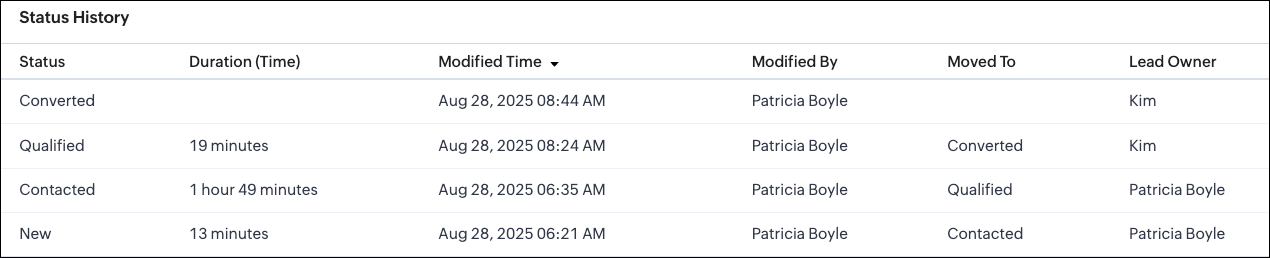
Sample Response via API
Whenever a picklist option changes, the system creates a new record in the related list module. In this example, Status History is the related list module. The sample response below shows how a particular change looks when retrieved using the Get Records API.
Request URL : {{api-domain}}/crm/v8/Status_History/5725767000007739323
Request Method : GET
Sample Response
{ "data": [ { "Status": "Contacted", "$approval": { "delegate": false, "takeover": false, "approve": false, "reject": false, "resubmit": false }, "Modified_Time": "2025-08-28T06:35:15-07:00", "$currency_symbol": "$", "$field_states": null, "$review_process": null, "$editable": true, "Duration_Time": "6568847", //The system stores the duration in milliseconds. "$sharing_permission": "full_access", "Lead_Owner": { "name": "Patricia Boyle", "id": "5725767000000411001" }, "Moved_To__s": "Qualified", "$orchestration": false, "Last_Activity_Time": "2025-08-28T08:24:44-07:00", "Full_Name": { "name": "Zylker", "id": "5725767000007735001" }, "Modified_By": { "name": "Patricia Boyle", "id": "5725767000000411001", }, "$review": null, "$process_flow": false, "$in_merge": false, "id": "5725767000007739350", "$approval_state": "approved", "$pathfinder": false, "$zia_visions": null } ] } |
Note :
- You can select up to 10 fields in total, with a maximum of 5 user fields for all modules except Deals.
- Encrypted fields cannot be specified.
- In the Deals module,
- History tracking is enabled by default for the Stage picklist field.
- You cannot enable history tracking for any other picklist field in the Deals module.
- You can only update the existing Stage picklist field using the Update Custom Field API.
- You can add up to 6 followed fields, with a maximum of 5 user fields.
We hope this post helps you confidently manage picklists and track their history in Zoho CRM. Try it out, and let us know your experience in the comment section or reach out to us at support@zohocrm.com
Stay tuned for more insights in our upcoming Kaizen posts!
Cheers!

Previous Kaizen : Kaizen# 204 - Answering Your Questions - Perform Field Updates before Blueprint transition via Client Script | Kaizen Directory : Home
Related Links :
Topic Participants
Subramanian K
Sticky Posts
Kaizen #198: Using Client Script for Custom Validation in Blueprint
Nearing 200th Kaizen Post – 1 More to the Big Two-Oh-Oh! Do you have any questions, suggestions, or topics you would like us to cover in future posts? Your insights and suggestions help us shape future content and make this series better for everyone.Kaizen #226: Using ZRC in Client Script
Hello everyone! Welcome to another week of Kaizen. In today's post, lets see what is ZRC (Zoho Request Client) and how we can use ZRC methods in Client Script to get inputs from a Salesperson and update the Lead status with a single button click. In thisKaizen #222 - Client Script Support for Notes Related List
Hello everyone! Welcome to another week of Kaizen. The final Kaizen post of the year 2025 is here! With the new Client Script support for the Notes Related List, you can validate, enrich, and manage notes across modules. In this post, we’ll explore howKaizen #217 - Actions APIs : Tasks
Welcome to another week of Kaizen! In last week's post we discussed Email Notifications APIs which act as the link between your Workflow automations and you. We have discussed how Zylker Cloud Services uses Email Notifications API in their custom dashboard.Kaizen #216 - Actions APIs : Email Notifications
Welcome to another week of Kaizen! For the last three weeks, we have been discussing Zylker's workflows. We successfully updated a dormant workflow, built a new one from the ground up and more. But our work is not finished—these automated processes are
Recent Topics
Sortie de Zoho TABLE ??
Bonjour, Depuis bientôt 2 ans l'application zoho table est sortie en dehors de l'UE ? Depuis un an elle est annoncée en Europe Mais en vrai, c'est pour quand exactement ??Drop Down Value
Hi, May I know why Zoho Flow treat this drop down as number and not as string. If so, how can I fetch the right value for filtering. This field is from Creator, in Creator upon checking by default it is a string since it's not a lookup field.Zoho CRM's mobile apps: A 2025 Recap
2025 marked a year of steady progress for Zoho CRM's mobile apps. We rolled out several updates and features to improve usability and make everyday CRM work a lot easier to manage. Here’s a look back at some of the key releases from 2025. Android releasesFacebook follower count doesn't match FB Analytics
Hi all, I am wondering if anyone else has issues with follower counts for Facebook not matching FB's native analytics tool. On the Zoho dashboard, it's showing 1,007, but FB shows 1,060. All the other channels match up. Any insights are much appreciated!Meta and Facebook data report discrepancy
I have been currently gathering manually facebook follower data thru meta. In zoho marketing plus the social media reporting only allows for page likes, and so there is a discrepancy with the data. please the difference in files attached. Is there wayUnlocking New Levels: Zoho Payroll's Journey in 2025
Every year brings its own set of challenges and opportunities to rethink how payroll works across regulations and teams. In 2025, Zoho Payroll continued to evolve with one clear focus: giving businesses more flexibility, clarity, and control as they grow.Can I export all attachments from Zoho CRM?
Can I export all attachments from Zoho CRM?Community Digest — Noviembre y Diciembre 2025
¡Hola, Comunidad de Zoho en Español! Cerramos el año de la mejor forma con nuestro último Community Digest de 2025, donde podrás encontrar las últimas novedades de nuestros productos. ¿Todo listo para empezar 2026 con el mejor pie? ¡Vamos a ello! ZohoZoho Projects Plus’ 2025- the year we launched
We’ve been building project management tools for the past 19 years, and a question we often hear is: Different teams in our organization prefer different project management methods; while the development team prefers agile, the marketing and sales teamsZoho Books emails suddenly going to Spam since 11 Nov 2025 (Gmail + now Outlook) — anyone else?
Hi everyone, We migrated to Zoho Books in July 2025 and everything worked fine until 11 Nov 2025. Since then, Zoho Books system emails are landing in customers’ Spam (first Gmail, and now we’re seeing Outlook/Office 365 also starting to spam them). ImpactedHow do you print a refund check to customer?
Maybe this is a dumb question, but how does anyone print a refund check to a customer? We cant find anywhere to either just print a check and pick a customer, or where to do so from a credit note.Company Multiple Branch/ Location Accounting
Hi All, anyone know whether company can maintain their multiple Branch Accounting in Zoho Books. It will be chart of Accounts & Master Data will be same but different report available as per per Branch. Thanks & regards, Vivek +91 9766906737Zoho Books Invoices Templates
It would be really helpful to have more advanced features to customise the invoice templates in Zoho Books. Especially I´m thinking of the spacing of the different parts of the invoice (Address line etc.). If you have a sender and receiver address inEmail Administrators! Join our tips & troubleshooting series
Greetings to all the admins out there! This announcement is exclusively for you. As we step into the New Year, we’re excited to start a dedicated series of admin-specific tips curated to support you. These posts will help you overcome everyday challengesDeprecation of the Zoho OAuth connector
Hello everyone, At Zoho, we continuously evaluate our integrations to ensure they meet the highest standards of security, reliability, and compliance. As part of these ongoing efforts, we've made the decision to deprecate the Zoho OAuth default connectorFree Webinar : Unlock AI driven business insights with Zoho Inventory + Zoho Analytics
Are you tired of switching between apps and exporting data to build customized reports? Say hello to smarter & streamlined insights! Join us for this exclusive webinar where we explore the power of the Zoho Inventory–Zoho Analytics integration. LearnImport Function: ONLY update empty fields
When setting up an import from a spreadsheet to CRM, there is a checkbox "Don't update empty values for existing contacts" (see screenshot below). While I see some limited benefit from this functionality, I think there should also be an "ONLY update emptyBegin the year with best practices in the Zoho Desk mobile app : Part 2
In focus: Optimizing collaboration and supervision Let's begin 2026 with Part 2 of our tips series on driving your ticketing operations at your fingertips. In Part 1, we explored streamlining operations within tickets. This helped individuals at OmniserveHow to update "Lead Status" to more than 100 records
Hello Zoho CRM, How do I update "Lead Status" to more than 100 records at once? To give you a background, these leads were uploaded or Imported at once but the lead status record was incorrectly chosen. So since there was a way to quickly add records in the system no matter how many they are, we are also wondering if there is a quicker way to update these records to the correct "Lead Status". I hope our concern makes sense and that there will be a fix for it. All the best, JonathanJWT Token authentication problem that sometimes generates infinite redirect loops
Description : Nous proposons un bouton sur notre plateforme permettant de rediriger l'utilisateur vers le portail ZohoDesk via un jeton JWT pour une authentification transparente. Cependant, il arrive que certains utilisateurs soient pris dans une boucleZOHO Work Drive Back Up
I am looking for a ZOHO Work Drive backup solution. Something that is cloud based. There's lots of these kinds of options for Google Drive and other providers, but I have not seen anything for WorkDrive. Any suggestions?ZOHO Reports - Filter Logic?
Hi, I need a way to apply filter logics such as ((1 AND 2) OR 3). All I can see as of now is a way to enter different AND filters in the respective filter column. But how can I add an OR filter? Any advice would be highly appreciated. MarkScanned Doc - selecting Item overwrites Rate
I have a Vendor Invoice which was uploaded to Documents. I select Add To > New Bill. The OCR is actually quite good, but it is reading an Item Description instead of an Item Number. I remove the description and select the correct Item Number... and itRecruit API search
Hi all, Attempting to call the search api endpoint from Postman using the word element as mentioned in api docs Search Records - APIs | Online Help - Zoho Recruit When making the call to /v2/Candidates/search?word=Saudi receive response of { "code": "MANDATORY_NOT_FOUND",Saving reading position + Keep screen on
While Zoho Notebook is excellent for saving and annotating articles, its utility is severely limited by the lack of reading progress synchronization. On the Android app, if a user exits a long note after reading 50%, the app fails to save the position.Multiple Vendor SKUs
One of the big concerns we have with ZOHO Inventory is lack of Vendor Skus like many other inventory software packages offer. Being able to have multiple vendor skus for the same product would be HUGE! It would populate the appropriate vendor Sku forZoho LandingPage is integrated with Zoho One!
Greetings to the Zoho One users out there! We're delighted to let you know that Zoho LandingPage is available in Zoho One too! With Zoho LandingPage, you can host custom-made landing pages, and persuade the visitors to dive deeper by making further clicks,Android app sync problem - multiple devices have same problem
Hello, I am having a problem with synchronization in the Android app. When I create a drawing, the data does not sync correctly—only a blank note is created without the drawing. I tested this on multiple devices, including phones and tablets, and theHow can i resend a campaign to only one of the recipients on the original campaign
How can i resend a campaign to only one of the recipients on the original campaign ? Sincererly, MikeHow to show branch instead of org name on invoice template?
Not sure why invoices are showing the org name not the branch name? I can insert the branch name using the ${ORGANIZATION.BRANCHNAME} placeholder, but then it isn't bold text anymore. Any other ideas?Marketing Automation Requirements Questions
I would like to set up a multi-email drip campaign- please see the structure below and confirm if I can achieve this set up in Zoho marketing automation. Where applicable, highlight gaps and workarounds. Thanks Drip email campaign- Can I create one dripQuestion about using custom_fields in Storefront Add-to-Cart API (error 2003 – required details)
Hi everyone, I’m working with the Zoho Commerce Storefront API, specifically the Add to Cart endpoint: POST /storefront/api/v1/cart According to the documentation, this endpoint supports a custom_fields parameter for adding line-item custom data. I’mCan a project be cloned?
Good afternoon, greetings. I would like to ask if it's possible to clone a project in Microsoft Project. I found a way to do it using templates, but I'm not sure if there's a direct way to clone a project. Thank you in advance for your attention, andTimesheet Tasks in Zoho Books: associate to service item
How do we associate a service item to timesheet tasks in Zoho Books? For example: Joe spent 5 hours on project:task1 which is Service Item#1 (Income:Service1). When the invoice is issued thru the Project Invoice section, this is not available. When theTask/Activity indicator in SalesPipeline overview has disappeared
I Just logged in my ZOHO CRM first 2026 checking my salespipeline overview , Every record card used to show an indication that there was an open task (Yellow if the expiry date was close, red if the expiry date was today and grey when it had expired).Tip #56- Accessibility Controls in Zoho Assist: Hearing- 'Insider Insights'
As we begin the new year, it’s a great time to focus on making our tools more inclusive and accessible for everyone. Remote support often involves long hours in front of screens, varying lighting conditions, and users with diverse accessibility needs.Zoho Desk Android app update: Table view for All Departments view, custom button
Hello everyone! In the latest version(v2.9.25) of the Zoho Desk Android app update, we have introduced Table view for the 'All Departments' view in the ticket module. We also have supported an option that allows tickets in the Table view to be sortedWhat's New - December 2025 | Zoho Backstage
In December, Backstage introduced a focused set of updates that improve how you manage registrations, communicate with attendees, and track participation. These enhancements are designed to give organizers greater flexibility and clearer control acrossAdd multiple users to a task
When I´m assigning a task it is almost always related to more than one person. Practical situation: When a client request some improvement the related department opens the task with the situation and people related to it as the client itself, the salesmanA Roundup of Zoho Sprints 2025
Next Page